
Knowledgebase (2370)
Children categories
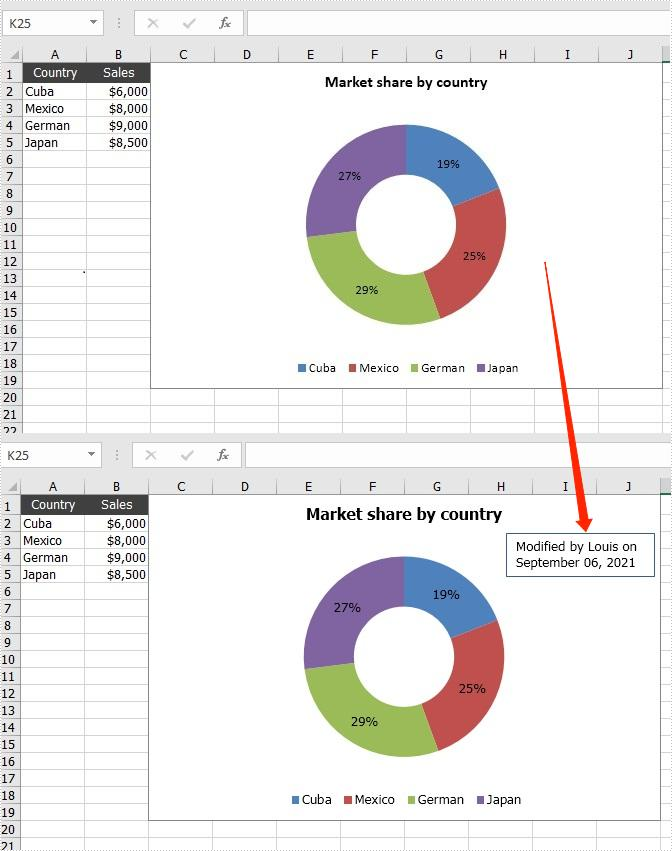
Text box allows people to enter text in it and move it arbitrarily. When dealing with the chart in Excel document, if the text description of the original chart is not specific enough, you can add additional information to the chart by adding text boxes to it. This article will introduce how to add a text box to a chart programmatically using Spire.XLS for Java.
Install Spire.XLS for Java
First of all, you're required to add the Spire.Xls.jar file as a dependency in your Java program. The JAR file can be downloaded from this link. If you use Maven, you can easily import the JAR file in your application by adding the following code to your project's pom.xml file.
<repositories>
    <repository>
        <id>com.e-iceblue</id>
        <name>e-iceblue</name>
        <url>https://repo.e-iceblue.com/nexus/content/groups/public/</url>
    </repository>
</repositories>
<dependencies>
    <dependency>
        <groupId>e-iceblue</groupId>
        <artifactId>spire.xls</artifactId>
        <version>16.7.3</version>
    </dependency>
</dependencies>
Add a Text Box to a Chart
The detailed steps are listed as below.
- Create a Workbook instance and load a sample Excel document using Workbook.loadFromFile() method.
- Get a specified worksheet using Workbook.getWorksheets().get() method.
- Get a specific chart using Worksheet.getCharts().get() method.
- Add a text box to the chart using Chart.getShapes().addTextBox() method, and then add text content in the text box using ITextBoxLinkShape.setText() method.
- Set the size and position of the added text box using the method offered by ITextBoxLinkShape interface.
- Save the document to file using Workbook.saveToFile() method.
- Java
import com.spire.xls.*;
import com.spire.xls.core.*;

public class addTextBoxToChart {
    public static void main(String[] args)throws Exception {
        //Create a Workbook instance
        Workbook workbook = new Workbook();

        //Load an Excel document
        workbook.loadFromFile("DoughnutChart.xlsx");

        //Get the first worksheet
        Worksheet sheet = workbook.getWorksheets().get(0);

        //Get the first chart
        Chart chart = sheet.getCharts().get(0);

        //Add a text box to the chart
        ITextBoxLinkShape textbox = chart.getShapes().addTextBox();
        textbox.setText("Modified by Louis on September 06, 2021");

        //Set the size and position of the text box
        textbox.setWidth(1100);
        textbox.setHeight(480);
        textbox.setLeft(2800);
        textbox.setTop(480);

        //Save the result file
        workbook.saveToFile("addTextBoxToChart.xlsx", ExcelVersion.Version2013);
    }
}
Apply for a Temporary License
If you'd like to remove the evaluation message from the generated documents, or to get rid of the function limitations, please request a 30-day trial license for yourself.
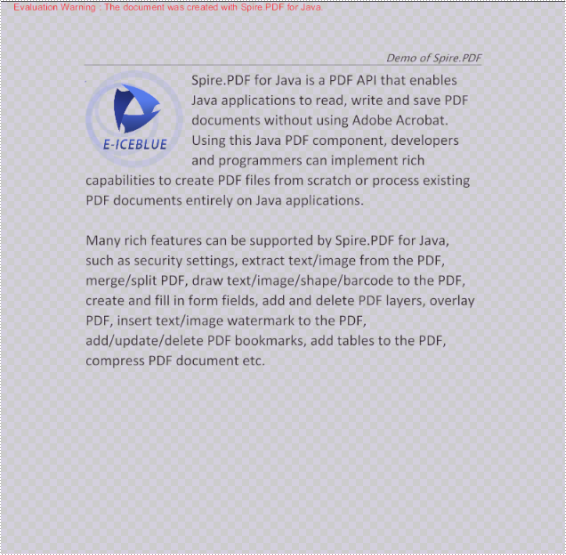
Spire.PDF for Java offers PdfDocument.saveAsImage() method to convert PDF document to image. From Version 4.11.1, Spire.PDF for Java supports to set the transparent value for the background of the resulted images during PDF to image conversion. This article will show you how to convert PDF to images with transparent background in Java applications.
Install Spire.PDF for Java
First of all, you need to add the Spire.PDF.jar file as a dependency in your Java program. The JAR file can be downloaded from this link. If you use Maven, you can easily import the JAR file by adding the following code to your project's pom.xml file.
<repositories>
    <repository>
        <id>com.e-iceblue</id>
        <name>e-iceblue</name>
        <url>https://repo.e-iceblue.com/nexus/content/groups/public/</url>
    </repository>
</repositories>
<dependencies>
    <dependency>
        <groupId>e-iceblue</groupId>
        <artifactId>spire.pdf</artifactId>
        <version>12.7.0</version>
    </dependency>
</dependencies>
Convert PDF to Images with Transparent Background
- Create an object of PdfDocument class.
- Load a sample PDF document using PdfDocument.loadFromFile() method.
- Specify the transparent value for the background of the resulted images using PdfDocument.getConvertOptions().setPdfToImageOptions() method.
- Save the document to images using PdfDocument.saveAsImage() method.
- Java
import com.spire.pdf.*;

import javax.imageio.ImageIO;
import java.awt.image.BufferedImage;
import java.io.File;


public class PdftoImage {
    public static void main(String[] args) throws Exception {

        //Create an object of PdfDocument class.
        PdfDocument pdf = new PdfDocument();

        //Load the sample PDF document
        pdf.loadFromFile("Sample.pdf");

        //Specify the background transparent value as 0 during PDF to image conversion.
        pdf.getConvertOptions().setPdfToImageOptions(0);

        //Save PDF to .png image
        BufferedImage image = pdf.saveAsImage(0);
        File file = new File( String.format("ToImage.png"));
        ImageIO.write(image, "PNG", file);
    }
}
Apply for a Temporary License
If you'd like to remove the evaluation message from the generated documents, or to get rid of the function limitations, please request a 30-day trial license for yourself.
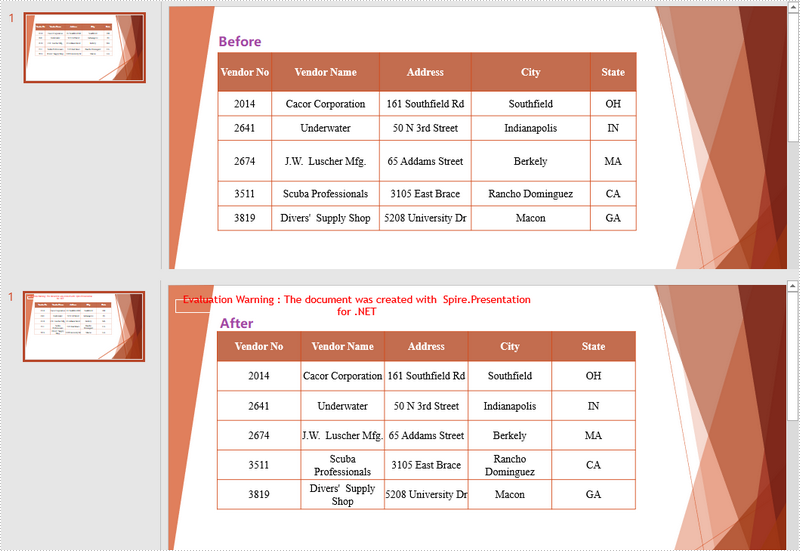
When creating a new table in PowerPoint, the rows and columns are evenly distributed by default. As you insert data into the table cells, the row heights and column widths will be automatically adjusted to fit with the contents. To make the table nicely organized, you may want to re-distribute the rows and columns. This article demonstrates how to accomplish this task in C# and VB.NET using Spire.Presentation for .NET.
Install Spire.Presentation for .NET
To begin with, you need to add the DLL files included in the Spire.Presentation for.NET package as references in your .NET project. The DLL files can be either downloaded from this link or installed via NuGet.
PM> Install-Package Spire.Presentation
Distribute Table Rows and Columns
The following are the steps to distribute table rows and columns evenly in PowerPoint.
- Create a Presentation object, and load the sample PowerPoint document using Presentation.LoadFromFile() method.
- Get the first slide through Presentation.Slides[0] property.
- Loop through the shapes in the first slide, and determine if a certain shape is a table. If yes, convert the shape to an ITable object.
- Distribute the table rows and columns using ITable.DistributeRows() method and ITable.DistributeColumns() method, respectively.
- Save the changes to another file using Presentation.SaveToFile() method.
- C#
- VB.NET
using Spire.Presentation;

namespace DistributeRowsAndColumns
{
    class Program
    {
        static void Main(string[] args)
        {
            //Create a Presentation instance
            Presentation presentation = new Presentation();

            //Load the PowerPoint document
            presentation.LoadFromFile(@"C:\Users\Administrator\Desktop\Table.pptx");

            //Get the first slide
            ISlide slide = presentation.Slides[0];

            //Loop through the shapes
            for (int i = 0; i < slide.Shapes.Count; i++)
            {
                //Determine if a shape is table
                if (slide.Shapes[i] is ITable)
                {
                    //Get the table in the slide
                    ITable table = (ITable)slide.Shapes[i];

                    //Distribute table rows
                    table.DistributeRows(0, table.TableRows.Count-1);

                    //Distribute table columns
                    table.DistributeColumns(0, table.ColumnsList.Count-1);

                }
            }

            //Save the result to file
            presentation.SaveToFile("DistributeRowsAndColumns.pptx", FileFormat.Pptx2013);
        }
    }
}
Imports Spire.Presentation

Namespace DistributeRowsAndColumns
    Class Program
        Shared  Sub Main(ByVal args() As String)
            'Create a Presentation instance
            Dim presentation As Presentation =  New Presentation()

            'Load the PowerPoint document
            presentation.LoadFromFile("C:\Users\Administrator\Desktop\Table.pptx")

            'Get the first slide
            Dim slide As ISlide =  presentation.Slides(0)

            'Loop through the shapes
            Dim i As Integer
            For  i = 0 To  slide.Shapes.Count- 1  Step  i + 1
                'Determine if a shape is table
                If TypeOf slide.Shapes(i) Is ITable Then
                    'Get the table in the slide
                    Dim table As ITable = CType(slide.Shapes(i), ITable)

                    'Distribute table rows
                    table.DistributeRows(0, table.TableRows.Count-1)

                    'Distribute table columns
                    table.DistributeColumns(0, table.ColumnsList.Count-1)

                End If
            Next

            'Save the result to file
            presentation.SaveToFile("DistributeRowsAndColumns.pptx", FileFormat.Pptx2013)
        End Sub
    End Class
End Namespace
Apply for a Temporary License
If you'd like to remove the evaluation message from the generated documents, or to get rid of the function limitations, please request a 30-day trial license for yourself.
