Knowledgebase (2370)
Children categories
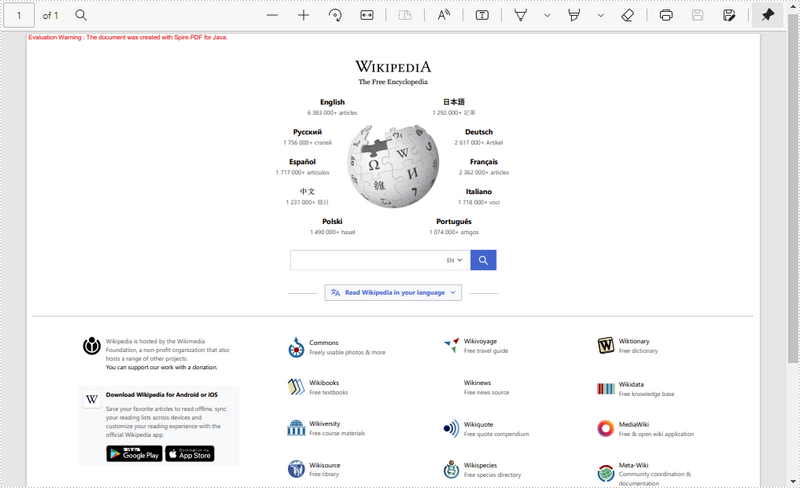
When processing HTML file, you may sometimes find them render differently depending on the browser and screen size. By converting HTML to PDF, you can maintain the layout and formatting of your HTML files, ensuring that the content looks consistent across devices and platforms. In this article, you will learn how to convert a HTML file or a HTML string to PDF in Java using Spire.Doc for Java.
Install Spire.Doc for Java
First of all, you're required to add the Spire.Doc.jar file as a dependency in your Java program. The JAR file can be downloaded from this link. If you use Maven, you can easily import the JAR file in your application by adding the following code to your project's pom.xml file.
<repositories>
    <repository>
        <id>com.e-iceblue</id>
        <name>e-iceblue</name>
        <url>https://repo.e-iceblue.com/nexus/content/groups/public/</url>
    </repository>
</repositories>
<dependencies>
    <dependency>
        <groupId>e-iceblue</groupId>
        <artifactId>spire.doc</artifactId>
        <version>14.7.0</version>
    </dependency>
</dependencies>
Convert an HTML File to PDF in Java
You can load an HTML file and then save it as a PDF file using the Document.saveToFile() method. The following are the detailed steps.
- Create a Document object.
- Load an HTML file using Document.loadFromFile() method.
- Convert the HTML file to PDF using Document.saveToFile(String fileName, FileFormat.PDF) method.
- Java
import com.spire.doc.*;
import com.spire.doc.documents.XHTMLValidationType;

public class htmlFileToPdf {
    public static void main(String[] args) {

        // Create a Document object
        Document document = new Document();

        // Load an HTML file into the document object
        document.loadFromFile("sample1.html", FileFormat.Html, XHTMLValidationType.None);

        // Save the HTML file to a PDF file
        document.saveToFile("htmlFileToPdf.pdf", FileFormat.PDF);
        document.dispose();
    }
}

Convert an HTML String to PDF in Java
To convert an HTML string to PDF, you first need to add the HTML string to a paragraph in Word through the Paragraph.appendHTML() method, and then save the it as a PDF file. The following are the detailed steps.
- Create a Document object.
- Add a section using Document.addSection() method.
- Add a paragraph using Section.addParagraph() method.
- Specify the HTML string, and then add the HTML string to the paragraph using Paragraph.appendHTML() method.
- Save the document as a PDF file using Document.saveToFile(String fileName, FileFormat.PDF) method.
- Java
import com.spire.doc.*;
import com.spire.doc.documents.Paragraph;

import java.io.*;

public class htmlStringToPdf {
    public static void main(String[] args) throws IOException {

        // Create a Document object
        Document document = new Document();

        // Add a section to the document
        Section sec = document.addSection();

        // Add a paragraph to the section
        Paragraph paragraph = sec.addParagraph();

        // Specify the HTML string
        String htmlString = "<html><head><title>HTML to Word Example</title><style>, body {font-family: 'Calibri';}, h1 {color: #FF5733; font-size: 24px; margin-bottom: 20px;}, " +
                "p {color: #333333; font-size: 16px; margin-bottom: 10px;} ul {list-style-type: disc; margin-left: 20px; margin-bottom: 15px;}, " +
                "li {font-size: 14px; margin-bottom: 5px;}, table {border-collapse: collapse; width: 100%; margin-bottom: 20px;}" +
                "th, td {border: 1px solid #CCCCCC; padding: 8px; text-align: left;}, th {background-color: #F2F2F2; font-weight: bold;}, td {color: #0000FF;}</style></head>" +
                "<body><h1>This is a Heading</h1><p>This is a paragraph demonstrating the conversion of HTML to Word document.</p>" +
                "<p>Here's an example of an unordered list:</p><ul><li>Item 1</li><li>Item 2</li><li>Item 3</li></ul> " +
                "<p>Here's a table:</p><table><tr><th>Product</th><th>Quantity</th><th>Price</th></tr><tr><td>Jacket</td>" +
                "<td>30</td><td>$150</td></tr><tr><td>Sweater</td><td>25</td><td>$99</td></tr></table></body></html>";

        // Append the HTML string to the paragraph
        paragraph.appendHTML(htmlString);

        // Save the HTML string to a pdf file
        document.saveToFile("htmlStringToPDF.pdf", FileFormat.PDF);
        document.dispose();
    }
}
Apply for a Temporary License
If you'd like to remove the evaluation message from the generated documents, or to get rid of the function limitations, please request a 30-day trial license for yourself.
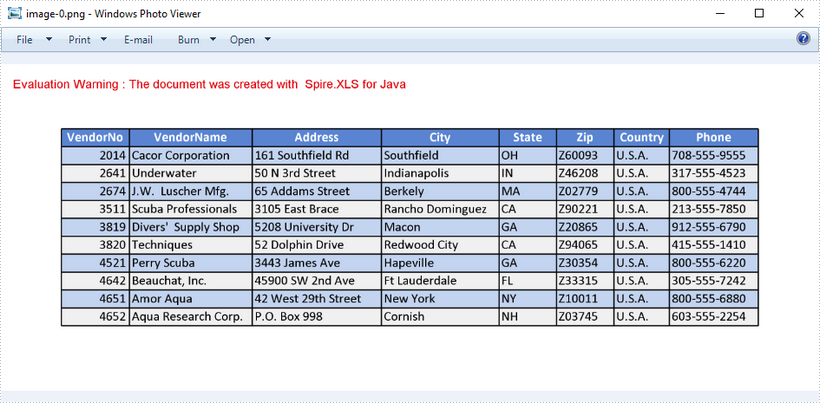
This article demonstrates how to set dpi on x and y axis when converting an Excel worksheet to an image using Spire.XLS for Java.
import com.spire.xls.*;

public class ConvertExcelToImage {

    public static void main(String[] args) {

        //Create a Workbook object
        Workbook wb = new Workbook();

        //Load an Excel file
        wb.loadFromFile("C:\\Users\\Administrator\\Desktop\\data.xlsx");

        //Set dpi on x and y axis
        wb.getConverterSetting().setXDpi(300);
        wb.getConverterSetting().setYDpi(300);

        //Declare a Worksheet variable
        Worksheet sheet;

        //Loop through the worksheets
        for (int i = 0; i < wb.getWorksheets().size(); i++) {

            //Get the specific worksheet
            sheet = wb.getWorksheets().get(i);

            //Convert worksheet to image
            sheet.saveToImage("C:\\Users\\Administrator\\Desktop\\Output\\image-" + i + ".png");
        }
    }
}
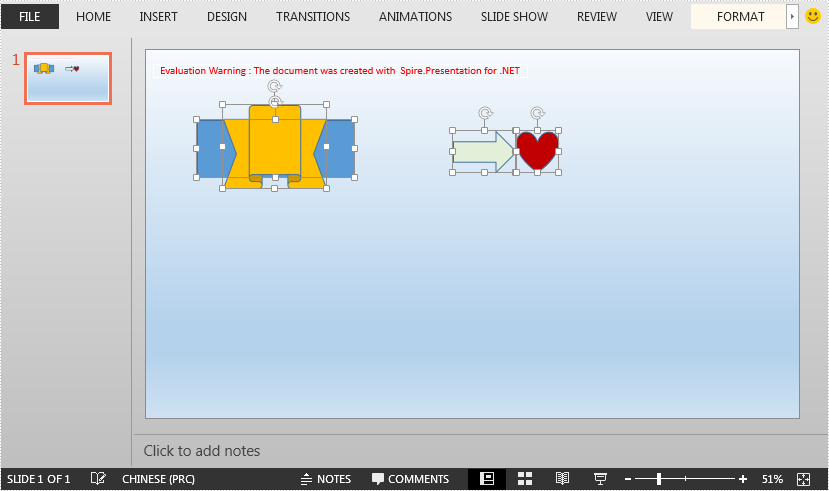
This article demonstrates how to ungroup grouped shapes in a PowerPoint document using Spire.Presentation for .NET.
The input PowerPoint document:
using Spire.Presentation;

namespace UngroupShapes
{
    class Program
    {
        static void Main(string[] args)
        {
            //Create a Presentation instance
            Presentation ppt = new Presentation();
            //Load the PowerPoint document
            ppt.LoadFromFile("Sample.pptx");

            //Get the first slide
            ISlide slide = ppt.Slides[0];

            //Loop through the shapes in the slide
            for(int i = 0; i< slide.Shapes.Count;i++)
            {
                IShape shape = slide.Shapes[i];
                //Detect if the shape is a grouped shape
                if (shape is GroupShape)
                {
                    GroupShape groupShape = shape as GroupShape;
                    //Ungroup the grouped shape
                    slide.Ungroup(groupShape);
                }
            }

            //Save the resultant document
            ppt.SaveToFile("UngroupShapes.pptx", FileFormat.Pptx2013);
        }
    }
}
Imports Spire.Presentation

Namespace UngroupShapes
    Class Program
        Private Shared Sub Main(ByVal args As String())
            Dim ppt As Presentation = New Presentation()
            ppt.LoadFromFile("Sample.pptx")
            Dim slide As ISlide = ppt.Slides(0)

            For i As Integer = 0 To slide.Shapes.Count - 1
                Dim shape As IShape = slide.Shapes(i)

                If TypeOf shape Is GroupShape Then
                    Dim groupShape As GroupShape = TryCast(shape, GroupShape)
                    slide.Ungroup(groupShape)
                End If
            Next

            ppt.SaveToFile("UngroupShapes.pptx", FileFormat.Pptx2013)
        End Sub
    End Class
End Namespace
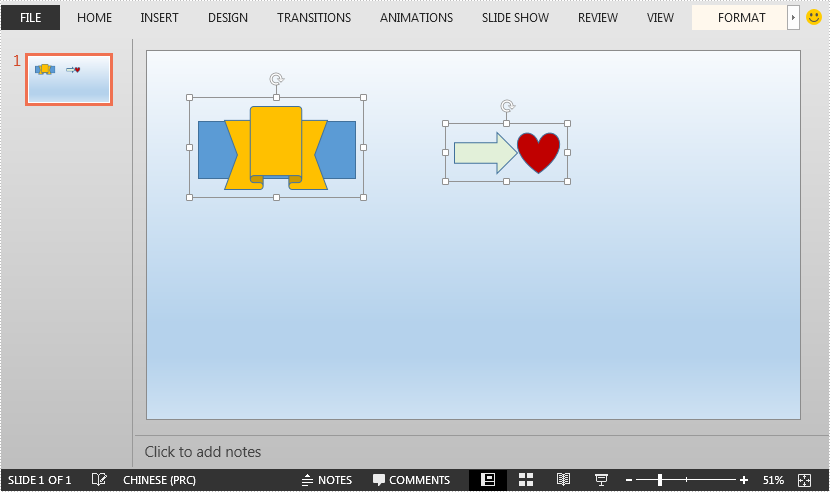
The output PowerPoint document after ungrouping shapes: