
Knowledgebase (2370)
Children categories
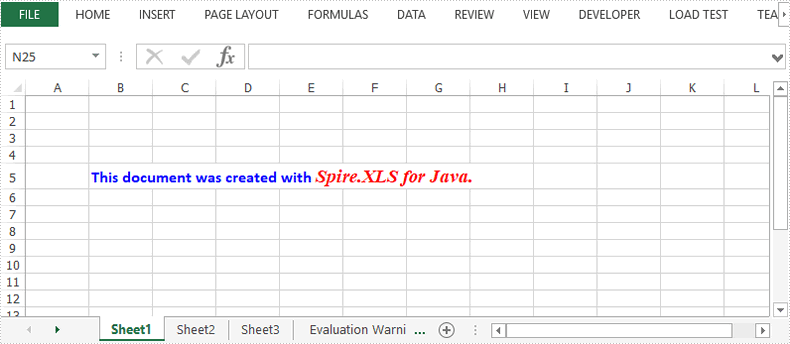
This article demonstrates how to apply multiple font styles in a single Excel cell using Spire.XLS for Java.
import com.spire.xls.*;

import java.awt.*;

public class ApplyMultiFontsInCell {

    public static void main(String[] args) {

        //Create a Workbook instance
        Workbook wb = new Workbook();

        //Get the first worksheet
        Worksheet sheet = wb.getWorksheets().get(0);

        //Create one Excel font
        ExcelFont font1 = wb.createFont();
        font1.setFontName("Calibri");
        font1.setColor(Color.blue);
        font1.setSize(12f);
        font1.isBold(true);

        //Create another Excel font
        ExcelFont font2 = wb.createFont();
        font2.setFontName("Times New Roman");
        font2.setColor(Color.red);
        font2.setSize(14f);
        font2.isBold(true);
        font2.isItalic(true);

        //Insert text to cell B5
        RichText richText = sheet.getCellRange("B5").getRichText();
        richText.setText("This document was created with Spire.XLS for Java.");

        //Apply two fonts to the text in the cell B5
        richText.setFont(0, 30, font1);
        richText.setFont(31, 50, font2);

        //Save the document
        wb.saveToFile("MultiFonts.xlsx", ExcelVersion.Version2016);
    }
}
Conversion from HTML to PDF in Java is a critical task for developers aiming to generate dynamic documents, reports, or invoices. Whether you're building a web application or automating data exports, this process ensures consistent formatting across platforms.
This article demonstrates how to convert HTML to PDF in Java using the powerful Spire.PDF for Java and QT WebEngine, ensuring high-fidelity PDF rendering from live webpages, raw HTML strings or HTML files.
Table of Contents:
- Why Convert HTML to PDF in Java?
- Installation and Setup
- Convert URL to PDF in Java
- Convert HTML String to PDF in Java
- Convert HTML Files to PDF in Java
- Frequently Asked Questions
- Conclusion
Why Convert HTML to PDF in Java?
The benefits of using Jave for HTML to PDF conversion lie in:
- Preserve Formatting: Maintain exact HTML/CSS styling in printable documents
- Cross-Platform Compatibility: Ensure consistent document rendering across devices
- Generate Professional Documents: Generate dynamic PDFs from HTML web templates
- Archive Web Content: Create permanent snapshots of web pages
- Automate Workflows: Integrate conversion into Java applications
Installation and Setup
Spire.PDF for Java + Qt Web Engine can act as a professional HTML to PDF converter for Java. To get started, follow the instructions below:
Install Spire.PDF for Java
To install Spire.PDF, you can use Maven or manually include the JAR file.
1. Maven Configuration
Add the following dependency to your pom.xml:
<repositories>
    <repository>
        <id>com.e-iceblue</id>
        <name>e-iceblue</name>
        <url>https://repo.e-iceblue.com/nexus/content/groups/public/</url>
    </repository>
</repositories>
<dependencies>
    <dependency>
        <groupId>e-iceblue</groupId>
        <artifactId>spire.pdf</artifactId>
        <version>12.7.0</version>
    </dependency>
</dependencies>
2. Manual JAR Inclusion
Download the latest version of Spire.PDF for Java from the official website and add the JAR file to your project.
Download Qt WebEngine Plugin
Qt WebEngine is a web browser engine module that enables developers to embed web content (HTML, CSS, JavaScript) into their cross-platform applications.
This scenario uses an open-source version of Qt WebEngine (under LGPLv3/GPL) for rendering HTML content. You can download the appropriate QT plugin version for your OS:
After downloading, unzip the package to a local path to get the "plugins" folder (e.g., F:\ Plugin\plugins-windows-x64\plugins).

Important Notes:
- For Linux/Mac environments:
Directly copy the plugin package to system and unzip it. Ensure read permissions for the plugin folder.
- Headless Server Requirement:
The conversion method requires GUI support. For servers without GUI, you need install the xvfb tool first, and then use the xvfb-run command to run your application.
#1. install xvfb
Centos:yum install Xvfb
Ubuntu:apt-get install Xvfb

#2. Run application
xvfb-run java -jar HTMLToPDF.jar
Convert URL to PDF in Java
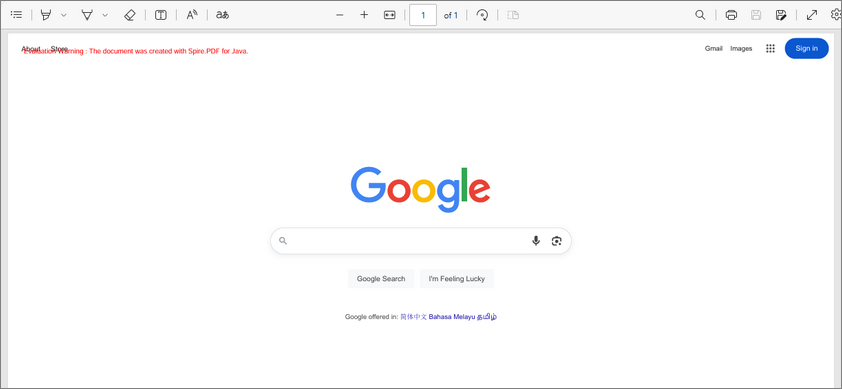
The following Java code converts an HTML webpage (URL) to PDF. Perfect for live web content capture.
import com.spire.pdf.graphics.PdfMargins;
import com.spire.pdf.htmlconverter.qt.HtmlConverter;
import com.spire.pdf.htmlconverter.qt.Size;

public class ConvertUrlToPdf {

    public static void main(String[] args) {

        // Specify the url path
        String url = "https://www.google.com/";

        // Specify the output file path
        String fileName = "output/UrlToPdf.pdf";

        // Specify the plugin path
        String pluginPath = "F:\\Plugin\\plugins-windows-x64\\plugins";

        // Set the plugin path
        HtmlConverter.setPluginPath(pluginPath);

        // Convert URL to PDF
        HtmlConverter.convert(url, fileName, true, 1000000, new Size(1200f, 1000f), new PdfMargins(0));
    }
}
Critical: If plugins are missing or path is incorrect, conversion fails.
Parameters Explained
In the above code, the core conversion method is HtmlConverter.convert(). It accepts 6 parameters which are explained below:
| Parameter | Purpose |
|---|---|
| String url | Specify the web address to convert. |
| String fileName | Specify the output PDF file path. |
| boolean enableJavaScript | Allows dynamic content (e.g., AJAX, animations). Set false to disable. |
| int timeout | Max page load time. Adjust for slow sites. |
| Size pageSize | Set the output PDF page size. |
| PdfMargins margins | Set the output PDF margins. |
Result:
Convert HTML Strings to PDF in Java
This Java code demonstrates how to convert an HTML string into a PDF file. Ideal for generating PDFs from dynamic HTML content (e.g., user-generated).
import com.spire.pdf.graphics.PdfMargins;
import com.spire.pdf.htmlconverter.LoadHtmlType;
import com.spire.pdf.htmlconverter.qt.HtmlConverter;
import com.spire.pdf.htmlconverter.qt.Size;

import java.io.IOException;

public class ConvertHtmlStringToPdf {

    public static void main(String[] args) throws IOException {

        // Specify the Html string
        String htmlString = "<html>" +
                "<style> h1 {color: #FF5733;font-size: 24px;margin-top: 50px;} </style>" +
                "<body>" +
                "<h1>Hello, PDF!</h1>" +
                "<p>This is a simple example of converting HTML String to PDF.</p>" +
                "<ul>" +
                "<li>First Item</li>" +
                "<li>Second Item</li>" +
                "<li>Third Item</li>" +
                "</ul>" +
                "</body></html>";

        // Specify the output file path
        String outputFile = "output/HtmlStringToPdf.pdf";

        // Specify the plugin path
        String pluginPath = "F:\\Plugin\\plugins-windows-x64\\plugins";

        // Set the plugin path
        HtmlConverter.setPluginPath(pluginPath);

        // Convert the HTML string to PDF
        HtmlConverter.convert(htmlString, outputFile, true, 100000, new Size(700, 900), new PdfMargins(0), LoadHtmlType.Source_Code);
    }
}
In this code:
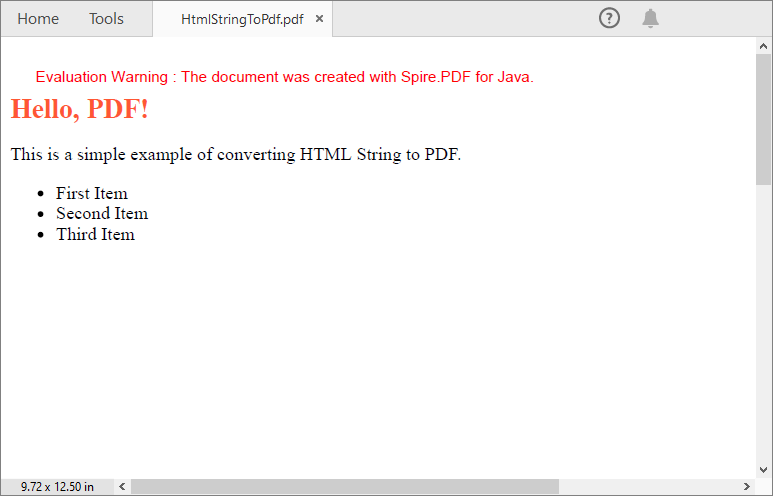
- Specifies an HTML string containing inline CSS styling (e.g., red h1 text) and simple content (heading, paragraph, list).
- Uses HtmlConverter.convert() to convert HTML string to PDF with the following parameters:
- HTML content (string)
- Output file path
- true to enable JavaScript execution.
- Timeout (100,000 milliseconds)
- Page size (700x900)
- Zero margins
- LoadHtmlType.Source_Code to indicate the input is raw HTML.
Output:
Convert HTML Files to PDF in Java
This example shows how to convert HTML files to PDF documents programmatically. Suitable for static document archival and design-heavy publications.
import com.spire.pdf.graphics.PdfMargins;
import com.spire.pdf.htmlconverter.LoadHtmlType;
import com.spire.pdf.htmlconverter.qt.HtmlConverter;
import com.spire.pdf.htmlconverter.qt.Size;
import java.io.BufferedReader;
import java.io.File;
import java.io.FileReader;
import java.io.IOException;

public class ConvertHtmlToPdf {

    public static void main(String[] args) throws IOException {

        // Invoke the custom method HtmlToString() to convert HTML file to string
        String htmlString = HtmlToString("sample1.html");

        // Specify the output file path
        String outputFile = "output/HtmlFileToPdf.pdf";

        // Specify the plugin path
        String pluginPath = "F:\\Plugin\\plugins-windows-x64\\plugins";

        // Set the plugin path
        HtmlConverter.setPluginPath(pluginPath);

        // Convert the HTML string to PDF
        HtmlConverter.convert(htmlString, outputFile, true, 100000, new Size(700, 900), new PdfMargins(0), LoadHtmlType.Source_Code);
    }

    // Convert a HTML file to string
    public static String HtmlToString(String filePath) throws IOException {
        String path = filePath;
        File file = new File(path);
        FileReader fileReader = new FileReader(file);
        BufferedReader bufferedReader = new BufferedReader(fileReader);
        StringBuilder stringBuilder = new StringBuilder();
        String temp = "";
        while ((temp = bufferedReader.readLine()) != null) {
            stringBuilder.append(temp + "\n");
        }
        bufferedReader.close();
        String str = stringBuilder.toString();
        return str;
    }
}
Note: Only inline CSS style and internal CSS style can be rendered correctly on PDF. If you have an external CSS style sheet, please convert it to inline or internal CSS style.
Core Workflow Explained
-
Read HTML File: Uses the custom method HtmlToString() to convert an HTML file into a string.
- Opens the HTML file using FileReader and BufferedReader.
- Reads line-by-line, appending content to a StringBuilder.
- Returns the HTML content as a single string.
-
Configure Output & Plugins: Specifies output file path and sets the Qt plugin path.
-
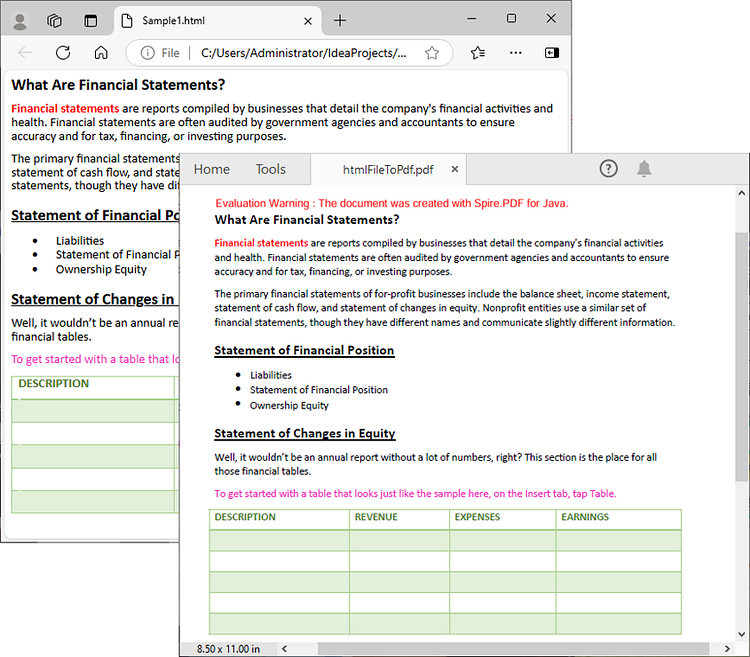
Convert HTML to PDF: Uses the same HtmlConverter.convert() method as in above example.
Result:
Frequently Asked Questions (FAQs)
Q1. Why do I need Qt plugins for HTML-to-PDF conversion?
Qt WebEngine provides a Chromium-based rendering engine required to parse modern HTML/CSS/JavaScript. Spire.PDF uses Qt under the hood for accurate web page rendering.
Q2: How can I avoid watermarks in the output PDF?
Request a 30-day trial license to remove the watermarks and get rid of the function limitations.
Q3. How do I optimize conversion speed for large documents?
- Disable JavaScript if unnecessary
- Reduce timeout
- Set smaller page size
Conclusion
Using Spire.PDF for Java with the QT plugin streamlines HTML to PDF conversion in Java with minimal code. Whether sourcing from URLs, strings, or local files, this article provides detailed instructions and practical code examples to help enhance your document automation workflows.
Final Tip: Explore online documentation for advanced Java PDF processing features like digital signatures and PDF/A compliance.
Worksheet names often convey the purpose or content of the sheet. Extracting these names can help in documenting the structure of a workbook. New users or collaborators can quickly understand what data is stored in each worksheet just by looking at the extracted names. This article will demonstrate how to get worksheet names in Excel in Java using Spire.XLS for Java.
Install Spire.XLS for Java
First of all, you're required to add the Spire.Xls.jar file as a dependency in your Java program. The JAR file can be downloaded from this link. If you use Maven, you can easily import the JAR file in your application by adding the following code to your project's pom.xml file.
<repositories>
    <repository>
        <id>com.e-iceblue</id>
        <name>e-iceblue</name>
        <url>https://repo.e-iceblue.com/nexus/content/groups/public/</url>
    </repository>
</repositories>
<dependencies>
    <dependency>
        <groupId>e-iceblue</groupId>
        <artifactId>spire.xls</artifactId>
        <version>16.7.3</version>
    </dependency>
</dependencies>
Get All Worksheet Names in Excel in Java
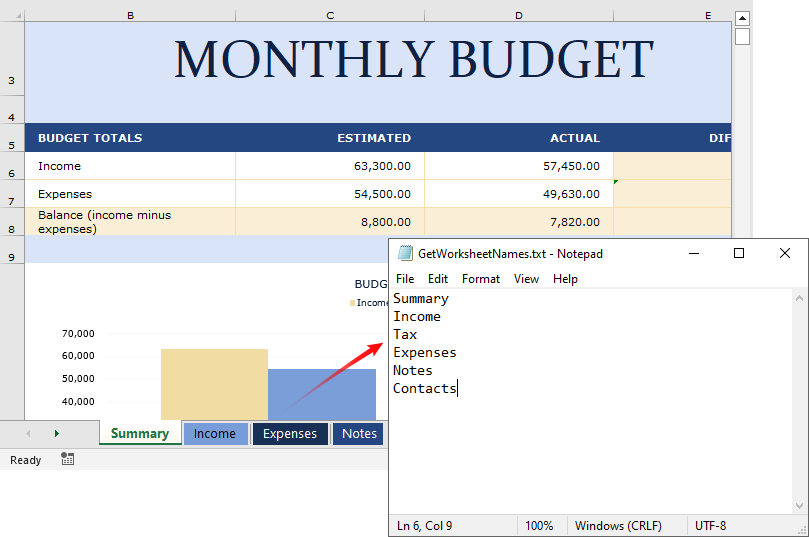
Spire.XLS for Java provides the Worksheet.getName() method to retrieve the name of a Worksheet. To get the names of all worksheets in Excel (including hidden ones), you can iterate through each worksheet and get their names with this method. The following are the detailed steps:
- Create a Workbook instance.
- Load an Excel file using Workbook.loadFromFile() method.
- Create a StringBuilder instance to store the retrieved worksheet names.
- Iterate through each worksheet.
- Get the name of each worksheet using Worksheet.getName() method and then append it to the StringBuilder instance.
- Write the contents of the StringBuilder to a txt file.
- Java
import java.io.*;
import com.spire.xls.*;

public class getWorksheetNames {
    public static void main(String[] args) throws IOException {
        // Create a Workbook object
        Workbook workbook = new Workbook();

        // Load an Excel document
        workbook.loadFromFile("BudgetSum.xlsx");

        // Create a StringBuilder to store the worksheet names
        StringBuilder stringBuilder = new StringBuilder();

        // Iterate through each worksheet in the workbook
        for (Object worksheet : workbook.getWorksheets()) {

            // Get the current worksheet
            Worksheet sheet = (Worksheet) worksheet;

            // Get the worksheet name and append it to the StringBuilder
            stringBuilder.append(sheet.getName() + "\r\n");
        }

        // Write the contents of the StringBuilder to a text file
        FileWriter fw = new FileWriter("GetWorksheetNames.txt", true);
        BufferedWriter bw = new BufferedWriter(fw);
        bw.append(stringBuilder);
        bw.close();
        fw.close();

        // Release resources
        workbook.dispose();
    }
}
Get Hidden Worksheet Names in Excel in Python
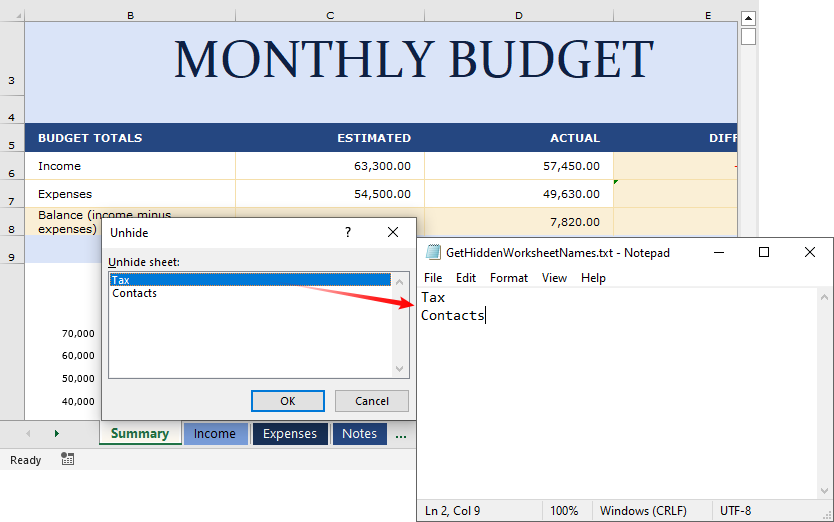
If you only need to retrieve the names of the hidden worksheets, you can first iterate through each worksheet to find the hidden worksheets and then get their names through the Worksheet.getName() method. The following are the detailed steps:
- Create a Workbook instance.
- Load an Excel file using Workbook.loadFromFile() method.
- Create a StringBuilder instance to store the retrieved worksheet names.
- Iterate through each worksheet to find the hidden worksheets.
- Get the name of each hidden worksheet using Worksheet.getName() method and then append it to the StringBuilder instance.
- Write the contents of the StringBuilder to a txt file.
- Java
import java.io.*;
import com.spire.xls.*;

public class getHiddenWorksheetNames {
    public static void main(String[] args) throws IOException {
        // Create a Workbook object
        Workbook workbook = new Workbook();

        // Load an Excel document
        workbook.loadFromFile("BudgetSum.xlsx");

        // Create a StringBuilder to store the worksheet names
        StringBuilder stringBuilder = new StringBuilder();

        // Iterate through each worksheet in the workbook
        for (Object worksheet : workbook.getWorksheets()) {

            // Get the current worksheet
            Worksheet sheet = (Worksheet) worksheet;

            // Detect the hidden worksheet
            if (sheet.getVisibility() == WorksheetVisibility.Hidden) {

                // Get the hidden worksheet name and append it to the StringBuilder
                stringBuilder.append(sheet.getName() + "\r\n");
            }
        }
        // Write the contents of the StringBuilder to a text file
        FileWriter fw = new FileWriter("GetHiddenWorksheetNames.txt", true);
        BufferedWriter bw = new BufferedWriter(fw);
        bw.append(stringBuilder);
        bw.close();
        fw.close();

        // Release resources
        workbook.dispose();
    }
}
Get a Free License
To fully experience the capabilities of Spire.XLS for Java without any evaluation limitations, you can request a free 30-day trial license.
