
Knowledgebase (2370)
Children categories
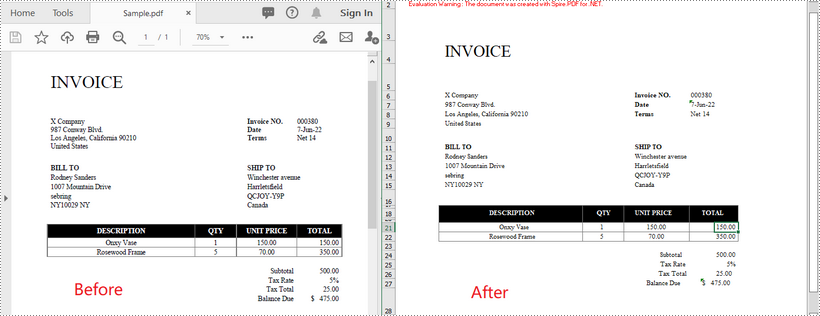
PDF is a versatile file format, but it is difficult to edit. If you want to modify and calculate PDF data, converting PDF to Excel would be an ideal solution. In this article, you will learn how to convert PDF to Excel in C# and VB.NET using Spire.PDF for .NET.
Install Spire.PDF for .NET
To begin with, you need to add the DLL files included in the Spire.PDF for.NET package as references in your .NET project. The DLL files can be either downloaded from this link or installed via NuGet.
PM> Install-Package Spire.PDF
Convert PDF to Excel in C# and VB.NET
The following are the steps to convert a PDF document to Excel:
- Initialize an instance of PdfDocument class.
- Load the PDF document using PdfDocument.LoadFromFile(filePath) method.
- Save the document to Excel using PdfDocument.SaveToFile(filePath, FileFormat.XLSX) method.
- C#
- VB.NET
using Spire.Pdf;
using Spire.Pdf.Conversion;

namespace ConvertPdfToExcel
{
    class Program
    {
        static void Main(string[] args)
        {
            //Initialize an instance of PdfDocument class
            PdfDocument pdf = new PdfDocument();
            //Load the PDF document
            pdf.LoadFromFile("Sample.pdf");

            //Save the PDF document to XLSX
            pdf.SaveToFile("PdfToExcel.xlsx", FileFormat.XLSX);
        }
    }
}
Convert a Multi-Page PDF to One Excel Worksheet in C# and VB.NET
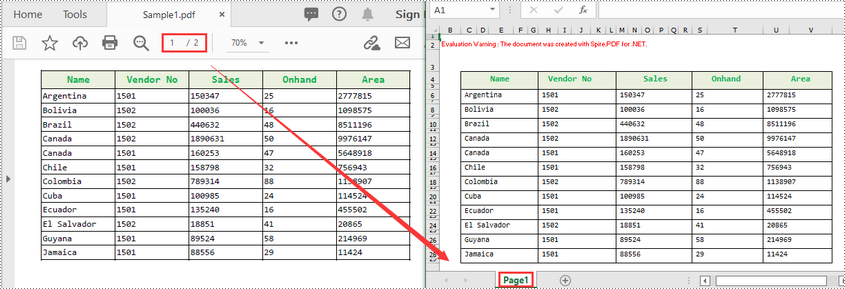
The following are the steps to covert a multi-page PDF to one Excel worksheet:
- Initialize an instance of PdfDocument class.
- Load the PDF document using PdfDocument.LoadFromFile(filePath) method.
- Initialize an instance of XlsxLineLayoutOptions class, in the class constructor, setting the first parameter - convertToMultipleSheet as false.
- Set PDF to XLSX convert options using PdfDocument.ConvertOptions.SetPdfToXlsxOptions(XlsxLineLayoutOptions) method.
- Save the document to Excel using PdfDocument.SaveToFile(filePath, FileFormat.XLSX) method.
- C#
- VB.NET
using Spire.Pdf;
using Spire.Pdf.Conversion;

namespace ConvertPdfToExcel
{
    class Program
    {
        static void Main(string[] args)
        {
            //Initialize an instance of PdfDocument class
            PdfDocument pdf = new PdfDocument();
            //Load the PDF document
            pdf.LoadFromFile("Sample1.pdf");

            //Initialize an instance of XlsxLineLayoutOptions class, in the class constructor, setting the first parameter - convertToMultipleSheet as false.
            //The four parameters represent: convertToMultipleSheet, showRotatedText, splitCell, wrapText
            XlsxLineLayoutOptions options = new XlsxLineLayoutOptions(false, true, true, true);
            //Set PDF to XLSX convert options
            pdf.ConvertOptions.SetPdfToXlsxOptions(options);

            //Save the PDF document to XLSX
            pdf.SaveToFile("PdfToOneExcelSheet.xlsx", FileFormat.XLSX);
        }
    }
}
Apply for a Temporary License
If you'd like to remove the evaluation message from the generated documents, or to get rid of the function limitations, please request a 30-day trial license for yourself.
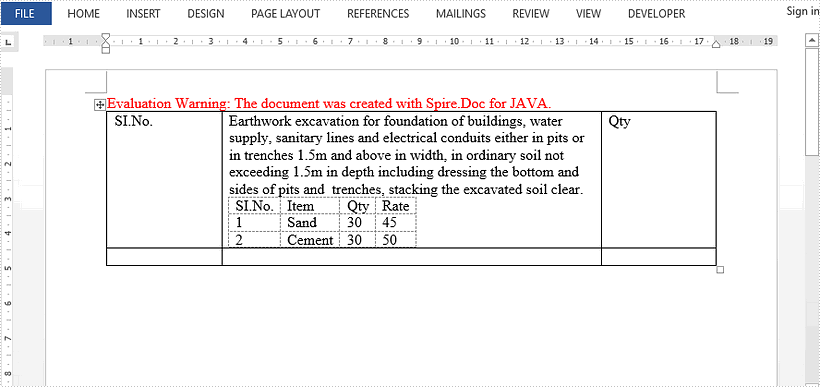
This article demonstrates how to insert a nested table in a table cell using Spire.Doc for Java.
import com.spire.doc.*;

public class CreateNestedTable {
    public static void main(String[] args) {

        //Create a Document object
        Document doc = new Document();

        //Add a section
        Section section = doc.addSection();

        //Add a table
        Table table = section.addTable(true);
        table.resetCells(2, 3);

        //Set column width
        table.getRows().get(0).getCells().get(0).setCellWidth(50f,CellWidthType.Point);
        table.getRows().get(0).getCells().get(2).setCellWidth(50f,CellWidthType.Point);
        table.getRows().get(1).getCells().get(0).setCellWidth(50f,CellWidthType.Point);
        table.getRows().get(1).getCells().get(2).setCellWidth(50f,CellWidthType.Point);
        table.autoFit(AutoFitBehaviorType.Auto_Fit_To_Window);

        //Insert content to cells
        table.get(0,0).addParagraph().appendText("SI.No.");
        String text = "Earthwork excavation for foundation of buildings, water supply, "
                + "sanitary lines and electrical conduits either in pits or in "
                + "trenches 1.5m and above in width, in ordinary soil not exceeding "
                + "1.5m in depth including dressing the bottom and sides of pits and  "
                + "trenches, stacking the excavated soil clear.";
        table.get(0,1).addParagraph().appendText(text);
        table.get(0,2).addParagraph().appendText("Qty");

        //Add a nested table to cell(0,1)
        Table nestedTable = table.get(0,1).addTable();
        nestedTable.resetCells(3, 4);
        nestedTable.autoFit(AutoFitBehaviorType.Auto_Fit_To_Contents);

        //Add content to the cells of nested table
        nestedTable.get(0,0).addParagraph().appendText("SI.No.");
        nestedTable.get(0,1).addParagraph().appendText("Item");
        nestedTable.get(0,2).addParagraph().appendText("Qty");
        nestedTable.get(0,3).addParagraph().appendText("Rate");
        nestedTable.get(1,0).addParagraph().appendText("1");
        nestedTable.get(1,1).addParagraph().appendText("Sand");
        nestedTable.get(1,2).addParagraph().appendText("30");
        nestedTable.get(1,3).addParagraph().appendText("45");
        nestedTable.get(2,0).addParagraph().appendText("2");
        nestedTable.get(2,1).addParagraph().appendText("Cement");
        nestedTable.get(2,2).addParagraph().appendText("30");
        nestedTable.get(2,3).addParagraph().appendText("50");

        //Save the document
        doc.saveToFile("NestedTable.docx", FileFormat.Docx_2013);
    }
}
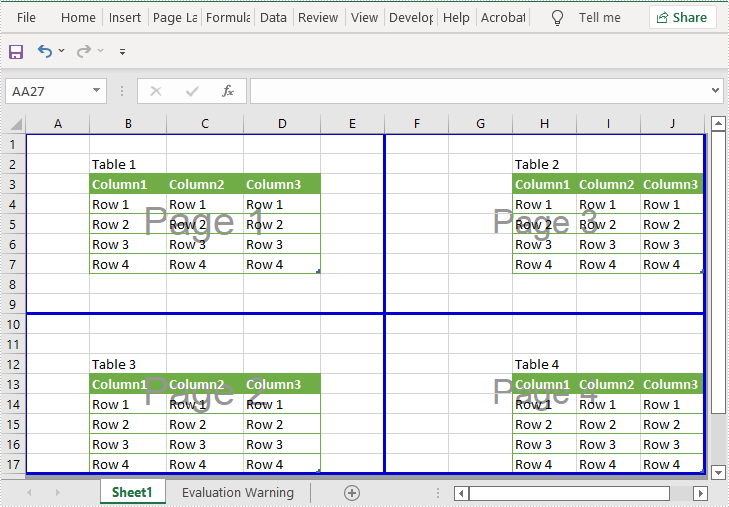
Page breaks in Excel are dividers that separate a large worksheet into individual pages for printing. In this article, you will learn how to add or delete page breaks in Excel in Java using Spire.XLS for Java library.
- Add Page Breaks to Excel in Java
- Delete a Specific Page Break from Excel in Java
- Delete All Page Breaks from Excel in Java
Install Spire.XLS for Java
First of all, you're required to add the Spire.Xls.jar file as a dependency in your Java program. The JAR file can be downloaded from this link. If you use Maven, you can easily import the JAR file in your application by adding the following code to your project's pom.xml file.
<repositories>
    <repository>
        <id>com.e-iceblue</id>
        <name>e-iceblue</name>
        <url>https://repo.e-iceblue.com/nexus/content/groups/public/</url>
    </repository>
</repositories>
<dependencies>
    <dependency>
        <groupId>e-iceblue</groupId>
        <artifactId>spire.xls</artifactId>
        <version>16.7.3</version>
    </dependency>
</dependencies>
Add Page Breaks to Excel in Java
Using Spire.XLS for Java, you can add horizontal and vertical page breaks to an Excel worksheet. Below are the steps to do so:
- Create an instance of Workbook class.
- Load an Excel file using Workbook.loadFromFile() method.
- Get the desired worksheet by its index using Workbook.getWorksheets().get() method.
- Specify the cells where you want to add page breaks to using Worksheet.getRange().get() method.
- Add horizontal and vertical page breaks to the cells using Worksheet.getHPageBreaks().add() and Worksheet.getVPageBreaks().add() methods.
- Set the sheet view mode to ViewMode.Preview using Worksheet.setViewMode() method.
- Save the result file using Workbook.saveToFile() method.
- Java
import com.spire.xls.*;

public class AddPageBreaks {
    public static void main(String []args) {
        //Create a Workbook instance
        Workbook workbook = new Workbook();
        //Load an Excel file
        workbook.loadFromFile("Sample.xlsx");

        //Get the first worksheet
        Worksheet sheet = workbook.getWorksheets().get(0);

        //Specify the cells where you want to add page breaks to
        CellRange cell1 = sheet.getRange().get("A10");
        CellRange cell2 = sheet.getRange().get("F1");

        //Add a horizontal page break
        sheet.getHPageBreaks().add(cell1);

        //Add a vertical page break
        sheet.getVPageBreaks().add(cell2);

        //Set view mode to Preview in order to view the page breaks
        sheet.setViewMode(ViewMode.Preview);

        //Save the result file
        workbook.saveToFile("AddPageBreaks.xlsx", ExcelVersion.Version2013);
    }
}
Delete a Specific Page Break from Excel in Java
The following are the steps to delete a specific page break from an Excel worksheet:
- Create an instance of Workbook class.
- Load an Excel file using Workbook.loadFromFile() method.
- Get the desired worksheet by its index using Workbook.getWorksheets().get() method.
- Delete a specific horizontal or vertical page break from the worksheet by its index using Worksheet.getHPageBreaks().removeAt() or Worksheet.getVPageBreaks().removeAt() method.
- Save the result file using Workbook.saveToFile() method.
- Java
import com.spire.xls.ExcelVersion;
import com.spire.xls.Workbook;
import com.spire.xls.Worksheet;

public class DeleteASpecificPageBreak {
    public static void main(String []args) {
        //Create a Workbook instance
        Workbook workbook = new Workbook();
        //Load an Excel file
        workbook.loadFromFile("AddPageBreaks.xlsx");

        //Get the first worksheet
        Worksheet sheet = workbook.getWorksheets().get(0);

        //Delete the first horizontal page break
        sheet.getHPageBreaks().removeAt(0);
        //Delete the first vertical page break
        sheet.getVPageBreaks().removeAt(0);

        //Save the result file
        workbook.saveToFile("DeleteASpecificPageBreaks.xlsx", ExcelVersion.Version2013);
    }
}
Delete All Page Breaks from Excel in Java
The following are the steps to delete all the page breaks from an Excel worksheet:
- Create an instance of Workbook class.
- Load an Excel file using Workbook.loadFromFile() method.
- Get the desired worksheet by its index using Workbook.getWorksheets().get() method.
- Delete all the horizontal and vertical page breaks from the worksheet using Worksheet.getHPageBreaks().clear() and Worksheet.getVPageBreaks().clear() methods.
- Save the result file using Workbook.saveToFile() method.
- Java
import com.spire.xls.ExcelVersion;
import com.spire.xls.Workbook;
import com.spire.xls.Worksheet;

public class DeleteAllPageBreaks {
    public static void main(String []args) {
        //Create a Workbook instance
        Workbook workbook = new Workbook();
        //Load an Excel file
        workbook.loadFromFile("AddPageBreaks.xlsx");

        //Get the first worksheet
        Worksheet sheet = workbook.getWorksheets().get(0);

        //Delete all horizontal page breaks
        sheet.getHPageBreaks().clear();
        //Delete all vertical page breaks
        sheet.getVPageBreaks().clear();

        //Save the result file
        workbook.saveToFile("DeleteAllPageBreaks.xlsx", ExcelVersion.Version2013);
    }
}
Apply for a Temporary License
If you'd like to remove the evaluation message from the generated documents, or to get rid of the function limitations, please request a 30-day trial license for yourself.
