
Knowledgebase (2370)
Children categories
A large number of users today preserve different files within PDF documents as attachments. These attachments can be extracted and used for other purposes when necessary. Basically, there are two types of attachments in PDF: document level attachment and annotation attachment. Below are the differences between them.
- Document Level Attachment (represented by PdfAttachment class): A file attached to a PDF at the document level won't appear on a page, but can only be viewed in the "Attachments" panel of a PDF reader.
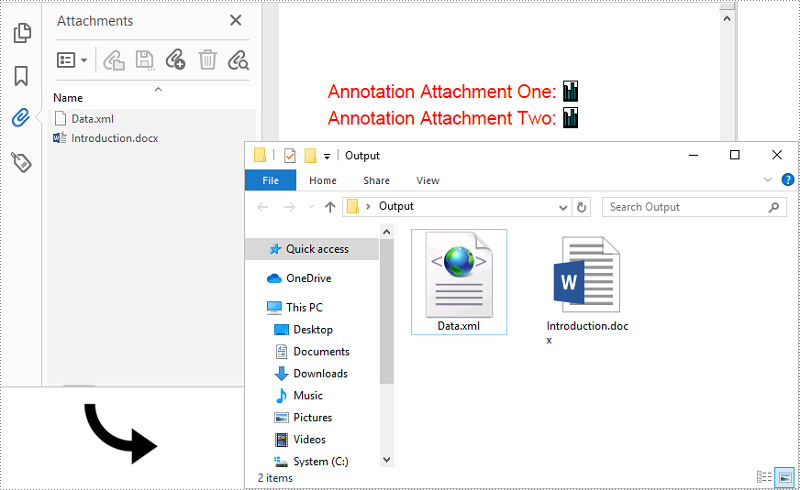
- Annotation Attachment (represented by PdfAttachmentAnnotation class): A file will be added to a specific position of a page. Annotation attachments are shown as a paper clip icon on the page; reviewers can double-click the icon to open the file.
In this article, you will learn how to extract these two kinds of attachments from a PDF document in Java using Spire.PDF for Java.
Install Spire.PDF for Java
First, you need to add the Spire.Pdf.jar file as a dependency in your Java program. The JAR file can be downloaded from this link. If you use Maven, you can easily import the JAR file by adding the following code to your project's pom.xml file.
<repositories>
    <repository>
        <id>com.e-iceblue</id>
        <name>e-iceblue</name>
        <url>https://repo.e-iceblue.com/nexus/content/groups/public/</url>
    </repository>
</repositories>
<dependencies>
    <dependency>
        <groupId>e-iceblue</groupId>
        <artifactId>spire.pdf</artifactId>
        <version>12.7.0</version>
    </dependency>
</dependencies>
Extract Attachments from PDF in Java
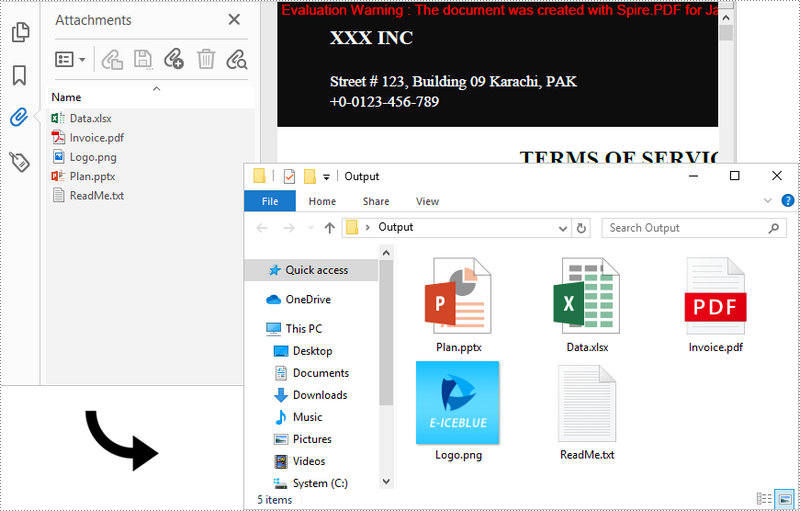
The document level attachments of a PDF document can be obtained using PdfDocument.getAttachments() method. The following steps show you how to extract attachments and save them to a local folder.
- Create a PdfDocument object.
- Load a PDF file using PdfDocument.loadFromFile() method.
- Get the attachment collection from the document using PdfDocument.getAttachments() method.
- Get a specific attachment using PdfAttachmentCollection.get() method and get its data using PdfAttachment.getData() method. Write the data to a file and save to a specified folder.
- Java
import com.spire.pdf.PdfDocument;
import com.spire.pdf.annotations.*;
import com.spire.pdf.attachments.PdfAttachmentCollection;

import java.io.*;

public class ExtractAttachments {

    public static void main(String[] args) throws Exception {

        //Create a PdfDocument object
        PdfDocument doc = new PdfDocument();

        //Load a PDF file that contains attachments
        doc.loadFromFile("C:\\Users\\Administrator\\Desktop\\Attachments.pdf");

        //Get the attachment collection of the PDF document
        PdfAttachmentCollection attachments = doc.getAttachments();

        //Loop through the collection
        for (int i = 0; i < attachments.getCount(); i++) {

        //Specify the output file path and name
        File file = new File("C:\\Users\\Administrator\\Desktop\\output\\" + attachments.get(i).getFileName());
        OutputStream output = new FileOutputStream(file);
        BufferedOutputStream bufferedOutput = new BufferedOutputStream(output);

        //Get a specific attachment and write to file
        bufferedOutput.write(attachments.get(i).getData());
        bufferedOutput.close();
        }
    }
}
Extract Annotation Attachments from PDF in Java
Annotation attachment is a page-based element. To get annotations from a specific page, use PdfPageBase.getAnnotationsWidget() method. After that, you'll need to determine if a specific annotation is an annotation attachment. The follows are the steps to extract annotation attachments from a whole document and save them to a local folder.
- Create a PdfDocument object.
- Load a PDF file using PdfDocument.loadFromFile() method.
- Get a specific page from the document using PdfDocument.getPages().get() method.
- Get the annotation collection from the page using PdfPageBase.getAnnotationsWidget() method.
- Determine if a specific annotation is an instance of PdfAttachmentAnnotationWidget. If yes, write the annotation attachment to a file and save it to a specified folder.
- Java
import com.spire.pdf.PdfDocument;
import com.spire.pdf.annotations.PdfAnnotationCollection;
import com.spire.pdf.annotations.PdfAttachmentAnnotationWidget;

import java.io.*;

public class ExtractAnnotationAttachments {

    public static void main(String[] args) throws Exception {

        //Create a PdfDocument object
        PdfDocument doc = new PdfDocument();

        //Load a PDF file that contains attachments
        doc.loadFromFile("C:\\Users\\Administrator\\Desktop\\AnnotationAttachments.pdf");

        //Loop through the pages
        for (int i = 0; i < doc.getPages().getCount(); i++) {

        //Get the annotation collection
        PdfAnnotationCollection collection = doc.getPages().get(i).getAnnotationsWidget();

        //Loop through the annotations
        for (Object annotation : collection) {

        //Determine if an annotation is an instance of PdfAttachmentAnnotationWidget
        if (annotation instanceof PdfAttachmentAnnotationWidget) {

        //Save the annotation attachment out of the document
        String fullPath = ((PdfAttachmentAnnotationWidget) annotation).getFileName();
        String fileName = fullPath.substring(fullPath.lastIndexOf("\\") + 1);
        File file = new File("C:\\Users\\Administrator\\Desktop\\output\\" + fileName);
        OutputStream output = new FileOutputStream(file);
        BufferedOutputStream bufferedOutput = new BufferedOutputStream(output);
        bufferedOutput.write(((PdfAttachmentAnnotationWidget) annotation).getData());
        bufferedOutput.close();
                }
            }
        }
    }
}
Apply for a Temporary License
If you'd like to remove the evaluation message from the generated documents, or to get rid of the function limitations, please request a 30-day trial license for yourself.
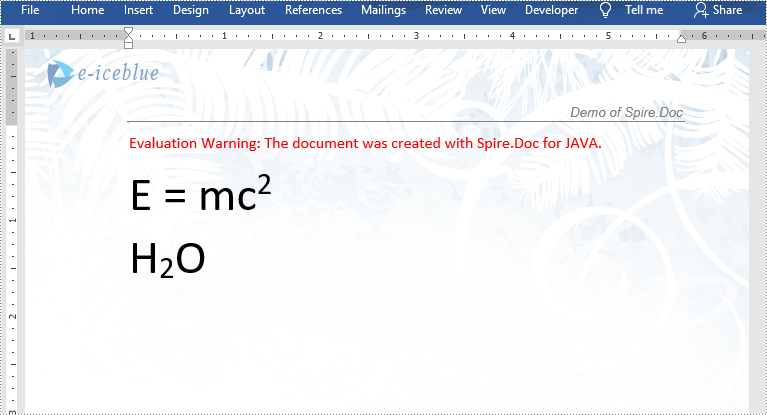
In certain circumstances, you may need to insert superscripts and subscripts in Microsoft Word. For instance, when you are creating an academic document involving scientific formulas. In this article, you will learn how to insert superscripts and subscripts into Word documents in Java using Spire.Doc for Java library.
Install Spire.Doc for Java
First, you're required to add the Spire.Doc.jar file as a dependency in your Java program. The JAR file can be downloaded from this link. If you use Maven, you can easily import the JAR file in your application by adding the following code to your project's pom.xml file.
<repositories>
    <repository>
        <id>com.e-iceblue</id>
        <name>e-iceblue</name>
        <url>https://repo.e-iceblue.com/nexus/content/groups/public/</url>
    </repository>
</repositories>
<dependencies>
    <dependency>
        <groupId>e-iceblue</groupId>
        <artifactId>spire.doc</artifactId>
        <version>14.7.0</version>
    </dependency>
</dependencies>
Insert Superscripts and Subscripts into Word using Java
The following are the main steps to insert a superscript or subscript into a Word document using Spire.Doc for Java:
- Create a Document instance.
- Load a Word document using Document.loadFromFile() method.
- Get the specific section using Document.getSections().get(sectionIndex) method.
- Add a paragraph to the section using Section.addParagraph() method.
- Add normal text to the paragraph using Paragraph.appendText() method.
- Add superscript or subscript text to the paragraph using Paragraph.appendText() method.
- Apply superscript or subscript formatting to the superscript or subscript text through TextRange.getCharacterFormat().setSubSuperScript() method.
- Save the result document using Document.saveToFile() method.
- Java
import com.spire.doc.Document;
import com.spire.doc.FileFormat;
import com.spire.doc.Section;
import com.spire.doc.documents.BreakType;
import com.spire.doc.documents.Paragraph;
import com.spire.doc.documents.SubSuperScript;
import com.spire.doc.fields.TextRange;

public class InsertSuperscriptAndSubscript {
    public static void main(String[] args){
        //Create a Document instance
        Document document = new Document();
        //Load a Word document
        document.loadFromFile("Sample.docx");

        //Get the first section
        Section section = document.getSections().get(0);

        //Add a paragraph to the section
        Paragraph paragraph = section.addParagraph();

        //Add normal text to the paragraph
        paragraph.appendText("E = mc");
        //Add superscript text to the paragraph
        TextRange superscriptText = paragraph.appendText("2");
        //Apply superscript formatting to the superscript text
        superscriptText.getCharacterFormat().setSubSuperScript(SubSuperScript.Super_Script);

        //Start a new line
        paragraph.appendBreak(BreakType.Line_Break);

        //Add normal text to the paragraph
        paragraph.appendText("H");
        //Add subscript text to the paragraph
        TextRange subscriptText = paragraph.appendText("2");
        //Apply subscript formatting to the subscript text
        subscriptText.getCharacterFormat().setSubSuperScript(SubSuperScript.Sub_Script);
        //Add normal text to the paragraph
        paragraph.appendText("O");

        //Set font size for the text in the paragraph
        for(Object item : paragraph.getItems())
        {
            if (item instanceof TextRange)
            {
                TextRange textRange = (TextRange)item ;
                textRange.getCharacterFormat().setFontSize(36f);
            }
        }

        //Save the result document
        document.saveToFile("InsertSuperscriptAndSubscript.docx", FileFormat.Docx_2013);
    }
}
Apply for a Temporary License
If you'd like to remove the evaluation message from the generated documents, or to get rid of the function limitations, please request a 30-day trial license for yourself.
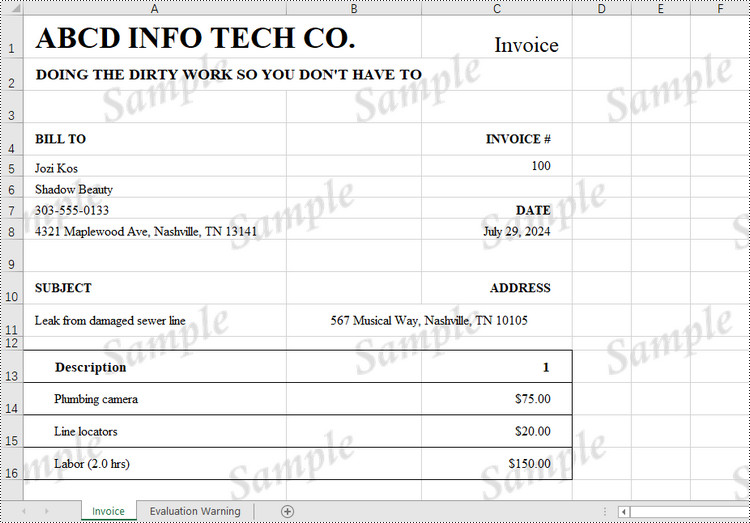
Branding your documents or indicating confidentiality can be easily achieved by adding a watermark to your Excel spreadsheet. Although Excel does not have a built-in feature for watermark insertion, there are alternative methods to achieve the desired effect.
One approach is to insert an image into the header or footer of your Excel worksheet, which can create a watermark-like appearance. Alternatively, setting an image as the background of your spreadsheet can also mimic the watermark effect.
This article demonstrates how to add header or background image watermarks to Excel in Java using Spire.XLS for Java.
Install Spire.XLS for Java
First of all, you're required to add the Spire.Xls.jar file as a dependency in your Java program. The JAR file can be downloaded from this link. If you use Maven, you can easily import the JAR file in your application by adding the following code to your project's pom.xml file.
<repositories>
    <repository>
        <id>com.e-iceblue</id>
        <name>e-iceblue</name>
        <url>https://repo.e-iceblue.com/nexus/content/groups/public/</url>
    </repository>
</repositories>
<dependencies>
    <dependency>
        <groupId>e-iceblue</groupId>
        <artifactId>spire.xls</artifactId>
        <version>16.7.3</version>
    </dependency>
</dependencies>
Header Image Watermark vs. Background Image Watermark
Header Image Watermark
Pros:
- Ensures the watermark remains intact on the final printed document.
Cons:
- Invisible under "Normal" view mode in Excel, becoming visible only in "Page Layout" or "Page Break Preview" views.
- Requires precise adjustment of white margins, especially on the top and left sides of the image, for central placement.
Background Image Watermark
Pros:
- Provides a uniform watermark across the entire worksheet area.
Cons:
- Does not persist on the printed sheet, hence will not appear in the final printed output.
Add a Header Image Watermark to Excel in Java
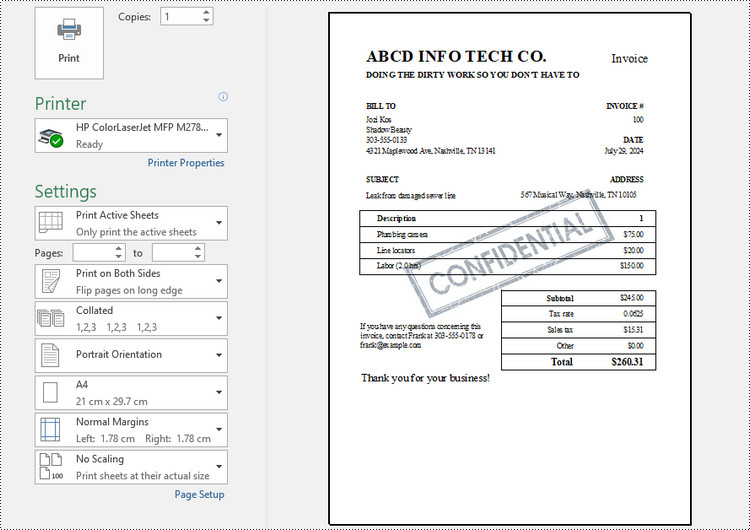
Spire.XLS for Java offers the PageSetup class, providing control over various settings that impact the appearance and layout of a printed worksheet. This class includes the setCenterHeader() and setCenterHeaderImage() methods, which allow for the addition of an image to the worksheet header's center section.
Below are the steps to add a watermark to Excel using a header image in Java.
- Create a Workbook object.
- Load an Excel document from a give file path.
- Load an image using ImageIO.read() method.
- Get a specific worksheet from the workbook.
- Add an image field to the header center by passing "&G" as the parameter of PageSetup.setCenterHeader() method.
- Apply the image to the header center using PageSetup.setCenterHeaderImage() method.
- Save the workbook to a different Excel file.
- Java
import com.spire.xls.ExcelVersion;
import com.spire.xls.Workbook;
import com.spire.xls.Worksheet;

import javax.imageio.ImageIO;
import java.awt.image.BufferedImage;
import java.io.File;
import java.io.IOException;

public class AddWatermarkToExcelUsingHeaderImage {

    public static void main(String[] args) throws IOException {

        // Create a Workbook object
        Workbook workbook = new Workbook();

        // Load an Excel document
        workbook.loadFromFile("C:\\Users\\Administrator\\Desktop\\Input3.xlsx");

        // Load an image file
        BufferedImage image = ImageIO.read( new File("C:\\Users\\Administrator\\Desktop\\confidential_3.jpg"));

        // Loop through all worksheets in the file
        for (int i = 0; i < workbook.getWorksheets().getCount(); i++)
        {
            // Get a specific worksheet
            Worksheet worksheet = workbook.getWorksheets().get(i);

            // Add an image field to the header center
            worksheet.getPageSetup().setCenterHeader("&G");

            // Add the image to the header center
            worksheet.getPageSetup().setCenterHeaderImage(image);
        }

        // Save the result file
        workbook.saveToFile("AddWatermark.xlsx", ExcelVersion.Version2016);

        // Dispose resources
        workbook.dispose();
    }
}
Add a Background Image Watermark to Excel in Java
The PageSetup class includes a method called setBackgroundImage(), enabling you to designate an image as the background for a worksheet.
Here are the steps to add a watermark to Excel using a background image in Java.
- Create a Workbook object.
- Load an Excel document from a give file path.
- Load an image using ImageIO.read() method.
- Get a specific worksheet from the workbook.
- Apply the image to the worksheet as the background using PageSetup.setBackgroundImage() method.
- Save the workbook to a different Excel file.
- Java
import com.spire.xls.ExcelVersion;
import com.spire.xls.Workbook;
import com.spire.xls.Worksheet;

import javax.imageio.ImageIO;
import java.awt.image.BufferedImage;
import java.io.File;
import java.io.IOException;

public class AddWatermarkToExcelUsingBackgroundImage {

    public static void main(String[] args) throws IOException {

        // Create a Workbook object
        Workbook workbook = new Workbook();

        // Load an Excel document
        workbook.loadFromFile("C:\\Users\\Administrator\\Desktop\\Input.xlsx");

        // Load an image file
        BufferedImage image = ImageIO.read( new File("C:\\Users\\Administrator\\Desktop\\sample.png"));

        // Loop through all worksheets in the file
        for (int i = 0; i < workbook.getWorksheets().getCount(); i++)
        {
            // Get a specific worksheet
            Worksheet worksheet = workbook.getWorksheets().get(i);

            // Set the image as the background of the worksheet
            worksheet.getPageSetup().setBackgoundImage(image);
        }

        // Save the result file
        workbook.saveToFile("AddWatermark.xlsx", ExcelVersion.Version2016);

        // Dispose resources
        workbook.dispose();
    }
}
Apply for a Temporary License
If you'd like to remove the evaluation message from the generated documents, or to get rid of the function limitations, please request a 30-day trial license for yourself.
