Knowledgebase (2370)
Children categories
Comments in Excel are blocks of text that can be added to cells, mainly used to provide additional explanation or supplemental information about the cell contents. Users can add comments to the specific cells to better explain the data of worksheets. However, sometimes too many comments will cause visual clutter or obstruct other content. To avoid this issue, existing comments can be hidden programmatically to make the worksheet more organized and readable. Hidden comments can also be easily displayed when necessary. This article will show you how to hide or show comments in Excel using Spire.XLS for Java.
Install Spire.XLS for Java
First of all, you're required to add the Spire.Xls.jar file as a dependency in your Java program. The JAR file can be downloaded from this link. If you use Maven, you can easily import the JAR file in your application by adding the following code to your project's pom.xml file.
<repositories>
    <repository>
        <id>com.e-iceblue</id>
        <name>e-iceblue</name>
        <url>https://repo.e-iceblue.com/nexus/content/groups/public/</url>
    </repository>
</repositories>
<dependencies>
    <dependency>
        <groupId>e-iceblue</groupId>
        <artifactId>spire.xls</artifactId>
        <version>16.7.3</version>
    </dependency>
</dependencies>
Hide Comments in Excel
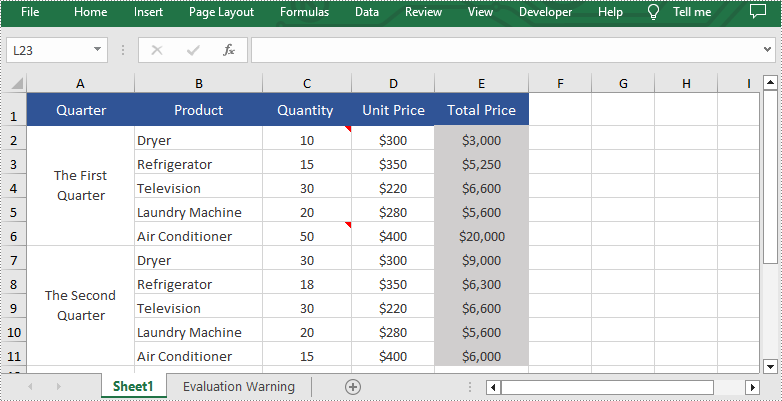
Spire.XLS for Java provides the Worksheet.getComments().get().isVisble() method to control the visibility of comments. You can easily hide existing comments by setting the parameter of this method to "false". The following are detailed steps to hide comments in excel.
- Create an object of Workbook class.
- Load a sample file from disk using Workbook.loadFromFile() method.
- Get the desired worksheet of this file by calling Workbook.getWorksheets().get() method.
- Hide the specific comments in this sheet by setting the parameter of the Worksheet.getComments().get().isVisble() method to "false".
- Finally, save the result file using Workbook.savaToFile() method.
- Java
import com.spire.xls.ExcelVersion;
import com.spire.xls.Workbook;
import com.spire.xls.Worksheet;

public class HideComment {
    public static void main(String[] args){

        //Create an object of Workbook class
        Workbook workbook = new Workbook();

        //Load a sample file from disk
        workbook.loadFromFile("Sample.xlsx");

        //Get the first worksheet in this file
        Worksheet sheet = workbook.getWorksheets().get(0);

        //Hide the first and the second comments in this sheet
        sheet.getComments().get(0).isVisible(false);
        sheet.getComments().get(1).isVisible(false);

        //Save the result file
        workbook.saveToFile("HideComment.xlsx", ExcelVersion.Version2013);
        workbook.dispose();
    }
}
Show Comments in Excel
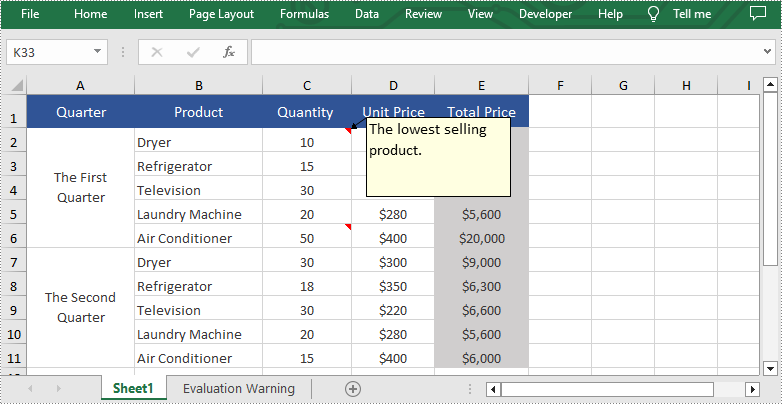
Hidden comments can also be easily displayed when necessary. If you want to show them again, please set the parameter of the Worksheet.getComments().get().isVisble() method to "true". The following are detailed steps of showing hidden comments in excel.
- Create an object of Workbook class.
- Load a sample file from disk using Workbook.loadFromFile() method.
- Get the desired worksheet by calling Workbook.getWorksheets().get() method.
- Show the specific comment in this sheet by setting the parameter of the Worksheet.getComments().get().isVisble() method to "true".
- Finally, save the result file using Workbook.savaToFile() method.
- Java
import com.spire.xls.ExcelVersion;
import com.spire.xls.Workbook;
import com.spire.xls.Worksheet;

public class ShowComment {
    public static void main(String[] args){

        //Create an object of Workbook class
        Workbook workbook = new Workbook();

        //Load a sample file from disk
        workbook.loadFromFile("HideComment.xlsx");

        //Get the first worksheet in this file
        Worksheet sheet = workbook.getWorksheets().get(0);

        //Show the first comment in this sheet
        sheet.getComments().get(0).isVisible(true);

        //Save the result file
        workbook.saveToFile("ShowComment.xlsx", ExcelVersion.Version2013);
        workbook.dispose();
    }
}
Apply for a Temporary License
If you'd like to remove the evaluation message from the generated documents, or to get rid of the function limitations, please request a 30-day trial license for yourself.
HTML (HyperText Markup Language) is primarily used for structuring content on web pages. While it excels at presenting information visually on the web, it lacks the robust analytical capabilities and data manipulation features found in spreadsheet software like Excel. By converting HTML data to Excel, users can leverage Excel's advanced functionalities like formulas, charts, tables, and macros to organize and analyze data efficiently. In this article, we will explain how to convert HTML to Excel in C# using Spire.XLS for .NET.
Install Spire.XLS for .NET
To begin with, you need to add the DLL files included in the Spire.XLS for .NET package as references in your .NET project. The DLL files can be either downloaded from this link or installed via NuGet.
PM> Install-Package Spire.XLS
Convert HTML to Excel in C#
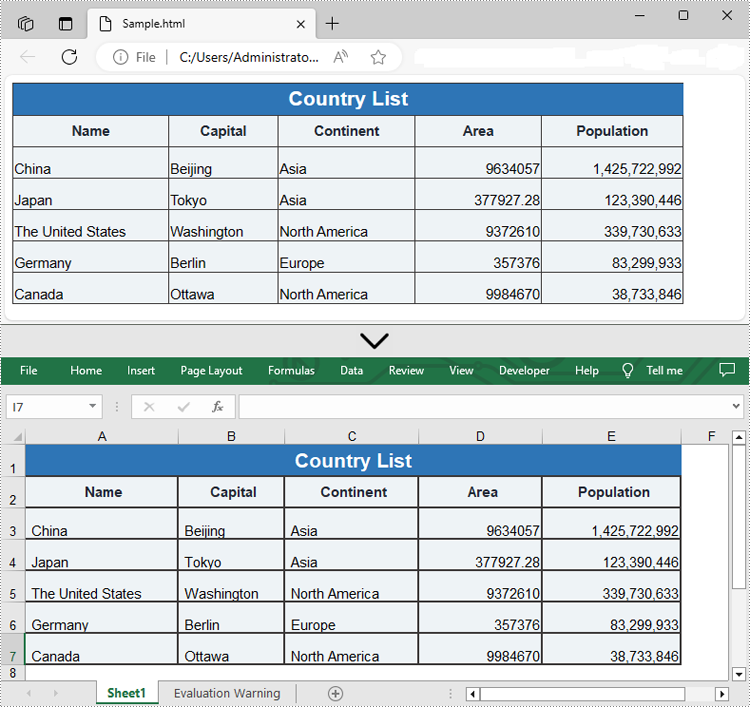
Spire.XLS for .NET offers the Workbook.LoadFromHtml() method to load an HTML file. After loading the HTML file, you can easily save it in Excel format using the Workbook.SaveToFile() method. The detailed steps are as follows.
- Create an object of the Workbook class.
- Load an HTML file using the Workbook.LoadFromHtml() method.
- Save the HTML file in Excel format using the Workbook.SaveToFile() method.
- C#
using Spire.Xls;

namespace ConvertHtmlToExcel
{
    internal class Program
    {
        static void Main(string[] args)
        {
            // Specify the input HTML file path
            string filePath = @"C:\Users\Administrator\Desktop\Sample.html";

            // Create an object of the workbook class
            Workbook workbook = new Workbook();

            // Load the HTML file
            workbook.LoadFromHtml(filePath);

            // Save the HTML file in Excel XLSX format
            string result = @"C:\Users\Administrator\Desktop\ToExcel.xlsx";
            workbook.SaveToFile(result, ExcelVersion.Version2013);

            workbook.Dispose();
        }
    }
}
Insert HTML String to Excel in C#
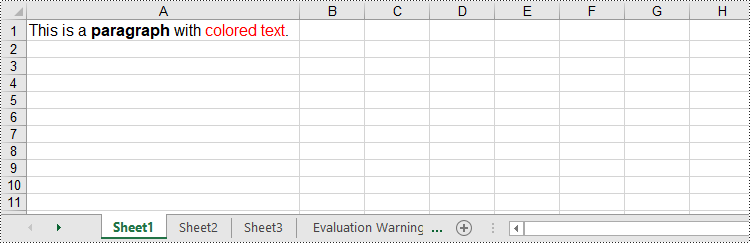
In addition to converting HTML files to Excel, Spire.XLS for .NET also allows you to insert HTML strings into Excel cells by using the CellRange.HtmlString property. The detailed steps are as follows.
- Create an object of the Workbook class.
- Get a specific worksheet by its index (0-based) using the Workbook.Worksheets[index] property.
- Get the cell that you want to add an HTML string to using the Worksheet.Range[] property.
- Add an HTML sting to the cell using the CellRange.HtmlString property.
- Save the resulting workbook to a new file using the Workbook.SaveToFile() method.
- C#
using Spire.Xls;

namespace InsertHtmlStringInExcel
{
    internal class Program
    {
        static void Main(string[] args)
        {
            // Create an object of the workbook class
            Workbook workbook = new Workbook();
            // Get the first sheet
            Worksheet sheet = workbook.Worksheets[0];

            // Specify the HTML string
            string htmlCode = "<p><font size='12'>This is a <b>paragraph</b> with <span style='color: red;'>colored text</span>.</font></p>";

            // Get the cell that you want to add the HTML string to
            CellRange range = sheet.Range["A1"];
            // Add the HTML string to the cell
            range.HtmlString = htmlCode;

            // Auto-adjust the width of the first column based on its content
            sheet.AutoFitColumn(1);

            // Save the resulting workbook to a new file
            string result = @"C:\Users\Administrator\Desktop\InsertHtmlStringIntoCell.xlsx";
            workbook.SaveToFile(result, ExcelVersion.Version2013);

            workbook.Dispose();
        }
    }
}
Apply for a Temporary License
If you'd like to remove the evaluation message from the generated documents, or to get rid of the function limitations, please request a 30-day trial license for yourself.
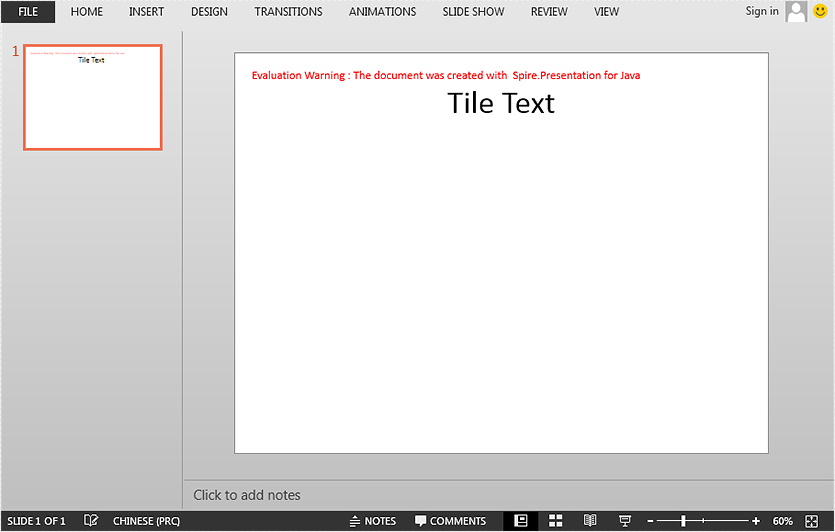
This article demonstrates how to set and get slide title in a PowerPoint document using Spire.Presentation for Java.
Set slide title
import com.spire.presentation.FileFormat;
import com.spire.presentation.ISlide;
import com.spire.presentation.Presentation;

public class SetSlideTitle {
    public static void main(String[] args) throws Exception {
        //Create a Presentation instance
        Presentation ppt = new Presentation();
        //Get the first slide
        ISlide slide = ppt.getSlides().get(0);

        //Set title for the slide
        slide.setTitle("Tile Text");

        //Save the result document
        ppt.saveToFile("SetTitle.pptx", FileFormat.PPTX_2013);
    }
}
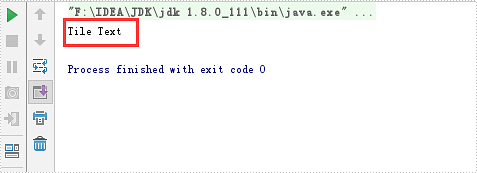
Get slide title
import com.spire.presentation.ISlide;
import com.spire.presentation.Presentation;

public class GetSlideTitle {
    public static void main(String[] args) throws Exception {
        //Create a Presentation instance
        Presentation ppt = new Presentation();
        //Load a PowerPoint document
        ppt.loadFromFile("SetTitle.pptx");

        //Get the first slide
        ISlide slide = ppt.getSlides().get(0);

        //Print out the title of the slide
        String tile = slide.getTitle();
        System.out.println(tile);
    }
}