
Knowledgebase (2370)
Children categories
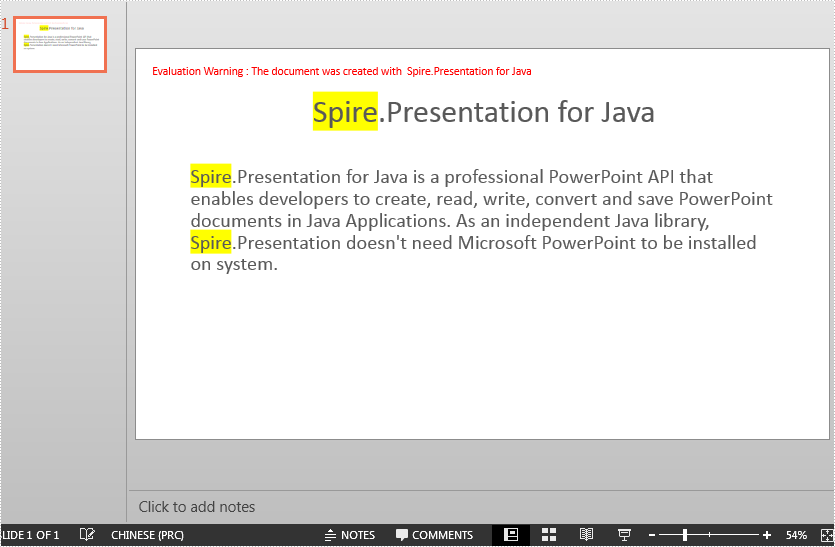
When you want to emphasize a particular point in a PowerPoint presentation, you can highlight it with a bright color to help the audience catch it at first glance. In this article, we will explain how to highlight text in a PowerPoint presentation in Java using Spire.Presentation for Java.
Install Spire.Presentation for Java
First of all, you're required to add the Spire.Presentation.jar file as a dependency in your Java program. The JAR file can be downloaded from this link. If you use Maven, you can easily import the JAR file in your application by adding the following code to your project's pom.xml file.
<repositories>
    <repository>
        <id>com.e-iceblue</id>
        <name>e-iceblue</name>
        <url>https://repo.e-iceblue.com/nexus/content/groups/public/</url>
    </repository>
</repositories>
<dependencies>
    <dependency>
        <groupId>e-iceblue</groupId>
        <artifactId>spire.presentation</artifactId>
        <version>11.7.2</version>
    </dependency>
</dependencies>
Highlight Text in PowerPoint in Java
The following are the steps to highlight specific text in a PowerPoint document:
- Initialize an instance of Presentation class.
- Load a PowerPoint presentation using Presentation.loadFromFile() method.
- Loop through the slides in the presentation and the shapes on each slide.
- Check if the current shape is of IAutoShape type.
- If the result is true, typecast it to IAutoShape.
- Initialize an instance of TextHighLightingOptions class, and set the text highlighting options such as whole words only and case sensitive using TextHighLightingOptions.setWholeWordsOnly() and TextHighLightingOptions.setCaseSensitive() methods.
- Highlight a specific text in the shape using IAutoShape.getTextFrame().highLightText() method.
- Save the result file using Presentation.saveToFile() method.
- Java
import com.spire.presentation.*;

import java.awt.*;

public class HighlightTextInPPT {
    public static void main(String []args) throws Exception {
        //Create an instance of Presentation class
        Presentation presentation = new Presentation();
        //Load a PowerPoint file
        presentation.loadFromFile("Input.pptx");

        //Loop through all slides
        for (int i = 0; i < presentation.getSlides().getCount(); i++)
        {
            //Get the current slide
            ISlide slide = presentation.getSlides().get(i);
            //Loop through the shapes on the slide
            for (int j = 0; j < slide.getShapes().getCount(); j++)
            {
                //Check if the current shape is of IAutoShape type
                if (slide.getShapes().get(j) instanceof IAutoShape)
                {
                    //Typecast the shape to IAutoShape
                    IAutoShape shape = (IAutoShape)slide.getShapes().get(j);

                    //Create an instance of TextHighLightingOptions class
                    TextHighLightingOptions options = new TextHighLightingOptions();
                    //Set text highlighting options
                    options.setCaseSensitive(true);
                    options.setWholeWordsOnly(true);

                    //Highlight specific text within the shape with color
                    shape.getTextFrame().highLightText("Spire", Color.YELLOW, options);
                }
            }
        }

        //Save the result file
        presentation.saveToFile("HighlightText.pptx", FileFormat.PPTX_2013);

    }
}
Apply for a Temporary License
If you'd like to remove the evaluation message from the generated documents, or to get rid of the function limitations, please request a 30-day trial license for yourself.
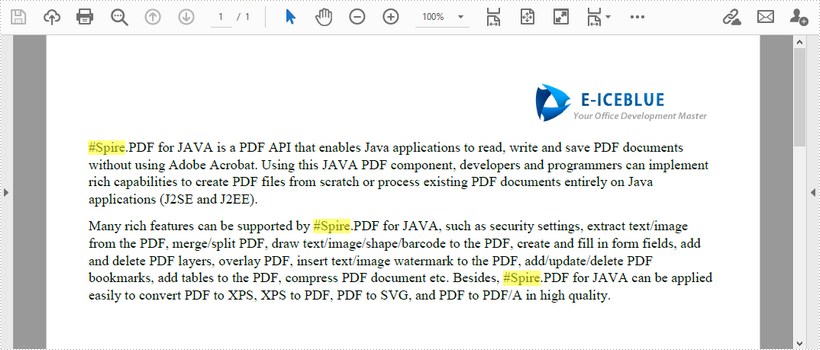
This article demonstrates how to find the text that matches a specific regular expression in a PDF document using Spire.PDF for Java.
import com.spire.pdf.*;
import com.spire.pdf.texts.*;
import java.awt.*;
import java.util.*;
import java.util.List;

public class FindText {
    public static void main(String[] args) {
        //Load a PDF document
        PdfDocument pdf = new PdfDocument();
        pdf.loadFromFile("C:\\Users\\Administrator\\Desktop\\test.pdf");

        //Create a object of PdfTextFind collection
        PdfTextFindOptions findOptions = new PdfTextFindOptions();

        //Loop through the pages
        for (Object page : (Iterable) pdf.getPages()) {
            PdfPageBase pageBase = (PdfPageBase) page;

            //Define a regular expression
            String pattern = "\\#\\w+\\b";
            // Set search parameter to use regular expression
            findOptions.setTextFindParameter(EnumSet.of(TextFindParameter.Regex));

            // Create a text finder object for the page
            PdfTextFinder textFinder = new PdfTextFinder(pageBase);

            // Find text fragments that match the pattern
            List<PdfTextFragment> finds = textFinder.find(pattern, findOptions);

            //Highlight the search results with yellow
            for (PdfTextFragment find : finds) {
                find.highLight(Color.yellow);
            }
        }

        //Save to file
        pdf.saveToFile("FindByPattern.pdf");
    }
}
This article demonstrates how to remove a specific image or all images from an Excel worksheet using Spire.XLS for Java.
Delete specific image
import com.spire.xls.ExcelVersion;
import com.spire.xls.Workbook;
import com.spire.xls.Worksheet;

public class DeleteSpecificImage {

    public static void main(String[] args) {

        //Create a Workbook object
        Workbook workbook = new Workbook();

        //Load an Excel file
        workbook.loadFromFile("Input.xlsx");

        //Get the first worksheet
        Worksheet sheet = workbook.getWorksheets().get(0);

        //Delete a specific image by its index
        sheet.getPictures().get(1).remove();

        //Save the document
        workbook.saveToFile("DeleteSpecificImage.xlsx", ExcelVersion.Version2013);
    }
Delete all images
import com.spire.xls.ExcelVersion;
import com.spire.xls.Workbook;
import com.spire.xls.Worksheet;

public class DeleteAllImages {

    public static void main(String[] args) {

        //Create a Workbook object
        Workbook workbook = new Workbook();

        //Load an Excel file
        workbook.loadFromFile("Input.xlsx");

        //Get the first worksheet
        Worksheet sheet = workbook.getWorksheets().get(0);

        //Loop through the images inside the worksheet
        for (int i = sheet.getPictures().getCount() - 1; i >= 0; i--) {

            //Delete an image by its index
            sheet.getPictures().get(i).remove();
        }

        //Save the document
        workbook.saveToFile("DeleteAllImages.xlsx", ExcelVersion.Version2013);
    }
}
