
Knowledgebase (2370)
Children categories
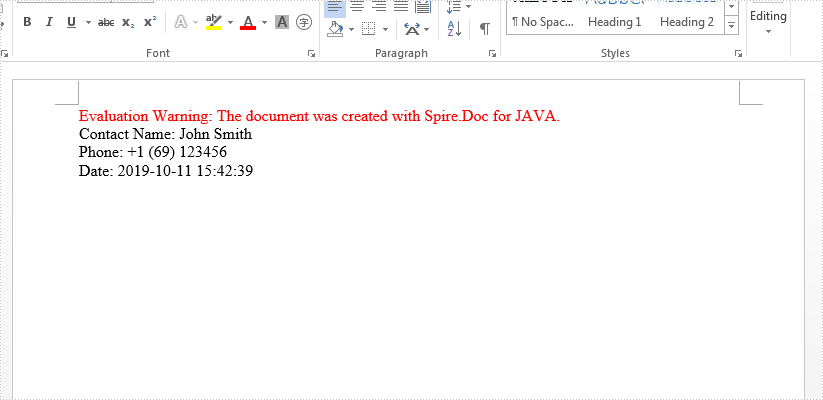
This article will demonstrate how to create a mail merge template and then merge the text value to the template in Java application with the help of Spire.Doc.
import com.spire.doc.*;
import com.spire.doc.documents.Paragraph;
import java.text.SimpleDateFormat;
import java.util.Date;

public class MailMerge {
    public static void main(String[] args) throws Exception {

        String output = "output/mailMerge.docx";

        //Create a Document instance
        Document document = new Document();

        //Add a section
        Section section = document.addSection();

        //Add 3 paragraphs to the section
        Paragraph para = section.addParagraph();
        Paragraph para2 = section.addParagraph();
        Paragraph para3 = section.addParagraph();

        //Add mail merge templates to each paragraph
        para.setText("Contact Name: ");
        para.appendField("Contact Name", FieldType.Field_Merge_Field);
        para2.setText("Phone: ");
        para2.appendField("Phone", FieldType.Field_Merge_Field);
        para3.setText("Date: ");
        para3.appendField("Date", FieldType.Field_Merge_Field);

        //Set the value for the mail merge template by the field name
        Date currentTime = new Date();
        SimpleDateFormat formatter = new SimpleDateFormat("yyyy-MM-dd HH:mm:ss");
        String dateString = formatter.format(currentTime);
        String[] filedNames = new String[]{"Contact Name", "Phone", "Date"};
        String[] filedValues = new String[]{"John Smith", "+1 (69) 123456", dateString};

        //Merge the specified value into template
        document.getMailMerge().execute(filedNames, filedValues);

        //save the document to file
        document.saveToFile(output, FileFormat.Docx);
    }
}
Effective screenshot for the mail merge:

Spire.XLS for Java is a professional Java Excel API that enables developers to create, manage, manipulate, convert and print Excel worksheets without using Microsoft Office or Microsoft Excel.
Spire.XLS for Java offers a wide range of features of operating Excel worksheets on Java applications, such as creating, reading, editing, converting and printing Excel worksheets, finding/replacing data, creating charts, inserting/extracting/deleting textboxes, creating auto filters, reading/writing hyperlinks, creating/modifying/removing tables, merging/unmerging cells and files, grouping/ungrouping rows and columns, freezing/unfreezing panes, adding digital signatures, encrypting/decrypting Excel workbooks etc.


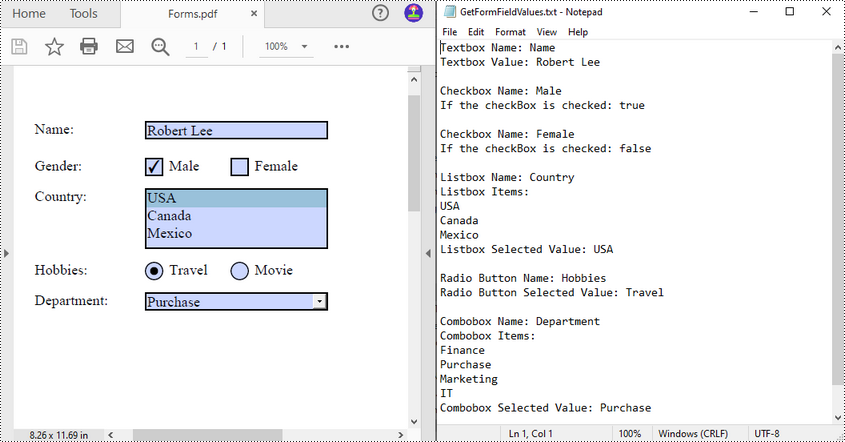
Extracting values from PDF forms can be a crucial task for organizations looking to analyze and utilize the information collected from these forms. For example, a company may use PDF forms to collect customer contact details or feedback on products or services. By extracting the PDF form data, the company can easily input the information into their database for further analysis and follow-up. In this article, you will learn how to extract values from PDF forms in Java using Spire.PDF for Java.
Install Spire.PDF for Java
First of all, you're required to add the Spire.Pdf.jar file as a dependency in your Java program. The JAR file can be downloaded from this link. If you use Maven, you can easily import the JAR file in your application by adding the following code to your project's pom.xml file.
<repositories>
    <repository>
        <id>com.e-iceblue</id>
        <name>e-iceblue</name>
        <url>https://repo.e-iceblue.com/nexus/content/groups/public/</url>
    </repository>
</repositories>
<dependencies>
    <dependency>
        <groupId>e-iceblue</groupId>
        <artifactId>spire.pdf</artifactId>
        <version>12.7.0</version>
    </dependency>
</dependencies>
Extract Data from PDF Forms in Java
Spire.PDF for Java supports various types of PDF form fields, including:
- Text box field (represented by the PdfTextBoxFieldWidget class)
- Check box field (represented by the PdfCheckBoxWidgetFieldWidget class)
- Radio button field (represented by the PdfRadioButtonListFieldWidget class)
- List box field (represented by the PdfListBoxWidgetFieldWidget class)
- Combo box field (represented by the PdfComboBoxWidgetFieldWidget class)
Before extracting data from the PDF forms, it is necessary to determine the specific type of each form field first, and then you can use the properties of the corresponding form field class to extract their values accurately. The following are the detailed steps.
- Initialize an instance of the PdfDocument class.
- Load a PDF document using PdfDocument.loadFromFile() method.
- Get the forms in the PDF document using PdfDocument.getForm() method.
- Create a StringBuilder instance to store the extracted form field values.
- Iterate through all fields in the PDF forms.
- Determine the types of the form fields, then get the names and values of the form fields using the corresponding properties.
- Write the results to a txt file.
- Java
import com.spire.pdf.PdfDocument;
import com.spire.pdf.fields.PdfField;
import com.spire.pdf.widget.*;

import java.io.FileWriter;
import java.io.IOException;

public class ReadPdfFormValues {
    public static void main(String[] args) throws Exception{
        //Create a PdfDocument instance
        PdfDocument pdf = new PdfDocument();

        //Load a PDF document
        pdf.loadFromFile("forms.pdf");

        //Create a StringBuilder instance
        StringBuilder sb = new StringBuilder();

        //Get PDF forms
        PdfFormWidget formWidget = (PdfFormWidget)pdf.getForm();

        //Iterate through all fields in the form
        for (int i = 0; i < formWidget.getFieldsWidget().getList().size(); i++)
        {
            PdfField field = (PdfField)formWidget.getFieldsWidget().getList().get(i);

            //Get the name and value of the textbox field
            if (field instanceof PdfTextBoxFieldWidget)
            {
                PdfTextBoxFieldWidget textBoxField = (PdfTextBoxFieldWidget)field ;
                String text = textBoxField.getName();
                String value = textBoxField.getText();
                sb.append("Textbox Name: " + text + "\r\n");
                sb.append("Textbox Value: " + value + "\n\r");
            }

            //Get the name of the listbox field
            if (field instanceof PdfListBoxWidgetFieldWidget)
            {
                PdfListBoxWidgetFieldWidget listBoxField = (PdfListBoxWidgetFieldWidget)field;
                String name = listBoxField.getName();
                sb.append("Listbox Name: " + name + "\r\n");

                //Get the items of the listbox field
                sb.append("Listbox Items: \r\n");
                PdfListWidgetItemCollection items = listBoxField.getValues();
                for (int j = 0; j < items.getCount(); j ++)
                {
                    sb.append( items.get(j).getValue() + "\r\n");
                }

                //Get the selected item of the listbox field
                String selectedValue = listBoxField.getSelectedValue();
                sb.append("Listbox Selected Value: " + selectedValue + "\n\r");

            }

            //Get the name of the combo box field
            if (field instanceof PdfComboBoxWidgetFieldWidget)
            {
                PdfComboBoxWidgetFieldWidget comBoxField = (PdfComboBoxWidgetFieldWidget)field;
                String name = comBoxField.getName();
                sb.append("Combobox Name: " + name + "\r\n");

                //Get the items of the combo box field
                sb.append("Combobox Items: \r\n");
                PdfListWidgetItemCollection items = comBoxField.getValues();
                for (int j = 0; j < items.getCount(); j ++)
                {
                    sb.append( items.get(j).getValue() + "\r\n");
                }

                //Get the selected item of the combo box field
                String selectedValue = comBoxField.getSelectedValue();
                sb.append("Combobox Selected Value: " + selectedValue + "\n\r");

            }

            //Get the name and selected item of the radio button field
            if (field instanceof PdfRadioButtonListFieldWidget)
            {
                PdfRadioButtonListFieldWidget radioBtnField = (PdfRadioButtonListFieldWidget)field;
                String name = radioBtnField.getName();
                String value = radioBtnField.getValue();
                sb.append("Radio Button Name: " + name + "\r\n");
                sb.append("Radio Button Selected Value: " + value + "\n\r");
            }

            //Get the name and status of the checkbox field
            if (field instanceof PdfCheckBoxWidgetFieldWidget)
            {
                PdfCheckBoxWidgetFieldWidget checkBoxField = (PdfCheckBoxWidgetFieldWidget)field;
                String name = checkBoxField.getName();
                sb.append("Checkbox Name: " + name + "\r\n");

                boolean state = checkBoxField.getChecked();
                sb.append("If the checkBox is checked: " + state + "\n\r");
            }
        }

        //Write the results to a txt file
        writeStringToTxt(sb.toString(), "GetFormFieldValues.txt");
    }

    public static void writeStringToTxt(String content, String txtFileName) throws IOException {
        FileWriter fWriter = new FileWriter(txtFileName, true);
        try {
            fWriter.write(content);
        } catch (IOException ex) {
            ex.printStackTrace();
        } finally {
            try {
                fWriter.flush();
                fWriter.close();
            } catch (IOException ex) {
                ex.printStackTrace();
            }
        }
    }
}
Apply for a Temporary License
If you'd like to remove the evaluation message from the generated documents, or to get rid of the function limitations, please request a 30-day trial license for yourself.
