
Knowledgebase (2370)
Children categories
Page numbers in Word documents are marked on each page to indicate the order and the number of pages. They can facilitate document creators to manage the document content and help users quickly find specific content in the document, thus improving reading speed and reading experience. This article is going to show how to use Spire.Doc for Java to add page numbers to Word documents programmatically.
- Add Page Numbers to a Word Document in Java
- Restart Page Numbering for Each Section in a Word Document in Java
- Add Page Numbers to a Specific Section in a Word Document in Java
Install Spire.Doc for Java
First of all, you're required to add the Spire.Doc.jar file as a dependency in your Java program. The JAR file can be downloaded from this link. If you use Maven, you can easily import the JAR file in your application by adding the following code to your project's pom.xml file.
<repositories>
    <repository>
        <id>com.e-iceblue</id>
        <name>e-iceblue</name>
        <url>https://repo.e-iceblue.com/nexus/content/groups/public/</url>
    </repository>
</repositories>
<dependencies>
    <dependency>
        <groupId>e-iceblue</groupId>
        <artifactId>spire.doc</artifactId>
        <version>14.7.0</version>
    </dependency>
</dependencies>
Add Page Numbers to a Word Document in Java
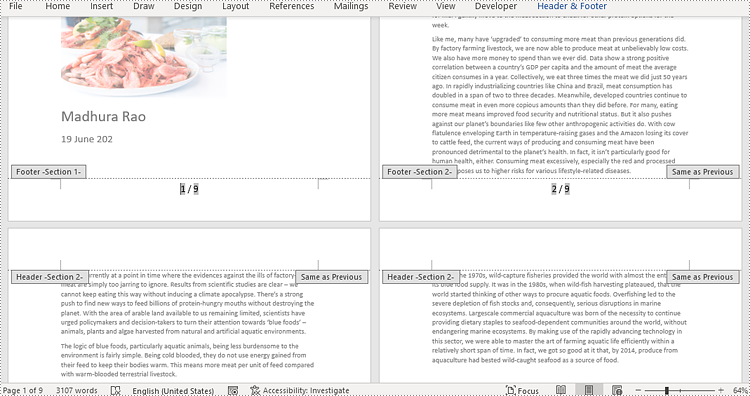
Page numbers in Word are displayed using specific types of fields. For example, the Page field displays the page number of the current page, the NumPages field displays the total number of pages in a document, and the SectionPages field displays the total number of pages in a section.
Spire.Doc for Java provides the Paragraph.appendField(String fieldName, FieldType fieldType) method to add various types of fields to a Word document, including the Page field (FieldType.Field_Page), the NumPages field (FieldType.Field_Num_Pages), and the SectionPages field (FieldType.Field_Section_Pages).
The following steps explain how to add a Page field and a NumPages field to the footer of a Word document to display the current page number and the total number of pages in the document using Spire.Doc for Java:
- Create an object of Document class.
- Load a Word document using Document.loadFromFile() method.
- Get the first section using Document.getSections().get() method.
- Get the footer of the first section using Section.getHeadersFooters().getFooter() method.
- Add a paragraph to the footer, and then add a Page field and a NumPages field to the paragraph using Paragraph.appendField(String fieldName, FieldType fieldType) method.
- Save the document using Document.saveToFile() method.
- Java
import com.spire.doc.Document;
import com.spire.doc.FieldType;
import com.spire.doc.HeaderFooter;
import com.spire.doc.Section;
import com.spire.doc.documents.HorizontalAlignment;
import com.spire.doc.documents.Paragraph;

public class addPageNumbersWholeDocument {
    public static void main(String[] args) {

        //Create an object of Document class
        Document document = new Document();

        //Load a Word document
        document.loadFromFile("Sample.docx");

        //Get the first section
        Section section = document.getSections().get(0);

        //Get the footer of the section
        HeaderFooter footer = section.getHeadersFooters().getFooter();

        //Add Page and NumPages fields to the footer and set the format
        Paragraph footerParagraph = footer.addParagraph();
        footerParagraph.appendField("page number", FieldType.Field_Page);
        footerParagraph.appendText(" / ");
        footerParagraph.appendField("page count", FieldType.Field_Num_Pages);
        footerParagraph.getFormat().setHorizontalAlignment(HorizontalAlignment.Center);
        footerParagraph.getStyle().getCharacterFormat().setFontSize(16);

        //Save the document
        document.saveToFile("PageNumberWholeDocument.docx");
        document.dispose();
    }
}
Restart Page Numbering for Each Section in a Word Document in Java
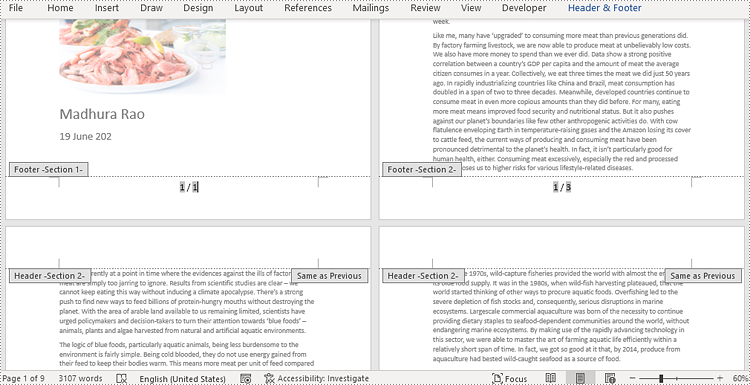
Restarting page numbering allows you to start the page numbers at a particular number in each section, rather than continuing from the page numbers of the previous section.
To restart page numbering for each section of a Word document, you need to loop through all sections in the document and add a Page field and a SectionPages field to each section. Then use the Section.getPageSetup().setRestartPageNumbering(true) method to enable restarting page numbering and the Section.getPageSetup().setPageStartingNumber(int value) method to set the starting page number for each section. The detailed steps are as follows:
- Create an object of Document class.
- Load a Word document using Document.loadFromFile() method.
- Loop through the sections in the document.
- Call the Paragraph.appendField(String fieldName, FieldType fieldType) method to add a Page field and a SectionPages field to each section.
- Call the Section.getPageSetup().setRestartPageNumbering(true) method to enable restarting page numbering and the Section.getPageSetup().setPageStartingNumber(int value) method to set the starting page number for each section.
- Save the document using Document.saveToFile() method.
- Java
import com.spire.doc.Document;
import com.spire.doc.FieldType;
import com.spire.doc.HeaderFooter;
import com.spire.doc.documents.HorizontalAlignment;
import com.spire.doc.documents.Paragraph;

public class addPageNumbersEachSection {
    public static void main(String[] args) {

        //Create an object of Document class
        Document document = new Document();

        //Load a Word document
        document.loadFromFile("Sample.docx");

        //Get the count of sections in the document
        int s = document.getSections().getCount();

        //Loop through the sections in the document
        for (int i = 0; i < s; i++) {

            //Add Page and SectionPages fields to each section
            HeaderFooter footer = document.getSections().get(i).getHeadersFooters().getFooter();
            Paragraph footerParagraph = footer.addParagraph();
            footerParagraph.appendField("page number", FieldType.Field_Page);
            footerParagraph.appendText(" / ");
            footerParagraph.appendField("section page count", FieldType.Field_Section_Pages);
            footerParagraph.getFormat().setHorizontalAlignment(HorizontalAlignment.Center);
            footerParagraph.getStyle().getCharacterFormat().setFontSize(16);

            //Restart page numbering for each section
            if (i == s-1)
                break;
            else {
                document.getSections().get(i + 1).getPageSetup().setRestartPageNumbering(true);
                document.getSections().get(i + 1).getPageSetup().setPageStartingNumber(1);
            }
        }

        //Save the document
        document.saveToFile("PageNumbersSections.docx");
        document.dispose();
    }
}
Add Page Numbers to a Specific Section in a Word Document in Java
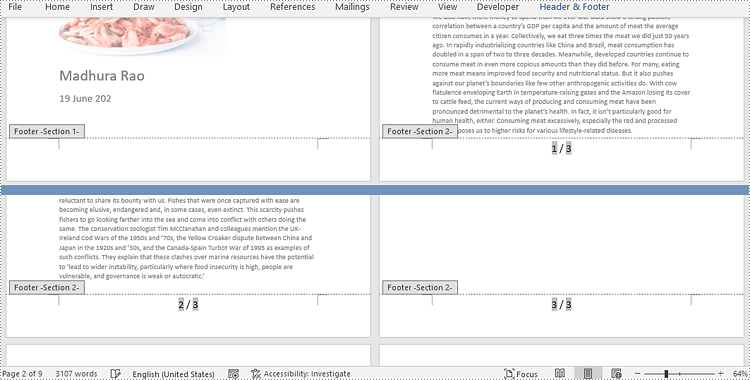
By default, when you insert page numbers into the footer of a section, the subsequent sections will automatically link to the previous section to continue displaying the page numbers. If you want to add page numbers to only a specific section, you will need to unlink the subsequent sections from the previous section, and then delete the content of the footers in the subsequent sections. The detailed steps are as follows:
- Create an object of Document class.
- Load a Word document using Document.loadFromFile() method.
- Get the second section of the document using Document.getSections().get() method.
- Call the Section.getPageSetup().setRestartPageNumbering(true) method to enable restarting page numbering and the Section.getPageSetup().setPageStartingNumber(int value) method to set the starting page number for the section.
- Call the Paragraph.appendField(String fieldName, FieldType fieldType) method to add a Page field and a SectionPages field to the section.
- Unlink the subsequent section from the second section using the Section.getHeadersFooters().getFooter().setLinkToPrevious(false) method.
- Delete the content of the footers in the subsequent sections.
- Save the document using Doucment.saveToFile() method.
- Java
import com.spire.doc.Document;
import com.spire.doc.FieldType;
import com.spire.doc.HeaderFooter;
import com.spire.doc.Section;
import com.spire.doc.documents.HorizontalAlignment;
import com.spire.doc.documents.Paragraph;

public class addPageNumbersToSpecificSection {
    public static void main(String[] args) {

        //Create an object of Document
        Document document = new Document();

        //Load a Word document
        document.loadFromFile("Sample.docx");

        //Get the second section
        Section section = document.getSections().get(1);

        //Get the footer of the second section
        HeaderFooter footer = section.getHeadersFooters().getFooter();

        //Set the start page as the first page of the second section and the starting number as 1
        section.getPageSetup().setRestartPageNumbering(true);
        section.getPageSetup().setPageStartingNumber(1);

        //Add page numbers to the footer and set the format
        Paragraph footerParagraph = footer.addParagraph();
        footerParagraph.appendField("Page number", FieldType.Field_Page);
        footerParagraph.appendText(" / ");
        footerParagraph.appendField("Number of pages", FieldType.Field_Section_Pages);
        footerParagraph.getFormat().setHorizontalAlignment(HorizontalAlignment.Center);
        footerParagraph.getStyle().getCharacterFormat().setFontSize(12);

        //Unlink the subsequent section from the second section
        document.getSections().get(2).getHeadersFooters().getFooter().setLinkToPrevious(false);
        //Delete the content of the footers in the subsequent sections
        for (int i = 2; i < document.getSections().getCount(); i++)
        {
            document.getSections().get(i).getHeadersFooters().getFooter().getChildObjects().clear();
            document.getSections().get(i).getHeadersFooters().getFooter().addParagraph();
        }

        //Save the document
        document.saveToFile("PageNumberOneSection.docx");
        document.dispose();
    }
}
Apply for a Temporary License
If you'd like to remove the evaluation message from the generated documents, or to get rid of the function limitations, please request a 30-day trial license for yourself.
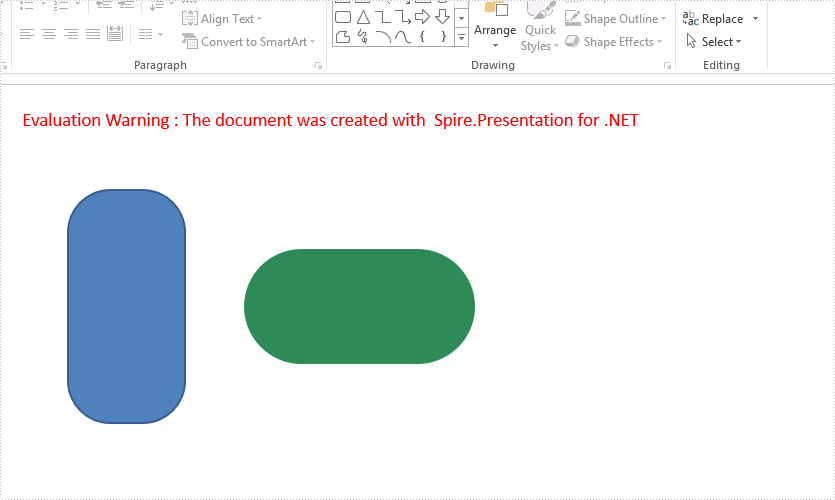
With the help of Spire.Presentation, we can add shapes to the presentation slides easily. This example shows you how to add a round corner rectangle to presentation slide and set the radius of the round corner rectangle in C#.
using Spire.Presentation;
using Spire.Presentation.Drawing;
using System.Drawing;

namespace RoundRectangle
{
    class Program
    {
        static void Main(string[] args)
        {
            Presentation presentation = new Presentation();

            //Insert a round corner rectangle and set its radious
            presentation.Slides[0].Shapes.InsertRoundRectangle(0, 60, 90, 100, 200, 36);

            //Append a round corner rectangle and set its radious
            IAutoShape shape = presentation.Slides[0].Shapes.AppendRoundRectangle(260, 90, 100, 200, 80);
            //Set the color and fill style of shape
            shape.Fill.FillType = FillFormatType.Solid;
            shape.Fill.SolidColor.Color = Color.SeaGreen;
            shape.ShapeStyle.LineColor.Color = Color.White;
            //Rotate the shape to 90 degree
            shape.Rotation = 90;

            //Save the document to file
            presentation.SaveToFile("Result.pptx", FileFormat.Pptx2013);

        }
    }
}
Effective screenshot of the round corner rectangle on presentation slide:
This article demonstrates how to get the text inside a bookmark in a Word document using Spire.Doc for Java.
import com.spire.doc.Document;
import com.spire.doc.documents.BookmarksNavigator;
import com.spire.doc.documents.Paragraph;
import com.spire.doc.documents.TextBodyPart;
import com.spire.doc.fields.TextRange;

import java.io.FileNotFoundException;
import java.io.PrintWriter;

public class GetBookmarkText {

    public static void main(String[] args) throws FileNotFoundException {

        //create a Document object
        Document doc = new Document();

        //load a sample Word file
        doc.loadFromFile("C:\\Users\\Administrator\\Desktop\\sample.docx");

        //get the specific bookmark
        BookmarksNavigator navigator = new BookmarksNavigator(doc);
        navigator.moveToBookmark("MyBookmark");

        //get the bookmark content
        TextBodyPart textBodyPart = navigator.getBookmarkContent();

        //declare a String variable
        String text = "";

        //loop through body items
        for (Object item : textBodyPart.getBodyItems()) {

            //determine if an item is a paragraph
            if (item instanceof Paragraph) {
                Paragraph paragraph = (Paragraph) item;

                //loop through the child objects of the paragraph
                for (Object childObj : paragraph.getChildObjects()) {

                    //determine if a child object is a text range
                    if (childObj instanceof TextRange) {

                        //get text from the text range
                        TextRange textRange = (TextRange) childObj;
                        text = text + textRange.getText();
                    }
                }
            }
        }

        //write the bookmark text to a .txt file
        PrintWriter printWriter = new PrintWriter("output/BookmarkText.txt");
        printWriter.println(text);
        printWriter.close();
    }
}

