
Knowledgebase (2370)
Children categories
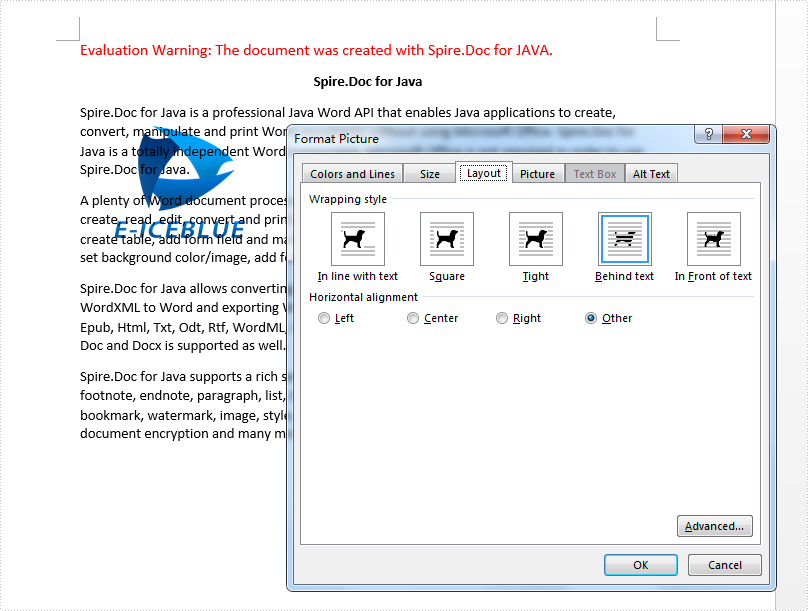
This article will show you how to set the wrapping style to adjust the position of the image in Java applications with the help of Spire.Doc for Java.
import com.spire.doc.*;
import com.spire.doc.documents.Paragraph;
import com.spire.doc.documents.TextWrappingStyle;
import com.spire.doc.documents.TextWrappingType;
import com.spire.doc.fields.DocPicture;

public class ImageWrappingStyle {
    public static void main(String[] args) throws Exception {

        Document doc = new Document();
        doc.loadFromFile("Sample.docx");

        Section sec = doc.getSections().get(0);

        Paragraph para = sec.getParagraphs().get(0);
        DocPicture picture = para.appendPicture("logo.png");

        //Set image width and height
        picture.setWidth(150f);
        picture.setHeight(125f);

        //Set text wrapping style to Behind
        picture.setTextWrappingStyle(TextWrappingStyle.Behind);
        picture.setTextWrappingType(TextWrappingType.Both);

        //Save the document to file
        doc.saveToFile("Output/WrapStyle.docx");
        doc.close();

    }
}
Effective screenshot after setting the wrapping style for image:
In document creation, divisions of content are frequently required to fulfill specific layout requirements and establish logical structures. The insertion of section breaks and page breaks is the most commonly employed method for dividing content, as it enables flexible control over page and section organization. Moreover, page breaks and section breaks are quite helpful in formatting purposes and the establishment of distinct document styles. This article aims to demonstrate how to use Spire.Doc for Java to insert page breaks and section breaks into Word documents through Java programs.
Install Spire.Doc for Java
First, you're required to add the Spire.Doc.jar file as a dependency in your Java program. The JAR file can be downloaded from this link. If you use Maven, you can easily import the JAR file in your application by adding the following code to your project's pom.xml file.
<repositories>
    <repository>
        <id>com.e-iceblue</id>
        <name>e-iceblue</name>
        <url>https://repo.e-iceblue.com/nexus/content/groups/public/</url>
    </repository>
</repositories>
<dependencies>
    <dependency>
        <groupId>e-iceblue</groupId>
        <artifactId>spire.doc</artifactId>
        <version>14.7.0</version>
    </dependency>
</dependencies>
Insert Page Breaks into Word Documents
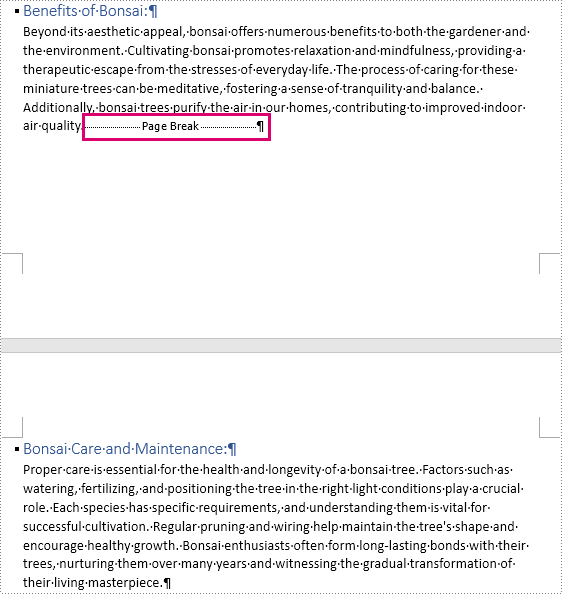
Spire.Doc for Java provides the Paragraph.appendBreak(BreakType.PageBreak) method to insert a page break at the end of a paragraph. The detailed steps are as follows:
- Create an object of Document class.
- Load a Word document using Document.loadFromFile() method.
- Get the first section using Document.getSections().get() method.
- Get the eighth paragraph of the section using Section.getParagraphs().get() method.
- Add a page break to the end of the paragraph using Paragraph.appendBreak(BreakType.PageBreak) method.
- Save the document using Document.saveToFile() method.
- Java
import com.spire.doc.Document;
import com.spire.doc.FileFormat;
import com.spire.doc.Section;
import com.spire.doc.documents.BreakType;
import com.spire.doc.documents.Paragraph;

public class InsertPageBreak {
    public static void main(String[] args) {
        //Create an object of Document class
        Document doc = new Document();

        //Load a Word document
        doc.loadFromFile("Sample.docx");

        //Get the first section
        Section section = doc.getSections().get(0);

        //Get the eighth paragraph
        Paragraph paragraph = section.getParagraphs().get(7);

        //Add a page break to the end of the paragraph
        paragraph.appendBreak(BreakType.Page_Break);

        //Save the document
        doc.saveToFile("PageBreak.docx", FileFormat.Auto);
    }
}
Insert Section Breaks into Word Documents
Inserting section breaks involves using the Paragraph.insertSectionBreak(SectionBreakType) method. This method allows users to specify the type of section break you want to insert. he following table provides an overview of the section break types, along with their corresponding Enums and descriptions:
| Section Break | Enum | Description |
| New page | SectionBreakType.New_Page | Start the new section on a new page. |
| Continuous | SectionBreakType.No_Break | Start the new section without starting a new page, allowing for continuous content flow. |
| Odd page | SectionBreakType.Odd_Page | Start the new section on the next odd-numbered page. |
| Even page | SectionBreakType.Even_Page | Start the new section on the next even-numbered page. |
| New column | SectionBreakType.New_Column | Start the new section in the next column if columns are enabled. |
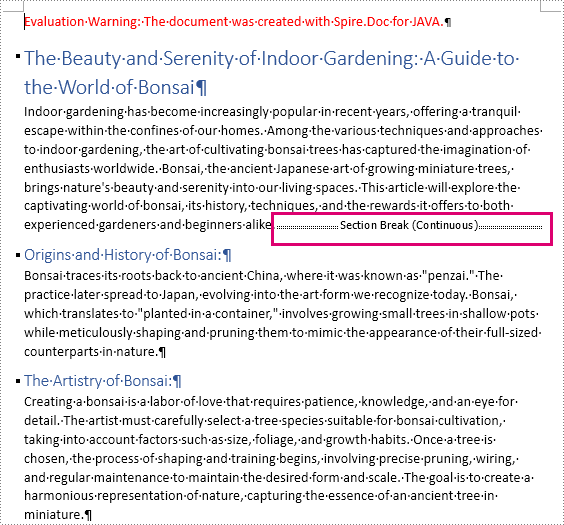
The detailed steps for inserting a continuous section break are as follows:
- Create an object of Document class.
- Load a Word document using Document.loadFromFile() method.
- Get the first section using Document.getSections().get() method.
- Get the second paragraph of the section using Section.getParagraphs().get() method.
- Add a continuous section break to the end of the paragraph using Paragraph.insertSectionBreak(SectionBreakType.No_Break) method.
- Save the document using Document.saveToFile() method.
- Java
import com.spire.doc.Document;
import com.spire.doc.FileFormat;
import com.spire.doc.Section;
import com.spire.doc.documents.Paragraph;
import com.spire.doc.documents.SectionBreakType;

public class InsertSectionBreak {
    public static void main(String[] args) {
        //Create an object of Document class
        Document doc = new Document();

        //Load a Word document
        doc.loadFromFile("Sample.docx");

        //Get the first section
        Section section = doc.getSections().get(0);

        //Get the second paragraph
        Paragraph paragraph = section.getParagraphs().get(1);

        //Insert a section break
        paragraph.insertSectionBreak(SectionBreakType.No_Break);

        //Save the document
        doc.saveToFile("SectionBreak.docx", FileFormat.Auto);
    }
}
Apply for a Temporary License
If you'd like to remove the evaluation message from the generated documents, or to get rid of the function limitations, please request a 30-day trial license for yourself.
This article demonstrates how to delete attachments and annotation attachments in a PDF document using Spire.PDF for Java.
Delete Attachments
import com.spire.pdf.attachments.PdfAttachmentCollection;

public class DeleteAttachments {

    public static void main(String[] args) {

        //load a PDF document
        PdfDocument doc = new PdfDocument();
        doc.loadFromFile("C:\\Users\\Administrator\\Desktop\\Attachments.pdf");

        //get the attachments collection, not containing annotation attachments
        PdfAttachmentCollection attachments = doc.getAttachments();

        //remove all attachments
        attachments.clear();

        //remove a specific attachment
        //attachments.removeAt(0);

        //save to file
        doc.saveToFile("output/DeleteAttachments.pdf");
        doc.close();
    }
}
Delete Annotation Attachments
import com.spire.pdf.annotations.PdfAnnotation;
import com.spire.pdf.annotations.PdfAnnotationCollection;
import com.spire.pdf.annotations.PdfAttachmentAnnotationWidget;

public class DeleteAnnotationAttachments {

    public static void main(String[] args) {

        //load a PDF document
        PdfDocument doc = new PdfDocument();
        doc.loadFromFile("C:\\Users\\Administrator\\Desktop\\Attachments.pdf");

        //loop through the pages
        for (int i = 0; i < doc.getPages().getCount(); i++) {

            //get the annotations collection
            PdfAnnotationCollection annotationCollection = doc.getPages().get(i).getAnnotationsWidget();

            //loop through the annotations
            for (Object annotation: annotationCollection) {

                //determine if an annotation is an instance of PdfAttachmentAnnotationWidget
                if (annotation instanceof PdfAttachmentAnnotationWidget){

                    //remove the attachment annotation
                    annotationCollection.remove((PdfAnnotation) annotation);
                }
            }
        }

        //save to file
        doc.saveToFile("output/DeleteAnnotationAttachments.pdf");
        doc.close();
    }
}
