
Knowledgebase (2370)
Children categories
Page numbers provide clarity and structure to the content, making it easier for readers to navigate through the document. By including page numbers, readers can quickly locate specific information or refer to a specific page. Adding page numbers to a PDF document is a common requirement when creating professional and organized files. Whether you're working on a report, a thesis, or any other type of PDF document, incorporating page numbers enhances the overall readability and professionalism of your work.
In this article, you will learn how to add page numbers to a PDF document at the footer section using Spire.PDF for Java.
- Add Page Numbers to the Left Corner of PDF Footer
- Add Page Numbers to the Center of PDF Footer
- Add Page Numbers to the Right Corner of PDF Footer
Install Spire.PDF for Java
You're required to add the Spire.Pdf.jar file as a dependency in your Java program. The JAR file can be downloaded from this link. If you use Maven, you can easily import the JAR file in your application by adding the following code to your project's pom.xml file.
<repositories>
    <repository>
        <id>com.e-iceblue</id>
        <name>e-iceblue</name>
        <url>https://repo.e-iceblue.com/nexus/content/groups/public/</url>
    </repository>
</repositories>
<dependencies>
    <dependency>
        <groupId>e-iceblue</groupId>
        <artifactId>spire.pdf</artifactId>
        <version>12.7.0</version>
    </dependency>
</dependencies>
PDF Coordinate System
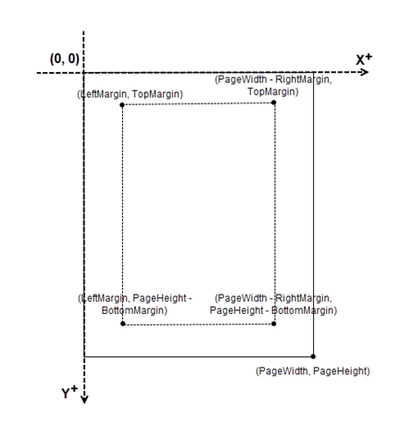
When using Spire.PDF for Java to manipulate an existing PDF document, the coordinate system's origin is positioned at the top left corner of the page. The x-axis extends to the right, while the y-axis extends downward.
In general, page numbers are commonly positioned in the header or footer section of a document. As a result, it is important to consider the page size and margins when deciding where to place the page numbers.
Add Page Numbers to the Left Corner of PDF Footer in Java
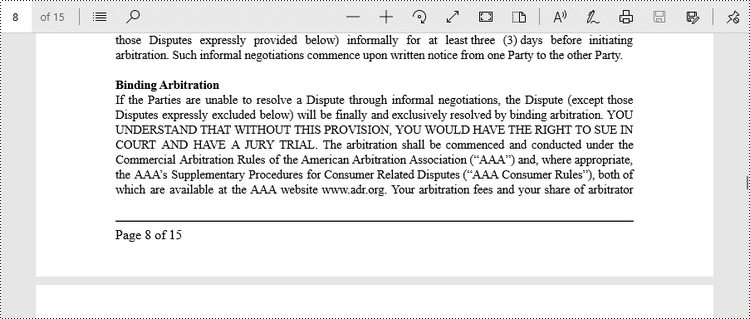
Spire.PDF for Java offers the PdfPageNumberField class and the PdfPageCountField class, which reflect the current page number and the total page count when added to a page of a PDF document. To insert a piece of text like "Page X" or "Page X of Y", you can use a PdfCompositeField object to combine the text with one or more fields into a single field.
To add "Page X of Y" to the left corner of PDF footer, follow the steps below.
- Create a Document object.
- Load a PDF file from a specified page.
- Create a PdfPageNumberField object and a PdfPageCountField object.
- Create a PdfCompositeField object to create a "Page X of Y" format.
- Specify the location of the PdfCompositeField object using PdfCompositeField.setLocation() method.
- Iterate though the pages in the document, and add "Page X of Y" to the left corner of the footer section using PdfCompositeField.draw() method.
- Save the document to a different PDF file.
- Java
import com.spire.pdf.PdfDocument;
import com.spire.pdf.PdfPageBase;
import com.spire.pdf.automaticfields.PdfCompositeField;
import com.spire.pdf.automaticfields.PdfPageCountField;
import com.spire.pdf.automaticfields.PdfPageNumberField;
import com.spire.pdf.graphics.*;
import com.spire.pdf.license.LicenseProvider;

import java.awt.*;
import java.awt.geom.Dimension2D;
import java.awt.geom.Point2D;

public class AddPageNumberToLeftCorner {

    public static void main(String[] args) {

        // Apply your license key
        LicenseProvider.setLicenseKey("License Key");

        // Create a PdfDocument object
        PdfDocument doc = new PdfDocument();

        // Load a PDF file
        doc.loadFromFile("C:\\Users\\Administrator\\Desktop\\Terms of service.pdf");

        // Create font, brush and pen, which determine the appearance of the page numbers to be added
        PdfTrueTypeFont font = new PdfTrueTypeFont(new Font("Times New Roman", Font.PLAIN, 12),true);
        PdfBrush brush = PdfBrushes.getBlack();
        PdfPen pen = new PdfPen(brush, 1.0);

        // Create a PdfPageNumberField object and a PdfPageCountField object
        PdfPageNumberField pageNumberField = new PdfPageNumberField();
        PdfPageCountField pageCountField = new PdfPageCountField();

        // Create a PdfCompositeField object to combine page count field and page number field in a single field
        PdfCompositeField compositeField = new PdfCompositeField(font, brush, "Page {0} of {1}", pageNumberField, pageCountField);

        // Get the page size
        Dimension2D pageSize = doc.getPages().get(0).getSize();

        // Set the location of the composite field
        compositeField.setLocation(new Point2D.Float(72, (float) pageSize.getHeight() - 45));

        // Iterate through the pages in the document
        for (int i = 0; i < doc.getPages().getCount(); i++) {

            // Get a specific page
            PdfPageBase page = doc.getPages().get(i);

            // Draw a line at the specified position
            page.getCanvas().drawLine(pen, 72, pageSize.getHeight() - 50, pageSize.getWidth() - 72, pageSize.getHeight() - 50);

            // Draw the composite field on the page
            compositeField.draw(page.getCanvas(), 0.0, 0.0);
        }

        // Save to a different PDF file
        doc.saveToFile("Output/AddPageNumbersToLeftCorner.pdf");

        // Dispose resources
        doc.dispose();
    }
}
Add Page Numbers to the Center of PDF Footer in Java
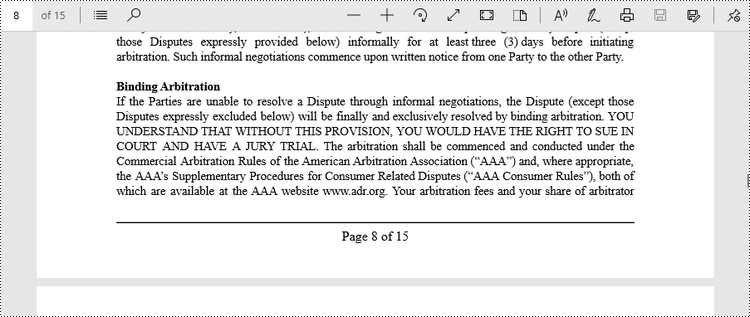
To center-align the page number in the footer section, it is necessary to dynamically calculate the width of the text "Page X of Y." This calculation is important because the X coordinate of the page number (PdfCompositeField) will be determined by subtracting the width of the page number from the page width and then dividing the result by 2, i.e., (PageWidth - PageNumberWidth)/2.
The steps to add page numbers to the center of PDF footer are as follows.
- Create a Document object.
- Load a PDF file from a specified page.
- Create a PdfPageNumberField object and a PdfPageCountField object.
- Create a PdfCompositeField object to create a "Page X of Y" format.
- Specify the location of the PdfCompositeField object using PdfCompositeField.setLocation() method.
- Iterate though the pages in the document, and add "Page X of Y" to the center of the footer section using PdfCompositeField.draw() method.
- Save the document to a different PDF file.
- Java
import com.spire.pdf.PdfDocument;
import com.spire.pdf.PdfPageBase;
import com.spire.pdf.automaticfields.PdfCompositeField;
import com.spire.pdf.automaticfields.PdfPageCountField;
import com.spire.pdf.automaticfields.PdfPageNumberField;
import com.spire.pdf.graphics.PdfBrush;
import com.spire.pdf.graphics.PdfBrushes;
import com.spire.pdf.graphics.PdfPen;
import com.spire.pdf.graphics.PdfTrueTypeFont;
import com.spire.pdf.license.LicenseProvider;

import java.awt.*;
import java.awt.geom.Dimension2D;
import java.awt.geom.Point2D;

public class AddPageNumberToCenter {

    public static void main(String[] args) {

        // Apply your license key
        LicenseProvider.setLicenseKey("License Key");

        // Create a PdfDocument object
        PdfDocument doc = new PdfDocument();

        // Load a PDF file
        doc.loadFromFile("C:\\Users\\Administrator\\Desktop\\Terms of service.pdf");

        // Create font, brush and pen, which determine the appearance of the page numbers to be added
        PdfTrueTypeFont font = new PdfTrueTypeFont(new Font("Times New Roman", Font.PLAIN, 12),true);
        PdfBrush brush = PdfBrushes.getBlack();
        PdfPen pen = new PdfPen(brush, 1.0);

        // Create a PdfPageNumberField object and a PdfPageCountField object
        PdfPageNumberField pageNumberField = new PdfPageNumberField();
        PdfPageCountField pageCountField = new PdfPageCountField();

        // Create a PdfCompositeField object to combine page count field and page number field in a single field
        PdfCompositeField compositeField = new PdfCompositeField(font, brush, "Page {0} of {1}", pageNumberField, pageCountField);

        // Iterate through the pages in the document
        for (int i = 0; i < doc.getPages().getCount(); i++) {

            // Get a specific page
            PdfPageBase page = doc.getPages().get(i);

            // Get the page size
            Dimension2D pageSize = doc.getPages().get(i).getSize();

            // Draw a line at the specified position
            page.getCanvas().drawLine(pen, 72, pageSize.getHeight() - 50, pageSize.getWidth() - 72, pageSize.getHeight() - 50);

            // Measure the size the "Page X of Y"
            Dimension2D pageNumberSize = font.measureString(String.format("Page %d of %d", i + 1, doc.getPages().getCount()));

            // Set the location of the composite field
            compositeField.setLocation(new Point2D.Float((float)(pageSize.getWidth() - pageNumberSize.getWidth())/2, (float)pageSize.getHeight() - 45));

            // Draw the composite field on the page
            compositeField.draw(page.getCanvas());
        }

        // Save to a different PDF file
        doc.saveToFile("Output/AddPageNumbersToCenter.pdf");

        // Dispose resources
        doc.dispose();
    }
}
Add Page Numbers to the Right Corner of PDF Footer in Java
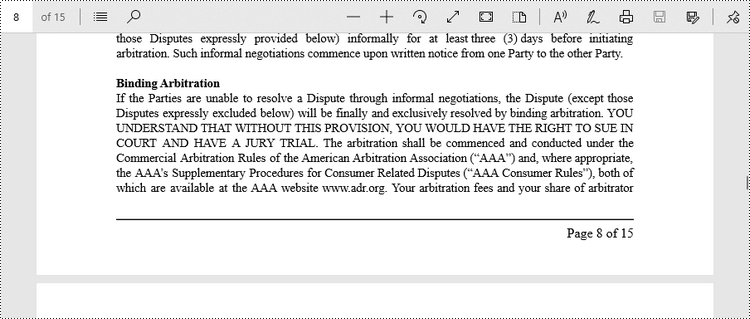
To position the page number at the right corner of the footer section, it is necessary to dynamically calculate the width of the text "Page X of Y" as well. Because the X coordinate of the page number (PdfCompositeField) will be determined by subtracting the width of the page number and the right page margin from the page width, i.e., PageWidth - PageNumberWidth - RightPageMargin.
The steps to add page numbers to the right corner of PDF footer are as follows.
- Create a Document object.
- Load a PDF file from a specified page.
- Create a PdfPageNumberField object and a PdfPageCountField object.
- Create a PdfCompositeField object to create a "Page X of Y" format.
- Specify the location of the PdfCompositeField object using PdfCompositeField.setLocation() method.
- Iterate though the pages in the document, and add "Page X of Y" to the right corner of the footer section using PdfCompositeField.draw() method.
- Save the document to a different PDF file.
- Java
import com.spire.pdf.PdfDocument;
import com.spire.pdf.PdfPageBase;
import com.spire.pdf.automaticfields.PdfCompositeField;
import com.spire.pdf.automaticfields.PdfPageCountField;
import com.spire.pdf.automaticfields.PdfPageNumberField;
import com.spire.pdf.graphics.PdfBrush;
import com.spire.pdf.graphics.PdfBrushes;
import com.spire.pdf.graphics.PdfPen;
import com.spire.pdf.graphics.PdfTrueTypeFont;
import com.spire.pdf.license.LicenseProvider;

import java.awt.*;
import java.awt.geom.Dimension2D;
import java.awt.geom.Point2D;

public class AddPageNumberToRightCorner {

    public static void main(String[] args) {

        // Apply your license key
        LicenseProvider.setLicenseKey("License Key");

        // Create a PdfDocument object
        PdfDocument doc = new PdfDocument();

        // Load a PDF file
        doc.loadFromFile("C:\\Users\\Administrator\\Desktop\\Terms of service.pdf");

        // Create font, brush and pen, which determine the appearance of the page numbers to be added
        PdfTrueTypeFont font = new PdfTrueTypeFont(new Font("Times New Roman", Font.PLAIN, 12),true);
        PdfBrush brush = PdfBrushes.getBlack();
        PdfPen pen = new PdfPen(brush, 1.0);

        // Create a PdfPageNumberField object and a PdfPageCountField object
        PdfPageNumberField pageNumberField = new PdfPageNumberField();
        PdfPageCountField pageCountField = new PdfPageCountField();

        // Create a PdfCompositeField object to combine page count field and page number field in a single field
        PdfCompositeField compositeField = new PdfCompositeField(font, brush, "Page {0} of {1}", pageNumberField, pageCountField);

        // Iterate through the pages in the document
        for (int i = 0; i < doc.getPages().getCount(); i++) {

            // Get a specific page
            PdfPageBase page = doc.getPages().get(i);

            // Get the page size
            Dimension2D pageSize = doc.getPages().get(i).getSize();

            // Draw a line at the specified position
            page.getCanvas().drawLine(pen, 72, pageSize.getHeight() - 50, pageSize.getWidth() - 72, pageSize.getHeight() - 50);

            // Measure the size the "Page X of Y"
            Dimension2D pageNumberSize = font.measureString(String.format("Page %d of %d", i + 1, doc.getPages().getCount()));

            // Set the location of the composite field
            compositeField.setLocation(new Point2D.Float((float)(pageSize.getWidth() - pageNumberSize.getWidth() -  72), (float)(pageSize.getHeight() - 45)));

            // Draw the composite field on the page
            compositeField.draw(page.getCanvas());
        }

        // Save to a different PDF file
        doc.saveToFile("Output/AddPageNumbersToRightCorner.pdf");

        // Dispose resources
        doc.dispose();
    }
}
Apply for a Temporary License
If you'd like to remove the evaluation message from the generated documents, or to get rid of the function limitations, please request a 30-day trial license for yourself.
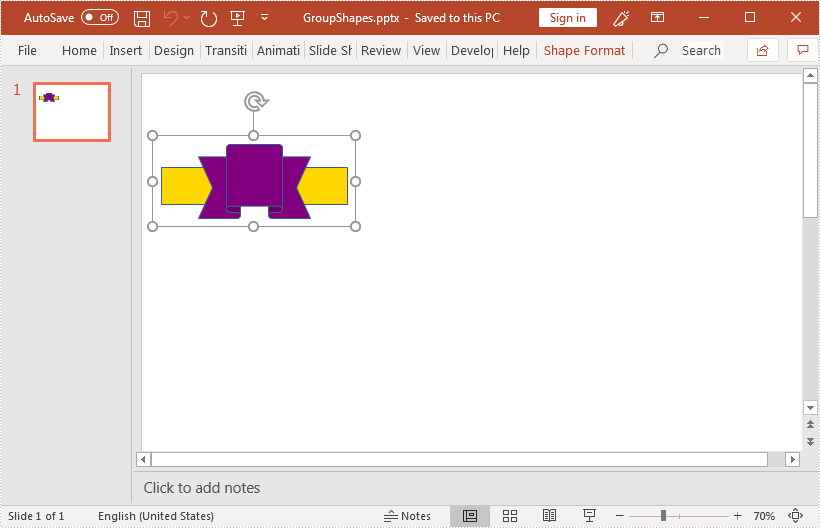
This article demonstrates how to group shapes in a PowerPoint document using Spire.Presentation for Java.
import com.spire.presentation.*;
import com.spire.presentation.drawing.FillFormatType;

import java.awt.geom.Rectangle2D;
import java.util.ArrayList;

public class GroupShapes {
    public static void main(String[] args) throws Exception {
        //create a PowerPoint document
        Presentation ppt = new Presentation();
        //get the first slide
        ISlide slide = ppt.getSlides().get(0);

        //add a rectangle shape to the slide
        IShape rectangle = slide.getShapes().appendShape(ShapeType.RECTANGLE, new Rectangle2D.Double(20,100,200,40));
        rectangle.getFill().setFillType(FillFormatType.SOLID);
        rectangle.getFill().getSolidColor().setKnownColor(KnownColors.GOLD);
        rectangle.getLine().setWidth(0.1f);

        //add a ribbon shape to the slide
        IShape ribbon = slide.getShapes().appendShape(ShapeType.RIBBON_2, new Rectangle2D.Double(60, 75, 120, 80));
        ribbon.getFill().setFillType(FillFormatType.SOLID);
        ribbon.getFill().getSolidColor().setKnownColor(KnownColors.PURPLE);
        ribbon.getLine().setWidth(0.1f);

        //add the shapes to a list
        ArrayList list = new ArrayList();
        list.add((Shape)rectangle);
        list.add((Shape)ribbon);

        //group the shapes
        ppt.getSlides().get(0).groupShapes(list);

        //save the resultant document
        ppt.saveToFile("GroupShapes.pptx", FileFormat.PPTX_2013);
    }
}
Creating barcodes in a Word document is a powerful way to enhance efficiency and organization. Barcodes streamline data management by enabling quick scanning and tracking, making them invaluable for businesses, events, and personal projects.
This article outlines two methods for generating barcodes in a Word document using Java: one method uses barcode fonts with Spire.Doc for Java, while the other utilizes Spire.Barcode for Java in conjunction with Spire.Doc for Java.
- Create Barcodes in Word Documents Using Barcode Fonts
- Create Barcodes in Word Documents Using Barcode API
Install Spire.Doc for Java
First, you're required to add the Spire.Doc.jar file as a dependency in your Java program. The JAR file can be downloaded from this link. If you use Maven, you can easily import the JAR file in your application by adding the following code to your project's pom.xml file.
<repositories>
    <repository>
        <id>com.e-iceblue</id>
        <name>e-iceblue</name>
        <url>https://repo.e-iceblue.com/nexus/content/groups/public/</url>
    </repository>
</repositories>
<dependencies>
    <dependency>
        <groupId>e-iceblue</groupId>
        <artifactId>spire.doc</artifactId>
        <version>14.7.0</version>
    </dependency>
</dependencies>
Create Barcodes in Word Documents Using Barcode Fonts
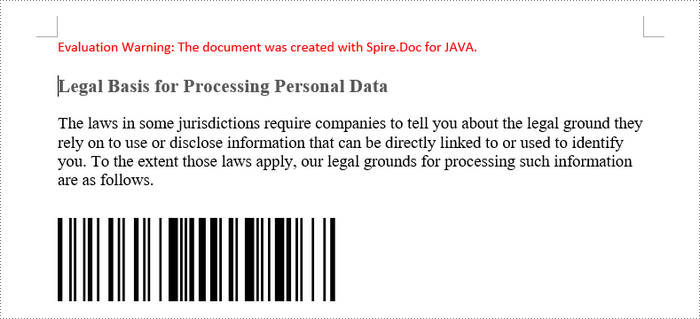
A barcode font is a special typeface designed to represent data in a format that can be scanned by barcode readers. Unlike standard fonts that display alphanumeric characters, barcode fonts convert text into a series of lines and spaces that make up a barcode.
To use a barcode font, you typically install the font on your system and then apply it to the text you want to convert into a barcode.
The steps to create barcodes in a Word document using barcode fonts are as follows:
- Download and install the desired barcode font on your computer.
- Create a Document object.
- Load a Word file using Document.loadFromFile() method.
- Get a specific section and add a paragraph using Section.addParagraph() method.
- Add text to the paragraph using Paragraph.appendText() method.
- Apply the barcode font to the text using TextRange.getCharacterFormat().setFontName() method.
- Set the font size and color for the text.
- Save the document to a different Word file.
- Java
import com.spire.doc.Document;
import com.spire.doc.FileFormat;
import com.spire.doc.Section;
import com.spire.doc.documents.Paragraph;
import com.spire.doc.fields.TextRange;

import java.awt.*;

public class CreateBarcodeInWordUsingBarcodeFont {

    public static void main(String[] args) {

        // Create a Document object
        Document document = new Document();

        // Load a Word file
        document.loadFromFile("C:\\Users\\Administrator\\Desktop\\input.docx");

        // Get a specific section
        Section section = document.getSections().get(0);

        // Add a paragraph
        Paragraph paragraph = section.addParagraph();

        // Append text to the paragraph
        TextRange txtRang = paragraph.appendText("Hello,World");

        // Apply barcode font to the text
        txtRang.getCharacterFormat().setFontName("Code 128");

        // Set the font size and text color
        txtRang.getCharacterFormat().setFontSize(80f);
        txtRang.getCharacterFormat().setTextColor(Color.black);

        // Save the document to a different Word file
        document.saveToFile("CreateBarcode.docx", FileFormat.Docx);

        // Dispose resources
        document.dispose();
    }
}
Create Barcodes in Word Documents Using Barcode API
Spire.Barcode for Java is an API that enables you to easily generate barcode images with customizable options, including barcode type, data, size, and color. To use it, you need to download the library and add it as a dependency in your project.
Once the barcode image is created, you can insert it into a Word document using the Paragraph.appendPicture() method provided by Spire.Doc for Java.
The steps to create barcode in a Word document using a Barcode API are as follows:
- Import Spire.Barcode for Java as a dependency in your project.
- Create a BarcodeSettings object.
- Specify the barcode type, data, width and other attributes using the methods under the BarcodeSettings object.
- Generate a barcode image based on the settings using BarCodeGenerator.generateImage() method.
- Create a Document object.
- Load a Word file using Document.loadFromFile() method.
- Get a specific section and add a paragraph using Section.addParagraph() method.
- Add the barcode image to the paragraph using Paragraph.appendPicture() method.
- Save the document to a different Word file.
- Java
import com.spire.barcode.BarCodeGenerator;
import com.spire.barcode.BarCodeType;
import com.spire.barcode.BarcodeSettings;
import com.spire.barcode.QRCodeECL;
import com.spire.doc.Document;
import com.spire.doc.FileFormat;
import com.spire.doc.Section;
import com.spire.doc.documents.Paragraph;

import java.awt.image.BufferedImage;

public class CreateBarcodesInWordUsingAPI {

    public static void main(String[] args) {

        // Create a BarcodeSettings object
        BarcodeSettings settings = new BarcodeSettings();

        // Set barcode type
        settings.setType(BarCodeType.QR_Code);

        // Set barcode data
        settings.setData2D("Hello, World");

        // Set the other attributes of the barcode
        settings.setX(2f);
        settings.setQRCodeECL(QRCodeECL.H);
        settings.setShowText(false);
        settings.setLeftMargin(0f);
        settings.setRightMargin(0f);

        // Create a BarCodeGenerator object
        BarCodeGenerator generator = new BarCodeGenerator(settings);

        // Generate a barcode image
        BufferedImage image = generator.generateImage();

        // Create a Document object
        Document document = new Document();

        // Load a Word file
        document.loadFromFile("C:\\Users\\Administrator\\Desktop\\input.docx");

        // Get a specific section
        Section section = document.getSections().get(0);

        // Add a paragraph
        Paragraph paragraph = section.addParagraph();

        // Add the barcode image to the paragraph
        paragraph.appendPicture(image);

        // Save the document to a different Word file
        document.saveToFile("CreateBarcode.docx", FileFormat.Docx);

        // Dispose resources
        document.dispose();
    }
}

Apply for a Temporary License
If you'd like to remove the evaluation message from the generated documents, or to get rid of the function limitations, please request a 30-day trial license for yourself.
