Knowledgebase (2370)
Children categories
PDF layers are supported through the usage of Optional Content Group (OCG) objects. As its name implies, optional content refers to the content in a PDF document that can be made visible or invisible dynamically by the user of PDF viewer applications. In this article, you will learn how to programmatically add, hide or delete layers in a PDF file using Spire.PDF for Java.
- Add Layers to a PDF Document in Java
- Set Visibility of Layers in a PDF Document in Java
- Delete Layers in a PDF Document in Java
Install Spire.PDF for Java
First of all, you're required to add the Spire.Pdf.jar file as a dependency in your Java program. The JAR file can be downloaded from this link. If you use Maven, you can easily import the JAR file in your application by adding the following code to your project's pom.xml file.
<repositories>
    <repository>
        <id>com.e-iceblue</id>
        <name>e-iceblue</name>
        <url>https://repo.e-iceblue.com/nexus/content/groups/public/</url>
    </repository>
</repositories>
<dependencies>
    <dependency>
        <groupId>e-iceblue</groupId>
        <artifactId>spire.pdf</artifactId>
        <version>12.7.0</version>
    </dependency>
</dependencies>
Add Layers to a PDF Document in Java
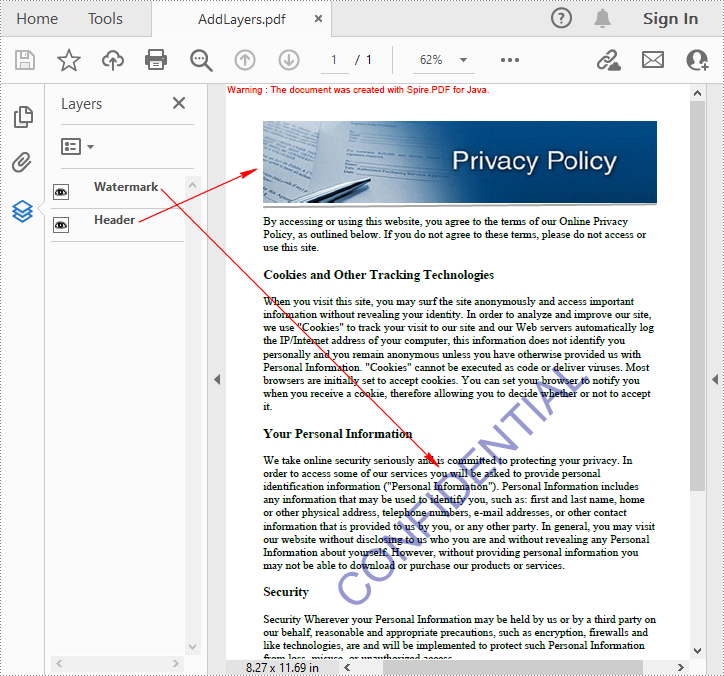
Spire.PDF for Java provides PdfDocument.getLayers().addLayer() method to add a layer in a PDF document, and you can then draw text, lines, images or shapes on the PDF layer. The detailed steps are as follows.
- Create a PdfDocument instance.
- Load a sample PDF file using PdfDocument.loadFromFile() method.
- Add a layer with specified name in the PDF using PdfDocument.getLayers().addLayer(java.lang.String name) method. Or you can also set the visibility of the layer while adding it using PdfDocument. getLayers().addLayer(java.lang.String name, PdfVisibility state) method.
- Create a canvas for the layer using PdfLayer.createGraphics() method.
- Draw text, image or other elements on the canvas.
- Save the result document using PdfDocument.saveToFile() method.
- Java
import com.spire.pdf.PdfDocument;
import com.spire.pdf.PdfPageBase;
import com.spire.pdf.graphics.*;
import com.spire.pdf.graphics.layer.PdfLayer;

import java.awt.*;
import java.awt.geom.Dimension2D;
import java.io.IOException;

public class AddLayersToPdf {

    public static void main(String[] args) throws IOException {

        //Create a PdfDocument instance and load the sample PDF file
        PdfDocument pdf = new PdfDocument();
        pdf.loadFromFile("C:\\Users\\Administrator\\Desktop\\Sample.pdf");

        //Invoke AddLayerWatermark method to add a watermark layer
        AddLayerWatermark(pdf);

        //Invoke AddLayerHeader method to add a header layer
        AddLayerHeader(pdf);

        //Save to file
        pdf.saveToFile("AddLayers.pdf");
        pdf.close();
    }

    private static void AddLayerWatermark(PdfDocument doc) throws IOException {

        //Create a layer named "watermark"
        PdfLayer layer = doc.getLayers().addLayer("Watermark");

        //Create a font
        PdfTrueTypeFont font = new PdfTrueTypeFont(new Font("Arial", Font.PLAIN,48),true);

        //Specify watermark text
        String watermarkText = "CONFIDENTIAL";

        //Get text size
        Dimension2D fontSize = font.measureString(watermarkText);

        //Calculate two offsets
        float offset1 = (float)(fontSize.getWidth() * Math.sqrt(2) / 4);
        float offset2 = (float)(fontSize.getHeight() * Math.sqrt(2) / 4);

        //Get page count
        int pageCount = doc.getPages().getCount();

        //Declare two variables
        PdfPageBase page;
        PdfCanvas canvas;

        //Loop through the pages
        for (int i = 0; i < pageCount; i++) {

            page = doc.getPages().get(i);

            //Create a canvas from layer
            canvas = layer.createGraphics(page.getCanvas());
            canvas.translateTransform(canvas.getSize().getWidth() / 2 - offset1 - offset2, canvas.getSize().getHeight() / 2 + offset1 - offset2);
            canvas.setTransparency(0.4f);
            canvas.rotateTransform(-45);

            //Draw sting on the canvas of layer
            canvas.drawString(watermarkText, font, PdfBrushes.getDarkBlue(), 0, 0);
        }
    }

    private static void AddLayerHeader(PdfDocument doc) {

        //Create a layer named "header"
        PdfLayer layer = doc.getLayers().addLayer("Header");

        //Get page size
        Dimension2D size = doc.getPages().get(0).getSize();

        //Specify the initial values of X and y
        float x = 90;
        float y = 40;

        //Get page count
        int pageCount = doc.getPages().getCount();

        //Declare two variables
        PdfPageBase page;
        PdfCanvas canvas;

        //Loop through the pages
        for (int i = 0; i < pageCount; i++) {

            //Draw an image on the layer
            PdfImage pdfImage = PdfImage.fromFile("C:\\Users\\Administrator\\Desktop\\img.jpg");
            float width = pdfImage.getWidth();
            float height = pdfImage.getHeight();
            page = doc.getPages().get(i);
            canvas = layer.createGraphics(page.getCanvas());
            canvas.drawImage(pdfImage, x, y, width, height);

            //Draw a line on the layer
            PdfPen pen = new PdfPen(PdfBrushes.getDarkGray(), 2f);
            canvas.drawLine(pen, x, y + height + 5, size.getWidth() - x, y + height + 2);
        }
    }
}
Set Visibility of Layers in a PDF Document in Java
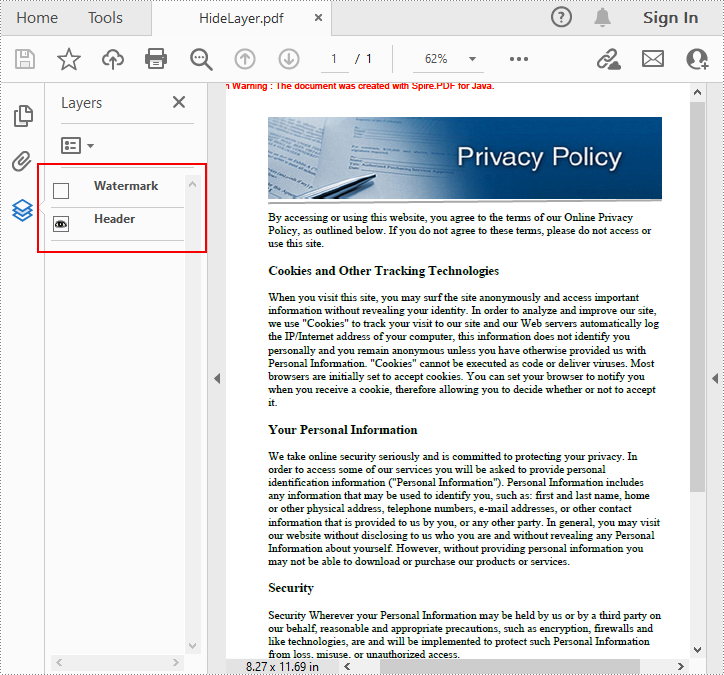
To set the visibility of an existing layer, you'll need to get a specified layer by its index or name using PdfDocument.getLayers().get() method, and then show or hide the layer using PdfLayer.setVisibility(PdfVisibility value) method. The detailed steps are as follows.
- Create a PdfDocument instance.
- Load a sample PDF document using PdfDocument.loadFromFile() method.
- Set the visibility of a specified layer using PdfDocument.getLayers().get().setVisibility() method.
- Save the result document using PdfDocument.saveToFile() method.
- Java
import com.spire.pdf.FileFormat;
import com.spire.pdf.PdfDocument;
import com.spire.pdf.graphics.layer.PdfVisibility;

public class SetLayerVisibility {
    public static void main(String[] args) {

        //Create a PdfDocument instance
        PdfDocument pdf = new PdfDocument();

        //Load a sample PDF file
        pdf.loadFromFile("AddLayers.pdf");

        //Set the visibility of the first layer to off
        pdf.getLayers().get(0).setVisibility(PdfVisibility.Off);

        //Save to file
        pdf.saveToFile("HideLayer.pdf", FileFormat.PDF);
        pdf.dispose();
    }
}
Delete Layers in a PDF Document in Java
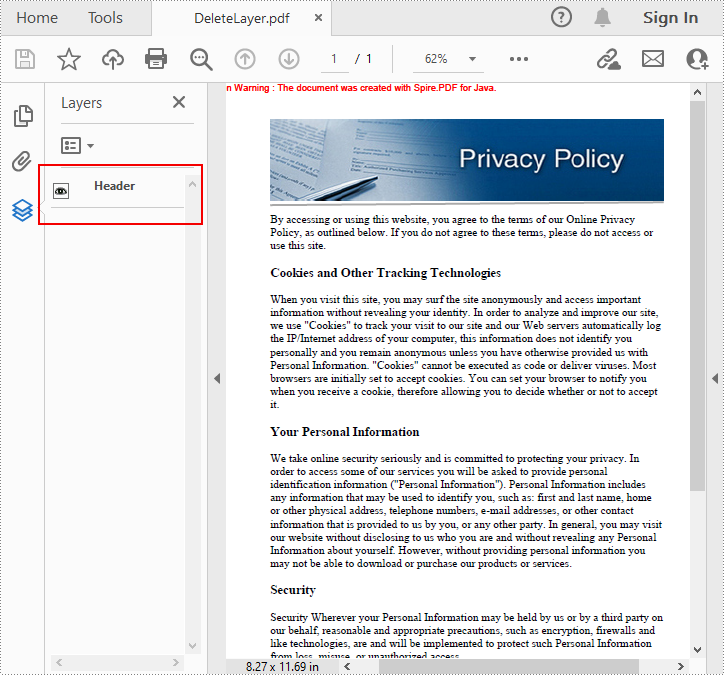
Spire.PDF for Java also allows you to remove an existing layer by its name using PdfDocument.getLayers().removeLayer(java.lang.String name) method. But kindly note that the names of PDF layers may not be unique and this method will remove all PDF layers with the same name. The detailed steps are as follows.
- Create a PdfDocument instance.
- Load a sample PDF document using PdfDocument.LoadFromFile() method.
- Delete a specified layer by its name using PdfDocument.getLayers().removeLayer() method.
- Save the result document using PdfDocument.saveToFile() method.
- Java
import com.spire.pdf.PdfDocument;

public class DeleteLayers {

    public static void main(String[] args) {

        //Create a PdfDocument object and load the sample PDF file
        PdfDocument pdf = new PdfDocument();
        pdf.loadFromFile("AddLayers.pdf");

        //Delete the specific layer by its name
        pdf.getLayers().removeLayer("Watermark");

        //Save to file
        pdf.saveToFile("DeleteLayer.pdf");
        pdf.close();
    }
}
Apply for a Temporary License
If you'd like to remove the evaluation message from the generated documents, or to get rid of the function limitations, please request a 30-day trial license for yourself.
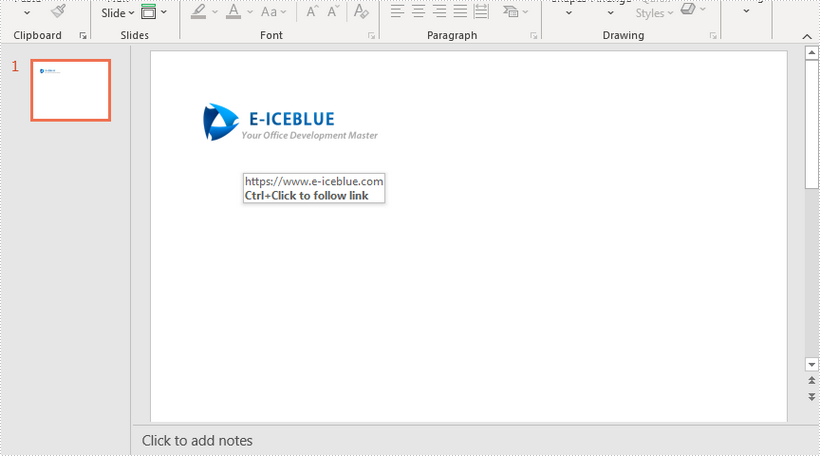
This article demonstrates how to add a hyperlink to an image in a PowerPint slide using Spire.Presentation for Java.
import com.spire.presentation.*;
import com.spire.presentation.drawing.FillFormatType;

import java.awt.geom.Rectangle2D;

public class AddHyperlinkToImage {

    public static void main(String[] args) throws Exception {

        //create a Presentation object
        Presentation presentation = new Presentation();

        //get the first slide
        ISlide slide = presentation.getSlides().get(0);

        //add an image to slide
        String imaPath = "C:\\Users\\Administrator\\Desktop\\logo.png";
        Rectangle2D.Float rect = new Rectangle2D.Float(50, 50, 220, 60);
        IEmbedImage image = slide.getShapes().appendEmbedImage(ShapeType.RECTANGLE, imaPath, rect);

        //set the line of image shape to none
        image.getLine().setFillType(FillFormatType.NONE);

        //add a hyperlink to image
        ClickHyperlink hyperlink = new ClickHyperlink("https://www.e-iceblue.com");
        image.setClick(hyperlink);

        //save the file
        presentation.saveToFile("output/ImageHyperLink.pptx", FileFormat.PPTX_2013);
    }
}
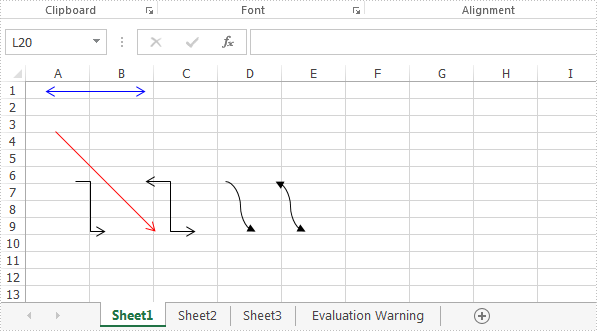
With Spire.XLS for .NET, developers can easily use C# to add shapes to Excel worksheet. From version 9.8.11, Spire.XLS supports to add arrow lines to Excel worksheet. The following sample will show you how to insert arrow line, double Arrow, Elbow Arrow, Elbow Double-Arrow, Curved Arrow and Curved Double-Arrow to Excel worksheet in C#.
using Spire.Xls;
using System.Drawing;

namespace Add_Lines_to_Excel
{
    class Program
    {
        static void Main(string[] args)
        {
            //Initiate a Workbook object and get the first worksheet
            Workbook workbook = new Workbook();
            Worksheet sheet = workbook.Worksheets[0];

            //Add a Double Arrow and fill the line with solid color
            var line = sheet.TypedLines.AddLine();
            line.Top = 10;
            line.Left = 20;
            line.Width = 100;
            line.Height = 0;
            line.Color = Color.Blue;
            line.BeginArrowHeadStyle = ShapeArrowStyleType.LineArrow;
            line.EndArrowHeadStyle = ShapeArrowStyleType.LineArrow;

            //Add an Arrow and fill the line with solid color
            var line_1 = sheet.TypedLines.AddLine();
            line_1.Top = 50;
            line_1.Left = 30;
            line_1.Width = 100;
            line_1.Height = 100;
            line_1.Color = Color.Red;
            line_1.BeginArrowHeadStyle = ShapeArrowStyleType.LineNoArrow;
            line_1.EndArrowHeadStyle = ShapeArrowStyleType.LineArrow;

            //Add an Elbow Arrow Connector
            Spire.Xls.Core.Spreadsheet.Shapes.XlsLineShape line3 = sheet.TypedLines.AddLine() as Spire.Xls.Core.Spreadsheet.Shapes.XlsLineShape;
            line3.LineShapeType = LineShapeType.ElbowLine;
            line3.Width = 30;
            line3.Height = 50;
            line3.EndArrowHeadStyle = ShapeArrowStyleType.LineArrow;
            line3.Top = 100;
            line3.Left = 50;

            //Add an Elbow Double-Arrow Connector
            Spire.Xls.Core.Spreadsheet.Shapes.XlsLineShape line2 = sheet.TypedLines.AddLine() as Spire.Xls.Core.Spreadsheet.Shapes.XlsLineShape;
            line2.LineShapeType = LineShapeType.ElbowLine;
            line2.Width = 50;
            line2.Height = 50;
            line2.EndArrowHeadStyle = ShapeArrowStyleType.LineArrow;
            line2.BeginArrowHeadStyle = ShapeArrowStyleType.LineArrow;
            line2.Left = 120;
            line2.Top = 100;

            //Add a Curved Arrow Connector
            line3 = sheet.TypedLines.AddLine() as Spire.Xls.Core.Spreadsheet.Shapes.XlsLineShape;
            line3.LineShapeType = LineShapeType.CurveLine;
            line3.Width = 30;
            line3.Height = 50;
            line3.EndArrowHeadStyle = ShapeArrowStyleType.LineArrowOpen;
            line3.Top = 100;
            line3.Left = 200;

            //Add a Curved Double-Arrow Connector
            line2 = sheet.TypedLines.AddLine() as Spire.Xls.Core.Spreadsheet.Shapes.XlsLineShape;
            line2.LineShapeType = LineShapeType.CurveLine;
            line2.Width = 30;
            line2.Height = 50;
            line2.EndArrowHeadStyle = ShapeArrowStyleType.LineArrowOpen;
            line2.BeginArrowHeadStyle = ShapeArrowStyleType.LineArrowOpen;
            line2.Left = 250;
            line2.Top = 100;

            //Save the file
            workbook.SaveToFile("AddLines.xlsx", ExcelVersion.Version2013);

        }
    }
}