
Knowledgebase (2370)
Children categories
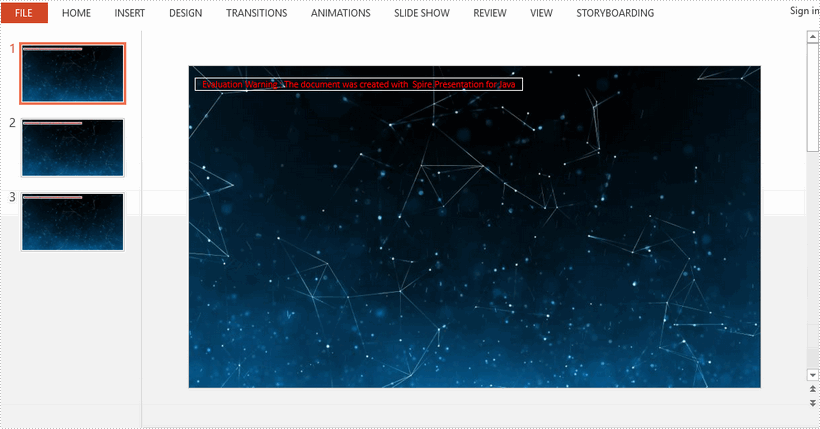
This article demonstrates how to apply background image to all slides in a PowerPoint presentation using Spire.Presentation for Java.
import com.spire.presentation.FileFormat;
import com.spire.presentation.Presentation;
import com.spire.presentation.SlideBackground;
import com.spire.presentation.drawing.*;

import javax.imageio.ImageIO;
import java.awt.image.BufferedImage;
import java.io.FileInputStream;

public class AppplyBgToAllSlides {

    public static void main(String[] args) throws Exception {

        //load a PowerPoint file
        Presentation presentation = new Presentation();
        presentation.loadFromFile("C:\\Users\\Administrator\\Desktop\\input.pptx");

        //get the image data
        BufferedImage bufferedImage = ImageIO.read(new FileInputStream("C:\\Users\\Administrator\\Desktop\\bg.jpg"));
        IImageData imageData = presentation.getImages().append(bufferedImage);

        //loop through the slides
        for (int i = 0; i < presentation.getSlides().getCount() ; i++) {

            //apply the image to the specific slide as background
            SlideBackground background = presentation.getSlides().get(i).getSlideBackground();
            background.setType(BackgroundType.CUSTOM);
            background.getFill().setFillType(FillFormatType.PICTURE);
            background.getFill().getPictureFill().setFillType(PictureFillType.STRETCH);
            background.getFill().getPictureFill().getPicture().setEmbedImage(imageData);
        }

        //save the file
        presentation.saveToFile("output/BackgroundImage.pptx", FileFormat.PPTX_2013);
        presentation.dispose();
    }
}
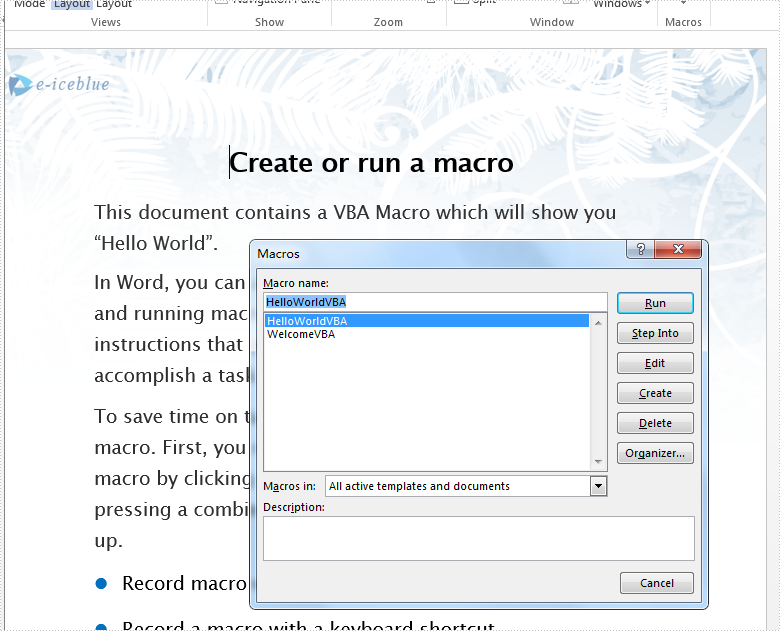
Spire.Doc load the word document with macros, it also supports to detect if a Word document contains VBA macros and remove all the VBA macros from a word document. This article demonstrates how to detect and remove VBA macros from Word document in Java applications.
Firstly, please view the sample document with macros:
import com.spire.doc.Document;
import com.spire.doc.FileFormat;


public class RemoveMacro {
    public static void main(String[] args) throws Exception {

        //Load the Sample Word document.
        Document doc = new Document();
        doc.loadFromFile("VBAMacros.docm");

        //If the document contains Macros, remove them from the document.
        if (doc.isContainMacro() )
        {
            doc.clearMacros();
        }

        //save to file
        doc.saveToFile("output/RemoveMacro.docm", FileFormat.Docm);

    }
}
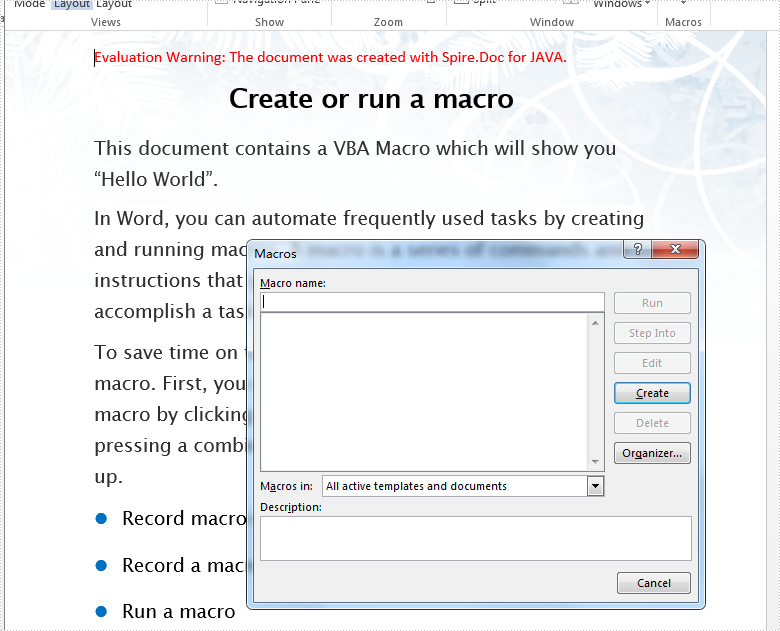
Effective screenshot after clear the VBA macros from word document:
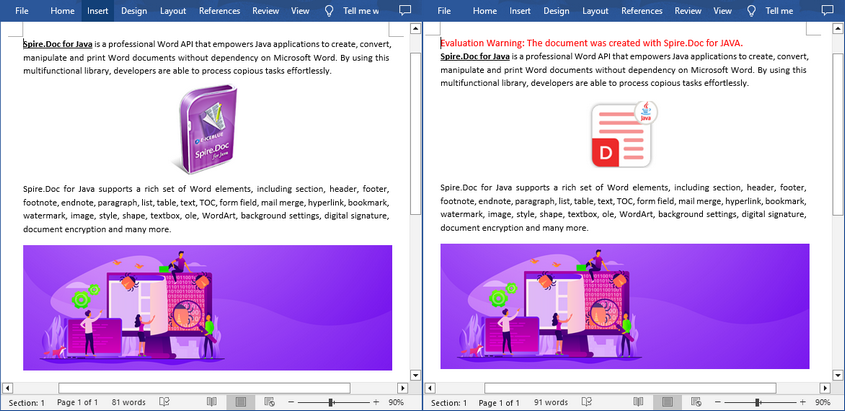
Word documents often contain images, which are useful elements to enhance the aesthetics of the document. If the overall design of the document changes, the existing images might no longer match the new style. Replacing them with updated images can help maintain a consistent look. In this article, you will learn how to replace images in Word in Java using Spire.Doc for Java.
Install Spire.Doc for Java
First of all, you're required to add the Spire.Doc.jar file as a dependency in your Java program. The JAR file can be downloaded from this link. If you use Maven, you can easily import the JAR file in your application by adding the following code to your project's pom.xml file.
<repositories>
    <repository>
        <id>com.e-iceblue</id>
        <name>e-iceblue</name>
        <url>https://repo.e-iceblue.com/nexus/content/groups/public/</url>
    </repository>
</repositories>
<dependencies>
    <dependency>
        <groupId>e-iceblue</groupId>
        <artifactId>spire.doc</artifactId>
        <version>14.7.0</version>
    </dependency>
</dependencies>
Replace Images with New Images in Word in Java
To replace an image in a Word document with another image, you need to loop through the elements of the document, find the images and add them to a list, then get the image that you want to replace from the list and call the DocPicture.loadImage() method to replace it with the loaded image. The following are the detailed steps.
- Create a Document instance.
- Load a Word document using Document.loadFromFile() method.
- Create an ArrayList instance.
- Iterate through all sections in the document.
- Iterate through all paragraphs in each section.
- Iterate through all child objects in each paragraph.
- Find the images and add them to the list.
- Get a specific image from the list and replace it with another image using DocPicture.loadImage() method.
- Save the result document using Document.saveToFile() method.
- Java
import com.spire.doc.*;
import com.spire.doc.documents.*;
import com.spire.doc.fields.*;

import java.util.ArrayList;

public class ReplaceImages {
    public static void main(String[] args) {
        //Create a Document instance
        Document doc = new Document();

        //Load a Word document
        doc.loadFromFile("E:\\PythonDoc\\WordImage.docx");

        //Create an ArrayList instance
        ArrayList<DocumentObject> pictures = new ArrayList();

        //Iterate through all sections in the document
        for (Section sec : (Iterable<Section>) doc.getSections()
        ) {
            //Iterate through all paragraphs in each section
            for (Paragraph para : (Iterable<Paragraph>) sec.getParagraphs()
            ) {
                //Iterate through all child objects in each paragraph
                for (DocumentObject obj : (Iterable<DocumentObject>) para.getChildObjects()
                ) {
                    //Find the images and add them to the list
                    if (obj.getDocumentObjectType() == DocumentObjectType.Picture) {
                        pictures.add(obj);
                    }
                }
            }
        }
        //Replace the first picture in the list with a new image
        DocPicture picture = (DocPicture)pictures.get(0) ;
        picture.loadImage("pic.png");

        //Save the result document
        doc.saveToFile("ReplaceWithNewImage.docx", FileFormat.Docx);
    }
}
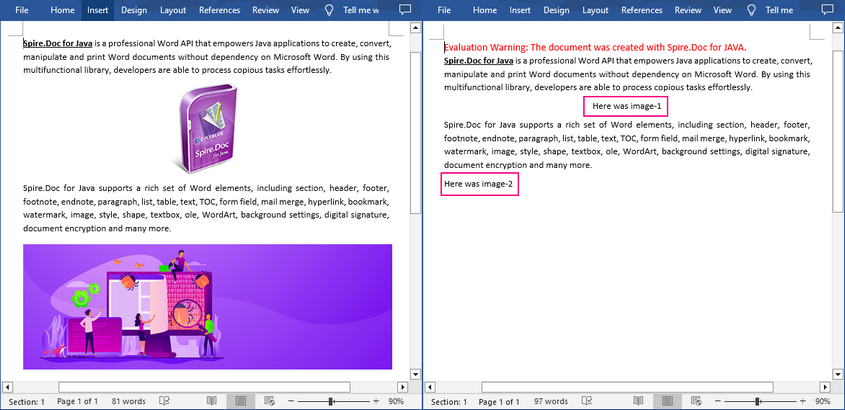
Replace Image with Text in Word in Java
Spire.Doc for Java doesn't provide a direct method to replace image with text, but you can achieve this task by inserting the text at the image location and then removing the image from the document.
The following steps demonstrate how to replace all images in a Word document with text:
- Create a Document instance.
- Load a Word document using Document.loadFromFile() method.
- Create an ArrayList instance.
- Iterate through all sections in the document.
- Iterate through all paragraphs in each section.
- Iterate through all child objects in each paragraph.
- Find the images and add them to the list.
- Iterate through the images in the list.
- Get the index of the image in the paragraph using Paragraph.getChildObjects().indexOf() method.
- Create a TextRange instance and set text for the text range through TextRange.setText() method.
- Insert the text range at the image location using Paragraph.getChildObjects().insert() method.
- Remove the image from the paragraph using Paragraph.getChildObjects().remove() method.
- Save the result document using Document.saveToFile() method.
- Java
import com.spire.doc.*;
import com.spire.doc.documents.*;
import com.spire.doc.fields.*;

import java.util.ArrayList;

public class replaceImageWithText {
    public static void main(String[] args) {
        //Create a Document instance
        Document doc = new Document();

        //Load a Word document
        doc.loadFromFile("WordImage.docx");

        //Create an ArrayList instance
        ArrayList<DocumentObject> pictures = new ArrayList();

        int j = 1;
        //Iterate through all sections in the document
        for (Section sec : (Iterable<Section>) doc.getSections()
        ) {
            //Iterate through all paragraphs in each section
            for (Paragraph para : (Iterable<Paragraph>) sec.getParagraphs()
            ) {

                //Iterate through all child objects in each paragraph
                for (DocumentObject obj : (Iterable<DocumentObject>) para.getChildObjects()
                ) {
                    //Find the images and add them to the list
                    if (obj.getDocumentObjectType() == DocumentObjectType.Picture) {
                        pictures.add(obj);
                    }
                }
                //Iterate through all images in the list and replace them with text "Here was image {image index}"
                for (DocumentObject pic : pictures)
                {
                    int index = para.getChildObjects().indexOf(pic);
                    TextRange range = new TextRange(doc);
                    range.setText(String.format("Here was image-%d", j));
                    para.getChildObjects().insert(index, range);
                    para.getChildObjects().remove(pic);
                    j++;
                }
            }
        }
        //Save the result document
        doc.saveToFile("ReplaceImageWithText.docx", FileFormat.Docx);
    }
}
Apply for a Temporary License
If you'd like to remove the evaluation message from the generated documents, or to get rid of the function limitations, please request a 30-day trial license for yourself.
