
Knowledgebase (2370)
Children categories
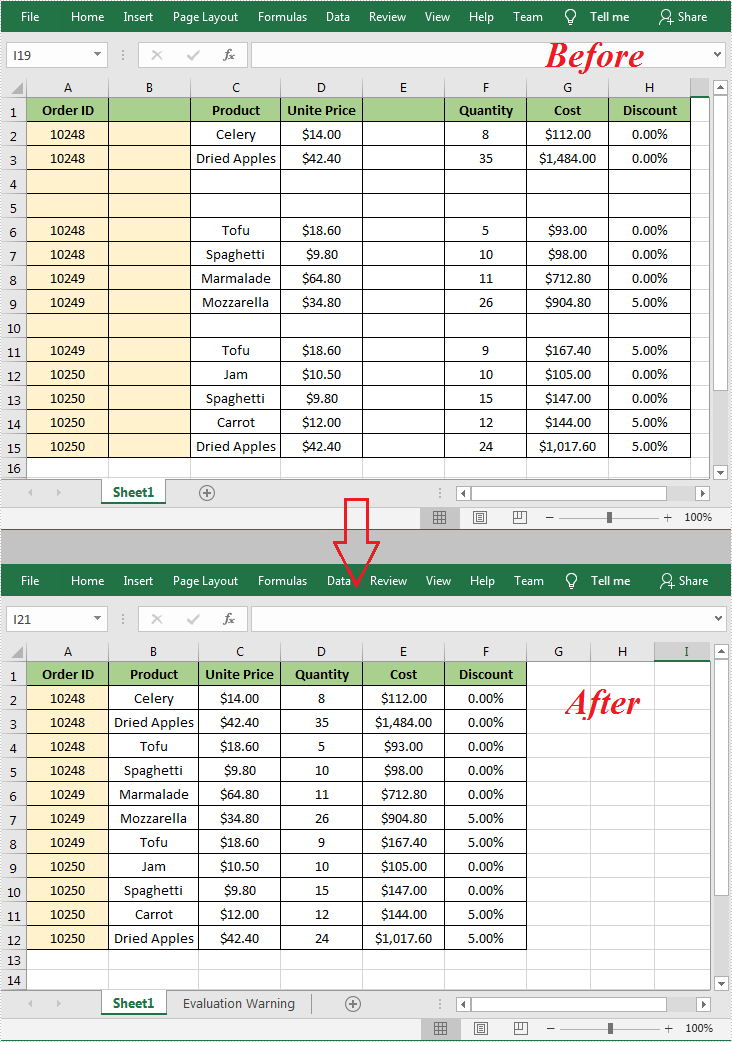
When working with an Excel document, some blank rows or columns may appear due to the modification of data. Although having blank rows or columns in a worksheet isn't necessarily a bad thing, in most cases they are still undesirable. Furthermore, such blank rows or columns may cause errors if formulas are applied. To delete these blank rows or columns, you can simply select and delete them, but if there are a lot of blank rows and columns, deleting them manually is a very time-consuming task. In this article, you will learn how to programmatically delete blank rows and columns in an Excel worksheet using Spire.XLS for .NET.
Install Spire.XLS for .NET
To begin with, you need to add the DLL files included in the Spire.XLS for .NET package as references in your .NET project. The DLL files can be either downloaded from this link or installed via NuGet.
PM> Install-Package Spire.XLS
Delete Blank Rows and Columns in Excel
The detailed steps are as follows.
- Instantiate a Workbook object.
- Load a sample Excel file using Workbook.LoadFromFile() method.
- Get a specified worksheet using Workbook.Worksheets[] property.
- Loop through all used rows in the specified worksheet and determine whether the row is blank using XlsRange.IsBlank property.
- Delete the blank rows using Worksheet.DeleteRow() method.
- Loop through all used columns in the specified worksheet and determine whether the column is blank using XlsRange.IsBlank property.
- Delete the blank columns using Worksheet.DeleteColumn() method.
- Save the result file using Workbook.SaveToFile() method.
- C#
- VB.NET
using System.Linq;
using Spire.Xls;

namespace DeleteBlankRowsAndColumns
{
    class Program
    {
        static void Main(string[] args)
        {
            //Instantiate a Workbook object
            Workbook workbook = new Workbook();

            //Load a sample Excel file
            workbook.LoadFromFile("sample.xlsx");

            //Get the first worksheet
            Worksheet sheet = workbook.Worksheets[0];

            //Delete blanks rows
            for (int i = sheet.Rows.Count() - 1; i >= 0; i--)
            {
                if (sheet.Rows[i].IsBlank)
                {
                    sheet.DeleteRow(i + 1); //Index parameter in DeleteRow method starts from 1
                }
            }

            //Delete blank columns
            for (int j = sheet.Columns.Count() - 1; j >= 0; j--)
            {
                if (sheet.Columns[j].IsBlank)
                {
                    sheet.DeleteColumn(j + 1); //Index parameter in DeleteColumn method starts from 1
                }
            }

            //Save the file
            workbook.SaveToFile("DeleteBlankRowsAndColumns.xlsx", ExcelVersion.Version2013);
        }
    }
}
Apply for a Temporary License
If you'd like to remove the evaluation message from the generated documents, or to get rid of the function limitations, please request a 30-day trial license for yourself.
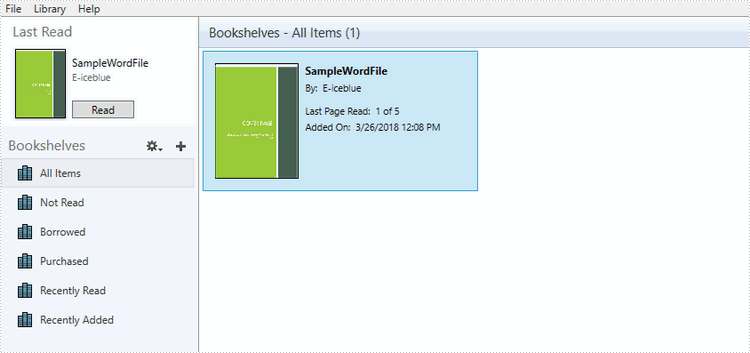
We already have the documentation introducing how to convert Word to EPUB. However, you may want to add a cover image to EPUB when creating an EPUB book from a Word document. The following code snippets will demonstrate the same.
Step 1: Create a Document instance and load a sample Word file.
Document doc = new Document();
doc.LoadFromFile("SampleWordFile.docx");
Step 2: Load a picture to DocPicture object.
DocPicture picture = new DocPicture(doc);
picture.LoadImage(Image.FromFile("CoverImage.jpg"));
Step 3: Add the picture to EPUB as cover image when creating EPUB from the Word document.
doc.SaveToEpub("output.epub", picture);
Output:
Full Code:
using Spire.Doc;
using Spire.Doc.Fields;
using System.Drawing;
namespace DOCTOEPUB
{
    class Program
    {
        static void Main(string[] args)
        {
            Document doc = new Document();
            doc.LoadFromFile("SampleWordFile.docx");

            DocPicture picture = new DocPicture(doc);
            picture.LoadImage(Image.FromFile("CoverImage.jpg"));
            doc.SaveToEpub("output.epub", picture);
        }
     }
}
Imports Spire.Doc
Imports Spire.Doc.Fields
Imports System.Drawing
Namespace DOCTOEPUB
	Class Program
		Private Shared Sub Main(args As String())
			Dim doc As New Document()
			doc.LoadFromFile("SampleWordFile.docx")

			Dim picture As New DocPicture(doc)
			picture.LoadImage(Image.FromFile("CoverImage.jpg"))
			doc.SaveToEpub("output.epub", picture)
		End Sub
	End Class
End Namespace
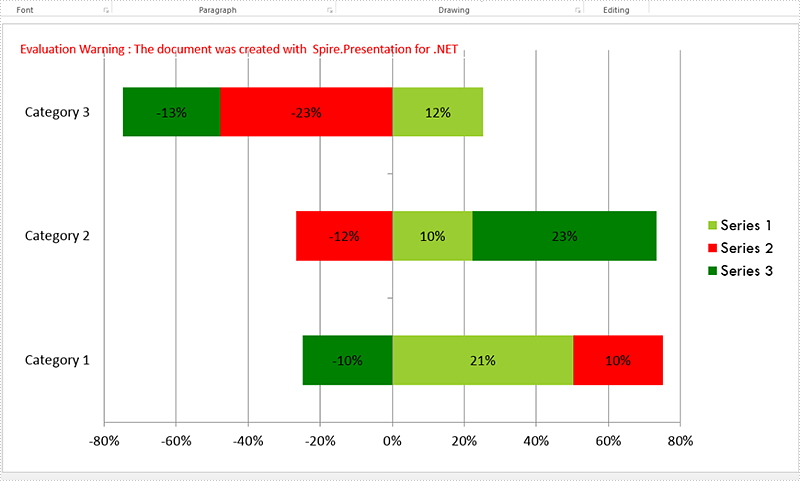
A 100% stacked bar chart is a chart type designed to show the relative percentage of multiple data series in stacked bars, where the total of each stacked bar always equals 100%. This article will demonstrate how to use Spire.Presentation to create 100% stacked bar in PowerPoint in C#.
Step 1: Create a Presentation object.
Presentation presentation = new Presentation();
Step 2: Add a "Bar100PercentStacked" chart to the first slide.
presentation.SlideSize.Type = SlideSizeType.Screen16x9;
SizeF slidesize = presentation.SlideSize.Size;
var slide = presentation.Slides[0];

RectangleF rect = new RectangleF(20, 20, slidesize.Width - 40, slidesize.Height - 40);
IChart chart = slide.Shapes.AppendChart(Spire.Presentation.Charts.ChartType.Bar100PercentStacked, rect);
Step 3: Write data to the chart data.
string[] columnlabels = { "Series 1", "Series 2", "Series 3" };

// Insert the column labels
String[] cols = columnlabels.ToArray();
for (Int32 c = 0; c < cols.Count(); ++c)
    chart.ChartData[0, c + 1].Text = cols[c];

string[] rowlabels = { "Category 1", "Category 2", "Category 3" };

// Insert the row labels
String[] rows = rowlabels.ToArray();
for (Int32 r = 0; r < rows.Count(); ++r)
    chart.ChartData[r + 1, 0].Text = rows[r];

double[,] values = new double[3, 3] { { 20.83233, 10.34323, -10.354667 }, { 10.23456, -12.23456, 23.34456 }, { 12.34345, -23.34343, -13.23232 }};

// Insert the values
double value = 0.0;
for (Int32 r = 0; r < rows.Count(); ++r)
{
    for (Int32 c = 0; c < cols.Count(); ++c)
    {
        value = Math.Round(values[r, c], 2);
        chart.ChartData[r + 1, c + 1].Value = value;
    }
}

chart.Series.SeriesLabel = chart.ChartData[0, 1, 0, columnlabels.Count()];
chart.Categories.CategoryLabels = chart.ChartData[1, 0, rowlabels.Count(), 0];

chart.PrimaryCategoryAxis.Position = AxisPositionType.Left;
chart.SecondaryCategoryAxis.Position = AxisPositionType.Left;
chart.PrimaryCategoryAxis.TickLabelPosition = TickLabelPositionType.TickLabelPositionLow;
Step 4: Set the data, font and format for the series of each column.
for (Int32 c = 0; c < cols.Count(); ++c)
 {
     chart.Series[c].Values = chart.ChartData[1, c + 1, rowlabels.Count(), c + 1];
     chart.Series[c].Fill.FillType = FillFormatType.Solid;
     chart.Series[c].InvertIfNegative = false;

     for (Int32 r = 0; r < rows.Count(); ++r)
     {
         var label = chart.Series[c].DataLabels.Add();
         label.LabelValueVisible = true;
         chart.Series[c].DataLabels[r].HasDataSource = false;
         chart.Series[c].DataLabels[r].NumberFormat = "0#\\%";
         chart.Series[c].DataLabels.TextProperties.Paragraphs[0].DefaultCharacterProperties.FontHeight = 12;
     }
 }
 chart.Series[0].Fill.SolidColor.Color = Color.YellowGreen;
 chart.Series[1].Fill.SolidColor.Color = Color.Red;
 chart.Series[2].Fill.SolidColor.Color = Color.Green;

 TextFont font = new TextFont("Tw Cen MT");
Step 5: Set the font and size for chartlegend.
for (int k = 0; k < chart.ChartLegend.EntryTextProperties.Length; k++)
 {
     chart.ChartLegend.EntryTextProperties[k].LatinFont = font;
     chart.ChartLegend.EntryTextProperties[k].FontHeight = 20;
 }
Step 6: Save the document to file.
presentation.SaveToFile("Sample.pptx", FileFormat.Pptx2010);
Effective screenshot of 100% stacked bar chart:
Full codes:
using Spire.Presentation;
using Spire.Presentation.Charts;
using Spire.Presentation.Drawing;
using System;
using System.Drawing;
using System.Linq;

namespace BarChart
{
    class Program
    {
        static void Main(string[] args)
        {
            Presentation presentation = new Presentation();
            presentation.SlideSize.Type = SlideSizeType.Screen16x9;
            SizeF slidesize = presentation.SlideSize.Size;

            var slide = presentation.Slides[0];

            RectangleF rect = new RectangleF(20, 20, slidesize.Width - 40, slidesize.Height - 40);
            IChart chart = slide.Shapes.AppendChart(Spire.Presentation.Charts.ChartType.Bar100PercentStacked, rect);

            string[] columnlabels = { "Series 1", "Series 2", "Series 3" };

            String[] cols = columnlabels.ToArray();
            for (Int32 c = 0; c < cols.Count(); ++c)
                chart.ChartData[0, c + 1].Text = cols[c];

            string[] rowlabels = { "Category 1", "Category 2", "Category 3" };

            String[] rows = rowlabels.ToArray();
            for (Int32 r = 0; r < rows.Count(); ++r)
                chart.ChartData[r + 1, 0].Text = rows[r];

            double[,] values = new double[3, 3] { { 20.83233, 10.34323, -10.354667 }, { 10.23456, -12.23456, 23.34456 }, { 12.34345, -23.34343, -13.23232 } };

            double value = 0.0;
            for (Int32 r = 0; r < rows.Count(); ++r)
            {
                for (Int32 c = 0; c < cols.Count(); ++c)
                {
                    value = Math.Round(values[r, c], 2);
                    chart.ChartData[r + 1, c + 1].Value = value;
                }
            }

            chart.Series.SeriesLabel = chart.ChartData[0, 1, 0, columnlabels.Count()];
            chart.Categories.CategoryLabels = chart.ChartData[1, 0, rowlabels.Count(), 0];

            chart.PrimaryCategoryAxis.Position = AxisPositionType.Left;
            chart.SecondaryCategoryAxis.Position = AxisPositionType.Left;
            chart.PrimaryCategoryAxis.TickLabelPosition = TickLabelPositionType.TickLabelPositionLow;

            for (Int32 c = 0; c < cols.Count(); ++c)
            {
                chart.Series[c].Values = chart.ChartData[1, c + 1, rowlabels.Count(), c + 1];
                chart.Series[c].Fill.FillType = FillFormatType.Solid;
                chart.Series[c].InvertIfNegative = false;

                for (Int32 r = 0; r < rows.Count(); ++r)
                {
                    var label = chart.Series[c].DataLabels.Add();
                    label.LabelValueVisible = true;
                    chart.Series[c].DataLabels[r].HasDataSource = false;
                    chart.Series[c].DataLabels[r].NumberFormat = "0#\\%";
                    chart.Series[c].DataLabels.TextProperties.Paragraphs[0].DefaultCharacterProperties.FontHeight = 12;
                }
            }
            chart.Series[0].Fill.SolidColor.Color = Color.YellowGreen;
            chart.Series[1].Fill.SolidColor.Color = Color.Red;
            chart.Series[2].Fill.SolidColor.Color = Color.Green;

            TextFont font = new TextFont("Tw Cen MT");

            for (int k = 0; k < chart.ChartLegend.EntryTextProperties.Length; k++)
            {
                chart.ChartLegend.EntryTextProperties[k].LatinFont = font;
                chart.ChartLegend.EntryTextProperties[k].FontHeight = 20;
            }

            presentation.SaveToFile("Sample.pptx", FileFormat.Pptx2010);
        }
    }
}
