
Knowledgebase (2370)
Children categories
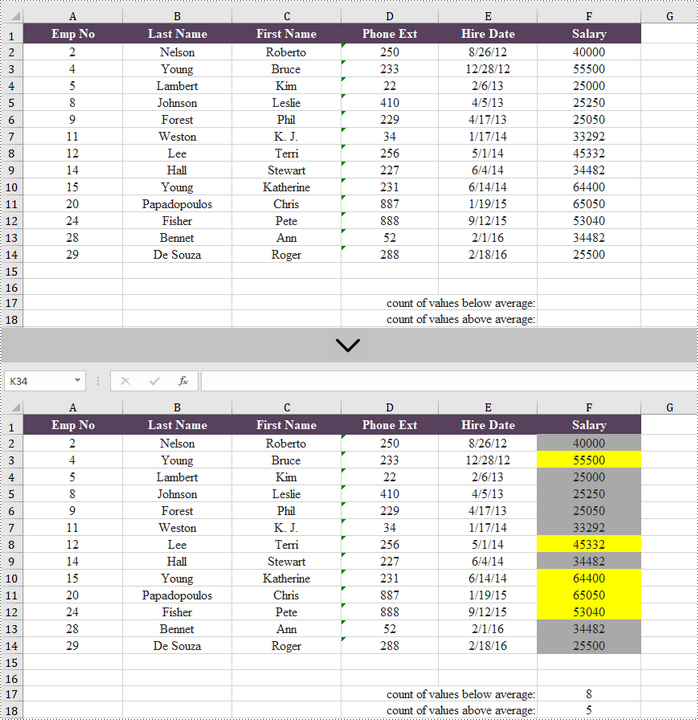
If you want to find values that are higher or lower than the average, you don't have to calculate the average, and then check those that are higher or lower. Using conditional formatting in Excel, you can automatically highlight those numbers. In this article, you will learn how to highlight values above average or below average with conditional formatting, by using Spire.XLS for .NET.
Install Spire.XLS for .NET
To begin with, you need to add the DLL files included in the Spire.XLS for .NET package as references in your .NET project. The DLL files can be either downloaded from this link or installed via NuGet.
PM> Install-Package Spire.XLS
Highlight Values Above or Below Average in Excel
Below are the steps to highlight values above or below average in Excel using Spire.XLS for .NET.
- Create a Workbook object.
- Load an Excel file using Workbook.LoadFromFile() method.
- Get a specific worksheet from the workbook through Workbook.Worsheets[index] property.
- Add a conditional formatting to the worksheet using Worksheet.ConditionalFormats.Add() method and return an object of XlsConditionalFormats class.
- Set the cell range where the conditional formatting will be applied using XlsConditionalFormats.AddRange() method.
- Add an average condition using XlsConditionalFormats.AddAverageCondition() method, specify the average type to above and change the background color of the cells that meet the condition to yellow.
- Add another average condition to change the background color of the below average values to dark gray.
- Save the workbook to an Excel file using Workbook.SaveToFile() method.
- C#
- VB.NET
using Spire.Xls;
using Spire.Xls.Core;
using Spire.Xls.Core.Spreadsheet.Collections;
using System.Drawing;

namespace HighlightValuesAboveAndBelowAverage
{
    class Program
    {
        static void Main(string[] args)
        {
            //Create a Workbook object
            Workbook workbook = new Workbook();

            //Load an Excel file
            workbook.LoadFromFile(@"C:\Users\Administrator\Desktop\sample.xlsx");

            //Get the first worksheet
            Worksheet sheet = workbook.Worksheets[0];

            //Add a conditional format to the worksheet
            XlsConditionalFormats format = sheet.ConditionalFormats.Add();

            //Set the range where the conditional format will be applied
            format.AddRange(sheet.Range["F2:F14"]);

            //Add a condition to highlight the top 2 ranked values
            IConditionalFormat condition1 = format.AddAverageCondition(AverageType.Above);
            condition1.BackColor = Color.Yellow;

            //Add a condition to highlight the bottom 2 ranked values
            IConditionalFormat condition2 = format.AddAverageCondition(AverageType.Below);
            condition2.BackColor = Color.DarkGray;

            //Get the count of values below average
            sheet.Range["F17"].Formula = "=COUNTIF(F2:F14,\"<\"&AVERAGE(F2:F14))";

            //Get the count of values above average
            sheet.Range["F18"].Formula = "=COUNTIF(F2:F14,\">\"&AVERAGE(F2:F14))";

            //Save the workbook to an Excel file
            workbook.SaveToFile("HighlightValues.xlsx", ExcelVersion.Version2016);
        }
    }
}
Apply for a Temporary License
If you'd like to remove the evaluation message from the generated documents, or to get rid of the function limitations, please request a 30-day trial license for yourself.
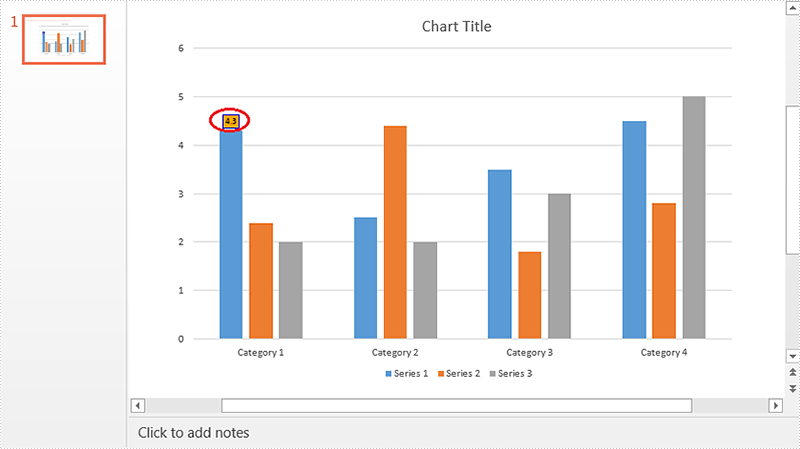
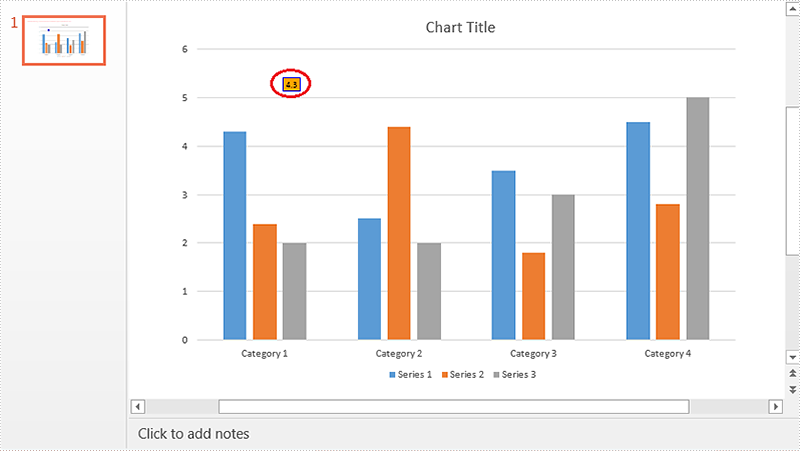
Spire.Presentation supports to set the default position (e.g. Outside End, Center, Inside End, Inside base etc.) of data labels through ChartDataLabel.Position property, it also supports to set custom position of data labels using "ChartDataLabel.X" and "ChartDataLabel.Y" properties. This article is going to elaborate how we can set default and custom position of data labels using Spire.Presentation.
Detail steps:
Step 1: Initialize a Presentation object and load the PowerPoint file.
Presentation ppt = new Presentation();
ppt.LoadFromFile(@"Input.pptx");
Step 2: Get the chart.
IChart chart = ppt.Slides[0].Shapes[0] as IChart;
Step 3: Add data label to the chart and set its id.
ChartDataLabel label1 = chart.Series[0].DataLabels.Add();
label1.ID = 0;
Step 4: Set the position of data label.
//Set the default position of data label. This position is relative to the data markers.
//label1.Position = ChartDataLabelPosition.OutsideEnd;

//Set custom position of data label. This position is relative to the default position.
label1.X = 0.1f;
label1.Y = -0.1f;
Step 5: Set the properties of data label.
//Set label value visible
label1.LabelValueVisible = true;
//Set legend key invisible
label1.LegendKeyVisible = false;
//Set category name invisible
label1.CategoryNameVisible = false;
//Set series name invisible
label1.SeriesNameVisible = false;
//Set Percentage invisible
label1.PercentageVisible = false;

//Set border style and fill style of data label
label1.Line.FillType = Spire.Presentation.Drawing.FillFormatType.Solid;
label1.Line.SolidFillColor.Color = Color.Blue;
label1.Fill.FillType = Spire.Presentation.Drawing.FillFormatType.Solid;
label1.Fill.SolidColor.Color = Color.Orange;
Step 6: Save the file.
ppt.SaveToFile(@"Output.pptx", FileFormat.Pptx2013);
Screenshot:
Default position (Outside End):
Custom position:
Full code:
using Spire.Presentation;
using Spire.Presentation.Charts;
using System.Drawing;

namespace Set_Position_of_Chart_Data_Label_in_PPT
{
    class Program
    {
        static void Main(string[] args)
        {
            //Initialize a Presentation object
            Presentation ppt = new Presentation();
            //Load the PowerPoint file
            ppt.LoadFromFile(@"Input.pptx");

            //Get the chart
            IChart chart = ppt.Slides[0].Shapes[0] as IChart;

            //Add data label to chart and set its id
            ChartDataLabel label1 = chart.Series[0].DataLabels.Add();
            label1.ID = 0;

            //Set the default position of data label. This position is relative to the data markers.
            //label1.Position = ChartDataLabelPosition.OutsideEnd;

            //Set custom position of data label. This position is relative to the default position.
            label1.X = 0.1f;
            label1.Y = -0.1f;

            //Set label value visible
            label1.LabelValueVisible = true;
            //Set legend key invisible
            label1.LegendKeyVisible = false;
            //Set category name invisible
            label1.CategoryNameVisible = false;
            //Set series name invisible
            label1.SeriesNameVisible = false;
            //Set Percentage invisible
            label1.PercentageVisible = false;

            //Set border style and fill style of data label
            label1.Line.FillType = Spire.Presentation.Drawing.FillFormatType.Solid;
            label1.Line.SolidFillColor.Color = Color.Blue;
            label1.Fill.FillType = Spire.Presentation.Drawing.FillFormatType.Solid;
            label1.Fill.SolidColor.Color = Color.Orange;

            //Save the file
            ppt.SaveToFile(@"Output.pptx", FileFormat.Pptx2013);
        }
    }
}
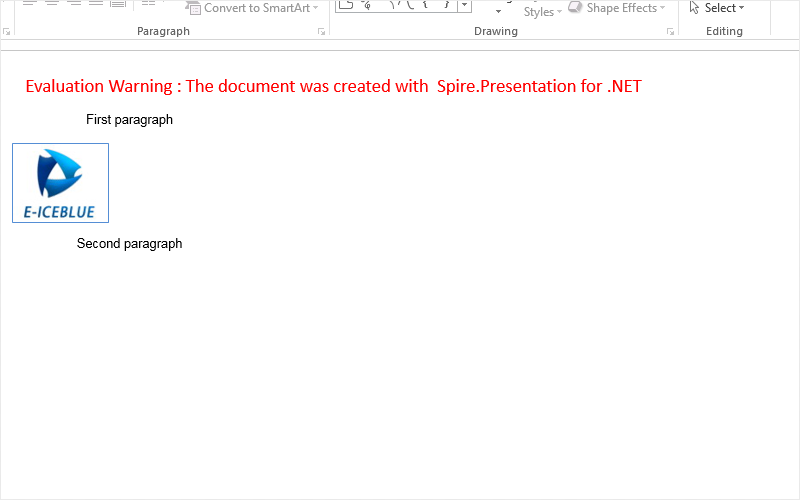
We have already demonstrated how to use Spire.Presentation to insert HTML formatted text to PowerPoint slide. Now from Spire.Presentation 3.4.1, it supports to insert html (including text, image, audio and video) into presentation slides and each html tag will be added to the slide as a separate shape. The following code snippets demonstrate how to.
Step 1: Create an instance of Presentation class.
Presentation ppt = new Presentation();
Step 2: Get the shapes on the first slide.
ShapeList shapes = ppt.Slides[0].Shapes;
Step 3: Add contents to shape from HTML code, which includes text and image.
shapes.AddFromHtml("<html><div><p>First paragraph</p><p><img src='https://cdn.e-iceblue.com/Logo.jpg'/></p><p>Second paragraph </p></html>");
Step 4: Save the document to file.
ppt.SaveToFile("Result.pptx", FileFormat.Pptx2010);
Effective screenshot:
Full codes of how to insert HTML into the Presentation slides:
using Spire.Presentation;
using Spire.Presentation.Collections;
namespace InsertHTML
{
class Program
{
static void Main(string[] args)
{
Presentation ppt = new Presentation();
ShapeList shapes = ppt.Slides[0].Shapes;
shapes.AddFromHtml("First paragraph

Second paragraph
");
ppt.SaveToFile("Result.pptx", FileFormat.Pptx2010);
}
}
}
