
Knowledgebase (2370)
Children categories
Set the border type and color for the table on Presentation slides
2018-01-03 08:33:55 Written by KoohjiWith the help of Spire.Presentation, we can easily set the border type and color of a whole table on the presentation slides. This article will focus on demonstrating how to set the border for the table in C#.
Firstly, view the 12 border types for the table on PowerPoint file:
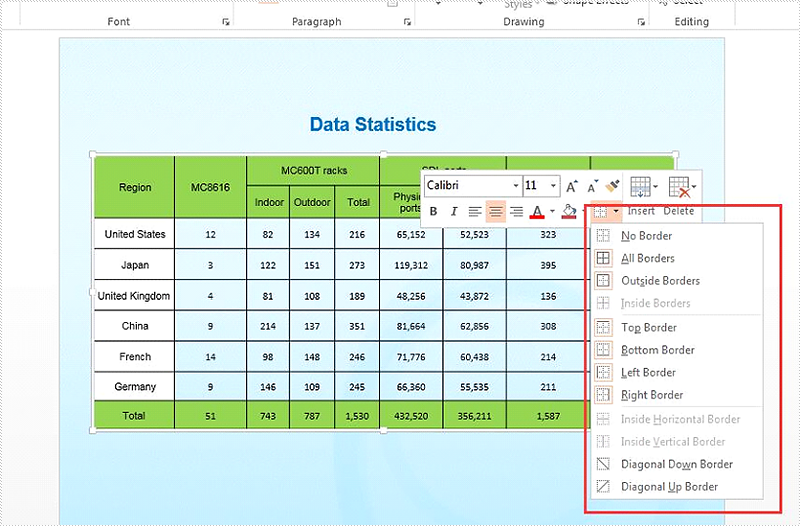
How to set the border type and color for an existing table on presentation slide:
//create a presentation document and load the file from disk
Presentation presentation = new Presentation();
presentation.LoadFromFile("Sample.pptx");

//get the table from the first slide of the sample document
ISlide slide = presentation.Slides[0];
ITable table = slide.Shapes[1] as ITable;

//set the border type as Inside and the border color as blue
table.SetTableBorder(TableBorderType.Inside, 1, Color.Blue);

//save the document to file
presentation.SaveToFile("Insideborder.pptx", FileFormat.Pptx2010);
Effective screenshot after set the border type for an existing table on presentation slide:
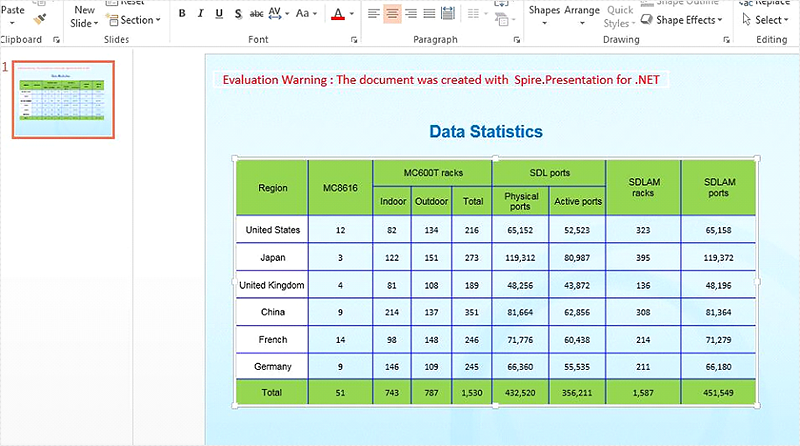
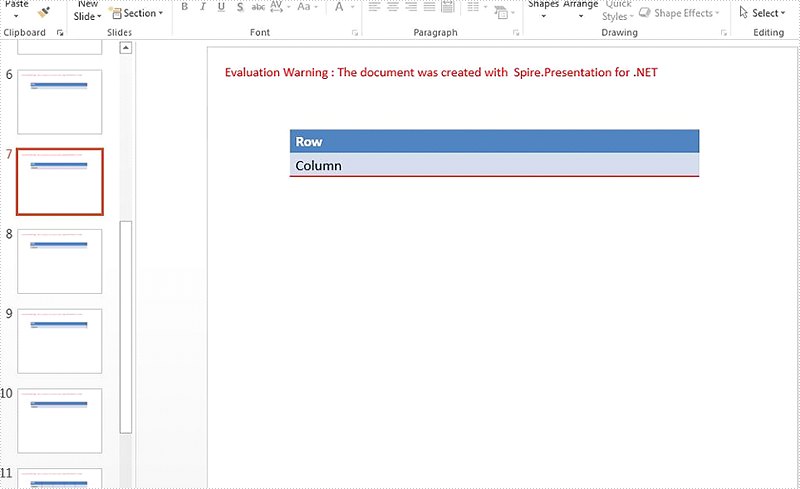
How to set the border type and color for newly added tables on presentation slide:
using Spire.Presentation;
using System;

namespace Set_border_type_and_color
{

    class Program
    {
        static void Main(string[] args)
        {

            //create a presentation document
            Presentation presentation = new Presentation();

            //set the table width and height for each table cell
            double[] tableWidth = new double[] { 100, 100, 100, 100, 100 };
            double[] tableHeight = new double[] { 20, 20 };

            //traverse all the border type of the table
            foreach (TableBorderType item in Enum.GetValues(typeof(TableBorderType)))

            //add a table to the presentation slide with the setting width and height
            {
                ITable itable = presentation.Slides.Append().Shapes.AppendTable(100, 100, tableWidth, tableHeight);

                //add some text to the table cell
                itable.TableRows[0][0].TextFrame.Text = "Row";
                itable.TableRows[1][0].TextFrame.Text = "Column";

                //set the border type, border width and the border color for the table
                itable.SetTableBorder(item, 1.5, Color.Red);

            }

            //save the document to file
            presentation.SaveToFile("Addtablewithborder.pptx", FileFormat.Pptx2010);

        }
    }
}
Retrieve Style Names of all TextRanges in a Word Document in C#, VB.NET
2017-12-26 02:59:14 Written by KoohjiProgrammers may need to determine the style name of a section of text, or find the text in a document that appear in a specified style name, such as “Heading 1”. This article will show you how to retrieve style names that are applied in a Word document by using Spire.Doc with C# and VB.NET.
Step 1: Create a Document instance.
Document doc = new Document();
Step 2: Load a sample Word file.
doc.LoadFromFile("Sample.docx");
Step 3: Traverse all TextRanges in the document and get their style names through StyleName property.
foreach (Section section in doc.Sections)
{
    foreach (Paragraph paragraph in section.Paragraphs)
    {
        foreach (DocumentObject docObject in paragraph.ChildObjects)
        {
            if (docObject.DocumentObjectType == DocumentObjectType.TextRange)
            {
                TextRange text = docObject as TextRange;
                Console.WriteLine(text.StyleName);
            }
        }
    }
}
Result:
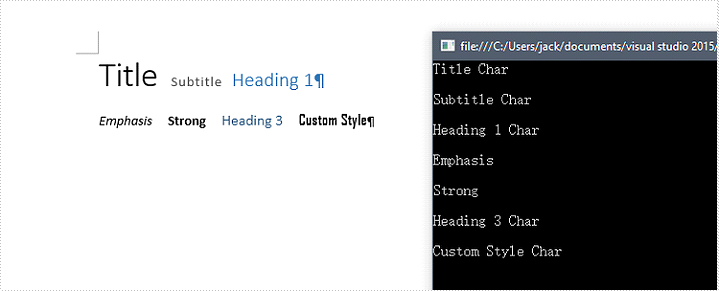
Full Code:
using Spire.Doc;
using Spire.Doc.Documents;
using Spire.Doc.Fields;
using System;
using System.Text.RegularExpressions;
namespace RetrieveStyleNames
{
    class Program
    {
        static void Main(string[] args)
        {
            Document doc = new Document();
            doc.LoadFromFile("Sample.docx");

            foreach (Section section in doc.Sections)
            {
                foreach (Paragraph paragraph in section.Paragraphs)
                {
                    foreach (DocumentObject docObject in paragraph.ChildObjects)
                    {
                        if (docObject.DocumentObjectType == DocumentObjectType.TextRange)
                        {
                            TextRange text = docObject as TextRange;
                            Console.WriteLine(text.StyleName);
                        }
                    }
                    Console.WriteLine();
                }
            }
        }
    }
}
Imports Spire.Doc
Imports Spire.Doc.Documents
Imports Spire.Doc.Fields
Imports System.Text.RegularExpressions
Namespace RetrieveStyleNames
	Class Program
		Private Shared Sub Main(args As String())
			Dim doc As New Document()
			doc.LoadFromFile("Sample.docx")

			For Each section As Section In doc.Sections
				For Each paragraph As Paragraph In section.Paragraphs
					For Each docObject As DocumentObject In paragraph.ChildObjects
						If docObject.DocumentObjectType = DocumentObjectType.TextRange Then
							Dim text As TextRange = TryCast(docObject, TextRange)
							Console.WriteLine(text.StyleName)
						End If
					Next
					Console.WriteLine()
				Next
			Next
		End Sub
	End Class
End Namespace
How to reset the position of the date time and slide number for the presentation slides
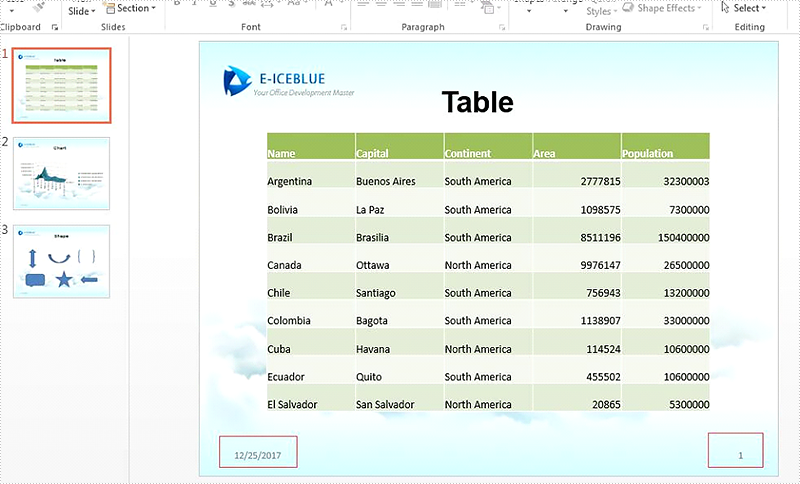
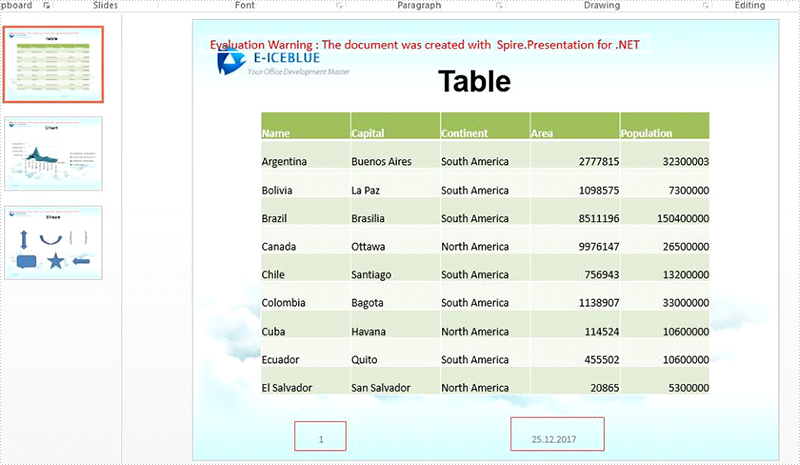
2017-12-25 09:12:30 Written by KoohjiWe have already demonstrated whether to display the additional information for presentation slides on header and footer area, such as hide or display date and time, the slide number, and the footer with the help of Spire.Presentation. This article will show you how to reset the position of the slide number and the date time in C#. We will also demonstrate how to reset the display format for the date and time from MM/dd/yyyy to yy.MM.yyyy on the presentation slides.
Firstly, view the default position of the date time at the left and the slide number at the right.
Step 1: Create a presentation document and load the file from disk.
Presentation presentation = new Presentation();
presentation.LoadFromFile("Sample.pptx", FileFormat.Pptx2013);
Step 2: Get the first slide from the sample document.
ISlide slide = presentation.Slides[0];
Step 3: Reset the position of the slide number to the left and date time to the center, and reset the date time display style.
foreach (IShape shapeToMove in slide.Shapes)
{
    if (shapeToMove.Name.Contains("Slide Number Placeholder"))
    {
        shapeToMove.Left =0;
     }

    else if (shapeToMove.Name.Contains("Date Placeholder"))
    {
        shapeToMove.Left = presentation.SlideSize.Size.Width / 2;

        (shapeToMove as IAutoShape).TextFrame.TextRange.Paragraph.Text = DateTime.Now.ToString("dd.MM.yyyy");
        (shapeToMove as IAutoShape).TextFrame.IsCentered = true;
    }
}
Step 4: Save the document to file.
presentation.SaveToFile("Result.pptx", FileFormat.Pptx2013);
Effective screenshot after reset the position and the format for the date time and slide number.
Full codes of how to reset the position of slide number and date time:
using Spire.Presentation;
using System;
namespace ResetPosition
{

    class Program
    {

        static void Main(string[] args)
        {
            Presentation presentation = new Presentation();

            presentation.LoadFromFile("Sample.pptx", Spire.Presentation.FileFormat.Pptx2013);

            ISlide slide = presentation.Slides[0];

            foreach (IShape shapeToMove in slide.Shapes)
            {
                if (shapeToMove.Name.Contains("Slide Number Placeholder"))
                {
                    shapeToMove.Left = 0;

                }

                else if (shapeToMove.Name.Contains("Date Placeholder"))
                {
                    shapeToMove.Left = presentation.SlideSize.Size.Width / 2;

                    (shapeToMove as IAutoShape).TextFrame.TextRange.Paragraph.Text = DateTime.Now.ToString("dd.MM.yyyy");
                    (shapeToMove as IAutoShape).TextFrame.IsCentered = true;
                }

            }
            presentation.SaveToFile("Result.pptx", Spire.Presentation.FileFormat.Pptx2013);

        }
    }
}
