Knowledgebase (2328)
Children categories
We have already demonstrated how to use Spire.PDF to add multiple layers to PDF file and delete layer in PDF in C#. We can also toggle the visibility of a PDF layer while creating a new page layer with the help of Spire.PDF. In this section, we're going to demonstrate how to toggle the visibility of layers in new PDF document in C#.
Step 1: Create a new PDF document and add a new page to the PDF document.
PdfDocument pdf = new PdfDocument(); PdfPageBase page = pdf.Pages.Add();
Step 2: Add a layer named "Blue line" to the PDF page and set the layer invisible.
PdfLayer layer = pdf.Layers.AddLayer(""Green line"", PdfVisibility.Off);
PdfPen pen = new PdfPen(Color.Green, 1f);
PdfCanvas pcA = layer.CreateGraphics(page.Canvas);
pcA.DrawLine(pen, new PointF(0, 30), new PointF(300, 30));
Step 3: Add a layer named "Ellipse" to the PDF page and set the layer visible.
layer = pdf.Layers.AddLayer(""Ellipse"", PdfVisibility.On);
PdfPen pen2 = new PdfPen(Color.Green, 1f);
PdfBrush brush2 = new PdfSolidBrush(Color.Green);
PdfCanvas pcB = layer.CreateGraphics(page.Canvas);
pcB.DrawEllipse(pen2, brush2, 50, 70, 200, 60);
Step 4: Save the document to file.
pdf.SaveToFile("LayerVisibility.pdf", FileFormat.PDF);
Effective screenshot after toggle the visibility of PDF layer:

Full codes:
using Spire.Pdf;
using Spire.Pdf.Graphics;
using System.Drawing;
namespace LayerVisibility
{
class Program
{
static void Main(string[] args)
{
PdfDocument pdf = new PdfDocument();
PdfPageBase page = pdf.Pages.Add();
PdfLayer layer = pdf.Layers.AddLayer("Green line", PdfVisibility.Off);
PdfPen pen = new PdfPen(Color.Green, 1f);
PdfCanvas pcA = layer.CreateGraphics(page.Canvas);
pcA.DrawLine(pen,new PointF(0, 30), new PointF(300, 30));
layer = pdf.Layers.AddLayer("Ellipse", PdfVisibility.On);
PdfPen pen2 = new PdfPen(Color.Green, 1f);
PdfBrush brush2 = new PdfSolidBrush(Color.Green);
PdfCanvas pcB = layer.CreateGraphics(page.Canvas);
pcB.DrawEllipse(pen2, brush2, 50, 70, 200, 60);
pdf.SaveToFile("LayerVisibility.pdf", FileFormat.PDF);
}
}
}
Tab stops are markers placed on the ruler that define how text or numbers are aligned on a line. To add tab stops to a paragraph in Microsoft Word, we need to open the Tabs dialog box and then set the tab stop position, alignment and leader as shown below.

This article elaborates how to add tab stops to paragraphs in word document programmatically using Spire.Doc.
Detail steps:
Step 1: Instantiate a Document object and add a section to it.
Document document = new Document(); Section section = document.AddSection();
Step 2: Add paragraph 1 to the section.
Paragraph paragraph1 = section.AddParagraph();
Step 3: Add tab stops to paragraph 1.
//Add tab and set its position (in points)
Tab tab = paragraph1.Format.Tabs.AddTab(28);
//Set tab alignment
tab.Justification = TabJustification.Left;
//move to next tab and append text
paragraph1.AppendText("\tWashing Machine");
//Add another tab and set its position (in points)
tab = paragraph1.Format.Tabs.AddTab(280);
//Set tab alignment
tab.Justification = TabJustification.Left;
//Specify tab leader type
tab.TabLeader = TabLeader.Dotted;
//move to next tab and append text
paragraph1.AppendText("\t$650");
Step 4: Add paragraph 2 to the section.
Paragraph paragraph2 = section.AddParagraph();
Step 5: Add tab stops to paragraph 2.
//Add tab and set its position (in points)
tab = paragraph2.Format.Tabs.AddTab(28);
//Set tab alignment
tab.Justification = TabJustification.Left;
//move to next tab and append text
paragraph2.AppendText("\tRefrigerator");
//Add another tab and set its position (in points)
tab = paragraph2.Format.Tabs.AddTab(280);
//Set tab alignment
tab.Justification = TabJustification.Left;
//Specify tab leader type
tab.TabLeader = TabLeader.NoLeader;
//move to next tab and append text
paragraph2.AppendText("\t$800");
Step 6: Save and close the document object.
document.SaveToFile("Tab.docx", FileFormat.Docx2013);
document.Close();
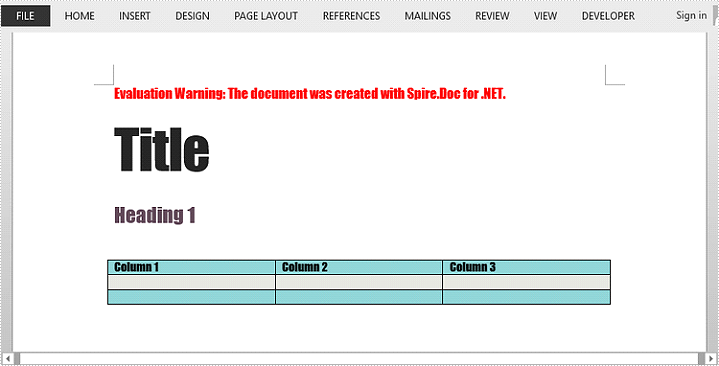
Screenshot:

Full code:
using Spire.Doc;
using Spire.Doc.Documents;
namespace AddTapStops
{
class Program
{
static void Main(string[] args)
{
//Instantiate a Document object
Document document = new Document();
//Add a section
Section section = document.AddSection();
//Add paragraph 1
Paragraph paragraph1 = section.AddParagraph();
//Add tab and set its position (in points)
Tab tab = paragraph1.Format.Tabs.AddTab(28);
//Set tab alignment
tab.Justification = TabJustification.Left;
//move to next tab and append text
paragraph1.AppendText("\tWashing Machine");
//Add another tab and set its position (in points)
tab = paragraph1.Format.Tabs.AddTab(280);
//Set tab alignment
tab.Justification = TabJustification.Left;
//Specify tab leader type
tab.TabLeader = TabLeader.Dotted;
//move to next tab and append text
paragraph1.AppendText("\t$650");
//Add paragraph 2
Paragraph paragraph2 = section.AddParagraph();
//Add tab and set its position (in points)
tab = paragraph2.Format.Tabs.AddTab(28);
//Set tab alignment
tab.Justification = TabJustification.Left;
//move to next tab and append text
paragraph2.AppendText("\tRefrigerator"); //move to next tab and append text
//Add another tab and set its position (in points)
tab = paragraph2.Format.Tabs.AddTab(280);
//Set tab alignment
tab.Justification = TabJustification.Left;
//Specify tab leader type
tab.TabLeader = TabLeader.NoLeader;
//move to next tab and append text
paragraph2.AppendText("\t$800");
//Save and close the document object
document.SaveToFile("Tab.docx", FileFormat.Docx2013);
document.Close();
}
}
}

QR codes have become an integral part of modern digital interactions, enabling seamless data sharing through scannable patterns. If you’re looking to generate QR codes in Java, the Spire.Barcode for Java library offers a robust, user-friendly solution.
This comprehensive guide will walk you through every aspect of creating QR code in Java, including setup, basic QR code generation, logo integration, advanced customization, and industry best practices.
- Java Barcode Generator Library
- How to Generate a QR Code in Java
- Generate a QR Code with a Logo in Java
- Customize QR Code Options
- Best Practices for QR Code Generation
- Conclusion
Java Barcode Generator Library
Spire.Barcode for Java is a lightweight, high-performance library designed to generate and read 1D and 2D barcodes, including QR codes, Data Matrix, Code 128, and more. It stands out for its:
- Ease of use: Minimal code required to generate barcodes.
- Customization options: Adjust size, color, error correction, and add logos.
- Compatibility: Supports Java SE 6.0 and above, and integrates with popular IDEs like IntelliJ and Eclipse.
- Output flexibility: Export QR codes to common image formats (PNG, JPG, BMP, etc.).
Spire.Barcode simplifies QR code generation with pre-built classes for configuration and rendering. Download it to manually import or add it to your project using Maven:
<repositories>
<repository>
<id>com.e-iceblue</id>
<name>e-iceblue</name>
<url>https://repo.e-iceblue.com/nexus/content/groups/public/</url>
</repository>
</repositories>
<dependencies>
<dependency>
<groupId>e-iceblue</groupId>
<artifactId>spire.barcode</artifactId>
<version>5.2.0</version>
</dependency>
</dependencies>
Tip: Request a free trial license here to remove evaluation message and watermarks.
You can also use the Free Version to process barcodes:
<repositories>
<repository>
<id>com.e-iceblue</id>
<name>e-iceblue</name>
<url>https://repo.e-iceblue.com/nexus/content/groups/public/</url>
</repository>
</repositories>
<dependency>
<groupId>e-iceblue</groupId>
<artifactId>spire.barcode.free</artifactId>
<version>5.2.1</version>
</dependency>
How to Generate a QR Code in Java
Creating a standard QR code with Spire.Barcode for Java involves just a few steps. This example generates a QR code that encodes a URL and saves it as a PNG image.
Key Components:
- BarcodeSettings: Configures all properties of the QR code.
- setType(): Specifies the QR code type (other types like Code 128 are also supported).
- setData(): Defines the content to encode (URL, text, numbers, etc.).
- setX(): Sets the width of each "module" (the tiny squares in the QR code).
- setQRCodeECL(): Defines error correction level.
- generateImage(): Uses the settings to render the QR code as a BufferedImage.
- ImageIO.write(): Saves the image to a file (PNG, JPG, or other formats).
Java code to create a QR code:
import com.spire.barcode.*;
import javax.imageio.ImageIO;
import java.awt.image.BufferedImage;
import java.io.File;
import java.io.IOException;
public class GenerateQRcode {
public static void main(String[] args) throws IOException {
// Create a BarcodeSettings object
BarcodeSettings settings = new BarcodeSettings();
// Set the barcode type to QR Code
settings.setType(BarCodeType.QR_Code);
// Set the QR code data
settings.setData("https://www.e-iceblue.com/");
// Set to not display the encoded text (the URL)
settings.setShowText(false);
// Set width of the barcode module
settings.setX(2);
// Set the error correction level
settings.setQRCodeECL(QRCodeECL.M);
// Set the data mode
settings.setQRCodeDataMode(QRCodeDataMode.Auto);
// Create BarCodeGenerator object based on settings
BarCodeGenerator barCodeGenerator = new BarCodeGenerator(settings);
// Generates QR code as a BufferedImage (in-memory image object)
BufferedImage bufferedImage = barCodeGenerator.generateImage();
// Save the generated QR code image in PNG format
ImageIO.write(bufferedImage,"png",new File("QR_Code.png"));
}
}
Output: A basic QR code image in PNG format. When scanned, the user will be directed to the specified URL address.

Integrate with the Spire.PDF for Java library to add the QR code image to a PDF document.
Generate a QR Code with a Logo in Java
Adding a logo to a QR code enhances brand visibility while maintaining scannability. Spire.Barcode for Java simplifies this by allowing you to overlay an image onto the QR code via the setQRCodeLogoImage() method.
Key Considerations:
- Use a small logo (10-20% of QR code size) to avoid disrupting data patterns.
- Ensure high contrast between the logo and QR code background.
Java code to generate a QR code with embedded logo:
import com.spire.barcode.*;
import javax.imageio.ImageIO;
import java.awt.image.BufferedImage;
import java.io.File;
import java.io.IOException;
public class QRcodeWithLogo {
public static void main(String[] args) throws IOException {
// Create a BarcodeSettings object
BarcodeSettings settings = new BarcodeSettings();
// Set the barcode type to QR Code
settings.setType(BarCodeType.QR_Code);
// Set the QR code data (URL, text, numbers, etc.)
settings.setData("https://www.e-iceblue.com/");
// Set to not display the encoded text (the URL)
settings.setShowText(false);
// Set width of the barcode module
settings.setX(3);
// Set the error correction level
settings.setQRCodeECL(QRCodeECL.H);
// Set the data mode
settings.setQRCodeDataMode(QRCodeDataMode.Auto);
// Load an image and set it as the logo image for the QR code
BufferedImage image = ImageIO.read(new File("logo.png"));
settings.setQRCodeLogoImage(image);
// Create BarCodeGenerator object based on settings
BarCodeGenerator barCodeGenerator = new BarCodeGenerator(settings);
// Generates QR code as a BufferedImage (in-memory image object)
BufferedImage bufferedImage = barCodeGenerator.generateImage();
// Save the generated QR code image in PNG format
ImageIO.write(bufferedImage,"png",new File("QrCodeWithLogo.png"));
}
}
Output: A PNG image file containing a scannable QR code with a centered logo.

Need to scan the QR code in Java? Refer to: How to Read Barcodes in Java Using Spire.Bacode
Customize QR Code Options
Spire.Barcode for Java lets you tailor QR codes to match your design requirements. Below are key customization options:
1. Add Display Text (Top/Bottom Labels)
Add descriptive text above or below the QR code and set its formatting (font, color, alignment).
// Enable top and bottom text
settings.setShowTopText(true);
settings.isShowBottomText(true);
// Set text content
settings.setTopText("Scan to Visit Our Site");
settings.setBottomText("Example Corp © 2025");
// Customize text appearance
settings.setTopTextFont("Arial", 14.0f);
settings.setTopTextColor(Color.BLUE);
settings.setTopTextMargin(1.0f);
settings.setBottomTextFont("Calibri", 12.0f, FontStyle.Italic);
settings.setBottomTextColor(Color.GRAY);
// Align text (Near, Center, Far)
settings.setTopTextAligment(StringAlignment.Center);
settings.setBottomTextAlignment(StringAlignment.Far);

2. Customize Borders & Quiet Zones
The "quiet zone" is a blank (usually white) area surrounding the QR code (and its border). It’s critical for scanners to recognize where the QR code starts and ends.
Spire.Barcode for Java allows you to set both the visible border and quiet zone:
// Enable border
settings.hasBorder(true);
// Set border properties
settings.setBorderColor(Color.BLUE); // Border color
settings.setBorderWidth(1); // Border thickness
settings.setBorderDashStyle(3); // Dashed border (options: Solid, Dash, Dot, etc.)
// Set border margins
// These margins create the "quiet zone" around the QR code
settings.setLeftMargin(8);
settings.setRightMargin(8);
settings.setTopMargin(8);
settings.setBottomMargin(8);

3. Change Colors
Modify the QR code’s foreground (data) and background colors to match your brand:
// Set foreground color (black by default)
settings.setForeColor(Color.GRAY);
// Set background color (white by default)
settings.setBackColor(new Color(250, 243, 202));

Best Practices for QR Code Generation
Follow these guidelines for professional QR implementations:
- Error Correction Level: Choose wisely:
- L (Low): 7% data recovery
- M (Medium): 15% recovery
- Q (Quartile): 25% recovery
- H (High): 30% recovery (best for logos)
- Optimal Size: Minimum 22 cm (0.8x0.8 in) for print, 200200 px for digital
- Contrast: Ensure high contrast between code and background
- Test Scannability: Always verify your QR codes with multiple devices/ scanner apps
Conclusion
Generating QR codes in Java is straightforward with libraries like Spire.Barcode. Whether you need a basic QR code encoding text/URL, a branded code with a logo, or a fully customized design, this library provides the tools to achieve it efficiently. By following the examples and best practices outlined in this guide, you’ll be able to integrate professional-grade QR codes into your Java applications, enhancing user experience and enabling seamless data sharing.