Contracts, approval forms and quotation confirmations usually need a stamp and a signature before they are filed. An electronic stamp is an image of a company seal with a transparent background, and it has to be laid over the sign-off text; a signature image is a scan or an electronic handwriting sample, and it has to sit on the sign-off line. Both are pictures only and carry no cryptographic protection against tampering.
| Form | Nature | Detects tampering |
|---|---|---|
| Electronic stamp | Image | No |
| Signature image | Image | No |
| Digital signature | Certificate and hash | Yes |
Electronic stamps and signature images solve the question of how a document looks; digital signatures solve the question of whether its content has been altered, and neither can replace the other. The samples in this article cover only the insertion and positioning of images; scenarios that require a certificate-based signature are usually handled on a server or by a third-party signing platform.
This article uses Spire.Doc for JavaScript to insert electronic stamps and signature images in the browser. The whole process runs on WebAssembly in the browser: no Office installation and no backend service are required, and the document and images stay on the user's device.
This article covers three features:
- Insert an Electronic Stamp into a Word Document
- Adjust the Position and Rotation of the Stamp
- Insert a Signature Image at the Sign-off Block
For installation and project setup, refer to Integrating Spire.Doc for JavaScript in a React Project. The examples below assume that Spire.Doc is installed and the WebAssembly module is initialized.
Insert an Electronic Stamp into a Word Document
An electronic stamp is inserted with the IParagraph.AppendPicture() method. The method accepts a picture path or picture bytes and returns a DocPicture object; size, wrapping style, position and rotation are all set through that object. When the stamp has to be positioned independently of the text, a floating wrapping style should be used:
| Wrapping style | Enumeration value | Effect |
|---|---|---|
| Inline | TextWrappingStyle.Inline |
Sits on the same line as the text and flows with it |
| In front of text | TextWrappingStyle.InFrontOfText |
Positioned independently and drawn over the text |
| Behind text | TextWrappingStyle.Behind |
Positioned independently and drawn under the text |
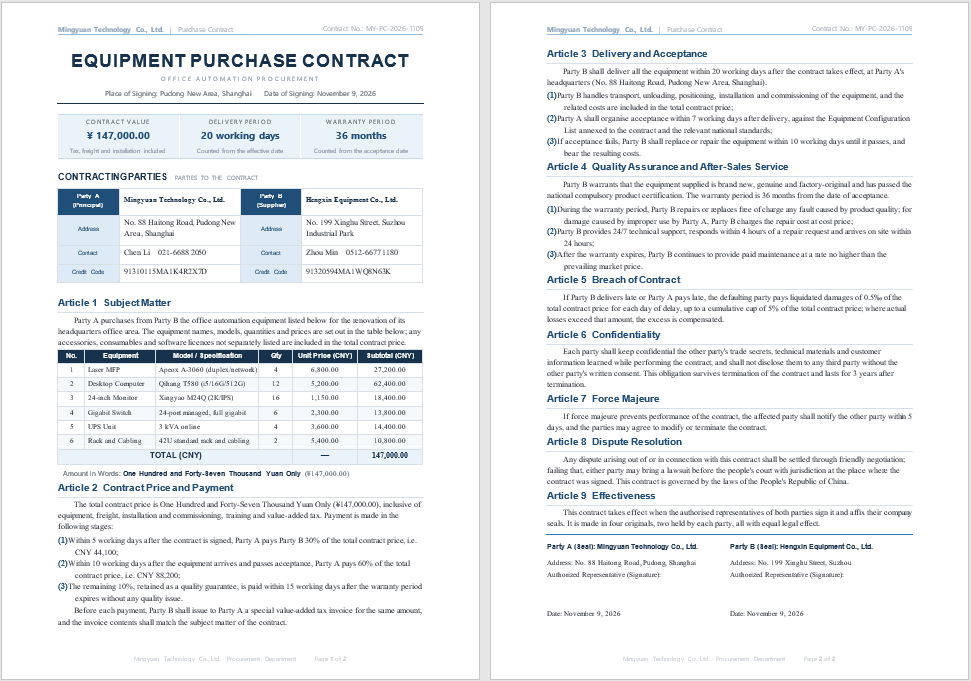
The sample uses EquipmentContract.docx. This equipment purchase contract runs to two pages, and the second page is the signing page, where Party A and Party B each have a place for a seal and a signature:
The specific steps are as follows:
- Get the Spire.Doc WASM module and confirm that it is ready.
- Load the sample contract
EquipmentContract.docxand the stamp imageSeal.pnginto the VFS. - Create a
Documentobject, load the contract and take the first section. - Take the last paragraph of the body as the anchor of the floating picture and call
AppendPicture()to insert the stamp. - Set the stamp size, wrapping style and page coordinates, save the result as
EquipmentStamped.docxand download it.
The code for inserting the electronic stamp is as follows:
function App() {
  const addStamp = async () => {
    // Get the Spire.Doc WASM module
    const docModule = window.wasmModule?.spiredoc;

    if (!docModule) {
      alert('Spire.Doc is not ready yet');
      return;
    }

    // Load the sample contract and the stamp image
    await window.spire.FetchFileToVFS('EquipmentContract.docx', '', `${process.env.PUBLIC_URL}/data/`);
    await window.spire.FetchFileToVFS('Seal.png', '', `${process.env.PUBLIC_URL}/data/`);

    const doc = new docModule.Document();
    doc.LoadFromFile('EquipmentContract.docx');

    const section = doc.Sections.get_Item(0);
    // A floating picture needs a paragraph as its anchor; use the last paragraph of the body
    const paragraph = section.Paragraphs.get_Item(section.Paragraphs.Count - 1);
    const seal = paragraph.AppendPicture('Seal.png');

    // The stamp is about 120 points (4.2 cm) across
    seal.Width = 120;
    seal.Height = 120;

    // Float above the text, positioned from the top-left corner of the page
    seal.TextWrappingStyle = docModule.TextWrappingStyle.InFrontOfText;
    seal.TextWrappingType = docModule.TextWrappingType.Both;
    seal.HorizontalOrigin = docModule.HorizontalOrigin.Page;
    seal.VerticalOrigin = docModule.VerticalOrigin.Page;
    seal.HorizontalPosition = 124;
    seal.VerticalPosition = 656;
    // Rotate 350 degrees clockwise, that is, a 10-degree tilt anticlockwise
    seal.Rotation = 350;

    const outputFileName = 'EquipmentStamped.docx';
    doc.SaveToFile({ fileName: outputFileName, fileFormat: docModule.FileFormat.Docx2013 });
    doc.Dispose();

    // Read the generated file from the VFS and trigger the download
    const fileArray = window.dotnetRuntime.Module.FS.readFile(outputFileName);
    const blob = new Blob([fileArray], {
      type: 'application/vnd.openxmlformats-officedocument.wordprocessingml.document',
    });
    const url = URL.createObjectURL(blob);
    const a = document.createElement('a');
    a.href = url;
    a.download = outputFileName;
    a.click();
    URL.revokeObjectURL(url);
  };

  return (
    <div style={{ textAlign: 'center', height: '300px' }}>
      <h1>Electronic Stamp</h1>
      <button onClick={addStamp}>Stamp</button>
    </div>
  );
}

export default App;
The stamp is applied to Party A's block on the second page:

Place the Stamp Behind the Text
InFrontOfText draws the stamp above the text, and a misplaced stamp covers a clause. Where the stamp serves only as a background, the wrapping style can be changed to Behind and IsUnderText set to true:
// Behind the text: the stamp acts as a backdrop and the body text stays on top
seal.TextWrappingStyle = docModule.TextWrappingStyle.Behind;
seal.IsUnderText = true;
Both settings change only the layering relationship and do not alter the document content. The stamp itself remains an ordinary picture, and the document does not reject copying or replacing it.
Adjust the Position and Rotation of the Stamp
Adjusting the position and rotation of the stamp relies on four properties of DocPicture: two origins and two offsets. The origins decide where the coordinates are measured from, and the offsets decide where the top-left corner of the picture lands; all values are in points (1 point equals 1/72 inch). An A4 page measures 595 × 842 points and can serve as a reference for conversion.
| Property | Meaning | Value used in this article |
|---|---|---|
HorizontalOrigin / VerticalOrigin |
Coordinate origin: Page (page), Margin (page margin), Paragraph (paragraph), etc. |
Page |
HorizontalPosition / VerticalPosition |
Offset of the top-left corner from the origin, in points | 124 / 656 |
Rotation |
Rotation angle in degrees, clockwise | 350 |
TextWrappingStyle |
Wrapping style, which has to be a floating one | InFrontOfText |
TextWrappingType |
Extent of text wrapping; Both wraps on both sides |
Both |
A floating picture is attached to an anchor paragraph. The stamp appears on the page that holds the anchor paragraph, and it moves with that paragraph when the paragraph moves to another page. The sample places the anchor at the end of the body, so the stamp lands on the second page.
The specific steps are as follows:
- Confirm the page size and the page that holds the sign-off block, and note the page coordinates of the target position.
- Set
HorizontalOriginandVerticalOrigintoPage, so that the origin is the top-left corner of the page. - Write
HorizontalPositionandVerticalPosition, with the values calculated in points. - Set
Rotationto give the stamp a slight tilt. - Save the document and render it again, check where the stamp lands and whether it hides any text, and then fine-tune the coordinates.
The code for adjusting the position and rotation is as follows (a modification of the code in the previous section):
// Set the top-left corner of the page as the origin, in points
seal.HorizontalOrigin = docModule.HorizontalOrigin.Page;
seal.VerticalOrigin = docModule.VerticalOrigin.Page;

// The top-left corner of the stamp is 124 points from the left edge and 656 points from the top edge of the page
seal.HorizontalPosition = 124;
seal.VerticalPosition = 656;

// Rotate 350 degrees clockwise, that is, a 10-degree tilt anticlockwise
seal.Rotation = 350;
Once the page margins, paper size or gutter change, the same set of coordinates lands in a different place. When different templates are processed in a batch, read the page size and margins from Section.PageSetup and compute the coordinates proportionally instead of reusing fixed values.
Insert a Signature Image at the Sign-off Block
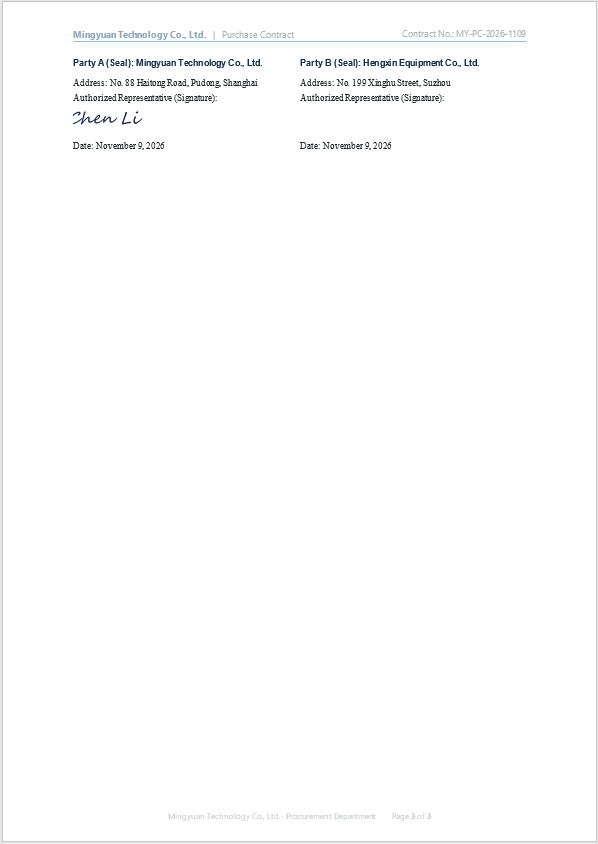
A signature image at the sign-off block uses the inline wrapping style. The signature image sits on the same line as sign-off text such as "Authorized Representative (Signature):" or on a reserved signature line, and needs no floating position. In the sample contract, the Party A cell reserves a signature line 32 points high, into which a signature image 30 points high is embedded without changing the existing pagination.
| Aspect | Approach |
|---|---|
| Positioning | Take the sign-off table in the last section, then the reserved signature paragraph in the Party A cell |
| Wrapping style | TextWrappingStyle.Inline, flowing with the text |
| Size | 30 points high, with the width derived from the original aspect ratio as 72 points |
| Line height | The signature line reserves 32 points, so the embedded picture does not push the following content down |
The specific steps are as follows:
- Load the sample contract
EquipmentContract.docxand the signature imageSignature.png. - Take the last table of the first section, which is the sign-off table for Party A and Party B on the signing page.
- Take the first cell of that table, then the reserved signature paragraph inside it (index 3).
- Call
AppendPicture()to insert the signature image, and set the width, the height and theInlinewrapping style. - Save the result as
EquipmentSigned.docx, read the file from the VFS and download it.
The code for inserting the signature image is as follows (the module check and download code are the same as in the first section and are omitted):
const doc = new docModule.Document();
doc.LoadFromFile('EquipmentContract.docx');

const section = doc.Sections.get_Item(0);
// The sign-off table (the last table of the section): Party A sits in the first cell of the first row
const table = section.Tables.get_Item(section.Tables.Count - 1);
const cell = table.Rows.get_Item(0).Cells.get_Item(0);
// The signature line reserved in the cell
const line = cell.Paragraphs.get_Item(3);

const signature = line.AppendPicture('Signature.png');
signature.Height = 30;
signature.Width = 72;
signature.TextWrappingStyle = docModule.TextWrappingStyle.Inline;

const outputFileName = 'EquipmentSigned.docx';
doc.SaveToFile({ fileName: outputFileName, fileFormat: docModule.FileFormat.Docx2013 });
doc.Dispose();
The signature appears between "Authorized Representative (Signature):" and "Date":
Derive the Signature Width from the Original Aspect Ratio
Setting both Width and Height changes the aspect ratio of the original image, and a handwritten signature stretched this way is clearly distorted. The signature image in the sample is 1100 × 460 pixels, an aspect ratio of about 2.39, so the width can be derived from the target height:
// The original image has an aspect ratio of 1100 : 460
const ratio = 1100 / 460;
signature.Height = 30;
signature.Width = Math.round(30 * ratio); // about 72 points
If the paragraph that holds the signature has no reserved line height, the embedded picture makes the line taller and everything after it moves down. For documents with a fixed layout or sensitive pagination, reserve the signature line in the template before inserting the picture.
FAQ
Can an Electronic Stamp Replace a Digital Signature
The two serve different purposes. An electronic stamp is essentially a picture: it is saved with the document, but it contains no certificate or hash verification and cannot prove that the file has not been modified. Verifying file integrity and signing identity normally calls for a certificate-based digital signature, produced on a server or by a third-party signing platform.
Why Does the Inserted Electronic Stamp Not Land in the Expected Position
The position of a floating picture is decided by both the origin and the offset. First confirm whether HorizontalOrigin and VerticalOrigin use Page or Margin, and then check the units of the values (points) and the page size. When the paper, margins or gutter change, the same coordinates land elsewhere; rendering once and then fine-tuning is the steadier approach.
What Should Be Done When the Electronic Stamp Covers the Body Text
InFrontOfText draws the picture above the text, and a misplaced stamp hides a clause. Use a PNG with a transparent background, move the stamp to a sparse area, or change the wrapping style to Behind and set IsUnderText so that the picture sits under the text. A stamp does not avoid the body text on its own.
Why Is the Signature Image Stretched After Insertion
Setting both Width and Height changes the aspect ratio of the original image. Work from the original ratio: fix the target height first and then compute the width, or crop the image to the required ratio before insertion. A signature image at a higher resolution usually stays sharp after it is scaled down.
Do These Operations Require Uploading the Word File to a Server
Not with the usage shown in this article. Spire.Doc for JavaScript runs on WebAssembly in the browser, and the document and images are read and written locally through a virtual file system (VFS); insertion, positioning and saving all happen locally, and the library itself does not send the file to a server. Whether the file finally leaves the device depends on any other code integrated into the page.
Get a Free License
Spire.Doc for JavaScript offers a 30-day full-featured free trial license with no functional limitations. Apply here to evaluate before purchasing.
