Scanned pages, drawings and electronic invoices often carry a wide white margin while the page size stays at its original spec; the opposite also happens, where only a small block of a page matters and the rest does not need to appear. Removing the extra part used to mean framing each page by hand in desktop software, or sending the file to a server — the first is hard to fit into a web workflow, the second means the document leaves the user's device.
This article shows how to crop PDF pages with Spire.PDF for JavaScript. It is built on WebAssembly and loads, modifies and saves PDF documents directly in the browser, all locally, reading and writing files through a virtual file system (VFS) with no backend involved. The steps are demonstrated on a two-page sample document.
For installation and project setup, see Integrate Spire.PDF for JavaScript in a React project. The examples below assume Spire.PDF is installed and the WebAssembly module is initialized.
Crop a PDF Page
Cropping a page is done through page.CropBox, a RectangleF whose x and y are measured from the top-left corner of the page, while width and height decide how much is kept; content outside the box no longer shows up. Cropping the whole document by one uniform margin means walking doc.Pages and, for each page, giving up the distance on all four sides of its MediaBox.
function App() {
  const cropPdfPage = async () => {
    // Get the Spire.PDF WASM module
    const pdfModule = window.wasmModule?.spirepdf;

    // Check whether the module is ready
    if (!pdfModule) {
      alert('Spire.PDF is not ready yet');
      return;
    }

    // Load the PDF file to be cropped into the VFS
    const inputFileName = 'ToCrop.pdf';
    await window.spire.FetchFileToVFS(inputFileName, "", `${process.env.PUBLIC_URL}/data/`);

    // Create a PdfDocument object and load the PDF document
    let doc = new pdfModule.PdfDocument();
    doc.LoadFromFile(inputFileName);

    // Trim 60 points off every side
    const margin = 60;

    for (let i = 0; i < doc.Pages.Count; i++) {
      const page = doc.Pages.get_Item(i);

      // MediaBox gives the full extent of the page, from which the crop box is derived
      // (x and y are measured from the top-left corner of the page)
      const width = page.MediaBox.Width;
      const height = page.MediaBox.Height;

      page.CropBox = new pdfModule.RectangleF({
        x: margin,
        y: margin,
        width: width - margin * 2,
        height: height - margin * 2,
      });
    }

    const outputFileName = 'CropByMargins.pdf';
    doc.SaveToFile(outputFileName);
    doc.Close();

    // Read the generated file from the VFS and trigger the download
    const fileArray = window.dotnetRuntime.Module.FS.readFile(outputFileName);
    const blob = new Blob([fileArray], { type: 'application/pdf' });
    const url = URL.createObjectURL(blob);
    const a = document.createElement('a');
    a.href = url;
    a.download = outputFileName;
    a.click();
    URL.revokeObjectURL(url);
  };

  return (
    <div style={{ textAlign: 'center', height: '300px' }}>
      <h1>Crop PDF Pages</h1>
      <button onClick={cropPdfPage}>
        Crop PDF
      </button>
    </div>
  );
}

export default App;
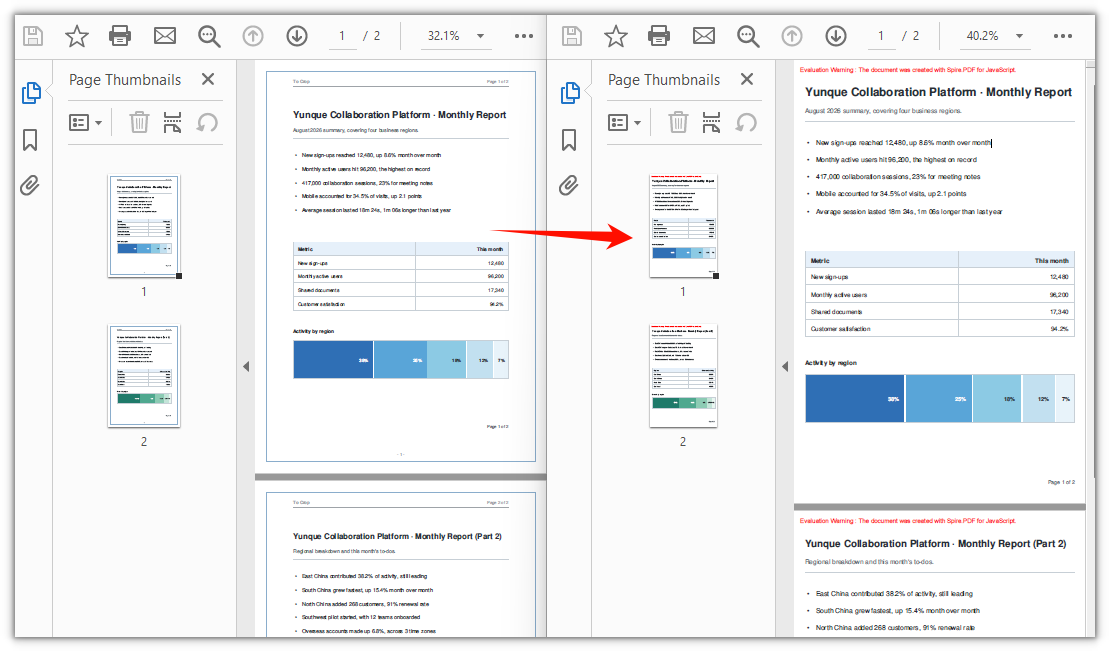
Both pages are cropped by a 60-point margin, so the white margin and the frame around the page are removed:
FAQ
Can I crop a single page instead of the whole document
Why: CropBox is a page-level property; there is no "whole document" interface. The loop above exists only so that every page gets the same margin.
Solution: To crop one page only, drop the loop and assign to the target page directly. x and y are likewise measured from the top-left corner of the page:
// Crop page 1 only: keep a 400 x 500 point block starting at (80, 80) from the top-left corner
const page = doc.Pages.get_Item(0);
page.CropBox = new pdfModule.RectangleF({ x: 80, y: 80, width: 400, height: 500 });
How do I undo a crop
Why: CropBox changes the page box in place, and the document keeps no record of the original one. The instinct is to assign page.MediaBox back, but that has no effect — the coordinates are applied on top of the origin of the current visible area, so only the size changes and the origin stays put. After a 60-point crop, assigning MediaBox back still leaves the visible area starting at (60, 60).
Solution: If the original document is still around, loading it again is the simplest route. When only the cropped file is left, offset the origin back to the top-left corner with negative values and give the full page size:
// Undo when the crop offset was (offsetX, offsetY)
page.CropBox = new pdfModule.RectangleF({
  x: -offsetX,
  y: -offsetY,
  width: page.MediaBox.Width,
  height: page.MediaBox.Height,
});
The file didn't get smaller and the cropped content is still searchable
Why: CropBox is a soft crop — it only changes the visible box of the page, while content outside it stays in the file and can still be picked up by text search or copy.
Solution: If the goal is to actually remove the content from the page, setting CropBox is not enough; the page has to be rebuilt — create a new document of the same size, take the content out with page.CreateTemplate(), draw it onto a new page, and save to a new file.
Get a Free License
If you want to remove the evaluation message from the result document, or lift the feature limitations, contact sales for a temporary license valid for 30 days.
