A scanned page that landed sideways, a landscape table sandwiched between portrait pages, or a document you want turned as a whole before printing — none of these need to be re-laid out. The rotation angle is a property of the PDF page itself; changing it only affects how the page is displayed, and the content on the page stays as it is.
Spire.PDF for JavaScript loads, modifies and saves PDF documents directly in the browser based on WebAssembly, reading and writing files through a virtual file system (VFS), with no backend service required.
This article covers two core features:
For installation and project configuration, refer to Integrating Spire.PDF for JavaScript in a React Project. The following examples assume Spire.PDF is installed and the WebAssembly module has been initialized.
Rotate a New Page
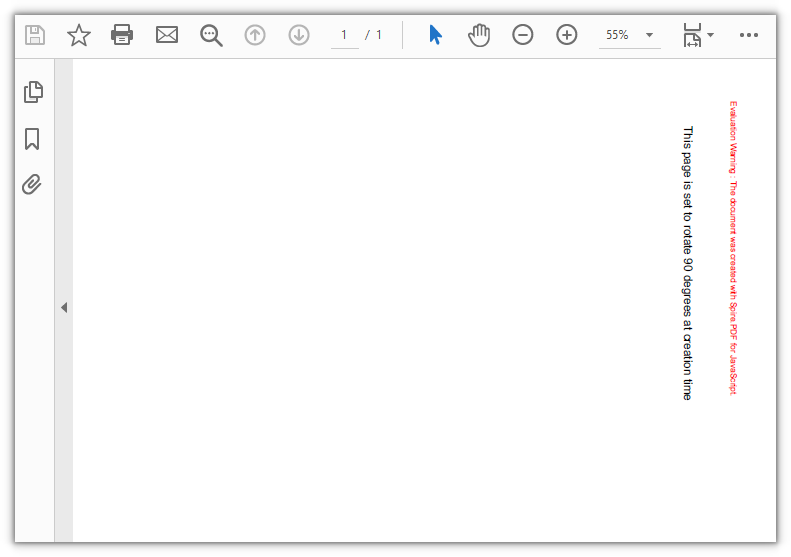
To give every page in a section the same orientation, one setting on the section is enough: section.PageSettings.Rotate takes PdfPageRotateAngle.RotateAngle90, and all pages in that section are rotated 90 degrees clockwise. RotateAngle180 and RotateAngle270 are also available, and leaving it unset means no rotation.
function App() {
  const createRotatedPdf = async () => {
    // Get the Spire.PDF WASM module
    const pdfModule = window.wasmModule?.spirepdf;

    // Check whether the module is ready
    if (!pdfModule) {
      alert('Spire.PDF is not ready yet');
      return;
    }

    // Load the font into the VFS for the page text
    await window.spire.FetchFileToVFS('ARIAL UNICODE MS.TTF', '/Library/Fonts/', `${process.env.PUBLIC_URL}/font/`);

    // Create a blank document
    const doc = new pdfModule.PdfDocument();

    // Add a section; every page in it shares a 90-degree clockwise rotation
    const section = doc.Sections.Add();
    section.PageSettings.Size = pdfModule.PdfPageSize.A4();
    section.PageSettings.Rotate = pdfModule.PdfPageRotateAngle.RotateAngle90;

    // Add a page to the section
    const page = section.Pages.Add();

    // Draw a line of text on the page
    const font = new pdfModule.PdfTrueTypeFont({ fontFile: '/Library/Fonts/ARIAL UNICODE MS.TTF', size: 14 });
    page.Canvas.DrawString({
      s: 'This page is set to rotate 90 degrees at creation time',
      font: font,
      brush: pdfModule.PdfBrushes.get_Black(),
      x: 40,
      y: 60,
      format: new pdfModule.PdfStringFormat({ alignment: pdfModule.PdfTextAlignment.Left })
    });

    // Save and read back from the VFS to trigger the download
    const outputFileName = 'RotatedDocument.pdf';
    doc.SaveToFile(outputFileName);
    doc.Close();

    const fileArray = window.dotnetRuntime.Module.FS.readFile(outputFileName);
    const blob = new Blob([fileArray], { type: 'application/pdf' });
    const url = URL.createObjectURL(blob);
    const a = document.createElement('a');
    a.href = url;
    a.download = outputFileName;
    a.click();
    URL.revokeObjectURL(url);
  };

  return (
    <div style={{ textAlign: 'center', height: '300px' }}>
      <h1>Create a Rotated PDF</h1>
      <button onClick={createRotatedPdf}>
        Start Creating
      </button>
    </div>
  );
}

export default App;
If you only want to pass the angle while creating a page, the overload
doc.Pages.Add(size, margins, rotation)works as well.
The A4 page is set to a 90-degree rotation at creation time:
Rotate an Existing Page
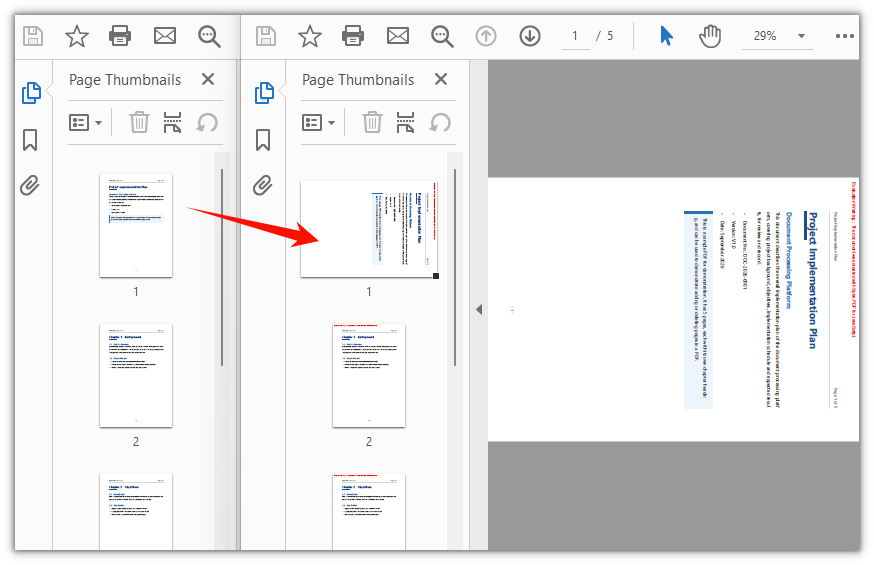
To change the orientation of an existing document, note that the angle lives in the page's own Rotation property: read the current value first, then add this call's rotation to it. What gets written back is the enum value of PdfPageRotateAngle (0 for no rotation, 1 for 90 degrees), not the angle itself.
function App() {
  const rotateExistingPage = async () => {
    // Get the Spire.PDF WASM module
    const pdfModule = window.wasmModule?.spirepdf;

    // Check whether the module is ready
    if (!pdfModule) {
      alert('Spire.PDF is not ready yet');
      return;
    }

    // Load the PDF file to be processed into the VFS
    const inputFileName = 'Multipage_Document.pdf';
    await window.spire.FetchFileToVFS(inputFileName, '', `${process.env.PUBLIC_URL}/data/`);

    // Create a PdfDocument object and load the PDF document
    const doc = new pdfModule.PdfDocument();
    doc.LoadFromFile(inputFileName);

    // Take the first page and add this call's rotation to its current angle
    const page = doc.Pages.get_Item(0);
    let rotation = page.Rotation.value + pdfModule.PdfPageRotateAngle.RotateAngle90.value;

    // The enum value only runs from 0 to 3; 4 means a full turn, back to no rotation
    if (rotation === 4) {
      rotation = 0;
    }
    page.Rotation = rotation;

    // Save and read back from the VFS to trigger the download
    const outputFileName = 'RotatedPage.pdf';
    doc.SaveToFile(outputFileName);
    doc.Close();

    const fileArray = window.dotnetRuntime.Module.FS.readFile(outputFileName);
    const blob = new Blob([fileArray], { type: 'application/pdf' });
    const url = URL.createObjectURL(blob);
    const a = document.createElement('a');
    a.href = url;
    a.download = outputFileName;
    a.click();
    URL.revokeObjectURL(url);
  };

  return (
    <div style={{ textAlign: 'center', height: '300px' }}>
      <h1>Rotate a Specific Page</h1>
      <button onClick={rotateExistingPage}>
        Start Rotating
      </button>
    </div>
  );
}

export default App;
Only the first page is rotated 90 degrees, the remaining pages keep their orientation:
FAQ
Why does assigning to Rotation report "Value is not an integer"
Cause: The write side of page.Rotation only accepts an integer. Passing a PdfPageRotateAngle enum object directly throws Assert failed: Value is not an integer: PdfPageRotateAngle.RotateAngle90 (object).
Solution: Take the enum's value and assign that:
page.Rotation = pdfModule.PdfPageRotateAngle.RotateAngle90.value;
Why does the page end up rotated 180 degrees after I pass 90
Cause: The enum values of PdfPageRotateAngle are 0, 1, 2 and 3, standing for 0, 90, 180 and 270 degrees. That value is what the write side expects, not the angle. Writing page.Rotation = 90 throws no error but does not give you 90 degrees, and looking the value up with PdfPageRotateAngle.fromValue(90) throws Invalid value for spirepdfPdfPageRotateAngle.
Solution: Convert to the enum value before writing:
// 90 degrees
page.Rotation = pdfModule.PdfPageRotateAngle.RotateAngle90.value;

// 180 degrees
page.Rotation = pdfModule.PdfPageRotateAngle.RotateAngle180.value;
Why does the rotation argument on section.Pages.Add(...) have no effect
Cause: The overload that takes a rotation argument, Add(size, margins, rotation), only works on doc.Pages. On section.Pages the argument is ignored, and the page orientation is decided by the PageSettings.Rotate of the section it belongs to. The /Rotate entry in the file stays 0, the page is not rotated, and no error is raised.
Solution: Pick one of the two forms below, and do not pass the argument to section.Pages:
// Form 1: set it on the section, applying to every page in that section
section.PageSettings.Rotate = pdfModule.PdfPageRotateAngle.RotateAngle90;
section.Pages.Add();

// Form 2: create the page on doc.Pages and pass the angle
const page = doc.Pages.Add(
  pdfModule.PdfPageSize.A4(),
  new pdfModule.PdfMargins(),
  pdfModule.PdfPageRotateAngle.RotateAngle90
);
A page can still be adjusted on its own after it has been created; page.Rotation overrides the section setting:
// Rotate only the second page to 180 degrees, leaving the rest untouched
doc.Pages.get_Item(1).Rotation = pdfModule.PdfPageRotateAngle.RotateAngle180.value;
Get a Free License
If you wish to remove the evaluation message from the result document or remove feature limitations, please contact sales to obtain a temporary license valid for 30 days.
