Documents are often assembled from pieces: the cover, the body and the appendix arrive from different stages, and only before delivery does it turn out that the cover ended up after Chapter 2, or that a few pages need to change places. Only the page order has to change — not a word of the content — but without a PDF editor at hand the job stalls right there, and sending the file to a server means it leaves the user's device. This article shows how to rearrange PDF pages in a specified order in the browser with Spire.PDF for JavaScript. It loads, modifies and saves PDF documents based on WebAssembly, so the page order is rewritten entirely on the local machine, reading and writing files through a virtual file system (VFS), with no backend service required.
For installation and project configuration, refer to Integrating Spire.PDF for JavaScript in a React Project. The following examples assume Spire.PDF is installed and the WebAssembly module has been initialized.
Rearrange the Page Order
The page order is rewritten in a single call to PdfPageCollection.ReArrange(). The array of indices decides both where each page goes and how many pages the document has — as many indices as you pass, as many pages you get — so to keep every page, all indices from 0 to the page count minus one have to appear.
function App() {
  const rearrangePages = async () => {
    // Get the Spire.PDF WASM module
    const pdfModule = window.wasmModule?.spirepdf;

    // Check whether the module is ready
    if (!pdfModule) {
      alert('Spire.PDF is not ready yet');
      return;
    }

    // Load the PDF file to be processed into the VFS
    const inputFileName = 'Number.pdf';
    await window.spire.FetchFileToVFS(inputFileName, "", `${process.env.PUBLIC_URL}/data/`);

    // Create a PdfDocument object and load the PDF document
    let doc = new pdfModule.PdfDocument();
    doc.LoadFromFile(inputFileName);

    // The new page order: move the third page to the front and shift the rest down; indices start at 0
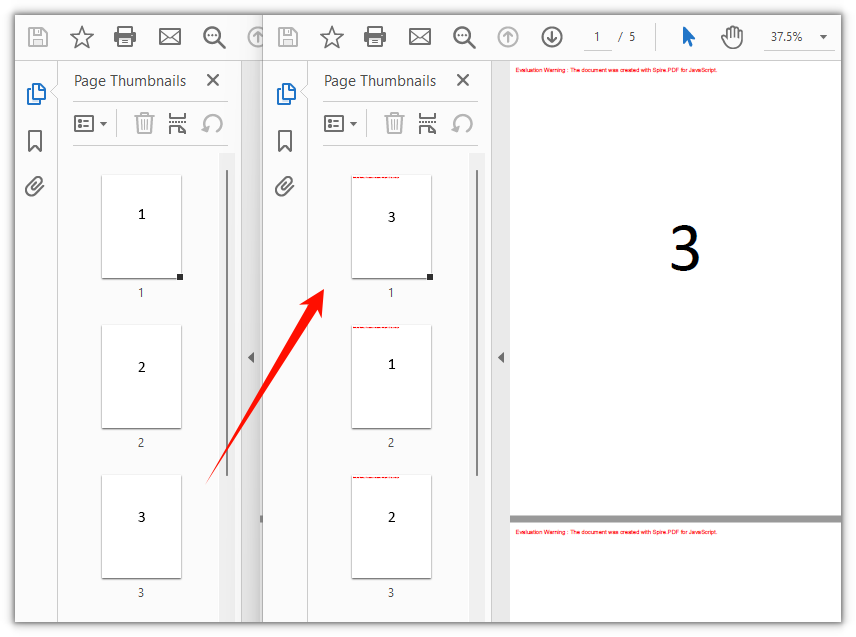
    const newOrder = [2, 0, 1, 3, 4];
    doc.Pages.ReArrange(newOrder);

    const outputFileName = 'Rearranged_Pages.pdf';
    doc.SaveToFile(outputFileName);
    doc.Close();

    // Read the generated file from the VFS and trigger the download
    const fileArray = window.dotnetRuntime.Module.FS.readFile(outputFileName);
    const blob = new Blob([fileArray], { type: 'application/pdf' });
    const url = URL.createObjectURL(blob);
    const a = document.createElement('a');
    a.href = url;
    a.download = outputFileName;
    a.click();
    URL.revokeObjectURL(url);
  };

  return (
    <div style={{ textAlign: 'center', height: '300px' }}>
      <h1>Rearrange PDF Pages</h1>
      <button onClick={rearrangePages}>
        Start Rearranging
      </button>
    </div>
  );
}

export default App;
The document after the third page is moved to the front and the remaining pages shift down:
FAQ
The document has fewer pages after rearranging
Cause: ReArrange() rebuilds the page order from the array you pass, so a page whose index is missing from that array never makes it into the result document. Call ReArrange([1, 0]) on a five-page document and the output has two pages.
Solution: To keep the page count unchanged, the array length must equal doc.Pages.Count, with every index from 0 to doc.Pages.Count - 1 appearing exactly once:
// Indices start at 0: a five-page document uses 0, 1, 2, 3 and 4
const pageCount = doc.Pages.Count;
const fullOrder = Array.from({ length: pageCount }, (_, i) => i);
doc.Pages.ReArrange(fullOrder);
Calling ReArrange() reports "The page has existed."
Cause: The array contains a duplicate index, so the same original page is assigned to two positions. One page cannot occupy two positions at the same time, and Spire.PDF raises an error.
Solution: Make sure the array is a permutation of the original page indices — each index appears once and stays within range. For a five-page document the valid indices are 0 to 4.
How to swap only two pages
Cause: ReArrange() always works on the order of the whole document, and there is no shorter overload that swaps two pages on its own.
Solution: Still write the full order array, leaving the untouched positions at their original indices. The line below swaps the first and the second page:
// Swap the first two pages: 0 and 1 trade places, the rest stay put
const swappedOrder = [1, 0, 2, 3, 4];
doc.Pages.ReArrange(swappedOrder);
Get a Free License
If you wish to remove the evaluation message from the result document or remove feature limitations, please contact sales to obtain a temporary license valid for 30 days.
