When a batch of documents has to look like one set, the quickest way is to give every page the same brand tint or letterhead pattern. Doing that used to mean going back to the source files and reworking the layout one by one, or stacking an image on each page by hand — the first requires that you still have the editable originals, and the second easily ends up covering the body text.
Editing the PDF directly in the browser sidesteps both. Spire.PDF for JavaScript loads, modifies and saves PDF documents on WebAssembly; the tint and the background image are written into the BackgroundColor and BackgroundImage properties of pages that already exist, drawn below the body text; files are read and written through a virtual file system (VFS), with no backend involved.
This article covers two core features:
For installation and project configuration, refer to Integrating Spire.PDF for JavaScript in a React Project. The following examples assume Spire.PDF is installed and the WebAssembly module has been initialized.
Set a Background Color on All PDF Pages
When the whole document needs one tint, assigning a Color to BackgroundColor page by page is enough. The property blends at an opacity of 0.25 by default, so set BackgroudOpacity to 1 when you want the solid color.
function App() {
  const setBackgroundColor = async () => {
    // Get the Spire.PDF WASM module
    const pdfModule = window.wasmModule?.spirepdf;

    // Check whether the module is ready
    if (!pdfModule) {
      alert('Spire.PDF is not ready yet');
      return;
    }

    // Load the PDF file to be processed into the VFS
    const inputFileName = 'Lease_Agreement_EN.pdf';
    await window.spire.FetchFileToVFS(inputFileName, "", `${process.env.PUBLIC_URL}/data/`);

    // Create a PdfDocument object and load the PDF document
    let doc = new pdfModule.PdfDocument();
    doc.LoadFromFile(inputFileName);

    // Custom tint: four ARGB channels, light blue here
    const backgroundColor = pdfModule.Color.FromArgb(255, 226, 240, 253);

    // Set the background color page by page
    for (let i = 0; i < doc.Pages.Count; i++) {
      const page = doc.Pages.get_Item(i);
      page.BackgroundColor = backgroundColor;
      // The default blend opacity is 0.25; set it to 1 for the solid color
      page.BackgroudOpacity = 1;
    }

    const outputFileName = 'SetBackgroundColor.pdf';
    doc.SaveToFile(outputFileName);
    doc.Close();

    // Read the generated file back from the VFS to trigger the download
    const fileArray = window.dotnetRuntime.Module.FS.readFile(outputFileName);
    const blob = new Blob([fileArray], { type: 'application/pdf' });
    const url = URL.createObjectURL(blob);
    const a = document.createElement('a');
    a.href = url;
    a.download = outputFileName;
    a.click();
    URL.revokeObjectURL(url);
  };

  return (
    <div style={{ textAlign: 'center', height: '300px' }}>
      <h1>Set PDF Background Color</h1>
      <button onClick={setBackgroundColor}>
        Start Setting
      </button>
    </div>
  );
}

export default App;
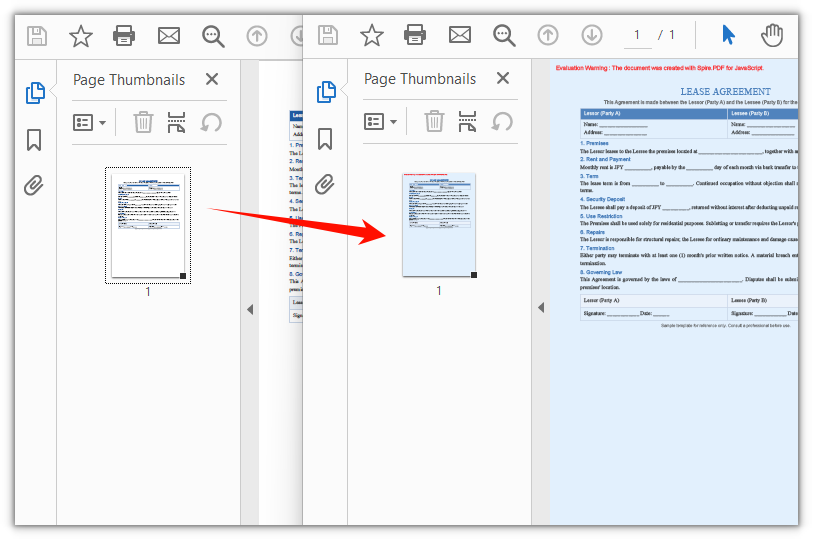
With the light blue background applied, the lease agreement takes on the same tint throughout:
Set a Background Image on All PDF Pages
To lay a full-page image underneath, hand it to BackgroundImage: it takes an image stream opened in the virtual file system and stretches it to fill the page content area, with BackgroudOpacity controlling how strongly it shows.
function App() {
  const setBackgroundImage = async () => {
    // Get the Spire.PDF WASM module
    const pdfModule = window.wasmModule?.spirepdf;

    // Check whether the module is ready
    if (!pdfModule) {
      alert('Spire.PDF is not ready yet');
      return;
    }

    // Load the PDF file to be processed and the background image into the VFS
    const inputFileName = 'Lease_Agreement_EN.pdf';
    const imageFileName = 'Background.png';
    await window.spire.FetchFileToVFS(inputFileName, "", `${process.env.PUBLIC_URL}/data/`);
    await window.spire.FetchFileToVFS(imageFileName, "", `${process.env.PUBLIC_URL}/data/`);

    // Create a PdfDocument object and load the PDF document
    let doc = new pdfModule.PdfDocument();
    doc.LoadFromFile(inputFileName);

    // Open the background image as a file stream in the VFS; every page shares one stream
    const imageStream = new window.spire.Stream(imageFileName);

    // Lay the image down page by page; it stretches to fill the page content area
    for (let i = 0; i < doc.Pages.Count; i++) {
      const page = doc.Pages.get_Item(i);
      page.BackgroundImage = imageStream;
      page.BackgroudOpacity = 1;
    }

    const outputFileName = 'SetBackgroundImage.pdf';
    doc.SaveToFile(outputFileName);
    doc.Close();

    // Read the generated file back from the VFS to trigger the download
    const fileArray = window.dotnetRuntime.Module.FS.readFile(outputFileName);
    const blob = new Blob([fileArray], { type: 'application/pdf' });
    const url = URL.createObjectURL(blob);
    const a = document.createElement('a');
    a.href = url;
    a.download = outputFileName;
    a.click();
    URL.revokeObjectURL(url);
  };

  return (
    <div style={{ textAlign: 'center', height: '300px' }}>
      <h1>Set PDF Background Image</h1>
      <button onClick={setBackgroundImage}>
        Start Setting
      </button>
    </div>
  );
}

export default App;
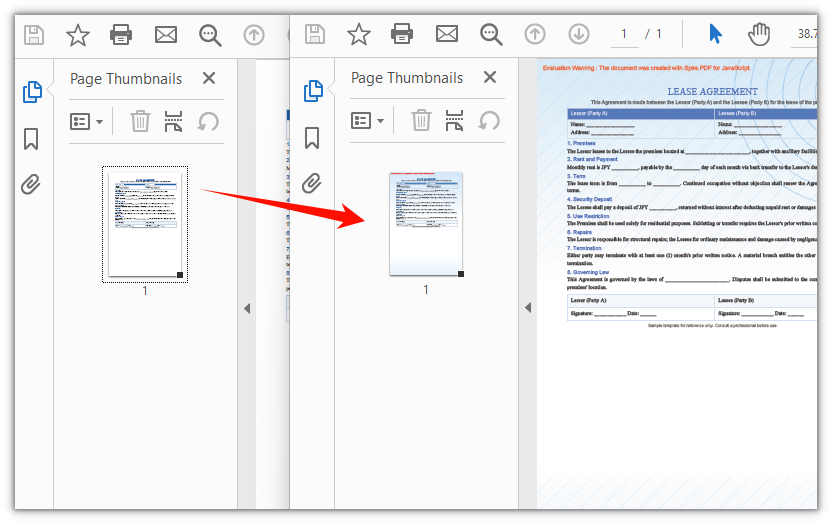
The same background image fills every page, and the body text stays legible:
FAQ
The background color comes out much paler than expected
Cause: BackgroudOpacity (note the missing "n" in the spelling) defaults to 0.25, so the background is blended onto the page at 25% opacity and even a dark color washes out.
Solution: Set BackgroudOpacity to 1 for the solid color; pick a value between 0.3 and 0.8 if you want it softened.
page.BackgroundColor = backgroundColor;
// 1 gives the solid color; a smaller value blends it in more faintly
page.BackgroudOpacity = 1;
The background does not reach the page edges
Cause: The background is only painted inside the page content area (ClientSize). A loaded PDF usually has no margins, so the background covers the whole page; a page created with Pages.Add() carries the default 40-point margins, and that band stays uncolored.
Solution: Create the page with zero margins, and the background covers the whole page:
// Pass a zero-margin object as the second argument; the content area then matches the page
const page = doc.Pages.Add(pdfModule.PdfPageSize.A4(), new pdfModule.PdfMargins());
I only want a background on one page
Cause: BackgroundColor and BackgroundImage are page-level properties: they apply only to the page you assign them on and are not carried over to the rest of the document.
Solution: Fetch the page by index and set it there; no loop needed:
// Handle only page 1 and leave the rest as they are
const page = doc.Pages.get_Item(0);
page.BackgroundColor = pdfModule.Color.FromArgb(255, 226, 240, 253);
page.BackgroudOpacity = 1;
Get a Free License
If you wish to remove the evaluation message from the result document or remove feature limitations, please contact sales to obtain a temporary license valid for 30 days.
