Tables in presentations grow and shrink with the data behind them: an extra metric calls for another column, an extra entry calls for another row, and reusing an old template means clearing out stale records and fields. Adding or removing rows and columns by hand is slow and easily throws the row heights, column widths and cell formatting out of step, and a deck with several tables rarely stays consistent.
This article uses Spire.Presentation for JavaScript to insert and delete rows and columns in PowerPoint tables in the browser. The whole process runs locally on the user's device through WebAssembly, requires no Office installation and no back-end service, and keeps the presentation from leaving the browser.
This article covers three features:
- Insert a Row into a PowerPoint Table
- Insert a Column into a PowerPoint Table
- Delete Rows and Columns from a PowerPoint Table
For installation and project configuration, see Integrating Spire.Presentation for JavaScript in a React Project. The examples below assume that Spire.Presentation for JavaScript is installed and the WebAssembly module has been initialized.
Insert a Row into a PowerPoint Table
When a new record has to go into the middle of a table, starting from a blank line does not line up with the rows around it: the height, the typeface and the shading all have to be set again, and the result rarely matches the rest of the table. Copying an existing row as a sample and inserting that copy at the chosen position gives a new row that keeps the sample row's height and cell formatting, so only the text has to be rewritten. The position is set by an index, and once the new row is in place the rows after it move down, so later cell lookups have to use the new numbering.
| Call | Result |
|---|---|
slide.Shapes.get_Item(index) |
Gets a shape on the slide by index |
shape instanceof pptModule.ITable |
Checks whether the shape is a table |
table.TableRows.Count |
Current number of rows in the table |
table.TableRows.get_Item(index) |
Gets a row by index, counting from 0 |
table.TableRows.Insert(index, row) |
Inserts a copy of the given row at that index |
row.get_Item(columnIndex) |
Gets the cell at the given column of the row |
cell.TextFrame.Text |
Sets or reads the text of the cell |
The steps are:
- Get the Spire.Presentation WASM module and check that it is ready, load the font file and the presentation into the VFS, create a
Presentationobject, load the deck withLoadFromFile()and take the first slide withSlides.get_Item(0). - Walk the shape collection and find the table on the slide with
shape instanceof pptModule.ITable. - Take a row with
table.TableRows.get_Item()and hand it totable.TableRows.Insert()to insert a copy at the target index; the sample row does not have to be next to the insertion point. - Take the new row back with
table.TableRows.get_Item()and write the text of each cell intocell.TextFrame.Text, replacing what came with the sample row. - Save the result with
Presentation.SaveToFile(), release the presentation withDispose(), then read the file from the VFS and start the download.
The code for inserting a row into a PowerPoint table is as follows:
function App() {
  const insertRow = async () => {
    // get the Spire.Presentation WASM module
    const pptModule = window.wasmModule?.spirepresentation;

    // check that the module is ready
    if (!pptModule) {
      alert('Spire.Presentation is not ready yet');
      return;
    }

    // load the font and the presentation into the VFS
    await window.spire.FetchFileToVFS('ARIAL.TTF', '/Library/Fonts/', `${process.env.PUBLIC_URL}/font/`);
    const inputFileName = 'en_TableRowsColumns.pptx';
    await window.spire.FetchFileToVFS(inputFileName, '', `${process.env.PUBLIC_URL}/data/`);

    // load the presentation and take its first slide
    const ppt = new pptModule.Presentation();
    ppt.LoadFromFile(inputFileName);
    const slide = ppt.Slides.get_Item(0);

    // find the table on the slide
    let table = null;
    for (let i = 0; i < slide.Shapes.Count; i++) {
      const shape = slide.Shapes.get_Item(i);
      if (shape instanceof pptModule.ITable) {
        table = shape;
      }
    }

    // use the second row as a sample and insert it as the fourth row
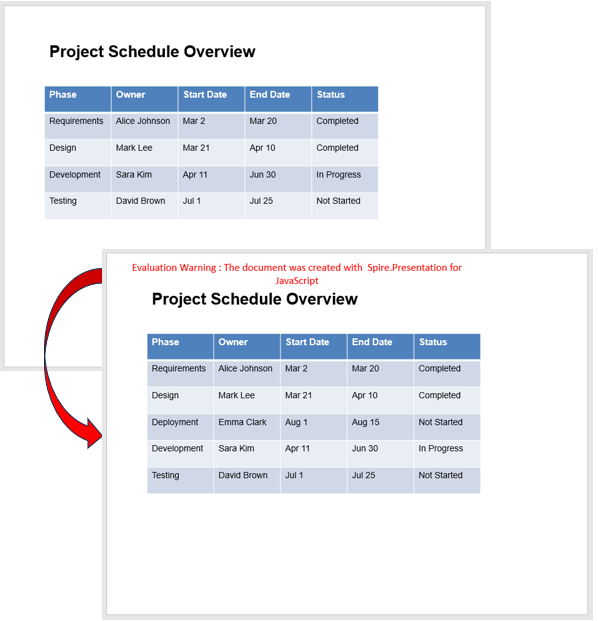
    table.TableRows.Insert(3, table.TableRows.get_Item(1));

    // take back the new row and write the new record cell by cell
    const newRow = table.TableRows.get_Item(3);
    const rowData = ['Deployment', 'Emma Clark', 'Aug 1', 'Aug 15', 'Not Started'];
    for (let col = 0; col < rowData.length; col++) {
      newRow.get_Item(col).TextFrame.Text = rowData[col];
    }

    // save the result file
    const outputFileName = 'InsertRow_result.pptx';
    ppt.SaveToFile({ file: outputFileName, fileFormat: pptModule.FileFormat.Pptx2013 });
    ppt.Dispose();

    // read the generated file from the VFS and start the download
    const fileArray = window.dotnetRuntime.Module.FS.readFile(outputFileName);
    const blob = new Blob([fileArray], { type: 'application/vnd.openxmlformats-officedocument.presentationml.presentation' });
    const url = URL.createObjectURL(blob);
    const a = document.createElement('a');
    a.href = url;
    a.download = outputFileName;
    a.click();
    URL.revokeObjectURL(url);
  };

  return (
    <div style={{ textAlign: 'center', height: '300px' }}>
      <h1>Working with Table Rows and Columns in PowerPoint</h1>
      <button onClick={insertRow}>Insert a row</button>
    </div>
  );
}

export default App;
Presentation after inserting a row into the table:
Insert a Column into a PowerPoint Table
When a table needs a new field, adding text on the right is not enough to form a column: the width, the borders and the shading have to match the neighbouring columns. The column collection works the same way as the row collection, taking an existing column as a sample and inserting a copy at the chosen position. The new column keeps the sample column's width and cell formatting, and the table grows wider by exactly that amount, so leave the horizontal space free before inserting if the table already reaches the edge of the slide.
| Call | Result |
|---|---|
table.ColumnsList.Count |
Current number of columns in the table |
table.ColumnsList.get_Item(index) |
Gets a column by index, counting from 0 |
table.ColumnsList.Insert(index, column) |
Inserts a copy of the given column at that index |
table.get_Item(columnIndex, rowIndex) |
Gets the cell at the given column and row |
cell.TextFrame.Text |
Sets or reads the text of the cell |
The steps are:
- Get the Spire.Presentation WASM module and check that it is ready, load the font file and the presentation into the VFS, create a
Presentationobject, load the deck withLoadFromFile()and take the first slide withSlides.get_Item(0). - Walk the shape collection and find the table on the slide with
shape instanceof pptModule.ITable. - Take a column with
table.ColumnsList.get_Item()and hand it totable.ColumnsList.Insert()to insert a copy at the target index. - With the new column index, go through the rows with
table.get_Item()and write the text intocell.TextFrame.Text, replacing what came with the sample column. - Save the result with
Presentation.SaveToFile(), release the presentation withDispose(), then read the file from the VFS and start the download.
The code for inserting a column into a PowerPoint table is as follows:
function App() {
  const insertColumn = async () => {
    // get the Spire.Presentation WASM module
    const pptModule = window.wasmModule?.spirepresentation;

    // check that the module is ready
    if (!pptModule) {
      alert('Spire.Presentation is not ready yet');
      return;
    }

    // load the font and the presentation into the VFS
    await window.spire.FetchFileToVFS('ARIAL.TTF', '/Library/Fonts/', `${process.env.PUBLIC_URL}/font/`);
    const inputFileName = 'en_TableRowsColumns.pptx';
    await window.spire.FetchFileToVFS(inputFileName, '', `${process.env.PUBLIC_URL}/data/`);

    // load the presentation and take its first slide
    const ppt = new pptModule.Presentation();
    ppt.LoadFromFile(inputFileName);
    const slide = ppt.Slides.get_Item(0);

    // find the table on the slide
    let table = null;
    for (let i = 0; i < slide.Shapes.Count; i++) {
      const shape = slide.Shapes.get_Item(i);
      if (shape instanceof pptModule.ITable) {
        table = shape;
      }
    }

    // use the fifth column as a sample and insert it as the third column
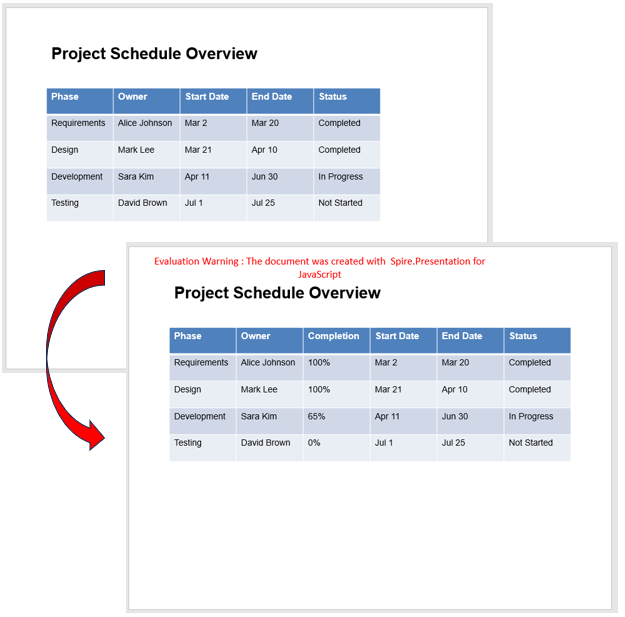
    table.ColumnsList.Insert(2, table.ColumnsList.get_Item(4));

    // write the new field row by row under the new column index
    const columnData = ['Completion', '100%', '100%', '65%', '0%'];
    for (let row = 0; row < columnData.length; row++) {
      table.get_Item(2, row).TextFrame.Text = columnData[row];
    }

    // save the result file
    const outputFileName = 'InsertColumn_result.pptx';
    ppt.SaveToFile({ file: outputFileName, fileFormat: pptModule.FileFormat.Pptx2013 });
    ppt.Dispose();

    // read the generated file from the VFS and start the download
    const fileArray = window.dotnetRuntime.Module.FS.readFile(outputFileName);
    const blob = new Blob([fileArray], { type: 'application/vnd.openxmlformats-officedocument.presentationml.presentation' });
    const url = URL.createObjectURL(blob);
    const a = document.createElement('a');
    a.href = url;
    a.download = outputFileName;
    a.click();
    URL.revokeObjectURL(url);
  };

  return (
    <div style={{ textAlign: 'center', height: '300px' }}>
      <h1>Working with Table Rows and Columns in PowerPoint</h1>
      <button onClick={insertColumn}>Insert a column</button>
    </div>
  );
}

export default App;
Presentation after inserting a column into the table:
Delete Rows and Columns from a PowerPoint Table
When an old table is reused, stale records and fields have to go, while titles, pictures and other shapes on the slide stay untouched. The row and column collections each offer an index-based removal call: one call drops one row or one column, and everything else keeps its content. After a removal the following entries move up, and the table narrows as columns disappear, so delete several spots starting from the end to keep the indexes from shifting during the operation.
| Call | Result |
|---|---|
table.TableRows.Count |
Current number of rows in the table |
table.ColumnsList.Count |
Current number of columns in the table |
table.TableRows.RemoveAt(index, false) |
Deletes the row at the index |
table.ColumnsList.RemoveAt(index, false) |
Deletes the column at the index |
The steps are:
- Get the Spire.Presentation WASM module and check that it is ready, load the font file and the presentation into the VFS, create a
Presentationobject, load the deck withLoadFromFile()and take the first slide withSlides.get_Item(0). - Walk the shape collection and find the table on the slide with
shape instanceof pptModule.ITable. - Call
table.TableRows.RemoveAt()to delete rows that are no longer needed andtable.ColumnsList.RemoveAt()to delete columns that are no longer needed; each call drops one row or one column. - Save the result with
Presentation.SaveToFile(), release the presentation withDispose(), then read the file from the VFS and start the download.
The code for deleting rows and columns from a PowerPoint table is as follows:
function App() {
  const removeRowsAndColumns = async () => {
    // get the Spire.Presentation WASM module
    const pptModule = window.wasmModule?.spirepresentation;

    // check that the module is ready
    if (!pptModule) {
      alert('Spire.Presentation is not ready yet');
      return;
    }

    // load the font and the presentation into the VFS
    await window.spire.FetchFileToVFS('ARIAL.TTF', '/Library/Fonts/', `${process.env.PUBLIC_URL}/font/`);
    const inputFileName = 'en_TableRowsColumns.pptx';
    await window.spire.FetchFileToVFS(inputFileName, '', `${process.env.PUBLIC_URL}/data/`);

    // load the presentation and take its first slide
    const ppt = new pptModule.Presentation();
    ppt.LoadFromFile(inputFileName);
    const slide = ppt.Slides.get_Item(0);

    // find the table on the slide
    let table = null;
    for (let i = 0; i < slide.Shapes.Count; i++) {
      const shape = slide.Shapes.get_Item(i);
      if (shape instanceof pptModule.ITable) {
        table = shape;
      }
    }

    // delete the third row and the fourth column
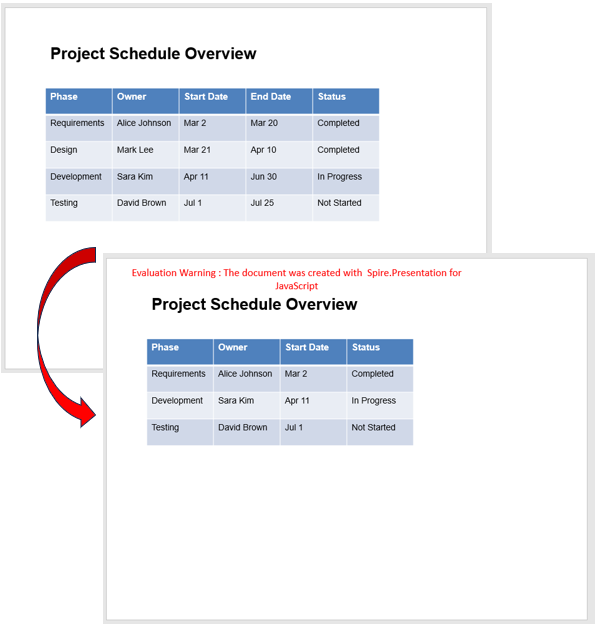
    table.TableRows.RemoveAt(2, false);
    table.ColumnsList.RemoveAt(3, false);

    // save the result file
    const outputFileName = 'RemoveRowsColumns_result.pptx';
    ppt.SaveToFile({ file: outputFileName, fileFormat: pptModule.FileFormat.Pptx2013 });
    ppt.Dispose();

    // read the generated file from the VFS and start the download
    const fileArray = window.dotnetRuntime.Module.FS.readFile(outputFileName);
    const blob = new Blob([fileArray], { type: 'application/vnd.openxmlformats-officedocument.presentationml.presentation' });
    const url = URL.createObjectURL(blob);
    const a = document.createElement('a');
    a.href = url;
    a.download = outputFileName;
    a.click();
    URL.revokeObjectURL(url);
  };

  return (
    <div style={{ textAlign: 'center', height: '300px' }}>
      <h1>Working with Table Rows and Columns in PowerPoint</h1>
      <button onClick={removeRowsAndColumns}>Delete rows and columns</button>
    </div>
  );
}

export default App;
Presentation after deleting a row and a column from the table:
Frequently Asked Questions
How do I append a row or column at the end of a table
Cause: Insert() places the copy at a given index, so appending at the end still means working out the last index first.
Solution: To add to the end directly, use TableRows.Append() and ColumnsList.Add() with the sample row or column; the new row or column is placed after the last one in the table:
table.TableRows.Append(table.TableRows.get_Item(1));
table.ColumnsList.Add(table.ColumnsList.get_Item(1));
How do I insert several rows or columns at once
Cause: Insert() and Append() handle one row or one column per call, so a larger number of new rows or columns has to be added in several calls.
Solution: Put the insertion in a loop and repeat it as many times as the number of rows or columns to add; with the index moving forward each time, the new rows and columns end up side by side:
for (let i = 0; i < 2; i++) {
  table.TableRows.Insert(2 + i, table.TableRows.get_Item(1));
}
for (let i = 0; i < 2; i++) {
  table.ColumnsList.Insert(2 + i, table.ColumnsList.get_Item(1));
}
How do I set the height and width of an inserted row or column
Cause: A new row keeps the height of its sample row and a new column keeps the width of its sample column; changing either means taking the row or column from its collection first.
Solution: TableRows and ColumnsList both get rows and columns by index (counting from 0); set Height and Width on them and the total height and width of the table follow:
table.TableRows.get_Item(1).Height = 60;
table.ColumnsList.get_Item(0).Width = 90;
How do I clear a table's content but keep its rows and columns
Cause: Sometimes only the structure and styling of a table are reused and all of the text has to go; removing rows or columns would change the structure.
Solution: Loop over the current row and column counts and set TextFrame.Text of every cell to an empty string; the row heights, column widths and styling stay as they are:
for (let row = 0; row < table.TableRows.Count; row++) {
  for (let col = 0; col < table.ColumnsList.Count; col++) {
    table.get_Item(col, row).TextFrame.Text = '';
  }
}
Get a Free License
If you wish to delete the evaluation message from the resulting documents, or to get rid of function limitations, please contact sales to obtain a valid 30-day temporary license.
