Reconciliation is one of the most frequent and tedious tasks in corporate finance, and the source data often comes in different forms: bank statements are CSV files exported from online banking, while system transaction records may be PDF detail reports. The two tables have different column names, inconsistent date and amount formats, and even stray spaces and missing values. This article shows how to use Spire.Agent.Office Excel AI capabilities to automatically read CSV and PDF data sources, identify and map column names, clean the data, and finally generate an Excel reconciliation detail report.
For product installation and SpireToken configuration, please refer to Integrate Spire.Agent.Office in a .NET Project. The following examples assume Spire.Agent.Office is installed and SpireToken is configured.
Reconcile by Statement Number
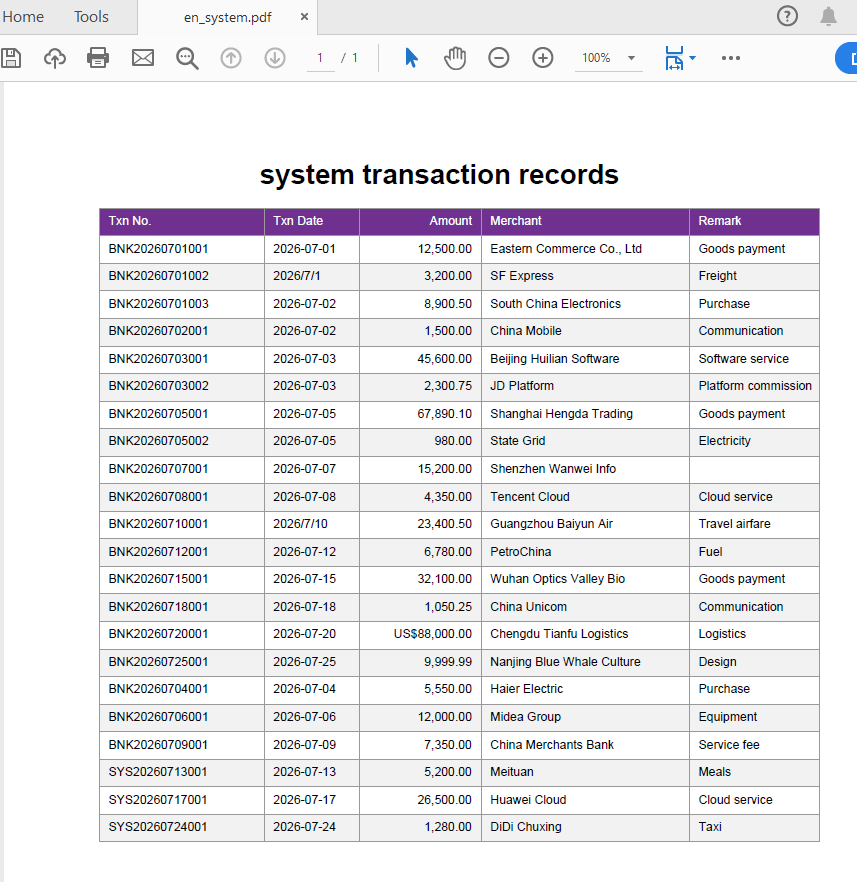
Reconcile and analyze the CSV-format bank statement with the PDF-format system transaction records by statement number.
using Spire.Agent.Office.AI;
using Spire.Agent.Office.Extensions;
using Spire.Xls;

// Data source files: bank statement (CSV) and system transaction records (PDF)
string[] attachmentPaths = new string[]
{
    @"bank-statement.csv",
    @"system-records.pdf"
};

// Excel processing configuration
string inputPath = "";
string savePath = "out.xlsx";
// SpireToken Key
string key = "**************************";
string instruction =
    "Reconcile the bank statement (CSV) with the system transaction records (PDF) in the attachments: " +
    "1. Establish the column mapping of the two tables by semantics: transaction date, amount, counterparty account, description, statement number; " +
    "2. Cleaning: strip leading/trailing and internal extra spaces from text; write dates as yyyy-MM-dd text; convert amounts to numbers by removing currency symbols and thousands separators; mark empty description or empty counterparty as 'Unknown', mark empty amount as 'Amount missing'; " +
    "3. Match row by row using the statement number as the unique key, and mark the status: 'Matched'/'Amount mismatch'/'Bank only'/'System only'; " +
    "4. Generate a 'Reconciliation Detail' worksheet: each record with bank amount, system amount, difference, status and remark; " +
    "5. Highlight difference rows: yellow for amount mismatch, orange for bank only, blue for system only; " +
    "Finally save the output as an Excel file";

// Call the Excel document processing function
AIResult result = ExecuteDemoExcel(instruction, inputPath, savePath, key,  attachmentPaths);


// Execute Excel document AI processing
static AIResult ExecuteDemoExcel(string instruction, string inputPath, string savePath, string key, string[] attachmentPaths)
{
    // Create an AIOptions configuration object
    AIOptions options = new AIOptions();
    options.SpireToken = key;

    // Use the Workbook object to process the Excel document
    using (Workbook workbook = new Workbook())
    {
        // Load the Excel template from a file
        if (!string.IsNullOrEmpty(inputPath) && File.Exists(inputPath))
        {
            workbook.LoadFromFile(inputPath);
        }
        // Create the AI document processor
        AIWorkbookProcessor processor = workbook.AI(options);

        // Execute the AI instruction
        return processor.ExecuteInstruction(workbook, instruction, savePath, attachmentPaths);
    }
}
Original bank statement CSV 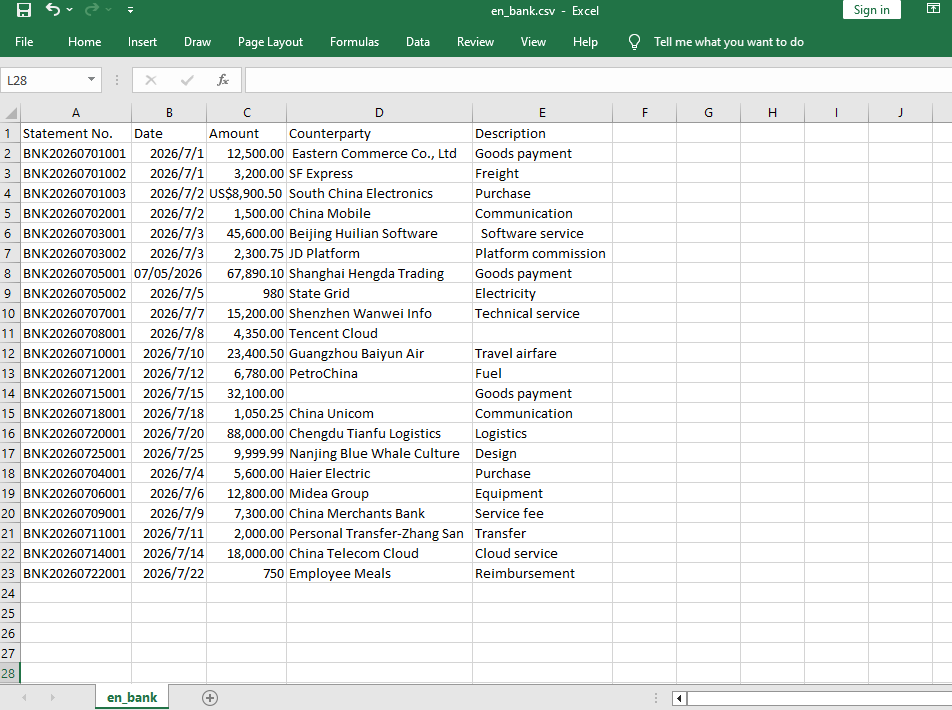 Original system transaction PDF
  Reconciliation detail after Excel AI reconciliation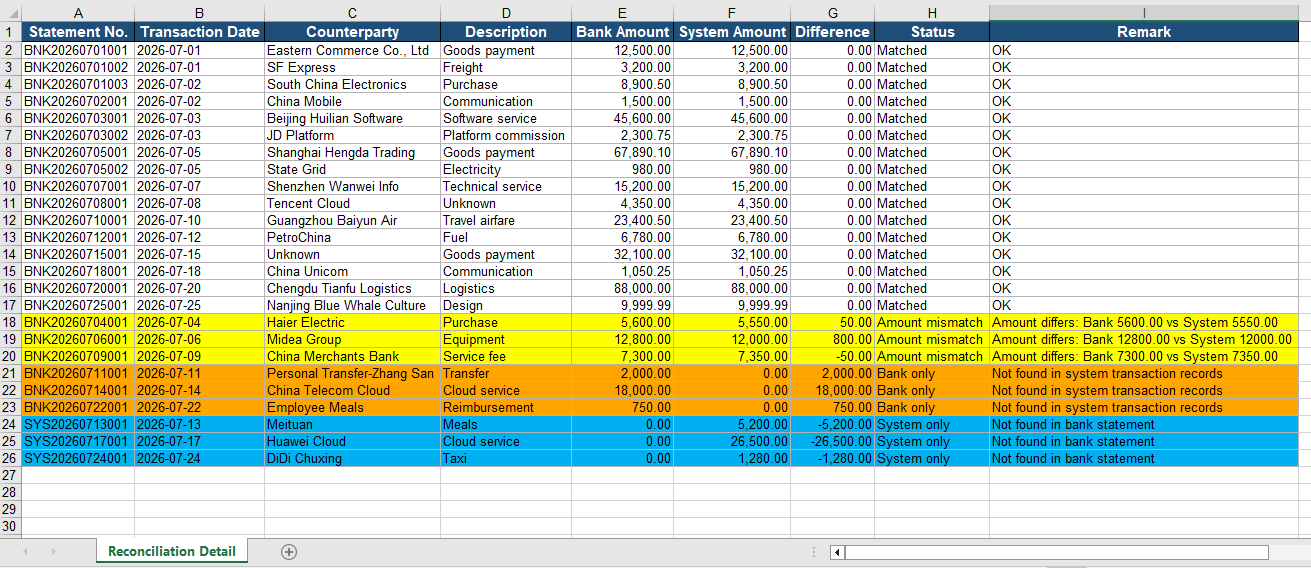
Reconcile by Date and Amount Combination
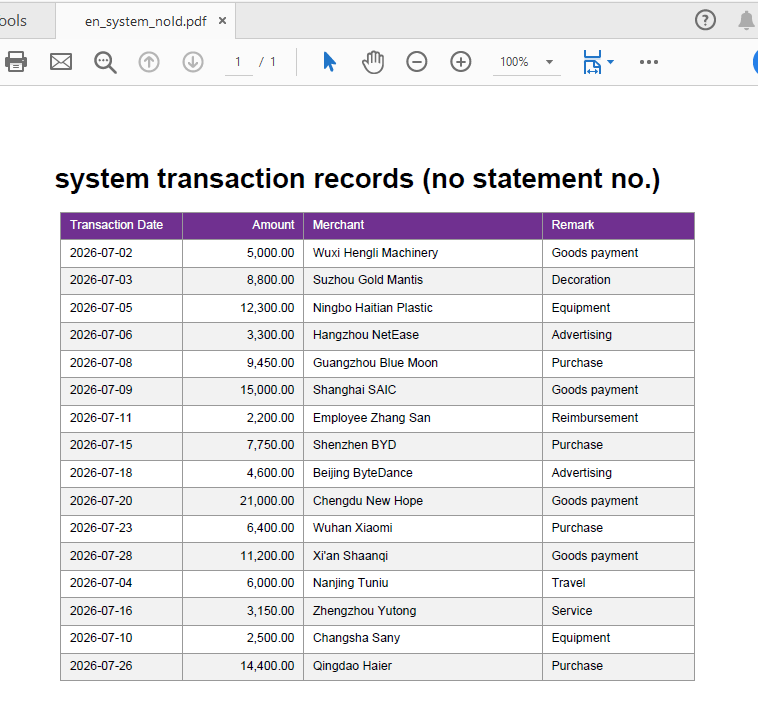
When the data source does not contain a unique statement number, you can use the "transaction date + amount" combination as the matching key for reconciliation: first group by date, then pair the records by amount within the same date.
using Spire.Agent.Office.AI;
using Spire.Agent.Office.Extensions;
using Spire.Xls;

// Data source files without statement numbers: bank statement (CSV) and system transaction records (PDF)
string[] attachmentPaths = new string[]
{
    @"bank-statement-noId.csv",
    @"system-records-noId.pdf"
};

// Excel processing configuration
string inputPath = "";
string savePath = "out.xlsx";
// SpireToken Key
string key = "**************************";
string instruction =
    "Reconcile the bank statement (CSV) with the system transaction records (PDF) in the attachments: " +
    "1. Establish the column mapping of the two tables by semantics: transaction date, amount, counterparty account, description; " +
    "2. Cleaning: strip extra spaces from text; write dates as yyyy-MM-dd text; convert amounts to numbers; mark missing values as 'Unknown' or 'Amount missing'; " +
    "3. Use the 'transaction date + amount' combination as the matching key: first group by date, then pair the records by amount within the same date, and mark the status: 'Matched'/'Amount mismatch'/'Bank only'/'System only'; " +
    "4. Generate a 'Reconciliation Detail' worksheet (bank amount, system amount, difference, status); " +
    "5. Highlight difference rows: yellow for amount mismatch, orange for bank only, blue for system only; " +
    "Finally save the output as an Excel file";

// Call the Excel document processing function
AIResult result = ExecuteDemoExcel(instruction, inputPath, savePath, key,  attachmentPaths);


// Execute Excel document AI processing
static AIResult ExecuteDemoExcel(string instruction, string inputPath, string savePath, string key, string[] attachmentPaths)
{
    // Create an AIOptions configuration object
    AIOptions options = new AIOptions();
    options.SpireToken = key;

    // Use the Workbook object to process the Excel document
    using (Workbook workbook = new Workbook())
    {
        // Load the Excel template from a file
        if (!string.IsNullOrEmpty(inputPath) && File.Exists(inputPath))
        {
            workbook.LoadFromFile(inputPath);
        }
        // Create the AI document processor
        AIWorkbookProcessor processor = workbook.AI(options);

        // Execute the AI instruction
        return processor.ExecuteInstruction(workbook, instruction, savePath, attachmentPaths);
    }
}
Original bank statement CSV 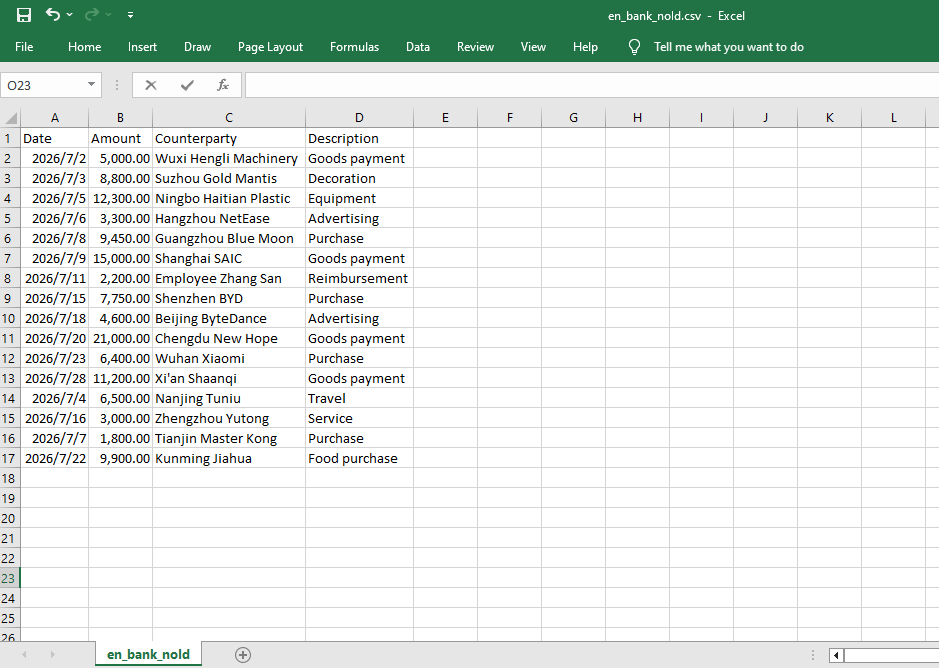 Original system transaction PDF
  Reconciliation detail after Excel AI reconciliation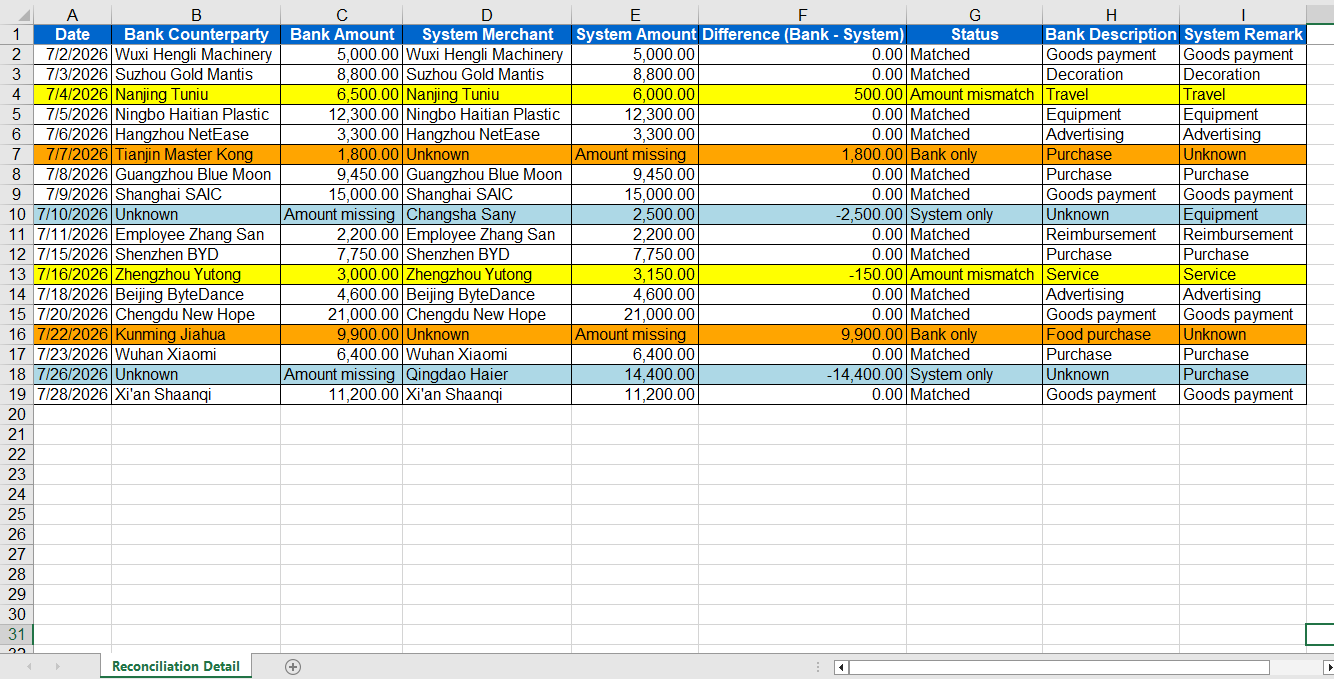
Comparison with Traditional SDK API Processing
| Traditional Spire.Office for .NET API | Spire.Agent.Office Processing | |
|---|---|---|
| Driving approach | Requires writing large amounts of code for CSV/PDF parsing, column mapping, data cleaning, matching and exception logic | Describe reconciliation rules in natural language, and AI understands and orchestrates the execution automatically |
| Data format | CSV and PDF must be parsed with different components, each with its own format | Directly attach CSV and PDF, and AI understands the content automatically |
| Field mapping | Hard-coded column name mappings; changing column names or formats requires code changes | AI maps columns automatically based on column names and content semantics |
| Exception handling | Need to hand-write difference judgment, alert text and style logic | AI automatically identifies differences and provides handling suggestions |
Frequently Asked Questions
Inconsistent date and amount formats in the bank statement CSV
Cause: In the CSV exported from online banking, dates may be written as 2026-07-01, 2026/7/1, etc., and amounts may carry ¥, thousands separators, or leading/trailing spaces, leading to misjudgment during matching.
Solution: Explicitly require in the instruction "unify dates as yyyy-MM-dd and amounts as numeric formats and remove spaces", and AI will complete the standardization automatically before reconciliation.
The system transaction PDF table spans pages or has headers/footers
Cause: PDF detail reports may have pagination, repeated headers, or footer annotations, which affect AI's reading of the table data.
Solution: Add "ignore headers/footers and repeated header rows, only read the table data rows" to the instruction.
The same amount appears multiple times on the same day, causing mismatches
Cause: When reconciling by the "date + amount" combination, there may be multiple transactions with the same amount on the same day, making the exact correspondence impossible to determine.
Solution: Prefer precise reconciliation by statement number; if there is really no statement number, you can require in the instruction to "mark records that cannot be matched one-to-one on the same day as 'Amount mismatch'".
Get a SpireToken Key
- Contact sales@e-iceblue.com or visit https://www.e-iceblue.com/TemLicense.html to obtain a trial/commercial API key
Configure it in code:
AIOptions options = new AIOptions();
options.SpireToken = key;
