In the field of financial analysis and investment research, interpreting listed company financial reports is one of the most fundamental yet time-consuming tasks. A complete annual report is quite lengthy, encompassing not only core statements such as the balance sheet, income statement, cash flow statement, and statement of changes in shareholders' equity, but also a large amount of detailed data in the notes. Analysts need to extract key data from these documents and generate visual charts before forming investment judgments. The traditional approach typically requires manually flipping through PDFs, manually entering data into Excel, manually drawing charts, and writing analysis conclusions. The entire process takes 4-8 hours and is highly prone to errors caused by data entry mistakes.
But parsing is only the first step. In a real investment research and financial modeling workflow, the data ultimately has to land in the analyst's own valuation model. And the valuation model is precisely the most delicate part of the whole workflow: it is usually built up over months or years, containing a large number of custom macros (VBA), pivot tables and deeply nested formulas. The traditional approach leaves no choice but to key the data in cell by cell — the reason nobody dares to batch-write it with a script is that most third-party Excel libraries rebuild the workbook structure when reading and writing. The result is lost macros, broken pivot tables and nested formulas flattened into static values — a carefully maintained model ruined.
This article uses two connected cases and the Spire.Agent.Office Excel AI capabilities to cover the complete chain from "PDF financial report" to "valuation conclusion":
- Case One: Long-Text Financial Report Data Extraction and Analysis
- Case Two: Injecting Financial Data into a Preset Valuation Model
For product installation and SpireToken configuration, please refer to Integrating Spire.Agent.Office in a .NET Project. The following examples assume Spire.Agent.Office is already installed and SpireToken is configured.
Comparison with Traditional SDK API Processing
| Traditional Spire.Office for .NET API | Spire.Agent.Office Processing | |
|---|---|---|
| Driving Method | Write PDF parsing + cell writing + chart creation + formula calculation code | Describe the goal in natural language, AI understands and automatically orchestrates the execution path |
| Code Volume | The two cases together typically require 800-1500 lines of C# code (including PDF table positioning, row/column parsing, chart configuration, etc.) | Approximately 20 lines of calling code + two natural language instructions |
| Table Recognition | Must manually locate table positions in PDF, handle cross-page table splitting, merged cells, and other logic | AI automatically identifies table structures in the document, understands headers and hierarchical relationships |
| Chart Generation | Must manually create Chart objects, configure data ranges, set chart types and styles | AI automatically selects the most appropriate chart type based on data semantics |
| Data Injection | Must hard-code a "source row N → template row M" mapping; any change in reporting structure means changing the code | AI matches by item name semantics; row/column order changes in the source do not affect the result |
| Macros and Pivot Tables | Must handle VBA project and pivot cache preservation yourself; a single mistake corrupts them | Macros, pivot tables and charts are preserved as-is; the AI writes only to the target cells |
| Requirement Changes | Adding new analysis dimensions requires modifying code → compiling → deploying | Modify the description in the instruction, takes effect immediately |
Case One: Long-Text Financial Report Data Extraction and Analysis
AI reads a PDF financial report file, automatically identifies and extracts financial statement tables into an Excel file, while automatically generating visual charts and financial analysis from the data. The entire process requires only one piece of code and one instruction.
using Spire.Agent.Office.AI;
using Spire.Agent.Office.Extensions;
using Spire.Xls;

// PDF financial report file to be processed (passed as an attachment)
string[] attachmentPaths = new string[] { @"C:\FinancialReport\ListedCompany2025AnnualReport.pdf" };
// Save path of the result Excel document
string savePath = @"C:\FinancialReport\AnalysisResult.xlsx";
// SpireToken Key (apply on the official website)
string key = "sk-***************************";

// Natural language instruction
string instruction =
    "Process the attachment file as follows: " +
    "1. Extract all tables from the financial reporting section, placing each table in a separate worksheet named after the original table. " +
    "2. Preserve all original data without adding or modifying any values. " +
    "3. Enhance table readability with appropriate formatting. " +
    "4. Merge multi-page tables into a single worksheet. " +
    "5. Generate suitable charts to visualize the data from each table. " +
    "6. Use the extracted raw data directly for charting, without adding or modifying any values. " +
    "7. Analyze and summarize the company's financial status and trends based on the data provided.";

// AI generation
AIResult result = AnalyzeFinancialReport(instruction, savePath, key, attachmentPaths);

// AI-assisted financial report analysis
static AIResult AnalyzeFinancialReport(string instruction, string savePath, string key, string[] attachmentPaths)
{
    // Configure the AI processing options
    AIOptions options = new AIOptions();
    options.SpireToken = key;
    options.TimeoutMs = 10000000;

    using (Workbook wb = new Workbook())
    {
        AIDocumentProcessor processor = wb.AI(options);
        return processor.ExecuteInstruction(wb, instruction, savePath, attachmentPaths);
    }
}
Financial Report Data Processing and Chart Analysis Results:
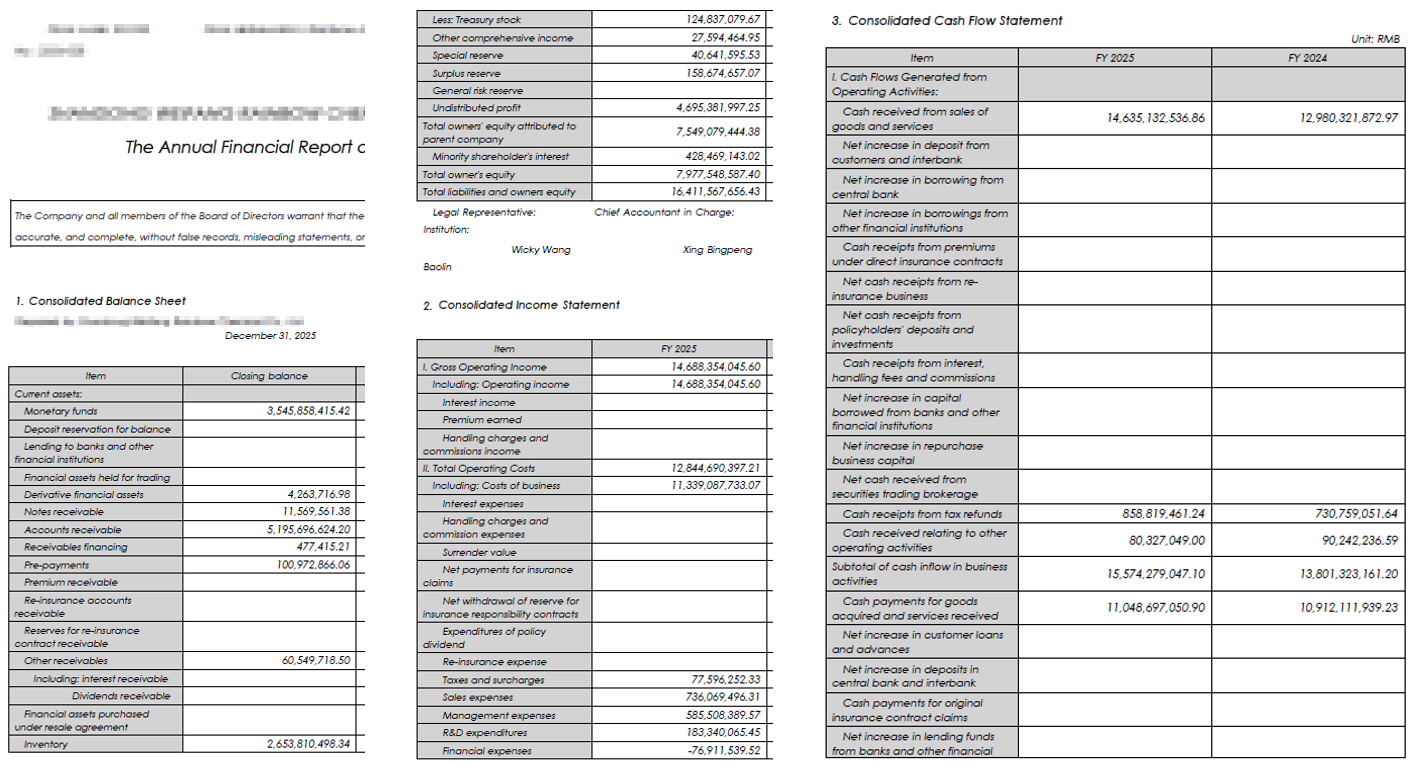 Description: The original input file
The output consists of two parts:
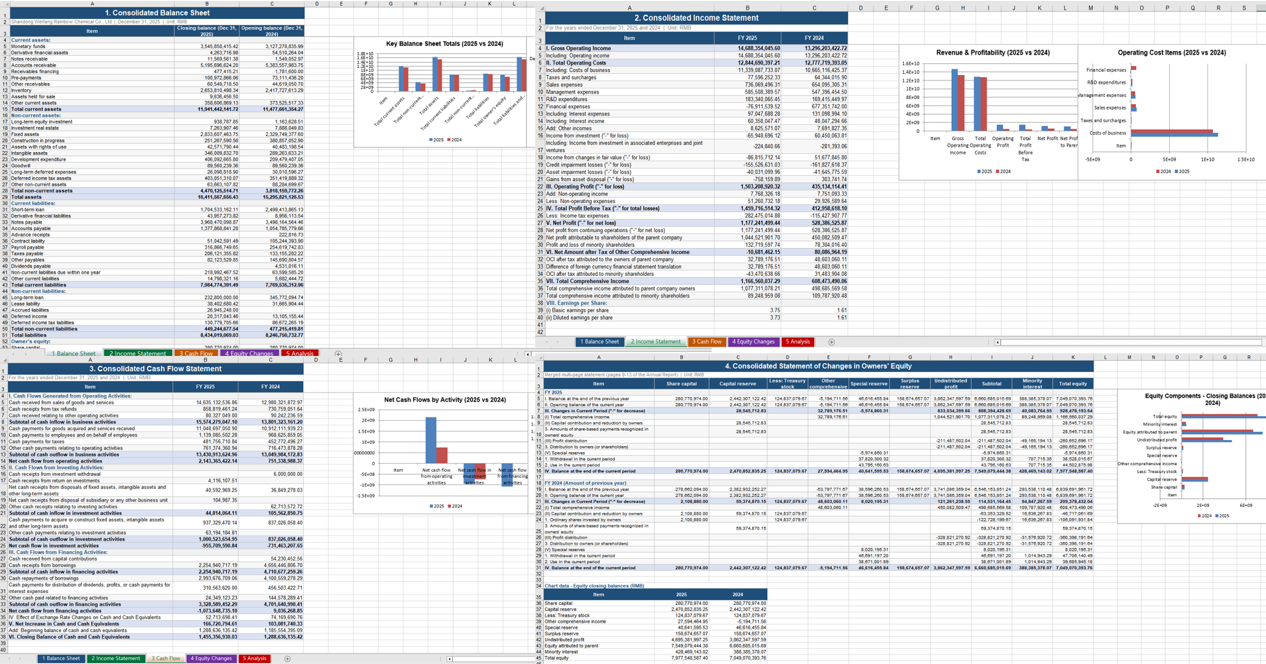 Description: Table data extracted from the PDF financial report, with corresponding visual charts.
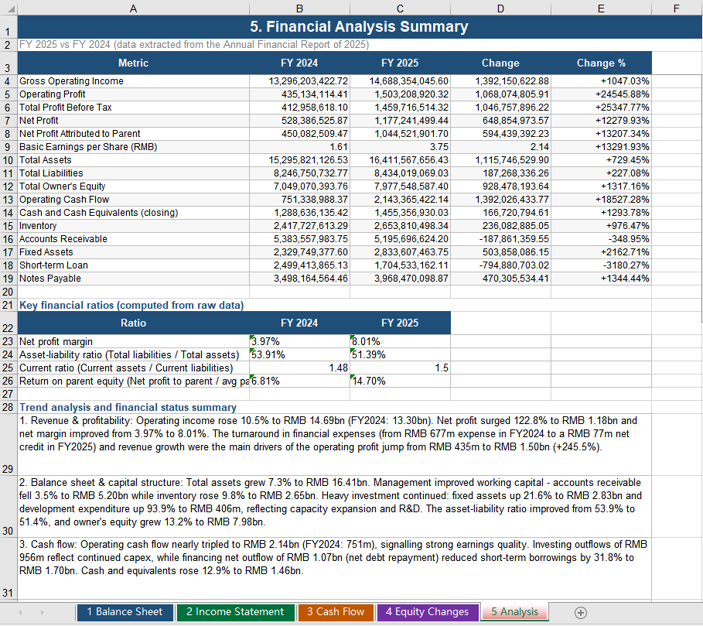 Description: Financial analysis conclusions generated from the extracted data.
Case Two: Injecting Financial Data into a Preset Valuation Model
Case one produced "data"; case two is about "modeling". The process takes two inputs: a preset valuation model template (.xlsm, containing macros, pivot tables and nested formulas) and the financial data workbook produced by case one (.xlsx). AI reads the financial data, fills it into the "Data Input" worksheet of the template by matching item names, and the formulas inside the model recalculate immediately — the valuation curve updates itself.
using Spire.Agent.Office.AI;
using Spire.Agent.Office.Extensions;
using Spire.Xls;

// Preset valuation model template (macros / pivot table / nested formulas / valuation curve chart)
string inputPath = @"C:\FinancialReport\ValuationModelTemplate.xlsm";
// Financial data workbook produced by case one (passed as an attachment)
string[] attachmentPaths = new string[] { @"C:\FinancialReport\AnalysisResult.xlsx" };
// Result document path (null here; the output folder below is used instead)
string savePath = null;
// Output directory
string OutDir = @"C:\FinancialReport\output";
// SpireToken Key (apply on the official website)
string key = "sk-***************************";

// Natural language instruction
string instruction =
    "Read the financial data in the attachment and fill it into the Data Input worksheet of the current valuation model template by matching item names, current period and prior period into the two respective columns; " +
    "fill only the shaded cells, do not modify any existing formula; " +
    "keep the existing macros, pivot table, formulas and chart in the template; " +
    "recalculate the model, refresh the pivot table and update the Valuation Curve after filling; " +
    "save the final result as a macro-enabled Excel file";

// AI generation
AIResult result = InjectDataIntoModel(instruction, inputPath, savePath, key, OutDir, attachmentPaths);

// AI-assisted data injection into the valuation model
static AIResult InjectDataIntoModel(string instruction, string inputPath, string savePath,
                                    string key, string output, string[] attachmentPaths)
{
    // Configure the AI processing options
    AIOptions options = new AIOptions();
    options.WorkDir = output;      // Set the working directory to the output folder
    options.SpireToken = key;      // Set the SpireToken Key

    using (Workbook workbook = new Workbook())
    {
        // Load the valuation model template from file
        if (!string.IsNullOrEmpty(inputPath) && File.Exists(inputPath))
        {
            workbook.LoadFromFile(inputPath);
        }

        // Create the AI document processor
        AIDocumentProcessor processor = workbook.AI(options);

        // Execute the AI instruction
        return processor.ExecuteInstruction(workbook, instruction, savePath, attachmentPaths);
    }
}
The valuation model template before injection:
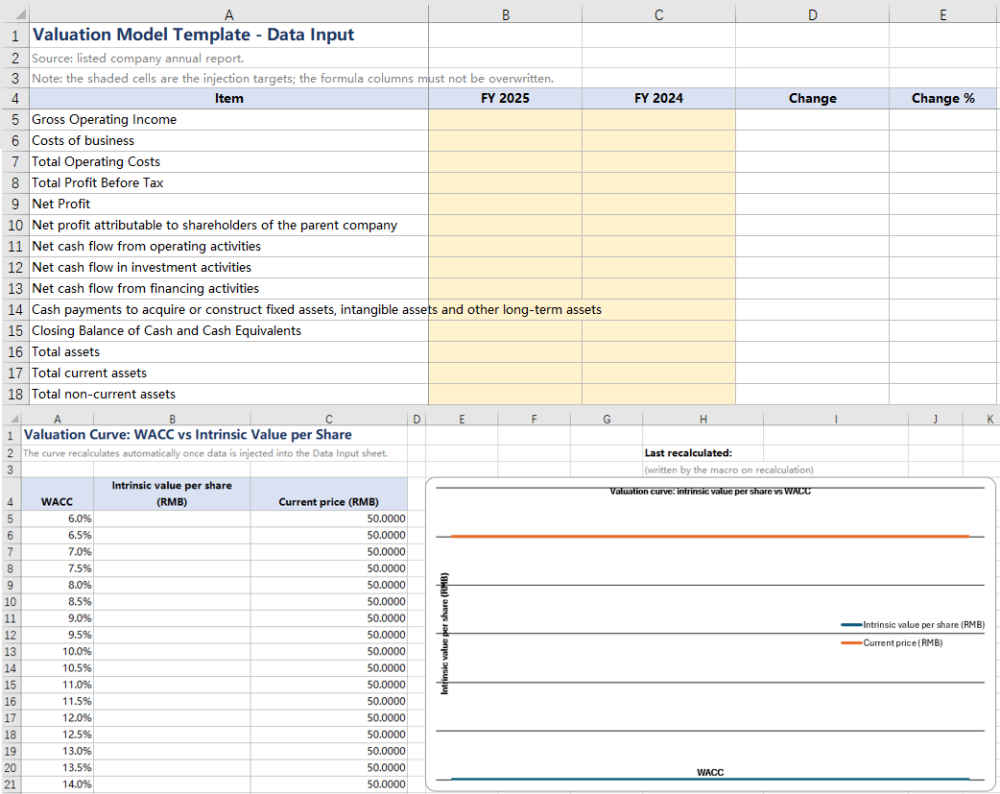 Description: The preset valuation model template; the shaded cells are the injection targets.
The financial data workbook produced by case one, used as the data source for this injection, filled into the Data Input area of the valuation template:
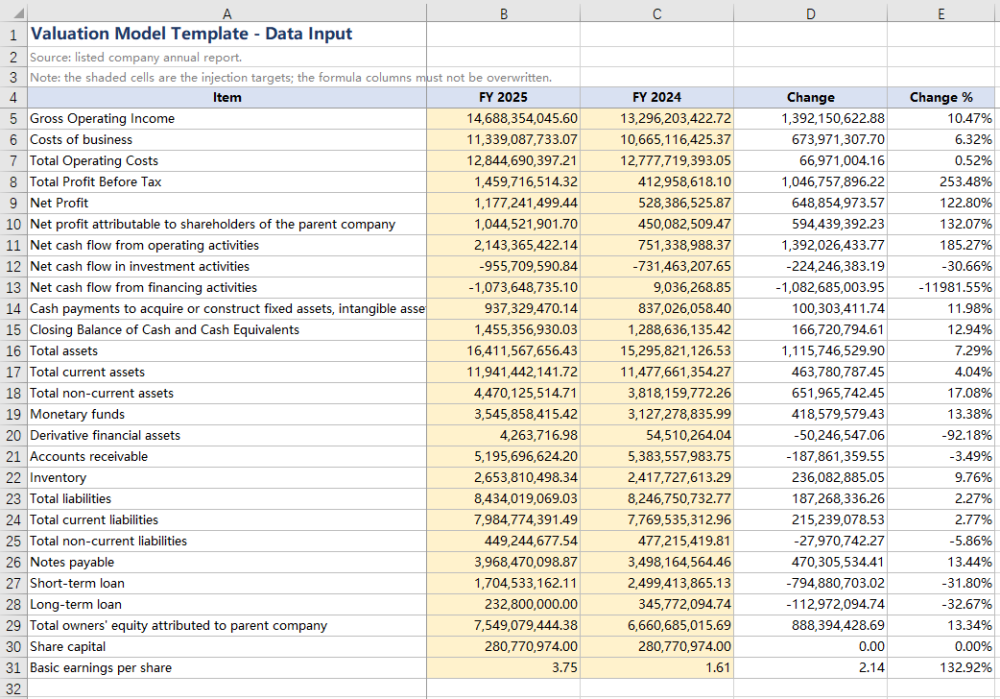 Description: The consolidated balance sheet, income statement and cash flow statement data filled in from among them.
The valuation curve recalculated automatically after injection:
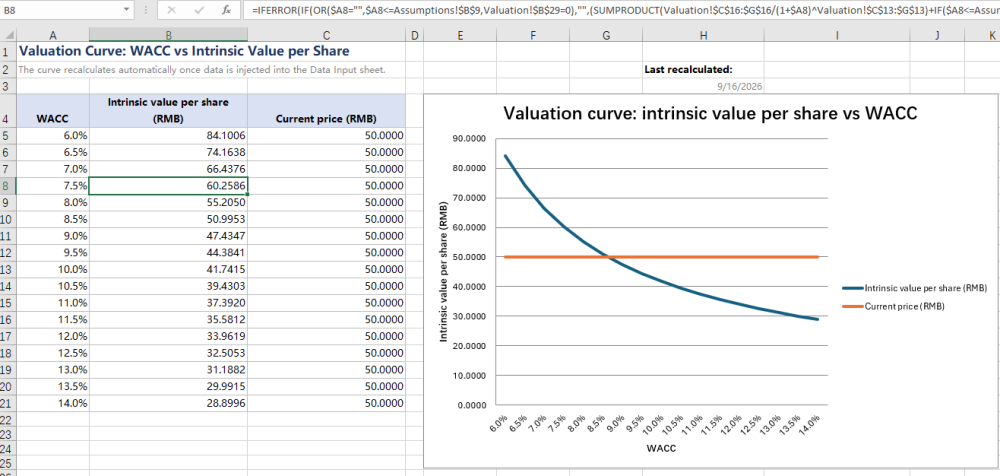 Description: The valuation curve refreshed automatically once the data injection completed.
Frequently Asked Questions
Extracted table data does not match the PDF
Cause: PDF tables may contain complex layouts such as cross-page splitting, merged cells, rotated text, etc., and AI may have deviations during recognition.
Solution: Add "carefully verify data accuracy, especially pay attention to merged cells and cross-page table joining" to the instruction; or limit specific page ranges for batch extraction and review before consolidation.
The valuation curve does not update after data injection
Cause: Model recalculation and pivot table refresh are two independent operations. Writing the data alone does not refresh the pivot cache, and some readers do not proactively recalculate the whole formula chain.
Solution: Explicitly require "recalculate the model and refresh the pivot tables after filling in the data" in the instruction. In addition, the template can be set to force recalculation on open so the curve is always up to date.
Obtaining a SpireToken Key
- Contact sales@e-iceblue.com or visit https://www.e-iceblue.com/TemLicense.html to obtain a trial/commercial API key
Configure it in code:
AIOptions options = new AIOptions();
options.SpireToken = key;
