In procurement and sales scenarios, price comparison is one of the most critical and time-consuming steps. Procurement teams receive quotation sheets from various vendors — some organized by rows, some by columns, some containing multiple hidden costs, and some with inconsistent units. The Spire.Agent.Office Excel AI agent can understand quotation sheets in different formats, automatically align each vendor's quotations to a unified template, calculate line-item totals and grand totals, and mark the lowest prices.
This article explains how to use the Spire.Agent.Office Excel AI capability to automatically align quotation sheets from multiple different vendors to a unified template, calculate totals for comparison, and highlight the lowest price.
For product installation and SpireToken configuration, please refer to Integrating Spire.Agent.Office in a .NET Project. The following examples assume that Spire.Agent.Office is installed and SpireToken is configured.
Excel Format Quote Comparison
The core challenge of comparing multi-format quotation sheets is that each vendor's quotation sheet differs.
using Spire.Agent.Office.AI;
using Spire.Agent.Office.Extensions;
using Spire.Xls;

// Quotation files from different vendors
string[] attachmentPaths = new string[]
{
    @"vendor_A.xlsx",
    @"vendor_B.xlsx",
    @"vendor_C.xlsx",
    @"vendor_D.xlsx"
};

// Output template file
string inputPath = @"template.xlsx";
// Result document
string savePath = @"quote-comparison.xlsx";
string key = "**************************";
string instruction =
    "Read the quotation sheets of the vendors in the attachments (Vendor A, Vendor B, Vendor C, Vendor D) and process them as follows:" +
    "1. Identify the item, unit price, quantity, and total price columns in each quotation sheet, and align them to the Unit Price and Amount columns of the corresponding vendor (A, B, C, D) in the template;" +
    "2. If a vendor has not quoted a product, leave the corresponding unit price and amount cells blank and mark them as 'Not quoted';" +
    "3. Calculate the amount (quantity x unit price) for each product of each quoting vendor and fill it into the corresponding columns; compute each vendor's total quotation at the bottom of the template;" +
    "4. In the total price row, fill the cell of the vendor with the lowest total quotation with a green background (RGB:198,224,180);" +
    "5. In the 'Lowest Price Vendor' column, mark the vendor that offers the lowest unit price for each product, and fill the corresponding lowest unit price into the 'Lowest Price' column;" +
    "6. Preserve the template's layout style, fonts, and column widths;" +
    "Finally save the output as an Excel file";

// Call the Excel document processing function
AIResult result = ExecuteDemoExcel(instruction, inputPath, savePath, key,  attachmentPaths);


// Execute Excel document AI processing
static AIResult ExecuteDemoExcel(string instruction, string inputPath, string savePath, string key, string[] attachmentPaths)
{
    // Create the AIOptions configuration object
    AIOptions options = new AIOptions();
    options.SpireToken = key;

    // Use the Workbook object to process the Excel document
    using (Workbook workbook = new Workbook())
    {
        // Load the Excel template from file
        if (!string.IsNullOrEmpty(inputPath) && File.Exists(inputPath))
        {
            workbook.LoadFromFile(inputPath);
        }
        // Create the AI document processor
        AIWorkbookProcessor processor = workbook.AI(options);

        // Execute the AI instruction
        return processor.ExecuteInstruction(workbook, instruction, savePath, attachmentPaths);
    }
}
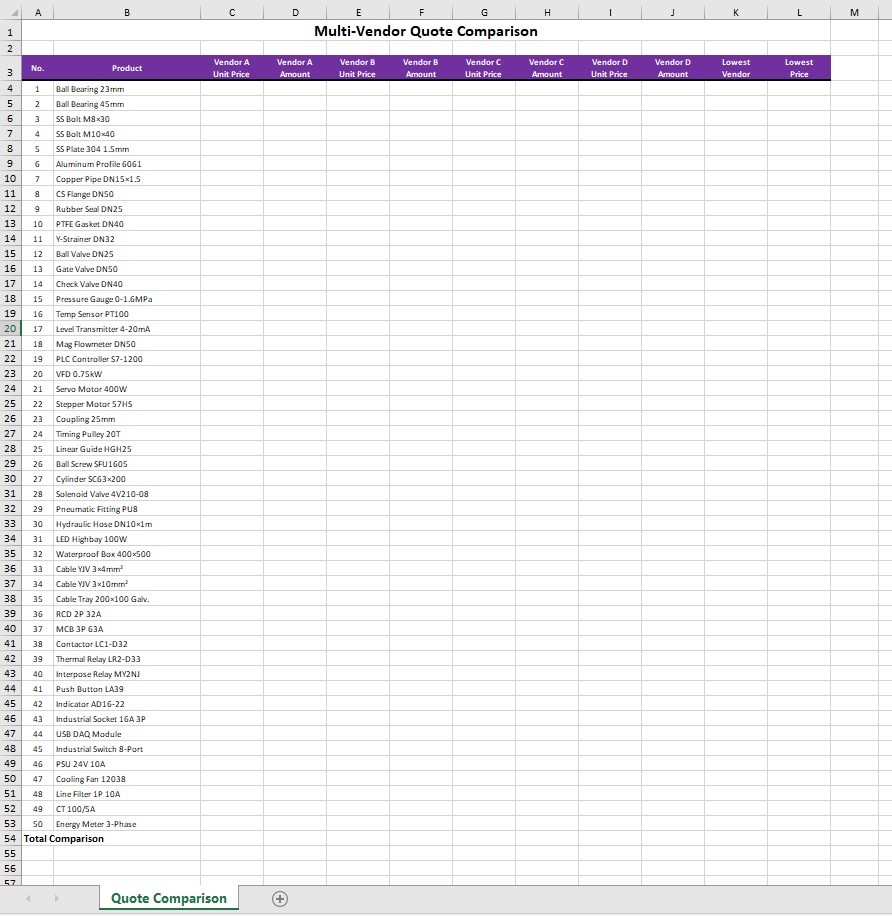
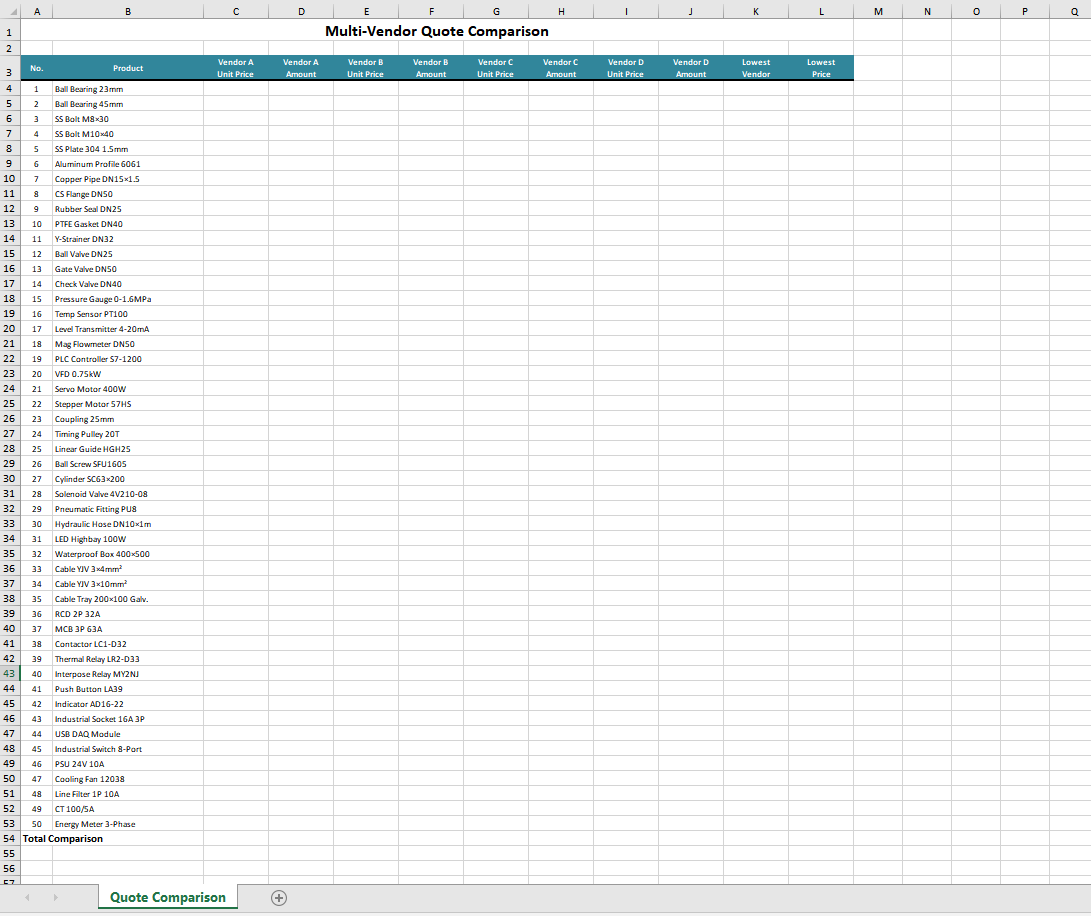
Original quotation sheets of each vendor 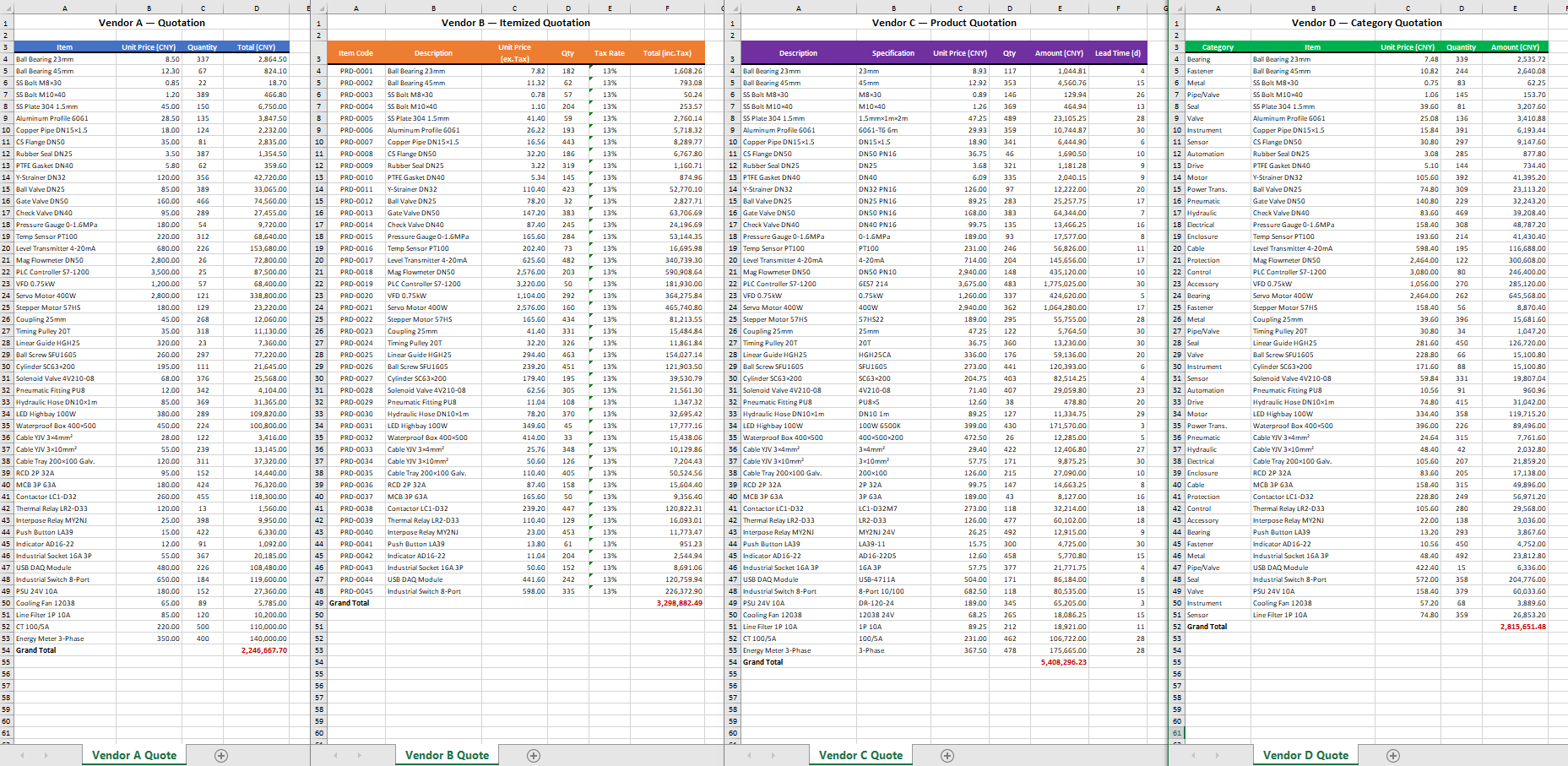 Original Excel template
  Comparison summary generated by Excel AI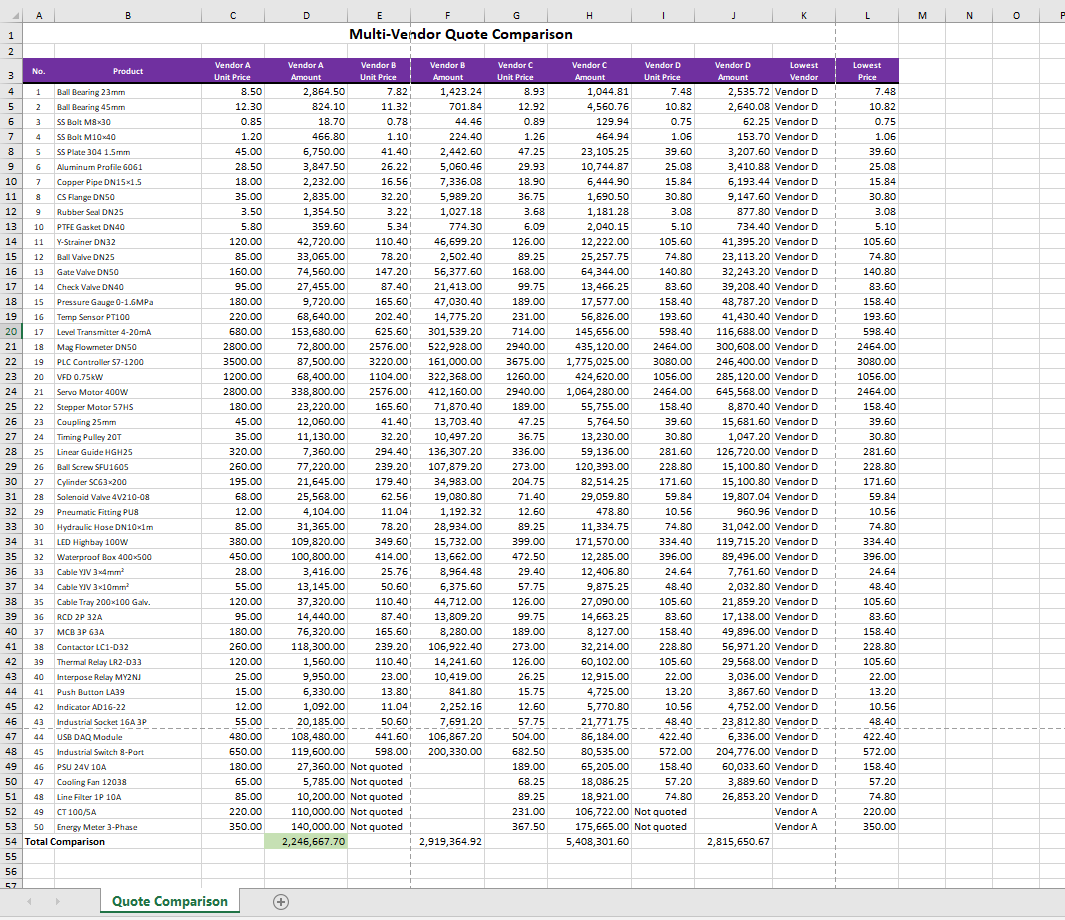
PDF Format Quote Comparison
When the original quotations are in PDF format, Spire.Agent.Office can equally extract the required data with ease and automatically complete the summary statistics. Simply add the source documents in different formats, and the AI instruction can be reused without reconfiguration, greatly improving processing efficiency.
using Spire.Agent.Office.AI;
using Spire.Agent.Office.Extensions;
using Spire.Xls;

// Quotation files from different vendors
string[] attachmentPaths = new string[]
{
    @"vendor_A.pdf",
    @"vendor_B.pdf",
    @"vendor_C.pdf",
    @"vendor_D.pdf"
};

// Output template file
string inputPath = @"template.xlsx";
// Result document
string savePath = @"quote-comparison.xlsx";
string key = "**************************";
string instruction =
    "Read the quotation sheets of the vendors in the attachments (Vendor A, Vendor B, Vendor C, Vendor D) and process them as follows:" +
    "1. Identify the item, unit price, quantity, and total price columns in each quotation sheet, and align them to the Unit Price and Amount columns of the corresponding vendor (A, B, C, D) in the template;" +
    "2. If a vendor has not quoted a product, leave the corresponding unit price and amount cells blank and mark them as 'Not quoted';" +
    "3. Calculate the amount (quantity x unit price) for each product of each quoting vendor and fill it into the corresponding columns; compute each vendor's total quotation at the bottom of the template;" +
    "4. In the total price row, fill the cell of the vendor with the lowest total quotation with a green background (RGB:198,224,180);" +
    "5. In the 'Lowest Price Vendor' column, mark the vendor that offers the lowest unit price for each product, and fill the corresponding lowest unit price into the 'Lowest Price' column;" +
    "6. Preserve the template's layout style, fonts, and column widths;" +
    "Finally save the output as an Excel file";

// Call the Excel document processing function
AIResult result = ExecuteDemoExcel(instruction, inputPath, savePath, key,  attachmentPaths);


// Execute Excel document AI processing
static AIResult ExecuteDemoExcel(string instruction, string inputPath, string savePath, string key, string[] attachmentPaths)
{
    // Create the AIOptions configuration object
    AIOptions options = new AIOptions();
    options.SpireToken = key;

    // Use the Workbook object to process the Excel document
    using (Workbook workbook = new Workbook())
    {
        // Load the Excel template from file
        if (!string.IsNullOrEmpty(inputPath) && File.Exists(inputPath))
        {
            workbook.LoadFromFile(inputPath);
        }
        // Create the AI document processor
        AIWorkbookProcessor processor = workbook.AI(options);

        // Execute the AI instruction
        return processor.ExecuteInstruction(workbook, instruction, savePath, attachmentPaths);
    }
}
Original PDF quotation of each vendor 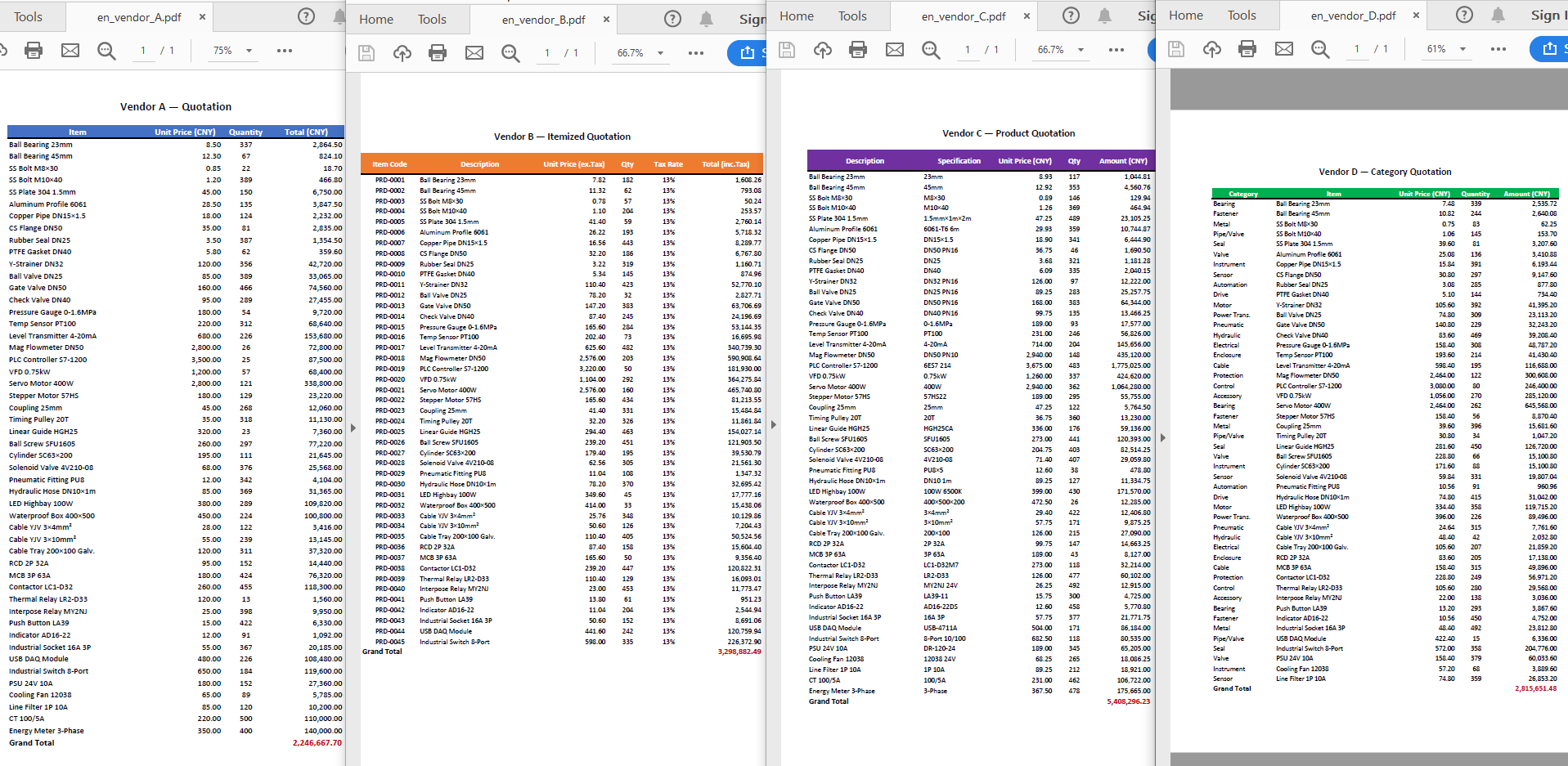 Original Excel template
  Comparison summary generated by Excel AI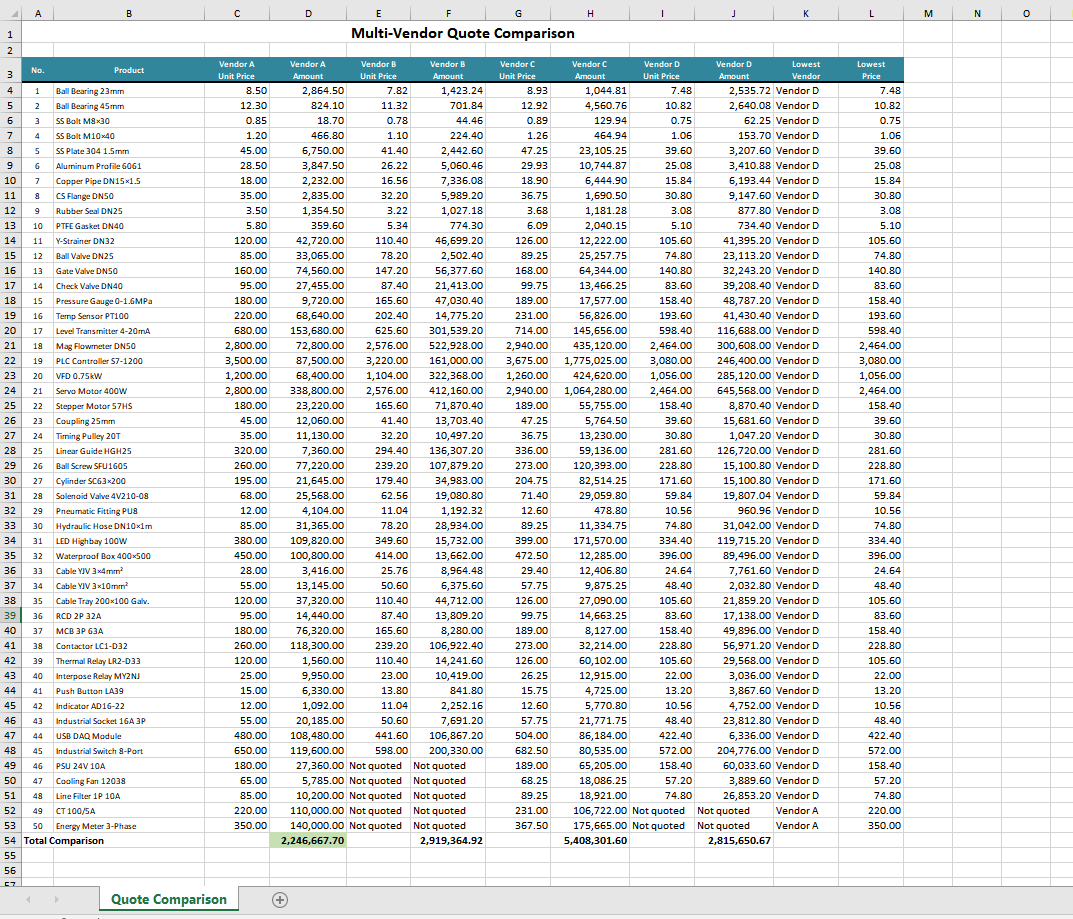
Comparison with Traditional SDK API Processing
| Spire.Office for .NET API | Spire.Agent.Office | |
|---|---|---|
| Code Volume | Reading data, mapping rows and columns, filling formulas, and applying conditional formatting require extensive code | Handled intelligently with a single natural language instruction |
| Format Adaptation | With the traditional SDK APIs, quotation sheets in different formats must be processed with different products | Just use the Excel AI to process data sources in various formats |
| Calculation Logic | Formulas and formatting must be set through APIs | AI understands and automatically completes the calculation and formatting |
| Requirement Changes | Modify the code and re-debug | Modify the instruction, effective immediately |
FAQ
Merged Cells in Quotation Sheets Cause Data Misalignment
Cause: Vendor quotation sheets may contain merged title cells or category labels merged across rows, which affect the AI's judgment of the row/column structure.
Solution: Clearly specify in the instruction "ignore the merged header rows and start reading data from row X," or provide a template file as a structural reference. If the issue persists, add the description "treat merged cells as ordinary cells and take their top-left value."
Processed Format Does Not Match Expectations
Cause: When understanding complex table layouts, the AI model may not preserve details such as column widths, row heights, and fonts precisely enough.
Solution: Add specific descriptions to the instruction, such as "preserve the existing column widths, row heights, fonts, borders, and alignment of the template."
Some Products Lack Vendor Quotations
Cause: The product lists provided by different vendors are not completely consistent, and some vendors may not have quoted certain products.
Solution: Clearly specify how to handle missing items in the instruction, such as "mark the cells without quotations as 'Not quoted' or leave them blank," and the AI will automatically identify and process them as required.
Obtaining a SpireToken Key
- Contact sales@e-iceblue.com or visit https://www.e-iceblue.com/TemLicense.html to obtain a trial/commercial API key.
Configure it in code:
AIOptions options = new AIOptions();
options.SpireToken = key;
