In HR and finance departments, distributing payslips is a monthly task that is small in substance yet remarkably tedious. A payroll sheet is usually an Excel table arranged by rows — each row is one employee, while the columns hold base salary, performance bonus, overtime pay, social insurance deduction, housing fund, individual income tax and net pay. But when the sheet reaches employees, each person should only see their own row. So "one sheet" must first be "split into N copies", and then each copy sent out one by one.
The traditional approach is copy-and-paste row by row inside the spreadsheet: create a new file, paste the header once, paste one employee's row into it, save as PDF, rename it, then loop to the next person. A team of a few dozen people means a few dozen repetitions; at a hundred people it is not only slow but highly prone to missed sends, wrong sends, or sending one person's salary to someone else — and payroll is exactly the information that must never be wrong.
The Excel AI capability of Spire.Agent.Office lets you describe the splitting rules in natural language. The AI agent understands the request and completes two kinds of work automatically: splitting one payroll sheet into individual payslip PDFs, one per employee, and applying a unified layout template to each payslip and encrypting it per person, producing files that are ready to distribute — along with a distribution ledger you can consult at any time.
Comparison with Traditional SDK API
| Traditional Spire.Office for .NET API | Spire.Agent.Office | |
|---|---|---|
| Driving style | Write complete code that loops over data rows, creates workbooks, copies headers and data and exports PDFs, controlling every step | Describe the splitting and distribution requirements in natural language; the AI understands them and orchestrates the execution path |
| Code size | Batch splitting and export usually needs 200-400 lines of C# (data reading, row loops, worksheet creation, style copying, page setup, PDF export, file naming, encryption parameters, etc.) | About 10 lines of calling code + 1 natural-language instruction |
| Layout handling | Copy header styles and set column widths and print areas by hand, or every payslip comes out misformatted | The AI recognizes and reuses the borders, alignment and column widths of the original header |
| Passwords and ledger | Generate each file's password yourself and register it separately; producing a ledger needs extra export logic | State the password rule in one sentence; the AI applies it and also outputs an Excel distribution ledger |
| Requirement change | Change a splitting rule / naming / encryption rule → change code → compile → redeploy | Modify the instruction and it takes effect immediately |
This article shows how to use Spire.Agent.Office to split an Excel payroll sheet into individual payslip PDFs. Two cases demonstrate the two typical uses — "splitting the payroll sheet directly" and "applying a template, encrypting and distributing":
- Case 1: Batch-split a payroll sheet into per-employee payslip PDFs
- Case 2: Apply a payslip template and encrypt to produce distributable files
For product installation and SpireToken configuration, please refer to Integrating Spire.Agent.Office in a .NET Project. The examples below assume that Spire.Agent.Office has been installed and SpireToken has been configured.
Case 1: Batch-split a payroll sheet into per-employee payslip PDFs
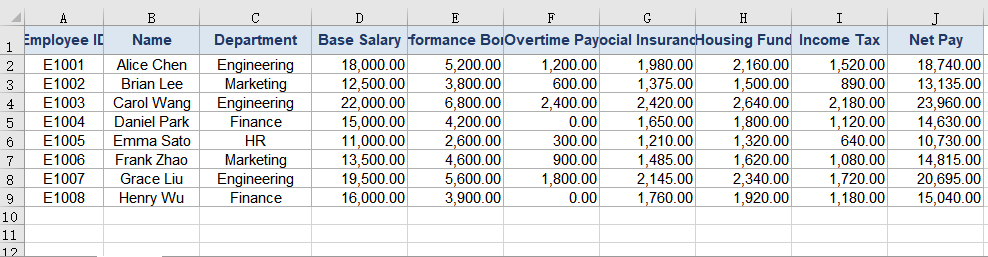
This is the most direct scenario: all you have is a raw payroll sheet, with no extra template file. The first row is the header and each following row holds one employee's pay data for the month. The task is to split the sheet by row, generate a payslip for each employee that contains only their own information, and save it named "employeeID_name" for later distribution or archiving.
The pain of doing this by hand is the repetition: the more employees there are, the more copy-and-paste cycles are needed, and the further you get the easier it is for rows to slip — leaving the previous person's net pay in the next person's file. That is a class of error that is hard to notice and serious in its consequences.
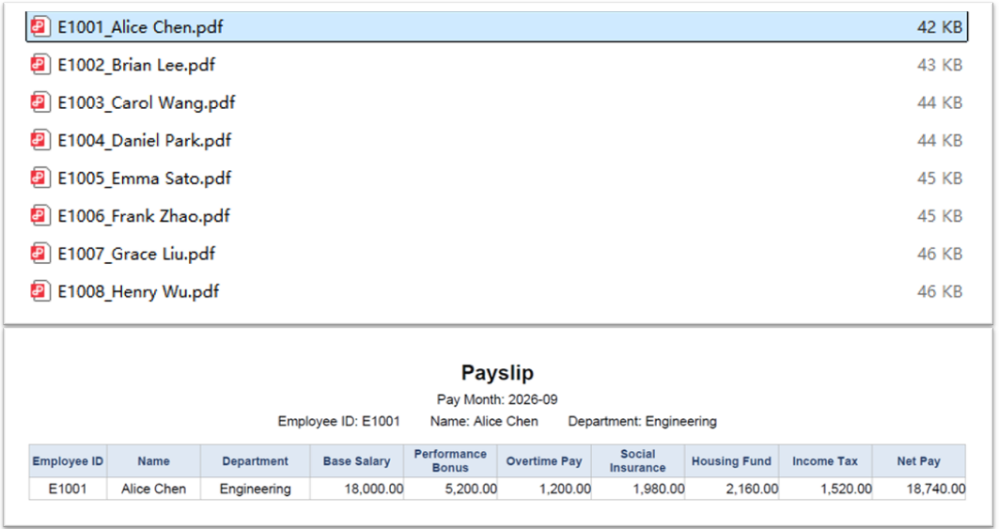
The example below uses the Spire.Agent.Office agent to read every employee record in the payroll sheet through a natural-language instruction, split it row by row into individual payslips and export them as PDFs:
using Spire.Agent.Office.AI;
using Spire.Agent.Office.Extensions;
using Spire.Xls;

// Excel-related configuration
string inputPath = @"E:\payroll.xlsx";  // path to the payroll sheet to split
string savePath = null;  // result path (null here: the output folder below will be used)
string OutDir = @"E:\output";  // output directory (the split payslip PDFs are saved here)
string key = "**************************";  // SpireToken key
string instruction =
"Read the employee payroll data in the payroll sheet and generate an individual payslip for each employee:" +
  "1. The first row is the header and each following row is one employee; extract the employee ID, name, department and each pay item row by row;" +
  "2. At the top of each payslip show the title 'Payslip' and the pay month, and list that employee's ID, name and department, then list each pay item in the source column order: base salary, performance bonus, overtime pay, social insurance deduction, housing fund, individual income tax and net pay;" +
  "3. Generate a separate PDF file for each employee, named 'employeeID_name' and saved to the output directory;" +
  "4. Keep the borders and column widths of the original header, right-align the amount columns and keep two decimal places;" +
  "5. Make the page size fit the payslip content, with tight margins and a height that adapts to the content, leaving no large blank areas;" +
  "Save the final result as a PDF file";

// Call the Excel document processing function
AIResult result = ExecuteDemoExcel(instruction, inputPath, savePath, key, OutDir);


// Execute Excel AI processing
static AIResult ExecuteDemoExcel(string instruction, string inputPath, string savePath, string key, string output)
{
    // Create the AIOptions configuration object
    AIOptions options = new AIOptions();
    options.WorkDir = output;  // set the working directory to the output directory
    options.SpireToken = key;  // set the SpireToken key

    // Process the Excel document using a Workbook object
    using (Workbook workbook = new Workbook())
    {
        // Load the Excel payroll sheet from file
        if (!string.IsNullOrEmpty(inputPath) && File.Exists(inputPath))
        {
            workbook.LoadFromFile(inputPath);
        }
        // Create the AI document processor
        AIDocumentProcessor processor = workbook.AI(options);

        // Execute the AI instruction
        return processor.ExecuteInstruction(workbook, instruction, savePath);
    }
}
The Excel payroll sheet to be split
 The individual payslip PDFs produced by the split
Case 2: Apply a payslip template and encrypt to produce distributable files
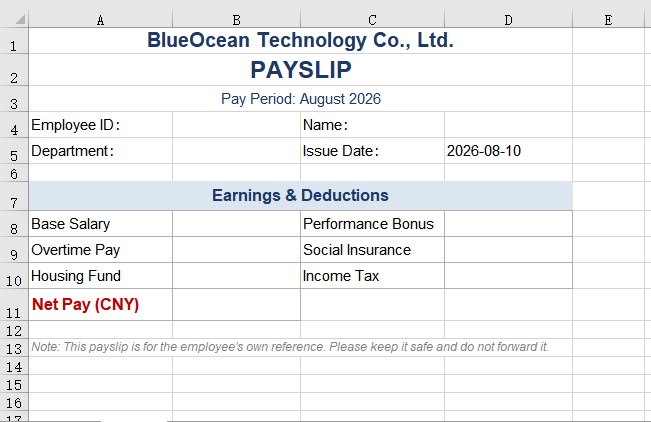
When a company distributes payslips, two more requirements usually come up: a unified layout and confidentiality. Companies normally have a fixed payslip template — with a company letterhead, the pay month, the order of pay items and explanatory text at the bottom. At the same time, salary is sensitive information: sending a plain-text PDF directly means that once it is forwarded or misdelivered, the employee's pay is exposed.
The safer approach is to apply the same template to every payslip and then set an individual open password on each employee's PDF (for example, generated from their own employee ID), so that only that person can open and view their payslip.
But once the passwords "all differ", a new management problem appears: who records them, and where do you look them up afterwards. Each password is built from "employee ID + 4 random digits", and those random digits cannot be reconstructed from the file name or any other information. After dozens or hundreds of files have gone out, if an employee reports that a file will not open, the only fallback is to dig out the original payroll sheet and try one by one. So the complete loop of encrypted distribution should also produce a distribution ledger — recording file names, employee details and open passwords in one-to-one correspondence, for later distribution, reconciliation and archive lookups.
This case takes the payslip template as the input document, while the employee payroll data is passed in as an attachment. The AI needs to fill the attachment data into the corresponding positions of the template and output that ledger alongside the encrypted PDFs.
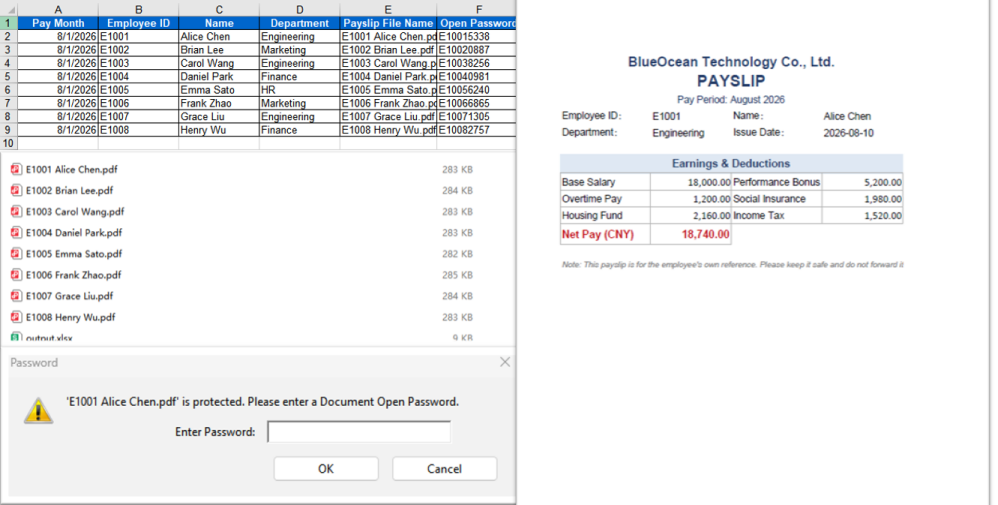
The example below uses the Spire.Agent.Office agent to read the employee data in the attached payroll sheet through a natural-language instruction, fill it into the payslip template row by row, generate a separate PDF for each employee, encrypt it with "employee ID + 4 random digits", and additionally produce an Excel-format "Payslip Distribution Ledger":
using Spire.Agent.Office.AI;
using Spire.Agent.Office.Extensions;
using Spire.Xls;

// Path to the employee payroll data file (passed in as an attachment)
string[] attachmentPaths = new string[]
{
    @"E:\payroll.xlsx"
};

// Excel-related configuration
string inputPath = @"E:\template-payslip.xlsx";  // path to the payslip template file
string savePath = null;  // result path (null here: the output folder below will be used)
string OutDir = @"E:\output-encrypted";  // output directory (encrypted payslip PDFs and the distribution ledger are saved here)
string key = "**************************";  // SpireToken key
string instruction =
    "Read the employee payroll data from the attached 'payroll.xlsx' and process it as follows:" +
    "1. The first row is the header and each following row is one employee; read the employee ID, name, department and each pay item row by row;" +
    "2. Fill each row of data into the corresponding positions of the payslip template, keeping the template's company letterhead, notes and item order unchanged;" +
    "3. Generate a separate PDF file for each employee, named 'employee ID + employee name' and saved to the output directory;" +
    "4. Set an open password on each PDF as 'employee ID + 4 random digits'; it only restricts opening the document and does not affect printing or copying;" +
    "5. Also generate an Excel-format 'Payslip Distribution Ledger' in the output directory, listing the pay month, employee ID, name, department, payslip file name and the corresponding open password in each row, for later distribution and archive lookups;" +
    "6. Keep the layout, fonts and column widths of the template;" +
    "Save the final result as a PDF file";

// Call the Excel document processing function
AIResult result = ExecuteDemoExcel(instruction, inputPath, savePath, key, OutDir, attachmentPaths);


// Execute Excel AI processing
static AIResult ExecuteDemoExcel(string instruction, string inputPath, string savePath, string key, string output, string[] attachmentPaths)
{
    // Create the AIOptions configuration object
    AIOptions options = new AIOptions();
    options.WorkDir = output;  // set the working directory to the output directory
    options.SpireToken = key;  // set the SpireToken key

    // Process the Excel document using a Workbook object
    using (Workbook workbook = new Workbook())
    {
        // Load the payslip template from file
        if (!string.IsNullOrEmpty(inputPath) && File.Exists(inputPath))
        {
            workbook.LoadFromFile(inputPath);
        }
        // Create the AI document processor
        AIDocumentProcessor processor = workbook.AI(options);

        // Execute the AI instruction
        return processor.ExecuteInstruction(workbook, instruction, savePath, attachmentPaths);
    }
}
The payslip template file
 Template-applied, encrypted payslip PDFs and the payslip distribution ledger
FAQ
The split payslips have slipped rows or misaligned data
Cause: The payroll sheet contains blank rows, merged cells or subtotal rows, so when the AI reads by row it counts non-employee rows as records and everything after them shifts.
Solution: Make sure the first row of the payroll sheet is the header and every row after it corresponds to exactly one employee, with no blank or subtotal rows in between. If the table structure is complex, state the rule in the instruction, for example "treat a row as an employee record only when the 'Employee ID' column is not empty".
An encrypted payslip will not open even for me
Cause: Each payslip's password is generated as "employee ID + 4 random digits", so it differs per person, and the random digits cannot be worked out on your own.
Solution: State the password rule explicitly in the instruction (for example, "the password is the employee ID plus 4 random digits") and make sure the generated passwords are recorded in the distribution ledger — once a random number is lost, the file can no longer be opened. Before distributing, try opening one payslip using a record from the ledger to verify.
Getting a SpireToken Key
- Contact sales@e-iceblue.com or visit https://www.e-iceblue.com/TemLicense.html to obtain a trial/commercial API key
Configure it in your code:
AIOptions options = new AIOptions();
options.SpireToken = key;
