Editing content in Word is not difficult, but realigning the table of contents, page numbers, headers and footers afterwards is often more troublesome. As soon as a document goes through a few rounds of additions and deletions, chapter order adjustments, or migration from another template, its original table of contents entries, page numbers, and the chapter name in the header easily fall out of sync with the body text — clicking a TOC entry jumps to the wrong page, page numbers fail to continue from a certain section onward, and the header still carries the chapter title from the previous version. Checking item by item by hand is time-consuming and prone to omissions, and the longer the document, the harder it is to guarantee consistency.
Comparison with Traditional SDK API Processing
| Traditional Spire.Office for .NET API | Spire.Agent.Office | |
|---|---|---|
| Driving approach | Write code to handle each item: iterate paragraphs to determine levels → update the TOC field → reorder page numbers → modify headers and footers; every step requires code control | Describe in natural language which structures to reconstruct, and AI completes it automatically |
| Code volume | The TOC field, sectioned page numbers, header fields and so on each require a separate set of processing logic | Only configuration code + 1 natural language instruction |
| Heading level recognition | Relies on rigid judgment by style name or outline level, which is easily misjudged when styles are not standardized | AI determines heading levels by combining semantics and styles |
| Section and field handling | Section breaks, page number start values, and fields such as PAGE/STYLEREF must each be set manually | Automatically identifies sections and field reference relationships and updates them as a group |
| Maintainability | After the document template or structure changes, the code must be modified and a new version released | The reconstruction scope and rules can be adjusted at any time in natural language |
This article explains how to use the Word AI capability of Spire.Agent.Office to complete document structure reconstruction, covering two typical categories of problems, from the table of contents to page numbers, headers and footers: first let AI scan the heading levels and section information and regenerate the table of contents according to the actual headings in the body, then refresh page numbers and update the dynamic fields in headers and footers, keeping the table of contents, page numbers, headers and footers consistent with the body text.
For product installation and SpireToken configuration, refer to Integrating Spire.Agent.Office in a .NET Project. The examples below assume Spire.Agent.Office is installed and SpireToken is configured.
Table of Contents Structure Reconstruction
A table of contents that no longer matches is usually because the TOC was not updated after the body text was modified, or because the original TOC was static text typed by hand. The core idea of structure reconstruction is: load the existing document, let AI scan the headings at each level in the body, determine the hierarchical relationships and check the section positions, and regenerate a table of contents field with page numbers according to the actual headings in the body, making the TOC entries and levels correspond one-to-one with the body text, while only adjusting heading styles and not touching the body content.
using Spire.Agent.Office.AI;
using Spire.Agent.Office.Extensions;
using Spire.Doc;

// The document whose structure is to be reconstructed
string inputPath = "E:\\Input\\XX_Project_Implementation_Plan.docx";
// Save path
string savePath = "E:\\Output\\XX_Project_Implementation_Plan-Reconstructed.docx";
// SpireToken Key
string key = "**********************";
// Natural language instruction
string instruction =
    "Please reconstruct the table of contents structure of the current document: " +
    "1. Scan the headings in the body, identify the hierarchical relationships of the headings at each level, and unify the heading styles (use Heading 1 for level-1 headings, Heading 2 for level-2 headings, and so on); " +
    "2. Check the positions of the section breaks to ensure the chapter divisions are consistent with the heading levels; " +
    "3. Delete the original table of contents and regenerate a table of contents field before the body, containing headings at each level with their corresponding page numbers, fully consistent with the actual headings and levels in the body; " +
    "4. Only adjust the heading styles and the table of contents, and keep the body content unchanged. " +
    "Finally save and output in DOCX format";

// Call the Word document processing function
AIResult result = ExecuteDemoWord(instruction, inputPath, savePath, key, null);

// Execute Word document AI processing
static AIResult ExecuteDemoWord(string instruction, string inputPath, string savePath, string key, string[] attachmentPaths)
{
    // Create an AIOptions configuration object
    AIOptions options = new AIOptions();
    // Set the SpireToken Key
    options.SpireToken = key;

    // Use the Document object to process the Word document
    using (Document doc = new Document())
    {
        // Load the document whose structure is to be reconstructed
        if (!string.IsNullOrEmpty(inputPath) && File.Exists(inputPath))
        {
            doc.LoadFromFile(inputPath);
        }
        // Create the AI document processor
        AIDocumentProcessor processor = doc.AI(options);

        // Execute the AI instruction
        return processor.ExecuteInstruction(doc, instruction, savePath, attachmentPaths);
    }
}
Reconstructed table of contents
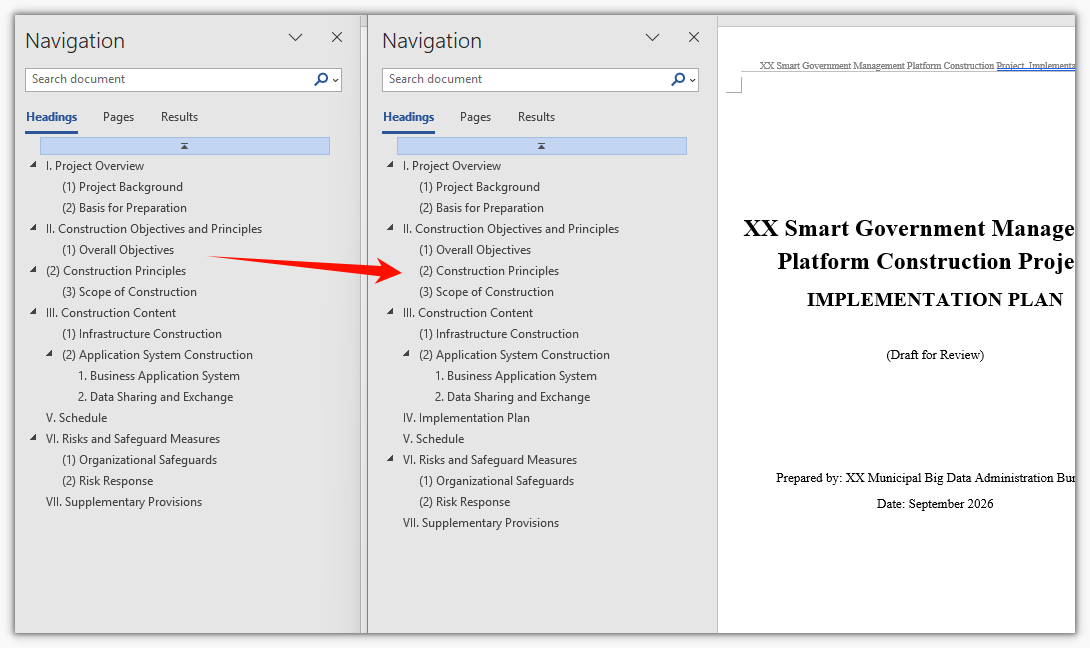
After reconstruction, the TOC entries and levels correspond one-to-one with the body headings, and clicking an entry jumps to the correct position, with no more entries pointing to old chapters or missing. For documents with major structural changes, regenerating the TOC directly is more convenient than manually adding and deleting TOC entries, and far less likely to miss a change.
Page Number, Header and Footer Refresh
After the TOC is reconstructed, the page numbers, headers and footers also need to be realigned. Page number misalignment usually comes from the section settings, and the chapter name or total page count in the header shows the old value of the field. The core idea of this step is: let AI refresh the page numbers of the whole document and set the start value and continuation method according to sections, and at the same time update the dynamic fields in the headers and footers (such as chapter name, total page count, and date) so that the values of these fields match the current content of the body.
using Spire.Agent.Office.AI;
using Spire.Agent.Office.Extensions;
using Spire.Doc;

// The document whose page numbers are to be refreshed (can follow the reconstructed document from the previous section)
string inputPath = "E:\\Input\\XX_Project_Implementation_Plan-Reconstructed.docx";
// Save path
string savePath = "E:\\Output\\XX_Project_Implementation_Plan-Final.docx";
// SpireToken Key
string key = "**********************";
// Natural language instruction
string instruction =
    "Please refresh the page numbers of the current document and update the dynamic fields in the headers and footers: " +
    "1. Recalculate and refresh the page numbers of the whole document, with the body page numbers numbered consecutively starting from page 1; " +
    "2. Set page numbers by section, do not number the cover page and the table of contents, and start the body on a separate page with restarted numbering; " +
    "3. Update the dynamic fields such as the chapter name in the header (taken from the heading at the corresponding level) and the total page count, so that they match the current content of the body; " +
    "4. Unify the footer page number format as \"Page X of Y\". " +
    "Only update the above structural information, do not modify the body content, and finally save and output in DOCX format";

// Call the Word document processing function
AIResult result = ExecuteDemoWord(instruction, inputPath, savePath, key, null);

// Execute Word document AI processing
static AIResult ExecuteDemoWord(string instruction, string inputPath, string savePath, string key, string[] attachmentPaths)
{
    // Create an AIOptions configuration object
    AIOptions options = new AIOptions();
    // Set the SpireToken Key
    options.SpireToken = key;

    // Use the Document object to process the Word document
    using (Document doc = new Document())
    {
        // Load the document whose page numbers are to be refreshed
        if (!string.IsNullOrEmpty(inputPath) && File.Exists(inputPath))
        {
            doc.LoadFromFile(inputPath);
        }
        // Create the AI document processor
        AIDocumentProcessor processor = doc.AI(options);

        // Execute the AI instruction
        return processor.ExecuteInstruction(doc, instruction, savePath, attachmentPaths);
    }
}
Document after refreshing the page numbers, headers and footers
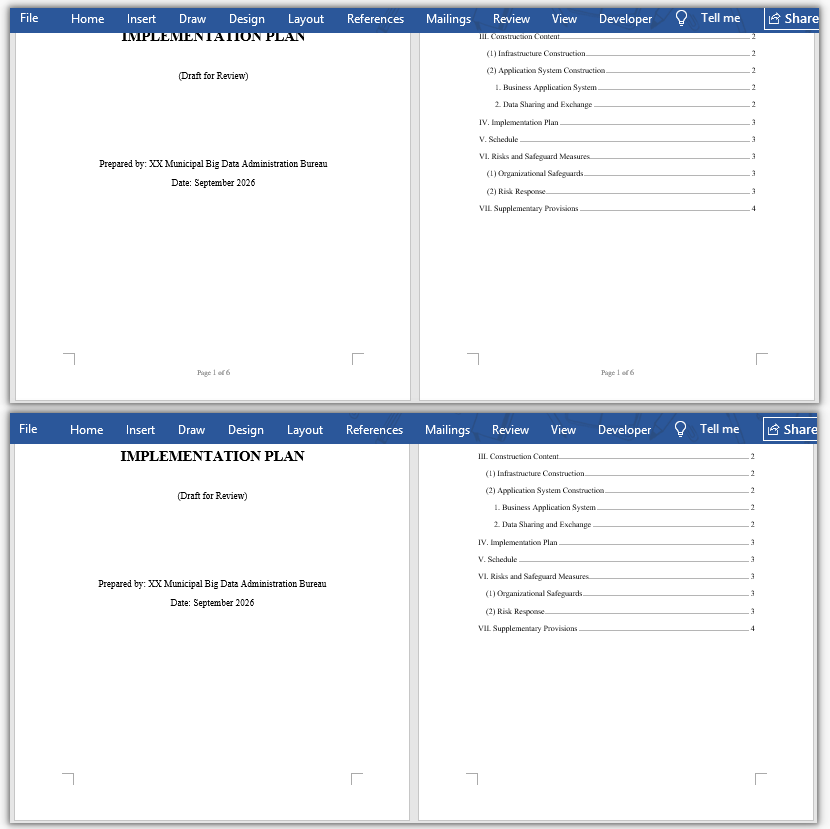
After refreshing, the body page numbers are consecutive, the section start values are correct, and the chapter name and total page count in the header stay consistent with the body. For documents processed in batches, the same set of instructions can be used to unify the page number rules and the header and footer formats, saving the time of opening each document and checking each item.
FAQ
The reconstructed table of contents still shows old entries or gains extra items
Reason: The original document's table of contents is static text rather than a TOC field, or the heading styles are not unified, causing deviations in the recognized levels.
Solution: In the instruction, explicitly require "delete the original table of contents and regenerate a table of contents field according to the body headings", and state the basis for recognizing headings (by style name or outline level) to reduce misjudgment.
Page numbers do not match starting from a certain section or repeat
Reason: The page number start value and continuation method of the section breaks do not meet the requirements, and it is easy to miss a section when setting them manually.
Solution: Write out the page number requirements of each section one by one in the instruction, such as "do not number the cover page and the table of contents, start the body from page 1, and number each section consecutively", and let AI set them uniformly by section.
The chapter name or total page count in the header does not change
Reason: The chapter name and total page count are mostly dynamic fields such as STYLEREF and NUMPAGES, and still show cached values when not refreshed.
Solution: Require "update the values of all dynamic fields in the headers and footers", and explain the source of the fields, such as the chapter name taken from the heading at the corresponding level and the total page count taken from the whole document.
The body formatting is changed along with the structure reconstruction
Reason: The operation scope was not limited, and AI adjusted the fonts and paragraph formats of the body while unifying the heading styles.
Solution: In the instruction, clearly state "only adjust structural information such as heading styles, the table of contents, page numbers, headers and footers, and keep the body fonts and paragraph formats unchanged".
Get the SpireToken Key
- Contact sales@e-iceblue.com or visit https://www.e-iceblue.com/TemLicense.html to obtain a trial/commercial API key
Configure it in your code:
AIOptions options = new AIOptions();
options.SpireToken = key;
