Set custom properties for PDF files in Java
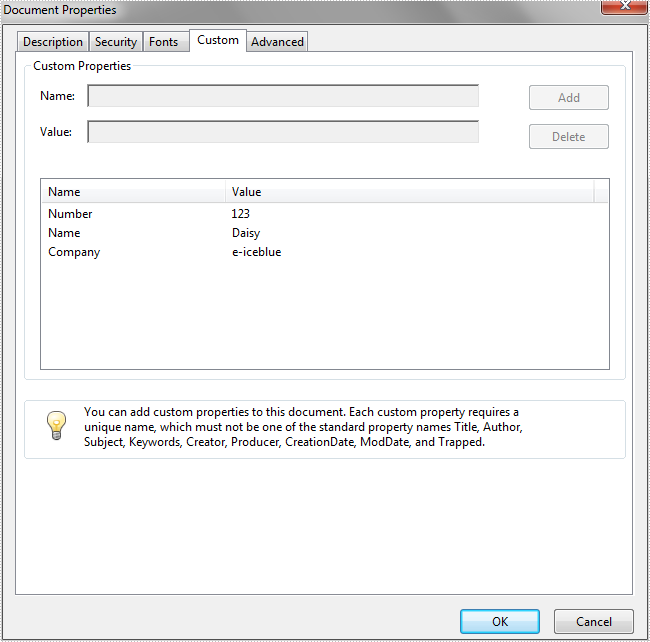
We have already demonstrated how to set PDF Document Properties in Java. This article we will show you how to set custom properties for PDF files in Java.
import com.spire.pdf.*;

public class PDFCustomProperties {
    public static void main(String[] args) throws Exception {

        String inputPath = "Sample.pdf";
        PdfDocument doc = new PdfDocument(inputPath);
        doc.loadFromFile(inputPath);

        //Set the custom properties
       doc.getDocumentInformation().setCustomProperty("Number", "123");
       doc.getDocumentInformation().setCustomProperty("Name", "Daisy");
       doc.getDocumentInformation().setCustomProperty("Company", "e-iceblue");"


        //Save the document to file
        doc.saveToFile("Output/result.pdf");
        doc.close();

    }
}
Effective screenshot after adding custom properties to PDF document:
Java: Add, Modify, or Remove Footers in PowerPoint Documents
Adding, modifying, and removing footers in PowerPoint documents is crucial as footers can provide additional information and organizational structure to the document. By including page numbers, dates, author information, or custom text in the footer, it can help the audience better understand the presentation content and track document versions. Footers also enhance the professionalism and tidiness of the document, making it more visually appealing and readable. Modifying footers allows for updating information or adjusting formats as needed to ensure the document remains current and consistent. Removing footers can customize the document's appearance based on specific requirements or design preferences. This article will introduce how to use Spire.Presentation for Java to add, modify, and remove footers in PowerPoint documents within a Java project.
- Java Add Footers in PowerPoint Documents
- Java Modify Footers in PowerPoint Documents
- Java Remove Footers in PowerPoint Documents
Install Spire.Presentation for Java
First of all, you're required to add the Spire.Presentation.jar file as a dependency in your Java program. The JAR file can be downloaded from this link. If you use Maven, you can easily import the JAR file in your application by adding the following code to your project's pom.xml file.
<repositories>
    <repository>
        <id>com.e-iceblue</id>
        <name>e-iceblue</name>
        <url>https://repo.e-iceblue.com/nexus/content/groups/public/</url>
    </repository>
</repositories>
<dependencies>
    <dependency>
        <groupId>e-iceblue</groupId>
        <artifactId>spire.presentation</artifactId>
        <version>11.9.10</version>
    </dependency>
</dependencies>
Java Add Footers in PowerPoint Documents
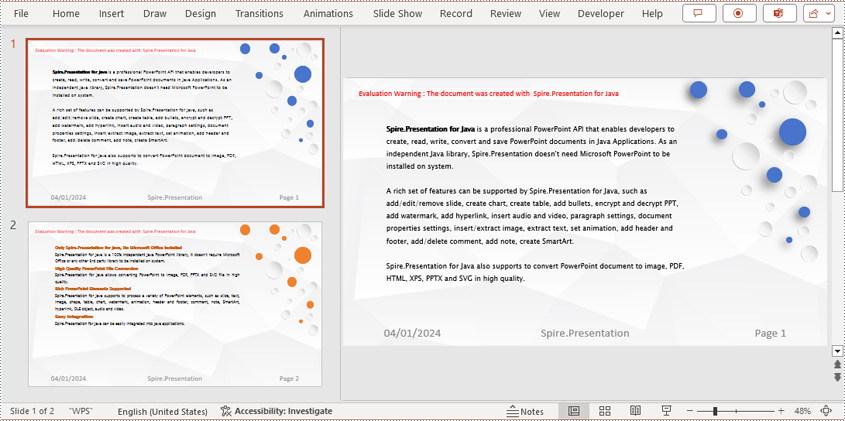
Using Spire.Presentation, you can easily add consistent footer content to the bottom of each page in a PowerPoint document. By adding footer placeholders, page number placeholders, and time placeholders, you can ensure that the footer content on each page remains consistent. Here are the detailed steps:
- Create a lisentation object.
- Load a PowerPoint document using the lisentation.loadFromFile() method.
- Set the footer visible using lisentation.setFooterVisible(true) and set the footer text.
- Set the slide number visible using lisentation.setSlideNumberVisible(true), iterate through each slide, check for the lisence of a page number placeholder, and modify the text to the "Page X" format if found.
- Set the date and time visible using lisentation.setDateTimeVisible(true).
- Set the format of the date using the lisentation.setDateTime() method.
- Save the document to a specified path using the lisentation.saveToFile() method.
- Java
import com.spire.presentation.*;
import java.util.Date;

public class AddFooter {
    public static void main(String[] args) throws Exception {
        // Create a Presentation object
        Presentation presentation = new Presentation();

        // Load the presentation from a file
        presentation.loadFromFile("Sample1.pptx");

        // Set the footer visible
        presentation.setFooterVisible(true);

        // Set the footer text to "Spire.Presentation"
        presentation.setFooterText("Spire.Presentation");

        // Set the slide number visible
        presentation.setSlideNumberVisible(true);

        // Iterate through each slide in the presentation
        for (int i = 0; i < presentation.getSlides().getCount(); i++) {
            ISlide slide = presentation.getSlides().get(i);
            for (int j = 0; j < slide.getShapes().getCount(); j++) {
                IShape shape = slide.getShapes().get(j);
                if (shape.getPlaceholder() != null) {
                    // If it is a slide number placeholder
                    if (shape.getPlaceholder().getType().equals(PlaceholderType.SLIDE_NUMBER)) {
                        IAutoShape shape1 = (IAutoShape) shape;
                        ParagraphEx paragraph = shape1.getTextFrame().getTextRange().getParagraph();
                        String text = paragraph.getText();

                        // Modify the slide number text to "Page X"
                        paragraph.setText("Page " + text);
                    }
                }
            }
        }

        // Set the date time visible
        presentation.setDateTimeVisible(true);

        // Create a Date object to represent the current time
        Date currentDate = new Date();

        // Set the date time format
        presentation.setDateTime(currentDate, "MM/dd/yyyy");

        // Save the modified presentation to a file
        presentation.saveToFile("AddedFooter.pptx", FileFormat.PPTX_2016);

        // Release the resources of the Presentation object
        presentation.dispose();
    }
}
Java Modify Footers in PowerPoint Documents
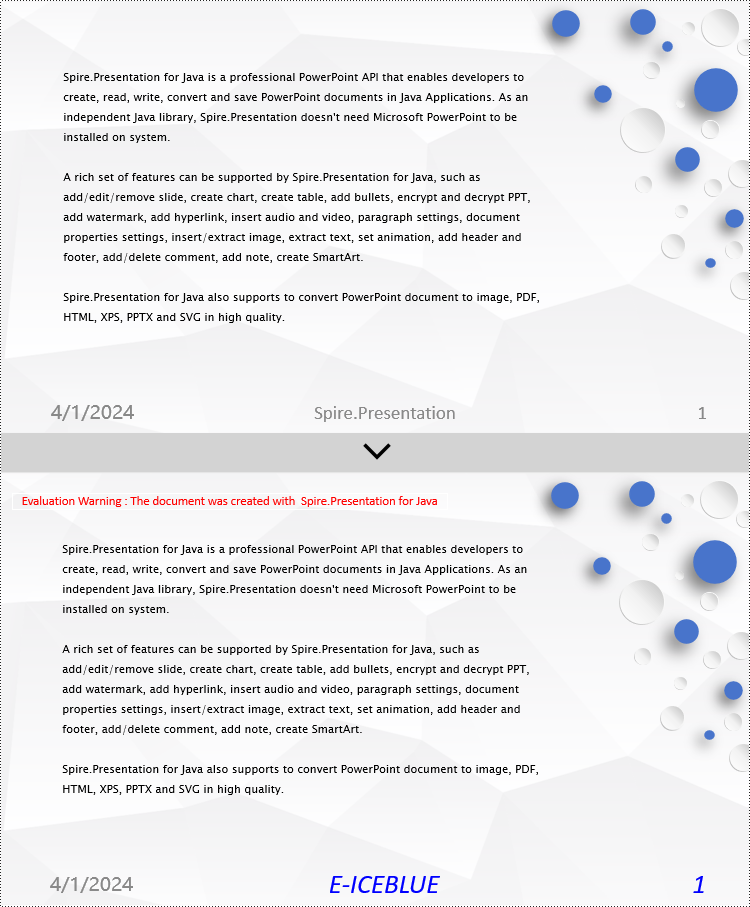
To modify the footer in a PowerPoint document, you need to inspect each shape on every slide to identify footer placeholders, page number placeholders, and so on. By recognizing these placeholders, you can set specific content and formats for each type. Here are the detailed steps:
- Create a Presentation object.
- Load a PowerPoint document using the Presentation.loadFromFile() method.
- Retrieve a slide using the Presentation.getSlides().get(index) method.
- Iterate through the shapes on the slide using a for loop, inspect each shape to determine if it is a placeholder for the footer, page number, etc., and then modify its content or format accordingly.
- Save the document to a specified path using the Presentation.saveToFile() method.
- Java
import com.spire.presentation.*;
import com.spire.presentation.drawing.FillFormatType;
import java.awt.*;

public class ModifyFooter {
    public static void main(String[] args) throws Exception {
        // Create a Presentation object
        Presentation presentation = new Presentation();

        // Load a presentation from a file
        presentation.loadFromFile("Sample2.pptx");

        // Get the first slide
        ISlide slide = presentation.getSlides().get(0);

        // Iterate through shapes on the slide
        for (int i = 0; i < slide.getShapes().getCount(); i++) {
            // Check if the shape is a placeholder
            if (slide.getShapes().get(i).getPlaceholder() != null) {
                // Get the placeholder type
                PlaceholderType type = slide.getShapes().get(i).getPlaceholder().getType();

                // If it's a footer placeholder
                if (type == PlaceholderType.FOOTER) {
                    // Convert the shape to IAutoShape type
                    IAutoShape autoShape = (IAutoShape) slide.getShapes().get(i);

                    // Set the text content to "E-ICEBLUE"
                    autoShape.getTextFrame().setText("E-ICEBLUE");

                    // Modify the font of the text
                    ChangeFont(autoShape.getTextFrame().getParagraphs().get(0));
                }
                // If it's a slide number placeholder
                if (type == PlaceholderType.SLIDE_NUMBER) {
                    // Convert the shape to IAutoShape type
                    IAutoShape autoShape = (IAutoShape) slide.getShapes().get(i);

                    // Modify the font of the text
                    ChangeFont(autoShape.getTextFrame().getParagraphs().get(0));
                }
            }
        }

        // Save the modified presentation to a file
        presentation.saveToFile("ModifiedFooter.pptx", FileFormat.PPTX_2016);

        // Dispose of the Presentation object resources
        presentation.dispose();
    }
    static void ChangeFont(ParagraphEx paragraph)
    {
        // Iterate through each text range in the paragraph
        for (int i = 0; i < paragraph.getTextRanges().getCount(); i++) {
            // Set the text style to italic
            paragraph.getTextRanges().get(i).isItalic(TriState.TRUE);

            // Set the text font
            paragraph.getTextRanges().get(i).setEastAsianFont (new TextFont("Times New Roman"));

            // Set the text font size to 34
            paragraph.getTextRanges().get(i).setFontHeight(34);

            // Set the text color
            paragraph.getTextRanges().get(i).getFill().setFillType(FillFormatType.SOLID);
            paragraph.getTextRanges().get(i).getFill().getSolidColor().setColor(Color.BLUE);
        }
    }
}
Java Remove Footers in PowerPoint Documents
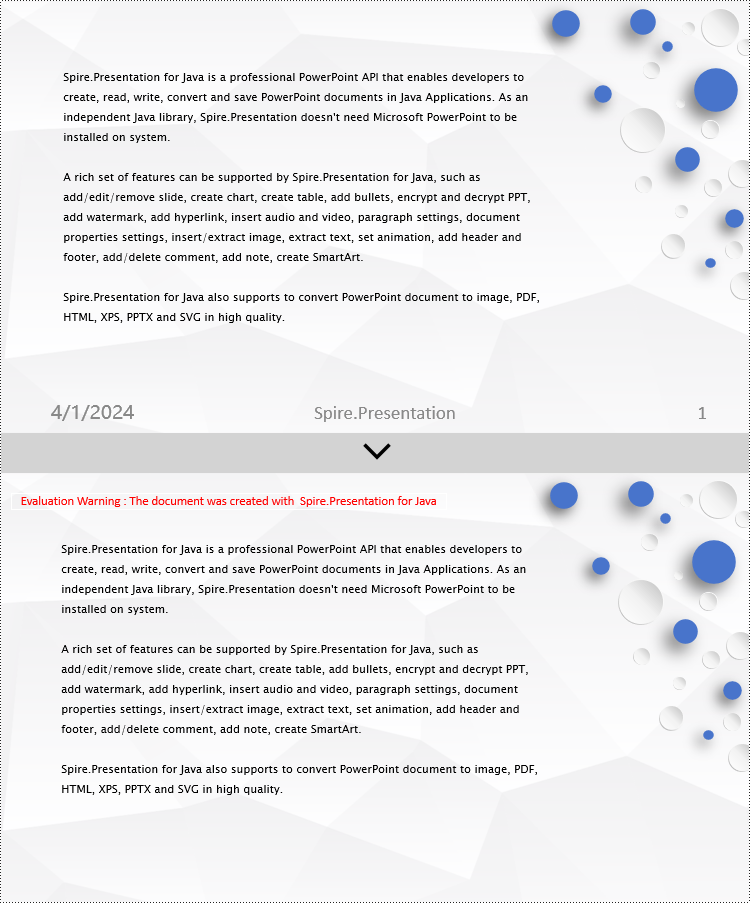
To delete the footer in a PowerPoint document, you first need to retrieve content such as footer placeholders, page number placeholders, time placeholders, etc., within the slides. Once these placeholders are identified, you can locate and remove them from the collection of shapes on the slide. Here are the detailed steps:
- Create a Presentation object.
- Load a PowerPoint document using the Presentation.loadFromFile() method.
- Retrieve a slide using the Presentation.getSlides().get(index) method.
- Iterate through the shapes on the slide using a for loop, check if they are placeholders, and if they are footer placeholders, page number placeholders, time placeholders, remove them from the slide.
- Save the document to a specified path using the Presentation.saveToFile() method.
- Java
import com.spire.presentation.*;
public class RemoveFooter {
    public static void main(String[] args) throws Exception {
        // Create a Presentation object
        Presentation presentation = new Presentation();
        // Load the presentation from a file
        presentation.loadFromFile("Sample2.pptx");
        // Get the first slide
        ISlide slide = presentation.getSlides().get(0);
        // Iterate through the shapes on the slide
        for (int i = slide.getShapes().getCount() - 1; i >= 0; i--) {
            // Check if the shape is a placeholder
            if (slide.getShapes().get(i).getPlaceholder() != null) {
                // Get the placeholder type
                PlaceholderType type = slide.getShapes().get(i).getPlaceholder().getType();
                // If it's a footer placeholder
                if (type == PlaceholderType.FOOTER) {
                    // Remove it from the slide
                    slide.getShapes().removeAt(i);
                }
                // If it's a slide number placeholder
                if (type == PlaceholderType.SLIDE_NUMBER) {
                    // Remove it from the slide
                    slide.getShapes().removeAt(i);
                }
                // If it's a date and time placeholder
                if (type == PlaceholderType.DATE_AND_TIME) {
                    // Remove it from the slide
                    slide.getShapes().removeAt(i);
                }
            }
        }
        // Save the modified presentation to a file
        presentation.saveToFile("RemovedFooter.pptx", FileFormat.PPTX_2016);
        // Dispose of the Presentation object resources
        presentation.dispose();
    }
}
Apply for a Temporary License
If you'd like to remove the evaluation message from the generated documents, or to get rid of the function limitations, please request a 30-day trial license for yourself.
Digitally Sign PDF with Timestamp Server in C#/VB.NET
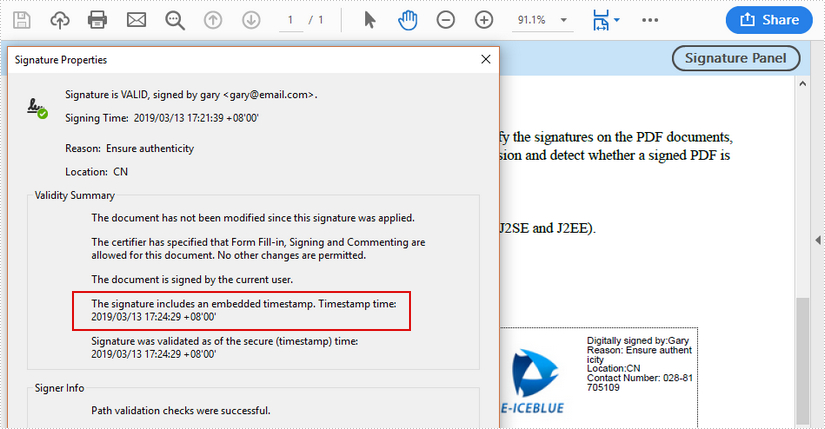
Digital timestamps mark a PDF signature with the time and date as proof of integrity. A timestamp shows that the contents of the document existed at a point in time, and are unchanged. This article is going to introduce how to digitally sign a PDF document with a timestamp server by using Spire.PDF.
Code Snippets
using Spire.Pdf;
using Spire.Pdf.Graphics;
using Spire.Pdf.Security;
using System.Drawing;


namespace SignPDFwithTimestamp
{
    class Program
    {
        static void Main(string[] args)
        {
            //create a PdfDocument object and load a PDF file
            PdfDocument doc = new PdfDocument();
            doc.LoadFromFile(@"C:\Users\Administrator\Desktop\Example.pdf");

            //load the certificate .pfx file
            PdfCertificate cert = new PdfCertificate(@"C:\Users\Administrator\Desktop\gary.pfx", "e-iceblue");

            //add a signature to the specified position
            PdfSignature signature = new PdfSignature(doc, doc.Pages[0], cert, "signature");
            signature.Bounds = new RectangleF(new PointF(350, 700), new SizeF(180, 90));

            //set the signature content
            signature.NameLabel = "Digitally signed by:Gary";
            signature.LocationInfoLabel = "Location:";
            signature.LocationInfo = "CN";
            signature.ReasonLabel = "Reason: ";
            signature.Reason = "Ensure authenticity";
            signature.ContactInfoLabel = "Contact Number: ";
            signature.ContactInfo = "028-81705109";
            signature.DocumentPermissions = PdfCertificationFlags.AllowFormFill | PdfCertificationFlags.ForbidChanges;
            signature.SignImageSource = PdfImage.FromFile(@"C:\Users\Administrator\Desktop\company-logo.jpg");

            //configure a timestamp server
            string url = "http://timestamp.wosign.com/rfc3161";
            signature.ConfigureTimestamp(url);

            //save to file
            doc.SaveToFile("output.pdf");
        }
    }
}
Imports Spire.Pdf
Imports Spire.Pdf.Graphics
Imports Spire.Pdf.Security
Imports System.Drawing


Namespace SignPDFwithTimestamp
	Class Program
		Private Shared Sub Main(args As String())
			'create a PdfDocument object and load a PDF file
Dim doc As PdfDocument =  New PdfDocument()
doc.LoadFromFile("C:\Users\Administrator\Desktop\Example.pdf")

'load the certificate .pfx file
Dim cert As PdfCertificate =  New PdfCertificate("C:\Users\Administrator\Desktop\gary.pfx","e-iceblue")

'add a signature to the specified position
Dim signature As PdfSignature =  New PdfSignature(doc,doc.Pages(0),cert,"signature")
signature.Bounds = New RectangleF(New PointF(350, 700), New SizeF(180, 90))

'set the signature content
signature.NameLabel = "Digitally signed by:Gary"
signature.LocationInfoLabel = "Location:"
signature.LocationInfo = "CN"
signature.ReasonLabel = "Reason: "
signature.Reason = "Ensure authenticity"
signature.ContactInfoLabel = "Contact Number: "
signature.ContactInfo = "028-81705109"
signature.DocumentPermissions = PdfCertificationFlags.AllowFormFill Or PdfCertificationFlags.ForbidChanges
signature.SignImageSource = PdfImage.FromFile("C:\Users\Administrator\Desktop\company-logo.jpg")

'configure a timestamp server
Dim url As String =  "http://timestamp.wosign.com/rfc3161"
signature.ConfigureTimestamp(url)

'save to file
doc.SaveToFile("output.pdf")
		End Sub
	End Class
End Namespace
Output
Java: Convert PowerPoint to Images (PNG, JPG, TIFF, SVG)
In comparison with PowerPoint documents, image files are easier to view because they can be opened on almost any device without the need for specific software. If you want to make your PowerPoint documents accessible on a wide range of devices, you can convert them to images. In this article, we will explain how to convert PowerPoint documents to various image formats in Java using Spire.Presentation for Java.
- Convert PowerPoint Documents to JPG or PNG Images
- Convert PowerPoint Documents to TIFF Images
- Convert PowerPoint Documents to SVG Images
Install Spire.Presentation for Java
First of all, you're required to add the Spire.Presentation.jar file as a dependency in your Java program. The JAR file can be downloaded from this link. If you use Maven, you can easily import the JAR file in your application by adding the following code to your project's pom.xml file.
<repositories>
    <repository>
        <id>com.e-iceblue</id>
        <name>e-iceblue</name>
        <url>https://repo.e-iceblue.com/nexus/content/groups/public/</url>
    </repository>
</repositories>
<dependencies>
    <dependency>
        <groupId>e-iceblue</groupId>
        <artifactId>spire.presentation</artifactId>
        <version>11.9.10</version>
    </dependency>
</dependencies>
Convert PowerPoint Documents to JPG or PNG Images in Java
The following are the steps to convert a PowerPoint document to JPG or PNG image:
- Initialize an instance of Presentation class.
- Load a PowerPoint document using Presentation.loadFromFile() method.
- Iterate through all slides in the PowerPoint document.
- Save each slide as a BufferedImage object using ISlide.saveAsImage() method.
- Save the BufferedImage object to PNG or JPG file using ImageIO.write() method.
- Java
import com.spire.presentation.ISlide;
import com.spire.presentation.Presentation;

import javax.imageio.ImageIO;
import java.awt.image.BufferedImage;
import java.io.File;

public class ConvertPowerPointToPngOrJpg {
    public static void main(String []args) throws Exception {
        //Create a Presentation instance
        Presentation presentation = new Presentation();
        //Load a PowerPoint document
        presentation.loadFromFile("Sample.pptx");

        //Iterate through all slides in the PowerPoint document
        for(int i = 0; i < presentation.getSlides().getCount(); i++)
        {
            ISlide slide = presentation.getSlides().get(i);
            //Save each slide as PNG image
            BufferedImage image = slide.saveAsImage();
            String fileName = String.format("ToImage-%1$s.png", i);
            ImageIO.write(image, "PNG",new File(fileName));
        }
    }
}

Convert PowerPoint Documents to TIFF Images in Java
The following are the steps to convert a PowerPoint document to TIFF image:
- Initialize an instance of Presentation class.
- Load a PowerPoint document using Presentation.loadFromFile() method.
- Convert the PowerPoint document to TIFF image using Presentation.saveToFile(String, FileFormat) method.
- Java
import com.spire.presentation.FileFormat;
import com.spire.presentation.Presentation;

public class ConvertPowerPointToTiff {
    public static void main(String []args) throws Exception {
        //Create a Presentation instance
        Presentation presentation = new Presentation();
        //Load a PowerPoint document
        presentation.loadFromFile("Sample.pptx");

        //Convert the PowerPoint document to TIFF image
        presentation.saveToFile("toTIFF.tiff", FileFormat.TIFF);
    }
}

Convert PowerPoint Documents to SVG Images in Java
The following are the steps to convert a PowerPoint document to SVG images:
- Initialize an instance of Presentation class.
- Load a PowerPoint document using Presentation.loadFromFile() method.
- Convert the PowerPoint document to SVG and save the results into an ArrayList of byte arrays using Presentation.saveToSVG() method.
- Iterate through the byte arrays in the ArrayList.
- Get the current byte array using ArrayList.get(int) method.
- Initialize an instance of FileOutputStream class and save the byte array to an SVG file using FileOutputStream.write() method.
- Java
import com.spire.presentation.Presentation;

import java.io.FileOutputStream;
import java.util.ArrayList;

public class ConvertPowerPointToSVG {
    public static void main(String []args) throws Exception {
        //Create a Presentation instance
        Presentation presentation = new Presentation();
        //Load a PowerPoint document
        presentation.loadFromFile("Sample.pptx");

        //Convert the PowerPoint document to SVG and save the results into an ArrayList of byte arrays
        ArrayList<byte[]> svgBytes =(ArrayList) presentation.saveToSVG();
        int len = svgBytes.size();
        //Iterate through the byte arrays in the ArrayList
        for (int i = 0; i < len; i++)
        {
            //Get the current byte array
            byte[] bytes = svgBytes.get(i);
            //Specify the output file name
            String fileName= String.format("ToSVG-%d.svg", i);
            //Create a FileOutputStream instance
            FileOutputStream stream = new FileOutputStream(fileName);
            //Save the byte array to an SVG file
            stream.write(bytes);
        }
    }
}

Apply for a Temporary License
If you'd like to remove the evaluation message from the generated documents, or to get rid of the function limitations, please request a 30-day trial license for yourself.
Java: Add or Remove Attachments in PDF
PDF is a versatile file format that can render text and graphics on its pages as well as serve as a storage container. People can attach files to PDFs and extract them later. Attaching related documents to a PDF can facilitate centralized management and transmission of documents.
Spire.PDF for Java allows you to attach files in two ways:
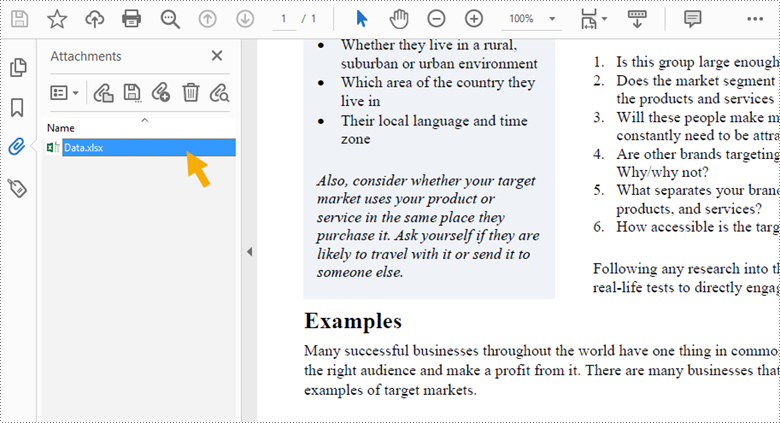
- Document Level Attachment: A file attached to a PDF at the document level won't appear on a page, but can only be viewed in the "Attachments" panel of a PDF reader.
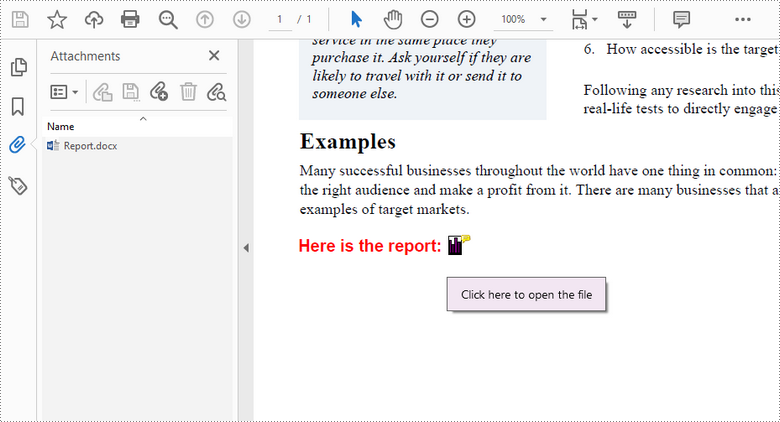
- Annotation Attachment: A file will be added to a specific position of a page. Annotation attachments are shown as a paper clip icon on the page; reviewers can double-click the icon to open the file.
This article demonstrates how to add or remove these two types of attachments in a PDF document in Java using Spire.PDF for Java.
- Add an Attachment to PDF in Java
- Add an Annotation Attachment to PDF in Java
- Remove Attachments from PDF in Java
- Remove Annotation Attachments from PDF in Java
Install Spire.PDF for Java
First, you're required to add the Spire.Pdf.jar file as a dependency in your Java program. The JAR file can be downloaded from this link. If you use Maven, you can easily import the JAR file in your application by adding the following code to your project's pom.xml file.
<repositories>
    <repository>
        <id>com.e-iceblue</id>
        <name>e-iceblue</name>
        <url>https://repo.e-iceblue.com/nexus/content/groups/public/</url>
    </repository>
</repositories>
<dependencies>
    <dependency>
        <groupId>e-iceblue</groupId>
        <artifactId>spire.pdf</artifactId>
        <version>12.10.3</version>
    </dependency>
</dependencies>
Add an Attachment to PDF in Java
Adding an attachment to the "Attachments" panel can be easily done by using PdfDocument.getAttachments().add() method. The following are the detailed steps.
- Create a PdfDocument object.
- Load a PDF document using PdfDocument.loadFromFile() method.
- Create a PdfAttachment object based on an external file.
- Add the attachment to PDF using PdfDocument.getAttachments().add() method.
- Save the document to another PDF file using PdfDocument.saveToFile() method.
- Java
import com.spire.pdf.PdfDocument;
import com.spire.pdf.attachments.PdfAttachment;

public class AttachFilesToPdf {

    public static void main(String[] args) {

        //Create a PdfDocument object
        PdfDocument doc = new PdfDocument();

        //Load a sample PDF file
        doc.loadFromFile("C:\\Users\\Administrator\\Desktop\\Sample.pdf");

        //Create a PdfAttachment object based on an external file
        PdfAttachment attachment = new PdfAttachment("C:\\Users\\Administrator\\Desktop\\Data.xlsx");

        //Add the attachment to PDF
        doc.getAttachments().add(attachment);

        //Save to file
        doc.saveToFile("Attachment.pdf");
    }
}
Add an Annotation Attachment to PDF in Java
An annotation attachment can be found in the "Attachments" panel as well as on a specific page. Below are the steps to add an annotation attachment to PDF using Spire.PDF for Java.
- Create a PdfDocument object.
- Load a PDF document using PdfDocument.loadFromFile() method.
- Get a specific page to add annotation using PdfDocument.getPages().get() method.
- Create a PdfAttachmentAnnotation object based on an external file.
- Add the annotation attachment to the page using PdfPageBase.getAnnotationsWidget().add() method.
- Save the document to another PDF file using PdfDocument.saveToFile() method.
- Java
import com.spire.pdf.PdfPageBase;
import com.spire.pdf.annotations.*;
import com.spire.pdf.graphics.*;
import com.spire.pdf.PdfDocument;

import java.awt.*;
import java.awt.geom.Dimension2D;
import java.awt.geom.Rectangle2D;
import java.io.File;
import java.io.FileInputStream;
import java.io.IOException;

public class AnnotationAttachment {

    public static void main(String[] args) throws IOException {

        //Create a PdfDocument object
        PdfDocument doc = new PdfDocument();

        //Load a sample PDF file
        doc.loadFromFile("C:\\Users\\Administrator\\Desktop\\Sample.pdf");

        //Get a specific page
        PdfPageBase page = doc.getPages().get(0);

        //Draw a label on PDF
        String label = "Here is the report:";
        PdfTrueTypeFont font = new PdfTrueTypeFont(new Font("Arial", Font.PLAIN, 13));
        double x = 35;
        double y = doc.getPages().get(0).getActualSize().getHeight() - 220;
        page.getCanvas().drawString(label, font, PdfBrushes.getRed(), x, y);

        //Attach a file as an annotation
        String filePath = "C:\\Users\\Administrator\\Desktop\\Report.pptx";
        byte[] data = toByteArray(filePath);
        Dimension2D size = font.measureString(label);
        Rectangle2D bound = new Rectangle2D.Float((float) (x + size.getWidth() + 5), (float) y, 10, 15);
        PdfAttachmentAnnotation annotation = new PdfAttachmentAnnotation(bound, filePath, data);
        annotation.setColor(new PdfRGBColor(new Color(0, 128, 128)));
        annotation.setFlags(EnumSet.of(PdfAnnotationFlags.Default));
        annotation.setIcon(PdfAttachmentIcon.Graph);
        annotation.setText("Click here to open the file");
        page.getAnnotationsWidget().add(annotation);

        //Save to file
        doc.saveToFile("Attachments.pdf");
    }
    //Convert file to byte array
    public static byte[] toByteArray(String filePath) throws IOException {

        File file = new File(filePath);
        long fileSize = file.length();
        if (fileSize > Integer.MAX_VALUE) {
            System.out.println("file too big...");
            return null;
        }
        FileInputStream fi = new FileInputStream(file);
        byte[] buffer = new byte[(int) fileSize];
        int offset = 0;
        int numRead = 0;
        while (offset < buffer.length
                && (numRead = fi.read(buffer, offset, buffer.length - offset)) >= 0) {
            offset += numRead;
        }

        if (offset != buffer.length) {
            throw new IOException("Could not completely read file "
                    + file.getName());
        }
        fi.close();
        return buffer;
    }
}
Remove Attachments from PDF in Java
The attachments of a PDF document can be accessed using PdfDocument.getAttachments() method, and can be removed by using removeAt() method or clear() method of the PdfAttachmentCollection object. The detailed steps are as follows.
- Create a PdfDocument object.
- Load a PDF document using PdfDocument.loadFromFile() method.
- Get the attachment collection from the document using PdfDocument.getAttachments() method.
- Remove a specific attachment using PdfAttachmentCollection.removeAt() method. To remove all attachments at once, use PdfAttachmentCollection.clear() method.
- Save the document to another PDF file using PdfDocument.saveToFile() method.
- Java
import com.spire.pdf.PdfDocument;
import com.spire.pdf.attachments.PdfAttachmentCollection;

public class RemoveAttachments {

    public static void main(String[] args) {

        //Create a PdfDocument object
        PdfDocument doc = new PdfDocument();

        //Load a PDF file
        doc.loadFromFile("C:\\Users\\Administrator\\Desktop\\Attachments.pdf");

        //Get attachment collection, not containing annotation attachments
        PdfAttachmentCollection attachments = doc.getAttachments();

        //Remove all attachments
        attachments.clear();

        //Remove a specific attachment
        //attachments.removeAt(0);

        //save to file
        doc.saveToFile("output/DeleteAttachments.pdf");
        doc.close();
    }
}
Remove Annotation Attachments from PDF in Java
Annotation is a page-based element. To get all annotations from a document, we must traverse through the pages and get the annotations from each page. Then determine if a certain annotation is an annotation attachment. Lastly, remove the annotation attachment from the annotation collection using remove() method. The following are the detailed steps.
- Create a PdfDocument object.
- Load a PDF document using PdfDocument.loadFromFile() method.
- Loop through the pages in the document, and get the annotation collection from a specific page using PdfPageBase.getAnnotationsWidget() method.
- Determine if an annotation is an instance of PdfAttachmentAnnotationWidget. If yes, remove the annotation attachment using PdfAnnotationCollection.remove() method.
- Save the document to another PDF file using PdfDocument.saveToFile() method.
- Java
import com.spire.pdf.PdfDocument;
import com.spire.pdf.annotations.PdfAnnotation;
import com.spire.pdf.annotations.PdfAnnotationCollection;
import com.spire.pdf.annotations.PdfAttachmentAnnotationWidget;

public class RemoveAnnotationAttachments {

    public static void main(String[] args) {

        //Create a PdfDocument object
        PdfDocument doc = new PdfDocument();

        //Load a PDF file
        doc.loadFromFile("C:\\Users\\Administrator\\Desktop\\Attachments.pdf");

        //Loop through the pages
        for (int i = 0; i < doc.getPages().getCount(); i++) {

            //Get the annotation collection
            PdfAnnotationCollection annotationCollection = doc.getPages().get(i).getAnnotationsWidget();

            //Loop through the annotations
            for (Object annotation: annotationCollection) {

                //Determine if an annotation is an instance of PdfAttachmentAnnotationWidget
                if (annotation instanceof PdfAttachmentAnnotationWidget){

                    //Remove the attachment annotation
                    annotationCollection.remove((PdfAnnotation) annotation);
                }
            }
        }

        //save to file
        doc.saveToFile("output/DeleteAnnotationAttachments.pdf");
        doc.close();
    }
}
Apply for a Temporary License
If you'd like to remove the evaluation message from the generated documents, or to get rid of the function limitations, please request a 30-day trial license for yourself.
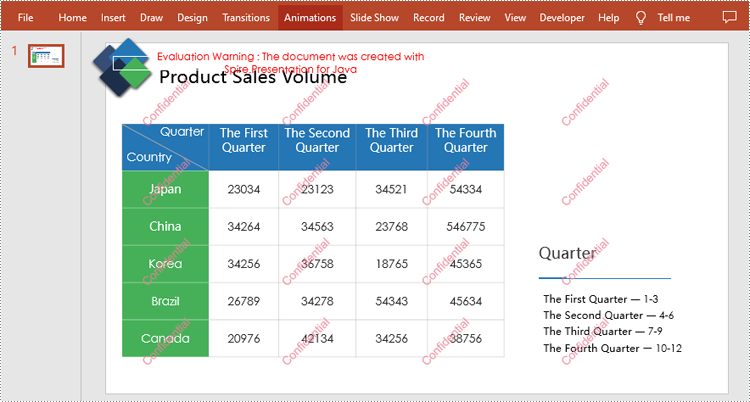
Java: Add Text Watermark to PowerPoint
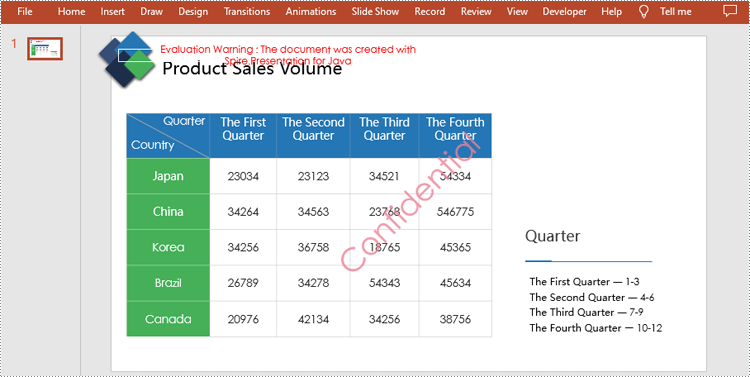
Text watermark refers to a transparent or translucent logo or information added in the form of text on documents, images or other media. This feature is also applicable to PowerPoint presentations. Overlaying text watermarks on slides helps users identify copyright ownership, protect document security, or convey other information. In this article, we will show you how to add text watermark to PowerPoint slide using Spire.Presentation for Java.
Install Spire.Presentation for Java
First of all, you're required to add the Spire.Presentation.jar file as a dependency in your Java program. The JAR file can be downloaded from this link. If you use Maven, you can easily import the JAR file in your application by adding the following code to your project's pom.xml file.
<repositories>
    <repository>
        <id>com.e-iceblue</id>
        <name>e-iceblue</name>
        <url>https://repo.e-iceblue.com/nexus/content/groups/public/</url>
    </repository>
</repositories>
<dependencies>
    <dependency>
        <groupId>e-iceblue</groupId>
        <artifactId>spire.presentation</artifactId>
        <version>11.9.10</version>
    </dependency>
</dependencies>
Add a Single Text Watermark to Slide
Spire.Presentation for Java supports adding a single text watermark by inserting a shape to slide using Presentation.getSlides().get().getShapes().appendShape() method. And Then set text of it by calling IAutoShape.getTextFrame().setText() method. The following are detailed steps.
- Create a Presentation object and load a sample file using Presentation.loadFromFile() method.
- Set the width and height of watermark string.
- Create a Rectangle2D.Double object and specify the position and size of the rectangle shape by calling Presentation.getSlideSize().getSize().getWidth() and Presentation.getSlideSize().getSize().getHeight() methods.
- Add the rectangle shape to the first slide using Presentation.getSlides().get().getShapes().appendShape() method.
- Set the style of the shape.
- Set text of the shape by using IAutoShape.getTextFrame().setText() and get the specific range using IAutoShape.getTextFrame().getTextRange() method.
- Set the style of the text range.
- Save the result file using Presentation.saveToFile() method.
- Java
import com.spire.presentation.*;
import com.spire.presentation.drawing.FillFormatType;
import java.awt.*;
import java.awt.geom.Rectangle2D;

public class InsertSingleWatermark {
    public static void main(String[] args) throws Exception {

        //Create a Presentation object and load a sample file
        Presentation presentation = new Presentation();
        presentation.loadFromFile("sample.pptx");

        //Set the width and height of watermark string
        int width= 400;
        int height= 300;

        //Define the position and size of shape
        Rectangle2D.Double rect = new Rectangle2D.Double((presentation.getSlideSize().getSize().getWidth() - width) / 2,
                (presentation.getSlideSize().getSize().getHeight() - height) / 2, width, height);

        //Add the shape to the first slide
        IAutoShape shape = presentation.getSlides().get(0).getShapes().appendShape(ShapeType.RECTANGLE, rect);

        //Set the style of shape
        shape.getFill().setFillType(FillFormatType.NONE);
        shape.getShapeStyle().getLineColor().setColor(Color.white);
        shape.setRotation(-45);
        shape.getLocking().setSelectionProtection(true);
        shape.getLine().setFillType(FillFormatType.NONE);

        //Add text to shape
        shape.getTextFrame().setText("Confidential");
        PortionEx textRange = shape.getTextFrame().getTextRange();

        //Set the style of the text range
        textRange.getFill().setFillType(FillFormatType.SOLID);
        textRange.setFontHeight(50);
        Color color = new Color(237,129,150,200);
        textRange.getFill().getSolidColor().setColor(color);


        //Save the result document
        presentation.saveToFile("output/SingleWatermark.pptx", FileFormat.PPTX_2010);
        presentation.dispose();
    }

}
Add a Tiled Text Watermark to Slide
By calling Presentation.getSlides().get().getShapes().appendShape() method multiple times in a loop, multiple rectangle shapes can be added at different positions to achieve the effect of tiled watermarks. The following are detailed steps.
- Create a Presentation object and load a sample file using Presentation.loadFromFile() method.
- Set the text of watermarks and measure the size of the watermark text.
- Initialize x and y coordinate of the watermark. And then add multiple rectangle shapes to slides by calling Presentation.getSlides().get().getShapes().appendShape() method for multiple times in a loop.
- Set the style of the shapes.
- Add text to the shapes by using IAutoShape.getTextFrame().setText() method and get the specific ranges using IAutoShape.getTextFrame().getTextRange() method.
- Set the style of the text ranges.
- Save the result file using Presentation.saveToFile() method.
- Java
import com.spire.presentation.*;
import com.spire.presentation.Presentation;
import com.spire.presentation.drawing.*;
import java.awt.*;
import java.awt.geom.Rectangle2D;
import java.awt.image.BufferedImage;

public class InsertTiledWatermark {
    public static void main(String[] args) throws Exception{

        //Create a Presentation object and load a sample file
        Presentation presentation = new Presentation();
        presentation.loadFromFile(""sample.pptx"");

        //Set the text of watermarks
        String watermarkText = ""Confidential"";

        //Measure the size of the watermark text
        Image image = new BufferedImage(1, 1, BufferedImage.TYPE_INT_ARGB);
        Graphics2D g2d = (Graphics2D) image.getGraphics();
        Font font = new Font(""Arial"", Font.BOLD, 20);
        g2d.setFont(font);
        FontMetrics fm = g2d.getFontMetrics();
        Rectangle2D strSize = fm.getStringBounds(watermarkText, g2d);

        //Initialize x and y coordinate
        float x = 30;
        float y = 80;

        for (int rowNum = 0; rowNum < 4; rowNum++) {
            for (int colNum = 0; colNum < 3; colNum++) {

                //Add rectangle shapes to the first slide
                Rectangle2D rect = new Rectangle2D.Float(x, y, (float) strSize.getWidth() + 10, (float) strSize.getHeight());
                IAutoShape shape = presentation.getSlides().get(0).getShapes().appendShape(ShapeType.RECTANGLE, rect);

                //Set the style of the shapes
                shape.getFill().setFillType(FillFormatType.NONE);
                shape.getShapeStyle().getLineColor().setColor(new Color(1, 1, 1, 0));
                shape.setRotation(-45);
                shape.getLocking().setSelectionProtection(true);
                shape.getLine().setFillType(FillFormatType.NONE);

                //Add watermark text to the shapes
                shape.getTextFrame().setText(watermarkText);
                PortionEx textRange = shape.getTextFrame().getTextRange();

                //Set the style of the text ranges
                textRange.getFill().setFillType(FillFormatType.SOLID);
                textRange.setLatinFont(new TextFont(font.getName()));
                textRange.setFontMinSize(font.getSize());
                Color color = new Color(237,129,150,200);
                textRange.getFill().getSolidColor().setColor(color);

                x += (100 + strSize.getWidth());

            }
            x = 30;
            y += (100 + strSize.getHeight());
        }

        //Save the result document
        presentation.saveToFile(""output/TiledWatermark.pptx"", FileFormat.PPTX_2013);
        presentation.dispose();
    }
}
Apply for a Temporary License
If you'd like to remove the evaluation message from the generated documents, or to get rid of the function limitations, please request a 30-day trial license for yourself.
Java: Set the Background Color or Background Image for PDF
Proper backgrounds can make different content elements of PDF documents better matched and improve the visual impression and reading experience of PDF documents. Besides, it's important to add different backgrounds to PDF documents for different usage scenarios to enhance the professionalism of the documents. This article will show how to use Spire.PDF for Java to set the background color and background image for PDF documents.
Install Spire.PDF for Java
First, you're required to add the Spire.Pdf.jar file as a dependency in your Java program. The JAR file can be downloaded from this link. If you use Maven, you can easily import the JAR file in your application by adding the following code to your project's pom.xml file.
<repositories>
    <repository>
        <id>com.e-iceblue</id>
        <name>e-iceblue</name>
        <url>https://repo.e-iceblue.com/nexus/content/groups/public/</url>
    </repository>
</repositories>
<dependencies>
    <dependency>
        <groupId>e-iceblue</groupId>
        <artifactId>spire.pdf</artifactId>
        <version>12.10.3</version>
    </dependency>
</dependencies>
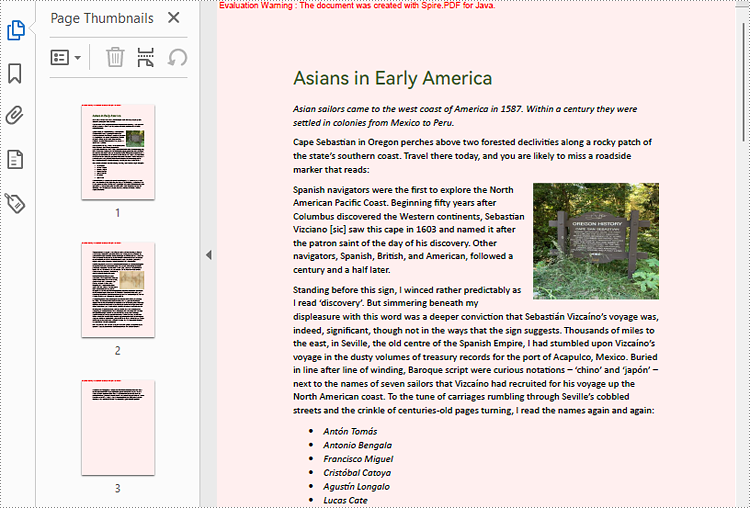
Add Background Color to PDF Documents in Java
As setting the background of a PDF document needs to be done page by page, we can loop through all the pages in the document and use the PdfPageBase.setBackgroundColor() method to set the background color for each page. The following are the detailed steps:
- Create an object of PdfDocument.
- Load a PDF document using PdfDocument.loadFromFile() method.
- Loop through the pages in the PDF document and add a background color to each page using PdfPageBase.setBackgroundColor() method. You can also use the PdfPageBase.setBackgroudOpacity() method to set the opacity of the background.
- Save the document using PdfDocument.saveToFile() method.
- Java
import com.spire.pdf.PdfDocument;
import com.spire.pdf.PdfPageBase;

import java.awt.*;

public class SetPDFBackgroundColor {
    public static void main(String[] args) {

        //Create an object of PdfDocument
        PdfDocument pdf = new PdfDocument();

        //Load a PDF file
        pdf.loadFromFile("Sample.pdf");

        //Loop through the pages in the PDF file
        for(Object obj : (Iterable) pdf.getPages()) {
            PdfPageBase page = (PdfPageBase) obj;
            //Set the background color for each page
            page.setBackgroundColor(Color.PINK);
            //Set the opacity of the background
            page.setBackgroudOpacity(0.2f);
        }


        //Save the PDF file
        pdf.saveToFile("BackgroundColor.pdf");
    }
}
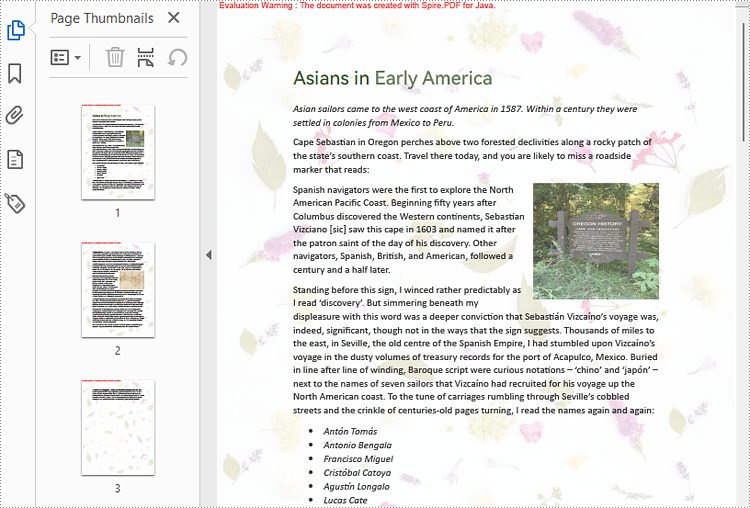
Add Background Picture to PDF Documents in Java
Spire.PDF for Java provides the PdfPageBase.setBackgroundImage() to set a picture as the PDF page background. The detailed steps for adding an image background to a PDF document are as follows:
- Create an object of PdfDocument.
- Load a PDF document using PdfDocument.loadFromFile() method.
- Loop through the pages in the PDF document and add a background picture to each page using PdfPageBase.setBackgroundImage() method. You can also use the PdfPageBase.setBackgroudOpacity() method to set the opacity of the background.
- Save the document using PdfDocument.saveToFile() method.
- Java
import com.spire.pdf.PdfDocument;
import com.spire.pdf.PdfPageBase;

import javax.imageio.ImageIO;
import java.awt.image.BufferedImage;
import java.io.File;
import java.io.IOException;

public class SetPDFBackgroundImage {
    public static void main(String[] args) throws IOException {

        //Create an object of PdfDocument
        PdfDocument pdf = new PdfDocument();

        //Load a PDF file
        pdf.loadFromFile("Sample.pdf");

        //Load an image
        BufferedImage background = ImageIO.read(new File("background.jpg"));

        //Loop through the pages in the PDF file
        for(Object obj : (Iterable) pdf.getPages()) {
            PdfPageBase page = (PdfPageBase) obj;
            //Set the background color for each page
            page.setBackgroundColor(Color.PINK);
            //Set the opacity of the background
            page.setBackgroudOpacity(0.2f);
        }

        //Save the PDF file
        pdf.saveToFile("BackgroundImage.pdf");
    }
}
Apply for a Temporary License
If you'd like to remove the evaluation message from the generated documents, or to get rid of the function limitations, please request a 30-day trial license for yourself.
Java: Create Tables in a PDF Document
A table represents information or data in the form of horizontal rows and vertical columns. Creating tables is often more efficient than describing the data in the paragraph text, especially when the data is numerical or large. The tabular data presentation makes it easier to read and understand. In this article, you will learn how to create tables in a PDF document in Java using Spire.PDF for Java.
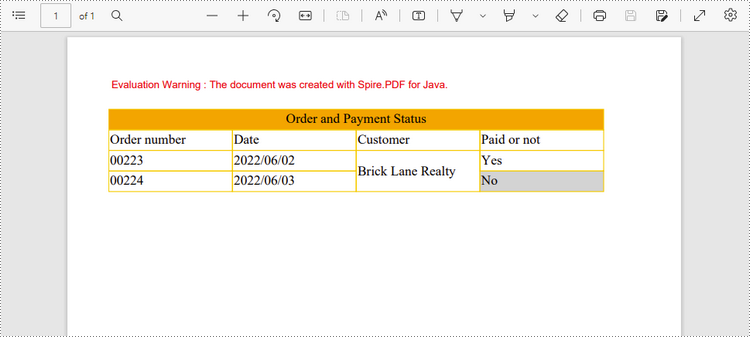
Spire.PDF for Java offers the PdfTable and the PdfGrid class to work with the tables in a PDF document. The PdfTable class is used to quickly create simple, regular tables without too much formatting, while the PdfGrid class is used to create more complex tables.
The table below lists the differences between these two classes.
| PdfTable | PdfGrid | |
| Formatting | ||
| Row | Can be set through events. No API support. | Can be set through API. |
| Column | Can be set through API. | Can be set through API. |
| Cell | Can be set through events. No API support. | Can be set through API. |
| Others | ||
| Column span | Not support. | Can be set through API. |
| Row span | Can be set through events. No API support. | Can be set through API. |
| Nested table | Can be set through events. No API support. | Can be set through API. |
| Events | BeginCellLayout, EndCellLayout, BeginRowLayout, EndRowLayout, BeginPageLayout, EndPageLayout. | BeginPageLayout, EndPageLayout. |
The following sections demonstrate how to create a table in PDF using the PdfTable class and the PdfGrid class, respectively.
Install Spire.PDF for Java
First of all, you're required to add the Spire.Pdf.jar file as a dependency in your Java program. The JAR file can be downloaded from this link. If you use Maven, you can easily import the JAR file in your application by adding the following code to your project's pom.xml file.
<repositories>
    <repository>
        <id>com.e-iceblue</id>
        <name>e-iceblue</name>
        <url>https://repo.e-iceblue.com/nexus/content/groups/public/</url>
    </repository>
</repositories>
<dependencies>
    <dependency>
        <groupId>e-iceblue</groupId>
        <artifactId>spire.pdf</artifactId>
        <version>12.10.3</version>
    </dependency>
</dependencies>
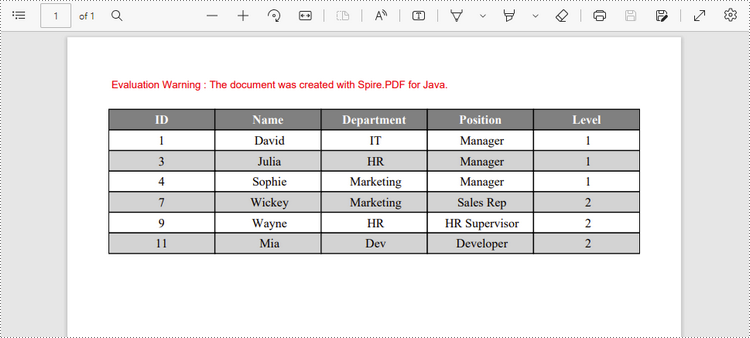
Create a Table in PDF Using PdfTable Class
The following are the steps to create a table using the PdfTable class using Spire.PDF for Java.
- Create a PdfDocument object.
- Add a page to it using PdfDocument.getPages().add() method.
- Create a Pdftable object.
- Set the table style using the methods under PdfTableStyle object which is returned by PdfTable.getTableStyle() method.
- Insert data to table using PdfTable.setDataSource() method.
- Set row height and row color through BeginRowLayout event.
- Draw table on the PDF page using PdfTable.draw() method.
- Save the document to a PDF file using PdfDocument.saveToFile() method.
- Java
import com.spire.data.table.DataTable;
import com.spire.pdf.PdfDocument;
import com.spire.pdf.PdfPageBase;
import com.spire.pdf.PdfPageSize;
import com.spire.pdf.graphics.*;
import com.spire.pdf.tables.*;

import java.awt.*;
import java.awt.geom.Point2D;

public class CreateTable {

    public static void main(String[] args) {

        //Create a PdfDocument object
        PdfDocument doc = new PdfDocument();

        //Add a page
        PdfPageBase page = doc.getPages().add(PdfPageSize.A4, new PdfMargins(40));

        //Create a PdfTable object
        PdfTable table = new PdfTable();

        //Set font for header and the rest cells
        table.getStyle().getDefaultStyle().setFont(new PdfTrueTypeFont(new Font("Times New Roman", Font.PLAIN, 12), true));
        table.getStyle().getHeaderStyle().setFont(new PdfTrueTypeFont(new Font("Times New Roman", Font.BOLD, 12), true));

        //Define data
        String[] data = {"ID;Name;Department;Position;Level",
                "1; David; IT; Manager; 1",
                "3; Julia; HR; Manager; 1",
                "4; Sophie; Marketing; Manager; 1",
                "7; Wickey; Marketing; Sales Rep; 2",
                "9; Wayne; HR; HR Supervisor; 2",
                "11; Mia; Dev; Developer; 2"};
        String[][] dataSource = new String[data.length][];
        for (int i = 0; i < data.length; i++) {
            dataSource[i] = data[i].split("[;]", -1);
        }

        //Set data as the table data
        table.setDataSource(dataSource);

        //Set the first row as header row
        table.getStyle().setHeaderSource(PdfHeaderSource.Rows);
        table.getStyle().setHeaderRowCount(1);

        //Show header(the header is hidden by default)
        table.getStyle().setShowHeader(true);

        //Set font color and background color of header row
        table.getStyle().getHeaderStyle().setBackgroundBrush(PdfBrushes.getGray());
        table.getStyle().getHeaderStyle().setTextBrush(PdfBrushes.getWhite());

        //Set text alignment in header row
        table.getStyle().getHeaderStyle().setStringFormat(new PdfStringFormat(PdfTextAlignment.Center, PdfVerticalAlignment.Middle));

        //Set text alignment in other cells
        for (int i = 0; i < table.getColumns().getCount(); i++) {
            table.getColumns().get(i).setStringFormat(new PdfStringFormat(PdfTextAlignment.Center, PdfVerticalAlignment.Middle));
        }

        //Register with BeginRowLayout event
        table.addBeginRowLayoutEventHandler(new BeginRowLayoutEventHandler() {

            public void invoke(Object sender, BeginRowLayoutEventArgs args) {
                Table_BeginRowLayout(sender, args);

            }
        });


        //Draw table on the page
        table.draw(page, new Point2D.Float(0, 30));

        //Save the document to a PDF file
        doc.saveToFile("output/PdfTable.pdf");

    }

    //Event handler
    private static void Table_BeginRowLayout(Object sender, BeginRowLayoutEventArgs args) {

        //Set row height
        args.setMinimalHeight(20f);

        //Alternate color of rows except the header row
        if (args.getRowIndex() == 0) {
            return;
        }
        if (args.getRowIndex() % 2 == 0) {
            args.getCellStyle().setBackgroundBrush(PdfBrushes.getLightGray());
        } else {
            args.getCellStyle().setBackgroundBrush(PdfBrushes.getWhite());
        }
    }
}
Create a Table in PDF Using PdfGrid Class
Below are the steps to create a table in PDF using the PdfGrid class using Spire.PDF for Java.
- Create a PdfDocument object.
- Add a page to it using PdfDocument.getPages().add() method.
- Create a PdfGrid object.
- Set the table style using the methods under the PdfGridStyle object which is returned by PdfGrid.getStyle() method.
- Add rows and columns to the table using PdfGrid.getRows().add() method and PdfGrid.getColumns().add() method.
- Insert data to specific cells using PdfGridCell.setValue() method.
- Span cells across columns or rows using PdfGridCell.setRowSpan() method or PdfGridCell.setColumnSpan() method.
- Set the formatting of a specific cell using PdfGridCell.setStringFormat() method and the methods under PdfGridCellStyle object.
- Draw table on the PDF page using PdfGrid.draw() method.
- Save the document to a PDF file using PdfDocument.saveToFile() method.
- Java
import com.spire.pdf.*;
import com.spire.pdf.graphics.*;
import com.spire.pdf.grid.PdfGrid;
import com.spire.pdf.grid.PdfGridRow;

import java.awt.*;
import java.awt.geom.Point2D;

public class CreateGrid {

    public static void main(String[] args) {

        //Create a PdfDocument object
        PdfDocument doc = new PdfDocument();

        //Add a page
        PdfPageBase page = doc.getPages().add(PdfPageSize.A4,new PdfMargins(40));

        //Create a PdfGrid
        PdfGrid grid = new PdfGrid();

        //Set cell padding
        grid.getStyle().setCellPadding(new PdfPaddings(1, 1, 1, 1));

        //Set font
        grid.getStyle().setFont(new PdfTrueTypeFont(new Font("Times New Roman", Font.PLAIN, 13), true));

        //Add rows and columns
        PdfGridRow row1 = grid.getRows().add();
        PdfGridRow row2 = grid.getRows().add();
        PdfGridRow row3 = grid.getRows().add();
        PdfGridRow row4 = grid.getRows().add();
        grid.getColumns().add(4);

        //Set column width
        for (int i = 0; i < grid.getColumns().getCount(); i++) {

            grid.getColumns().get(i).setWidth(120);
        }

        //Write data into specific cells
        row1.getCells().get(0).setValue("Order and Payment Status");
        row2.getCells().get(0).setValue("Order number");
        row2.getCells().get(1).setValue("Date");
        row2.getCells().get(2).setValue ("Customer");
        row2.getCells().get(3).setValue("Paid or not");
        row3.getCells().get(0).setValue("00223");
        row3.getCells().get(1).setValue("2022/06/02");
        row3.getCells().get(2).setValue("Brick Lane Realty");
        row3.getCells().get(3).setValue("Yes");
        row4.getCells().get(0).setValue("00224");
        row4.getCells().get(1).setValue("2022/06/03");
        row4.getCells().get(3).setValue("No");

        //Span cell across columns
        row1.getCells().get(0).setColumnSpan(4);

        //Span cell across rows
        row3.getCells().get(2).setRowSpan(2);

        //Set text alignment of specific cells
        row1.getCells().get(0).setStringFormat(new PdfStringFormat(PdfTextAlignment.Center));
        row3.getCells().get(2).setStringFormat(new PdfStringFormat(PdfTextAlignment.Left, PdfVerticalAlignment.Middle));

        //Set background color of specific cells
        row1.getCells().get(0).getStyle().setBackgroundBrush(PdfBrushes.getOrange());
        row4.getCells().get(3).getStyle().setBackgroundBrush(PdfBrushes.getLightGray());

        //Format cell border
        PdfBorders borders = new PdfBorders();
        borders.setAll(new PdfPen(new PdfRGBColor(Color.ORANGE), 0.8f));
        for (int i = 0; i < grid.getRows().getCapacity(); i++) {

            PdfGridRow gridRow = grid.getRows().get(i);
            gridRow.setHeight(20f);
            for (int j = 0; j < gridRow.getCells().getCount(); j++) {
                gridRow.getCells().get(j).getStyle().setBorders(borders);
            }

        }

        //Draw table on the page
        grid.draw(page, new Point2D.Float(0, 30));

        //Save the document to a PDF file
        doc.saveToFile("output/PdfGrid.pdf");
    }
}
Apply for a Temporary License
If you'd like to remove the evaluation message from the generated documents, or to get rid of the function limitations, please request a 30-day trial license for yourself.
Java: Encrypt or Decrypt PDF Files
For PDF documents that contain confidential or sensitive information, you may want to password protect these documents to ensure that only the designated person can access the information. This article will demonstrate how to programmatically encrypt a PDF document and decrypt a password-protected document using Spire.PDF for Java.
Install Spire.PDF for Java
First of all, you're required to add the Spire.Pdf.jar file as a dependency in your Java program. The JAR file can be downloaded from this link. If you use Maven, you can easily import the JAR file in your application by adding the following code to your project's pom.xml file.
<repositories>
    <repository>
        <id>com.e-iceblue</id>
        <name>e-iceblue</name>
        <url>https://repo.e-iceblue.com/nexus/content/groups/public/</url>
    </repository>
</repositories>
<dependencies>
    <dependency>
        <groupId>e-iceblue</groupId>
        <artifactId>spire.pdf</artifactId>
        <version>12.10.3</version>
    </dependency>
</dependencies>
Encrypt a PDF File with Password
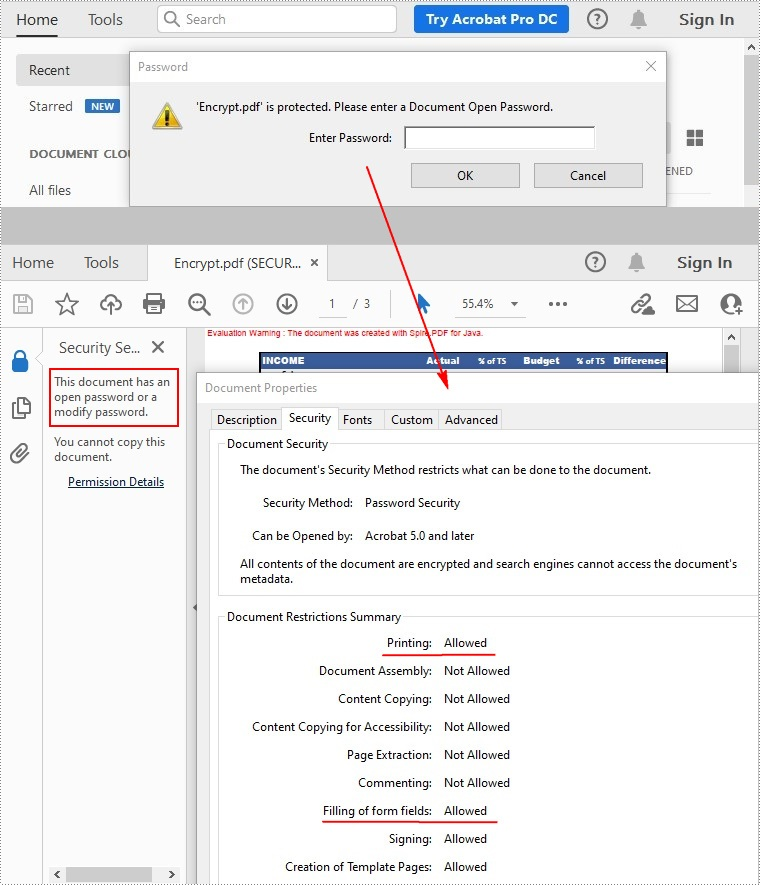
There are two kinds of passwords for encrypting a PDF file - open password and permission password. The former is set to open the PDF file, while the latter is set to restrict printing, contents copying, commenting, etc. If a PDF file is secured with both types of passwords, it can be opened with either password.
The PdfDocument.getSecurity().encrypt(java.lang.String openPassword, java.lang.String permissionPassword, java.util.EnumSet<PdfPermissionsFlags> permissions, PdfEncryptionKeySize keySize) method offered by Spire.PDF for Java allows you to set both open password and permission password to encrypt PDF files. The detailed steps are as follows.
- Create a PdfDocument instance.
- Load a sample PDF file using PdfDocument.loadFromFile() method.
- Set open password, permission password, encryption key size and permissions.
- Encrypt the PDF file using PdfDocument.getSecurity().encrypt(java.lang.String openPassword, java.lang.String permissionPassword, java.util.EnumSet<PdfPermissionsFlags> permissions, PdfEncryptionKeySize keySize) method.
- Save the result file using PdfDocument.saveToFile () method.
- Java
import java.util.EnumSet;

import com.spire.pdf.PdfDocument;
import com.spire.pdf.security.PdfEncryptionKeySize;
import com.spire.pdf.security.PdfPermissionsFlags;

public class EncryptPDF {

    public static void main(String[] args) {

        // Input file path
        String input = "data/encryption.pdf";

        // Output file path
        String output = "output/encryption_output.pdf";

        // Create a new PDF document object
        PdfDocument doc = new PdfDocument();

        // Load the PDF document from the input file path
        doc.loadFromFile(input);

        // Create a password-based security policy with open and permission passwords
        PdfSecurityPolicy securityPolicy = new PdfPasswordSecurityPolicy("openPwd", "permissionPwd");

        // Set the encryption algorithm to AES 256-bit
        securityPolicy.setEncryptionAlgorithm(PdfEncryptionAlgorithm.AES_256);

        // Set document privilege to forbid all actions
        securityPolicy.setDocumentPrivilege(PdfDocumentPrivilege.getForbidAll());

        // Allow degraded printing
        securityPolicy.getDocumentPrivilege().setAllowDegradedPrinting(true);

        // Allow modification of annotations
        securityPolicy.getDocumentPrivilege().setAllowModifyAnnotations(true);

        // Allow document assembly
        securityPolicy.getDocumentPrivilege().setAllowAssembly(true);

        // Allow modification of document contents
        securityPolicy.getDocumentPrivilege().setAllowModifyContents(true);

        // Allow filling form fields
        securityPolicy.getDocumentPrivilege().setAllowFillFormFields(true);

        // Allow printing
        securityPolicy.getDocumentPrivilege().setAllowPrint(true);

        // Allow printing
        doc.encrypt(securityPolicy);

        // Save the encrypted document to the output file path
        doc.saveToFile(output, FileFormat.PDF);

        // Dispose of the document resources
        doc.dispose();

    }

}
Remove Password to Decrypt a PDF File
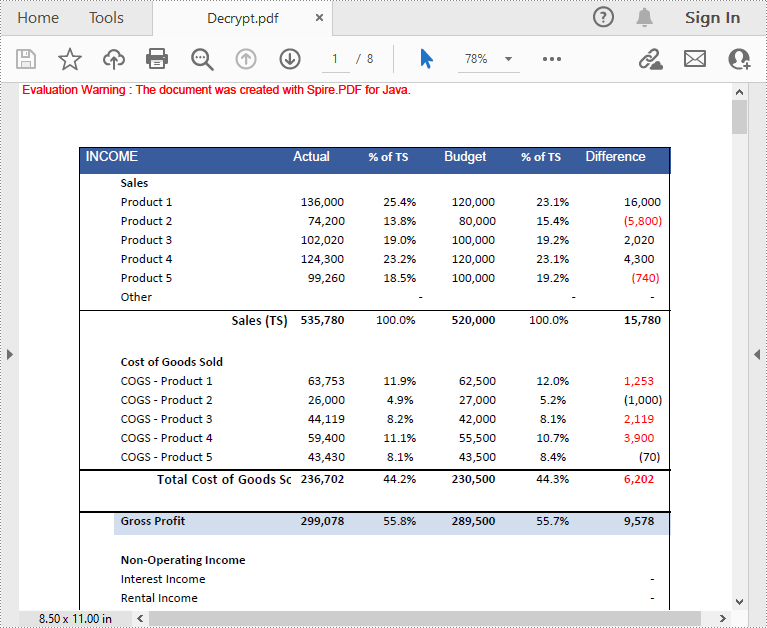
When you need to remove the password from a PDF file, you can set the open password and permission password to empty while calling the PdfDocument.getSecurity().encrypt(java.lang.String openPassword, java.lang.String permissionPassword, java.util.EnumSet<PdfPermissionsFlags> permissions, PdfEncryptionKeySize keySize, java.lang.String originalPermissionPassword) method. The detailed steps are as follows.
- Create a PdfDocument object.
- Load the encrypted PDF file with password using PdfDocument.loadFromFile(java.lang.String filename, java.lang.String password) method.
- Decrypt the PDF file by setting the open password and permission password to empty using PdfDocument.getSecurity().encrypt(java.lang.String openPassword, java.lang.String permissionPassword, java.util.EnumSet<PdfPermissionsFlags> permissions, PdfEncryptionKeySize keySize, java.lang.String originalPermissionPassword) method.
- Save the result file using PdfDocument.saveToFile() method.
- Java
import com.spire.pdf.PdfDocument;
import com.spire.pdf.security.PdfEncryptionKeySize;
import com.spire.pdf.security.PdfPermissionsFlags;

public class DecryptPDF {

    public static void main(String[] args) throws Exception {

        // Specify the input and output file paths
        String input = "data/decryption.pdf";
        String output = "output/decryption_result.pdf";

        //load the pdf document.
        PdfDocument doc = new PdfDocument();
        doc.loadFromFile(input, "test");

        //decrypt the document
        doc.decrypt();

        //save the file
        doc.saveToFile(output, FileFormat.PDF);

        // Close the PDF document to release resources
        doc.close();

        // Dispose of the PDF document to free up system resources
        doc.dispose();

    }
}
Apply for a Temporary License
If you'd like to remove the evaluation message from the generated documents, or to get rid of the function limitations, please request a 30-day trial license for yourself.
Get Paragraphs by Style Name in Word in C#, VB.NET
By using Spire.Doc, you can not only retrieve the style names of all paragraphs in a Word document, but also get the paragraphs with a specific style name. This is useful especially when you need to get the text in Title, Heading 1, Subtitle, etc.
| Paragraph Style Names in Word | Paragraph Style Names in Spire.Doc |
| Title | Title |
| Heading 1 | Heading1 |
| Heading 2 | Heading2 |
| Heading 3 | Heading3 |
| Heading 4 | Heading3 |
| Subtitle | Subtitle |
Step 1: Load a sample Word file when initializing the Document object.
Document doc = new Document("sample.docx");
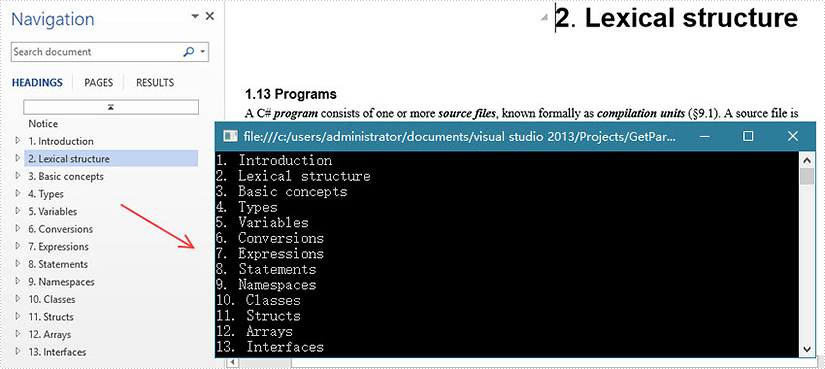
Step 2: Traverse the sections and paragraphs in the document and determine if the paragraph style name is "Heading1", if so, write the paragraph text on screen.
foreach (Section section in doc.Sections)
{
    foreach (Paragraph paragraph in section.Paragraphs)
    {
        if (paragraph.StyleName == "Heading1")
        {
            Console.WriteLine(paragraph.Text);
        }
    }
}
Output:
Full Code:
using Spire.Doc;
using Spire.Doc.Documents;
using System;
namespace GetParagh
{
 class Program
    {

     static void Main(string[] args)
     {
         Document doc = new Document("sample.docx");
         foreach (Section section in doc.Sections)
         {
             foreach (Paragraph paragraph in section.Paragraphs)
             {
                 if (paragraph.StyleName == "Heading1")
                 {
                     Console.WriteLine(paragraph.Text);
                 }
             }
         }
     }

    }
}
Imports Spire.Doc
Imports Spire.Doc.Documents
Namespace GetParagh
	Class Program

		Private Shared Sub Main(args As String())
			Dim doc As New Document("sample.docx")
			For Each section As Section In doc.Sections
				For Each paragraph As Paragraph In section.Paragraphs
					If paragraph.StyleName = "Heading1" Then
						Console.WriteLine(paragraph.Text)
					End If
				Next
			Next
		End Sub

	End Class
End Namespace