Comment convertir un fichier TIFF en PDF : 4 méthodes pratiques
Table des matières
- Méthode 1 : Convertir TIFF en PDF avec Adobe Acrobat
- Méthode 2 : Convertir TIFF en PDF en utilisant l'impression en PDF
- Méthode 3 : Convertir TIFF en PDF avec des outils en ligne
- Méthode 4 : Convertir TIFF en PDF par programmation avec Spire.PDF
- Comment choisir la bonne méthode
- Réflexions finales
- FAQ
Le format TIFF (Tagged Image File Format) est largement utilisé pour les documents numérisés, les dessins techniques, les images médicales et l'archivage à long terme en raison de sa haute qualité d'image et de sa prise en charge des fichiers multipages. Cependant, les fichiers TIFF ne sont pas toujours faciles à partager, à prévisualiser ou à gérer. De nombreux appareils et applications n'affichent pas correctement les fichiers TIFF, et les fichiers TIFF multipages volumineux peuvent être peu pratiques à distribuer ou à imprimer.
Le PDF, en revanche, est un format universellement pris en charge qui préserve la mise en page, fonctionne de manière cohérente sur toutes les plateformes et est idéal pour le partage, l'impression et l'archivage. La conversion des fichiers TIFF en PDF permet d'améliorer la compatibilité et de simplifier les flux de travail documentaires.
Dans cet article, nous explorerons quatre méthodes pratiques pour convertir un fichier TIFF en PDF, allant des outils manuels simples à une solution professionnelle et automatisée, afin que vous puissiez choisir l'approche qui correspond le mieux à vos besoins.
Aperçu des méthodes :
- Méthode 1 : Convertir TIFF en PDF avec Adobe Acrobat
- Méthode 2 : Convertir TIFF en PDF en utilisant l'impression en PDF
- Méthode 3 : Convertir TIFF en PDF avec des outils en ligne
- Méthode 4 : Convertir TIFF en PDF par programmation avec Spire.PDF
Méthode 1 : Convertir TIFF en PDF avec Adobe Acrobat
Idéal pour : Les utilisateurs qui possèdent déjà Adobe Acrobat Pro et ont besoin d'un résultat fiable et de haute qualité.
Adobe Acrobat Pro offre un moyen simple de convertir des fichiers image, y compris TIFF, en documents PDF. Il prend en charge les fichiers TIFF d'une seule page et de plusieurs pages et préserve bien la qualité de l'image.
Instructions étape par étape
-
Ouvrez Adobe Acrobat Pro.
-
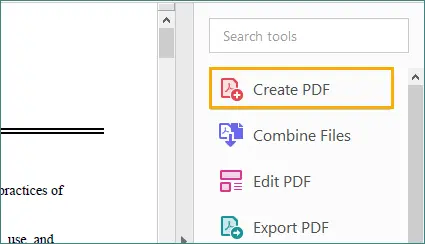
Dans le panneau de droite, cliquez sur l'option "Créer un PDF".
-
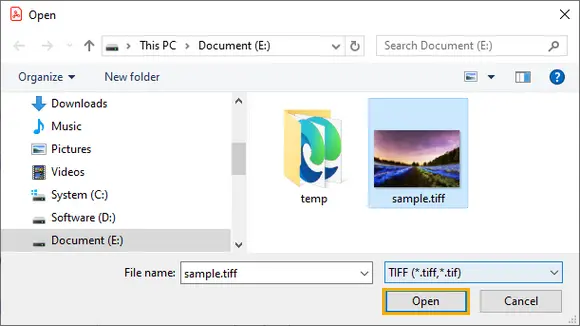
Sélectionnez le fichier TIFF que vous souhaitez convertir et cliquez sur "Ouvrir".
-
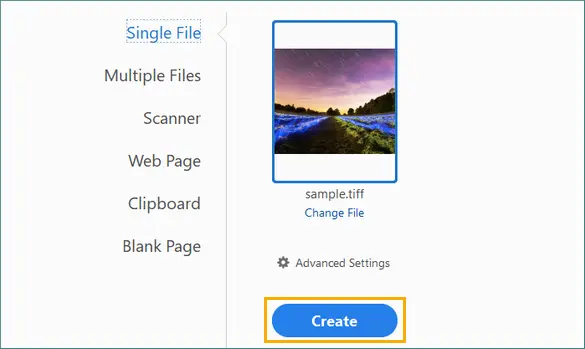
Cliquez sur "Créer" pour convertir le TIFF en document PDF.
-
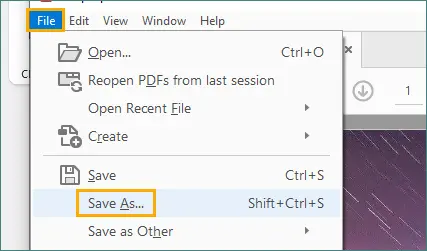
Une fois la conversion terminée, allez dans "Fichier" dans le menu supérieur et sélectionnez "Enregistrer sous" pour enregistrer le PDF généré à l'emplacement de votre choix.
Avantages
- Haute qualité de sortie
- Prise en charge fiable des fichiers TIFF multipages
- Aucune connaissance technique requise
Limites
- Nécessite un abonnement payant
- Processus manuel uniquement
- Ne convient pas aux conversions à grande échelle ou répétées
Adobe Acrobat est idéal pour les professionnels qui utilisent déjà les outils Adobe, mais il peut être excessif pour les utilisateurs qui n'ont besoin que de conversions occasionnelles.
Méthode 2 : Convertir TIFF en PDF en utilisant l'impression en PDF
Idéal pour : Les utilisateurs de Windows qui ont besoin d'une solution rapide et gratuite.
La plupart des systèmes Windows modernes incluent Microsoft Print to PDF, qui vous permet de convertir un fichier TIFF en PDF en utilisant le flux de travail d'impression standard.
Instructions étape par étape
-
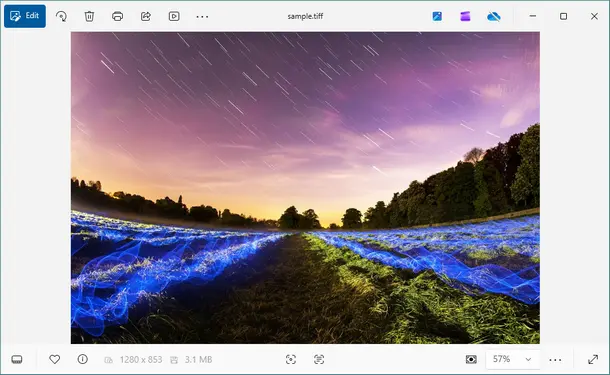
Ouvrez le fichier TIFF dans Windows Photos ou un autre visualiseur d'images.
-
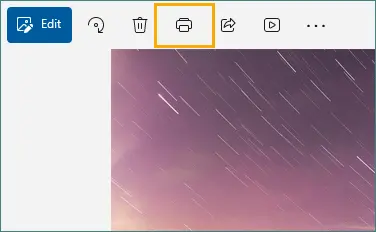
Appuyez sur Ctrl + P ou choisissez Imprimer dans le menu.
-
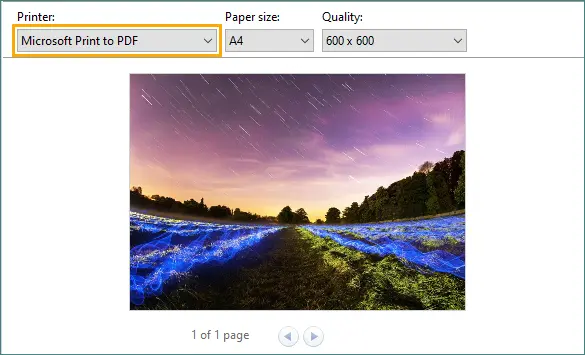
Sélectionnez Microsoft Print to PDF comme imprimante.
-
Ajustez les paramètres d'impression de base si nécessaire.
-
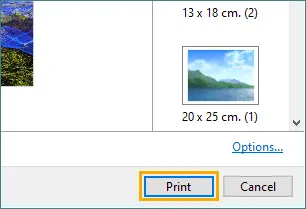
Cliquez sur Imprimer et enregistrez le fichier PDF résultant.
Avantages
- Intégré à Windows
- Gratuit et facile à utiliser
- Aucun logiciel supplémentaire requis
Limites
- Contrôle limité sur la taille de la page et la résolution
- La qualité de sortie dépend des paramètres d'impression
- Non conçu pour le traitement par lots
- La prise en charge des TIFF multipages peut être incohérente
Cette méthode fonctionne bien pour les tâches simples et ponctuelles, mais manque de précision et de flexibilité.
Méthode 3 : Convertir TIFF en PDF avec des outils en ligne
Idéal pour : Les utilisateurs occasionnels qui ne veulent pas installer de logiciel et qui travaillent avec des fichiers non sensibles.
Les convertisseurs TIFF en PDF en ligne vous permettent de télécharger des fichiers via un navigateur Web et de télécharger le PDF converti.
Instructions étape par étape
-
Ouvrez un navigateur Web et visitez un site Web de conversion TIFF en PDF en ligne (par exemple, tiff2pdf).

-
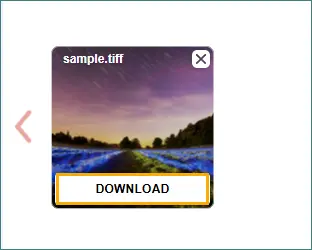
Téléchargez le fichier TIFF. Dans la plupart des cas, la conversion démarre automatiquement ; certains sites Web peuvent vous demander de confirmer l'action.
-
Téléchargez le fichier PDF converti une fois le processus terminé.
Avantages
- Aucune installation requise
- Fonctionne sur n'importe quel système d'exploitation
- Simple et rapide pour les petits fichiers
Limites
- Restrictions de taille de fichier et d'utilisation
- Nécessite une connexion Internet
- Risques potentiels pour la confidentialité et la sécurité
- Contrôle limité sur le formatage de sortie
Remarque : Les outils en ligne ne sont pas recommandés pour les documents confidentiels ou réglementés, tels que les contrats juridiques, les dossiers financiers ou les fichiers médicaux.
Méthode 4 : Convertir TIFF en PDF par programmation avec Spire.PDF
Idéal pour : L'automatisation, le traitement par lots et les flux de travail documentaires professionnels.
Lorsque la conversion de TIFF en PDF doit être précise, reproductible et évolutive, une approche programmatique est la solution la plus fiable. Spire.PDF for Python est une bibliothèque PDF professionnelle qui permet un contrôle précis sur la manière dont les images TIFF sont rendues dans les documents PDF.
Cette méthode est particulièrement utile pour :
- Fichiers TIFF numérisés de plusieurs pages
- Systèmes d'archivage
- Tâches de conversion côté serveur ou planifiées
Exemple : Convertir un TIFF multipage en PDF avec Spire.PDF for Python
from spire.pdf.common import *
from spire.pdf import *
from PIL import Image

# Create a PdfDocument object
doc = PdfDocument()

# Remove page margins
doc.PageSettings.SetMargins(0.0)

# Load the TIFF image
tiff_image = Image.open("TIFF.tiff")

# Loop through all pages in the TIFF
for i in range(tiff_image.n_frames):
    tiff_image.seek(i)
    frame = tiff_image.copy()
    frame.save(f"temp_{i}.png")

    image = PdfImage.FromFile(f"temp_{i}.png")
    width = image.PhysicalDimension.Width
    height = image.PhysicalDimension.Height

    page = doc.Pages.Add(SizeF(width, height))
    page.Canvas.DrawImage(image, 0.0, 0.0, width, height)

# Save the PDF
doc.SaveToFile("TiffToPdf.pdf", FileFormat.PDF)
doc.Dispose()
Explication étape par étape
- Chargez le fichier TIFF dans l'application.
- Détectez si le TIFF contient plusieurs pages.
- Traitez chaque page TIFF individuellement.
- Créez une nouvelle page PDF qui correspond aux dimensions exactes de l'image.
- Dessinez l'image TIFF sur la page PDF sans marges ni mise à l'échelle.
- Répétez le processus pour toutes les pages TIFF.
- Enregistrez le document PDF final.
Lire la suite : Convertir PDF en TIFF et TIFF en PDF en utilisant Python
Avantages
- Prise en charge précise des fichiers TIFF multipages
- Correspondance exacte de la taille de la page et contrôle de la mise en page
- Convient pour l'automatisation et le traitement par lots
- Sortie PDF de qualité professionnelle
Limites
- Nécessite un environnement Python
- Généralement géré par des équipes informatiques ou du personnel technique
Même pour les non-développeurs, cette approche est précieuse en tant que solution évolutive à long terme qui garantit des résultats cohérents.
En plus de la conversion TIFF en PDF, Spire.PDF prend en charge un large éventail d'opérations liées au PDF, telles que la création de PDF à partir d'autres formats d'image, l'ajout de texte et de filigranes, et la fusion ou ladivision de documents. Ces fonctionnalités facilitent l'extension du même flux de travail à d'autres scénarios de traitement de documents en utilisant la même bibliothèque.
Comment choisir la bonne méthode
| Facteur clé | Adobe Acrobat | Imprimer en PDF | Outils en ligne | Spire.PDF pour Python |
|---|---|---|---|---|
| Facilité d'utilisation | ★★★ | ★★★ | ★★★ | ★★☆ |
| Prise en charge TIFF multipage | ★★★ | ★★★ | ★★★ | ★★★ |
| Qualité de sortie et contrôle de la mise en page | ★★★ | ★★☆ | ★★☆ | ★★★ |
| Automatisation et traitement par lots | ☆☆☆ | ☆☆☆ | ☆☆☆ | ★★★ |
| Confidentialité et sécurité des données | ★★★ | ★★★ | ★☆☆ | ★★★ |
Réflexions finales
Il existe de nombreuses façons de convertir des fichiers TIFF en PDF, et la meilleure méthode dépend de la fréquence à laquelle vous effectuez la tâche et du niveau de contrôle dont vous avez besoin. Les outils manuels comme Adobe Acrobat et Imprimer en PDF sont pratiques pour une utilisation occasionnelle, tandis que les outils en ligne offrent des résultats rapides sans installation.
Pour les organisations et les utilisateurs qui ont besoin de précision, de prise en charge multipage et d'automatisation, Spire.PDF for Python fournit une solution fiable et professionnelle qui s'adapte à votre flux de travail.
FAQ
Q1. Puis-je combiner plusieurs fichiers TIFF en un seul PDF ?
Oui. De nombreux outils vous permettent de fusionner plusieurs fichiers TIFF en un seul PDF. Adobe Acrobat prend en charge la combinaison manuelle de fichiers, tandis que Spire.PDF for Python peut automatiser le processus en ajoutant des pages de plusieurs fichiers TIFF dans un seul document PDF.
Q2. L'impression en PDF est-elle adaptée aux fichiers TIFF volumineux ?
Pas idéal. Il fonctionne mieux pour les fichiers petits ou simples et offre un contrôle limité sur la qualité de sortie et la mise en page.
Q3. Les convertisseurs TIFF en PDF en ligne sont-ils sûrs ?
Ils peuvent être pratiques, mais ils ne sont pas recommandés pour les documents sensibles ou confidentiels, car les fichiers sont téléchargés sur des serveurs tiers.
Q4. Spire.PDF for Python est-il uniquement destiné aux développeurs ?
Bien qu'il nécessite des scripts de base, il est souvent utilisé dans le cadre de systèmes automatisés gérés par des équipes informatiques plutôt que par les utilisateurs finaux.
Vous pourriez également être intéressé par
Cómo convertir un archivo TIFF a PDF: 4 métodos prácticos
Tabla de Contenidos
TIFF (Tagged Image File Format) es ampliamente utilizado para documentos escaneados, dibujos de ingeniería, imágenes médicas y archivado a largo plazo debido a su alta calidad de imagen y soporte para archivos de varias páginas. Sin embargo, los archivos TIFF no siempre son fáciles de compartir, previsualizar o gestionar. Muchos dispositivos y aplicaciones no muestran los archivos TIFF correctamente, y los TIFF de varias páginas grandes pueden ser inconvenientes para distribuir o imprimir.
PDF, por el contrario, es un formato universalmente compatible que preserva el diseño, funciona de manera consistente en todas las plataformas y es ideal para compartir, imprimir y archivar. Convertir archivos TIFF a PDF ayuda a mejorar la compatibilidad y simplifica los flujos de trabajo de documentos.
En este artículo, exploraremos cuatro métodos prácticos para convertir un archivo TIFF a PDF, que van desde herramientas manuales simples hasta una solución profesional y automatizada, para que pueda elegir el enfoque que mejor se adapte a sus necesidades.
Resumen de Métodos:
- Método 1: Convertir TIFF a PDF usando Adobe Acrobat
- Método 2: Convertir TIFF a PDF usando Imprimir a PDF
- Método 3: Convertir TIFF a PDF usando herramientas en línea
- Método 4: Convertir TIFF a PDF programáticamente usando Spire.PDF
Método 1: Convertir TIFF a PDF usando Adobe Acrobat
Ideal para: Usuarios que ya tienen Adobe Acrobat Pro y necesitan resultados fiables y de alta calidad.
Adobe Acrobat Pro ofrece una forma sencilla de convertir archivos de imagen, incluido TIFF, en documentos PDF. Admite archivos TIFF de una o varias páginas y preserva bien la calidad de la imagen.
Instrucciones Paso a Paso
-
Abra Adobe Acrobat Pro.
-
En el panel derecho, haga clic en la opción "Crear PDF".
-
Seleccione el archivo TIFF que desea convertir y haga clic en "Abrir".
-
Haga clic en “Crear” para convertir el TIFF en un documento PDF.
-
Una vez completada la conversión, vaya a “Archivo” en el menú superior y seleccione “Guardar como” para guardar el PDF generado en la ubicación que prefiera.
Ventajas
- Alta calidad de salida
- Soporte fiable para archivos TIFF de varias páginas
- No se requieren conocimientos técnicos
Limitaciones
- Requiere una suscripción de pago
- Proceso solo manual
- No es adecuado para conversiones a gran escala o repetidas
Adobe Acrobat es ideal para profesionales que ya confían en las herramientas de Adobe, pero puede ser excesivo para usuarios que solo necesitan conversiones ocasionales.
Método 2: Convertir TIFF a PDF usando Imprimir a PDF
Ideal para: Usuarios de Windows que necesitan una solución rápida y gratuita.
La mayoría de los sistemas Windows modernos incluyen Microsoft Print to PDF, que le permite convertir un archivo TIFF a PDF utilizando el flujo de trabajo de impresión estándar.
Instrucciones Paso a Paso
-
Abra el archivo TIFF en Fotos de Windows u otro visor de imágenes.
-
Presione Ctrl + P o elija Imprimir en el menú.
-
Seleccione Microsoft Print to PDF como impresora.
-
Ajuste la configuración de impresión básica si es necesario.
-
Haga clic en Imprimir y guarde el archivo PDF resultante.
Ventajas
- Integrado en Windows
- Gratis y fácil de usar
- No se requiere software adicional
Limitaciones
- Control limitado sobre el tamaño de página y la resolución
- La calidad de salida depende de la configuración de impresión
- No está diseñado para el procesamiento por lotes
- El soporte para TIFF de varias páginas puede ser inconsistente
Este método funciona bien para tareas simples y únicas, pero carece de precisión y flexibilidad.
Método 3: Convertir TIFF a PDF usando herramientas en línea
Ideal para: Usuarios ocasionales que no quieren instalar software y trabajan con archivos no sensibles.
Los convertidores de TIFF a PDF en línea le permiten cargar archivos a través de un navegador web y descargar el PDF convertido.
Instrucciones Paso a Paso
-
Abra un navegador web y visite un sitio web de conversión de TIFF a PDF en línea (por ejemplo, tiff2pdf).
-
Suba el archivo TIFF. En la mayoría de los casos, la conversión se inicia automáticamente; algunos sitios web pueden requerir que confirme la acción.
-
Descargue el archivo PDF convertido una vez que se complete el proceso.
Ventajas
- No requiere instalación
- Funciona en cualquier sistema operativo
- Simple y rápido para archivos pequeños
Limitaciones
- Restricciones de tamaño y uso de archivos
- Requiere una conexión a internet
- Riesgos potenciales de privacidad y seguridad
- Control limitado sobre el formato de salida
Nota: No se recomiendan las herramientas en línea para documentos confidenciales o regulados, como contratos legales, registros financieros o archivos médicos.
Método 4: Convertir TIFF a PDF programáticamente usando Spire.PDF
Ideal para: Automatización, procesamiento por lotes y flujos de trabajo de documentos profesionales.
Cuando la conversión de TIFF a PDF necesita ser precisa, repetible y escalable, un enfoque programático es la solución más fiable. Spire.PDF for Python es una biblioteca de PDF profesional que permite un control preciso sobre cómo se representan las imágenes TIFF en documentos PDF.
Este método es especialmente útil para:
- Archivos TIFF escaneados de varias páginas
- Sistemas de archivo
- Tareas de conversión del lado del servidor o programadas
Ejemplo: Convertir un TIFF de varias páginas a PDF con Spire.PDF for Python
from spire.pdf.common import *
from spire.pdf import *
from PIL import Image

# Create a PdfDocument object
doc = PdfDocument()

# Remove page margins
doc.PageSettings.SetMargins(0.0)

# Load the TIFF image
tiff_image = Image.open("TIFF.tiff")

# Loop through all pages in the TIFF
for i in range(tiff_image.n_frames):
    tiff_image.seek(i)
    frame = tiff_image.copy()
    frame.save(f"temp_{i}.png")

    image = PdfImage.FromFile(f"temp_{i}.png")
    width = image.PhysicalDimension.Width
    height = image.PhysicalDimension.Height

    page = doc.Pages.Add(SizeF(width, height))
    page.Canvas.DrawImage(image, 0.0, 0.0, width, height)

# Save the PDF
doc.SaveToFile("TiffToPdf.pdf", FileFormat.PDF)
doc.Dispose()
Explicación Paso a Paso
- Cargue el archivo TIFF en la aplicación.
- Detecte si el TIFF contiene varias páginas.
- Procese cada página TIFF individualmente.
- Cree una nueva página PDF que coincida con las dimensiones exactas de la imagen.
- Dibuje la imagen TIFF en la página PDF sin márgenes ni escalado.
- Repita el proceso para todas las páginas TIFF.
- Guarde el documento PDF final.
Leer más: Convertir PDF a TIFF y TIFF a PDF usando Python
Ventajas
- Soporte preciso para archivos TIFF de varias páginas
- Coincidencia exacta del tamaño de página y control del diseño
- Adecuado para automatización y procesamiento por lotes
- Salida de PDF de calidad profesional
Limitaciones
- Requiere un entorno Python
- Normalmente gestionado por equipos de TI o personal técnico
Incluso para los no desarrolladores, este enfoque es valioso como una solución escalable a largo plazo que garantiza resultados consistentes.
Además de la conversión de TIFF a PDF, Spire.PDF admite una amplia gama de operaciones relacionadas con PDF, como crear PDF a partir de otros formatos de imagen, agregar texto y marcas de agua, y fusionar odividir documentos. Estas capacidades facilitan la extensión del mismo flujo de trabajo a otros escenarios de procesamiento de documentos utilizando la misma biblioteca.
Cómo elegir el método correcto
| Factor Clave | Adobe Acrobat | Imprimir a PDF | Herramientas en Línea | Spire.PDF for Python |
|---|---|---|---|---|
| Facilidad de uso | ★★★ | ★★★ | ★★★ | ★★☆ |
| Soporte para TIFF de varias páginas | ★★★ | ★★★ | ★★★ | ★★★ |
| Calidad de salida y control del diseño | ★★★ | ★★☆ | ★★☆ | ★★★ |
| Automatización y procesamiento por lotes | ☆☆☆ | ☆☆☆ | ☆☆☆ | ★★★ |
| Privacidad y seguridad de los datos | ★★★ | ★★★ | ★☆☆ | ★★★ |
Conclusiones
Hay muchas formas de convertir archivos TIFF a PDF, y el mejor método depende de la frecuencia con la que realice la tarea y de cuánto control necesite. Las herramientas manuales como Adobe Acrobat e Imprimir a PDF son convenientes para un uso ocasional, mientras que las herramientas en línea ofrecen resultados rápidos sin instalación.
Para organizaciones y usuarios que necesitan precisión, soporte para varias páginas y automatización, Spire.PDF for Python proporciona una solución fiable y profesional que se adapta a su flujo de trabajo.
Preguntas Frecuentes
P1. ¿Puedo combinar varios archivos TIFF en un solo PDF?
Sí. Muchas herramientas le permiten fusionar varios archivos TIFF en un solo PDF. Adobe Acrobat admite la combinación de archivos manualmente, mientras que Spire.PDF for Python puede automatizar el proceso agregando páginas de varios archivos TIFF en un solo documento PDF.
P2. ¿Es Imprimir a PDF adecuado para archivos TIFF grandes?
No es ideal. Funciona mejor para archivos pequeños o simples y ofrece un control limitado sobre la calidad de salida y el diseño.
P3. ¿Son seguros los convertidores de TIFF a PDF en línea?
Pueden ser convenientes, pero no se recomiendan para documentos sensibles o confidenciales, ya que los archivos se cargan en servidores de terceros.
P4. ¿Es Spire.PDF for Python solo para desarrolladores?
Aunque requiere secuencias de comandos básicas, a menudo se utiliza como parte de sistemas automatizados gestionados por equipos de TI en lugar de usuarios finales.
También le puede interesar
TIFF-Datei in PDF umwandeln: 4 praktische Methoden
Inhaltsverzeichnis
- Methode 1: TIFF in PDF umwandeln mit Adobe Acrobat
- Methode 2: TIFF in PDF umwandeln mit „Drucken in PDF“
- Methode 3: TIFF in PDF umwandeln mit Online-Tools
- Methode 4: TIFF programmgesteuert in PDF umwandeln mit Spire.PDF
- Wie man die richtige Methode wählt
- Abschließende Gedanken
- Häufig gestellte Fragen
TIFF (Tagged Image File Format) wird aufgrund seiner hohen Bildqualität und der Unterstützung für mehrseitige Dateien häufig für gescannte Dokumente, technische Zeichnungen, medizinische Bilder und die Langzeitarchivierung verwendet. TIFF-Dateien sind jedoch nicht immer einfach zu teilen, in der Vorschau anzuzeigen oder zu verwalten. Viele Geräte und Anwendungen zeigen TIFF-Dateien nicht korrekt an, und große mehrseitige TIFFs können unpraktisch zu verteilen oder zu drucken sein.
PDF ist im Gegensatz dazu ein universell unterstütztes Format, das das Layout beibehält, plattformübergreifend konsistent funktioniert und ideal zum Teilen, Drucken und Archivieren ist. Die Konvertierung von TIFF-Dateien in PDF verbessert die Kompatibilität und vereinfacht die Dokumenten-Workflows.
In diesem Artikel werden wir vier praktische Methoden zur Umwandlung einer TIFF-Datei in PDF untersuchen, die von einfachen manuellen Werkzeugen bis hin zu einer professionellen, automatisierten Lösung reichen, damit Sie den Ansatz wählen können, der Ihren Bedürfnissen am besten entspricht.
Methodenübersicht:
- Methode 1: TIFF in PDF umwandeln mit Adobe Acrobat
- Methode 2: TIFF in PDF umwandeln mit „Drucken in PDF“
- Methode 3: TIFF in PDF umwandeln mit Online-Tools
- Methode 4: TIFF programmgesteuert in PDF umwandeln mit Spire.PDF
Methode 1: TIFF in PDF umwandeln mit Adobe Acrobat
Am besten für: Benutzer, die bereits Adobe Acrobat Pro haben und eine qualitativ hochwertige, zuverlässige Ausgabe benötigen.
Adobe Acrobat Pro bietet eine unkomplizierte Möglichkeit, Bilddateien, einschließlich TIFF, in PDF-Dokumente umzuwandeln. Es unterstützt sowohl einseitige als auch mehrseitige TIFF-Dateien und bewahrt die Bildqualität gut.
Schritt-für-Schritt-Anleitung
-
Öffnen Sie Adobe Acrobat Pro.
-
Klicken Sie im rechten Bereich auf die Option „PDF erstellen“.
-
Wählen Sie die TIFF-Datei aus, die Sie konvertieren möchten, und klicken Sie auf „Öffnen“.
-
Klicken Sie auf „Erstellen“, um die TIFF-Datei in ein PDF-Dokument umzuwandeln.
-
Nach Abschluss der Konvertierung gehen Sie im oberen Menü auf „Datei“ und wählen Sie „Speichern unter“, um das erstellte PDF an Ihrem bevorzugten Speicherort zu speichern.
Vorteile
- Hohe Ausgabequalität
- Zuverlässige Unterstützung für mehrseitige TIFF-Dateien
- Keine technischen Kenntnisse erforderlich
Einschränkungen
- Erfordert ein kostenpflichtiges Abonnement
- Nur manueller Prozess
- Nicht geeignet für groß angelegte oder wiederholte Konvertierungen
Adobe Acrobat ist ideal für Profis, die bereits auf Adobe-Tools angewiesen sind, aber es kann für Benutzer, die nur gelegentliche Konvertierungen benötigen, übertrieben sein.
Methode 2: TIFF in PDF umwandeln mit „Drucken in PDF“
Am besten für: Windows-Benutzer, die eine schnelle, kostenlose Lösung benötigen.
Die meisten modernen Windows-Systeme enthalten Microsoft Print to PDF, mit dem Sie eine TIFF-Datei über den Standard-Druckworkflow in PDF umwandeln können.
Schritt-für-Schritt-Anleitung
-
Öffnen Sie die TIFF-Datei in Windows Fotos oder einem anderen Bildbetrachter.
-
Drücken Sie Strg + P oder wählen Sie „Drucken“ aus dem Menü.
-
Wählen Sie „Microsoft Print to PDF“ als Drucker aus.
-
Passen Sie bei Bedarf die grundlegenden Druckeinstellungen an.
-
Klicken Sie auf „Drucken“ und speichern Sie die resultierende PDF-Datei.
Vorteile
- In Windows integriert
- Kostenlos und einfach zu bedienen
- Keine zusätzliche Software erforderlich
Einschränkungen
- Begrenzte Kontrolle über Seitengröße und Auflösung
- Die Ausgabequalität hängt von den Druckeinstellungen ab
- Nicht für die Stapelverarbeitung konzipiert
- Die Unterstützung für mehrseitige TIFF-Dateien kann inkonsistent sein
Diese Methode eignet sich gut für einfache, einmalige Aufgaben, es fehlt ihr jedoch an Präzision und Flexibilität.
Methode 3: TIFF in PDF umwandeln mit Online-Tools
Am besten für: Gelegentliche Benutzer, die keine Software installieren möchten und mit nicht sensiblen Dateien arbeiten.
Online-TIFF-zu-PDF-Konverter ermöglichen es Ihnen, Dateien über einen Webbrowser hochzuladen und das konvertierte PDF herunterzuladen.
Schritt-für-Schritt-Anleitung
-
Öffnen Sie einen Webbrowser und besuchen Sie eine Online-Konvertierungswebsite für TIFF zu PDF (zum Beispiel tiff2pdf).
-
Laden Sie die TIFF-Datei hoch. In den meisten Fällen startet die Konvertierung automatisch; einige Websites erfordern möglicherweise eine Bestätigung der Aktion.
-
Laden Sie die konvertierte PDF-Datei herunter, sobald der Vorgang abgeschlossen ist.
Vorteile
- Keine Installation erforderlich
- Funktioniert auf jedem Betriebssystem
- Einfach und schnell für kleine Dateien
Einschränkungen
- Dateigrößen- und Nutzungsbeschränkungen
- Erfordert eine Internetverbindung
- Mögliche Datenschutz- und Sicherheitsrisiken
- Begrenzte Kontrolle über die Ausgabeformatierung
Hinweis: Online-Tools werden nicht für vertrauliche oder regulierte Dokumente wie Rechtsverträge, Finanzunterlagen oder medizinische Akten empfohlen.
Methode 4: TIFF programmgesteuert in PDF umwandeln mit Spire.PDF
Am besten für: Automatisierung, Stapelverarbeitung und professionelle Dokumenten-Workflows.
Wenn die TIFF-zu-PDF-Konvertierung genau, wiederholbar und skalierbar sein muss, ist ein programmatischer Ansatz die zuverlässigste Lösung. Spire.PDF for Python ist eine professionelle PDF-Bibliothek, die eine präzise Kontrolle darüber ermöglicht, wie TIFF-Bilder in PDF-Dokumente gerendert werden.
Diese Methode ist besonders nützlich für:
- Mehrseitige gescannte TIFF-Dateien
- Archivierungssysteme
- Serverseitige oder geplante Konvertierungsaufgaben
Beispiel: Eine mehrseitige TIFF-Datei mit Spire.PDF for Python in PDF umwandeln
from spire.pdf.common import *
from spire.pdf import *
from PIL import Image

# Create a PdfDocument object
doc = PdfDocument()

# Remove page margins
doc.PageSettings.SetMargins(0.0)

# Load the TIFF image
tiff_image = Image.open("TIFF.tiff")

# Loop through all pages in the TIFF
for i in range(tiff_image.n_frames):
    tiff_image.seek(i)
    frame = tiff_image.copy()
    frame.save(f"temp_{i}.png")

    image = PdfImage.FromFile(f"temp_{i}.png")
    width = image.PhysicalDimension.Width
    height = image.PhysicalDimension.Height

    page = doc.Pages.Add(SizeF(width, height))
    page.Canvas.DrawImage(image, 0.0, 0.0, width, height)

# Save the PDF
doc.SaveToFile("TiffToPdf.pdf", FileFormat.PDF)
doc.Dispose()
Schritt-für-Schritt-Erklärung
- Laden Sie die TIFF-Datei in die Anwendung.
- Erkennen Sie, ob die TIFF-Datei mehrere Seiten enthält.
- Verarbeiten Sie jede TIFF-Seite einzeln.
- Erstellen Sie eine neue PDF-Seite, die den genauen Abmessungen des Bildes entspricht.
- Zeichnen Sie das TIFF-Bild ohne Ränder oder Skalierung auf die PDF-Seite.
- Wiederholen Sie den Vorgang für alle TIFF-Seiten.
- Speichern Sie das endgültige PDF-Dokument.
Lesen Sie weiter: PDF in TIFF und TIFF in PDF mit Python umwandeln
Vorteile
- Genaue Unterstützung für mehrseitige TIFF-Dateien
- Exakte Anpassung der Seitengröße und Layoutkontrolle
- Geeignet für Automatisierung und Stapelverarbeitung
- Professionelle PDF-Ausgabe
Einschränkungen
- Erfordert eine Python-Umgebung
- Wird in der Regel von IT-Teams oder technischem Personal verwaltet
Auch für Nicht-Entwickler ist dieser Ansatz als langfristige, skalierbare Lösung wertvoll, die konsistente Ergebnisse gewährleistet.
Zusätzlich zur TIFF-zu-PDF-Konvertierung unterstützt Spire.PDF eine breite Palette von PDF-bezogenen Operationen, wie das Erstellen von PDFs aus anderen Bildformaten, das Hinzufügen von Text und Wasserzeichen sowie das Zusammenführen oder Teilen von Dokumenten. Diese Funktionen machen es einfach, denselben Workflow auf andere Dokumentenverarbeitungsszenarien mit derselben Bibliothek auszudehnen.
Wie man die richtige Methode wählt
| Schlüsselfaktor | Adobe Acrobat | Drucken in PDF | Online-Tools | Spire.PDF for Python |
|---|---|---|---|---|
| Benutzerfreundlichkeit | ★★★ | ★★★ | ★★★ | ★★☆ |
| Unterstützung für mehrseitige TIFFs | ★★★ | ★★★ | ★★★ | ★★★ |
| Ausgabequalität & Layoutkontrolle | ★★★ | ★★☆ | ★★☆ | ★★★ |
| Automatisierung & Stapelverarbeitung | ☆☆☆ | ☆☆☆ | ☆☆☆ | ★★★ |
| Datenschutz & Sicherheit | ★★★ | ★★★ | ★☆☆ | ★★★ |
Abschließende Gedanken
Es gibt viele Möglichkeiten, TIFF-Dateien in PDF umzuwandeln, und die beste Methode hängt davon ab, wie oft Sie die Aufgabe ausführen und wie viel Kontrolle Sie benötigen. Manuelle Werkzeuge wie Adobe Acrobat und Drucken in PDF sind praktisch für den gelegentlichen Gebrauch, während Online-Tools schnelle Ergebnisse ohne Installation bieten.
Für Organisationen und Benutzer, die Genauigkeit, Unterstützung für mehrseitige Dokumente und Automatisierung benötigen, bietet Spire.PDF for Python eine zuverlässige und professionelle Lösung, die mit Ihrem Workflow skaliert.
Häufig gestellte Fragen
F1. Kann ich mehrere TIFF-Dateien zu einer einzigen PDF-Datei zusammenfassen?
Ja. Viele Werkzeuge ermöglichen es Ihnen, mehrere TIFF-Dateien zu einer PDF-Datei zusammenzuführen. Adobe Acrobat unterstützt das manuelle Zusammenführen von Dateien, während Spire.PDF for Python den Prozess automatisieren kann, indem Seiten aus mehreren TIFF-Dateien zu einem einzigen PDF-Dokument hinzugefügt werden.
F2. Ist „Drucken in PDF“ für große TIFF-Dateien geeignet?
Nicht ideal. Es funktioniert am besten für kleine oder einfache Dateien und bietet nur begrenzte Kontrolle über Ausgabequalität und Layout.
F3. Sind Online-TIFF-zu-PDF-Konverter sicher?
Sie können praktisch sein, werden aber nicht für sensible oder vertrauliche Dokumente empfohlen, da die Dateien auf Server von Drittanbietern hochgeladen werden.
F4. Ist Spire.PDF for Python nur für Entwickler?
Obwohl es grundlegende Skriptkenntnisse erfordert, wird es oft als Teil automatisierter Systeme verwendet, die von IT-Teams und nicht von Endbenutzern verwaltet werden.
Das könnte Sie auch interessieren
Как конвертировать файл TIFF в PDF: 4 практических способа
Содержание
- Способ 1: Преобразование TIFF в PDF с помощью Adobe Acrobat
- Способ 2: Преобразование TIFF в PDF с помощью функции «Печать в PDF»
- Способ 3: Преобразование TIFF в PDF с помощью онлайн-инструментов
- Способ 4: Программное преобразование TIFF в PDF с помощью Spire.PDF
- Как выбрать правильный способ
- Заключение
- Часто задаваемые вопросы
TIFF (Tagged Image File Format) широко используется для отсканированных документов, инженерных чертежей, медицинских изображений и долгосрочного архивирования благодаря высокому качеству изображения и поддержке многостраничных файлов. Однако файлы TIFF не всегда легко передавать, просматривать или управлять ими. Многие устройства и приложения не отображают файлы TIFF должным образом, а большие многостраничные TIFF-файлы могут быть неудобны для распространения или печати.
PDF, в отличие от него, является универсально поддерживаемым форматом, который сохраняет макет, работает одинаково на разных платформах и идеально подходит для обмена, печати и архивирования. Преобразование файлов TIFF в PDF помогает улучшить совместимость и упростить рабочие процессы с документами.
В этой статье мы рассмотрим четыре практических способа преобразования файла TIFF в PDF, от простых ручных инструментов до профессионального автоматизированного решения, чтобы вы могли выбрать подход, который наилучшим образом соответствует вашим потребностям.
Обзор методов:
- Способ 1: Преобразование TIFF в PDF с помощью Adobe Acrobat
- Способ 2: Преобразование TIFF в PDF с помощью функции «Печать в PDF»
- Способ 3: Преобразование TIFF в PDF с помощью онлайн-инструментов
- Способ 4: Программное преобразование TIFF в PDF с помощью Spire.PDF
Способ 1: Преобразование TIFF в PDF с помощью Adobe Acrobat
Лучше всего подходит для: Пользователей, у которых уже есть Adobe Acrobat Pro и которым нужен высококачественный и надежный результат.
Adobe Acrobat Pro предлагает простой способ преобразования файлов изображений, включая TIFF, в документы PDF. Он поддерживает как одностраничные, так и многостраничные файлы TIFF и хорошо сохраняет качество изображения.
Пошаговые инструкции
-
Откройте Adobe Acrobat Pro.
-
На панели справа нажмите на опцию «Создать PDF».
-
Выберите файл TIFF, который вы хотите преобразовать, и нажмите «Открыть».
-
Нажмите «Создать», чтобы преобразовать TIFF в документ PDF.
-
После завершения преобразования перейдите в меню «Файл» вверху и выберите «Сохранить как», чтобы сохранить созданный PDF-файл в нужном месте.
Преимущества
- Высокое качество вывода
- Надежная поддержка многостраничных файлов TIFF
- Не требуются технические знания
Ограничения
- Требуется платная подписка
- Только ручной процесс
- Не подходит для крупномасштабных или повторяющихся преобразований
Adobe Acrobat идеально подходит для профессионалов, которые уже используют инструменты Adobe, но может быть избыточным для пользователей, которым нужны лишь периодические преобразования.
Способ 2: Преобразование TIFF в PDF с помощью функции «Печать в PDF»
Лучше всего подходит для: Пользователей Windows, которым нужно быстрое и бесплатное решение.
Большинство современных систем Windows включают функцию «Microsoft Print to PDF», которая позволяет преобразовывать файл TIFF в PDF с помощью стандартного процесса печати.
Пошаговые инструкции
-
Откройте файл TIFF в приложении «Фотографии» Windows или другом средстве просмотра изображений.
-
Нажмите Ctrl + P или выберите «Печать» в меню.
-
Выберите «Microsoft Print to PDF» в качестве принтера.
-
При необходимости настройте основные параметры печати.
-
Нажмите «Печать» и сохраните полученный PDF-файл.
Преимущества
- Встроено в Windows
- Бесплатно и просто в использовании
- Не требуется дополнительное программное обеспечение
Ограничения
- Ограниченный контроль над размером страницы и разрешением
- Качество вывода зависит от настроек печати
- Не предназначено для пакетной обработки
- Поддержка многостраничных TIFF может быть нестабильной
Этот метод хорошо подходит для простых, разовых задач, но ему не хватает точности и гибкости.
Способ 3: Преобразование TIFF в PDF с помощью онлайн-инструментов
Лучше всего подходит для: Пользователей, которым не нужно устанавливать программное обеспечение и которые работают с неконфиденциальными файлами.
Онлайн-конвертеры TIFF в PDF позволяют загружать файлы через веб-браузер и скачивать преобразованный PDF.
Пошаговые инструкции
-
Откройте веб-браузер и посетите веб-сайт для онлайн-конвертации TIFF в PDF (например, tiff2pdf).
-
Загрузите файл TIFF. В большинстве случаев преобразование начинается автоматически; некоторые веб-сайты могут потребовать подтверждения действия.
-
Загрузите преобразованный PDF-файл после завершения процесса.
Преимущества
- Не требуется установка
- Работает на любой операционной системе
- Просто и быстро для небольших файлов
Ограничения
- Ограничения на размер файла и использование
- Требуется подключение к Интернету
- Потенциальные риски для конфиденциальности и безопасности
- Ограниченный контроль над форматированием вывода
Примечание: Онлайн-инструменты не рекомендуются для конфиденциальных или регулируемых документов, таких как юридические контракты, финансовые отчеты или медицинские файлы.
Способ 4: Программное преобразование TIFF в PDF с помощью Spire.PDF
Лучше всего подходит для: Автоматизации, пакетной обработки и профессиональных рабочих процессов с документами.
Когда преобразование TIFF в PDF должно быть точным, повторяемым и масштабируемым, программный подход является самым надежным решением. Spire.PDF for Python — это профессиональная библиотека PDF, которая позволяет точно контролировать, как изображения TIFF преобразуются в документы PDF.
Этот метод особенно полезен для:
- Многостраничных отсканированных файлов TIFF
- Архивных систем
- Задач преобразования на стороне сервера или по расписанию
Пример: Преобразование многостраничного TIFF в PDF с помощью Spire.PDF for Python
from spire.pdf.common import *
from spire.pdf import *
from PIL import Image

# Create a PdfDocument object
doc = PdfDocument()

# Remove page margins
doc.PageSettings.SetMargins(0.0)

# Load the TIFF image
tiff_image = Image.open("TIFF.tiff")

# Loop through all pages in the TIFF
for i in range(tiff_image.n_frames):
    tiff_image.seek(i)
    frame = tiff_image.copy()
    frame.save(f"temp_{i}.png")

    image = PdfImage.FromFile(f"temp_{i}.png")
    width = image.PhysicalDimension.Width
    height = image.PhysicalDimension.Height

    page = doc.Pages.Add(SizeF(width, height))
    page.Canvas.DrawImage(image, 0.0, 0.0, width, height)

# Save the PDF
doc.SaveToFile("TiffToPdf.pdf", FileFormat.PDF)
doc.Dispose()
Пошаговое объяснение
- Загрузите файл TIFF в приложение.
- Определите, содержит ли TIFF несколько страниц.
- Обработайте каждую страницу TIFF индивидуально.
- Создайте новую страницу PDF, которая точно соответствует размерам изображения.
- Нарисуйте изображение TIFF на странице PDF без полей или масштабирования.
- Повторите процесс для всех страниц TIFF.
- Сохраните окончательный документ PDF.
Читать далее: Преобразование PDF в TIFF и TIFF в PDF с использованием Python
Преимущества
- Точная поддержка многостраничных файлов TIFF
- Точное соответствие размера страницы и контроль макета
- Подходит для автоматизации и пакетной обработки
- Вывод PDF профессионального уровня
Ограничения
- Требуется среда Python
- Обычно управляется ИТ-командами или техническим персоналом
Даже для не-разработчиков этот подход ценен как долгосрочное, масштабируемое решение, обеспечивающее стабильные результаты.
Помимо преобразования TIFF в PDF, Spire.PDF поддерживает широкий спектр операций, связанных с PDF, таких как создание PDF из других форматов изображений, добавление текста и водяных знаков, а также объединение илиразделение документов. Эти возможности позволяют легко расширить тот же рабочий процесс на другие сценарии обработки документов с использованием той же библиотеки.
Как выбрать правильный способ
| Ключевой фактор | Adobe Acrobat | Печать в PDF | Онлайн-инструменты | Spire.PDF for Python |
|---|---|---|---|---|
| Простота использования | ★★★ | ★★★ | ★★★ | ★★☆ |
| Поддержка многостраничных TIFF | ★★★ | ★★★ | ★★★ | ★★★ |
| Качество вывода и контроль макета | ★★★ | ★★☆ | ★★☆ | ★★★ |
| Автоматизация и пакетная обработка | ☆☆☆ | ☆☆☆ | ☆☆☆ | ★★★ |
| Конфиденциальность и безопасность данных | ★★★ | ★★★ | ★☆☆ | ★★★ |
Заключение
Существует много способов преобразования файлов TIFF в PDF, и лучший метод зависит от того, как часто вы выполняете эту задачу и какой уровень контроля вам нужен. Ручные инструменты, такие как Adobe Acrobat и «Печать в PDF», удобны для периодического использования, в то время как онлайн-инструменты предлагают быстрые результаты без установки.
Для организаций и пользователей, которым нужна точность, поддержка многостраничных файлов и автоматизация, Spire.PDF for Python предоставляет надежное и профессиональное решение, которое масштабируется вместе с вашим рабочим процессом.
Часто задаваемые вопросы
В1. Могу ли я объединить несколько файлов TIFF в один PDF?
Да. Многие инструменты позволяют объединять несколько файлов TIFF в один PDF. Adobe Acrobat поддерживает объединение файлов вручную, в то время как Spire.PDF for Python может автоматизировать этот процесс, добавляя страницы из нескольких файлов TIFF в один документ PDF.
В2. Подходит ли «Печать в PDF» для больших файлов TIFF?
Не идеально. Он лучше всего работает для небольших или простых файлов и предлагает ограниченный контроль над качеством вывода и макетом.
В3. Безопасны ли онлайн-конвертеры TIFF в PDF?
Они могут быть удобными, но не рекомендуются для конфиденциальных документов, так как файлы загружаются на сторонние серверы.
В4. Spire.PDF for Python предназначен только для разработчиков?
Хотя он требует базовых навыков написания сценариев, он часто используется как часть автоматизированных систем, управляемых ИТ-командами, а не конечными пользователями.
Вам также может быть интересно
Spire.Presentation 11.1.1 supports regex-based text highlighting
We’re pleased to announce the release of Spire.Presentation 11.1.1. This version introduces support for highlighting text based on regular expression matches. In addition, several issues related to PPTX-to-PDF conversion have been fixed, including content loss and default font settings not being applied. More details are listed below.
Here is a list of changes made in this release
| Category | ID | Description |
| New feature | Added support for highlighting text based on regular expression matches.
// Simple word matching Regex regex = new Regex(@"\bhello\b"); IAutoShape shape = (IAutoShape)ppt.Slides[0].Shapes[0]; TextHighLightingOptions options = new TextHighLightingOptions(); shape.TextFrame.HighLightRegex(regex, Color.Red, options); |
|
| New feature | SPIREPPT-3051 | Fixed an issue where some content was lost during PPTX-to-PDF conversion. |
| Bug | SPIREPPT-3058 | Fixed an issue where the configured default font was not applied during PPTX-to-PDF conversion. |
Reduzir tamanho do arquivo Excel: 6 maneiras comprovadas de diminuir planilhas
Índice
Todos nós já nos deparamos com situações como esta: tentar enviar um e-mail para clientes e ele ser rejeitado porque o anexo do Excel é muito grande. Ou abrir uma planilha e ver o Excel congelar por um minuto inteiro antes que você possa digitar em uma célula. Quando problemas como esses começam a atrapalhar seu fluxo de trabalho, aprender como reduzir o tamanho do arquivo do Excel torna-se uma prioridade para manter a produtividade e garantir o compartilhamento de dados sem problemas.
Neste guia, vamos percorrer várias técnicas práticas para diminuir o tamanho do arquivo do Excel, com explicações claras e instruções passo a passo.
- Reduzir o Tamanho de um Arquivo Excel Manualmente
- Reduzir o Tamanho do Arquivo Excel Manipulando Imagens
- Reduzir o Tamanho do Arquivo Excel usando o Free Spire.XLS for Python
- Reduzir o Tamanho do Arquivo no Excel para Grandes Conjuntos de Dados
Soluções Rápidas: Como Reduzir o Tamanho de um Arquivo Excel Manualmente
Antes de mergulhar em métodos complexos, você pode muitas vezes diminuir o tamanho de um arquivo do Excel abordando a sobrecarga oculta que se acumula ao longo do tempo.
Limpar Formatação Excessiva
Uma das razões mais comuns para um arquivo inchado é a formatação fantasma. Você pode ter formatado uma coluna inteira até o final da planilha, que pode conter 1.000 linhas, embora você só tenha dados nas primeiras 100 linhas.
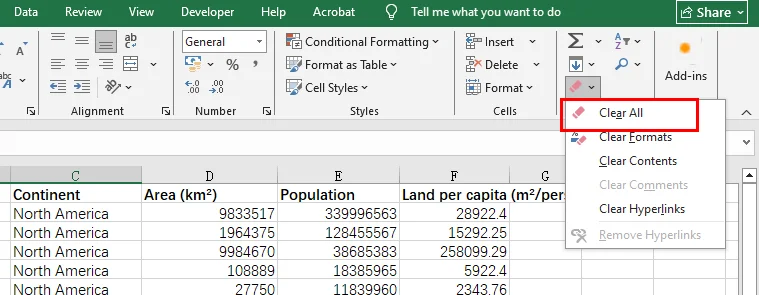
A Solução: Selecione as linhas ou colunas vazias além dos seus dados reais, vá para a guia Página Inicial e clique em Limpar → Limpar Tudo para remover toda a formatação, estilos e outros dados residuais.
Se você deseja remover completamente as linhas ou colunas não utilizadas, selecione as linhas ou colunas inteiras clicando em seus cabeçalhos, clique com o botão direito e escolha Excluir.
Salvar como Formato Binário (.xlsb)
Se você deseja diminuir o tamanho do arquivo do Excel instantaneamente sem perder nenhum dado, tente alterar a extensão do arquivo. Salvar seu arquivo .xlsx padrão como uma pasta de trabalho binária (.xlsb) pode muitas vezes reduzir o tamanho do arquivo de um Excel em 30% a 50%. Arquivos binários são mais rápidos para o Excel ler e escrever, tornando-os perfeitos para conjuntos de dados massivos.
A Solução: Abra o arquivo do Excel, clique na guia Arquivo, escolha Salvar Como e selecione o formato .xlsb. Alternativamente, você pode renomear o arquivo diretamente e alterar a extensão para .xlsb, mas essa abordagem pode causar corrupção do arquivo e não é recomendada.
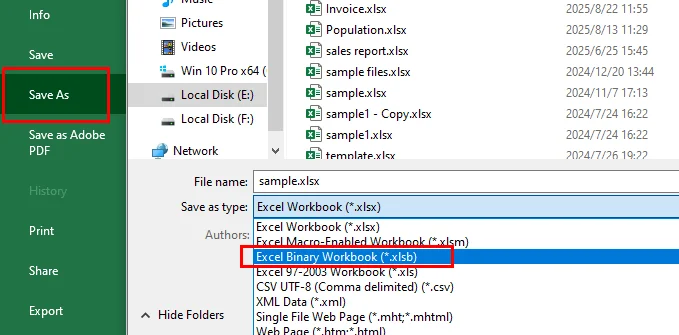
Otimização Visual: Como Reduzir o Tamanho do Arquivo Excel Manipulando Imagens
As imagens são muitas vezes a maior razão por trás de um arquivo massivo. Se sua planilha contém logotipos, capturas de tela ou fotos de produtos, você deve otimizá-las para compactar o tamanho do arquivo do Excel de forma eficaz.
A Solução: Clique em qualquer imagem em sua pasta de trabalho, vá para a guia Formato de Imagem e selecione Compactar Imagens.
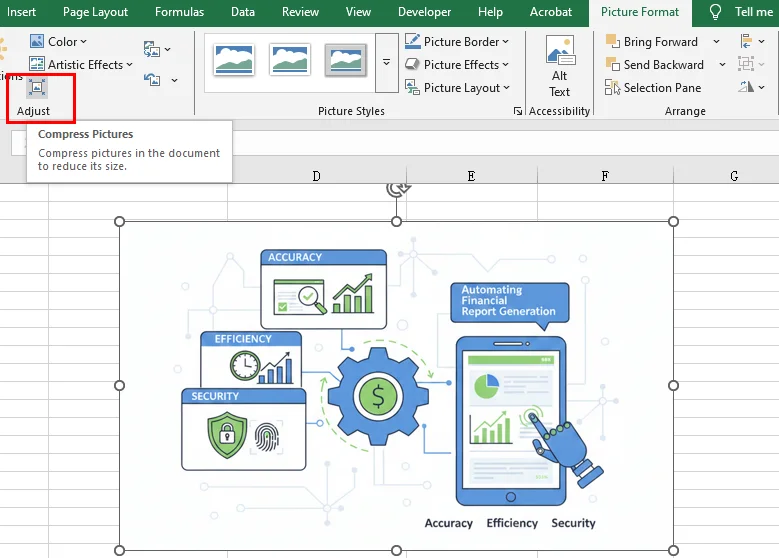
Dica Profissional: Desmarque "Aplicar somente a esta imagem" para compactar todas as imagens de uma vez e selecione "E-mail (96 ppi)" para a redução máxima de peso. Esta é a maneira mais rápida de reduzir o tamanho do arquivo no Excel quando a fidelidade visual não é a principal prioridade.
Abordagem Profissional: Reduzir o Tamanho do Arquivo Excel usando o Free Spire.XLS for Python
Para desenvolvedores ou empresas que lidam com centenas de arquivos, o clique manual não é eficiente o suficiente. Uma maneira mais robusta de minimizar o tamanho do arquivo do Excel é através da automação. O Free Spire.XLS for Python é uma biblioteca poderosa que permite otimizar planilhas programaticamente sem sequer abrir o Microsoft Excel.
Por que usar uma abordagem programática?
Embora as correções manuais funcionem para tarefas únicas, o Free Spire.XLS permite que você implemente uma lógica de otimização profunda em massa:
-
Compressão da Qualidade da Imagem: Você pode iterar por cada planilha, identificar elementos de mídia e utilizar o método ExcelPicture.Compress() para diminuir a qualidade da imagem programaticamente. Isso reduz significativamente a pegada de armazenamento, mantendo uma clareza visual aceitável para relatórios.
-
Limpeza de Estilos de Célula Redundantes: Ao aplicar o método Clear(ExcelClearOptions.ClearFormat) a intervalos específicos, o Free Spire.XLS permite remover esses estilos e metadados redundantes, afinando efetivamente a estrutura interna do arquivo sem afetar os dados subjacentes.
-
Otimização do Armazenamento de Dados: Linhas ou colunas em branco que parecem vazias, mas contêm formatação invisível, podem enganar o Excel para expandir o intervalo usado. Você pode usar os métodos Worksheet.DeleteRow() e Worksheet.DeleteColumn() para remover essas linhas e colunas vazias. Isso garante que seus esforços de redução do tamanho do arquivo do Excel sejam completos, deixando você com um conjunto de dados limpo e de alto desempenho.
O trecho de código a seguir demonstra como integrar esses três métodos para diminuir o tamanho do arquivo do Excel usando o Free Spire.XLS for Python:
from spire.xls import *
from spire.xls.common import *

# 1. Initialize and load the workbook
workbook = Workbook()
input_path = "/input/sample excel.xlsx"
output_path = "/output/Compressed_Excel_Full.xlsx"
workbook.LoadFromFile(input_path)

# 2. Iterate through worksheets to perform optimization operations
for i in range(workbook.Worksheets.Count):
    sheet = workbook.Worksheets[i]

    # Compress Image Quality
    for picture in sheet.Pictures:
        picture.Compress(50)  # Compress to 50% quality

    # Clear Specific Range Formatting
    target_range = sheet.Range["A1:D1"]
    target_range.Clear(ExcelClearOptions.ClearFormat)

    # Iterate through rows in reverse (from last to first) to avoid index shifting
    for r in range(sheet.LastRow, 0, -1):
        if sheet.Rows[r-1].IsBlank:
            sheet.DeleteRow(r)

    # Iterate through columns in reverse
    for c in range(sheet.LastColumn, 0, -1):
        if sheet.Columns[c-1].IsBlank:
            sheet.DeleteColumn(c)

# Save the file and release resources
workbook.SaveToFile(output_path, ExcelVersion.Version2016)
workbook.Dispose()

print(f"Otimizado com sucesso! Arquivo salvo em: {output_path}")
Tamanho do arquivo do Excel antes e depois da redução com o código:
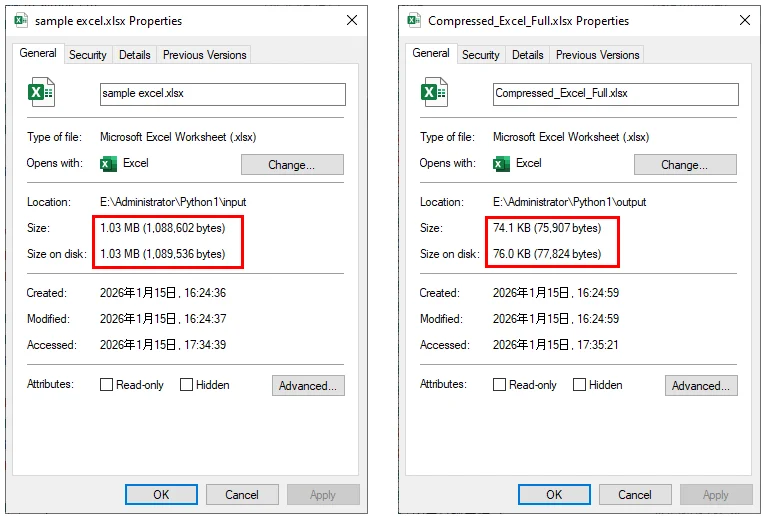
Táticas Avançadas: Como Reduzir o Tamanho do Arquivo no Excel para Grandes Conjuntos de Dados
Quando sua planilha está pesada devido a dados em vez de mídia, você precisa alterar a forma como esses dados são armazenados.
Usar o Modelo de Dados (Power Pivot)
Se você está lidando com milhões de linhas, pare de mantê-las em planilhas padrão. Importar dados para o Modelo de Dados do Excel (Power Pivot) usa um motor de compressão altamente eficiente (Vertipaq) que pode lidar com enormes quantidades de informação, mantendo a pegada do arquivo notavelmente pequena.
Remover Planilhas e Objetos Ocultos
Às vezes, versões antigas de um arquivo contêm planilhas ocultas ou objetos dos quais você se esqueceu. Vá para a ferramenta Inspecionar Documento (Arquivo > Informações > Verificar se há Problemas) para encontrar e remover conteúdo oculto que possa estar inflando o tamanho do seu arquivo.
Conclusão
Reduzir o tamanho do arquivo do Excel é essencial para melhorar o desempenho e garantir o compartilhamento de dados sem problemas. Para correções rápidas e únicas, métodos manuais como salvar em Formato Binário (.xlsb) ou usar a compressão de imagem embutida são altamente eficazes para diminuir o tamanho do arquivo do Excel.
No entanto, para desenvolvedores que gerenciam grandes volumes de dados, a automação é a solução definitiva. Como demonstrado, o Free Spire.XLS for Python oferece uma maneira poderosa de minimizar o tamanho do arquivo do Excel, purgando programaticamente a formatação redundante, compactando mídias e limpando "células fantasmas." Ao combinar essas estratégias manuais e programáticas, você pode garantir que suas pastas de trabalho permaneçam rápidas, leves e profissionais.
Leia Também
엑셀 파일 용량 줄이기: 스프레드시트를 축소하는 6가지 검증된 방법
우리 모두 이런 상황에 처해 본 적이 있습니다: 고객에게 이메일을 보내려고 하는데 Excel 첨부 파일이 너무 커서 거부되는 경우. 또는 스프레드시트를 열었을 때 셀에 입력하기도 전에 Excel이 1분 동안 멈추는 경우. 이런 문제들이 업무 흐름을 방해하기 시작하면, 생산성을 유지하고 원활한 데이터 공유를 보장하기 위해 Excel 파일 크기를 줄이는 방법을 배우는 것이 우선순위가 됩니다.
이 가이드에서는 명확한 설명과 단계별 지침을 통해 Excel 파일 크기를 줄이는 몇 가지 실용적인 기술을 살펴보겠습니다.
- 수동으로 Excel 파일 크기 줄이기
- 이미지 처리로 Excel 파일 크기 줄이기
- Free Spire.XLS for Python을 사용하여 Excel 파일 크기 줄이기
- 대용량 데이터 세트의 Excel 파일 크기 줄이기
빠른 해결책: 수동으로 Excel 파일 크기를 줄이는 방법
복잡한 방법을 시도하기 전에, 시간이 지남에 따라 누적되는 숨겨진 오버헤드를 해결하여 Excel 파일 크기를 더 작게 만들 수 있습니다.
과도한 서식 지우기
파일이 비대해지는 가장 흔한 이유 중 하나는 유령 서식입니다. 실제 데이터는 처음 100개 행에만 있는데도, 1,000개 행을 포함할 수 있는 시트의 맨 아래까지 전체 열에 서식을 지정했을 수 있습니다.
해결책: 실제 데이터 범위를 벗어나는 빈 행이나 열을 선택한 다음, 홈 탭으로 이동하여 지우기 → 모두 지우기를 클릭하여 모든 서식, 스타일 및 기타 잔여 데이터를 제거합니다.
사용하지 않는 행이나 열을 완전히 제거하려면, 해당 머리글을 클릭하여 전체 행이나 열을 선택하고 마우스 오른쪽 버튼을 클릭한 다음 삭제를 선택합니다.
바이너리 형식(.xlsb)으로 저장
데이터 손실 없이 즉시 Excel 파일 크기를 줄이고 싶다면 파일 확장자를 변경해 보세요. 표준 .xlsx 파일을 바이너리 통합 문서(.xlsb)로 저장하면 Excel 파일 크기를 30%에서 50%까지 줄일 수 있습니다. 바이너리 파일은 Excel이 읽고 쓰기에 더 빠르므로 대규모 데이터 세트에 적합합니다.
해결책: Excel 파일을 열고 파일 탭을 클릭한 다음 다른 이름으로 저장을 선택하고 .xlsb 형식을 선택합니다. 또는 파일 이름을 직접 바꾸고 확장자를 .xlsb로 변경할 수도 있지만, 이 방법은 파일 손상을 유발할 수 있으므로 권장되지 않습니다.
시각적 최적화: 이미지 처리로 Excel 파일 크기를 줄이는 방법
이미지는 종종 거대한 파일의 가장 큰 원인입니다. 스프레드시트에 로고, 스크린샷 또는 제품 사진이 포함되어 있다면, Excel 파일 크기를 효과적으로 압축하기 위해 최적화해야 합니다.
해결책: 통합 문서의 아무 이미지나 클릭하고 그림 서식 탭으로 이동한 다음 그림 압축을 선택합니다.
전문가 팁: 모든 이미지를 한 번에 압축하려면 "이 그림에만 적용"의 선택을 취소하고, 무게를 최대한 줄이려면 "전자 메일(96ppi)"을 선택하세요. 시각적 충실도가 최우선 순위가 아닐 때 Excel 파일 크기를 줄이는 가장 빠른 방법입니다.
전문적인 접근 방식: Free Spire.XLS for Python을 사용하여 Excel 파일 크기 줄이기
수백 개의 파일을 다루는 개발자나 기업에게 수동 클릭은 효율적이지 않습니다. Excel 파일 크기를 최소화하는 더 강력한 방법은 자동화입니다. Free Spire.XLS for Python은 Microsoft Excel을 열지 않고도 프로그래밍 방식으로 스프레드시트를 최적화할 수 있는 강력한 라이브러리입니다.
프로그래밍 방식 접근을 사용하는 이유?
수동 수정은 일회성 작업에 효과적이지만, Free Spire.XLS를 사용하면 대량으로 심층적인 최적화 로직을 구현할 수 있습니다:
-
이미지 품질 압축: 모든 워크시트를 반복하면서 미디어 요소를 식별하고 ExcelPicture.Compress() 메서드를 사용하여 프로그래밍 방식으로 이미지 품질을 낮출 수 있습니다. 이는 보고서에 허용 가능한 시각적 선명도를 유지하면서 저장 공간을 크게 줄입니다.
-
중복 셀 스타일 정리: 특정 범위에 Clear(ExcelClearOptions.ClearFormat) 메서드를 적용함으로써, Free Spire.XLS는 이러한 중복 스타일과 메타데이터를 제거하여 기본 데이터에 영향을 주지 않고 파일의 내부 구조를 효과적으로 줄일 수 있습니다.
-
데이터 저장소 최적화: 비어 있는 것처럼 보이지만 보이지 않는 서식을 포함하는 빈 행이나 열은 Excel이 사용된 범위를 확장하도록 속일 수 있습니다. Worksheet.DeleteRow() 및 Worksheet.DeleteColumn() 메서드를 사용하여 이러한 빈 행과 열을 제거할 수 있습니다. 이를 통해 Excel 파일 크기 축소 노력이 철저하게 이루어지며, 깨끗하고 고성능의 데이터 세트를 얻을 수 있습니다.
다음 코드 조각은 Free Spire.XLS for Python을 사용하여 이 세 가지 방법을 통합하여 Excel 파일 크기를 줄이는 방법을 보여줍니다:
from spire.xls import *
from spire.xls.common import *

# 1. Initialize and load the workbook
workbook = Workbook()
input_path = "/input/sample excel.xlsx"
output_path = "/output/Compressed_Excel_Full.xlsx"
workbook.LoadFromFile(input_path)

# 2. Iterate through worksheets to perform optimization operations
for i in range(workbook.Worksheets.Count):
    sheet = workbook.Worksheets[i]

    # Compress Image Quality
    for picture in sheet.Pictures:
        picture.Compress(50)  # Compress to 50% quality

    # Clear Specific Range Formatting
    target_range = sheet.Range["A1:D1"]
    target_range.Clear(ExcelClearOptions.ClearFormat)

    # Iterate through rows in reverse (from last to first) to avoid index shifting
    for r in range(sheet.LastRow, 0, -1):
        if sheet.Rows[r-1].IsBlank:
            sheet.DeleteRow(r)

    # Iterate through columns in reverse
    for c in range(sheet.LastColumn, 0, -1):
        if sheet.Columns[c-1].IsBlank:
            sheet.DeleteColumn(c)

# Save the file and release resources
workbook.SaveToFile(output_path, ExcelVersion.Version2016)
workbook.Dispose()

print(f"Successfully optimized! File saved to: {output_path}")
코드로 줄이기 전후의 Excel 파일 크기:
고급 전략: 대용량 데이터 세트의 Excel 파일 크기를 줄이는 방법
스프레드시트가 미디어 때문이 아니라 데이터 때문에 무거울 때는 데이터 저장 방식을 변경해야 합니다.
데이터 모델(Power Pivot) 사용
수백만 개의 행을 다루고 있다면 표준 워크시트에 보관하는 것을 중단하세요. 데이터를 Excel 데이터 모델(Power Pivot)로 가져오면 매우 효율적인 압축 엔진(Vertipaq)을 사용하여 파일 공간을 놀랍도록 작게 유지하면서 방대한 양의 정보를 처리할 수 있습니다.
숨겨진 시트 및 개체 제거
때로는 파일의 이전 버전에 잊어버린 숨겨진 시트나 개체가 포함되어 있을 수 있습니다. 문서 검사 도구(파일 > 정보 > 문제 확인)로 이동하여 파일 크기를 부풀릴 수 있는 숨겨진 콘텐츠를 찾아 제거하세요.
결론
Excel 파일 크기를 줄이는 것은 성능을 향상시키고 원활한 데이터 공유를 보장하는 데 필수적입니다. 빠른 일회성 수정의 경우, 바이너리 형식(.xlsb)으로 저장하거나 내장된 이미지 압축을 사용하는 것과 같은 수동 방법은 Excel 파일 크기를 줄이는 데 매우 효과적입니다.
그러나 대용량 데이터를 관리하는 개발자에게는 자동화가 궁극적인 해결책입니다. 보여준 바와 같이, Free Spire.XLS for Python은 프로그래밍 방식으로 중복 서식을 제거하고, 미디어를 압축하며, "유령 셀"을 정리하여 Excel 파일 크기를 최소화하는 강력한 방법을 제공합니다. 이러한 수동 및 프로그래밍 방식 전략을 결합하면 통합 문서를 빠르고 가볍고 전문적으로 유지할 수 있습니다.
함께 읽기
Ridurre le dimensioni del file Excel: 6 modi comprovati per comprimere i fogli di calcolo
Indice
Ci siamo tutti imbattuti in situazioni come questa: tentare di inviare un'email ai clienti, solo per vederla respinta perché l'allegato Excel è troppo grande. O aprire un foglio di calcolo e guardare Excel bloccarsi per un minuto intero prima di poter anche solo digitare in una cella. Quando problemi come questi iniziano a interrompere il tuo flusso di lavoro, imparare come ridurre le dimensioni del file Excel diventa una priorità per mantenere la produttività e garantire una condivisione dei dati senza intoppi.
In questa guida, esamineremo diverse tecniche pratiche per ridurre le dimensioni dei file Excel, con spiegazioni chiare e istruzioni passo-passo.
- Riduci Manualmente le Dimensioni di un File Excel
- Riduci le Dimensioni del File Excel Gestendo le Immagini
- Riduci le Dimensioni del File Excel usando Free Spire.XLS for Python
- Riduci le Dimensioni del File in Excel per Grandi Set di Dati
Soluzioni Rapide: Come Ridurre Manualmente le Dimensioni di un File Excel
Prima di immergersi in metodi complessi, è spesso possibile ridurre le dimensioni di un file Excel affrontando il sovraccarico nascosto che si accumula nel tempo.
Cancella Formattazione Eccessiva
Uno dei motivi più comuni per un file gonfio è la formattazione fantasma. Potresti aver formattato un'intera colonna fino in fondo al foglio, che può contenere 1.000 righe, anche se hai dati solo nelle prime 100 righe.
La Soluzione: Seleziona le righe o le colonne vuote oltre i tuoi dati effettivi, quindi vai alla scheda Home e fai clic su Cancella → Cancella tutto per rimuovere tutta la formattazione, gli stili e altri dati residui.
Se desideri rimuovere completamente le righe o le colonne non utilizzate, seleziona le intere righe o colonne facendo clic sulle loro intestazioni, fai clic con il pulsante destro del mouse e scegli Elimina.
Salva in Formato Binario (.xlsb)
Se desideri ridurre istantaneamente le dimensioni del file Excel senza perdere dati, prova a cambiare l'estensione del file. Salvare il tuo file .xlsx standard come cartella di lavoro binaria (.xlsb) può spesso ridurre le dimensioni del file di un file Excel dal 30% al 50%. I file binari sono più veloci da leggere e scrivere per Excel, rendendoli perfetti per set di dati enormi.
La Soluzione: Apri il file Excel, fai clic sulla scheda File, scegli Salva con nome e seleziona il formato .xlsb. In alternativa, puoi rinominare direttamente il file e cambiare l'estensione in .xlsb, ma questo approccio può causare la corruzione del file e non è raccomandato.
Ottimizzazione Visiva: Come Ridurre le Dimensioni del File Excel Gestendo le Immagini
Le immagini sono spesso la ragione principale di un file di grandi dimensioni. Se il tuo foglio di calcolo contiene loghi, screenshot o foto di prodotti, devi ottimizzarli per comprimere efficacemente le dimensioni del file Excel.
La Soluzione: Fai clic su qualsiasi immagine nella tua cartella di lavoro, vai alla scheda Formato immagine e seleziona Comprimi immagini.
Consiglio Pro: Deseleziona "Applica solo a questa immagine" per comprimere tutte le immagini contemporaneamente e seleziona "Email (96 ppi)" per la massima riduzione di peso. Questo è il modo più veloce per ridurre le dimensioni del file in Excel quando la fedeltà visiva non è la massima priorità.
Approccio Professionale: Riduci le Dimensioni del File Excel usando Free Spire.XLS for Python
Per gli sviluppatori o le aziende che gestiscono centinaia di file, il clic manuale non è abbastanza efficiente. Un modo più robusto per minimizzare le dimensioni dei file Excel è attraverso l'automazione. Free Spire.XLS for Python è una potente libreria che consente di ottimizzare programmaticamente i fogli di calcolo senza nemmeno aprire Microsoft Excel.
Perché usare un approccio programmatico?
Mentre le correzioni manuali funzionano per compiti singoli, Free Spire.XLS ti permette di implementare una logica di ottimizzazione profonda in blocco:
-
Compressione della Qualità dell'Immagine: Puoi iterare attraverso ogni foglio di lavoro, identificare gli elementi multimediali e utilizzare il metodo ExcelPicture.Compress() per diminuire programmaticamente la qualità dell'immagine. Ciò riduce significativamente l'impronta di archiviazione mantenendo una chiarezza visiva accettabile per i report.
-
Pulizia degli Stili di Cella Ridondanti: Applicando il metodo Clear(ExcelClearOptions.ClearFormat) a intervalli specifici, Free Spire.XLS ti permette di eliminare questi stili e metadati ridondanti, assottigliando efficacemente la struttura interna del file senza influenzare i dati sottostanti.
-
Ottimizzazione dell'Archiviazione dei Dati: Righe o colonne vuote che sembrano vuote ma contengono formattazione invisibile possono ingannare Excel facendogli espandere l'intervallo utilizzato. Puoi usare i metodi Worksheet.DeleteRow() e Worksheet.DeleteColumn() per rimuovere queste righe e colonne vuote. Ciò garantisce che i tuoi sforzi di riduzione delle dimensioni del file Excel siano completi, lasciandoti con un set di dati pulito e ad alte prestazioni.
Il seguente frammento di codice dimostra come integrare questi tre metodi per ridurre le dimensioni del file Excel utilizzando Free Spire.XLS for Python:
from spire.xls import *
from spire.xls.common import *

# 1. Initialize and load the workbook
workbook = Workbook()
input_path = "/input/sample excel.xlsx"
output_path = "/output/Compressed_Excel_Full.xlsx"
workbook.LoadFromFile(input_path)

# 2. Iterate through worksheets to perform optimization operations
for i in range(workbook.Worksheets.Count):
    sheet = workbook.Worksheets[i]

    # Compress Image Quality
    for picture in sheet.Pictures:
        picture.Compress(50)  # Compress to 50% quality

    # Clear Specific Range Formatting
    target_range = sheet.Range["A1:D1"]
    target_range.Clear(ExcelClearOptions.ClearFormat)

    # Iterate through rows in reverse (from last to first) to avoid index shifting
    for r in range(sheet.LastRow, 0, -1):
        if sheet.Rows[r-1].IsBlank:
            sheet.DeleteRow(r)

    # Iterate through columns in reverse
    for c in range(sheet.LastColumn, 0, -1):
        if sheet.Columns[c-1].IsBlank:
            sheet.DeleteColumn(c)

# Save the file and release resources
workbook.SaveToFile(output_path, ExcelVersion.Version2016)
workbook.Dispose()

print(f"Ottimizzato con successo! File salvato in: {output_path}")
Dimensioni del file Excel prima e dopo la riduzione con il codice:
Tattiche Avanzate: Come Ridurre le Dimensioni del File in Excel per Grandi Set di Dati
Quando il tuo foglio di calcolo è pesante a causa dei dati piuttosto che dei media, devi cambiare il modo in cui tali dati vengono archiviati.
Usa il Modello di Dati (Power Pivot)
Se hai a che fare con milioni di righe, smetti di tenerle in fogli di lavoro standard. L'importazione di dati nel Modello di Dati di Excel (Power Pivot) utilizza un motore di compressione altamente efficiente (Vertipaq) in grado di gestire enormi quantità di informazioni mantenendo l'impronta del file notevolmente piccola.
Rimuovi Fogli e Oggetti Nascosti
A volte, le vecchie versioni di un file contengono fogli nascosti o oggetti di cui ti sei dimenticato. Vai allo strumento Ispeziona documento (File > Informazioni > Verifica problemi) per trovare e rimuovere contenuti nascosti che potrebbero gonfiare le dimensioni del tuo file.
Conclusione
La riduzione delle dimensioni dei file Excel è essenziale per migliorare le prestazioni e garantire una condivisione dei dati senza interruzioni. Per soluzioni rapide e occasionali, metodi manuali come il salvataggio in formato binario (.xlsb) o l'utilizzo della compressione delle immagini integrata sono molto efficaci per ridurre le dimensioni dei file Excel.
Tuttavia, per gli sviluppatori che gestiscono grandi volumi di dati, l'automazione è la soluzione definitiva. Come dimostrato, Free Spire.XLS for Python fornisce un modo potente per minimizzare le dimensioni dei file Excel eliminando programmaticamente la formattazione ridondante, comprimendo i media e pulendo le "celle fantasma." Combinando queste strategie manuali e programmatiche, puoi garantire che le tue cartelle di lavoro rimangano veloci, leggere e professionali.
Leggi Anche
Réduire la taille du fichier Excel : 6 méthodes éprouvées pour alléger vos feuilles de calcul
Table des matières
Nous avons tous été confrontés à des situations de ce type : essayer d'envoyer un e-mail à des clients et le voir rejeté parce que la pièce jointe Excel est trop volumineuse. Ou ouvrir une feuille de calcul et voir Excel se figer pendant une minute entière avant de pouvoir taper dans une cellule. Lorsque des problèmes de ce type commencent à perturber votre flux de travail, apprendre à réduire la taille des fichiers Excel devient une priorité pour maintenir la productivité et garantir un partage fluide des données.
Dans ce guide, nous allons passer en revue plusieurs techniques pratiques pour réduire la taille des fichiers Excel, avec des explications claires et des instructions étape par étape.
- Réduire manuellement la taille d'un fichier Excel
- Réduire la taille d'un fichier Excel en traitant les images
- Réduire la taille d'un fichier Excel avec Free Spire.XLS for Python
- Réduire la taille d'un fichier Excel pour les grands ensembles de données
Solutions rapides : Comment réduire manuellement la taille d'un fichier Excel
Avant de se plonger dans des méthodes complexes, vous pouvez souvent réduire la taille d'un fichier Excel en vous attaquant à la surcharge cachée qui s'accumule au fil du temps.
Effacer la mise en forme excessive
L'une des raisons les plus courantes d'un fichier surchargé est la mise en forme fantôme. Vous avez peut-être formaté une colonne entière jusqu'en bas de la feuille, qui peut contenir 1 000 lignes, même si vous n'avez des données que dans les 100 premières lignes.
La solution : sélectionnez les lignes ou les colonnes vides au-delà de vos données réelles, puis allez dans l'onglet Accueil et cliquez sur Effacer → Effacer tout pour supprimer toute la mise en forme, les styles et autres données résiduelles.
Si vous souhaitez supprimer complètement les lignes ou les colonnes inutilisées, sélectionnez les lignes ou les colonnes entières en cliquant sur leurs en-têtes, faites un clic droit et choisissez Supprimer.
Enregistrer au format binaire (.xlsb)
Si vous souhaitez réduire instantanément la taille d'un fichier Excel sans perdre de données, essayez de changer l'extension du fichier. L'enregistrement de votre fichier .xlsx standard en tant que classeur binaire (.xlsb) peut souvent réduire la taille du fichier Excel de 30 % à 50 %. Les fichiers binaires sont plus rapides à lire et à écrire pour Excel, ce qui les rend parfaits pour les ensembles de données volumineux.
La solution : ouvrez le fichier Excel, cliquez sur l'onglet Fichier, choisissez Enregistrer sous et sélectionnez le format .xlsb. Vous pouvez également renommer directement le fichier et changer l'extension en .xlsb, mais cette approche peut entraîner une corruption du fichier et n'est pas recommandée.
Optimisation visuelle : Comment réduire la taille d'un fichier Excel en traitant les images
Les images sont souvent la principale raison d'un fichier volumineux. Si votre feuille de calcul contient des logos, des captures d'écran ou des photos de produits, vous devez les optimiser pour compresser efficacement la taille du fichier Excel.
La solution : cliquez sur n'importe quelle image de votre classeur, allez dans l'onglet Format de l'image et sélectionnez Compresser les images.
Conseil de pro : décochez "Appliquer uniquement à cette image" pour compresser toutes les images en même temps et sélectionnez "E-mail (96 ppp)" pour une réduction maximale du poids. C'est le moyen le plus rapide de réduire la taille d'un fichier dans Excel lorsque la fidélité visuelle n'est pas la priorité absolue.
Approche professionnelle : Réduire la taille d'un fichier Excel avec Free Spire.XLS for Python
Pour les développeurs ou les entreprises qui traitent des centaines de fichiers, le clic manuel n'est pas assez efficace. Une manière plus robuste de minimiser la taille des fichiers Excel est l'automatisation. Free Spire.XLS for Python est une bibliothèque puissante qui vous permet d'optimiser les feuilles de calcul par programmation sans même ouvrir Microsoft Excel.
Pourquoi utiliser une approche programmatique ?
Alors que les corrections manuelles fonctionnent pour des tâches ponctuelles, Free Spire.XLS vous permet d'implémenter une logique d'optimisation approfondie en masse :
-
Compression de la qualité de l'image : vous pouvez parcourir chaque feuille de calcul, identifier les éléments multimédias et utiliser la méthode ExcelPicture.Compress() pour diminuer la qualité de l'image par programmation. Cela réduit considérablement l'empreinte de stockage tout en maintenant une clarté visuelle acceptable pour les rapports.
-
Nettoyage des styles de cellule redondants : en appliquant la méthode Clear(ExcelClearOptions.ClearFormat) à des plages spécifiques, Free Spire.XLS vous permet de supprimer ces styles et métadonnées redondants, amincissant efficacement la structure interne du fichier sans affecter les données sous-jacentes.
-
Optimisation du stockage des données : les lignes ou colonnes vides qui semblent vides mais contiennent une mise en forme invisible peuvent inciter Excel à étendre la plage utilisée. Vous pouvez utiliser les méthodes Worksheet.DeleteRow() et Worksheet.DeleteColumn() pour supprimer ces lignes et colonnes vides. Cela garantit que vos efforts de réduction de la taille des fichiers Excel sont approfondis, vous laissant avec un ensemble de données propre et performant.
L'extrait de code suivant montre comment intégrer ces trois méthodes pour réduire la taille d'un fichier Excel à l'aide de Free Spire.XLS for Python :
from spire.xls import *
from spire.xls.common import *

# 1. Initialize and load the workbook
workbook = Workbook()
input_path = "/input/sample excel.xlsx"
output_path = "/output/Compressed_Excel_Full.xlsx"
workbook.LoadFromFile(input_path)

# 2. Iterate through worksheets to perform optimization operations
for i in range(workbook.Worksheets.Count):
    sheet = workbook.Worksheets[i]

    # Compress Image Quality
    for picture in sheet.Pictures:
        picture.Compress(50)  # Compress to 50% quality

    # Clear Specific Range Formatting
    target_range = sheet.Range["A1:D1"]
    target_range.Clear(ExcelClearOptions.ClearFormat)

    # Iterate through rows in reverse (from last to first) to avoid index shifting
    for r in range(sheet.LastRow, 0, -1):
        if sheet.Rows[r-1].IsBlank:
            sheet.DeleteRow(r)

    # Iterate through columns in reverse
    for c in range(sheet.LastColumn, 0, -1):
        if sheet.Columns[c-1].IsBlank:
            sheet.DeleteColumn(c)

# Save the file and release resources
workbook.SaveToFile(output_path, ExcelVersion.Version2016)
workbook.Dispose()

print(f"Successfully optimized! File saved to: {output_path}")
Taille du fichier Excel avant et après réduction avec le code :
Tactiques avancées : Comment réduire la taille d'un fichier Excel pour les grands ensembles de données
Lorsque votre feuille de calcul est lourde en raison des données plutôt que des médias, vous devez modifier la façon dont ces données sont stockées.
Utiliser le modèle de données (Power Pivot)
Si vous traitez des millions de lignes, arrêtez de les conserver dans des feuilles de calcul standard. L'importation de données dans le modèle de données Excel (Power Pivot) utilise un moteur de compression très efficace (Vertipaq) qui peut gérer des quantités massives d'informations tout en gardant une empreinte de fichier remarquablement petite.
Supprimer les feuilles et objets masqués
Parfois, les anciennes versions d'un fichier contiennent des feuilles masquées ou des objets que vous avez oubliés. Allez à l'outil Inspecter le document (Fichier > Informations > Vérifier les problèmes) pour trouver et supprimer le contenu masqué qui pourrait augmenter la taille de votre fichier.
Conclusion
La réduction de la taille des fichiers Excel est essentielle pour améliorer les performances et garantir un partage fluide des données. Pour des corrections rapides et ponctuelles, des méthodes manuelles comme l'enregistrement au format binaire (.xlsb) ou l'utilisation de la compression d'image intégrée sont très efficaces pour réduire la taille des fichiers Excel.
Cependant, pour les développeurs gérant des données volumineuses, l'automatisation est la solution ultime. Comme démontré, Free Spire.XLS for Python offre un moyen puissant de minimiser la taille des fichiers Excel en purgeant par programmation la mise en forme redondante, en compressant les médias et en nettoyant les "cellules fantômes". En combinant ces stratégies manuelles et programmatiques, vous pouvez vous assurer que vos classeurs restent rapides, légers et professionnels.
À lire également
- Comment supprimer les lignes en double d'Excel - 6 méthodes faciles
- Supprimer les hyperliens dans Excel - 4 méthodes faciles
- Supprimer un tableau dans Excel (convertir en plage, effacer la mise en forme, VBA et Python)
- Python : Extraire, redimensionner, déplacer ou supprimer des graphiques dans Excel
Reducir el tamaño de archivo de Excel: 6 formas probadas de comprimir hojas de cálculo
Tabla de Contenidos
Todos nos hemos encontrado con situaciones como esta: intentar enviar un correo electrónico a los clientes y que sea rechazado porque el archivo adjunto de Excel es demasiado grande. O abrir una hoja de cálculo y ver cómo Excel se congela durante un minuto completo antes de poder escribir en una celda. Cuando problemas como estos comienzan a interrumpir su flujo de trabajo, aprender a cómo reducir el tamaño de los archivos de Excel se convierte en una prioridad para mantener la productividad y garantizar un intercambio de datos fluido.
En esta guía, repasaremos varias técnicas prácticas para reducir el tamaño de los archivos de Excel, con explicaciones claras e instrucciones paso a paso.
- Reducir el Tamaño de un Archivo de Excel Manualmente
- Reducir el Tamaño de un Archivo de Excel Manejando Imágenes
- Reducir el Tamaño de un Archivo de Excel usando Free Spire.XLS for Python
- Reducir el Tamaño de Archivo en Excel para Grandes Conjuntos de Datos
Soluciones Rápidas: Cómo Reducir el Tamaño de un Archivo de Excel Manualmente
Antes de sumergirse en métodos complejos, a menudo puede reducir el tamaño de un archivo de Excel abordando la sobrecarga oculta que se acumula con el tiempo.
Eliminar Formato Excesivo
Una de las razones más comunes de un archivo inflado es el formato fantasma. Es posible que haya formateado una columna completa hasta el final de la hoja, que puede contener 1,000 filas, aunque solo tenga datos en las primeras 100 filas.
La Solución: Seleccione las filas o columnas vacías más allá de sus datos reales, luego vaya a la pestaña Inicio y haga clic en Borrar → Borrar todo para eliminar todo el formato, estilos y otros datos residuales.
Si desea eliminar por completo las filas o columnas no utilizadas, seleccione las filas o columnas enteras haciendo clic en sus encabezados, haga clic con el botón derecho y elija Eliminar.
Guardar como Formato Binario (.xlsb)
Si desea disminuir el tamaño del archivo de Excel al instante sin perder ningún dato, intente cambiar la extensión del archivo. Guardar su archivo .xlsx estándar como un libro de trabajo binario (.xlsb) a menudo puede reducir el tamaño del archivo de un archivo de Excel entre un 30% y un 50%. Los archivos binarios son más rápidos de leer y escribir para Excel, lo que los hace perfectos para conjuntos de datos masivos.
La Solución: Abra el archivo de Excel, haga clic en la pestaña Archivo, elija Guardar como y seleccione el formato .xlsb. Alternativamente, puede cambiar el nombre del archivo directamente y cambiar la extensión a .xlsb, pero este enfoque puede causar corrupción de archivos y no se recomienda.
Optimización Visual: Cómo Reducir el Tamaño de un Archivo de Excel Manejando Imágenes
Las imágenes suelen ser la razón principal detrás de un archivo masivo. Si su hoja de cálculo contiene logotipos, capturas de pantalla o fotos de productos, debe optimizarlas para comprimir el tamaño del archivo de Excel de manera efectiva.
La Solución: Haga clic en cualquier imagen de su libro de trabajo, vaya a la pestaña Formato de imagen y seleccione Comprimir imágenes.
Consejo Profesional: Desmarque "Aplicar solo a esta imagen" para comprimir todas las imágenes a la vez y seleccione "Correo electrónico (96 ppp)" para la máxima reducción de peso. Esta es la forma más rápida de reducir el tamaño del archivo en Excel cuando la fidelidad visual no es la máxima prioridad.
Enfoque Profesional: Reducir el Tamaño de Archivo de Excel usando Free Spire.XLS for Python
Para los desarrolladores o empresas que manejan cientos de archivos, hacer clic manualmente no es lo suficientemente eficiente. Una forma más robusta de minimizar el tamaño de los archivos de Excel es a través de la automatización. Free Spire.XLS for Python es una potente biblioteca que le permite optimizar hojas de cálculo de forma programática sin siquiera abrir Microsoft Excel.
¿Por qué usar un enfoque programático?
Si bien las soluciones manuales funcionan para tareas puntuales, Free Spire.XLS le permite implementar una lógica de optimización profunda en masa:
-
Compresión de la Calidad de la Imagen: Puede iterar a través de cada hoja de trabajo, identificar elementos multimedia y utilizar el método ExcelPicture.Compress() para disminuir la calidad de la imagen de forma programática. Esto reduce significativamente la huella de almacenamiento mientras se mantiene una claridad visual aceptable para los informes.
-
Limpieza de Estilos de Celda Redundantes: Al aplicar el método Clear(ExcelClearOptions.ClearFormat) a rangos específicos, Free Spire.XLS le permite eliminar estos estilos y metadatos redundantes, adelgazando efectivamente la estructura interna del archivo sin afectar los datos subyacentes.
-
Optimización del Almacenamiento de Datos: Las filas o columnas en blanco que parecen vacías pero contienen formato invisible pueden engañar a Excel para que expanda el rango utilizado. Puede usar los métodos Worksheet.DeleteRow() y Worksheet.DeleteColumn() para eliminar estas filas y columnas vacías. Esto asegura que sus esfuerzos de reducción del tamaño del archivo de Excel sean exhaustivos, dejándole con un conjunto de datos limpio y de alto rendimiento.
El siguiente fragmento de código demuestra cómo integrar estos tres métodos para reducir el tamaño del archivo de Excel usando Free Spire.XLS for Python:
from spire.xls import *
from spire.xls.common import *

# 1. Initialize and load the workbook
workbook = Workbook()
input_path = "/input/sample excel.xlsx"
output_path = "/output/Compressed_Excel_Full.xlsx"
workbook.LoadFromFile(input_path)

# 2. Iterate through worksheets to perform optimization operations
for i in range(workbook.Worksheets.Count):
    sheet = workbook.Worksheets[i]

    # Compress Image Quality
    for picture in sheet.Pictures:
        picture.Compress(50)  # Compress to 50% quality

    # Clear Specific Range Formatting
    target_range = sheet.Range["A1:D1"]
    target_range.Clear(ExcelClearOptions.ClearFormat)

    # Iterate through rows in reverse (from last to first) to avoid index shifting
    for r in range(sheet.LastRow, 0, -1):
        if sheet.Rows[r-1].IsBlank:
            sheet.DeleteRow(r)

    # Iterate through columns in reverse
    for c in range(sheet.LastColumn, 0, -1):
        if sheet.Columns[c-1].IsBlank:
            sheet.DeleteColumn(c)

# Save the file and release resources
workbook.SaveToFile(output_path, ExcelVersion.Version2016)
workbook.Dispose()

print(f"Successfully optimized! File saved to: {output_path}")
Tamaño del archivo de Excel antes y después de reducirlo con el código:
Tácticas Avanzadas: Cómo Reducir el Tamaño de Archivo en Excel para Grandes Conjuntos de Datos
Cuando su hoja de cálculo es pesada debido a los datos en lugar de los medios, necesita cambiar cómo se almacenan esos datos.
Usar el Modelo de Datos (Power Pivot)
Si está tratando con millones de filas, deje de mantenerlas en hojas de trabajo estándar. Importar datos al Modelo de Datos de Excel (Power Pivot) utiliza un motor de compresión altamente eficiente (Vertipaq) que puede manejar cantidades masivas de información manteniendo la huella del archivo notablemente pequeña.
Eliminar Hojas y Objetos Ocultos
A veces, las versiones antiguas de un archivo contienen hojas ocultas u objetos que ha olvidado. Vaya a la herramienta Inspeccionar documento (Archivo > Información > Comprobar si hay problemas) para buscar y eliminar contenido oculto que podría estar inflando el tamaño de su archivo.
Conclusión
Reducir el tamaño de los archivos de Excel es esencial para mejorar el rendimiento y garantizar un intercambio de datos sin problemas. Para soluciones rápidas y puntuales, los métodos manuales como guardar en formato binario (.xlsb) o usar la compresión de imágenes incorporada son muy efectivos para reducir el tamaño de los archivos de Excel.
Sin embargo, para los desarrolladores que gestionan grandes volúmenes de datos, la automatización es la solución definitiva. Como se demostró, Free Spire.XLS for Python proporciona una forma poderosa de minimizar el tamaño de los archivos de Excel al purgar mediante programación el formato redundante, comprimir medios y limpiar las "celdas fantasma". Al combinar estas estrategias manuales y programáticas, puede asegurarse de que sus libros de trabajo sigan siendo rápidos, ligeros y profesionales.