RTF를 PDF로 변환하는 방법 (온라인 및 오프라인 3가지 검증된 방법)
서식 있는 텍스트 형식(RTF)은 플랫폼 간 공유를 위한 다목적 파일 유형이지만 전문적인 프레젠테이션 및 문서 보안과 관련하여 PDF 형식은 업계 표준입니다. 빠른 수정을 원하는 일반 사용자이든 장기적인 솔루션이 필요한 개발자이든 RTF를 PDF로 변환하는 방법을 효율적으로 알면 상당한 시간과 노력을 절약할 수 있습니다. 이 가이드에서는 온라인 도구 및 데스크톱 소프트웨어에서 자동화된 Python 스크립트에 이르기까지 세 가지 고유한 방법을 탐색하여 문서를 세련되고 안전하게 유지합니다.
- 온라인 RTF를 PDF로 변환하는 변환기
- Microsoft Word에서 RTF를 PDF로 저장
- Free Spire.Doc for Python을 사용한 자동 변환
- 세 가지 방법 비교
1. 가장 빠른 선택: 온라인 RTF를 PDF로 변환하는 변환기
단일 문서만 있고 새 소프트웨어를 설치하고 싶지 않다면 온라인 RTF-PDF 변환기가 최고의 선택입니다. 이러한 플랫폼은 속도와 접근성을 위해 설계되어 웹 브라우저에서 직접 RTF를 PDF로 전송할 수 있습니다. 인터넷 연결이 필요하지만 기술적이지 않은 작업에 매우 사용자 친화적입니다.
옵션 A: Convertio (다중 형식 허브)
Convertio는 강력한 올인원 변환 사이트입니다. 다양한 파일 형식을 처리하고 깨끗하고 광고 없는 인터페이스를 원하는 사용자에게 이상적입니다.
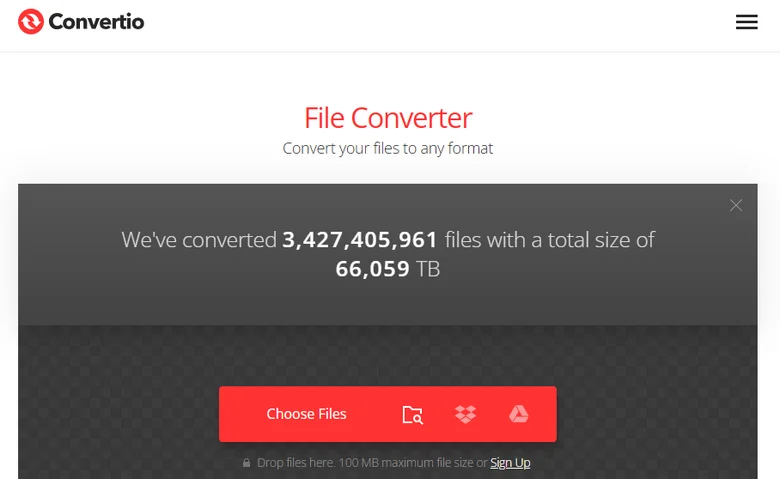
- 1단계: Convertio 웹사이트를 방문하여 "파일 선택"을 클릭하여 RTF 문서를 업로드합니다.
- 2단계: 출력 형식으로 PDF를 선택합니다.
- 3단계: "변환"을 클릭하여 RTF 파일을 PDF로 변환한 다음 최종 PDF를 다운로드합니다.
옵션 B: CLOUDXDOCS (문서 중심 AI 플랫폼)
CLOUDXDOCS는 Word, PDF 및 RTF와 같은 전문 문서 형식에 중점을 둔 전문 허브입니다. 일반 변환기와 달리 RTF에서 PDF로 변환한 후 즉시 콘텐츠를 구체화하거나 편집할 수 있는 AI 도구가 내장되어 있습니다.
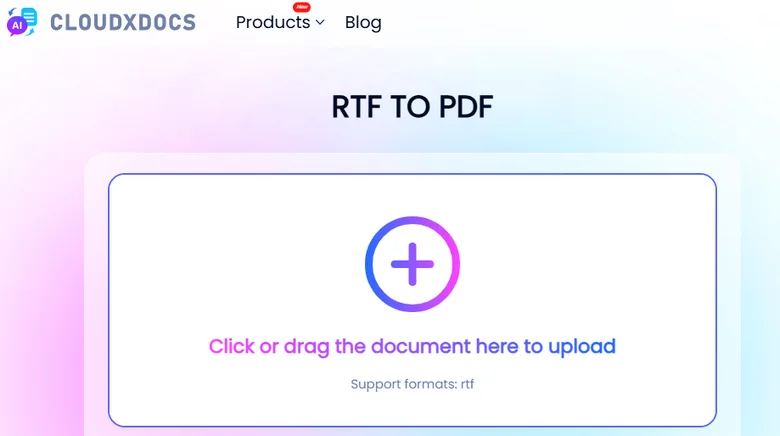
- 1단계: 홈페이지의 "변환기" 메뉴로 이동하여 "RTF > PDF"를 선택합니다.
- 2단계: RTF 문서를 업로드하면 플랫폼이 자동으로 변환 프로세스를 시작합니다.
- 3단계: 완료되면 "보기"를 클릭하여 결과를 미리 보거나 "다운로드"를 클릭하여 PDF를 로컬 장치에 저장합니다.
2. 기본 방법: Microsoft Word "다른 이름으로 저장" PDF
이미 사무 생산성 제품군을 설치한 사용자의 경우 데스크톱 소프트웨어를 활용하는 것이 문서를 처리하는 가장 안전하고 신뢰할 수 있는 방법입니다. 이 방법은 인터넷 연결이 필요하지 않으며 복잡한 서식을 유지하기 위한 고품질 결과를 제공합니다. RTF를 PDF로 기본적으로 저장하는 방법을 배우면 글꼴과 여백이 동일하게 보이도록 유지하는 데 도움이 됩니다.
Microsoft Word는 RTF 인코딩을 기본적으로 처리하여 품질이 낮은 변환기에서 때때로 발생하는 깨진 텍스트의 위험을 최소화하기 때문에 이 작업에 가장 널리 사용되는 도구입니다.
MS Word를 사용하여 RTF 파일을 PDF로 변환하는 방법:
- 1단계: RTF 파일을 마우스 오른쪽 버튼으로 클릭하고 연결 프로그램 > Word를 선택합니다.
- 2단계: 문서가 열리면 왼쪽 상단 모서리에 있는 파일 메뉴로 이동합니다.
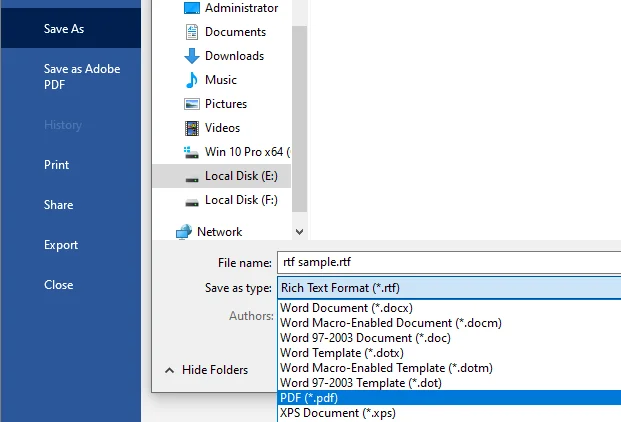
- 3단계: 다른 이름으로 저장으로 이동하여 파일 형식 드롭다운 메뉴에서 PDF를 선택합니다.
- 4단계: 대상 폴더를 선택하고 저장을 클릭합니다.
MS Word는 빠른 PDF 내보내기에 적합하지만 파일을 영구적으로 표준 Word 형식으로 전송할 수도 있습니다. RTF를 Word로 변환하는 전용 방법을 찾고 있다면 프로세스는 똑같이 간단합니다.
3. 개발자 솔루션: Free Spire.Doc for Python
수백 개의 파일을 처리하거나 문서 변환을 소프트웨어 프로젝트에 통합해야 하는 경우 수동 방법은 더 이상 실용적이지 않습니다. Free Spire.Doc for Python은 프로그래밍 방식으로 RTF를 PDF로 저장하는 전문 라이브러리를 제공합니다. 이전 방법과 달리 이 접근 방식은 시스템에 Microsoft Word를 설치할 필요 없이 완전한 자동화를 허용합니다.
이 라이브러리는 개발자에게 RTF-PDF 변환 프로세스에 대한 세분화된 제어를 제공하므로 대용량 비즈니스 환경에 선호되는 선택입니다.
Python을 통해 RTF를 PDF로 변환하는 방법:
- 1단계: 터미널을 열고
pip install Spire.Doc.Free를 실행하여 라이브러리를 설치합니다. - 2단계: Document 개체를 만들고 RTF 파일을 로드합니다.
- 3단계: Document.SaveToFile() 메서드를 호출하여 RTF 파일을 PDF로 저장합니다.
다음은 코드 예제입니다.
from spire.doc import *
from spire.doc.common import *

inputFile = "sample.rtf"
outputFile = "RtfToPDF.pdf"

# Document 개체 만들기
doc = Document()

# 디스크에서 RTF 파일 로드
doc.LoadFromFile(inputFile)

# RTF 파일을 PDF 파일로 저장
doc.SaveToFile(outputFile, FileFormat.PDF)
doc.Close()
비교: 어떤 방법을 사용해야 할까요
어떤 접근 방식이 워크플로에 적합한지 결정하는 데 도움이 되도록 논의된 세 가지 방법을 간략하게 비교합니다.
| 기능 | 온라인 변환기 (CLOUDXDOCS/Convertio) | Microsoft Word | Free Spire.Doc for Python |
|---|---|---|---|
| 최적 대상 | 일반 사용자 및 일회성 작업 | 공식적인 수동 편집 | 개발자 및 자동화 |
| 필요한 설정 | 없음 (브라우저 기반) | 소프트웨어 설치 | Python 환경 및 라이브러리 |
| 개인 정보 보호 수준 | 클라우드 서버에서 처리된 파일 | 높음 (로컬 처리) | 높음 (로컬/서버 처리) |
| 일괄 처리 | 제한적/수동 | 아니요 (하나씩) | 예 (완전 자동화) |
| 인터넷 필요 | 예 | 아니요 | 아니요 |
| 비용 | 무료 (종종 일일 제한 있음) | Office 라이선스 필요 | 무료 |
결론
올바른 접근 방식을 선택하는 것은 전적으로 특정 요구 사항에 따라 다릅니다. 온라인 RTF-PDF 변환기는 일회성 작업에 적합하며 Microsoft Word는 오프라인, 고품질 편집에 적합합니다. 그러나 워크플로 내에서 RTF를 PDF로 저장하는 자동화된 방법을 찾는 사람들에게는 Free Spire.Doc for Python이 정교하고 효율적인 솔루션을 제공합니다. 이러한 다양한 방법을 통해 RTF를 PDF로 변환하는 방법을 이해하면 문서가 항상 전문적이고 휴대 가능하며 대상 고객에게 완벽하게 서식이 지정되도록 할 수 있습니다.
함께 읽기
Come convertire RTF in PDF online e offline (3 modi comprovati)
Il Rich Text Format (RTF) è un tipo di file versatile per la condivisione multipiattaforma, ma quando si tratta di presentazioni professionali e sicurezza dei documenti, il formato PDF è lo standard del settore. Che tu sia un utente occasionale alla ricerca di una soluzione rapida o uno sviluppatore che necessita di una soluzione a lungo termine, sapere come convertire RTF in PDF in modo efficiente può farti risparmiare tempo e fatica significativi. In questa guida, esploreremo tre metodi distinti, che vanno da strumenti online e software desktop a script Python automatizzati, per garantire che i tuoi documenti rimangano rifiniti e sicuri.
- Convertitori da RTF a PDF online
- Salvare RTF come PDF con Microsoft Word
- Conversione automatizzata con Free Spire.Doc for Python
- Confronto dei tre metodi
1. La scelta più rapida: convertitori da RTF a PDF online
Se hai un solo documento e non vuoi installare nuovo software, un convertitore da RTF a PDF online è la scelta migliore. Queste piattaforme sono progettate per la velocità e l'accessibilità, consentendoti di trasferire RTF in PDF direttamente dal tuo browser web. Sebbene richiedano una connessione a Internet, sono incredibilmente facili da usare per attività non tecniche.
Opzione A: Convertio (un hub multiformato)
Convertio è un robusto sito di conversione tutto in uno. È ideale per gli utenti che gestiscono vari tipi di file e desiderano un'interfaccia pulita e senza pubblicità.
- Passaggio 1: visita il sito Web di Convertio e fai clic su "Scegli file" per caricare il tuo documento RTF.
- Passaggio 2: scegli PDF come formato di output.
- Passaggio 3: fai clic su "Converti" per convertire il file RTF in PDF, quindi scarica il PDF finale.
Opzione B: CLOUDXDOCS (piattaforma AI incentrata sui documenti)
CLOUDXDOCS è un hub specializzato incentrato su formati di documenti professionali come Word, PDF e RTF. A differenza dei convertitori generici, è dotato di strumenti di intelligenza artificiale integrati che ti consentono di perfezionare o modificare i tuoi contenuti immediatamente dopo la conversione da RTF a PDF.
- Passaggio 1: vai al menu "Convertitore" sulla home page e seleziona "RTF > PDF".
- Passaggio 2: carica il tuo documento RTF; la piattaforma avvierà automaticamente il processo di conversione.
- Passaggio 3: una volta terminato, fai clic su "Visualizza" per visualizzare l'anteprima dei risultati o su "Scarica" per salvare il PDF sul tuo dispositivo locale.
2. Il metodo nativo: "Salva con nome" PDF di Microsoft Word
Per gli utenti che hanno già installato suite di produttività per ufficio, l'utilizzo di software desktop è il modo più sicuro e affidabile per gestire i documenti. Questo metodo non richiede una connessione a Internet e fornisce risultati di alta qualità per il mantenimento di formattazioni complesse. Imparare a salvare RTF come PDF in modo nativo aiuta a preservare l'aspetto dei caratteri e dei margini.
Microsoft Word rimane lo strumento più popolare per questa attività perché gestisce la codifica RTF in modo nativo, riducendo al minimo il rischio di testo illeggibile che a volte si verifica con convertitori di bassa qualità.
Come convertire un file RTF in PDF utilizzando MS Word:
- Passaggio 1: fai clic con il pulsante destro del mouse sul file RTF e seleziona Apri con > Word.
- Passaggio 2: una volta aperto il documento, vai al menu File nell'angolo in alto a sinistra.
- Passaggio 3: vai su Salva con nome e scegli PDF dal menu a discesa del tipo di file.
- Passaggio 4: scegli la cartella di destinazione e fai clic su Salva.
Sebbene MS Word sia ottimo per esportazioni rapide di PDF, potresti anche voler trasferire i tuoi file in un formato Word standard in modo permanente. Se stai cercando un modo dedicato per convertire RTF in Word, il processo è altrettanto semplice.
3. La soluzione per sviluppatori: Free Spire.Doc for Python
Quando è necessario elaborare centinaia di file o integrare la conversione di documenti in un progetto software, i metodi manuali non sono più pratici. Free Spire.Doc for Python offre una libreria professionale per salvare RTF come PDF a livello di codice. A differenza dei metodi precedenti, questo approccio consente l'automazione totale senza la necessità di installare Microsoft Word sul sistema.
Questa libreria è particolarmente potente perché offre agli sviluppatori un controllo granulare sul processo di conversione da RTF a PDF, rendendola la scelta preferita per gli ambienti aziendali ad alto volume.
Come convertire RTF in PDF tramite Python:
- Passaggio 1: apri il terminale ed esegui:
pip install Spire.Doc.Freeper installare la libreria. - Passaggio 2: crea un oggetto Document e carica un file RTF.
- Passaggio 3: salva il file RTF come PDF chiamando il metodo Document.SaveToFile().
Ecco l'esempio di codice:
from spire.doc import *
from spire.doc.common import *

inputFile = "sample.rtf"
outputFile = "RtfToPDF.pdf"

# Create a Document object
doc = Document()

# Load an RTF file from disk
doc.LoadFromFile(inputFile)

# Save the RTF file as a PDF file
doc.SaveToFile(outputFile, FileFormat.PDF)
doc.Close()
Confronto: quale metodo dovresti usare
Per aiutarti a decidere quale approccio si adatta al tuo flusso di lavoro, ecco un rapido confronto dei tre metodi discussi:
| Caratteristica | Convertitori online (CLOUDXDOCS/Convertio) | Microsoft Word | Free Spire.Doc for Python |
|---|---|---|---|
| Ideale per | Utenti occasionali e attività una tantum | Modifica manuale e formale | Sviluppatori e automazione |
| Configurazione richiesta | Nessuna (basata su browser) | Installazione software | Ambiente e libreria Python |
| Livello di privacy | File elaborati su server cloud | Alto (elaborazione locale) | Alto (elaborazione locale/server) |
| Elaborazione batch | Limitata/Manuale | No (uno per uno) | Sì (completamente automatizzato) |
| Internet richiesto | Sì | No | No |
| Costo | Gratuito (spesso con limiti giornalieri) | Richiede licenza Office | Gratuito |
Conclusione
La scelta dell'approccio giusto dipende interamente dalle tue esigenze specifiche. I convertitori da RTF a PDF online sono perfetti per attività una tantum, mentre Microsoft Word è la soluzione ideale per la modifica offline ad alta fedeltà. Tuttavia, per coloro che cercano un modo automatizzato per salvare RTF come PDF all'interno di un flusso di lavoro, Free Spire.Doc for Python fornisce una soluzione sofisticata ed efficiente. Comprendendo come convertire RTF in PDF attraverso questi diversi metodi, puoi assicurarti che i tuoi documenti siano sempre professionali, portatili e perfettamente formattati per il tuo pubblico di destinazione.
Leggi anche
Comment convertir RTF en PDF en ligne et hors ligne (3 méthodes éprouvées)
Le format RTF (Rich Text Format) est un type de fichier polyvalent pour le partage multiplateforme, mais en matière de présentation professionnelle et de sécurité des documents, le format PDF est la norme de l'industrie. Que vous soyez un utilisateur occasionnel à la recherche d'une solution rapide ou un développeur ayant besoin d'une solution à long terme, savoir comment convertir RTF en PDF efficacement peut vous faire gagner beaucoup de temps et d'efforts. Dans ce guide, nous explorerons trois méthodes distinctes, allant des outils en ligne et des logiciels de bureau aux scripts Python automatisés, pour que vos documents restent soignés et sécurisés.
- Convertisseurs RTF en PDF en ligne
- Microsoft Word Enregistrer RTF en PDF
- Conversion automatisée avec Free Spire.Doc for Python
- Comparer les trois méthodes
1. Le choix le plus rapide : les convertisseurs RTF en PDF en ligne
Si vous n'avez qu'un seul document et que vous ne souhaitez pas installer de nouveau logiciel, un convertisseur RTF en PDF en ligne est le meilleur choix. Ces plateformes sont conçues pour la vitesse et l'accessibilité, vous permettant de transférer des RTF en PDF directement depuis votre navigateur Web. Bien qu'elles nécessitent une connexion Internet, elles sont incroyablement conviviales pour les tâches non techniques.
Option A : Convertio (un hub multiformat)
Convertio est un site de conversion tout-en-un robuste. Il est idéal pour les utilisateurs qui gèrent différents types de fichiers et souhaitent une interface claire et sans publicité.
- Étape 1 : Visitez le site Web de Convertio et cliquez sur « Choisir les fichiers » pour télécharger votre document RTF.
- Étape 2 : Choisissez PDF comme format de sortie.
- Étape 3 : Cliquez sur « Convertir » pour convertir le fichier RTF en PDF, puis téléchargez le PDF final.
Option B : CLOUDXDOCS (plateforme d'IA centrée sur les documents)
CLOUDXDOCS est un hub spécialisé axé sur les formats de documents professionnels tels que Word, PDF et RTF. Contrairement aux convertisseurs généraux, il dispose d'outils d'IA intégrés qui vous permettent d'affiner ou de modifier votre contenu immédiatement après la conversion de RTF en PDF.
- Étape 1 : Accédez au menu « Convertisseur » sur la page d'accueil et sélectionnez « RTF > PDF ».
- Étape 2 : Téléchargez votre document RTF ; la plateforme commencera automatiquement le processus de conversion.
- Étape 3 : Une fois terminé, cliquez sur « Afficher » pour prévisualiser les résultats ou sur « Télécharger » pour enregistrer le PDF sur votre appareil local.
2. La méthode native : Microsoft Word « Enregistrer sous » PDF
Pour les utilisateurs qui ont déjà installé des suites de productivité bureautique, l'utilisation de logiciels de bureau est le moyen le plus sûr et le plus fiable de gérer les documents. Cette méthode ne nécessite pas de connexion Internet et fournit des résultats de haute qualité pour maintenir une mise en forme complexe. Apprendre à enregistrer un RTF en PDF de manière native permet de préserver l'apparence de vos polices et de vos marges.
Microsoft Word reste l'outil le plus populaire pour cette tâche car il gère nativement l'encodage RTF, minimisant ainsi le risque de texte tronqué qui se produit parfois avec des convertisseurs de mauvaise qualité.
Comment convertir un fichier RTF en PDF à l'aide de MS Word :
- Étape 1 : Faites un clic droit sur votre fichier RTF et sélectionnez Ouvrir avec > Word.
- Étape 2 : Une fois le document ouvert, accédez au menu Fichier dans le coin supérieur gauche.
- Étape 3 : Accédez à Enregistrer sous et choisissez PDF dans le menu déroulant du type de fichier.
- Étape 4 : Choisissez votre dossier de destination et cliquez sur Enregistrer.
Bien que MS Word soit idéal pour les exportations rapides de PDF, vous souhaiterez peut-être également transférer définitivement vos fichiers vers un format Word standard. Si vous recherchez un moyen dédié de convertir RTF en Word, le processus est tout aussi simple.
3. La solution du développeur : Free Spire.Doc for Python
Lorsque vous devez traiter des centaines de fichiers ou intégrer la conversion de documents dans un projet logiciel, les méthodes manuelles ne sont plus pratiques. Free Spire.Doc for Python propose une bibliothèque professionnelle pour enregistrer des RTF en PDF par programme. Contrairement aux méthodes précédentes, cette approche permet une automatisation totale sans nécessiter l'installation de Microsoft Word sur votre système.
Cette bibliothèque est particulièrement puissante car elle donne aux développeurs un contrôle granulaire sur le processus de conversion RTF en PDF, ce qui en fait le choix préféré pour les environnements professionnels à volume élevé.
Comment convertir RTF en PDF via Python :
- Étape 1 : Ouvrez votre terminal et exécutez :
pip install Spire.Doc.Freepour installer la bibliothèque. - Étape 2 : Créez un objet Document et chargez un fichier RTF.
- Étape 3 : Enregistrez le fichier RTF au format PDF en appelant la méthode Document.SaveToFile().
Voici l'exemple de code :
from spire.doc import *
from spire.doc.common import *

inputFile = "sample.rtf"
outputFile = "RtfToPDF.pdf"

# Créer un objet Document
doc = Document()

# Charger un fichier RTF depuis le disque
doc.LoadFromFile(inputFile)

# Enregistrer le fichier RTF au format PDF
doc.SaveToFile(outputFile, FileFormat.PDF)
doc.Close()
Comparaison : quelle méthode devriez-vous utiliser
Pour vous aider à décider quelle approche correspond à votre flux de travail, voici une comparaison rapide des trois méthodes abordées :
| Fonctionnalité | Convertisseurs en ligne (CLOUDXDOCS/Convertio) | Microsoft Word | Free Spire.Doc for Python |
|---|---|---|---|
| Idéal pour | Utilisateurs occasionnels et tâches ponctuelles | Édition manuelle et formelle | Développeurs et automatisation |
| Configuration requise | Aucune (basée sur le navigateur) | Installation de logiciel | Environnement Python et bibliothèque |
| Niveau de confidentialité | Fichiers traités sur des serveurs cloud | Élevé (traitement local) | Élevé (traitement local/serveur) |
| Traitement par lots | Limité/Manuel | Non (un par un) | Oui (entièrement automatisé) |
| Internet requis | Oui | Non | Non |
| Coût | Gratuit (souvent avec des limites quotidiennes) | Nécessite une licence Office | Gratuit |
Conclusion
Le choix de la bonne approche dépend entièrement de vos besoins spécifiques. Les convertisseurs RTF en PDF en ligne sont parfaits pour les tâches ponctuelles, tandis que Microsoft Word est la solution idéale pour l'édition hors ligne et haute fidélité. Cependant, pour ceux qui recherchent un moyen automatisé d'enregistrer des RTF en PDF dans un flux de travail, Free Spire.Doc for Python offre une solution sophistiquée et efficace. En comprenant comment convertir des RTF en PDF via ces différentes méthodes, vous pouvez vous assurer que vos documents sont toujours professionnels, portables et parfaitement formatés pour votre public cible.
À lire également
Cómo convertir RTF a PDF en línea y sin conexión (3 formas probadas)
Tabla de Contenidos
El Formato de Texto Enriquecido (RTF) es un tipo de archivo versátil para compartir entre plataformas, pero cuando se trata de presentación profesional y seguridad de documentos, el formato PDF es el estándar de la industria. Ya sea que seas un usuario ocasional que busca una solución rápida o un desarrollador que necesita una solución a largo plazo, saber cómo convertir RTF a PDF de manera eficiente puede ahorrarte mucho tiempo y esfuerzo. En esta guía, exploraremos tres métodos distintos, que van desde herramientas en línea y software de escritorio hasta scripts de Python automatizados, para que tus documentos se mantengan pulidos y seguros.
- Conversores de RTF a PDF en Línea
- Guardar RTF como PDF en Microsoft Word
- Conversión Automatizada con Free Spire.Doc for Python
- Comparar los Tres Métodos
1. La Opción Más Rápida: Conversores de RTF a PDF en Línea
Si solo tienes un único documento y no quieres instalar nuevo software, un conversor de RTF a PDF en línea es la mejor opción. Estas plataformas están diseñadas para la velocidad y la accesibilidad, permitiéndote transferir RTF a PDF directamente desde tu navegador web. Aunque requieren una conexión a internet, son increíblemente fáciles de usar para tareas no técnicas.
Opción A: Convertio (Un Centro Multi-Formato)
Convertio es un robusto sitio de conversión todo en uno. Es ideal para usuarios que manejan varios tipos de archivos y desean una interfaz limpia y sin anuncios.
- Paso 1: Visita el sitio web de Convertio y haz clic en "Elegir Archivos" para subir tu documento RTF.
- Paso 2: Elige PDF como formato de salida.
- Paso 3: Haz clic en "Convertir" para convertir el archivo RTF a PDF, y luego descarga el PDF final.
Opción B: CLOUDXDOCS (Plataforma de IA Centrada en Documentos)
CLOUDXDOCS es un centro especializado que se enfoca en formatos de documentos profesionales como Word, PDF y RTF. A diferencia de los conversores generales, cuenta con herramientas de IA integradas que te permiten refinar o editar tu contenido inmediatamente después de convertir de RTF a PDF.
- Paso 1: Navega al menú "Conversor" en la página de inicio y selecciona "RTF > PDF."
- Paso 2: Sube tu documento RTF; la plataforma comenzará automáticamente el proceso de conversión.
- Paso 3: Una vez finalizado, haz clic en "Ver" para previsualizar los resultados o en "Descargar" para guardar el PDF en tu dispositivo local.
2. El Método Nativo: "Guardar Como" PDF en Microsoft Word
Para los usuarios que ya tienen suites de productividad de oficina instaladas, utilizar software de escritorio es la forma más segura y confiable de manejar documentos. Este método no requiere una conexión a internet y proporciona resultados de alta calidad para mantener formatos complejos. Aprender a guardar RTF como PDF de forma nativa ayuda a preservar que tus fuentes y márgenes se vean igual.
Microsoft Word sigue siendo la herramienta más popular para esta tarea porque maneja la codificación RTF de forma nativa, minimizando el riesgo de texto ilegible que a veces ocurre con conversores de baja calidad.
Cómo convertir un archivo RTF a PDF usando MS Word:
- Paso 1: Haz clic derecho en tu archivo RTF y selecciona Abrir con > Word.
- Paso 2: Una vez que el documento esté abierto, ve al menú Archivo en la esquina superior izquierda.
- Paso 3: Ve a Guardar como y elige PDF en el menú desplegable de tipo de archivo.
- Paso 4: Elige tu carpeta de destino y haz clic en Guardar.
Aunque MS Word es excelente para exportaciones rápidas a PDF, es posible que también desees transferir tus archivos a un formato de Word estándar de forma permanente. Si estás buscando una forma dedicada de convertir RTF a Word, el proceso es igualmente sencillo.
3. La Solución del Desarrollador: Free Spire.Doc for Python
Cuando necesitas procesar cientos de archivos o integrar la conversión de documentos en un proyecto de software, los métodos manuales ya no son prácticos. Free Spire.Doc for Python ofrece una biblioteca profesional para guardar RTF como PDF de forma programática. A diferencia de los métodos anteriores, este enfoque permite una automatización total sin necesidad de tener Microsoft Word instalado en tu sistema.
Esta biblioteca es particularmente poderosa porque brinda a los desarrolladores un control granular sobre el proceso de conversión de RTF a PDF, lo que la convierte en la opción preferida para entornos empresariales de alto volumen.
Cómo convertir RTF a PDF a través de Python:
- Paso 1: Abre tu terminal y ejecuta:
pip install Spire.Doc.Freepara instalar la biblioteca. - Paso 2: Crea un objeto Document y carga un archivo RTF.
- Paso 3: Guarda el archivo RTF como PDF llamando al método Document.SaveToFile().
Aquí está el ejemplo de código:
from spire.doc import *
from spire.doc.common import *

inputFile = "sample.rtf"
outputFile = "RtfToPDF.pdf"

# Create a Document object
doc = Document()

# Load an RTF file from disk
doc.LoadFromFile(inputFile)

# Save the RTF file as a PDF file
doc.SaveToFile(outputFile, FileFormat.PDF)
doc.Close()
Comparación: ¿Qué Método Deberías Usar?
Para ayudarte a decidir qué enfoque se adapta a tu flujo de trabajo, aquí tienes una comparación rápida de los tres métodos discutidos:
| Característica | Conversores en Línea (CLOUDXDOCS/Convertio) | Microsoft Word | Free Spire.Doc for Python |
|---|---|---|---|
| Ideal Para | Usuarios ocasionales y tareas únicas | Edición manual y formal | Desarrolladores y Automatización |
| Configuración Requerida | Ninguna (Basado en navegador) | Instalación de software | Entorno Python y biblioteca |
| Nivel de Privacidad | Archivos procesados en servidores en la nube | Alto (Procesamiento local) | Alto (Procesamiento local/servidor) |
| Procesamiento por Lotes | Limitado/Manual | No (Uno por uno) | Sí (Totalmente automatizado) |
| Requiere Internet | Sí | No | No |
| Costo | Gratis (a menudo con límites diarios) | Requiere licencia de Office | Gratis |
Conclusión
Elegir el enfoque correcto depende completamente de tus necesidades específicas. Los conversores de RTF a PDF en línea son perfectos para tareas únicas, mientras que Microsoft Word es la opción ideal para la edición sin conexión y de alta fidelidad. Sin embargo, para aquellos que buscan una forma automatizada de guardar RTF como PDF dentro de un flujo de trabajo, Free Spire.Doc for Python proporciona una solución sofisticada y eficiente. Al comprender cómo convertir RTF a PDF a través de estos diferentes métodos, puedes asegurarte de que tus documentos sean siempre profesionales, portátiles y estén perfectamente formateados para tu público objetivo.
También Leer
RTF in PDF umwandeln Online und Offline (3 bewährte Methoden)
Das Rich Text Format (RTF) ist ein vielseitiger Dateityp für den plattformübergreifenden Austausch, aber wenn es um professionelle Präsentation und Dokumentsicherheit geht, ist das PDF-Format der Industriestandard. Egal, ob Sie ein gelegentlicher Benutzer sind, der eine schnelle Lösung sucht, oder ein Entwickler, der eine langfristige Lösung benötigt, das Wissen, wie man RTF in PDF effizient konvertiert, kann Ihnen erheblich Zeit und Mühe sparen. In diesem Leitfaden werden wir drei verschiedene Methoden untersuchen, die von Online-Tools und Desktop-Software bis hin zu automatisierten Python-Skripten reichen, damit Ihre Dokumente stets ausgefeilt und sicher bleiben.
- Online-Konverter von RTF zu PDF
- Microsoft Word: RTF als PDF speichern
- Automatisierte Konvertierung mit Free Spire.Doc for Python
- Vergleich der drei Methoden
1. Die schnellste Wahl: Online-Konverter von RTF zu PDF
Wenn Sie nur ein einziges Dokument haben und keine neue Software installieren möchten, ist ein Online-Konverter von RTF zu PDF die beste Wahl. Diese Plattformen sind auf Geschwindigkeit und Zugänglichkeit ausgelegt und ermöglichen es Ihnen, RTF direkt aus Ihrem Webbrowser in PDF zu übertragen. Obwohl sie eine Internetverbindung erfordern, sind sie für nicht-technische Aufgaben unglaublich benutzerfreundlich.
Option A: Convertio (Ein Multi-Format-Hub)
Convertio ist eine robuste All-in-One-Konvertierungsseite. Sie ist ideal für Benutzer, die verschiedene Dateitypen verarbeiten und eine saubere, werbefreie Oberfläche wünschen.
- Schritt 1: Besuchen Sie die Convertio-Website und klicken Sie auf "Dateien auswählen", um Ihr RTF-Dokument hochzuladen.
- Schritt 2: Wählen Sie PDF als Ausgabeformat.
- Schritt 3: Klicken Sie auf "Konvertieren", um die RTF-Datei in PDF zu konvertieren, und laden Sie dann die endgültige PDF-Datei herunter.
Option B: CLOUDXDOCS (Dokumentenzentrierte KI-Plattform)
CLOUDXDOCS ist ein spezialisierter Hub, der sich auf professionelle Dokumentformate wie Word, PDF und RTF konzentriert. Im Gegensatz zu allgemeinen Konvertern verfügt es über integrierte KI-Tools, mit denen Sie Ihren Inhalt sofort nach der Konvertierung von RTF in PDF verfeinern oder bearbeiten können.
- Schritt 1: Navigieren Sie zum Menü "Konverter" auf der Startseite und wählen Sie "RTF > PDF."
- Schritt 2: Laden Sie Ihr RTF-Dokument hoch; die Plattform beginnt automatisch mit dem Konvertierungsprozess.
- Schritt 3: Klicken Sie nach Abschluss auf "Anzeigen", um die Ergebnisse in der Vorschau anzuzeigen, oder auf "Herunterladen", um die PDF-Datei auf Ihrem lokalen Gerät zu speichern.
2. Die native Methode: Microsoft Word "Speichern unter" PDF
Für Benutzer, die bereits Office-Produktivitätssuiten installiert haben, ist die Verwendung von Desktop-Software die sicherste und zuverlässigste Methode zur Handhabung von Dokumenten. Diese Methode erfordert keine Internetverbindung und liefert qualitativ hochwertige Ergebnisse bei der Beibehaltung komplexer Formatierungen. Das Erlernen, wie man RTF nativ als PDF speichert, hilft dabei, dass Ihre Schriftarten und Ränder gleich aussehen.
Microsoft Word ist nach wie vor das beliebteste Werkzeug für diese Aufgabe, da es die RTF-Kodierung nativ verarbeitet und so das Risiko von verstümmeltem Text minimiert, der manchmal bei minderwertigen Konvertern auftritt.
So konvertieren Sie eine RTF-Datei mit MS Word in PDF:
- Schritt 1: Klicken Sie mit der rechten Maustaste auf Ihre RTF-Datei und wählen Sie Öffnen mit > Word.
- Schritt 2: Sobald das Dokument geöffnet ist, gehen Sie zum Menü Datei in der oberen linken Ecke.
- Schritt 3: Gehen Sie zu Speichern unter und wählen Sie PDF aus dem Dropdown-Menü für den Dateityp.
- Schritt 4: Wählen Sie Ihren Zielordner und klicken Sie auf Speichern.
Obwohl MS Word für schnelle PDF-Exporte hervorragend geeignet ist, möchten Sie Ihre Dateien möglicherweise auch dauerhaft in ein Standard-Word-Format übertragen. Wenn Sie nach einer dedizierten Möglichkeit suchen, RTF in Word zu konvertieren, ist der Prozess ebenso unkompliziert.
3. Die Lösung für Entwickler: Free Spire.Doc for Python
Wenn Sie Hunderte von Dateien verarbeiten oder die Dokumentenkonvertierung in ein Softwareprojekt integrieren müssen, sind manuelle Methoden nicht mehr praktikabel. Free Spire.Doc for Python bietet eine professionelle Bibliothek, um RTF programmgesteuert als PDF zu speichern. Im Gegensatz zu den vorherigen Methoden ermöglicht dieser Ansatz eine vollständige Automatisierung, ohne dass Microsoft Word auf Ihrem System installiert sein muss.
Diese Bibliothek ist besonders leistungsstark, da sie Entwicklern eine granulare Kontrolle über den RTF-zu-PDF-Konvertierungsprozess gibt, was sie zur bevorzugten Wahl für Geschäftsumgebungen mit hohem Volumen macht.
So konvertieren Sie RTF in PDF über Python:
- Schritt 1: Öffnen Sie Ihr Terminal und führen Sie aus:
pip install Spire.Doc.Free, um die Bibliothek zu installieren. - Schritt 2: Erstellen Sie ein Document-Objekt und laden Sie eine RTF-Datei.
- Schritt 3: Speichern Sie die RTF-Datei als PDF, indem Sie die Methode Document.SaveToFile() aufrufen.
Hier ist das Codebeispiel:
from spire.doc import *
from spire.doc.common import *

inputFile = "sample.rtf"
outputFile = "RtfToPDF.pdf"

# Create a Document object
doc = Document()

# Load an RTF file from disk
doc.LoadFromFile(inputFile)

# Save the RTF file as a PDF file
doc.SaveToFile(outputFile, FileFormat.PDF)
doc.Close()
Vergleich: Welche Methode sollten Sie verwenden
Um Ihnen bei der Entscheidung zu helfen, welcher Ansatz zu Ihrem Arbeitsablauf passt, finden Sie hier einen schnellen Vergleich der drei besprochenen Methoden:
| Merkmal | Online-Konverter (CLOUDXDOCS/Convertio) | Microsoft Word | Free Spire.Doc for Python |
|---|---|---|---|
| Am besten geeignet für | Gelegentliche Benutzer & einmalige Aufgaben | Formelle, manuelle Bearbeitung | Entwickler & Automatisierung |
| Einrichtung erforderlich | Keine (Browser-basiert) | Software-Installation | Python-Umgebung & Bibliothek |
| Datenschutzniveau | Dateien werden auf Cloud-Servern verarbeitet | Hoch (Lokale Verarbeitung) | Hoch (Lokale/Server-Verarbeitung) |
| Stapelverarbeitung | Begrenzt/Manuell | Nein (Eins nach dem anderen) | Ja (Vollautomatisch) |
| Internet erforderlich | Ja | Nein | Nein |
| Kosten | Kostenlos (oft mit täglichen Limits) | Erfordert Office-Lizenz | Kostenlos |
Fazit
Die Wahl des richtigen Ansatzes hängt ganz von Ihren spezifischen Bedürfnissen ab. Online-Konverter von RTF zu PDF sind perfekt für einmalige Aufgaben, während Microsoft Word die erste Wahl für die Offline-Bearbeitung mit hoher Wiedergabetreue ist. Für diejenigen, die jedoch nach einer automatisierten Möglichkeit suchen, RTF als PDF in einem Arbeitsablauf zu speichern, bietet Free Spire.Doc for Python eine ausgefeilte und effiziente Lösung. Indem Sie verstehen, wie Sie RTF mit diesen verschiedenen Methoden in PDF konvertieren, können Sie sicherstellen, dass Ihre Dokumente immer professionell, portabel und perfekt für Ihre Zielgruppe formatiert sind.
Lesen Sie auch
Как конвертировать RTF в PDF онлайн и офлайн (3 проверенных способа)
Rich Text Format (RTF) — это универсальный тип файлов для межплатформенного обмена, но когда речь идет о профессиональной презентации и безопасности документов, формат PDF является отраслевым стандартом. Независимо от того, являетесь ли вы обычным пользователем, ищущим быстрое решение, или разработчиком, нуждающимся в долгосрочном решении, знание того, как конвертировать RTF в PDF эффективно, может сэкономить вам значительное время и усилия. В этом руководстве мы рассмотрим три различных метода, от онлайн-инструментов и настольного программного обеспечения до автоматизированных скриптов на Python, чтобы ваши документы оставались безупречными и безопасными.
- Онлайн-конвертеры RTF в PDF
- Сохранение RTF как PDF в Microsoft Word
- Автоматическое преобразование с помощью Free Spire.Doc for Python
- Сравнение трех методов
1. Самый быстрый выбор: онлайн-конвертеры RTF в PDF
Если у вас только один документ и вы не хотите устанавливать новое программное обеспечение, онлайн-конвертер RTF в PDF — лучший выбор. Эти платформы разработаны для скорости и доступности, позволяя вам переносить RTF в PDF прямо из вашего веб-браузера. Хотя они требуют подключения к Интернету, они невероятно удобны для нетехнических задач.
Вариант A: Convertio (многоформатный центр)
Convertio — это надежный сайт для конвертации «все в одном». Он идеально подходит для пользователей, которые работают с различными типами файлов и хотят иметь чистый интерфейс без рекламы.
- Шаг 1: Посетите веб-сайт Convertio и нажмите «Выбрать файлы», чтобы загрузить ваш RTF-документ.
- Шаг 2: Выберите PDF в качестве выходного формата.
- Шаг 3: Нажмите «Конвертировать», чтобы преобразовать файл RTF в PDF, а затем загрузите окончательный PDF-файл.
Вариант B: CLOUDXDOCS (платформа искусственного интеллекта, ориентированная на документы)
CLOUDXDOCS — это специализированный центр, специализирующийся на профессиональных форматах документов, таких как Word, PDF и RTF. В отличие от обычных конвертеров, он имеет встроенные инструменты искусственного интеллекта, которые позволяют вам уточнять или редактировать ваш контент сразу после преобразования из RTF в PDF.
- Шаг 1: Перейдите в меню «Конвертер» на главной странице и выберите «RTF > PDF».
- Шаг 2: Загрузите ваш RTF-документ; платформа автоматически начнет процесс преобразования.
- Шаг 3: После завершения нажмите «Просмотр», чтобы просмотреть результаты, или «Скачать», чтобы сохранить PDF-файл на локальное устройство.
2. Встроенный метод: Microsoft Word «Сохранить как» PDF
Для пользователей, у которых уже установлены офисные пакеты, использование настольного программного обеспечения является наиболее безопасным и надежным способом обработки документов. Этот метод не требует подключения к Интернету и обеспечивает высококачественные результаты для сохранения сложного форматирования. Изучение того, как сохранять RTF как PDF в собственном формате, помогает сохранить ваши шрифты и поля в неизменном виде.
Microsoft Word остается самым популярным инструментом для этой задачи, поскольку он изначально обрабатывает кодировку RTF, сводя к минимуму риск искажения текста, которое иногда возникает при использовании низкокачественных конвертеров.
Как преобразовать файл RTF в PDF с помощью MS Word:
- Шаг 1: Щелкните правой кнопкой мыши ваш RTF-файл и выберите Открыть с помощью > Word.
- Шаг 2: Когда документ откроется, перейдите в меню Файл в верхнем левом углу.
- Шаг 3: Перейдите в раздел Сохранить как и выберите PDF в раскрывающемся меню типа файла.
- Шаг 4: Выберите папку назначения и нажмите Сохранить.
Хотя MS Word отлично подходит для быстрого экспорта в PDF, вы также можете захотеть навсегда перенести свои файлы в стандартный формат Word. Если вы ищете специальный способ преобразования RTF в Word, процесс так же прост.
3. Решение для разработчиков: Free Spire.Doc for Python
Когда вам нужно обработать сотни файлов или интегрировать преобразование документов в программный проект, ручные методы больше непрактичны. Free Spire.Doc for Python предлагает профессиональную библиотеку для программного сохранения RTF в формате PDF. В отличие от предыдущих методов, этот подход обеспечивает полную автоматизацию без необходимости установки Microsoft Word в вашей системе.
Эта библиотека особенно мощна, поскольку она дает разработчикам детальный контроль над процессом преобразования RTF в PDF, что делает ее предпочтительным выбором для сред с большим объемом бизнес-операций.
Как преобразовать RTF в PDF с помощью Python:
- Шаг 1: Откройте терминал и выполните:
pip install Spire.Doc.Free, чтобы установить библиотеку. - Шаг 2: Создайте объект Document и загрузите файл RTF.
- Шаг 3: Сохраните файл RTF в формате PDF, вызвав метод Document.SaveToFile().
Вот пример кода:
from spire.doc import *
from spire.doc.common import *

inputFile = "sample.rtf"
outputFile = "RtfToPDF.pdf"

# Create a Document object
doc = Document()

# Load an RTF file from disk
doc.LoadFromFile(inputFile)

# Save the RTF file as a PDF file
doc.SaveToFile(outputFile, FileFormat.PDF)
doc.Close()
Сравнение: какой метод вам следует использовать
Чтобы помочь вам решить, какой подход подходит для вашего рабочего процесса, вот краткое сравнение трех обсуждаемых методов:
| Характеристика | Онлайн-конвертеры (CLOUDXDOCS/Convertio) | Microsoft Word | Free Spire.Doc for Python |
|---|---|---|---|
| Лучше всего подходит для | Обычных пользователей и разовых задач | Формального, ручного редактирования | Разработчиков и автоматизации |
| Требуется установка | Нет (на основе браузера) | Установка программного обеспечения | Среда Python и библиотека |
| Уровень конфиденциальности | Файлы обрабатываются на облачных серверах | Высокий (локальная обработка) | Высокий (локальная/серверная обработка) |
| Пакетная обработка | Ограниченная/ручная | Нет (по одному) | Да (полностью автоматизировано) |
| Требуется Интернет | Да | Нет | Нет |
| Стоимость | Бесплатно (часто с дневными лимитами) | Требуется лицензия Office | Бесплатно |
Заключение
Выбор правильного подхода полностью зависит от ваших конкретных потребностей. Онлайн-конвертеры RTF в PDF идеально подходят для разовых задач, в то время как Microsoft Word — это основной инструмент для автономного редактирования с высокой точностью. Однако для тех, кто ищет автоматизированный способ сохранения RTF в формате PDF в рамках рабочего процесса, Free Spire.Doc for Python предоставляет сложное и эффективное решение. Понимая, как конвертировать RTF в PDF с помощью этих различных методов, вы можете гарантировать, что ваши документы всегда будут профессиональными, переносимыми и идеально отформатированными для вашей целевой аудитории.
Читайте также
Converter PDF para Excel gratuitamente - PDFs de texto e digitalizados
Índice
Precisa converter PDF para Excel gratuitamente? Você está no lugar certo. Os PDFs mantêm sua formatação intacta, mas bloqueiam seus dados para edição. Esteja você trabalhando com faturas, relatórios ou tabelas de dados, não há necessidade de redigitar manualmente ou pagar por um software caro.
Este guia apresenta as melhores ferramentas e métodos gratuitos para transformar PDF em Excel de forma rápida e precisa. De simples conversores online de um clique a scripts Python automatizados, nós o ajudaremos a encontrar a solução certa para o seu tipo de documento e fluxo de trabalho.
Visão Geral do Conteúdo:
- Compreendendo o seu tipo de PDF: O primeiro passo crítico
- Principais métodos gratuitos para converter PDF nativo para Excel
- Principais ferramentas de OCR gratuitas para converter PDF digitalizado para Excel
- Perguntas Frequentes (FAQ)
Compreendendo o seu tipo de PDF: O primeiro passo crítico
Nem todos os PDFs são criados da mesma forma, e entender a composição do seu documento é essencial para escolher o método de conversão correto.
| Tipo de PDF | Como Identificar | Melhor Método de Conversão |
|---|---|---|
| PDF Nativo/Baseado em Texto | O texto é selecionável e destacável. | Conversores padrão funcionam perfeitamente. |
| PDF Digitalizado/Baseado em Imagem | O texto não pode ser selecionado; o arquivo é uma imagem. | Requer tecnologia OCR (Reconhecimento Óptico de Caracteres). |
Principais métodos gratuitos para converter PDF nativo para Excel
PDFs nativos são os mais fáceis de converter, com perda mínima de formatação. Escolha entre 3 métodos com base em suas necessidades: velocidade, privacidade ou automação.
Conversor Online Gratuito de PDF para Excel
Os conversores online são a maneira mais rápida de converter PDF para Excel gratuitamente — perfeitos se você só precisa converter alguns arquivos ou não quer instalar software. Aqui estão alguns dos melhores conversores de PDF para Excel:
- CLOUDXDOC: Interface limpa para converter PDF para XLSX sem marcas d'água ou anúncios
- Smallpdf: Uma opção gratuita robusta com boa precisão de formatação.
- IlovePDF: Suporta conversão em lote e oferece configurações detalhadas para melhores resultados.
Como exportar PDF para Excel online:
- Navegue até o site da ferramenta escolhida.
- Carregue seu PDF arrastando e soltando ou selecionando o arquivo.
- Clique em “Converter para Excel” (ou opção semelhante).
- Aguarde a conclusão do processamento.
- Baixe seu novo arquivo .xls ou .xlsx.
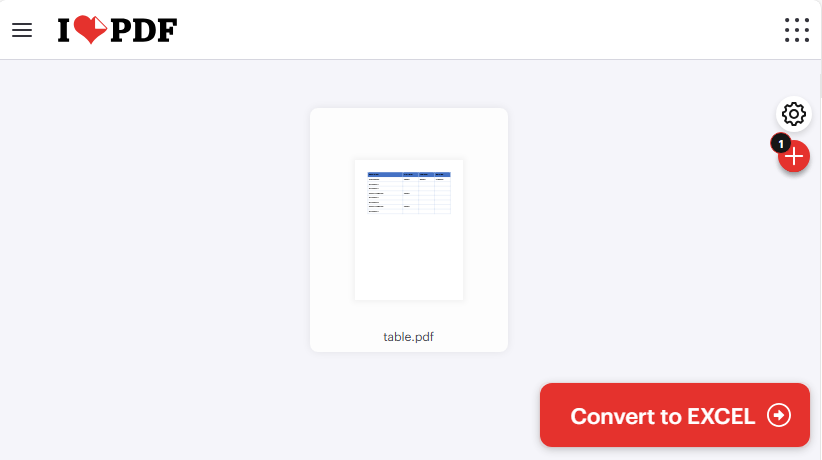
Um exemplo de uso do IlovePDF para converter tabela de PDF para Excel:
Nota de Segurança: Evite carregar documentos financeiros, legais ou pessoais sensíveis. Para dados confidenciais, use métodos offline.
2. Software de Desktop Gratuito para Converter PDF para Excel
Se você converte PDFs para Excel com frequência ou trabalha com dados sensíveis, o software de desktop é melhor. O PDF24 Creator é uma ferramenta offline 100% gratuita que oferece conversão robusta de PDF para Excel com suporte a lotes.
Como usar o PDF24 para transformar PDF em Excel:
- Baixe o PDF24 Creator e instale-o (compatível com Windows 10/11).
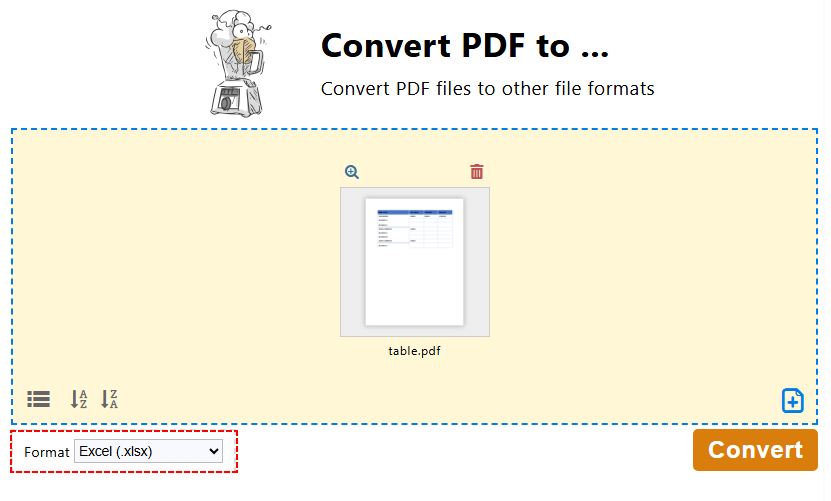
- Abra a Caixa de Ferramentas do PDF24 e selecione a opção “Converter PDF para …”.
- Clique em “Escolher arquivos” para selecionar um ou vários arquivos PDF.
- Selecione “Excel (.xlsx)” como o formato de saída.
- Clique em “Converter” para iniciar o processo. O PDF24 preserva as estruturas da tabela e a formatação do texto.
- Quando terminar, clique em “Salvar” para baixar o arquivo Excel.
Dica Pro: Se você só precisa converter uma página ou seção específica de um PDF para Excel, você pode extrair páginas do PDF ou cortar o PDF antes da conversão.
3. Biblioteca de Conversão Gratuita de PDF para Excel em Python
Para usuários com conhecimento técnico ou qualquer pessoa que precise automatizar conversões de PDF para Excel (por exemplo, processamento em massa), usar Python com o Free Spire.PDF é uma solução gratuita poderosa. O Free Spire.PDF for Python é uma biblioteca leve que suporta a criação, processamento e conversão de PDFs em Python sem dependências externas.
Pré-condições:
- Instale o Python 3.6 ou superior
- Instale o Free Spire.PDF for Python via pip:
pip install Spire.Pdf.Free
Código Passo a Passo para Converter PDF para Excel em Python:
from spire.pdf import *

# 1. Crie um objeto PdfDocument
pdf = PdfDocument()

# 2. Carregue seu arquivo PDF
pdf.LoadFromFile("table.pdf")

# 3. Defina as opções de layout
# Parâmetros: convertToMultipleSheet, rotatedText, splitCell, wrapText, overlapText
layout_options = XlsxLineLayoutOptions(True, True, False, True, False)

# 4. Aplique as opções de layout
pdf.ConvertOptions.SetPdfToXlsxOptions(layout_options)

# 5. Converta o PDF para Excel
pdf.SaveToFile("output.xlsx", FileFormat.XLSX)

# Feche o documento
pdf.Close()
Este código usa SaveToFile() para converter o arquivo PDF carregado em um arquivo Excel. Durante a conversão, a classe XlsxLineLayoutOptions define regras granulares sobre como o conteúdo do PDF é mapeado para as células/planilhas do Excel. Os cinco parâmetros booleanos controlam:
- convertToMultipleSheet: Determina se cada página do PDF é convertida em uma planilha separada.
- rotatedText: Controla se o texto rotacionado no PDF mantém seu ângulo de rotação original no Excel.
- splitCell: Especifica se o texto de várias linhas em uma única célula de tabela PDF é dividido em várias células do Excel.
- wrapText: Ativa ou desativa o ajuste automático de texto dentro das células do Excel.
- overlapText: Decide se o texto sobreposto no PDF é exibido no Excel.
Resultado da Conversão de PDF para XLSX:
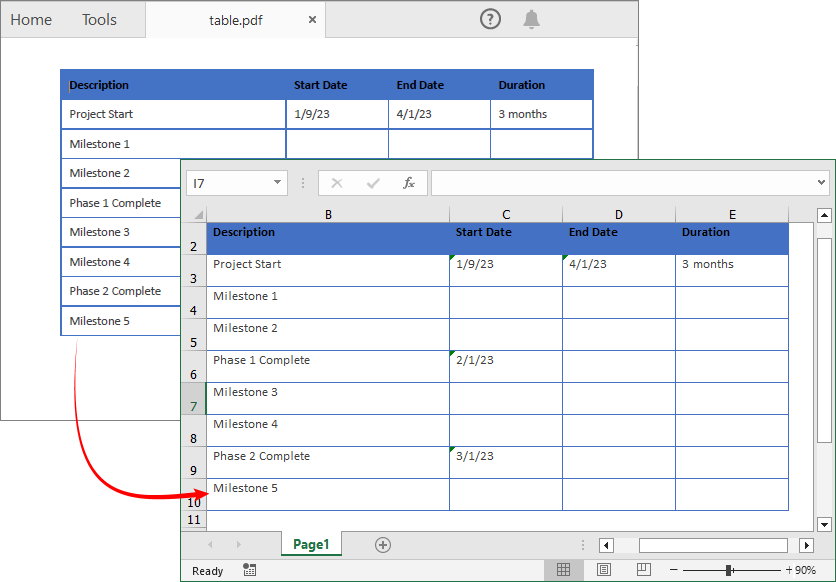
O Free Spire.PDF for Python também permite exportar tabela de PDF para o formato CSV. Detalhes referem-se a: Como Converter PDF para CSV em Python (Extração Rápida e Precisa de Tabela)
Principais ferramentas de OCR gratuitas para converter PDF digitalizado para Excel
A maioria dos conversores gratuitos tem dificuldade com PDFs digitalizados, mas existem duas ferramentas que permitem convertê-los para Excel editável gratuitamente — sem necessidade de OCR pago.
Opção 1: PDFgear (Suporta PDF digitalizado grande/de várias páginas)
O PDFgear é uma ferramenta online gratuita com poderosas capacidades de OCR — ideal para PDFs digitalizados grandes e documentos de várias páginas. Ele preserva layouts e não requer inscrição.
- Acesse o Conversor Gratuito de PDF para Excel do PDFgear (não é necessário se inscrever).
- Clique em “Selecionar Arquivo PDF” ou arraste e solte seu PDF na caixa de upload.
- Para PDF digitalizado, escolha o modo de conversão “Avançado” para habilitar a tecnologia OCR.
- Clique em “Converter” e aguarde 1–2 minutos. O PDFgear preserva os layouts, fontes e formatação originais.
- Clique em “Baixar” para salvar seu arquivo Excel editável (.xlsx) em seu dispositivo.
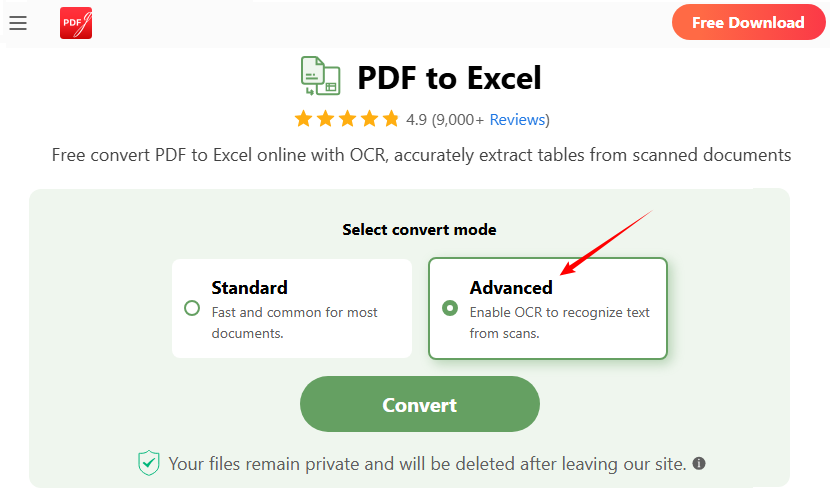
Opção 2: Online OCR (Para PDFs digitalizados pequenos)
O Online OCR é gratuito para arquivos de até 15 MB e suporta mais de 40 idiomas. É simples, mas menos poderoso para documentos grandes.
- Acesse o Conversor de PDF para Excel do Online OCR.
- Clique em “SELECIONAR ARQUIVO” para carregar seu arquivo PDF digitalizado.
- Escolha o idioma de reconhecimento (por exemplo, Inglês).
- Clique em “Converter” e aguarde o OCR extrair o texto da imagem.
- Baixe seu arquivo Excel editável.
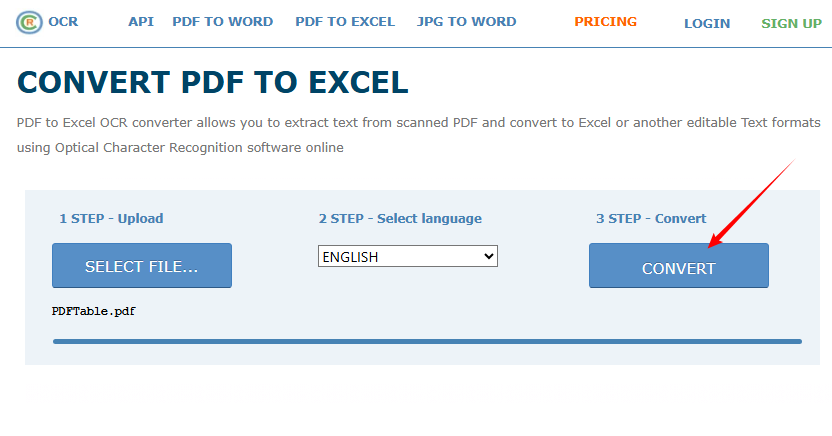
Perguntas Frequentes (FAQ)
Q1: Posso converter vários PDFs para Excel de uma vez gratuitamente?
Sim. O PDF24 (desktop) e o IlovePDF (online) suportam conversão em lote gratuitamente. Para processamento em lote automatizado, use o método Python com o Free Spire.XLS (adicione um loop para processar vários arquivos).
Q2: O arquivo Excel manterá o formato original da tabela?
- PDFs nativos: 90-99% da formatação é preservada (tabelas, fontes, alinhamento).
- PDFs digitalizados: 70-90% de precisão (depende da qualidade da digitalização) — use o PDFgear ou o Online OCR para obter os melhores resultados.
Q3: Meu arquivo Excel convertido tem texto em uma única célula. Como posso dividi-lo?
Isso geralmente ocorre com conversores simples. Use o recurso integrado do Excel "Texto para Colunas" (na guia Dados) para dividir o conteúdo com base em delimitadores. Para conversões futuras, escolha uma ferramenta com melhor análise de layout, como o PDF24 ou a biblioteca Python com o parâmetro splitCell ativado.
Q4: Posso usar essas ferramentas gratuitas no Mac, iPhone ou Android?
Sim. A maioria das ferramentas online (CLOUDXDOC, IlovePDF, PDFgear) funciona em Mac, iOS e Android — sem necessidade de instalação.
Considerações Finais
Este artigo apresentou uma variedade de ferramentas e métodos para exportar PDF para Excel gratuitamente. De conversores online fáceis de usar e aplicativos de desktop confiáveis a bibliotecas Python programáveis e soluções de OCR dedicadas, você pode transformar com confiança qualquer PDF — seja nativo ou digitalizado — em planilhas editáveis e organizadas.
Ao entender o seu tipo de PDF e selecionar o método certo, você pode desbloquear seus dados para edição, análise e relatórios sem nenhum custo.
Veja Também
무료로 PDF를 Excel로 변환 - 텍스트 및 스캔된 PDF
PDF를 Excel로 무료로 변환해야 하시나요? 잘 찾아오셨습니다. PDF는 서식을 그대로 유지하지만 데이터를 편집할 수 없도록 잠급니다. 송장, 보고서 또는 데이터 테이블 작업을 하든 수동으로 다시 입력하거나 비싼 소프트웨어 비용을 지불할 필요가 없습니다.
이 가이드는 PDF를 Excel로 빠르고 정확하게 변환하는 최고의 무료 도구와 방법을 안내합니다. 간단한 원클릭 온라인 변환기부터 자동화된 Python 스크립트까지, 문서 유형과 작업 흐름에 맞는 올바른 솔루션을 찾아드립니다.
콘텐츠 개요:
- PDF 유형 이해: 중요한 첫 단계
- 네이티브 PDF를 Excel로 변환하는 최고의 무료 방법
- 스캔된 PDF를 Excel로 변환하는 최고의 무료 OCR 도구
- 자주 묻는 질문 (FAQ)
PDF 유형 이해: 중요한 첫 단계
모든 PDF가 동일하게 만들어지는 것은 아니며, 올바른 변환 방법을 선택하려면 문서의 구성을 이해하는 것이 중요합니다.
| PDF 유형 | 식별 방법 | 최상의 변환 방법 |
|---|---|---|
| 네이티브/텍스트 기반 PDF | 텍스트를 선택하고 강조 표시할 수 있습니다. | 표준 변환기가 완벽하게 작동합니다. |
| 스캔/이미지 기반 PDF | 텍스트를 선택할 수 없습니다. 파일이 이미지입니다. | OCR(광학 문자 인식) 기술이 필요합니다. |
네이티브 PDF를 Excel로 변환하는 최고의 무료 방법
네이티브 PDF는 서식 손실이 최소화되어 가장 쉽게 변환할 수 있습니다. 속도, 개인 정보 보호 또는 자동화 요구에 따라 3가지 방법 중에서 선택하세요.
무료 PDF to Excel 온라인 변환기
온라인 변환기는 PDF를 Excel로 무료로 변환하는 가장 빠른 방법입니다. 몇 개의 파일만 변환하거나 소프트웨어를 설치하고 싶지 않은 경우에 적합합니다. 다음은 최고의 PDF to Excel 변환기 중 일부입니다.
- CLOUDXDOC: 워터마크나 광고 없이 PDF를 XLSX로 변환하는 깔끔한 인터페이스
- Smallpdf: 서식 정확도가 좋은 강력한 무료 옵션입니다.
- IlovePDF: 일괄 변환을 지원하며 더 나은 결과를 위한 상세 설정을 제공합니다.
온라인에서 PDF를 Excel로 내보내는 방법:
- 선택한 도구의 웹사이트로 이동합니다.
- 드래그 앤 드롭 또는 파일 선택을 통해 PDF를 업로드합니다.
- “Excel로 변환”(또는 유사한 옵션)을 클릭합니다.
- 처리가 완료될 때까지 기다립니다.
- 새로운 .xls 또는 .xlsx 파일을 다운로드합니다.
IlovePDF를 사용하여 PDF 테이블을 Excel로 변환하는 예:
보안 참고: 민감한 금융, 법률 또는 개인 문서를 업로드하지 마십시오. 기밀 데이터의 경우 오프라인 방법을 대신 사용하십시오
2. PDF를 Excel로 변환하는 무료 데스크톱 소프트웨어
PDF를 Excel로 자주 변환하거나 민감한 데이터를 다루는 경우 데스크톱 소프트웨어가 더 좋습니다. PDF24 Creator는 일괄 변환을 지원하는 강력한 PDF to Excel 변환 기능을 제공하는 100% 무료 오프라인 도구입니다.
PDF24를 사용하여 PDF를 Excel로 변경하는 방법:
- PDF24 Creator를 다운로드하여 설치합니다(Windows 10/11과 호환).
- PDF24 Toolbox를 열고 “PDF를 …로 변환” 옵션을 선택합니다.
- “파일 선택”을 클릭하여 하나 또는 여러 개의 PDF 파일을 선택합니다.
- 출력 형식으로 “Excel (.xlsx)”을 선택합니다.
- “변환”을 클릭하여 프로세스를 시작합니다. PDF24는 테이블 구조와 텍스트 서식을 보존합니다.
- 완료되면 “저장”을 클릭하여 Excel 파일을 다운로드합니다.
프로 팁: PDF의 특정 페이지나 섹션만 Excel로 변환해야 하는 경우, 변환 전에 PDF 페이지를 추출하거나 PDF를 자를 수 있습니다.
3. 무료 PDF to Excel Python 변환기 라이브러리
기술에 정통한 사용자나 PDF to Excel 변환을 자동화해야 하는 경우(예: 대량 처리), Python과 Free Spire.PDF를 사용하는 것은 강력한 무료 솔루션입니다. Free Spire.PDF for Python은 외부 종속성 없이 Python에서 PDF를 생성, 처리 및 변환하는 것을 지원하는 경량 라이브러리입니다.
전제 조건:
- Python 3.6 이상 설치
- pip를 통해 Free Spire.PDF for Python 설치:
pip install Spire.Pdf.Free
Python에서 PDF를 Excel로 변환하는 단계별 코드:
from spire.pdf import *

# 1. PdfDocument 객체 생성
pdf = PdfDocument()

# 2. PDF 파일 로드
pdf.LoadFromFile("table.pdf")

# 3. 레이아웃 옵션 정의
# 매개변수: convertToMultipleSheet, rotatedText, splitCell, wrapText, overlapText
layout_options = XlsxLineLayoutOptions(True, True, False, True, False)

# 4. 레이아웃 옵션 적용
pdf.ConvertOptions.SetPdfToXlsxOptions(layout_options)

# 5. PDF를 Excel로 변환
pdf.SaveToFile("output.xlsx", FileFormat.XLSX)

# 문서 닫기
pdf.Close()
이 코드는 SaveToFile()을 사용하여 로드된 PDF 파일을 Excel 파일로 변환합니다. 변환 중에 XlsxLineLayoutOptions 클래스는 PDF 콘텐츠가 Excel 셀/시트에 매핑되는 방식에 대한 세분화된 규칙을 정의합니다. 5개의 부울 매개변수는 다음을 제어합니다.
- convertToMultipleSheet: 각 PDF 페이지를 별도의 워크시트로 변환할지 여부를 결정합니다.
- rotatedText: PDF의 회전된 텍스트가 Excel에서 원래의 회전 각도를 유지할지 여부를 제어합니다.
- splitCell: 단일 PDF 테이블 셀의 여러 줄 텍스트를 여러 Excel 셀로 분할할지 여부를 지정합니다.
- wrapText: Excel 셀 내에서 자동 텍스트 줄 바꿈을 활성화하거나 비활성화합니다.
- overlapText: PDF에서 겹치는 텍스트를 Excel에 표시할지 여부를 결정합니다.
PDF to XLSX 변환 결과:
Free Spire.PDF for Python은 또한 PDF 테이블을 CSV 형식으로 내보낼 수 있습니다. 자세한 내용은 다음을 참조하십시오: Python에서 PDF를 CSV로 변환하는 방법 (빠르고 정확한 테이블 추출)
스캔된 PDF를 Excel로 변환하는 최고의 무료 OCR 도구
대부분의 무료 변환기는 스캔된 PDF에 어려움을 겪지만, 유료 OCR 없이도 무료로 편집 가능한 Excel로 변환할 수 있는 두 가지 도구가 있습니다.
옵션 1: PDFgear (대용량/다중 페이지 스캔 PDF 지원)
PDFgear는 강력한 OCR 기능을 갖춘 무료 온라인 도구로, 대용량 스캔 PDF 및 다중 페이지 문서에 이상적입니다. 레이아웃을 보존하며 가입이 필요 없습니다.
- PDFgear 무료 PDF to Excel 변환기로 이동합니다(가입 필요 없음).
- “PDF 파일 선택”을 클릭하거나 PDF를 업로드 상자로 드래그 앤 드롭합니다.
- 스캔된 PDF의 경우 “고급” 변환 모드를 선택하여 OCR 기술을 활성화합니다.
- “변환”을 클릭하고 1-2분 정도 기다립니다. PDFgear는 원본 레이아웃, 글꼴 및 서식을 보존합니다.
- “다운로드”를 클릭하여 편집 가능한 Excel 파일(.xlsx)을 장치에 저장합니다.
옵션 2: 온라인 OCR (소규모 스캔 PDF용)
Online OCR은 최대 15MB 파일까지 무료이며 40개 이상의 언어를 지원합니다. 간단하지만 대용량 문서에는 덜 강력합니다.
- Online OCR의 PDF to Excel 변환기로 이동합니다.
- “파일 선택”을 클릭하여 스캔된 PDF 파일을 업로드합니다.
- 인식 언어(예: 영어)를 선택합니다.
- “변환”을 클릭하고 OCR이 이미지에서 텍스트를 추출할 때까지 기다립니다.
- 편집 가능한 Excel 파일을 다운로드합니다.
자주 묻는 질문 (FAQ)
Q1: 여러 PDF를 한 번에 Excel로 무료로 변환할 수 있나요?
네. PDF24(데스크톱) 및 IlovePDF(온라인)는 무료로 일괄 변환을 지원합니다. 자동화된 일괄 처리의 경우 Free Spire.XLS와 함께 Python 메서드를 사용하십시오(여러 파일을 처리하기 위해 루프 추가).
Q2: Excel 파일이 원본 테이블 형식을 유지하나요?
- 네이티브 PDF: 90-99%의 서식이 보존됩니다(테이블, 글꼴, 정렬).
- 스캔된 PDF: 70-90% 정확도(스캔 품질에 따라 다름)—최상의 결과를 위해 PDFgear 또는 Online OCR을 사용하십시오.
Q3: 변환된 Excel 파일의 텍스트가 단일 셀에 있습니다. 어떻게 분할할 수 있나요?
이것은 간단한 변환기에서 자주 발생합니다. Excel의 내장된 "텍스트 나누기" 기능(데이터 탭 아래)을 사용하여 구분 기호를 기준으로 콘텐츠를 분할하십시오. 향후 변환을 위해 PDF24 또는 splitCell 매개변수가 활성화된 Python 라이브러리와 같이 더 나은 레이아웃 분석 기능이 있는 도구를 선택하십시오.
Q4: Mac, iPhone 또는 Android에서 이러한 무료 도구를 사용할 수 있나요?
네. 대부분의 온라인 도구(CLOUDXDOC, IlovePDF, PDFgear)는 Mac, iOS 및 Android에서 작동하며 설치가 필요 없습니다.
마지막 생각들
이 기사에서는 PDF를 Excel로 무료로 내보내는 다양한 도구와 방법을 소개했습니다. 사용자 친화적인 온라인 변환기 및 신뢰할 수 있는 데스크톱 응용 프로그램부터 프로그래밍 가능한 Python 라이브러리 및 전용 OCR 솔루션에 이르기까지, 네이티브 또는 스캔 여부에 관계없이 모든 PDF를 편집 가능하고 정리된 스프레드시트로 자신 있게 변환할 수 있습니다.
PDF 유형을 이해하고 올바른 방법을 선택하면 비용 없이 편집, 분석 및 보고를 위해 데이터를 잠금 해제할 수 있습니다.
더 보기
Convertire PDF in Excel gratis: PDF di testo e scansionati
Hai bisogno di convertire PDF in Excel gratuitamente? Sei nel posto giusto. I PDF mantengono intatta la formattazione ma bloccano i tuoi dati impedendone la modifica. Che tu stia lavorando con fatture, report o tabelle di dati, non c'è bisogno di riscrivere manualmente o pagare per software costosi.
Questa guida ti illustra i migliori strumenti e metodi gratuiti per trasformare rapidamente e accuratamente i PDF in Excel. Dai semplici convertitori online con un clic agli script Python automatizzati, ti abbineremo alla soluzione giusta per il tuo tipo di documento e flusso di lavoro.
Panoramica dei Contenuti:
- Comprendere il Tipo di PDF: Il Primo Passo Fondamentale
- I Migliori Metodi Gratuiti per Convertire PDF Nativo in Excel
- I Migliori Strumenti OCR Gratuiti per Convertire PDF Scansionato in Excel
- Domande Frequenti (FAQ)
Comprendere il Tipo di PDF: Il Primo Passo Fondamentale
Non tutti i PDF sono uguali e comprendere la composizione del tuo documento è essenziale per scegliere il metodo di conversione giusto.
| Tipo di PDF | Come Identificare | Miglior Metodo di Conversione |
|---|---|---|
| PDF Nativo/Basato su Testo | Il testo è selezionabile ed evidenziabile. | I convertitori standard funzionano perfettamente. |
| PDF Scansionato/Basato su Immagine | Il testo non può essere selezionato; il file è un'immagine. | Richiede la tecnologia OCR (Riconoscimento Ottico dei Caratteri). |
I Migliori Metodi Gratuiti per Convertire PDF Nativo in Excel
I PDF nativi sono i più facili da convertire, con una perdita minima di formattazione. Scegli tra 3 metodi in base alle tue esigenze: velocità, privacy o automazione.
Convertitore Online Gratuito da PDF a Excel
I convertitori online sono il modo più veloce per convertire gratuitamente PDF in Excel, perfetti se hai solo bisogno di convertire alcuni file o non vuoi installare software. Ecco alcuni dei migliori convertitori da PDF a Excel:
- CLOUDXDOC: Interfaccia pulita per convertire PDF in XLSX senza filigrane o pubblicità
- Smallpdf: Un'opzione gratuita robusta con una buona precisione di formattazione.
- IlovePDF: Supporta la conversione batch e offre impostazioni dettagliate per risultati migliori.
Come esportare PDF in Excel online:
- Vai al sito web dello strumento scelto.
- Carica il tuo PDF tramite trascinamento o selezione del file.
- Fai clic su “Converti in Excel” (o opzione simile).
- Attendi il completamento dell'elaborazione.
- Scarica il tuo nuovo file .xls o .xlsx.
Un esempio di utilizzo di IlovePDF per convertire una tabella PDF in Excel:
Nota sulla Sicurezza: Evita di caricare documenti finanziari, legali o personali sensibili. Per i dati riservati, utilizza invece metodi offline
2. Software Desktop Gratuito per Convertire PDF in Excel
Se converti spesso PDF in Excel o lavori con dati sensibili, il software desktop è migliore. PDF24 Creator è uno strumento offline 100% gratuito che offre una robusta conversione da PDF a Excel con supporto batch.
Come usare PDF24 per cambiare PDF in Excel:
- Scarica PDF24 Creator e installalo (compatibile con Windows 10/11).
- Apri PDF24 Toolbox e seleziona l'opzione “Converti PDF in …”.
- Fai clic su “Scegli file” per selezionare uno o più file PDF.
- Seleziona “Excel (.xlsx)” come formato di output.
- Fai clic su “Converti” per avviare il processo. PDF24 preserva le strutture delle tabelle e la formattazione del testo.
- Una volta terminato, fai clic su “Salva” per scaricare il file Excel.
Suggerimento Pro: Se hai solo bisogno di convertire una pagina o una sezione specifica di un PDF in Excel, puoi estrarre le pagine del PDF o ritagliare il PDF prima della conversione.
3. Libreria di Conversione Gratuita da PDF a Excel in Python
Per gli utenti esperti di tecnologia o chiunque abbia bisogno di automatizzare le conversioni da PDF a Excel (ad es. elaborazione in blocco), l'uso di Python con Free Spire.PDF è una potente soluzione gratuita. Free Spire.PDF per Python è una libreria leggera che supporta la creazione, l'elaborazione e la conversione di PDF in Python senza dipendenze esterne.
Prerequisiti:
- Installa Python 3.6 o superiore
- Installa Free Spire.PDF per Python tramite pip:
pip install Spire.Pdf.Free
Codice Passo-Passo per Convertire PDF in Excel in Python:
from spire.pdf import *

# 1. Create a PdfDocument object
pdf = PdfDocument()

# 2. Load your PDF file
pdf.LoadFromFile("table.pdf")

# 3. Define layout options
# Parameters: convertToMultipleSheet, rotatedText, splitCell, wrapText, overlapText
layout_options = XlsxLineLayoutOptions(True, True, False, True, False)

# 4. Apply layout options
pdf.ConvertOptions.SetPdfToXlsxOptions(layout_options)

# 5. Convert the PDF to Excel
pdf.SaveToFile("output.xlsx", FileFormat.XLSX)

# Close the document
pdf.Close()
Questo codice utilizza SaveToFile() per convertire il file PDF caricato in un file Excel. Durante la conversione, la classe XlsxLineLayoutOptions definisce regole granulari su come il contenuto del PDF viene mappato alle celle/fogli di Excel. I cinque parametri booleani controllano:
- convertToMultipleSheet: Determina se ogni pagina del PDF viene convertita in un foglio di lavoro separato.
- rotatedText: Controlla se il testo ruotato nel PDF mantiene il suo angolo di rotazione originale in Excel.
- splitCell: Specifica se il testo su più righe in una singola cella di tabella PDF viene suddiviso in più celle di Excel.
- wrapText: Abilita o disabilita il ritorno a capo automatico del testo all'interno delle celle di Excel.
- overlapText: Decide se il testo sovrapposto nel PDF viene visualizzato in Excel.
Risultato della Conversione da PDF a XLSX:
Free Spire.PDF per Python consente anche di esportare tabelle PDF in formato CSV. I dettagli si riferiscono a: Come Convertire PDF in CSV in Python (Estrazione Veloce e Accurata delle Tabelle)
I Migliori Strumenti OCR Gratuiti per Convertire PDF Scansionato in Excel
La maggior parte dei convertitori gratuiti ha difficoltà con i PDF scansionati, ma ci sono due strumenti che ti permettono di convertirli in Excel modificabile gratuitamente, senza bisogno di OCR a pagamento.
Opzione 1: PDFgear (Supporta PDF Scansionati di Grandi Dimensioni/Multipagina)
PDFgear è uno strumento online gratuito con potenti capacità OCR, ideale per PDF scansionati di grandi dimensioni e documenti multipagina. Conserva i layout e non richiede registrazione.
- Vai al Convertitore Gratuito da PDF a Excel di PDFgear (nessuna registrazione richiesta).
- Fai clic su “Seleziona File PDF” o trascina e rilascia il tuo PDF nell'area di caricamento.
- Per i PDF scansionati, scegli la modalità di conversione “Avanzata” per abilitare la tecnologia OCR.
- Fai clic su “Converti” e attendi 1–2 minuti. PDFgear preserva layout, caratteri e formattazione originali.
- Fai clic su “Download” per salvare il tuo file Excel modificabile (.xlsx) sul tuo dispositivo.
Opzione 2: Online OCR (Per PDF Scansionati di Piccole Dimensioni)
Online OCR è gratuito per file fino a 15 MB e supporta oltre 40 lingue. È semplice ma meno potente per documenti di grandi dimensioni.
- Vai al Convertitore da PDF a Excel di Online OCR.
- Fai clic su “SELEZIONA FILE” per caricare il tuo file PDF scansionato.
- Scegli la lingua di riconoscimento (ad es. Inglese).
- Fai clic su “Converti” e attendi che l'OCR estragga il testo dall'immagine.
- Scarica il tuo file Excel modificabile.
Domande Frequenti (FAQ)
D1: Posso convertire più PDF in Excel contemporaneamente gratuitamente?
Sì. PDF24 (desktop) e IlovePDF (online) supportano la conversione batch gratuitamente. Per l'elaborazione batch automatizzata, utilizza il metodo Python con Free Spire.XLS (aggiungi un ciclo per elaborare più file).
D2: Il file Excel manterrà il formato della tabella originale?
- PDF Nativi: il 90-99% della formattazione viene preservato (tabelle, caratteri, allineamento).
- PDF Scansionati: precisione del 70-90% (dipende dalla qualità della scansione)—utilizza PDFgear o Online OCR per i migliori risultati.
D3: Il mio file Excel convertito ha il testo in una singola cella. Come posso dividerlo?
Questo accade spesso con i convertitori semplici. Utilizza la funzione integrata di Excel "Testo in colonne" (nella scheda Dati) per dividere il contenuto in base ai delimitatori. Per le conversioni future, scegli uno strumento con una migliore analisi del layout, come PDF24 o la libreria Python con il parametro splitCell abilitato.
D4: Posso usare questi strumenti gratuiti su Mac, iPhone o Android?
Sì. La maggior parte degli strumenti online (CLOUDXDOC, IlovePDF, PDFgear) funziona su Mac, iOS e Android, senza bisogno di installazione.
Considerazioni Finali
Questo articolo ha introdotto una serie di strumenti e metodi per esportare gratuitamente PDF in Excel. Dai convertitori online facili da usare e dalle applicazioni desktop affidabili alle librerie Python programmabili e alle soluzioni OCR dedicate, puoi trasformare con sicurezza qualsiasi PDF, nativo o scansionato, in fogli di calcolo modificabili e organizzati.
Comprendendo il tipo di PDF e selezionando il metodo giusto, puoi sbloccare i tuoi dati per la modifica, l'analisi e la reportistica senza alcun costo.
Vedi Anche
Convertir PDF en Excel gratuitement : PDF texte et numérisés
Table des matières
Besoin de convertir un PDF en Excel gratuitement? Vous êtes au bon endroit. Les PDF conservent votre mise en forme mais verrouillent vos données pour empêcher toute modification. Que vous travailliez avec des factures, des rapports ou des tableaux de données, il n'est pas nécessaire de retaper manuellement ou de payer pour un logiciel coûteux.
Ce guide vous présente les meilleurs outils et méthodes gratuits pour transformer rapidement et précisément un PDF en Excel. Des convertisseurs en ligne simples en un clic aux scripts Python automatisés, nous vous trouverons la solution adaptée à votre type de document et à votre flux de travail.
Aperçu du contenu :
- Comprendre votre type de PDF : la première étape cruciale
- Meilleures méthodes gratuites pour convertir un PDF natif en Excel
- Meilleurs outils OCR gratuits pour convertir un PDF numérisé en Excel
- Foire aux questions (FAQ)
Comprendre votre type de PDF : la première étape cruciale
Tous les PDF ne sont pas créés égaux, et comprendre la composition de votre document est essentiel pour choisir la bonne méthode de conversion.
| Type de PDF | Comment identifier | Meilleure méthode de conversion |
|---|---|---|
| PDF natif/basé sur du texte | Le texte est sélectionnable et surlignable. | Les convertisseurs standard fonctionnent parfaitement. |
| PDF numérisé/basé sur une image | Le texte ne peut pas être sélectionné ; le fichier est une image. | Nécessite la technologie OCR (Reconnaissance Optique de Caractères). |
Meilleures méthodes gratuites pour convertir un PDF natif en Excel
Les PDF natifs sont les plus faciles à convertir, avec une perte de formatage minimale. Choisissez parmi 3 méthodes en fonction de vos besoins : vitesse, confidentialité ou automatisation.
Convertisseur PDF vers Excel en ligne gratuit
Les convertisseurs en ligne sont le moyen le plus rapide de convertir gratuitement un PDF en Excel, idéal si vous n'avez besoin de convertir que quelques fichiers ou si vous ne voulez pas installer de logiciel. Voici quelques-uns des meilleurs convertisseurs PDF vers Excel :
- CLOUDXDOC : Interface claire pour convertir des PDF en XLSX sans filigrane ni publicité
- Smallpdf : Une option gratuite robuste avec une bonne précision de formatage.
- IlovePDF : Prend en charge la conversion par lots et offre des paramètres détaillés pour de meilleurs résultats.
Comment exporter un PDF vers Excel en ligne :
- Accédez au site web de l'outil que vous avez choisi.
- Téléchargez votre PDF par glisser-déposer ou en sélectionnant un fichier.
- Cliquez sur « Convertir en Excel » (ou une option similaire).
- Attendez la fin du traitement.
- Téléchargez votre nouveau fichier .xls ou .xlsx.
Un exemple d'utilisation d'IlovePDF pour convertir un tableau PDF en Excel :
Note de sécurité : Évitez de télécharger des documents financiers, juridiques ou personnels sensibles. Pour les données confidentielles, utilisez plutôt des méthodes hors ligne
2. Logiciel de bureau gratuit pour convertir un PDF en Excel
Si vous convertissez souvent des PDF en Excel ou si vous travaillez avec des données sensibles, un logiciel de bureau est préférable. PDF24 Creator est un outil hors ligne 100 % gratuit qui offre une conversion robuste de PDF en Excel avec prise en charge des lots.
Comment utiliser PDF24 pour changer un PDF en Excel :
- Téléchargez PDF24 Creator et installez-le (compatible avec Windows 10/11).
- Ouvrez la boîte à outils PDF24 et sélectionnez l'option « Convertir un PDF en … ».
- Cliquez sur « Choisir des fichiers » pour sélectionner un ou plusieurs fichiers PDF.
- Sélectionnez « Excel (.xlsx) » comme format de sortie.
- Cliquez sur « Convertir » pour démarrer le processus. PDF24 préserve les structures de tableau et la mise en forme du texte.
- Une fois terminé, cliquez sur « Enregistrer » pour télécharger le fichier Excel.
Conseil de pro : Si vous n'avez besoin de convertir qu'une page ou une section spécifique d'un PDF en Excel, vous pouvez extraire des pages PDF ou rogner le PDF avant la conversion.
3. Bibliothèque de conversion Python gratuite de PDF vers Excel
Pour les utilisateurs avertis ou toute personne ayant besoin d'automatiser les conversions de PDF en Excel (par exemple, le traitement en masse), l'utilisation de Python avec Free Spire.PDF est une solution gratuite puissante. Free Spire.PDF for Python est une bibliothèque légère qui prend en charge la création, le traitement et la conversion de PDF en Python sans dépendances externes.
Prérequis :
- Installez Python 3.6 ou supérieur
- Installez Free Spire.PDF for Python via pip :
pip install Spire.Pdf.Free
Code pas à pas pour convertir un PDF en Excel en Python :
from spire.pdf import *

# 1. Create a PdfDocument object
pdf = PdfDocument()

# 2. Load your PDF file
pdf.LoadFromFile("table.pdf")

# 3. Define layout options
# Parameters: convertToMultipleSheet, rotatedText, splitCell, wrapText, overlapText
layout_options = XlsxLineLayoutOptions(True, True, False, True, False)

# 4. Apply layout options
pdf.ConvertOptions.SetPdfToXlsxOptions(layout_options)

# 5. Convert the PDF to Excel
pdf.SaveToFile("output.xlsx", FileFormat.XLSX)

# Close the document
pdf.Close()
Ce code utilise SaveToFile() pour convertir le fichier PDF chargé en fichier Excel. Pendant la conversion, la classe XlsxLineLayoutOptions définit des règles granulaires sur la manière dont le contenu du PDF est mappé aux cellules/feuilles Excel. Les cinq paramètres booléens contrôlent :
- convertToMultipleSheet : Détermine si chaque page PDF est convertie en une feuille de calcul distincte.
- rotatedText : Contrôle si le texte pivoté dans le PDF conserve son angle de rotation d'origine dans Excel.
- splitCell : Spécifie si le texte sur plusieurs lignes dans une seule cellule de tableau PDF est divisé en plusieurs cellules Excel.
- wrapText : Active ou désactive le retour à la ligne automatique du texte dans les cellules Excel.
- overlapText : Décide si le texte superposé dans le PDF est affiché dans Excel.
Résultat de la conversion PDF en XLSX :
Free Spire.PDF for Python permet également d'exporter un tableau PDF au format CSV. Pour plus de détails, consultez : Comment convertir un PDF en CSV en Python (extraction de tableau rapide et précise)
Meilleurs outils OCR gratuits pour convertir un PDF numérisé en Excel
La plupart des convertisseurs gratuits ont des difficultés avec les PDF numérisés, mais il existe deux outils qui vous permettent de les convertir gratuitement en Excel modifiable, sans nécessiter d'OCR payant.
Option 1 : PDFgear (prend en charge les PDF numérisés volumineux/multi-pages)
PDFgear est un outil en ligne gratuit doté de puissantes capacités d'OCR, idéal pour les PDF numérisés volumineux et les documents de plusieurs pages. Il préserve les mises en page et ne nécessite aucune inscription.
- Accédez au convertisseur PDF vers Excel gratuit de PDFgear (aucune inscription requise).
- Cliquez sur « Sélectionner un fichier PDF » ou glissez-déposez votre PDF dans la zone de téléchargement.
- Pour les PDF numérisés, choisissez le mode de conversion « Avancé » pour activer la technologie OCR.
- Cliquez sur « Convertir » et attendez 1 à 2 minutes. PDFgear préserve les mises en page, les polices et la mise en forme d'origine.
- Cliquez sur « Télécharger » pour enregistrer votre fichier Excel modifiable (.xlsx) sur votre appareil.
Option 2 : OCR en ligne (pour les petits PDF numérisés)
Online OCR est gratuit pour les fichiers jusqu'à 15 Mo et prend en charge plus de 40 langues. C'est simple mais moins puissant pour les documents volumineux.
- Accédez au convertisseur PDF vers Excel d'Online OCR.
- Cliquez sur « SÉLECTIONNER UN FICHIER » pour télécharger votre fichier PDF numérisé.
- Choisissez la langue de reconnaissance (par exemple, l'anglais).
- Cliquez sur « Convertir » et attendez que l'OCR extraie le texte de l'image.
- Téléchargez votre fichier Excel modifiable.
Foire aux questions (FAQ)
Q1 : Puis-je convertir plusieurs PDF en Excel à la fois gratuitement ?
Oui. PDF24 (bureau) et IlovePDF (en ligne) prennent en charge la conversion par lots gratuitement. Pour le traitement par lots automatisé, utilisez la méthode Python avec Free Spire.XLS (ajoutez une boucle pour traiter plusieurs fichiers).
Q2 : Le fichier Excel conservera-t-il le format de tableau d'origine ?
- PDF natifs : 90-99 % de la mise en forme est préservée (tableaux, polices, alignement).
- PDF numérisés : 70-90 % de précision (dépend de la qualité de la numérisation)—utilisez PDFgear ou Online OCR pour de meilleurs résultats.
Q3 : Mon fichier Excel converti contient du texte dans une seule cellule. Comment puis-je le diviser ?
Cela se produit souvent avec des convertisseurs simples. Utilisez la fonction intégrée d'Excel "Texte en colonnes" (sous l'onglet Données) pour diviser le contenu en fonction de délimiteurs. Pour les conversions futures, choisissez un outil avec une meilleure analyse de la mise en page, comme PDF24 ou la bibliothèque Python avec le paramètre splitCell activé.
Q4 : Puis-je utiliser ces outils gratuits sur Mac, iPhone ou Android ?
Oui. La plupart des outils en ligne (CLOUDXDOC, IlovePDF, PDFgear) fonctionnent sur Mac, iOS et Android, aucune installation n'est nécessaire.
Réflexions finales
Cet article a présenté une gamme d'outils et de méthodes pour exporter gratuitement un PDF vers Excel. Des convertisseurs en ligne conviviaux et des applications de bureau fiables aux bibliothèques Python programmables et aux solutions OCR dédiées, vous pouvez transformer en toute confiance n'importe quel PDF, qu'il soit natif ou numérisé, en feuilles de calcul modifiables et organisées.
En comprenant votre type de PDF et en sélectionnant la bonne méthode, vous pouvez déverrouiller vos données pour l'édition, l'analyse et la création de rapports sans aucun coût.