Легкая конвертация ODT в PDF: бесплатные инструменты и Python
Содержание
- Что такое файл ODT и зачем его конвертировать в PDF?
- Конвертировать ODT в PDF онлайн (бесплатные и веб-инструменты)
- Конвертировать ODT в PDF с помощью настольного программного обеспечения
- Программное преобразование ODT в PDF с помощью Python
- Выбор подходящего метода для ваших нужд
- Часто задаваемые вопросы
Файлы ODT (OpenDocument Text) широко используются для создания и редактирования документов в LibreOffice или Apache OpenOffice. Однако совместное использование или распространение файлов ODT может быть неудобным, поскольку не все устройства или платформы поддерживают этот формат. Преобразование файлов ODT в PDF гарантирует, что макет вашего документа, шрифты и форматирование останутся неизменными, что упрощает его совместное использование, печать или надежное архивирование.
В этой статье вы познакомитесь с практическими методами преобразования ODT в PDF, включая онлайн-инструменты, настольное программное обеспечение и автоматизацию на основе Python как для периодических, так и для крупномасштабных преобразований.
Быстрая навигация
- Что такое файл ODT и зачем его конвертировать в PDF?
- Конвертировать ODT в PDF онлайн (бесплатные и веб-инструменты)
- Конвертировать ODT в PDF с помощью настольного программного обеспечения
- Программное преобразование ODT в PDF с помощью Python
- Выбор подходящего метода для ваших нужд
- Часто задаваемые вопросы
Что такое файл ODT и зачем его конвертировать в PDF?
Файл ODT — это текстовый документ, основанный на стандарте OpenDocument. Он обычно используется в средах, где приоритет отдается открытым форматам и кроссплатформенной совместимости. Файлы ODT поддерживают форматированный текст, изображения, таблицы и стили, что делает их подходящими для повседневного создания документов.
Однако ODT не имеет универсальной поддержки за пределами офисных приложений. Когда документы необходимо предоставить более широкой аудитории, официально подать или заархивировать для длительного использования, PDF становится более практичным выбором.
Преобразование ODT в PDF помогает решить несколько общих задач:
- Единообразный макет: PDF-файлы отображаются одинаково на всех устройствах и операционных системах.
- Улучшенная совместимость: программы для чтения PDF-файлов широко доступны и не требуют программного обеспечения для редактирования.
- Целостность документа: PDF-файлы снижают риск случайного изменения содержимого.
- Профессиональное распространение: PDF-файлы часто предпочитают для отчетов, контрактов и официальных документов.
Конвертировать ODT в PDF онлайн (бесплатные и веб-инструменты)
Онлайн-конвертеры часто являются самым быстрым способом преобразования файла ODT в PDF, особенно для пользователей, которым требуются лишь периодические преобразования и которые не хотят устанавливать дополнительное программное обеспечение.
Пошаговая инструкция: конвертируйте ODT в PDF онлайн
- Откройте в браузере веб-сервис для конвертации ODT в PDF (например, CloudXDocs ODT to PDF Converter).

- Загрузите файл ODT с вашего локального устройства или из поддерживаемого облачного хранилища.
- Подождите, пока файл обрабатывается и конвертируется на сервере.
- Загрузите полученный PDF-файл на свой компьютер.
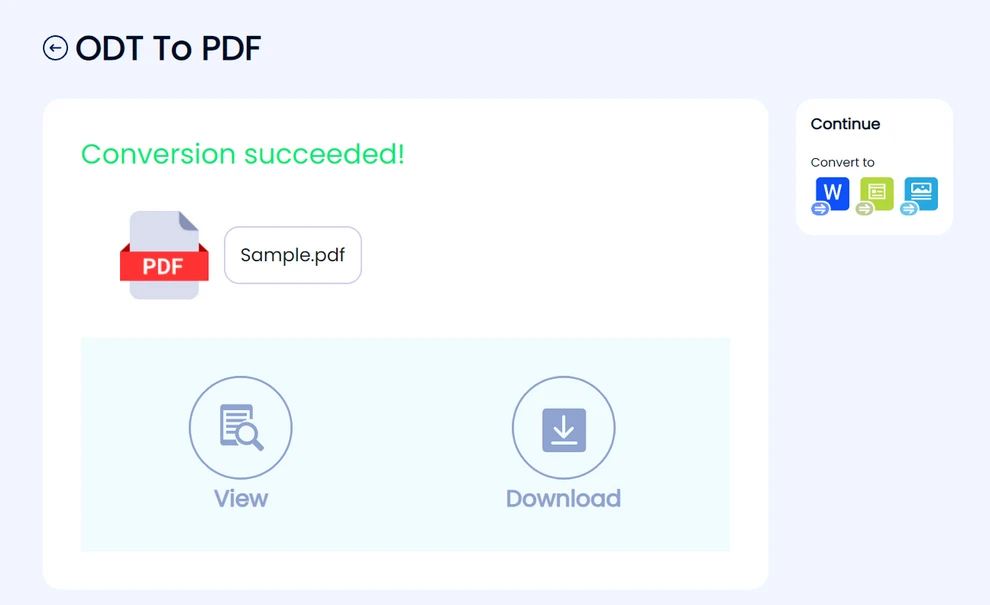
Большинство онлайн-инструментов следуют этому простому рабочему процессу, что делает их доступными даже для нетехнических пользователей.
Преимущества онлайн-конвертации
- Не требуется установка или настройка
- Доступно из любого современного браузера
- Подходит для быстрых, одноразовых преобразований
- Часто доступно бесплатно при базовом использовании
Ограничения онлайн-конвертеров
Онлайн-инструменты обычно устанавливают ограничения на размер файла или дневные лимиты на конвертацию. Загрузка документов на сторонние серверы также может быть неприемлемой для конфиденциальных или чувствительных файлов. Кроме того, сложное форматирование, такое как пользовательские шрифты или расширенные макеты, не всегда может быть сохранено точно, а пакетное преобразование поддерживается редко.
В случаях, когда требуется редактирование и совместная работа, преобразование файлов ODT в формат Word может быть более практичным вариантом, чем PDF.
Конвертировать ODT в PDF с помощью настольного программного обеспечения
Настольные офисные приложения предоставляют более контролируемую среду для преобразования файлов ODT в PDF. И LibreOffice, и Apache OpenOffice имеют встроенную функцию экспорта в PDF.
Пошаговая инструкция: конвертируйте ODT в PDF с помощью LibreOffice или OpenOffice
- Откройте файл ODT в LibreOffice Writer (или Apache OpenOffice Writer).
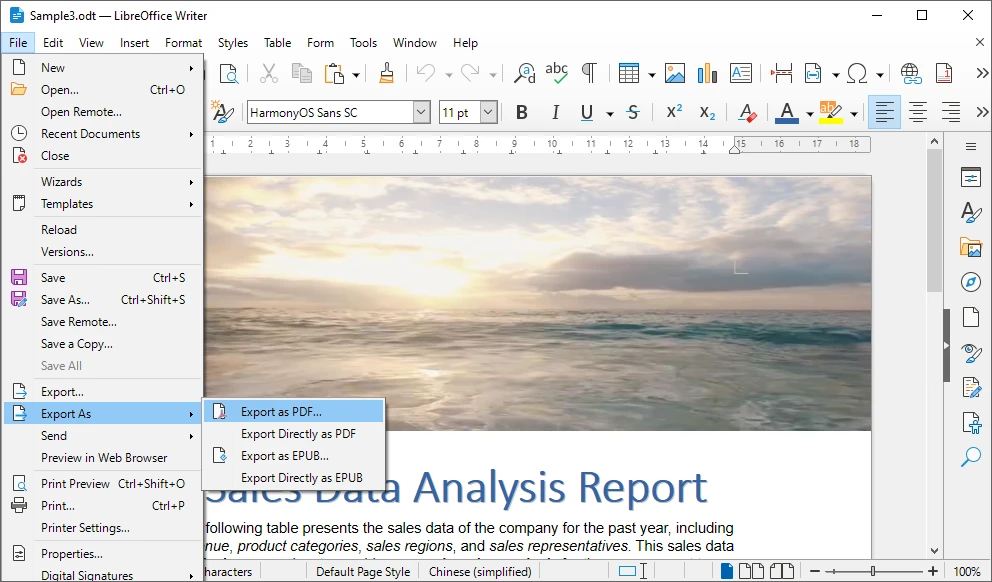
- Просмотрите документ, чтобы убедиться в правильности форматирования и макета.
- Нажмите Файл и выберите Экспортировать как PDF.
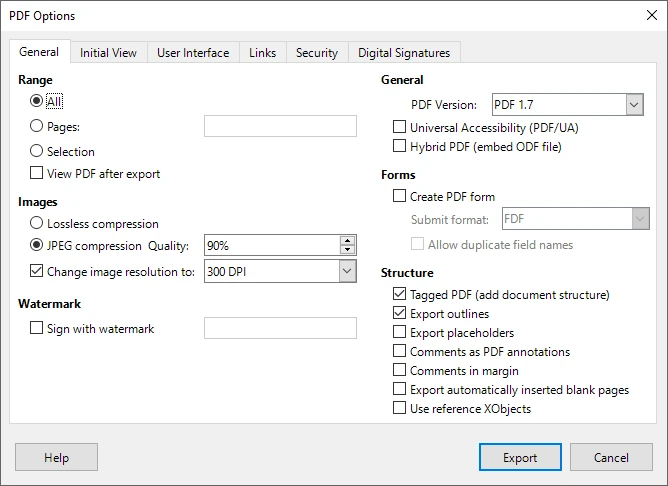
- Настройте параметры экспорта, такие как качество изображения, встраивание шрифтов или диапазон страниц.
- Сохраните экспортированный PDF-файл в вашей локальной системе.
Этот подход дает пользователям большую уверенность в конечном результате, особенно для визуально сложных документов.
Преимущества настольной конвертации
- Лучшее сохранение форматирования и макета
- Нет необходимости загружать файлы на внешние серверы
- Больший контроль над настройками экспорта в PDF
- Надежно для документов с таблицами, изображениями и стилями
Ограничения ручного преобразования
Ручное преобразование требует взаимодействия с пользователем для каждого документа, что делает его неэффективным для рабочих процессов с большим объемом. Его также сложно автоматизировать, и оно не подходит для серверных или безголовых сред, где графический интерфейс недоступен.
Когда онлайн и ручных методов недостаточно
Существует множество сценариев, когда онлайн-инструменты и настольное программное обеспечение больше не отвечают практическим требованиям. По мере увеличения объема документов или усложнения рабочих процессов ручное преобразование быстро превращается в узкое место.
Типичные ситуации, когда традиционные методы не справляются, включают:
- Регулярное преобразование большого количества файлов ODT
- Автоматический запуск преобразований на сервере или в бэкэнд-системе
- Интеграция преобразования документов в существующее приложение или сервис
- Обеспечение согласованного вывода без вмешательства пользователя
- Работа в средах без графического интерфейса
В этих случаях программный подход обеспечивает большую надежность, масштабируемость и контроль.
Программное преобразование ODT в PDF с помощью Python
Python широко используется для автоматизации, обработки данных и разработки бэкэнда. Использование Python для преобразования файлов ODT в PDF позволяет полностью автоматизировать процесс и интегрировать его в более крупные системы.
Зачем использовать Python для преобразования ODT в PDF?
Python обеспечивает пакетную обработку, повторяемые рабочие процессы и бесшовную интеграцию с существующими приложениями. После внедрения преобразования могут выполняться без участия пользователя, обеспечивая стабильные результаты при одновременном сокращении ручных усилий.
Использование Spire.Doc для Python
Spire.Doc для Python — это библиотека для обработки документов, которая поддерживает форматы OpenDocument и позволяет напрямую конвертировать ODT в PDF. Она сохраняет текст, изображения и макет, не полагаясь на Microsoft Word или LibreOffice, что делает ее подходящей для использования на сервере и в корпоративных средах.
Установка
Spire.Doc для Python можно установить с помощью pip:
pip install spire-doc
Пример: конвертируйте ODT в PDF с помощью Python
from spire.doc import Document, FileFormat

# Create a Document object and load the ODT file
doc = Document()
doc.LoadFromFile("Sample.odt", FileFormat.Odt)

# Save the ODT document as a PDF file
doc.SaveToFile("output/ODTToPDF.pdf", FileFormat.PDF)
doc.Close()
Ниже представлен предварительный просмотр PDF-файла, преобразованного из ODT с помощью Python:
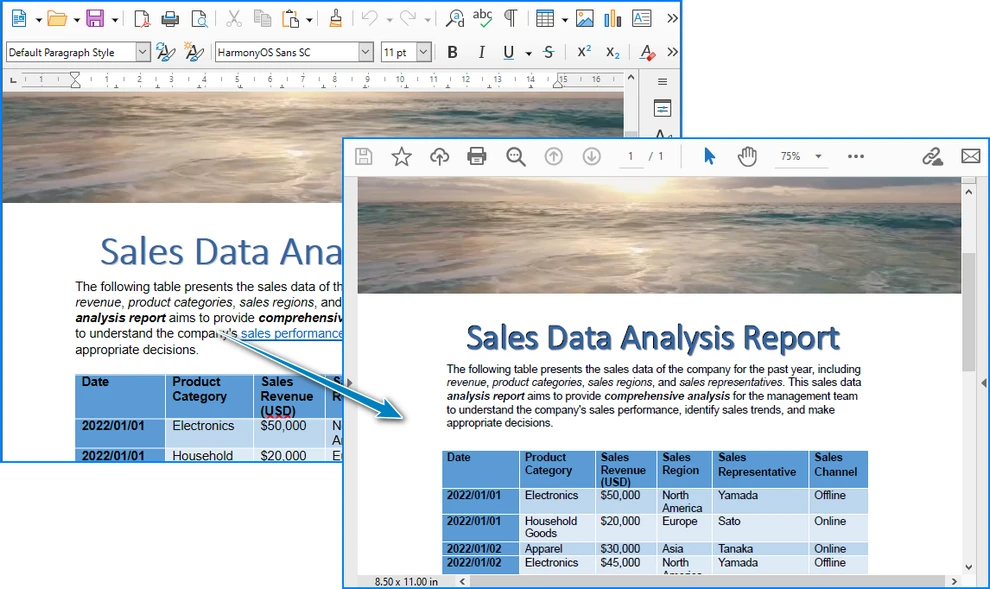
Этот подход можно легко расширить для обработки пакетных преобразований или интегрировать в автоматизированные рабочие процессы.
После преобразования файла ODT в PDF вы можете дальше редактировать сгенерированный PDF с помощью Python, например, добавлять водяные знаки, устанавливать метаданные или применять дополнительные параметры безопасности.
Сохранить ODT как PDF в поток (необязательно)
В бэкэнд- или веб-приложениях может потребоваться сгенерировать PDF-файл в памяти, не записывая его на диск. Spire.Doc для Python позволяет сохранять преобразованный документ в поток.
from spire.doc import Document, FileFormat, Stream

doc = Document()
doc.LoadFromFile("Sample.odt", FileFormat.Odt)

# Save the ODT document to a PDF stream
pdf_stream = Stream()
doc.SaveToStream(pdf_stream, FileFormat.PDF)
doc.Close()

# Get PDF bytes from the stream
pdf_bytes = bytes(pdf_stream.ToArray())
Этот подход полезен для возврата PDF-файлов в веб-API, загрузки в облачное хранилище или обработки документов в памяти.
Если ваш рабочий процесс требует дальнейшей обработки PDF-файлов в памяти, например, объединения документов, добавления водяных знаков или применения настроек безопасности, вам может быть полезно изучить методы работы с PDF-документами непосредственно в потоках.
Выбор подходящего метода для ваших нужд
Лучший способ преобразования ODT в PDF зависит от того, как часто вы выполняете эту задачу и какой уровень контроля требуется.
- Онлайн-инструменты идеально подходят для быстрых, периодических преобразований, когда приоритетом является удобство.
- Настольное программное обеспечение хорошо подходит для пользователей, которым нужен лучший контроль над форматированием и которые конвертируют файлы вручную.
- Автоматизация на основе Python является наиболее подходящим вариантом для крупномасштабной обработки, бэкэнд-систем и корпоративных рабочих процессов.
Понимание вашего сценария использования поможет вам выбрать метод, который сбалансирует эффективность, надежность и удобство обслуживания.
Часто задаваемые вопросы о преобразовании ODT в PDF
Безопасно ли конвертировать ODT в PDF онлайн?
Онлайн-конвертеры могут быть удобны для неконфиденциальных документов, но они могут не подходить для конфиденциальных документов из-за соображений конфиденциальности.
Изменится ли форматирование документа после преобразования?
Простые документы обычно конвертируются точно, в то время как сложные макеты могут выиграть от использования настольных или программных методов.
Можно ли конвертировать несколько файлов ODT одновременно?
Пакетное преобразование редко поддерживается онлайн-инструментами и неэффективно вручную. Программные решения справляются с этим более эффективно.
Требуют ли преобразования на основе Python офисного программного обеспечения?
Нет. Библиотеки, такие как Spire.Doc для Python, работают независимо от офисных приложений.
Заключение
Преобразование файлов ODT в PDF можно выполнить несколькими способами, каждый из которых подходит для разных нужд. Онлайн-инструменты и настольные приложения эффективны для повседневного использования, в то время как автоматизация на основе Python предоставляет масштабируемое решение для сложных и крупномасштабных сценариев. Выбрав подходящий метод, вы можете обеспечить точное, эффективное и надежное преобразование документов.
Смотрите также
Como comprimir imagens no PowerPoint (3 maneiras eficazes)
Índice
As imagens tornam as apresentações do PowerPoint mais envolventes, profissionais e fáceis de entender. Capturas de tela, fotos e gráficos ajudam a transmitir ideias complexas visualmente, seja para relatórios de negócios, palestras em sala de aula ou documentação de projetos. No entanto, apesar dos benefícios, as imagens também aumentam o tamanho do arquivo e causam problemas ao compartilhar por e-mail.
Muitos usuários procuram maneiras de compactar imagens no PowerPoint. Siga este guia para aprender três métodos comprovados para reduzir o tamanho do arquivo PPT de forma eficiente, mantendo a qualidade.
- Por que compactar imagens no PowerPoint ajuda
- Como compactar imagens no PowerPoint - 3 maneiras eficazes
- Dicas extras para compactar imagens no PowerPoint
- Considerações finais: Escolha a melhor maneira para compactar imagens no PowerPoint
- Perguntas frequentes
Por que compactar imagens no PowerPoint ajuda?
Apresentações grandes são um desafio comum na educação, nos negócios e no desenvolvimento de software. Por exemplo:
- Professores e alunos que enviam slides de palestras podem encontrar limites de anexos de e-mail.
- Funcionários de escritório que compartilham apresentações de projetos podem enfrentar lentidão nos uploads ou downloads.
- Desenvolvedores ou administradores de TI que gerenciam várias apresentações podem enfrentar problemas de armazenamento ou desempenho do sistema.
Em todos esses casos, compactar imagens no PowerPoint é uma abordagem eficaz para tornar os arquivos menores e mais fáceis de manusear, mantendo a qualidade visual.
Como compactar imagens no PowerPoint?
Na seção a seguir, compartilharemos três técnicas, do básico ao avançado, para compactar imagens no PowerPoint. Esses métodos ajudam a reduzir o tamanho do arquivo PPT, melhorar o desempenho e facilitar o compartilhamento do seu PPT por e-mail ou plataformas em nuvem.
Abaixo estão as melhores maneiras possíveis de compactar imagens no PowerPoint:
- Use o recurso de compactação de imagens integrado do PowerPoint - Melhor para usuários comuns.
- Use um compressor de PowerPoint online - Rápido e não requer instalação.
- Use a compactação em lote C# para vários arquivos - Ideal para desenvolvedores e empresas.
Agora, vamos analisar cada método um por um.
Compactar imagens no PowerPoint usando a ferramenta integrada
Para compactar imagens no PowerPoint, você pode usar a ferramenta integrada Compactar Imagens. Este método está disponível na versão desktop do PowerPoint e é particularmente útil para usuários que já estão trabalhando com o PowerPoint e desejam otimizar rapidamente o tamanho do arquivo de uma única apresentação do PowerPoint.
Passos para compactar imagens no PowerPoint:
-
Abra sua apresentação do PowerPoint no Microsoft PowerPoint.
-
Selecione qualquer imagem em um slide para habilitar a guia Formato de Imagem.
-
Clique em Compactar Imagens no grupo Ajustar.

-
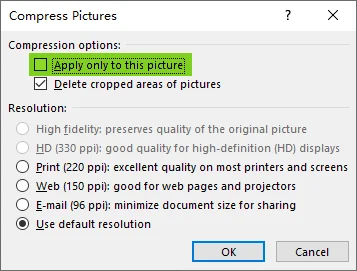
Desmarque Aplicar somente a esta imagem para compactar todas as imagens na apresentação.
-
Escolha uma resolução em Opções de compactação:
- 220 ppi - Excelente qualidade para a maioria das impressões e telas. Mantém as imagens nítidas com perda mínima de qualidade.
- 150 ppi - Bom para páginas da web e projetores. Equilibra a qualidade da imagem e o tamanho do arquivo.
- 96 ppi - Minimiza o tamanho do documento para compartilhamento por e-mail ou online. Ideal para distribuição rápida.
-
Clique em OK e salve a apresentação.
Observação:
- A ferramenta Compactar Imagens está disponível apenas na versão desktop do PowerPoint, não na versão web.
- Você pode excluir dados de edição de imagem para reduzir ainda mais o arquivo PPT, consulte o guia oficial da Microsoft.
Prós da compactação de imagem integrada do PowerPoint:
- A maneira oficial de compactar uma ou todas as imagens no PowerPoint
- Apenas o PowerPoint, nenhum software extra necessário
- Útil para usuários profissionais e casuais
Contras:
- Pode ser demorado ao processar várias apresentações
Você também pode gostar: Como converter imagens para PPT - 3 métodos fáceis
Compactar imagens no PowerPoint usando um compressor online
Se você não tem acesso ao aplicativo de desktop do PowerPoint ou prefere uma solução multiplataforma, pode compactar imagens no PowerPoint online usando uma ferramenta gratuita baseada na web como o Choladeck. Este método é ideal para iniciantes ou usuários ocasionais que simplesmente desejam reduzir o tamanho do arquivo PPT sem instalar ou configurar nenhum software.
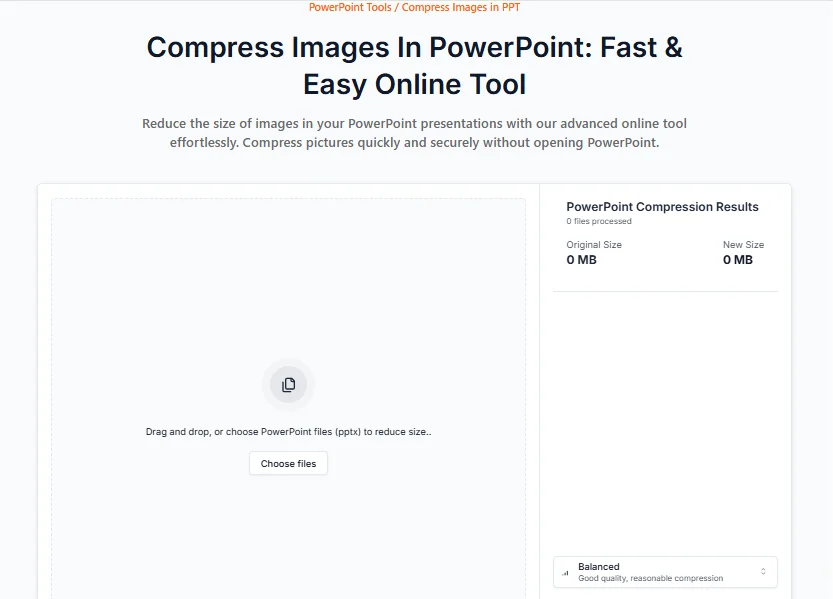
Passos para compactar imagens no PowerPoint online:
- Abra o compressor de PowerPoint online da Choladeck em seu navegador.
- Selecione o nível de compactação desejado (Tamanho Pequeno, Equilibrado ou Alta Qualidade) para as imagens.
- Carregue seu arquivo do PowerPoint usando arrastar e soltar.
- Quando o processo estiver concluído, baixe a apresentação otimizada com imagens compactadas.
Prós da compactação de imagem online do PowerPoint:
- Totalmente gratuito e muito fácil de usar
- Basta usar seu navegador - nenhuma instalação necessária
- Funciona em dispositivos Windows, Mac ou móveis
Contras:
- É necessário estar conectado à internet para usar o serviço
- Riscos potenciais de privacidade ao enviar arquivos confidenciais para plataformas online
- Não é ideal para a compactação em lote de várias apresentações
Compactar imagens do PowerPoint em lote usando automação C#
Se você é uma empresa, desenvolvedor ou qualquer pessoa que precise processar grandes volumes de apresentações do PowerPoint, a compactação de imagens em lote com automação C# é a solução ideal. Este método permite compactar eficientemente imagens em muitas apresentações em apenas alguns passos simples, economizando tempo e esforço em comparação com os métodos manuais.
O guia passo a passo abaixo mostra como automatizar o processo de compactação de imagens do PowerPoint usando C# e Spire.Presentation - uma biblioteca .NET para PowerPoint para criar, atualizar e converter apresentações do PowerPoint.
Passos para compactar imagens do PowerPoint em lote usando C#:
-
Instale o Spire.Presentation for .NET a partir do NuGet:
-
Abra o seu Console do Gerenciador de Pacotes NuGet.
-
Execute o seguinte comando para instalar a biblioteca Spire.Presentation.
Install-Package Spire.Presentation
-
-
Escreva o código C#:
-
Crie um novo projeto de Aplicativo de Console C#.
-
Adicione o seguinte código para realizar a compactação em lote de imagens do PowerPoint.
using Spire.Presentation;
using System;
using System.IO;

namespace CompressImages
{
    internal class Program
    {
        static void Main(string[] args)
        {
            string inputDirectory = @"C:\path\to\input\folder";  // Especifique seu diretório de entrada
            string outputDirectory = @"C:\path\to\output\folder"; // Especifique seu diretório de saída

            // Obtenha todos os arquivos .pptx no diretório de entrada
            string[] files = Directory.GetFiles(inputDirectory, "*.pptx");

            foreach (string inputFile in files)
            {
                // Crie o caminho do arquivo de saída
                string outputFile = Path.Combine(outputDirectory, Path.GetFileName(inputFile));

                // Carregue a apresentação do arquivo
                Presentation presentation = new Presentation();
                presentation.LoadFromFile(inputFile);

                // Itere sobre todos os slides na apresentação
                foreach (ISlide slide in presentation.Slides)
                {
                    // Itere sobre todas as formas em cada slide
                    foreach (IShape shape in slide.Shapes)
                    {
                        // Verifique se a forma é uma imagem
                        if (shape is SlidePicture)
                        {
                            SlidePicture ps = shape as SlidePicture;
                            // Compacte a imagem: remova as áreas cortadas (true) e defina a resolução de destino para 150 DPI
                            ps.PictureFill.CompressImage(true, 150f);
                        }
                    }
                }

                // Salve a apresentação compactada no arquivo de saída
                presentation.SaveToFile(outputFile, FileFormat.Pptx2013);
                Console.WriteLine($"Compactado: {inputFile} -> {outputFile}");
            }

            Console.WriteLine("Compactação em lote concluída.");
        }
    }
}
-
-
Pressione F5 para executar o código. Você encontrará as apresentações otimizadas com imagens compactadas no diretório de saída especificado.
Observações:
- Você precisa modificar as variáveis inputDirectory e outputDirectory neste exemplo para apontar para as pastas apropriadas em seu sistema.
- Este exemplo assume arquivos .pptx. Se você também tiver arquivos .ppt, pode ajustar o filtro de arquivos em Directory.GetFiles() para incluí-los também.
- A resolução de destino neste caso é definida como 150 DPI (adequada para exibição na web). Você pode alterar isso para qualquer valor desejado.
Prós da compactação em lote usando C#:
- Ideal para desenvolvedores, administradores de TI ou empresas
- Permite o manuseio de um grande número de apresentações de uma só vez
- Opções personalizáveis para resolução de imagem e configurações de compactação
Contras:
- Requer conhecimento de programação e configuração
- A configuração é mais complexa do que os métodos manuais
Referência: Guia Oficial do Spire.Presentation
Dicas extras para compactar imagens no PowerPoint
- Excluir imagens não utilizadas: Remova quaisquer imagens que não sejam essenciais para reduzir o tamanho geral do arquivo.
- Use gráficos vetoriais: Sempre que possível, opte por gráficos baseados em vetores (como SVGs), que tendem a ter tamanhos de arquivo menores do que imagens raster.
- Redimensione antes de inserir: Redimensione as imagens em uma ferramenta de edição de fotos antes de inseri-las no PowerPoint para evitar arquivos grandes e desnecessários.
- Incorpore fontes com sabedoria: Se você usa fontes personalizadas, certifique-se de incorporá-las apenas quando necessário para evitar aumentar o tamanho do arquivo.
Considerações finais: Escolha a melhor maneira para compactar imagens no PowerPoint
Compactar imagens no PowerPoint não precisa ser complicado. O método certo depende principalmente de quantos arquivos você tem e com que frequência precisa reduzir o tamanho do arquivo PPT.
Aqui está uma maneira rápida de decidir:
- Trabalhando em apenas uma apresentação?
Use a ferramenta de compactação de imagens integrada do PowerPoint. É rápido, confiável e não requer ferramentas extras. - Precisa de uma solução rápida sem instalar software? Experimente um compressor de imagens online para PowerPoint. É conveniente para uso ocasional ou quando você está em um dispositivo diferente.
- Gerenciando dezenas ou centenas de arquivos PPT?
Use a automação C# para compactação em lote. Essa abordagem economiza um tempo significativo e é ideal para desenvolvedores, equipes de TI e fluxos de trabalho empresariais.
Ao escolher o método certo, você pode compactar facilmente imagens no PowerPoint, reduzir o tamanho do arquivo PPT, acelerar o compartilhamento e manter as apresentações profissionais sem perda de qualidade perceptível.
Procurando por mais tutoriais de PowerPoint de alta qualidade? Confira nossos recursos gratuitos de PPT.
Perguntas frequentes
P1: Qual é a maneira mais fácil de compactar imagens no PowerPoint e reduzir o tamanho do arquivo?
R1: A maneira mais fácil é usar a ferramenta Compactar Imagens do PowerPoint. Selecione qualquer imagem → Formato de Imagem → Compactar Imagens → Desmarque Aplicar somente a esta imagem → Escolha a Resolução → Clique em OK → Salvar. Isso pode otimizar instantaneamente o tamanho do seu arquivo PPT.
P2: Compactar imagens no PowerPoint reduz a qualidade?
R2: Apenas um pouco se você escolher a resolução certa. Para a maioria das apresentações, 150 ppi mantém as imagens nítidas enquanto reduz significativamente o tamanho do arquivo. Os espectadores geralmente não notarão nenhuma diferença em telas ou projetores.
P3: Posso compactar imagens no PowerPoint online sem instalar software?
R3: Sim. Você pode usar um compressor de PowerPoint online para carregar e otimizar seu arquivo PPT ou PPTX diretamente no seu navegador. Este método é ótimo para tarefas rápidas, mas pode não ser adequado para arquivos confidenciais ou sensíveis.
P4: Qual é a melhor maneira de compactar imagens em lote em várias apresentações do PowerPoint?
R4: Para vários arquivos, a automação C# é a solução mais eficiente. Eles permitem que você compacte imagens em dezenas ou centenas de apresentações automaticamente, economizando horas de trabalho manual.
P5: Por que meu arquivo do PowerPoint ainda está grande depois de compactar as imagens?
As imagens não são o único fator que afeta o tamanho. Seu PPT ainda pode estar grande devido a:
- Fontes incorporadas
- Vídeos ou arquivos de áudio
- Dados de imagem cortados não excluídos
- Slides ou mídias não utilizados
Tente excluir ativos não utilizados e habilitar Excluir áreas cortadas das imagens durante a compactação para obter melhores resultados.
Veja também
파워포인트 이미지 압축 방법 (3가지 효과적인 방법)
이미지는 PowerPoint 프레젠테이션을 더욱 매력적이고 전문적이며 이해하기 쉽게 만듭니다. 스크린샷, 사진, 그래픽은 비즈니스 보고서, 강의실 강의 또는 프로젝트 문서 등 복잡한 아이디어를 시각적으로 전달하는 데 도움이 됩니다. 그러나 이러한 이점에도 불구하고 이미지는 파일 크기를 늘리고 이메일을 통해 공유할 때 문제를 일으키기도 합니다.
많은 사용자가 PowerPoint에서 이미지를 압축하는 방법을 찾고 있습니다. 이 가이드를 따라 품질을 유지하면서 PPT 파일 크기를 효율적으로 줄이는 세 가지 입증된 방법을 알아보세요.
- PowerPoint에서 이미지를 압축하면 도움이 되는 이유
- PowerPoint에서 이미지를 압축하는 방법 - 3가지 효과적인 방법
- PowerPoint에서 이미지를 압축하기 위한 추가 팁
- 마지막 생각: PowerPoint 이미지 압축을 위한 최상의 방법 선택
- 자주 묻는 질문
PowerPoint에서 이미지를 압축하면 도움이 되는 이유는 무엇입니까?
대용량 프레젠테이션은 교육, 비즈니스 및 소프트웨어 개발에서 흔히 발생하는 문제입니다. 예를 들어:
- 강의 슬라이드를 보내는 교사와 학생은 이메일 첨부 파일 제한에 부딪힐 수 있습니다.
- 프로젝트 프레젠테이션을 공유하는 직장인은 업로드 또는 다운로드 시간이 느려질 수 있습니다.
- 여러 프레젠테이션을 관리하는 개발자나 IT 관리자는 저장 공간 또는 시스템 성능 문제에 직면할 수 있습니다.
이 모든 경우에 PowerPoint에서 이미지를 압축하는 것은 시각적 품질을 유지하면서 파일을 더 작고 다루기 쉽게 만드는 효과적인 접근 방식입니다.
PowerPoint에서 이미지를 압축하는 방법은 무엇입니까?
다음 섹션에서는 PowerPoint에서 이미지를 압축하는 세 가지 기본 기술부터 고급 기술까지 공유합니다. 이러한 방법을 사용하면 PPT 파일 크기를 줄이고 성능을 개선하며 이메일이나 클라우드 플랫폼을 통해 PPT를 더 쉽게 공유할 수 있습니다.
다음은 PowerPoint에서 이미지를 압축하는 가장 좋은 방법입니다.
- PowerPoint의 내장된 그림 압축 기능 사용 - 일반 사용자에게 가장 적합합니다.
- 온라인 PowerPoint 압축기 사용 - 빠르고 설치가 필요 없습니다.
- 여러 파일에 C# 일괄 압축 사용 - 개발자 및 기업에 이상적입니다.
이제 각 방법을 하나씩 살펴보겠습니다.
내장 도구를 사용하여 PowerPoint에서 이미지 압축
PowerPoint에서 이미지를 압축하려면 내장된 그림 압축 도구를 사용할 수 있습니다. 이 방법은 PowerPoint 데스크톱 버전에서 사용할 수 있으며 이미 PowerPoint로 작업 중이고 단일 PowerPoint 프레젠테이션의 파일 크기를 신속하게 최적화하려는 사용자에게 특히 유용합니다.
PowerPoint에서 이미지를 압축하는 단계:
-
Microsoft PowerPoint에서 PowerPoint 프레젠테이션을 엽니다.
-
슬라이드에서 아무 그림이나 선택하여 그림 서식 탭을 활성화합니다.
-
조정 그룹 아래에서 그림 압축을 클릭합니다.
-
프레젠테이션의 모든 이미지를 압축하려면 이 그림에만 적용의 선택을 취소합니다.
-
압축 옵션에서 해상도를 선택합니다.
- 220ppi - 대부분의 인쇄물 및 화면에 탁월한 품질을 제공합니다. 최소한의 품질 손실로 이미지를 선명하게 유지합니다.
- 150ppi - 웹 페이지 및 프로젝터에 적합합니다. 이미지 품질과 파일 크기의 균형을 맞춥니다.
- 96ppi - 이메일이나 온라인으로 공유하기 위해 문서 크기를 최소화합니다. 빠른 배포에 이상적입니다.
-
확인을 클릭하고 프레젠테이션을 저장합니다.
참고:
- 그림 압축 도구는 웹 버전이 아닌 PowerPoint 데스크톱 버전에서만 사용할 수 있습니다.
- 이미지 편집 데이터를 삭제하여 PPT 파일을 더욱 줄일 수 있습니다. 공식 Microsoft 가이드를 참조하세요.
내장된 PowerPoint 이미지 압축의 장점:
- PowerPoint에서 단일 또는 모든 이미지를 압축하는 공식적인 방법
- 추가 소프트웨어 없이 PowerPoint만 필요
- 전문가 및 일반 사용자에게 유용
단점:
- 여러 프레젠테이션을 처리할 때 시간이 많이 걸릴 수 있습니다.
관심 있을 만한 글: 이미지를 PPT로 변환하는 방법 - 3가지 쉬운 방법
온라인 압축기를 사용하여 PowerPoint에서 이미지 압축
데스크톱 PowerPoint 응용 프로그램에 액세스할 수 없거나 크로스 플랫폼 솔루션을 선호하는 경우 Choladeck과 같은 무료 웹 기반 도구를 사용하여 온라인으로 PowerPoint에서 이미지를 압축할 수 있습니다. 이 방법은 소프트웨어를 설치하거나 구성하지 않고 단순히 PPT 파일 크기를 줄이려는 초보자나 가끔 사용하는 사용자에게 이상적입니다.
온라인에서 PowerPoint 이미지를 압축하는 단계:
- 브라우저에서 Choladeck 온라인 PowerPoint 압축기를 엽니다.
- 이미지에 대해 원하는 압축 수준(작은 크기, 균형 또는 고품질)을 선택합니다.
- 드래그 앤 드롭을 사용하여 PowerPoint 파일을 업로드합니다.
- 프로세스가 완료되면 압축된 이미지가 포함된 최적화된 프레젠테이션을 다운로드합니다.
온라인 PowerPoint 이미지 압축의 장점:
- 완전 무료이며 사용하기 매우 쉽습니다.
- 브라우저만 사용하면 되므로 설치가 필요 없습니다.
- Windows, Mac 또는 모바일 장치에서 작동합니다.
단점:
- 서비스를 사용하려면 인터넷에 연결되어 있어야 합니다.
- 기밀 파일을 온라인 플랫폼에 업로드할 때 잠재적인 개인 정보 보호 위험
- 여러 프레젠테이션의 일괄 압축에는 이상적이지 않습니다.
C# 자동화를 사용하여 PowerPoint 이미지 일괄 압축
대량의 PowerPoint 프레젠테이션을 처리해야 하는 기업, 개발자 또는 모든 사람에게 C# 자동화를 사용한 이미지 일괄 압축은 이상적인 솔루션입니다. 이 방법을 사용하면 몇 가지 간단한 단계만으로 여러 프레젠테이션의 이미지를 효율적으로 압축할 수 있으므로 수동 방법에 비해 시간과 노력을 절약할 수 있습니다.
아래의 단계별 가이드는 C# 및 Spire.Presentation(PowerPoint 프레젠테이션을 생성, 업데이트 및 변환하기 위한 .NET PowerPoint 라이브러리)을 사용하여 PowerPoint 이미지 압축 프로세스를 자동화하는 방법을 보여줍니다.
C#을 사용하여 PowerPoint 이미지를 일괄 압축하는 단계:
-
NuGet에서 .NET용 Spire.Presentation을 설치합니다.
-
NuGet 패키지 관리자 콘솔을 엽니다.
-
다음 명령을 실행하여 Spire.Presentation 라이브러리를 설치합니다.
Install-Package Spire.Presentation
-
-
C# 코드 작성:
-
새 C# 콘솔 응용 프로그램 프로젝트를 만듭니다.
-
PowerPoint 이미지의 일괄 압축을 수행하려면 다음 코드를 추가하십시오.
using Spire.Presentation;
using System;
using System.IO;

namespace CompressImages
{
    internal class Program
    {
        static void Main(string[] args)
        {
            string inputDirectory = @"C:\path\to\input\folder";  // 입력 디렉터리 지정
            string outputDirectory = @"C:\path\to\output\folder"; // 출력 디렉터리 지정

            // 입력 디렉터리의 모든 .pptx 파일 가져오기
            string[] files = Directory.GetFiles(inputDirectory, "*.pptx");

            foreach (string inputFile in files)
            {
                // 출력 파일 경로 만들기
                string outputFile = Path.Combine(outputDirectory, Path.GetFileName(inputFile));

                // 파일에서 프레젠테이션 로드
                Presentation presentation = new Presentation();
                presentation.LoadFromFile(inputFile);

                // 프레젠테이션의 모든 슬라이드 반복
                foreach (ISlide slide in presentation.Slides)
                {
                    // 각 슬라이드의 모든 도형 반복
                    foreach (IShape shape in slide.Shapes)
                    {
                        // 도형이 이미지인지 확인
                        if (shape is SlidePicture)
                        {
                            SlidePicture ps = shape as SlidePicture;
                            // 이미지 압축: 잘린 영역 제거(true) 및 대상 해상도를 150DPI로 설정
                            ps.PictureFill.CompressImage(true, 150f);
                        }
                    }
                }

                // 압축된 프레젠테이션을 출력 파일에 저장
                presentation.SaveToFile(outputFile, FileFormat.Pptx2013);
                Console.WriteLine($"압축됨: {inputFile} -> {outputFile}");
            }

            Console.WriteLine("일괄 압축이 완료되었습니다.");
        }
    }
}
-
-
F5 키를 눌러 코드를 실행합니다. 지정된 출력 디렉터리 아래에서 압축된 이미지가 포함된 최적화된 프레젠테이션을 찾을 수 있습니다.
참고:
- 이 예제의 inputDirectory 및 outputDirectory 변수를 시스템의 적절한 폴더를 가리키도록 수정해야 합니다.
- 이 예제는 .pptx 파일을 가정합니다. .ppt 파일도 있는 경우 Directory.GetFiles()의 파일 필터를 조정하여 포함할 수 있습니다.
- 이 경우 대상 해상도는 150DPI(웹 표시에 적합)로 설정됩니다. 이 값을 원하는 값으로 변경할 수 있습니다.
C#을 사용한 일괄 압축의 장점:
- 개발자, IT 관리자 또는 기업에 이상적
- 한 번에 많은 수의 프레젠테이션을 처리할 수 있습니다.
- 이미지 해상도 및 압축 설정을 위한 사용자 정의 가능한 옵션
단점:
- 프로그래밍 지식과 설정이 필요합니다.
- 설정이 수동 방법보다 더 복잡합니다.
PowerPoint에서 이미지를 압축하기 위한 추가 팁
- 사용하지 않는 이미지 삭제: 전체 파일 크기를 줄이는 데 필수적이지 않은 이미지를 제거합니다.
- 벡터 그래픽 사용: 가능하면 래스터 이미지보다 파일 크기가 작은 경향이 있는 벡터 기반 그래픽(예: SVG)을 선택합니다.
- 삽입 전 크기 조정: 불필요하게 큰 파일을 피하기 위해 사진 편집 도구에서 이미지 크기를 조정한 후 PowerPoint에 삽입합니다.
- 글꼴을 현명하게 포함: 사용자 지정 글꼴을 사용하는 경우 파일 크기가 커지는 것을 방지하기 위해 필요할 때만 포함해야 합니다.
마지막 생각: PowerPoint 이미지 압축을 위한 최상의 방법 선택
PowerPoint에서 이미지를 압축하는 것이 복잡할 필요는 없습니다. 올바른 방법은 주로 보유한 파일 수와 PPT 파일 크기를 줄여야 하는 빈도에 따라 다릅니다.
결정하는 빠른 방법은 다음과 같습니다.
- 하나의 프레젠테이션에서만 작업하십니까?
PowerPoint의 내장된 그림 압축 도구를 사용하십시오. 빠르고 안정적이며 추가 도구가 필요 없습니다. - 소프트웨어를 설치하지 않고 빠른 수정이 필요하십니까? 온라인 PowerPoint 이미지 압축기를 사용해 보십시오. 가끔 사용하거나 다른 장치에 있을 때 편리합니다.
- 수십 또는 수백 개의 PPT 파일을 관리하십니까?
일괄 압축을 위해 C# 자동화를 사용하십시오. 이 접근 방식은 상당한 시간을 절약하며 개발자, IT 팀 및 엔터프라이즈 워크플로에 이상적입니다.
올바른 방법을 선택하면 PowerPoint에서 이미지를 쉽게 압축하고, PPT 파일 크기를 줄이고, 공유 속도를 높이고, 눈에 띄는 품질 저하 없이 프레젠테이션을 전문적으로 유지할 수 있습니다.
더 많은 고품질 PowerPoint 자습서를 찾고 계십니까? 무료 PPT 리소스를 확인하십시오.
자주 묻는 질문
Q1: PowerPoint에서 이미지를 압축하고 파일 크기를 줄이는 가장 쉬운 방법은 무엇입니까?
A1: 가장 쉬운 방법은 PowerPoint의 그림 압축 도구를 사용하는 것입니다. 아무 이미지나 선택 → 그림 서식 → 그림 압축 → 이 그림에만 적용 선택 취소 → 해상도 선택 → 확인 클릭 → 저장. 이렇게 하면 PPT 파일 크기를 즉시 최적화할 수 있습니다.
Q2: PowerPoint에서 이미지를 압축하면 품질이 저하됩니까?
A2: 올바른 해상도를 선택하면 약간만 저하됩니다. 대부분의 프레젠테이션에서 150ppi는 파일 크기를 크게 줄이면서 이미지를 선명하게 유지합니다. 시청자는 일반적으로 화면이나 프로젝터에서 차이를 느끼지 못합니다.
Q3: 소프트웨어를 설치하지 않고 온라인으로 PowerPoint에서 이미지를 압축할 수 있습니까?
A3: 예. 온라인 PowerPoint 압축기를 사용하여 브라우저에서 직접 PPT 또는 PPTX 파일을 업로드하고 최적화할 수 있습니다. 이 방법은 빠른 작업에는 적합하지만 기밀 또는 민감한 파일에는 적합하지 않을 수 있습니다.
Q4: 여러 PowerPoint 프레젠테이션에서 이미지를 일괄 압축하는 가장 좋은 방법은 무엇입니까?
A4: 여러 파일의 경우 C# 자동화가 가장 효율적인 솔루션입니다. 수십 또는 수백 개의 프레젠테이션에서 이미지를 자동으로 압축하여 수동 작업 시간을 절약할 수 있습니다.
Q5: 이미지를 압축한 후에도 PowerPoint 파일이 여전히 큰 이유는 무엇입니까?
이미지만이 크기에 영향을 미치는 유일한 요소는 아닙니다. 다음과 같은 이유로 PPT가 여전히 클 수 있습니다.
- 포함된 글꼴
- 비디오 또는 오디오 파일
- 삭제되지 않은 잘린 이미지 데이터
- 사용하지 않는 슬라이드 또는 미디어
더 나은 결과를 얻으려면 사용하지 않는 자산을 삭제하고 압축 중에 그림의 잘린 영역 삭제를 활성화해 보십시오.
참고 항목
Come comprimere le immagini in PowerPoint (3 metodi efficaci)
Indice
Le immagini rendono le presentazioni di PowerPoint più coinvolgenti, professionali e facili da capire. Screenshot, foto e grafici aiutano a trasmettere visivamente idee complesse, sia per report aziendali, lezioni in classe o documentazione di progetto. Tuttavia, nonostante i vantaggi, le immagini aumentano anche le dimensioni del file e causano problemi durante la condivisione via e-mail.
Molti utenti cercano modi per comprimere le immagini in PowerPoint. Segui questa guida per imparare tre metodi collaudati per ridurre le dimensioni dei file PPT in modo efficiente mantenendo la qualità.
- Perché la compressione delle immagini in PowerPoint è utile
- Come comprimere le immagini in PowerPoint - 3 modi efficaci
- Suggerimenti extra per comprimere le immagini in PowerPoint
- Considerazioni finali: scegli il modo migliore per la compressione delle immagini di PowerPoint
- Domande frequenti
Perché la compressione delle immagini in PowerPoint è utile?
Le presentazioni di grandi dimensioni sono una sfida comune nell'istruzione, negli affari e nello sviluppo di software. Per esempio:
- Insegnanti e studenti che inviano diapositive di lezioni potrebbero riscontrare limiti di allegati e-mail.
- Gli impiegati che condividono presentazioni di progetti potrebbero riscontrare tempi di caricamento o download lenti.
- Sviluppatori o amministratori IT che gestiscono più presentazioni potrebbero riscontrare problemi di archiviazione o di prestazioni del sistema.
In tutti questi casi, la compressione delle immagini in PowerPoint è un approccio efficace per rendere i file più piccoli e facili da gestire mantenendo la qualità visiva.
Come comprimere le immagini in PowerPoint?
Nella sezione seguente, condivideremo tre tecniche, da base ad avanzate, per comprimere le immagini in PowerPoint. Questi metodi ti aiutano a ridurre le dimensioni dei file PPT, migliorare le prestazioni e rendere il tuo PPT più facile da condividere via e-mail o piattaforme cloud.
Di seguito sono riportati i modi migliori per comprimere le immagini in PowerPoint:
- Usa la funzione di compressione immagini integrata di PowerPoint - Ideale per gli utenti di tutti i giorni.
- Usa un compressore PowerPoint online - Veloce e non richiede installazione.
- Usa la compressione batch C# per più file - Ideale per sviluppatori e aziende.
Ora, esaminiamo ogni metodo uno per uno.
Comprimi immagini in PowerPoint utilizzando lo strumento integrato
Per comprimere le immagini in PowerPoint, puoi utilizzare lo strumento integrato Comprimi immagini. Questo metodo è disponibile nella versione desktop di PowerPoint ed è particolarmente utile per gli utenti che già lavorano con PowerPoint e desiderano ottimizzare rapidamente le dimensioni del file di una singola presentazione di PowerPoint.
Passaggi per comprimere le immagini in PowerPoint:
-
Apri la tua presentazione di PowerPoint in Microsoft PowerPoint.
-
Seleziona un'immagine qualsiasi su una diapositiva per abilitare la scheda Formato immagine.
-
Fai clic su Comprimi immagini nel gruppo Regola.
-
Deseleziona Applica solo a questa immagine per comprimere tutte le immagini nella presentazione.
-
Scegli una risoluzione in Opzioni di compressione:
- 220 ppi - Qualità eccellente per la maggior parte delle stampe e degli schermi. Mantiene le immagini nitide con una minima perdita di qualità.
- 150 ppi - Buono per pagine web e proiettori. Bilancia la qualità dell'immagine e le dimensioni del file.
- 96 ppi - Riduce al minimo le dimensioni del documento per la condivisione via e-mail o online. Ideale per una rapida distribuzione.
-
Fai clic su OK e salva la presentazione.
Nota:
- Lo strumento Comprimi immagini è disponibile solo nella versione desktop di PowerPoint, non nella versione web.
- Puoi eliminare i dati di modifica delle immagini per ridurre ulteriormente le dimensioni del file PPT, fai riferimento alla guida ufficiale di Microsoft.
Vantaggi della compressione delle immagini integrata in PowerPoint:
- Il modo ufficiale per comprimere singole o tutte le immagini in PowerPoint
- Solo PowerPoint, nessun software aggiuntivo necessario
- Utile per utenti professionali e occasionali
Svantaggi:
- Può richiedere molto tempo durante l'elaborazione di più presentazioni
Potrebbe piacerti anche: Come convertire immagini in PPT - 3 metodi semplici
Comprimi immagini in PowerPoint utilizzando un compressore online
Se non hai accesso all'applicazione desktop di PowerPoint o preferisci una soluzione multipiattaforma, puoi comprimere le immagini in PowerPoint online utilizzando uno strumento web gratuito come Choladeck. Questo metodo è ideale per i principianti o gli utenti occasionali che desiderano semplicemente ridurre le dimensioni del file PPT senza installare o configurare alcun software.
Passaggi per comprimere le immagini in PowerPoint online:
- Apri il compressore PowerPoint online di Choladeck nel tuo browser.
- Seleziona il livello di compressione desiderato (Dimensioni ridotte, Bilanciato o Alta qualità) per le immagini.
- Carica il tuo file PowerPoint utilizzando il trascinamento della selezione.
- Una volta completato il processo, scarica la presentazione ottimizzata con le immagini compresse.
Vantaggi della compressione delle immagini di PowerPoint online:
- Completamente gratuito e molto facile da usare
- Usa semplicemente il tuo browser, nessuna installazione necessaria
- Funziona su dispositivi Windows, Mac o mobili
Svantaggi:
- È necessario essere connessi a Internet per utilizzare il servizio
- Potenziali rischi per la privacy durante il caricamento di file riservati su piattaforme online
- Non ideale per la compressione batch di più presentazioni
Compressione batch di immagini PowerPoint tramite automazione C#
Se sei un'azienda, uno sviluppatore o chiunque abbia bisogno di elaborare grandi volumi di presentazioni PowerPoint, la compressione batch delle immagini con l'automazione C# è la soluzione ideale. Questo metodo ti consente di comprimere in modo efficiente le immagini in molte presentazioni in pochi semplici passaggi, risparmiando tempo e fatica rispetto ai metodi manuali.
La guida dettagliata di seguito mostra come automatizzare il processo di compressione delle immagini di PowerPoint utilizzando C# e Spire.Presentation - una libreria PowerPoint .NET per creare, aggiornare e convertire presentazioni PowerPoint.
Passaggi per la compressione batch di immagini PowerPoint tramite C#:
-
Installa Spire.Presentation per .NET da NuGet:
-
Apri la tua console di gestione pacchetti NuGet.
-
Esegui il seguente comando per installare la libreria Spire.Presentation.
Install-Package Spire.Presentation
-
-
Scrivi codice C#:
-
Crea un nuovo progetto di applicazione console C#.
-
Aggiungi il seguente codice per eseguire la compressione batch delle immagini di PowerPoint.
using Spire.Presentation;
using System;
using System.IO;

namespace CompressImages
{
    internal class Program
    {
        static void Main(string[] args)
        {
            string inputDirectory = @"C:\path\to\input\folder";  // Specify your input directory
            string outputDirectory = @"C:\path\to\output\folder"; // Specify your output directory

            // Get all .pptx files in the input directory
            string[] files = Directory.GetFiles(inputDirectory, "*.pptx");

            foreach (string inputFile in files)
            {
                // Create output file path
                string outputFile = Path.Combine(outputDirectory, Path.GetFileName(inputFile));

                // Load presentation from file
                Presentation presentation = new Presentation();
                presentation.LoadFromFile(inputFile);

                // Iterate over all slides in the presentation
                foreach (ISlide slide in presentation.Slides)
                {
                    // Iterate over all shapes in each slide
                    foreach (IShape shape in slide.Shapes)
                    {
                        // Check if the shape is an image
                        if (shape is SlidePicture)
                        {
                            SlidePicture ps = shape as SlidePicture;
                            // Compress the image: remove cropped areas (true) and set target resolution to 150 DPI
                            ps.PictureFill.CompressImage(true, 150f);
                        }
                    }
                }

                // Save the compressed presentation to the output file
                presentation.SaveToFile(outputFile, FileFormat.Pptx2013);
                Console.WriteLine($"Compressed: {inputFile} -> {outputFile}");
            }

            Console.WriteLine("Batch compression completed.");
        }
    }
}
-
-
Premi F5 per eseguire il codice. Troverai le presentazioni ottimizzate con le immagini compresse nella directory di output specificata.
Note:
- È necessario modificare le variabili inputDirectory e outputDirectory in questo esempio per puntare alle cartelle appropriate sul tuo sistema.
- Questo esempio presuppone file .pptx. Se hai anche file .ppt, puoi regolare il filtro dei file in Directory.GetFiles() per includerli.
- La risoluzione di destinazione in questo caso è impostata su 150 DPI (adatta per la visualizzazione web). Puoi cambiarla a qualsiasi valore desiderato.
Vantaggi della compressione batch tramite C#:
- Ideale per sviluppatori, amministratori IT o aziende
- Consente di gestire un gran numero di presentazioni contemporaneamente
- Opzioni personalizzabili per la risoluzione dell'immagine e le impostazioni di compressione
Svantaggi:
- Richiede conoscenze di programmazione e configurazione
- La configurazione è più complessa dei metodi manuali
Riferimento: Guida ufficiale di Spire.Presentation
Suggerimenti extra per comprimere le immagini in PowerPoint
- Elimina immagini non utilizzate: Rimuovi tutte le immagini non essenziali per ridurre le dimensioni complessive del file.
- Usa grafica vettoriale: Quando possibile, opta per grafica basata su vettori (come SVG), che tende ad avere dimensioni di file inferiori rispetto alle immagini raster.
- Ridimensiona prima di inserire: Ridimensiona le immagini in uno strumento di fotoritocco prima di inserirle in PowerPoint per evitare file di grandi dimensioni non necessari.
- Incorpora i caratteri con saggezza: Se utilizzi caratteri personalizzati, assicurati di incorporarli solo quando necessario per evitare di gonfiare le dimensioni del file.
Considerazioni finali: scegli il modo migliore per la compressione delle immagini di PowerPoint
La compressione delle immagini in PowerPoint non deve essere complicata. Il metodo giusto dipende principalmente da quanti file hai e da quanto spesso hai bisogno di ridurre le dimensioni dei file PPT.
Ecco un modo rapido per decidere:
- Lavori solo su una presentazione?
Usa lo strumento di compressione immagini integrato di PowerPoint. È veloce, affidabile e non richiede strumenti aggiuntivi. - Hai bisogno di una soluzione rapida senza installare software? Prova un compressore di immagini PowerPoint online. È comodo per un uso occasionale o quando sei su un dispositivo diverso.
- Gestisci decine o centinaia di file PPT?
Usa l'automazione C# per la compressione batch. Questo approccio consente di risparmiare molto tempo ed è ideale per sviluppatori, team IT e flussi di lavoro aziendali.
Scegliendo il metodo giusto, puoi comprimere facilmente le immagini in PowerPoint, ridurre le dimensioni dei file PPT, accelerare la condivisione e mantenere le presentazioni professionali senza una notevole perdita di qualità.
Cerchi altri tutorial di PowerPoint di alta qualità? Dai un'occhiata alle nostre risorse PPT gratuite.
Domande frequenti
D1: Qual è il modo più semplice per comprimere le immagini in PowerPoint e ridurre le dimensioni del file?
R1: Il modo più semplice è utilizzare lo strumento Comprimi immagini di PowerPoint. Seleziona un'immagine qualsiasi → Formato immagine → Comprimi immagini → Deseleziona Applica solo a questa immagine → Scegli risoluzione → Fai clic su OK → Salva. Ciò può ottimizzare istantaneamente le dimensioni del tuo file PPT.
D2: La compressione delle immagini in PowerPoint riduce la qualità?
R2: Solo leggermente se scegli la risoluzione giusta. Per la maggior parte delle presentazioni, 150 ppi mantiene le immagini nitide riducendo significativamente le dimensioni del file. Gli spettatori di solito non noteranno alcuna differenza su schermi o proiettori.
D3: Posso comprimere le immagini in PowerPoint online senza installare software?
R3: Sì. Puoi utilizzare un compressore PowerPoint online per caricare e ottimizzare il tuo file PPT o PPTX direttamente nel tuo browser. Questo metodo è ottimo per attività rapide ma potrebbe non essere adatto per file riservati o sensibili.
D4: Qual è il modo migliore per comprimere in batch le immagini in più presentazioni di PowerPoint?
R4: Per più file, l'automazione C# è la soluzione più efficiente. Ti consentono di comprimere automaticamente le immagini in decine o centinaia di presentazioni, risparmiando ore di lavoro manuale.
D5: Perché il mio file PowerPoint è ancora di grandi dimensioni dopo aver compresso le immagini?
Le immagini non sono l'unico fattore che influisce sulle dimensioni. Il tuo PPT potrebbe essere ancora di grandi dimensioni a causa di:
- Caratteri incorporati
- File video o audio
- Dati immagine ritagliati non eliminati
- Diapositive o media non utilizzati
Prova a eliminare le risorse non utilizzate e ad abilitare Elimina aree ritagliate delle immagini durante la compressione per risultati migliori.
Vedi anche
Comment compresser les images dans PowerPoint (3 méthodes efficaces)
Table des matières
Les images rendent les présentations PowerPoint plus attrayantes, professionnelles et faciles à comprendre. Les captures d'écran, les photos et les graphiques aident à transmettre visuellement des idées complexes, que ce soit pour des rapports d'entreprise, des cours en classe ou de la documentation de projet. Cependant, malgré les avantages, les images augmentent également la taille du fichier et posent des problèmes lors du partage par e-mail.
De nombreux utilisateurs recherchent des moyens de compresser les images dans PowerPoint. Suivez ce guide pour apprendre trois méthodes éprouvées pour réduire efficacement la taille des fichiers PPT tout en conservant la qualité.
- Pourquoi la compression des images dans PowerPoint est utile
- Comment compresser les images dans PowerPoint - 3 méthodes efficaces
- Conseils supplémentaires pour compresser les images dans PowerPoint
- Réflexions finales : Choisissez la meilleure méthode pour la compression d'images PowerPoint
- FAQ
Pourquoi la compression des images dans PowerPoint est-elle utile ?
Les présentations volumineuses sont un défi courant dans l'éducation, les affaires et le développement de logiciels. Par exemple :
- Les enseignants et les étudiants qui envoient des diapositives de cours peuvent rencontrer des limites de pièces jointes par e-mail.
- Les employés de bureau partageant des présentations de projet peuvent connaître des temps de chargement ou de téléchargement lents.
- Les développeurs ou les administrateurs informatiques gérant plusieurs présentations peuvent être confrontés à des problèmes de stockage ou de performances système.
Dans tous ces cas, la compression des images dans PowerPoint est une approche efficace pour rendre les fichiers plus petits et plus faciles à gérer tout en maintenant la qualité visuelle.
Comment compresser les images dans PowerPoint ?
Dans la section suivante, nous partagerons trois techniques, de la plus simple à la plus avancée, pour compresser les images dans PowerPoint. Ces méthodes vous aident à réduire la taille des fichiers PPT, à améliorer les performances et à faciliter le partage de votre PPT par e-mail ou sur des plateformes cloud.
Voici les meilleures façons possibles de compresser les images dans PowerPoint :
- Utilisez la fonction de compression d'images intégrée de PowerPoint - Idéal pour les utilisateurs quotidiens.
- Utilisez un compresseur PowerPoint en ligne - Rapide et ne nécessite aucune installation.
- Utilisez la compression par lots en C# pour plusieurs fichiers - Idéal pour les développeurs et les entreprises.
Maintenant, passons en revue chaque méthode une par une.
Compresser les images dans PowerPoint à l'aide de l'outil intégré
Pour compresser des images dans PowerPoint, vous pouvez utiliser l'outil intégré Compresser les images. Cette méthode est disponible dans la version de bureau de PowerPoint et est particulièrement utile pour les utilisateurs qui travaillent déjà avec PowerPoint et souhaitent optimiser rapidement la taille du fichier d'une seule présentation PowerPoint.
Étapes pour compresser les images dans PowerPoint :
-
Ouvrez votre présentation PowerPoint dans Microsoft PowerPoint.
-
Sélectionnez n'importe quelle image sur une diapositive pour activer l'onglet Format de l'image.
-
Cliquez sur Compresser les images dans le groupe Ajuster.
-
Décochez Appliquer uniquement à cette image pour compresser toutes les images de la présentation.
-
Choisissez une résolution sous Options de compression :
- 220 ppi - Excellente qualité pour la plupart des impressions et des écrans. Garde les images nettes avec une perte de qualité minimale.
- 150 ppi - Bon pour les pages Web et les projecteurs. Équilibre la qualité de l'image et la taille du fichier.
- 96 ppi - Minimise la taille du document pour le partage par e-mail ou en ligne. Idéal pour une distribution rapide.
-
Cliquez sur OK et enregistrez la présentation.
Remarque :
- L'outil Compresser les images n'est disponible que dans la version de bureau de PowerPoint, pas dans la version Web.
- Vous pouvez supprimer les données d'édition d'image pour réduire davantage la taille du fichier PPT, consultez le guide officiel de Microsoft.
Avantages de la compression d'images intégrée à PowerPoint :
- La méthode officielle pour compresser une ou toutes les images dans PowerPoint
- Seulement PowerPoint, aucun logiciel supplémentaire n'est nécessaire
- Utile pour les utilisateurs professionnels et occasionnels
Inconvénients :
- Cela peut prendre du temps lors du traitement de plusieurs présentations
Vous aimerez peut-être aussi : Comment convertir des images en PPT - 3 méthodes faciles
Compresser les images dans PowerPoint à l'aide d'un compresseur en ligne
Si vous n'avez pas accès à l'application de bureau PowerPoint ou si vous préférez une solution multiplateforme, vous pouvez compresser des images dans PowerPoint en ligne à l'aide d'un outil Web gratuit comme Choladeck. Cette méthode est idéale pour les débutants ou les utilisateurs occasionnels qui souhaitent simplement réduire la taille du fichier PPT sans installer ni configurer de logiciel.
Étapes pour compresser les images dans PowerPoint en ligne :
- Ouvrez le compresseur PowerPoint en ligne Choladeck dans votre navigateur.
- Sélectionnez le niveau de compression souhaité (Petite taille, Équilibré ou Haute qualité) pour les images.
- Téléchargez votre fichier PowerPoint par glisser-déposer.
- Une fois le processus terminé, téléchargez la présentation optimisée avec les images compressées.
Avantages de la compression d'images PowerPoint en ligne :
- Entièrement gratuit et très facile à utiliser
- Utilisez simplement votre navigateur - aucune installation n'est nécessaire
- Fonctionne sur les appareils Windows, Mac ou mobiles
Inconvénients :
- Doit être connecté à Internet pour utiliser le service
- Risques potentiels pour la confidentialité lors du téléchargement de fichiers confidentiels sur des plateformes en ligne
- Pas idéal pour la compression par lots de plusieurs présentations
Compresser par lots les images PowerPoint à l'aide de l'automatisation C#
Si vous êtes une entreprise, un développeur ou toute personne ayant besoin de traiter de gros volumes de présentations PowerPoint, la compression par lots d'images avec l'automatisation C# est la solution idéale. Cette méthode vous permet de compresser efficacement les images de nombreuses présentations en quelques étapes simples, ce qui vous fait gagner du temps et des efforts par rapport aux méthodes manuelles.
Le guide étape par étape ci-dessous vous montre comment automatiser le processus de compression d'images PowerPoint à l'aide de C# et de Spire.Presentation - une bibliothèque PowerPoint .NET pour créer, mettre à jour et convertir des présentations PowerPoint.
Étapes pour compresser par lots les images PowerPoint à l'aide de C# :
-
Installez Spire.Presentation pour .NET à partir de NuGet :
-
Ouvrez votre console du gestionnaire de packages NuGet.
-
Exécutez la commande suivante pour installer la bibliothèque Spire.Presentation.
Install-Package Spire.Presentation
-
-
Écrire du code C# :
-
Créez un nouveau projet d'application console C#.
-
Ajoutez le code suivant pour effectuer la compression par lots des images PowerPoint.
using Spire.Presentation;
using System;
using System.IO;

namespace CompressImages
{
    internal class Program
    {
        static void Main(string[] args)
        {
            string inputDirectory = @"C:\path\to\input\folder";  // Spécifiez votre répertoire d'entrée
            string outputDirectory = @"C:\path\to\output\folder"; // Spécifiez votre répertoire de sortie

            // Obtenir tous les fichiers .pptx dans le répertoire d'entrée
            string[] files = Directory.GetFiles(inputDirectory, "*.pptx");

            foreach (string inputFile in files)
            {
                // Créer le chemin du fichier de sortie
                string outputFile = Path.Combine(outputDirectory, Path.GetFileName(inputFile));

                // Charger la présentation à partir du fichier
                Presentation presentation = new Presentation();
                presentation.LoadFromFile(inputFile);

                // Itérer sur toutes les diapositives de la présentation
                foreach (ISlide slide in presentation.Slides)
                {
                    // Itérer sur toutes les formes de chaque diapositive
                    foreach (IShape shape in slide.Shapes)
                    {
                        // Vérifier si la forme est une image
                        if (shape is SlidePicture)
                        {
                            SlidePicture ps = shape as SlidePicture;
                            // Compresser l'image : supprimer les zones recadrées (true) et définir la résolution cible sur 150 DPI
                            ps.PictureFill.CompressImage(true, 150f);
                        }
                    }
                }

                // Enregistrer la présentation compressée dans le fichier de sortie
                presentation.SaveToFile(outputFile, FileFormat.Pptx2013);
                Console.WriteLine($"Compressé : {inputFile} -> {outputFile}");
            }

            Console.WriteLine("Compression par lots terminée.");
        }
    }
}
-
-
Appuyez sur F5 pour exécuter le code. Vous trouverez les présentations optimisées avec des images compressées dans le répertoire de sortie spécifié.
Remarques :
- Vous devez modifier les variables inputDirectory et outputDirectory dans cet exemple pour qu'elles pointent vers les dossiers appropriés sur votre système.
- Cet exemple suppose des fichiers .pptx. Si vous avez également des fichiers .ppt, vous pouvez ajuster le filtre de fichiers dans Directory.GetFiles() pour les inclure également.
- La résolution cible dans ce cas est définie sur 150 DPI (adapté à l'affichage Web). Vous pouvez modifier cette valeur à votre guise.
Avantages de la compression par lots à l'aide de C# :
- Idéal pour les développeurs, les administrateurs informatiques ou les entreprises
- Permet de gérer un grand nombre de présentations à la fois
- Options personnalisables pour la résolution d'image et les paramètres de compression
Inconvénients :
- Nécessite des connaissances en programmation et une configuration
- La configuration est plus complexe que les méthodes manuelles
Référence : Guide officiel de Spire.Presentation
Conseils supplémentaires pour compresser les images dans PowerPoint
- Supprimer les images inutilisées : supprimez toutes les images qui ne sont pas essentielles pour réduire la taille globale du fichier.
- Utilisez des graphiques vectoriels : dans la mesure du possible, optez pour des graphiques vectoriels (comme les SVG), qui ont tendance à avoir des tailles de fichier plus petites que les images raster.
- Redimensionnez avant d'insérer : redimensionnez les images dans un outil de retouche photo avant de les insérer dans PowerPoint pour éviter les fichiers volumineux et inutiles.
- Intégrez les polices judicieusement : si vous utilisez des polices personnalisées, assurez-vous de ne les intégrer que lorsque cela est nécessaire pour éviter d'alourdir la taille de votre fichier.
Réflexions finales : Choisissez la meilleure méthode pour la compression d'images PowerPoint
La compression d'images dans PowerPoint n'a pas à être compliquée. La bonne méthode dépend principalement du nombre de fichiers que vous avez et de la fréquence à laquelle vous devez réduire la taille des fichiers PPT.
Voici un moyen rapide de décider :
- Vous travaillez sur une seule présentation ?
Utilisez l'outil de compression d'images intégré de PowerPoint. C'est rapide, fiable et ne nécessite aucun outil supplémentaire. - Besoin d'une solution rapide sans installer de logiciel ? Essayez un compresseur d'images PowerPoint en ligne. C'est pratique pour une utilisation occasionnelle ou lorsque vous êtes sur un autre appareil.
- Vous gérez des dizaines ou des centaines de fichiers PPT ?
Utilisez l'automatisation C# pour la compression par lots. Cette approche permet de gagner un temps considérable et est idéale pour les développeurs, les équipes informatiques et les flux de travail d'entreprise.
En choisissant la bonne méthode, vous pouvez facilement compresser les images dans PowerPoint, réduire la taille des fichiers PPT, accélérer le partage et conserver des présentations professionnelles sans perte de qualité notable.
Vous cherchez d'autres tutoriels PowerPoint de haute qualité ? Consultez nos ressources PPT gratuites.
FAQ
Q1 : Quel est le moyen le plus simple de compresser des images dans PowerPoint et de réduire la taille du fichier ?
R1 : Le moyen le plus simple consiste à utiliser l'outil Compresser les images de PowerPoint. Sélectionnez n'importe quelle image → Format de l'image → Compresser les images → Décochez Appliquer uniquement à cette image → Choisissez la résolution → Cliquez sur OK → Enregistrer. Cela peut optimiser instantanément la taille de votre fichier PPT.
Q2 : La compression d'images dans PowerPoint réduit-elle la qualité ?
R2 : Seulement légèrement si vous choisissez la bonne résolution. Pour la plupart des présentations, 150 ppi maintient la clarté des images tout en réduisant considérablement la taille du fichier. Les spectateurs ne remarqueront généralement aucune différence sur les écrans ou les projecteurs.
Q3 : Puis-je compresser des images dans PowerPoint en ligne sans installer de logiciel ?
R3 : Oui. Vous pouvez utiliser un compresseur PowerPoint en ligne pour télécharger et optimiser votre fichier PPT ou PPTX directement dans votre navigateur. Cette méthode est idéale pour les tâches rapides mais peut ne pas convenir aux fichiers confidentiels ou sensibles.
Q4 : Quelle est la meilleure façon de compresser par lots des images dans plusieurs présentations PowerPoint ?
R4 : Pour plusieurs fichiers, l'automatisation C# est la solution la plus efficace. Ils vous permettent de compresser automatiquement des images sur des dizaines ou des centaines de présentations, ce qui vous fait gagner des heures de travail manuel.
Q5 : Pourquoi mon fichier PowerPoint est-il toujours volumineux après la compression des images ?
Les images ne sont pas le seul facteur affectant la taille. Votre PPT peut toujours être volumineux en raison de :
- Polices intégrées
- Fichiers vidéo ou audio
- Données d'image recadrées non supprimées
- Diapositives ou médias inutilisés
Essayez de supprimer les ressources inutilisées et d'activer la suppression des zones recadrées des images pendant la compression pour de meilleurs résultats.
Voir aussi
- Comment modifier la taille des diapositives dans PowerPoint (sans casser les mises en page)
- Comment diviser un PPT - 3 méthodes faciles (manuelle, en ligne et Python)
- Comment convertir des images en PPT - 3 méthodes faciles
- Comment convertir un PPT en PPTX - 3 méthodes faciles (hors ligne, en ligne et Python)
Cómo comprimir imágenes en PowerPoint (3 formas efectivas)
Tabla de Contenidos
Las imágenes hacen que las presentaciones de PowerPoint sean más atractivas, profesionales y fáciles de entender. Las capturas de pantalla, fotos y gráficos ayudan a transmitir ideas complejas visualmente, ya sea para informes de negocios, conferencias en el aula o documentación de proyectos. Sin embargo, a pesar de los beneficios, las imágenes también aumentan el tamaño del archivo y causan problemas al compartirlo por correo electrónico.
Muchos usuarios buscan formas de comprimir imágenes en PowerPoint. Siga esta guía para aprender tres métodos probados para reducir el tamaño de los archivos PPT de manera eficiente mientras se mantiene la calidad.
- Por Qué Ayuda Comprimir Imágenes en PowerPoint
- Cómo Comprimir Imágenes en PowerPoint - 3 Formas Efectivas
- Consejos Adicionales para Comprimir Imágenes en PowerPoint
- Reflexiones Finales: Elija la Mejor Manera de Comprimir Imágenes en PowerPoint
- Preguntas Frecuentes
¿Por Qué Ayuda Comprimir Imágenes en PowerPoint?
Las presentaciones grandes son un desafío común en la educación, los negocios y el desarrollo de software. Por ejemplo:
- Los profesores y estudiantes que envían diapositivas de conferencias pueden encontrar límites en los archivos adjuntos de correo electrónico.
- Los trabajadores de oficina que comparten presentaciones de proyectos pueden experimentar tiempos de carga o descarga lentos.
- Los desarrolladores o administradores de TI que gestionan múltiples presentaciones pueden enfrentar problemas de almacenamiento o rendimiento del sistema.
En todos estos casos, comprimir imágenes en PowerPoint es un enfoque efectivo para hacer los archivos más pequeños y fáciles de manejar mientras se mantiene la calidad visual.
¿Cómo Comprimir Imágenes en PowerPoint?
En la siguiente sección, compartiremos tres técnicas, desde básicas hasta avanzadas, para comprimir imágenes en PowerPoint. Estos métodos le ayudarán a reducir el tamaño del archivo PPT, mejorar el rendimiento y hacer que su PPT sea más fácil de compartir por correo electrónico o plataformas en la nube.
A continuación se presentan las mejores formas posibles de comprimir imágenes en PowerPoint:
- Usar la Función Incorporada de Compresión de Imágenes de PowerPoint - Ideal para usuarios cotidianos.
- Usar un Compresor de PowerPoint en Línea - Rápido y no requiere instalación.
- Usar la Compresión por Lotes en C# para Múltiples Archivos - Ideal para desarrolladores y empresas.
Ahora, repasemos cada método uno por uno.
Comprimir Imágenes en PowerPoint Usando la Herramienta Incorporada
Para comprimir imágenes en PowerPoint, puede usar la herramienta incorporada Comprimir imágenes. Este método está disponible en la versión de escritorio de PowerPoint y es particularmente útil para los usuarios que ya están trabajando con PowerPoint y desean optimizar rápidamente el tamaño del archivo de una sola presentación de PowerPoint.
Pasos para Comprimir Imágenes en PowerPoint:
-
Abra su presentación de PowerPoint en Microsoft PowerPoint.
-
Seleccione cualquier imagen en una diapositiva para habilitar la pestaña Formato de imagen.
-
Haga clic en Comprimir imágenes en el grupo Ajustar.
-
Desmarque Aplicar solo a esta imagen para comprimir todas las imágenes de la presentación.
-
Elija una resolución en Opciones de compresión:
- 220 ppp - Calidad excelente para la mayoría de las impresiones y pantallas. Mantiene las imágenes nítidas con una pérdida mínima de calidad.
- 150 ppp - Bueno para páginas web y proyectores. Equilibra la calidad de la imagen y el tamaño del archivo.
- 96 ppp - Minimiza el tamaño del documento para compartirlo por correo electrónico o en línea. Ideal para una distribución rápida.
-
Haga clic en Aceptar y guarde la presentación.
Nota:
- La herramienta Comprimir imágenes solo está disponible en la versión de escritorio de PowerPoint, no en la versión web.
- Puede eliminar los datos de edición de imágenes para reducir aún más el archivo PPT, consulte la guía oficial de Microsoft.
Ventajas de la Compresión de Imágenes Incorporada en PowerPoint:
- La forma oficial de comprimir una o todas las imágenes en PowerPoint
- Solo se necesita PowerPoint, no se requiere software adicional
- Útil para usuarios profesionales y ocasionales
Desventajas:
- Puede llevar mucho tiempo al procesar múltiples presentaciones
También te puede interesar: Cómo Convertir Imágenes a PPT - 3 Métodos Fáciles
Comprimir Imágenes en PowerPoint Usando un Compresor en Línea
Si no tiene acceso a la aplicación de escritorio de PowerPoint o prefiere una solución multiplataforma, puede comprimir imágenes en PowerPoint en línea utilizando una herramienta web gratuita como Choladeck. Este método es ideal para principiantes o usuarios ocasionales que simplemente desean reducir el tamaño del archivo PPT sin instalar ni configurar ningún software.
Pasos para Comprimir Imágenes en PowerPoint en Línea:
- Abra el compresor de PowerPoint en línea de Choladeck en su navegador.
- Seleccione el nivel de compresión deseado (Tamaño Pequeño, Equilibrado o Alta Calidad) para las imágenes.
- Suba su archivo de PowerPoint arrastrándolo y soltándolo.
- Una vez que se complete el proceso, descargue la presentación optimizada con las imágenes comprimidas.
Ventajas de la Compresión de Imágenes de PowerPoint en Línea:
- Completamente gratis y muy fácil de usar
- Simplemente use su navegador, no se necesita instalación
- Funciona en Windows, Mac o dispositivos móviles
Desventajas:
- Debe estar conectado a Internet para usar el servicio
- Riesgos potenciales de privacidad al subir archivos confidenciales a plataformas en línea
- No es ideal para la compresión por lotes de múltiples presentaciones
Comprimir por Lotes Imágenes de PowerPoint Usando Automatización en C#
Si usted es una empresa, un desarrollador o cualquier persona que necesite procesar grandes volúmenes de presentaciones de PowerPoint, la compresión de imágenes por lotes con automatización en C# es la solución ideal. Este método le permite comprimir eficientemente imágenes en muchas presentaciones en solo unos pocos pasos simples, ahorrando tiempo y esfuerzo en comparación con los métodos manuales.
La guía paso a paso a continuación le muestra cómo automatizar el proceso de compresión de imágenes de PowerPoint usando C# y Spire.Presentation - una biblioteca de PowerPoint para .NET para crear, actualizar y convertir presentaciones de PowerPoint.
Pasos para Comprimir por Lotes Imágenes de PowerPoint Usando C#:
-
Instale Spire.Presentation para .NET desde NuGet:
-
Abra su Consola del Administrador de Paquetes NuGet.
-
Ejecute el siguiente comando para instalar la biblioteca Spire.Presentation.
Install-Package Spire.Presentation
-
-
Escriba el Código C#:
-
Cree un nuevo proyecto de Aplicación de Consola en C#.
-
Agregue el siguiente código para realizar la compresión por lotes de imágenes de PowerPoint.
using Spire.Presentation;
using System;
using System.IO;

namespace CompressImages
{
    internal class Program
    {
        static void Main(string[] args)
        {
            string inputDirectory = @"C:\ruta\a\la\carpeta\de\entrada";  // Especifique su directorio de entrada
            string outputDirectory = @"C:\ruta\a\la\carpeta\de\salida"; // Especifique su directorio de salida

            // Obtener todos los archivos .pptx en el directorio de entrada
            string[] files = Directory.GetFiles(inputDirectory, "*.pptx");

            foreach (string inputFile in files)
            {
                // Crear la ruta del archivo de salida
                string outputFile = Path.Combine(outputDirectory, Path.GetFileName(inputFile));

                // Cargar la presentación desde el archivo
                Presentation presentation = new Presentation();
                presentation.LoadFromFile(inputFile);

                // Iterar sobre todas las diapositivas de la presentación
                foreach (ISlide slide in presentation.Slides)
                {
                    // Iterar sobre todas las formas en cada diapositiva
                    foreach (IShape shape in slide.Shapes)
                    {
                        // Comprobar si la forma es una imagen
                        if (shape is SlidePicture)
                        {
                            SlidePicture ps = shape as SlidePicture;
                            // Comprimir la imagen: eliminar áreas recortadas (true) y establecer la resolución de destino en 150 DPI
                            ps.PictureFill.CompressImage(true, 150f);
                        }
                    }
                }

                // Guardar la presentación comprimida en el archivo de salida
                presentation.SaveToFile(outputFile, FileFormat.Pptx2013);
                Console.WriteLine($"Comprimido: {inputFile} -> {outputFile}");
            }

            Console.WriteLine("Compresión por lotes completada.");
        }
    }
}
-
-
Presione F5 para ejecutar el Código. Encontrará las presentaciones optimizadas con imágenes comprimidas en el directorio de salida especificado.
Notas:
- Debe modificar las variables inputDirectory y outputDirectory en este ejemplo para que apunten a las carpetas apropiadas en su sistema.
- Este ejemplo asume archivos .pptx. Si también tiene archivos .ppt, puede ajustar el filtro de archivos en Directory.GetFiles() para incluirlos también.
- La resolución de destino en este caso se establece en 150 DPI (adecuada para visualización web). Puede cambiar esto a cualquier valor deseado.
Ventajas de la Compresión por Lotes Usando C#:
- Ideal para desarrolladores, administradores de TI o empresas
- Permite manejar grandes cantidades de presentaciones a la vez
- Opciones personalizables para la resolución de imagen y la configuración de compresión
Desventajas:
- Requiere conocimientos de programación y configuración
- La configuración es más compleja que los métodos manuales
Referencia: Guía Oficial de Spire.Presentation
Consejos Adicionales para Comprimir Imágenes en PowerPoint
- Eliminar Imágenes No Utilizadas: Elimine cualquier imagen que no sea esencial para reducir el tamaño total del archivo.
- Usar Gráficos Vectoriales: Siempre que sea posible, opte por gráficos basados en vectores (como SVG), que tienden a tener tamaños de archivo más pequeños que las imágenes rasterizadas.
- Redimensionar Antes de Insertar: Redimensione las imágenes en una herramienta de edición de fotos antes de insertarlas en PowerPoint para evitar archivos grandes e innecesarios.
- Incrustar Fuentes Sabiamente: Si usa fuentes personalizadas, asegúrese de incrustarlas solo cuando sea necesario para evitar aumentar el tamaño de su archivo.
Reflexiones Finales: Elija la Mejor Manera de Comprimir Imágenes en PowerPoint
Comprimir imágenes en PowerPoint no tiene por qué ser complicado. El método correcto depende principalmente de cuántos archivos tenga y con qué frecuencia necesite reducir el tamaño del archivo PPT.
Aquí hay una forma rápida de decidir:
- ¿Trabajando en una sola presentación?
Use la herramienta incorporada de PowerPoint para Comprimir Imágenes. Es rápida, confiable y no requiere herramientas adicionales. - ¿Necesita una solución rápida sin instalar software? Pruebe un compresor de imágenes de PowerPoint en línea. Es conveniente para un uso ocasional o cuando está en un dispositivo diferente.
- ¿Gestionando docenas o cientos de archivos PPT?
Use la Automatización en C# para la compresión por lotes. Este enfoque ahorra un tiempo significativo y es ideal para desarrolladores, equipos de TI y flujos de trabajo empresariales.
Al elegir el método correcto, puede comprimir fácilmente imágenes en PowerPoint, reducir el tamaño del archivo PPT, acelerar el uso compartido y mantener las presentaciones profesionales sin una pérdida de calidad notable.
¿Busca más tutoriales de PowerPoint de alta calidad? Consulte nuestros recursos gratuitos de PPT.
Preguntas Frecuentes
P1: ¿Cuál es la forma más fácil de comprimir imágenes en PowerPoint y reducir el tamaño del archivo?
R1: La forma más fácil es usar la herramienta Comprimir imágenes de PowerPoint. Seleccione cualquier imagen → Formato de imagen → Comprimir imágenes → Desmarque Aplicar solo a esta imagen → Elegir resolución → Haga clic en Aceptar → Guardar. Esto puede optimizar instantáneamente el tamaño de su archivo PPT.
P2: ¿Comprimir imágenes en PowerPoint reduce la calidad?
R2: Solo ligeramente si elige la resolución correcta. Para la mayoría de las presentaciones, 150 ppp mantiene las imágenes claras mientras reduce significativamente el tamaño del archivo. Los espectadores generalmente no notarán ninguna diferencia en pantallas o proyectores.
P3: ¿Puedo comprimir imágenes en PowerPoint en línea sin instalar software?
R3: Sí. Puede usar un compresor de PowerPoint en línea para cargar y optimizar su archivo PPT o PPTX directamente en su navegador. Este método es excelente para tareas rápidas, pero puede no ser adecuado para archivos confidenciales o sensibles.
P4: ¿Cuál es la mejor manera de comprimir imágenes por lotes en múltiples presentaciones de PowerPoint?
R4: Para múltiples archivos, la automatización en C# es la solución más eficiente. Le permiten comprimir imágenes en docenas o cientos de presentaciones automáticamente, ahorrando horas de trabajo manual.
P5: ¿Por qué mi archivo de PowerPoint sigue siendo grande después de comprimir las imágenes?
Las imágenes no son el único factor que afecta el tamaño. Su PPT aún puede ser grande debido a:
- Fuentes incrustadas
- Archivos de video o audio
- Datos de imágenes recortadas no eliminados
- Diapositivas o medios no utilizados
Intente eliminar los activos no utilizados y habilite Eliminar las áreas recortadas de las imágenes durante la compresión para obtener mejores resultados.
Ver También
Bilder in PowerPoint komprimieren (3 effektive Methoden)
Inhaltsverzeichnis
Bilder machen PowerPoint-Präsentationen ansprechender, professioneller und leichter verständlich. Screenshots, Fotos und Grafiken helfen dabei, komplexe Ideen visuell zu vermitteln, sei es für Geschäftsberichte, Vorlesungen im Klassenzimmer oder Projektdokumentationen. Trotz der Vorteile erhöhen Bilder jedoch auch die Dateigröße und verursachen Probleme beim Teilen per E-Mail.
Viele Benutzer suchen nach Möglichkeiten, Bilder in PowerPoint zu komprimieren. Folgen Sie dieser Anleitung, um drei bewährte Methoden zu erlernen, mit denen Sie die Dateigröße von PPT-Dateien effizient reduzieren und gleichzeitig die Qualität beibehalten können.
- Warum das Komprimieren von Bildern in PowerPoint hilft
- Wie man Bilder in PowerPoint komprimiert – 3 effektive Methoden
- Zusätzliche Tipps zum Komprimieren von Bildern in PowerPoint
- Abschließende Gedanken: Wählen Sie die beste Methode zur PowerPoint-Bildkomprimierung
- Häufig gestellte Fragen
Warum hilft das Komprimieren von Bildern in PowerPoint?
Große Präsentationen sind eine häufige Herausforderung in Bildung, Wirtschaft und Softwareentwicklung. Zum Beispiel:
- Lehrer und Schüler, die Vorlesungsfolien versenden, stoßen möglicherweise an die Grenzen für E-Mail-Anhänge.
- Büroangestellte, die Projektpräsentationen teilen, können langsame Upload- oder Downloadzeiten erleben.
- Entwickler oder IT-Administratoren, die mehrere Präsentationen verwalten, können mit Speicher- oder Systemleistungsproblemen konfrontiert werden.
In all diesen Fällen ist das Komprimieren von Bildern in PowerPoint ein effektiver Ansatz, um Dateien kleiner und einfacher zu handhaben und gleichzeitig die visuelle Qualität beizubehalten.
Wie komprimiert man Bilder in PowerPoint?
Im folgenden Abschnitt stellen wir drei grundlegende bis fortgeschrittene Techniken zum Komprimieren von Bildern in PowerPoint vor. Diese Methoden helfen Ihnen, die PPT-Dateigröße zu reduzieren, die Leistung zu verbessern und Ihre PPT einfacher per E-Mail oder über Cloud-Plattformen zu teilen.
Nachfolgend sind die bestmöglichen Methoden zum Komprimieren von Bildern in PowerPoint aufgeführt:
- Verwenden Sie die integrierte Funktion „Bilder komprimieren“ von PowerPoint – am besten für alltägliche Benutzer.
- Verwenden Sie einen Online-PowerPoint-Kompressor – schnell und erfordert keine Installation.
- Verwenden Sie die C#-Stapelkomprimierung für mehrere Dateien – ideal für Entwickler und Unternehmen.
Lassen Sie uns nun jede Methode einzeln durchgehen.
Bilder in PowerPoint mit dem integrierten Tool komprimieren
Um Bilder in PowerPoint zu komprimieren, können Sie das integrierte Tool Bilder komprimieren verwenden. Diese Methode ist in der Desktop-Version von PowerPoint verfügbar und besonders nützlich für Benutzer, die bereits mit PowerPoint arbeiten und die Dateigröße einer einzelnen PowerPoint-Präsentation schnell optimieren möchten.
Schritte zum Komprimieren von Bildern in PowerPoint:
-
Öffnen Sie Ihre PowerPoint-Präsentation in Microsoft PowerPoint.
-
Wählen Sie ein beliebiges Bild auf einer Folie aus, um die Registerkarte Bildformat zu aktivieren.
-
Klicken Sie in der Gruppe Anpassen auf Bilder komprimieren.
-
Deaktivieren Sie Nur auf dieses Bild anwenden, um alle Bilder in der Präsentation zu komprimieren.
-
Wählen Sie eine Auflösung unter Komprimierungsoptionen:
- 220 ppi – Ausgezeichnete Qualität für die meisten Ausdrucke und Bildschirme. Hält Bilder scharf mit minimalem Qualitätsverlust.
- 150 ppi – Gut für Webseiten und Projektoren. Gleicht Bildqualität und Dateigröße aus.
- 96 ppi – Minimiert die Dokumentgröße für die Freigabe per E-Mail oder online. Ideal für die schnelle Verteilung.
-
Klicken Sie auf OK und speichern Sie die Präsentation.
Hinweis:
- Das Tool Bilder komprimieren ist nur in der Desktop-Version von PowerPoint verfügbar, nicht in der Web-Version.
- Sie können Bildbearbeitungsdaten löschen, um die PPT-Datei weiter zu verkleinern. Beachten Sie dazu die offizielle Microsoft-Anleitung.
Vorteile der integrierten PowerPoint-Bildkomprimierung:
- Der offizielle Weg, um einzelne oder alle Bilder in PowerPoint zu komprimieren
- Nur PowerPoint, keine zusätzliche Software erforderlich
- Nützlich für professionelle und gelegentliche Benutzer
Nachteile:
- Die Verarbeitung mehrerer Präsentationen kann zeitaufwändig sein
Das könnte Ihnen auch gefallen: So konvertieren Sie Bilder in PPT – 3 einfache Methoden
Bilder in PowerPoint mit einem Online-Kompressor komprimieren
Wenn Sie keinen Zugriff auf die Desktop-Anwendung von PowerPoint haben oder eine plattformübergreifende Lösung bevorzugen, können Sie Bilder in PowerPoint online mit einem kostenlosen webbasierten Tool wie Choladeck komprimieren. Diese Methode ist ideal für Anfänger oder gelegentliche Benutzer, die einfach die PPT-Dateigröße verkleinern möchten, ohne Software installieren oder konfigurieren zu müssen.
Schritte zum Online-Komprimieren von Bildern in PowerPoint:
- Öffnen Sie den Choladeck Online-PowerPoint-Kompressor in Ihrem Browser.
- Wählen Sie die gewünschte Komprimierungsstufe (Kleine Größe, Ausgeglichen oder Hohe Qualität) für die Bilder.
- Laden Sie Ihre PowerPoint-Datei per Drag-and-Drop hoch.
- Sobald der Vorgang abgeschlossen ist, laden Sie die optimierte Präsentation mit komprimierten Bildern herunter.
Vorteile der Online-PowerPoint-Bildkomprimierung:
- Völlig kostenlos und sehr einfach zu bedienen
- Einfach Ihren Browser verwenden – keine Installation erforderlich
- Funktioniert auf Windows-, Mac- oder Mobilgeräten
Nachteile:
- Muss mit dem Internet verbunden sein, um den Dienst zu nutzen
- Mögliche Datenschutzrisiken beim Hochladen vertraulicher Dateien auf Online-Plattformen
- Nicht ideal für die Stapelkomprimierung mehrerer Präsentationen
PowerPoint-Bilder stapelweise mit C#-Automatisierung komprimieren
Wenn Sie ein Unternehmen, Entwickler oder jemand sind, der große Mengen von PowerPoint-Präsentationen verarbeiten muss, ist die Stapelkomprimierung von Bildern mit C#-Automatisierung die ideale Lösung. Mit dieser Methode können Sie Bilder in vielen Präsentationen in nur wenigen einfachen Schritten effizient komprimieren und so im Vergleich zu manuellen Methoden Zeit und Mühe sparen.
Die nachstehende schrittweise Anleitung zeigt Ihnen, wie Sie den Prozess der PowerPoint-Bildkomprimierung mit C# und Spire.Presentation - einer .NET PowerPoint-Bibliothek zum Erstellen, Aktualisieren und Konvertieren von PowerPoint-Präsentationen automatisieren.
Schritte zur Stapelkomprimierung von PowerPoint-Bildern mit C#:
-
Installieren Sie Spire.Presentation for .NET von NuGet:
-
Öffnen Sie Ihre NuGet-Paket-Manager-Konsole.
-
Führen Sie den folgenden Befehl aus, um die Spire.Presentation-Bibliothek zu installieren.
Install-Package Spire.Presentation
-
-
C#-Code schreiben:
-
Erstellen Sie ein neues C#-Konsolenanwendungsprojekt.
-
Fügen Sie den folgenden Code hinzu, um die Stapelkomprimierung von PowerPoint-Bildern durchzuführen.
using Spire.Presentation;
using System;
using System.IO;

namespace CompressImages
{
    internal class Program
    {
        static void Main(string[] args)
        {
            string inputDirectory = @"C:\path\to\input\folder";  // Geben Sie Ihr Eingabeverzeichnis an
            string outputDirectory = @"C:\path\to\output\folder"; // Geben Sie Ihr Ausgabeverzeichnis an

            // Alle .pptx-Dateien im Eingabeverzeichnis abrufen
            string[] files = Directory.GetFiles(inputDirectory, "*.pptx");

            foreach (string inputFile in files)
            {
                // Ausgabedateipfad erstellen
                string outputFile = Path.Combine(outputDirectory, Path.GetFileName(inputFile));

                // Präsentation aus Datei laden
                Presentation presentation = new Presentation();
                presentation.LoadFromFile(inputFile);

                // Über alle Folien in der Präsentation iterieren
                foreach (ISlide slide in presentation.Slides)
                {
                    // Über alle Formen in jeder Folie iterieren
                    foreach (IShape shape in slide.Shapes)
                    {
                        // Prüfen, ob die Form ein Bild ist
                        if (shape is SlidePicture)
                        {
                            SlidePicture ps = shape as SlidePicture;
                            // Bild komprimieren: zugeschnittene Bereiche entfernen (true) und Zielauflösung auf 150 DPI einstellen
                            ps.PictureFill.CompressImage(true, 150f);
                        }
                    }
                }

                // Die komprimierte Präsentation in der Ausgabedatei speichern
                presentation.SaveToFile(outputFile, FileFormat.Pptx2013);
                Console.WriteLine($"Komprimiert: {inputFile} -> {outputFile}");
            }

            Console.WriteLine("Stapelkomprimierung abgeschlossen.");
        }
    }
}
-
-
Drücken Sie F5, um den Code auszuführen. Sie finden die optimierten Präsentationen mit komprimierten Bildern im angegebenen Ausgabeverzeichnis.
Hinweise:
- Sie müssen die Variablen inputDirectory und outputDirectory in diesem Beispiel ändern, damit sie auf die entsprechenden Ordner auf Ihrem System verweisen.
- Dieses Beispiel geht von .pptx-Dateien aus. Wenn Sie auch .ppt-Dateien haben, können Sie den Dateifilter in Directory.GetFiles() anpassen, um diese ebenfalls einzubeziehen.
- Die Zielauflösung ist in diesem Fall auf 150 DPI eingestellt (geeignet für die Webanzeige). Sie können diesen Wert auf einen beliebigen gewünschten Wert ändern.
Vorteile der Stapelkomprimierung mit C#:
- Ideal für Entwickler, IT-Administratoren oder Unternehmen
- Ermöglicht die gleichzeitige Verarbeitung einer großen Anzahl von Präsentationen
- Anpassbare Optionen für Bildauflösung und Komprimierungseinstellungen
Nachteile:
- Erfordert Programmierkenntnisse und Einrichtung
- Die Einrichtung ist komplexer als bei manuellen Methoden
Referenz: Offizieller Leitfaden zu Spire.Presentation
Zusätzliche Tipps zum Komprimieren von Bildern in PowerPoint
- Löschen Sie nicht verwendete Bilder: Entfernen Sie alle Bilder, die nicht unbedingt erforderlich sind, um die Gesamtdateigröße zu reduzieren.
- Verwenden Sie Vektorgrafiken: Entscheiden Sie sich nach Möglichkeit für vektorbasierten Grafiken (wie SVGs), die tendenziell kleinere Dateigrößen als Rasterbilder haben.
- Größe vor dem Einfügen ändern: Ändern Sie die Größe von Bildern in einem Fotobearbeitungsprogramm, bevor Sie sie in PowerPoint einfügen, um große, unnötige Dateien zu vermeiden.
- Schriften mit Bedacht einbetten: Wenn Sie benutzerdefinierte Schriftarten verwenden, stellen Sie sicher, dass Sie sie nur bei Bedarf einbetten, um eine Aufblähung Ihrer Dateigröße zu vermeiden.
Abschließende Gedanken: Wählen Sie die beste Methode zur PowerPoint-Bildkomprimierung
Das Komprimieren von Bildern in PowerPoint muss nicht kompliziert sein. Die richtige Methode hängt hauptsächlich davon ab, wie viele Dateien Sie haben und wie oft Sie die PPT-Dateigröße reduzieren müssen.
Hier ist eine schnelle Entscheidungshilfe:
- Arbeiten Sie nur an einer Präsentation?
Verwenden Sie das integrierte Tool „Bilder komprimieren“ von PowerPoint. Es ist schnell, zuverlässig und erfordert keine zusätzlichen Tools. - Benötigen Sie eine schnelle Lösung ohne Softwareinstallation? Probieren Sie einen Online-PowerPoint-Bildkompressor aus. Er ist praktisch für den gelegentlichen Gebrauch oder wenn Sie sich auf einem anderen Gerät befinden.
- Verwalten Sie Dutzende oder Hunderte von PPT-Dateien?
Verwenden Sie die C#-Automatisierung für die Stapelkomprimierung. Dieser Ansatz spart erheblich Zeit und ist ideal für Entwickler, IT-Teams und Unternehmens-Workflows.
Indem Sie die richtige Methode wählen, können Sie Bilder in PowerPoint einfach komprimieren, die PPT-Dateigröße verkleinern, die Freigabe beschleunigen und Präsentationen professionell halten, ohne merklichen Qualitätsverlust.
Suchen Sie nach weiteren hochwertigen PowerPoint-Tutorials? Schauen Sie sich unsere kostenlosen PPT-Ressourcen an.
Häufig gestellte Fragen
F1: Was ist der einfachste Weg, Bilder in PowerPoint zu komprimieren und die Dateigröße zu reduzieren?
A1: Der einfachste Weg ist die Verwendung des Tools Bilder komprimieren von PowerPoint. Wählen Sie ein beliebiges Bild → Bildformat → Bilder komprimieren → Deaktivieren Sie Nur auf dieses Bild anwenden → Auflösung wählen → Klicken Sie auf OK → Speichern. Dies kann Ihre PPT-Dateigröße sofort optimieren.
F2: Verringert das Komprimieren von Bildern in PowerPoint die Qualität?
A2: Nur geringfügig, wenn Sie die richtige Auflösung wählen. Für die meisten Präsentationen hält 150 ppi die Bilder klar und reduziert gleichzeitig die Dateigröße erheblich. Betrachter werden auf Bildschirmen oder Projektoren normalerweise keinen Unterschied bemerken.
F3: Kann ich Bilder in PowerPoint online komprimieren, ohne Software zu installieren?
A3: Ja. Sie können einen Online-PowerPoint-Kompressor verwenden, um Ihre PPT- oder PPTX-Datei direkt in Ihrem Browser hochzuladen und zu optimieren. Diese Methode eignet sich hervorragend für schnelle Aufgaben, ist aber möglicherweise nicht für vertrauliche oder sensible Dateien geeignet.
F4: Was ist der beste Weg, um Bilder in mehreren PowerPoint-Präsentationen stapelweise zu komprimieren?
A4: Für mehrere Dateien ist die C#-Automatisierung die effizienteste Lösung. Sie ermöglichen es Ihnen, Bilder in Dutzenden oder Hunderten von Präsentationen automatisch zu komprimieren und so Stunden manueller Arbeit zu sparen.
F5: Warum ist meine PowerPoint-Datei nach dem Komprimieren der Bilder immer noch groß?
Bilder sind nicht der einzige Faktor, der die Größe beeinflusst. Ihre PPT kann aus folgenden Gründen immer noch groß sein:
- Eingebettete Schriftarten
- Video- oder Audiodateien
- Zugeschnittene Bilddaten nicht gelöscht
- Nicht verwendete Folien oder Medien
Versuchen Sie, nicht verwendete Assets zu löschen und während der Komprimierung Zugeschnittene Bereiche von Bildern löschen zu aktivieren, um bessere Ergebnisse zu erzielen.
Siehe auch
Как сжать изображения в PowerPoint (3 эффективных способа)
Содержание
Изображения делают презентации PowerPoint более привлекательными, профессиональными и понятными. Скриншоты, фотографии и графика помогают визуально передать сложные идеи, будь то бизнес-отчеты, лекции в классе или проектная документация. Однако, несмотря на преимущества, изображения также увеличивают размер файла и вызывают проблемы при отправке по электронной почте.
Многие пользователи ищут способы сжатия изображений в PowerPoint. Следуйте этому руководству, чтобы узнать три проверенных метода эффективного уменьшения размера файла PPT при сохранении качества.
- Почему сжатие изображений в PowerPoint помогает
- Как сжать изображения в PowerPoint — 3 эффективных способа
- Дополнительные советы по сжатию изображений в PowerPoint
- Заключение: выберите лучший способ сжатия изображений в PowerPoint
- Часто задаваемые вопросы
Почему сжатие изображений в PowerPoint помогает?
Большие презентации — это общая проблема в образовании, бизнесе и разработке программного обеспечения. Например:
- Учителя и студенты, отправляющие слайды лекций, могут столкнуться с ограничениями на размер вложений в электронной почте.
- Офисные работники, обменивающиеся проектными презентациями, могут столкнуться с медленной загрузкой или скачиванием.
- Разработчики или ИТ-администраторы, управляющие несколькими презентациями, могут столкнуться с проблемами хранения или производительности системы.
Во всех этих случаях сжатие изображений в PowerPoint является эффективным подходом для уменьшения размера файлов и облегчения их обработки при сохранении визуального качества.
Как сжать изображения в PowerPoint?
В следующем разделе мы поделимся тремя техниками сжатия изображений в PowerPoint, от базовых до продвинутых. Эти методы помогут вам уменьшить размер файла PPT, улучшить производительность и облегчить обмен PPT по электронной почте или через облачные платформы.
Ниже приведены лучшие способы сжатия изображений в PowerPoint:
- Используйте встроенную функцию сжатия изображений в PowerPoint — лучше всего подходит для обычных пользователей.
- Используйте онлайн-компрессор PowerPoint — быстро и не требует установки.
- Используйте пакетное сжатие на C# для нескольких файлов — идеально для разработчиков и предприятий.
Теперь давайте рассмотрим каждый метод по очереди.
Сжатие изображений в PowerPoint с помощью встроенного инструмента
Чтобы сжать изображения в PowerPoint, вы можете использовать встроенный инструмент "Сжать рисунки". Этот метод доступен в настольной версии PowerPoint и особенно полезен для пользователей, которые уже работают с PowerPoint и хотят быстро оптимизировать размер файла одной презентации.
Шаги по сжатию изображений в PowerPoint:
-
Откройте свою презентацию PowerPoint в Microsoft PowerPoint.
-
Выберите любое изображение на слайде, чтобы активировать вкладку "Формат рисунка".
-
Нажмите "Сжать рисунки" в группе "Настройка".
-
Снимите флажок "Применить только к этому рисунку", чтобы сжать все изображения в презентации.
-
Выберите разрешение в разделе "Параметры сжатия":
- 220 ppi — отличное качество для большинства печатных изданий и экранов. Сохраняет четкость изображений с минимальной потерей качества.
- 150 ppi — хорошо подходит для веб-страниц и проекторов. Балансирует качество изображения и размер файла.
- 96 ppi — минимизирует размер документа для отправки по электронной почте или онлайн. Идеально для быстрой рассылки.
-
Нажмите "ОК" и сохраните презентацию.
Примечание:
- Инструмент "Сжать рисунки" доступен только в настольной версии PowerPoint, а не в веб-версии.
- Вы можете удалить данные редактирования изображений, чтобы еще больше уменьшить файл PPT, обратитесь к официальному руководству Microsoft.
Плюсы встроенного сжатия изображений в PowerPoint:
- Официальный способ сжатия одного или всех изображений в PowerPoint
- Только PowerPoint, не требуется дополнительное программное обеспечение
- Полезно для профессиональных и обычных пользователей
Минусы:
- Это может занимать много времени при обработке нескольких презентаций
Вам также может понравиться: Как конвертировать изображения в PPT — 3 простых метода
Сжатие изображений в PowerPoint с помощью онлайн-компрессора
Если у вас нет доступа к настольному приложению PowerPoint или вы предпочитаете кроссплатформенное решение, вы можете сжать изображения в PowerPoint онлайн с помощью бесплатного веб-инструмента, такого как Choladeck. Этот метод идеально подходит для новичков или случайных пользователей, которые просто хотят уменьшить размер файла PPT без установки или настройки какого-либо программного обеспечения.
Шаги по сжатию изображений в PowerPoint онлайн:
- Откройте онлайн-компрессор PowerPoint от Choladeck в вашем браузере.
- Выберите желаемый уровень сжатия (Маленький размер, Сбалансированный или Высокое качество) для изображений.
- Загрузите ваш файл PowerPoint с помощью перетаскивания.
- После завершения процесса загрузите оптимизированную презентацию со сжатыми изображениями.
Плюсы онлайн-сжатия изображений в PowerPoint:
- Полностью бесплатно и очень просто в использовании
- Просто используйте ваш браузер — установка не требуется
- Работает на Windows, Mac или мобильных устройствах
Минусы:
- Для использования сервиса необходимо подключение к Интернету
- Потенциальные риски для конфиденциальности при загрузке конфиденциальных файлов на онлайн-платформы
- Не идеально для пакетного сжатия нескольких презентаций
Пакетное сжатие изображений PowerPoint с использованием автоматизации на C#
Если вы предприятие, разработчик или кто-либо, кому необходимо обрабатывать большие объемы презентаций PowerPoint, пакетное сжатие изображений с помощью автоматизации на C# является идеальным решением. Этот метод позволяет эффективно сжимать изображения во многих презентациях всего за несколько простых шагов, экономя время и усилия по сравнению с ручными методами.
Приведенное ниже пошаговое руководство показывает, как автоматизировать процесс сжатия изображений PowerPoint с помощью C# и Spire.Presentation - библиотеки .NET PowerPoint для создания, обновления и преобразования презентаций PowerPoint.
Шаги по пакетному сжатию изображений PowerPoint с использованием C#:
-
Установите Spire.Presentation для .NET из NuGet:
-
Откройте консоль диспетчера пакетов NuGet.
-
Выполните следующую команду для установки библиотеки Spire.Presentation.
Install-Package Spire.Presentation
-
-
Напишите код на C#:
-
Создайте новый проект консольного приложения C#.
-
Добавьте следующий код для выполнения пакетного сжатия изображений PowerPoint.
using Spire.Presentation;
using System;
using System.IO;

namespace CompressImages
{
    internal class Program
    {
        static void Main(string[] args)
        {
            string inputDirectory = @"C:\path\to\input\folder";  // Specify your input directory
            string outputDirectory = @"C:\path\to\output\folder"; // Specify your output directory

            // Get all .pptx files in the input directory
            string[] files = Directory.GetFiles(inputDirectory, "*.pptx");

            foreach (string inputFile in files)
            {
                // Create output file path
                string outputFile = Path.Combine(outputDirectory, Path.GetFileName(inputFile));

                // Load presentation from file
                Presentation presentation = new Presentation();
                presentation.LoadFromFile(inputFile);

                // Iterate over all slides in the presentation
                foreach (ISlide slide in presentation.Slides)
                {
                    // Iterate over all shapes in each slide
                    foreach (IShape shape in slide.Shapes)
                    {
                        // Check if the shape is an image
                        if (shape is SlidePicture)
                        {
                            SlidePicture ps = shape as SlidePicture;
                            // Compress the image: remove cropped areas (true) and set target resolution to 150 DPI
                            ps.PictureFill.CompressImage(true, 150f);
                        }
                    }
                }

                // Save the compressed presentation to the output file
                presentation.SaveToFile(outputFile, FileFormat.Pptx2013);
                Console.WriteLine($"Compressed: {inputFile} -> {outputFile}");
            }

            Console.WriteLine("Batch compression completed.");
        }
    }
}
-
-
Нажмите F5, чтобы запустить код. Вы найдете оптимизированные презентации со сжатыми изображениями в указанном выходном каталоге.
Примечания:
- Вам необходимо изменить переменные inputDirectory и outputDirectory в этом примере, чтобы они указывали на соответствующие папки в вашей системе.
- Этот пример предполагает использование файлов .pptx. Если у вас также есть файлы .ppt, вы можете настроить фильтр файлов в Directory.GetFiles(), чтобы включить и их.
- Целевое разрешение в данном случае установлено на 150 DPI (подходит для отображения в вебе). Вы можете изменить это значение на любое желаемое.
Плюсы пакетного сжатия с использованием C#:
- Идеально для разработчиков, ИТ-администраторов или предприятий
- Позволяет обрабатывать большое количество презентаций одновременно
- Настраиваемые параметры разрешения изображений и настроек сжатия
Минусы:
- Требуются знания в области программирования и настройка
- Настройка сложнее, чем ручные методы
Справка: Официальное руководство по Spire.Presentation
Дополнительные советы по сжатию изображений в PowerPoint
- Удалите неиспользуемые изображения: Удалите все изображения, которые не являются обязательными, чтобы уменьшить общий размер файла.
- Используйте векторную графику: По возможности выбирайте векторную графику (например, SVG), которая, как правило, имеет меньший размер файла, чем растровые изображения.
- Изменяйте размер перед вставкой: Изменяйте размер изображений в фоторедакторе перед их вставкой в PowerPoint, чтобы избежать больших, ненужных файлов.
- Встраивайте шрифты с умом: Если вы используете пользовательские шрифты, убедитесь, что вы встраиваете их только при необходимости, чтобы не раздувать размер файла.
Заключение: выберите лучший способ сжатия изображений в PowerPoint
Сжатие изображений в PowerPoint не должно быть сложным. Правильный метод в основном зависит от того, сколько у вас файлов и как часто вам нужно уменьшать размер файла PPT.
Вот быстрый способ принять решение:
- Работаете только с одной презентацией?
Используйте встроенный инструмент PowerPoint "Сжать рисунки". Это быстро, надежно и не требует дополнительных инструментов. - Нужно быстрое решение без установки программного обеспечения? Попробуйте онлайн-компрессор изображений PowerPoint. Это удобно для редкого использования или когда вы находитесь на другом устройстве.
- Управляете десятками или сотнями файлов PPT?
Используйте автоматизацию на C# для пакетного сжатия. Этот подход значительно экономит время и идеально подходит для разработчиков, ИТ-команд и корпоративных рабочих процессов.
Выбрав правильный метод, вы можете легко сжимать изображения в PowerPoint, уменьшать размер файла PPT, ускорять обмен и поддерживать профессиональный вид презентаций без заметной потери качества.
Ищете больше качественных руководств по PowerPoint? Ознакомьтесь с нашими бесплатными ресурсами по PPT.
Часто задаваемые вопросы
В1: Какой самый простой способ сжать изображения в PowerPoint и уменьшить размер файла?
О1: Самый простой способ — использовать инструмент PowerPoint "Сжать рисунки". Выберите любое изображение → Формат рисунка → Сжать рисунки → Снимите флажок "Применить только к этому рисунку" → Выберите разрешение → Нажмите ОК → Сохранить. Это может мгновенно оптимизировать размер вашего файла PPT.
В2: Снижает ли сжатие изображений в PowerPoint качество?
О2: Лишь незначительно, если вы выберете правильное разрешение. Для большинства презентаций 150 ppi сохраняет четкость изображений при значительном уменьшении размера файла. Зрители обычно не замечают разницы на экранах или проекторах.
В3: Могу ли я сжать изображения в PowerPoint онлайн без установки программного обеспечения?
О3: Да. Вы можете использовать онлайн-компрессор PowerPoint для загрузки и оптимизации вашего файла PPT или PPTX прямо в браузере. Этот метод отлично подходит для быстрых задач, но может не подходить для конфиденциальных или чувствительных файлов.
В4: Какой лучший способ пакетного сжатия изображений в нескольких презентациях PowerPoint?
О4: Для нескольких файлов автоматизация на C# является наиболее эффективным решением. Она позволяет автоматически сжимать изображения в десятках или сотнях презентаций, экономя часы ручной работы.
В5: Почему мой файл PowerPoint все еще большой после сжатия изображений?
Изображения — не единственный фактор, влияющий на размер. Ваш PPT все еще может быть большим из-за:
- Встроенные шрифты
- Видео или аудио файлы
- Данные обрезанных изображений не удалены
- Неиспользуемые слайды или медиа
Попробуйте удалить неиспользуемые ресурсы и включить "Удалить обрезанные области рисунков" во время сжатия для лучших результатов.
Смотрите также
As 3 melhores maneiras de converter TXT para CSV (rápido e sem erros)
Índice
- Pré-requisitos antes de converter um arquivo de texto para CSV
- Método 1: Conversão manual de TXT para CSV usando o MS Excel
- Método 2: Converter texto para CSV usando ferramentas online gratuitas
- Método 3: Converter TXT para CSV em lote usando Python
- Perguntas frequentes sobre a conversão de TXT para CSV
Seja você um analista de dados, estudante, proprietário de uma pequena empresa ou alguém que trabalha regularmente com dados de texto simples, provavelmente já encontrou um cenário em que precisa converter TXT para CSV. Arquivos de texto são universais, mas não estruturados, o que os torna difíceis de importar para planilhas (Excel, Google Sheets), bancos de dados ou ferramentas de programação (Python, R). Arquivos CSV (Valores Separados por Vírgula), por outro lado, são o padrão da indústria para dados tabulares: são suportados por todas as ferramentas de dados, fáceis de classificar/filtrar e livres de dores de cabeça com formatação.
Neste guia, vamos orientá-lo através de 5 métodos simples para converter texto para CSV, incluindo ferramentas online gratuitas, software de planilha e scripts Python para conversões em lote/automatizadas.
O que você aprenderá neste guia abrangente de conversão de TXT para CSV:
- Pré-requisitos antes de converter um arquivo de texto para CSV
- Método 1: Conversão manual de TXT para CSV usando o MS Excel
- Método 2: Converter texto para CSV usando ferramentas online gratuitas
- Método 3: Converter TXT para CSV em lote usando Python
- Perguntas frequentes sobre a conversão de TXT para CSV
Pré-requisitos antes de converter um arquivo de texto para CSV
Antes de começar a converter, reserve 2 minutos para preparar seu arquivo TXT para evitar erros comuns, como colunas desalinhadas ou texto corrompido:
- Verifique o Delimitador: Um delimitador é o caractere que separa os valores em seu arquivo TXT. A maioria dos arquivos TXT usa vírgulas ou tabulações, e você pode abrir seu arquivo de texto no Bloco de Notas (Windows) ou TextEdit (Mac) para confirmar.
- Garanta uma Formatação Consistente: Certifique-se de que cada linha em seu arquivo TXT tenha o mesmo número de delimitadores. Por exemplo, se sua primeira linha for
Nome,Idade,Cidade, cada linha subsequente deve ter 2 vírgulas (por exemplo,João,28,Nova York). - Verifique a Codificação: Para evitar texto corrompido, salve seu arquivo TXT com a codificação UTF-8 (o padrão para arquivos de dados). No Bloco de Notas, clique em “Arquivo → Salvar Como” e selecione “UTF-8” no menu suspenso “Codificação”.
Método 1: Conversão manual de TXT para CSV usando o MS Excel
Se você só precisa converter 1-2 arquivos TXT pequenos (com menos de 100 linhas), a conversão manual via software de planilha é um método confiável. O Microsoft Excel é a ferramenta mais popular que pode ser usada para converter texto em CSV. Siga estas instruções passo a passo para prosseguir:
- Abra o Excel e crie uma nova pasta de trabalho.
- Navegue até Dados → Obter Dados → Do Arquivo → De Texto/CSV.
- No explorador de arquivos, selecione seu arquivo TXT e clique em Importar.
- O assistente de importação do Excel detectará os delimitadores automaticamente.
- Visualize seus dados TXT e ajuste as configurações, se necessário:
- Origem/codificação do arquivo (UTF-8, ASCII, etc.)
- Delimitador (vírgula, tabulação, ponto e vírgula, espaço)
- Detecção do tipo de dados
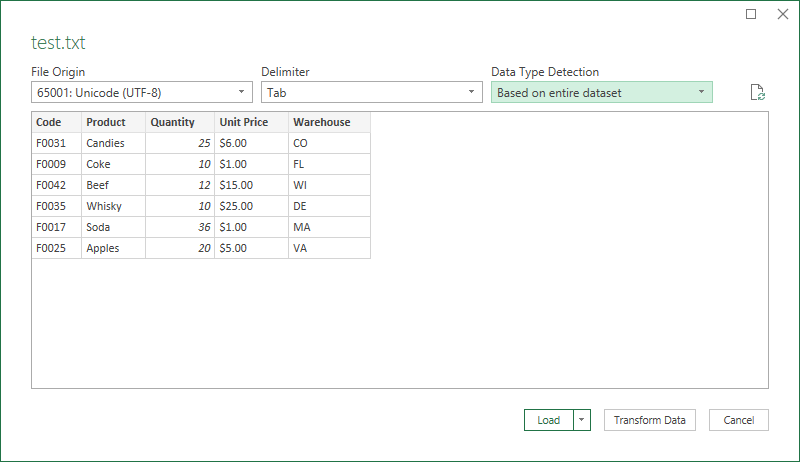
- Clique em Carregar para importar os dados TXT para uma planilha do Excel.
- Salve o arquivo como CSV: Vá para Arquivo → Salvar Como, selecione CSV (delimitado por vírgulas) (*.csv) no menu suspenso “Salvar como tipo”, escolha um local para salvar e clique em Salvar.
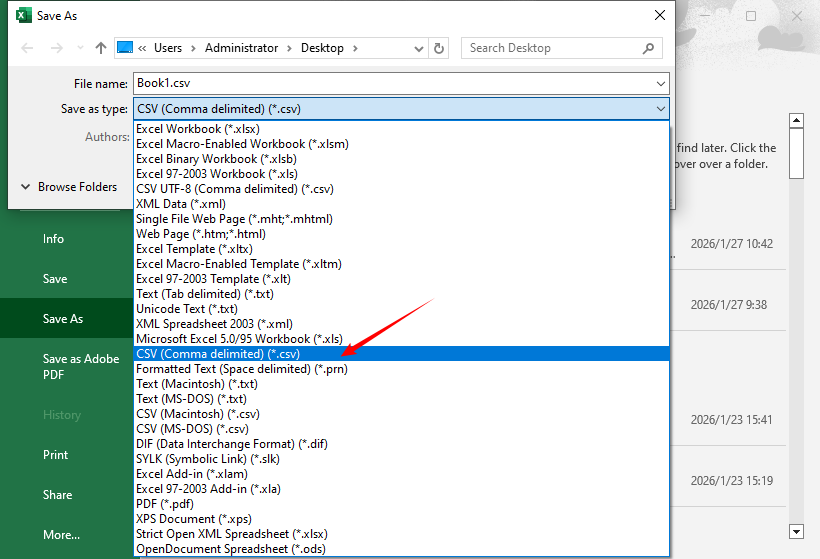
Alternativa: Para usuários que desejam evitar produtos da Microsoft, o LibreOffice Calc é uma alternativa de planilha gratuita e de código aberto que suporta a importação de arquivos de texto e o salvamento deles no formato CSV.
Quer converter um arquivo CSV de volta para um arquivo TXT? Aqui está um guia para você: Converter CSV para TXT: 4 Métodos Fáceis para Todos os Usuários
Método 2: Converter texto para CSV usando ferramentas online gratuitas
1. Conversor online gratuito de TXT para CSV
Conversores online são rápidos, não exigem downloads e funcionam em qualquer navegador. Convertio e Zamzar são dois conversores confiáveis de texto para CSV; ambos oferecem recursos de processamento em lote.
Como converter texto para CSV online:
- Acesse o conversor de sua escolha (por exemplo, Conversor de TXT para CSV da Convertio).
- Clique em Escolher Arquivos e selecione seu arquivo TXT (ou arraste e solte-o).
- Certifique-se de que o formato de entrada seja “TXT” e o formato de saída seja “CSV”.
- Clique em Converter — o processo leva de 1 a 2 segundos para arquivos pequenos.
- Clique em Baixar para salvar seu arquivo CSV em seu computador.
✔ Ideal para: Conversões rápidas e únicas, usuários sem software de planilha e arquivos pequenos.
2. Google Sheets (Gratuito, Baseado na Nuvem)
O Google Sheets é uma alternativa gratuita e que respeita a privacidade aos conversores online de terceiros — nenhum dado sensível sai do seu Google Drive e você mantém controle total sobre seus arquivos. Veja como transformar TXT em CSV:
- Abra o Google Sheets em seu navegador e crie uma nova planilha.
- Vá para Arquivo → Importar → Upload → Selecione seu arquivo .txt.
- Na janela de importação, escolha as configurações de importação e clique em Importar dados.
- Local de importação: selecione sua opção preferida (por exemplo, Substituir dados na célula selecionada)
- Tipo de separador: Detectar automaticamente ou especificar
- Converter texto em números/datas, se aplicável
- Salvar como CSV: Vá para Arquivo → Baixar → Valores separados por vírgula (.csv).
✔ Ideal para: Trabalho colaborativo, fluxos de trabalho baseados na nuvem, usuários de Mac/Linux.
Você também pode gostar: Converter JSON para CSV: Ferramentas Online Gratuitas, Excel e Scripts Python
Método 3: Converter TXT para CSV em lote usando Python
Se você precisa converter centenas de arquivos TXT para CSV ou automatizar o processo de conversão, Python é o método mais eficiente. Usaremos a biblioteca Spire.XLS para Python para converter (não é necessário Excel).
Passo 1: Instale o Spire.XLS
pip install spire.Xls
Passo 2: Use este script para converter TXT para CSV em Python:
from spire.xls import *

# Leia o arquivo txt
with open("Test.txt", "r", encoding="utf-8") as file:
    lines = file.readlines()

# Processe cada linha dividindo com base no delimitador
processed_data = [line.strip().split() for line in lines]

# Crie uma pasta de trabalho do Excel
workbook = Workbook()
# Obtenha a primeira planilha
sheet = workbook.Worksheets[0]

# Escreva os dados da lista processada na planilha
for row_num, row_data in enumerate(processed_data):
    for col_num, cell_data in enumerate(row_data):
        # Escreva os dados nas células
        sheet.Range[row_num + 1, col_num + 1].Value = cell_data

# Salve a planilha como um arquivo CSV (codificado em UTF-8)
sheet.SaveToFile("TxtToCsv.csv", ",", Encoding.get_UTF8())
# Descarte a pasta de trabalho para liberar recursos
workbook.Dispose()
O código converte o documento de texto para CSV:
- Lendo todo o conteúdo do arquivo TXT para uma lista de linhas.
- Limpando e dividindo a linha TXT em dados estruturados via strip() + split().
- Criando uma pasta de trabalho do Excel em branco e obtendo sua primeira planilha.
- Escrevendo dados da lista 2D para as células do Excel via Range[row, col].Value.
- Salvando a planilha como um arquivo CSV via SaveToFile().
- Liberando os recursos do sistema ocupados pela pasta de trabalho do Excel.
Resultado da conversão:
Arquivos CSV não armazenam formatação. Se você deseja aplicar formatação (negrito, cores), considere converter TXT para Excel usando o Spire.XLS para Python.
Considerações Finais
Converter TXT para CSV pode parecer trivial, mas fazê-lo corretamente requer entender a estrutura de seus dados, escolher as ferramentas apropriadas e validar os resultados. Para conversões ocasionais, softwares de planilha ou conversores online fornecem a solução mais simples. Para tarefas repetitivas, o script com Python oferece o maior controle e capacidade de automação.
Dominar a conversão de TXT para CSV elimina um gargalo comum de dados, permitindo análises, relatórios e compartilhamento de dados mais tranquilos em seu fluxo de trabalho.
Perguntas frequentes sobre a conversão de TXT para CSV
P1: Posso converter TXT para CSV sem o Excel?
R: Sim. Você pode usar o Google Sheets (gratuito, baseado na nuvem), LibreOffice Calc (gratuito, de código aberto), ferramentas online como o Convertio ou Python com Spire.XLS.
P2: É possível converter vários TXT para CSV em lote?
R: Sim. Use conversores online como Zamzar/Convertio (upload em lote). Para converter vários arquivos de texto para CSV em Python, adicione um loop ao código:
import os

# Caminho da pasta com arquivos TXT (substitua pela sua pasta)
txt_folder = "path/to/your/txt/files"
output_folder = "path/to/save/csv/files"

# Crie a pasta de saída se ela não existir
os.makedirs(output_folder, exist_ok=True)

# Percorra todos os arquivos TXT
for filename in os.listdir(txt_folder):
    if filename.endswith(".txt"):
        txt_path = os.path.join(txt_folder, filename)
        csv_filename = os.path.splitext(filename)[0] + ".csv"
        csv_path = os.path.join(output_folder, csv_filename)
# script de conversão de txt para csv
P3: E se meu arquivo TXT tiver um delimitador personalizado (por exemplo, pipe |)?
R: Todos os métodos suportam delimitadores personalizados:
- Planilha do Excel: Selecione o delimitador no assistente de importação.
- Python: Substitua split(" ") por split("|") no script.
- Ferramentas online: a maioria dos conversores detecta automaticamente.
P4: Por que meu arquivo CSV está mostrando texto corrompido?
R: Isso geralmente ocorre devido à codificação incorreta. Salve seu arquivo TXT com a codificação UTF-8 antes de converter e verifique se a ferramenta de conversão usa UTF-8.
Veja Também
TXT를 CSV로 변환하는 3가지 최고의 방법 (빠르고 오류 없음)
데이터 분석가, 학생, 소기업 소유주 또는 일반 텍스트 데이터를 정기적으로 사용하는 사람이라면 TXT를 CSV로 변환해야 하는 시나리오를 접했을 것입니다. 텍스트 파일은 보편적이지만 구조화되어 있지 않아 스프레드시트(Excel, Google Sheets), 데이터베이스 또는 프로그래밍 도구(Python, R)로 가져오기가 어렵습니다. 반면에 CSV(쉼표로 구분된 값) 파일은 테이블 형식 데이터의 산업 표준입니다. 모든 데이터 도구에서 지원되며 정렬/필터링이 쉽고 서식 문제에서 자유롭습니다.
이 가이드에서는 무료 온라인 도구, 스프레드시트 소프트웨어, 일괄/자동 변환을 위한 Python 스크립트를 포함하여 텍스트를 CSV로 변환하는 5가지 간단한 방법을 안내합니다.
이 포괄적인 TXT에서 CSV로의 변환 가이드에서 배우게 될 내용:
- 텍스트 파일을 CSV로 변환하기 전의 전제 조건
- 방법 1: MS Excel을 사용하여 수동으로 TXT를 CSV로 변환
- 방법 2: 무료 온라인 도구를 사용하여 텍스트를 CSV로 변환
- 방법 3: Python을 사용하여 TXT를 CSV로 일괄 변환
- TXT를 CSV로 변환하는 것에 대한 FAQ
텍스트 파일을 CSV로 변환하기 전의 전제 조건
변환을 시작하기 전에 2분 동안 TXT 파일을 준비하여 잘못 정렬된 열이나 깨진 텍스트와 같은 일반적인 오류를 방지하십시오.
- 구분 기호 확인: 구분 기호는 TXT 파일에서 값을 구분하는 문자입니다. 대부분의 TXT 파일은 쉼표나 탭을 사용하며, 메모장(Windows)이나 텍스트 편집기(Mac)에서 텍스트 파일을 열어 확인할 수 있습니다.
- 일관된 서식 확인: TXT 파일의 모든 행에 동일한 수의 구분 기호가 있는지 확인하십시오. 예를 들어, 첫 번째 행이
Name,Age,City인 경우 모든 후속 행에는 2개의 쉼표가 있어야 합니다(예:John,28,New York). - 인코딩 확인: 깨진 텍스트를 피하려면 TXT 파일을 UTF-8 인코딩(데이터 파일의 표준)으로 저장하십시오. 메모장에서 "파일 → 다른 이름으로 저장"을 클릭하고 "인코딩" 드롭다운에서 "UTF-8"을 선택하십시오.
방법 1: MS Excel을 사용하여 수동으로 TXT를 CSV로 변환
100행 미만의 작은 TXT 파일을 1-2개만 변환해야 하는 경우 스프레드시트 소프트웨어를 통한 수동 변환이 신뢰할 수 있는 방법입니다. Microsoft Excel은 텍스트를 CSV로 변환하는 데 사용할 수 있는 가장 인기 있는 도구입니다. 계속하려면 다음 단계별 지침을 따르십시오.
- Excel을 열고 새 통합 문서를 만듭니다.
- 데이터 → 데이터 가져오기 → 파일에서 → 텍스트/CSV에서로 이동합니다.
- 파일 탐색기에서 TXT 파일을 선택하고 가져오기를 클릭합니다.
- Excel의 가져오기 마법사가 구분 기호를 자동으로 감지합니다.
- TXT 데이터를 미리 보고 필요한 경우 설정을 조정합니다:
- 파일 원본/인코딩(UTF-8, ASCII 등)
- 구분 기호(쉼표, 탭, 세미콜론, 공백)
- 데이터 유형 감지
- 로드를 클릭하여 TXT 데이터를 Excel 스프레드시트로 가져옵니다.
- 파일을 CSV로 저장: 파일 → 다른 이름으로 저장으로 이동하여 "파일 형식" 드롭다운에서 CSV(쉼표로 구분) (*.csv)를 선택하고 저장 위치를 선택한 다음 저장을 클릭합니다.
대안: Microsoft 제품을 피하고 싶은 사용자를 위해 LibreOffice Calc는 텍스트 파일 가져오기 및 CSV 형식으로 저장을 지원하는 무료 오픈 소스 스프레드시트 대안입니다.
CSV 파일을 다시 TXT 파일로 변환하고 싶으신가요? 다음은 여러분을 위한 가이드입니다: CSV를 TXT로 변환: 모든 사용자를 위한 4가지 쉬운 방법
방법 2: 무료 온라인 도구를 사용하여 텍스트를 CSV로 변환
1. 무료 온라인 TXT to CSV 변환기
온라인 변환기는 빠르고 다운로드가 필요 없으며 모든 브라우저에서 작동합니다. Convertio와 Zamzar는 신뢰할 수 있는 두 가지 텍스트-CSV 변환기이며, 둘 다 일괄 처리 기능을 제공합니다.
온라인에서 텍스트를 CSV로 변환하는 방법:
- 선택한 변환기(예: Convertio TXT to CSV 변환기)로 이동합니다.
- 파일 선택을 클릭하고 TXT 파일을 선택합니다(또는 끌어다 놓습니다).
- 입력 형식이 "TXT"이고 출력 형식이 "CSV"인지 확인합니다.
- 변환을 클릭합니다. 작은 파일의 경우 프로세스는 1-2초가 걸립니다.
- 다운로드를 클릭하여 CSV 파일을 컴퓨터에 저장합니다.
✔ 최적 대상: 빠른 일회성 변환, 스프레드시트 소프트웨어가 없는 사용자 및 작은 파일.
2. Google Sheets (무료, 클라우드 기반)
Google Sheets는 타사 온라인 변환기에 대한 무료이며 개인 정보 보호 친화적인 대안입니다. 민감한 데이터가 Google 드라이브를 떠나지 않으며 파일에 대한 완전한 제어를 유지합니다. TXT를 CSV로 변경하는 방법은 다음과 같습니다.
- 브라우저에서 Google Sheets를 엽니다 그리고 새 스프레드시트를 만듭니다.
- 파일 → 가져오기 → 업로드 → .txt 파일 선택으로 이동합니다.
- 가져오기 창에서 가져오기 설정을 선택하고 데이터 가져오기를 클릭합니다.
- 가져오기 위치: 기본 설정 옵션 선택(예: 선택한 셀의 데이터 바꾸기)
- 구분 기호 유형: 자동으로 감지 또는 지정
- 해당하는 경우 텍스트를 숫자/날짜로 변환
- CSV로 저장: 파일 → 다운로드 → 쉼표로 구분된 값(.csv)으로 이동합니다.
✔ 최적 대상: 공동 작업, 클라우드 기반 워크플로, Mac/Linux 사용자.
관심 있을 만한 다른 글: JSON을 CSV로 변환: 무료 온라인 도구, Excel 및 Python 스크립트
방법 3: Python을 사용하여 TXT를 CSV로 일괄 변환
수백 개의 TXT 파일을 CSV로 변환하거나 변환 프로세스를 자동화해야 하는 경우 Python이 가장 효율적인 방법입니다. Spire.XLS for Python 라이브러리를 사용하여 변환합니다(Excel 필요 없음).
1단계: Spire.XLS 설치
pip install spire.Xls
2단계: 이 스크립트를 사용하여 Python에서 TXT를 CSV로 변환합니다:
from spire.xls import *

# Read the txt file
with open("Test.txt", "r", encoding="utf-8") as file:
    lines = file.readlines()

# Process each line by splitting based on delimiter
processed_data = [line.strip().split() for line in lines]

# Create an Excel workbook
workbook = Workbook()
# Get the first worksheet
sheet = workbook.Worksheets[0]

# Write data from the processed list to the worksheet
for row_num, row_data in enumerate(processed_data):
    for col_num, cell_data in enumerate(row_data):
        # Write data into cells
        sheet.Range[row_num + 1, col_num + 1].Value = cell_data

# Save the sheet as a CSV file (UTF-8 encoded)
sheet.SaveToFile("TxtToCsv.csv", ",", Encoding.get_UTF8())
# Dispose workbook to release resources
workbook.Dispose()
이 코드는 다음을 통해 텍스트 문서를 CSV로 변환합니다:
- TXT 파일의 모든 내용을 줄 목록으로 읽습니다.
- strip() + split()을 통해 TXT 줄을 구조화된 데이터로 정리하고 분할합니다.
- 빈 Excel 통합 문서를 만들고 첫 번째 워크시트를 가져옵니다.
- Range[row, col].Value를 통해 2D 목록의 데이터를 Excel 셀에 씁니다.
- SaveToFile()을 통해 워크시트를 CSV 파일로 저장합니다.
- Excel 통합 문서가 차지하는 시스템 리소스를 해제합니다.
변환 결과:
CSV 파일은 서식을 저장하지 않습니다. 서식(굵게, 색상)을 적용하려면 Spire.XLS for Python을 사용하여 TXT를 Excel로 변환하는 것을 고려하십시오.
마지막 생각들
TXT를 CSV로 변환하는 것은 사소해 보일 수 있지만 올바르게 수행하려면 데이터 구조를 이해하고 적절한 도구를 선택하고 결과를 검증해야 합니다. 가끔 변환하는 경우 스프레드시트 소프트웨어나 온라인 변환기가 가장 간단한 솔루션을 제공합니다. 반복적인 작업의 경우 Python을 사용한 스크립팅이 가장 많은 제어 및 자동화 기능을 제공합니다.
TXT에서 CSV로의 변환을 마스터하면 일반적인 데이터 병목 현상을 제거하여 워크플로에서 더 원활한 분석, 보고 및 데이터 공유가 가능해집니다.
TXT를 CSV로 변환하는 것에 대한 FAQ
Q1: Excel 없이 TXT를 CSV로 변환할 수 있나요?
A: 네. Google Sheets(무료, 클라우드 기반), LibreOffice Calc(무료, 오픈 소스), Convertio와 같은 온라인 도구 또는 Spire.XLS와 함께 Python을 사용할 수 있습니다.
Q2: 여러 TXT를 CSV로 일괄 변환할 수 있나요?
A: 네. Zamzar/Convertio(일괄 업로드)와 같은 온라인 변환기를 사용하십시오. Python에서 여러 텍스트 파일을 CSV로 변환하려면 코드에 루프를 추가하십시오.
import os

# TXT 파일이 있는 폴더 경로(사용자 폴더로 교체)
txt_folder = "path/to/your/txt/files"
output_folder = "path/to/save/csv/files"

# 출력 폴더가 없으면 생성
os.makedirs(output_folder, exist_ok=True)

# 모든 TXT 파일 반복
for filename in os.listdir(txt_folder):
    if filename.endswith(".txt"):
        txt_path = os.path.join(txt_folder, filename)
        csv_filename = os.path.splitext(filename)[0] + ".csv"
        csv_path = os.path.join(output_folder, csv_filename)
# txt to csv 변환 스크립트
Q3: 내 TXT 파일에 사용자 지정 구분 기호(예: 파이프 |)가 있으면 어떻게 하나요?
A: 모든 방법은 사용자 지정 구분 기호를 지원합니다:
- Excel 스프레드시트: 가져오기 마법사에서 구분 기호를 선택합니다.
- Python: 스크립트에서 split(" ")을 split("|")으로 바꿉니다.
- 온라인 도구: 대부분의 변환기는 자동으로 감지합니다.
Q4: 내 CSV 파일에 깨진 텍스트가 표시되는 이유는 무엇인가요?
A: 이것은 일반적으로 잘못된 인코딩 때문입니다. 변환하기 전에 TXT 파일을 UTF-8 인코딩으로 저장하고 변환 도구가 UTF-8을 사용하는지 확인하십시오.