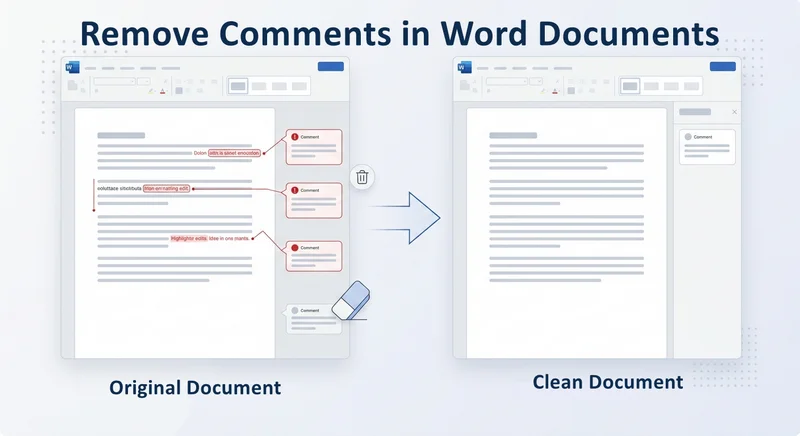
Before sharing a Word document, have you ever worried about leaving comments or tracked changes visible? Before you send it, you must ensure that your internal discussions and edit history are not visible to the recipient. Leaving unresolved remarks can look unprofessional and may even leak sensitive information. If you are looking for how to remove comments in Word to finalize your file, the process is simple, but a few details can easily be overlooked. Whether you need to delete a single note or clear an entire document, the following methods will ensure documents remain polished and professional.
- Remove Comments Using Review Tab
- Document Inspector for Deep Cleaning
- Dealing with Tracked Changes
- Remove All Comments Automatically
- FAQs
Remove Comments in Word Using the Review Tab
The Review tab is the central hub for document collaboration, making it the most efficient place to manage comments. It helps users to add or delete comments efficiently with an intuitive interface.
Method 1: Remove a Comment via Right-Click
This is the fastest approach when you only need to address specific points while leaving other comments intact for further discussion.
- Step 1. Locate the comment in your document.
- Step 2. Right-click directly on the comment box.
- Step 3. Select Delete Comment from the context menu.
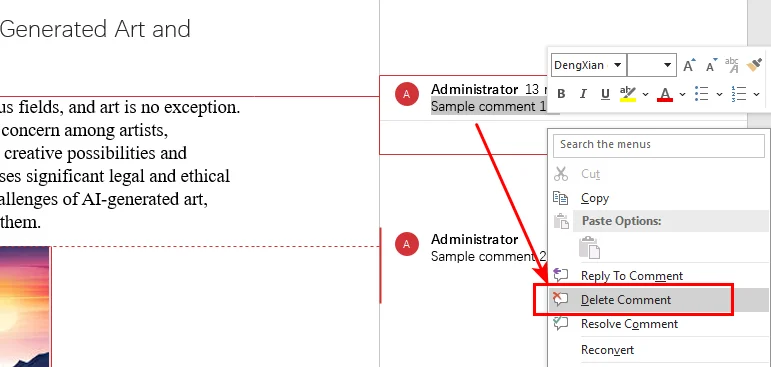
Note: Pressing Backspace or Delete typically removes text inside the comment, not the comment itself.
Method 2: Use the Review Ribbon for Single or Bulk Deletion
For more control, or when you need to know how to remove all comments in Word instantly, use the specialized tools in the navigation ribbon.
-
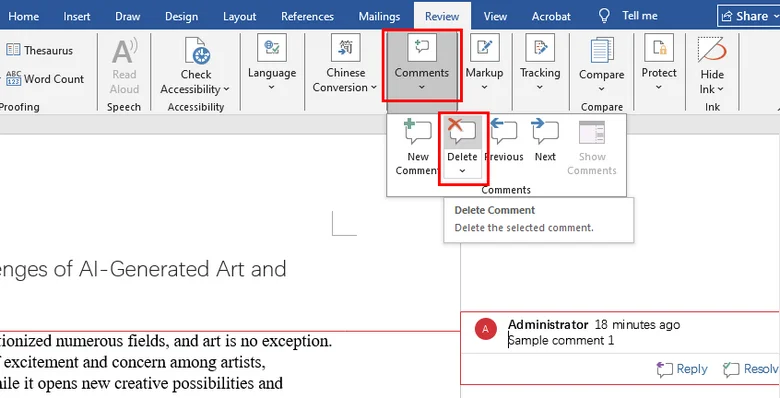
To remove a specific comment:
- Step 1. Click inside the comment box.
- Step 2. Go to the Review tab and click the Delete icon.
-
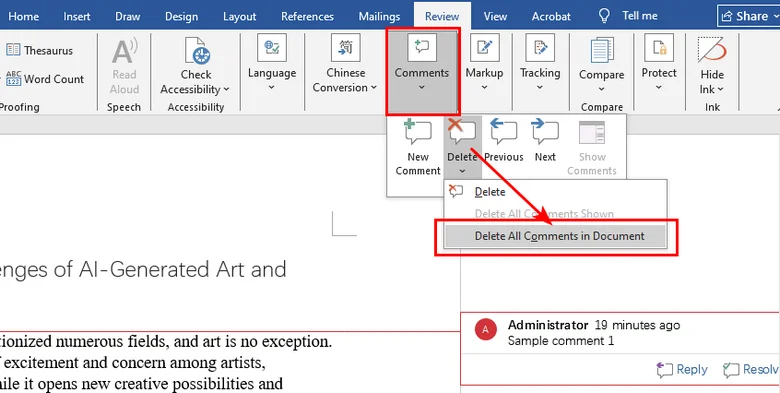
To remove all comments at once:
- Step 1. Navigate to the Review tab at the top of Word.
- Step 2. Find the Comments group.
- Step 3. Click the drop-down arrow beneath the Delete button.
- Step 4. Select Delete All Comments in Document.
The Document Inspector Method for Deep Cleaning
If you are preparing a high-stakes contract or a public report, you need an extra step of security. The Document Inspector is an advanced tool that scans for hidden metadata that manual deletion might miss.
To delete all comments in a Word document and remove personal properties using the Document Inspector:
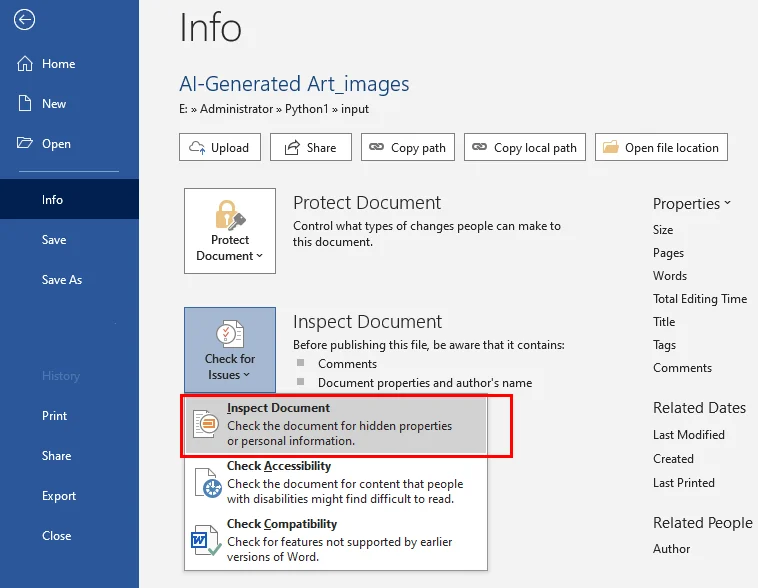
- Step 1. Click File > Info.
- Step 2. Select Check for Issues and then click Inspect Document.
- Step 3. Ensure Comments, Revisions, and Versions is checked.
- Step 4. Click Inspect, then click Remove All next to the found items.
Tip: Besides removing comments, you might also need to eliminate headers in Word to create a completely clean layout for your final report.
Dealing with Tracked Changes in Word Documents
A common mistake when removing comments in a Word document is forgetting about the red lines or tracked edits. If you delete comments but leave Tracked Changes active, your recipient will still see every deletion and insertion unless you accept or reject the changes before sharing.
Here's the process to stop tracking changes in a Word document:
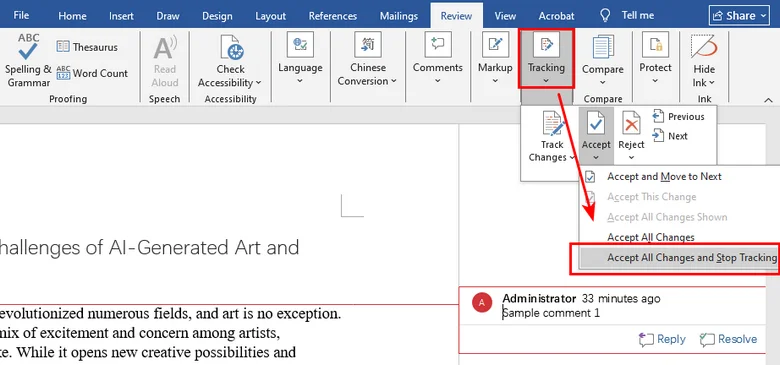
- Step 1. On the Review tab, go to the Tracking section.
- Step 2. Click the arrow under Accept.
- Step 3. Choose Accept All Changes and Stop Tracking.
Once this is done, your document will reflect the final version of the text without any visible history of the modifications.
Remove All Comments in Word Documents Automatically
For developers or technical teams managing large-scale document workflows, manual operations are not practical. You can automate removing comments in Word using Python or VBA to ensure consistency across files.
Option A: Delete All Comments Using Python
Python libraries like Free Spire.Doc for Python allow you to clear comments with a few lines of code. This library provides a comprehensive set of APIs for creating, reading, and editing Word documents without requiring Microsoft Word installation.

Below is a Python code example to remove all comments in a Word document:
from spire.doc import *
from spire.doc.common import *

# Create an object of Document class and load a Word document
doc = Document()
doc.LoadFromFile("Sample.docx")

# Remove all comments
doc.Comments.Clear()

# Save the document
doc.SaveToFile("output/RemoveComments.docx")
doc.Close()
Option B: Remove Comments in Word Files Using a VBA Macro
If you prefer staying within the Microsoft Office environment, you can use a simple VBA script to clear the current document instantly.
Sub ClearAllMarkup()
    ' Remove all comments
    If ActiveDocument.Comments.Count > 0 Then
        ActiveDocument.DeleteAllComments
    End If
    ' Accept all changes
    ActiveDocument.Revisions.AcceptAll
End Sub
FAQs
- How do I eliminate comments and hidden metadata from a Word document?
- How do I remove the comment section in Word after deleting the notes?
- Is there a shortcut key to remove comments in Word?
Use the Document Inspector via File > Info > Check for Issues. It scans and removes comments, revisions, and personal properties in one go, ensuring no sensitive data remains when converting to PDF or sharing externally.
If a blank sidebar remains, it is likely because Tracked Changes are still active. Go to the Review tab and select Accept > Accept All Changes and Stop Tracking to collapse the markup area and return the layout to normal.
To delete a comment in Word quickly, select it and press Shift + F10 then D. To delete all at once via the ribbon, press Alt + R, then D, then A in sequence.
Conclusion
Learning how to delete comments in Word is a vital skill for maintaining professional standards. You can use the Review tab for a quick fix, the Document Inspector for a final security check, or automation tools like Free Spire.Doc for Python for bulk processing. By following the four effective methods, you can share your work with total confidence, knowing your internal notes stay private.