
When a generated report comes back with complaints, they are almost never about the content — they are about finding it. A few hundred pages assembled by a reporting pipeline, no contents page, and the reader is left dragging a scrollbar or typing words into the viewer's search box to locate chapter four. The document has a structure; it just never told anyone about it.
This article builds that structure: a contents page drawn at exactly the position it should occupy, with chapter entries, leader dots and page numbers, and with each entry clickable so a reader lands on the chapter instead of the top of the file. It uses Spire.PDF for JavaScript, which loads, edits and saves documents in the browser on WebAssembly, reading and writing through a virtual file system (VFS).
Two pieces are covered here:
For installation and project configuration, refer to Integrating Spire.PDF for JavaScript in a React Project. The examples assume the package is installed and the WebAssembly module has been initialized.
Why generated PDFs ship without a contents page
Two things get called a table of contents in a PDF, and it is worth separating them before writing any code.
The first is a visible contents page — a printed list of chapters with page numbers, sitting after the cover. This is what most readers mean when they ask for one, it is what survives when the file is printed, and it is what this article builds.
The second is the outline a viewer shows in a sidebar, which is a separate data structure inside the file. A generator that assembles pages from templates typically produces neither: it knows how to lay out a chapter but has no concept of a chapter list, so the navigation is simply not written.
Knowing the page numbers before you draw the list is the other half of the job. Those numbers come from the document itself — if you need to derive them rather than hard-code them, getting the page count of the PDF is where the arithmetic starts.
Inserting the contents page at the right index
The contents page has to exist before anything can be drawn on it, and it has to land in a specific slot: after the cover, before chapter one. Pages.Insert({ index }) inserts a page at a given index and returns it, ready to draw on.
// Insert the contents page after the cover; the body pages shift down by one
const tocPage = doc.Pages.Insert({ index: 1 });
There is a consequence hidden in that one call, and it causes the most common bug in this whole exercise: the insertion shifts every page after it down by one. If the cover was page 1 and chapter one was page 2 before the insert, then after inserting the contents page, chapter one is page 3. Any page number written onto the contents page has to reflect the document as it now stands, not as it was when the chapter list was compiled.
Drawing entries, leader dots and page numbers
A contents page is drawn, not typeset — the title, every entry, the leader dots and the page numbers are each an individual Canvas.DrawString call. Fonts come from a built-in family, the title is centered with a PdfStringFormat, and entries are measured with MeasureString so their width is known before anything is placed against them.
function App() {
  const createTocPage = async () => {
    // Get the Spire.PDF WASM module
    const pdfModule = window.wasmModule?.spirepdf;

    // Check whether the module is ready
    if (!pdfModule) {
      alert('Spire.PDF is not ready yet');
      return;
    }

    // Load the PDF to process into the VFS
    const inputFileName = 'Chapter_Document.pdf';
    await window.spire.FetchFileToVFS(inputFileName, '', `${process.env.PUBLIC_URL}/data/`);

    // Create a PdfDocument object and load the PDF
    let doc = new pdfModule.PdfDocument();
    doc.LoadFromFile(inputFileName);

    // Insert the contents page after the cover; the body pages shift down by one
    const tocPage = doc.Pages.Insert({ index: 1 });

    // Fonts for the title and the entries, using the built-in Helvetica (no font file to load)
    const titleFont = new pdfModule.PdfFont({ fontFamily: pdfModule.PdfFontFamily.Helvetica, size: 20, style: pdfModule.PdfFontStyle.Bold });
    const entryFont = new pdfModule.PdfFont({ fontFamily: pdfModule.PdfFontFamily.Helvetica, size: 14 });
    const centerFormat = new pdfModule.PdfStringFormat({ alignment: pdfModule.PdfTextAlignment.Center });

    // Draw the centered contents title
    const title = 'Contents';
    tocPage.Canvas.DrawString({
      s: title,
      font: titleFont,
      brush: pdfModule.PdfBrushes.get_Black(),
      point: new pdfModule.PointF(tocPage.Canvas.ClientSize.Width / 2, 50),
      format: centerFormat
    });

    // Chapter titles and their page numbers after the contents page is inserted
    const chapters = [
      { title: 'Chapter 1 Overview', page: 3 },
      { title: 'Chapter 2 Architecture', page: 4 },
      { title: 'Chapter 3 Deployment', page: 5 },
      { title: 'Chapter 4 Maintenance', page: 6 }
    ];

    const width = tocPage.Canvas.ClientSize.Width;
    let y = 110;
    for (const chapter of chapters) {
      // Entry text
      const titleSize = entryFont.MeasureString({ text: chapter.title });
      tocPage.Canvas.DrawString({ s: chapter.title, font: entryFont, brush: pdfModule.PdfBrushes.get_Black(), x: 40, y: y });

      // Right-aligned page number
      const pageText = chapter.page.toString();
      const pageSize = entryFont.MeasureString({ text: pageText });
      tocPage.Canvas.DrawString({ s: pageText, font: entryFont, brush: pdfModule.PdfBrushes.get_Black(), x: width - 40 - pageSize.Width, y: y });

      // Leader dots: fill from the end of the entry to the start of the page number
      const dotStart = 40 + titleSize.Width + 6;
      const dotEnd = width - 40 - pageSize.Width - 6;
      for (let x = dotStart; x < dotEnd; x += 6) {
        tocPage.Canvas.DrawString({ s: '.', font: entryFont, brush: pdfModule.PdfBrushes.get_Gray(), x: x, y: y });
      }

      y += 24;
    }

    // Define the output file name and save
    const outputFileName = 'Document-with-TOC.pdf';
    doc.SaveToFile(outputFileName);
    doc.Close();

    // Read the generated file from the VFS and trigger the download
    const fileArray = window.dotnetRuntime.Module.FS.readFile(outputFileName);
    const blob = new Blob([fileArray], { type: 'application/pdf' });
    const url = URL.createObjectURL(blob);
    const a = document.createElement('a');
    a.href = url;
    a.download = outputFileName;
    a.click();
    URL.revokeObjectURL(url);
  };

  return (
    <div style={{ textAlign: 'center', height: '300px' }}>
      <h1>Create a Table of Contents Page</h1>
      <button id="btn-1" onClick={createTocPage}>
        Create TOC
      </button>
    </div>
  );
}

export default App;
Every x-position is derived rather than hard-coded. The entry starts at the left margin of 40, the page number lands at width - 40 - pageSize.Width so it right-aligns to that same margin, and the leader dots run from just past the entry to just short of the number — move the margin and the dots follow.
The document with a contents page: the page after the cover lists each chapter with its page number
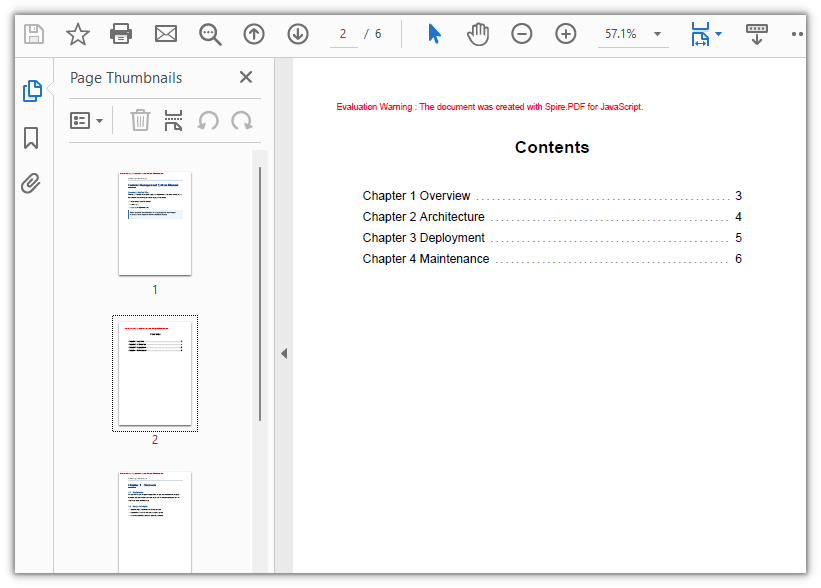
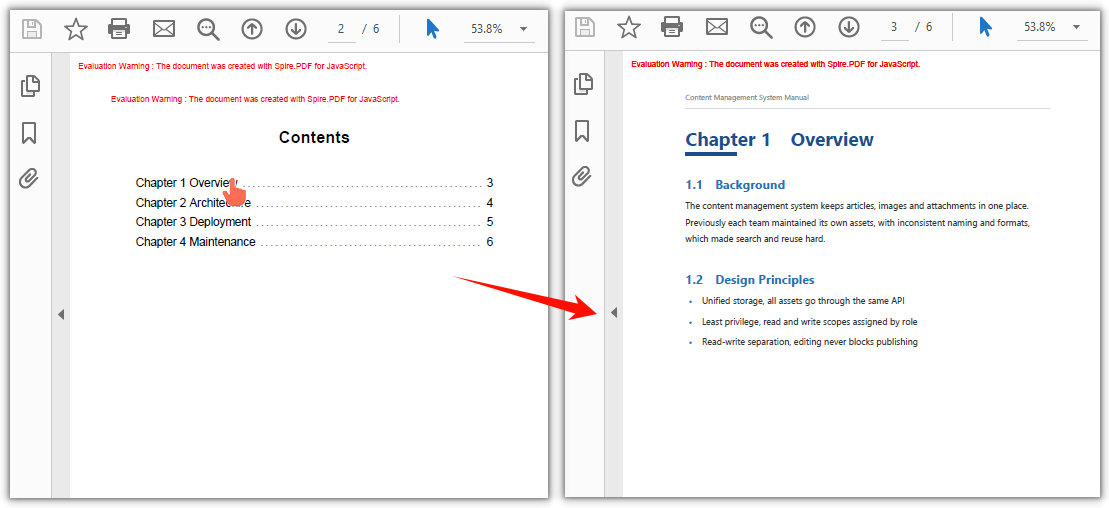
At this point the page looks finished, and that is the trap. Every entry is ink. Clicking one does nothing, because a page of drawn text has no interactive elements at all.
Making each entry clickable
Interaction in a PDF comes from annotations, not from the text itself. To make a line of the contents page respond to a click, it has to be covered by a PdfActionAnnotation whose action is a PdfGoToAction carrying a PdfDestination — the destination names the page to jump to.
function App() {
  const addTocNavigation = async () => {
    // Get the Spire.PDF WASM module
    const pdfModule = window.wasmModule?.spirepdf;

    // Check whether the module is ready
    if (!pdfModule) {
      alert('Spire.PDF is not ready yet');
      return;
    }

    // Load the document generated in the previous step
    const inputFileName = 'Document-with-TOC.pdf';
    await window.spire.FetchFileToVFS(inputFileName, '', `${process.env.PUBLIC_URL}/data/`);

    let doc = new pdfModule.PdfDocument();
    doc.LoadFromFile(inputFileName);

    // The contents page is page 2 of the document (index 1)
    const tocPage = doc.Pages.get_Item(1);

    // The entry text and the page each one should jump to
    const chapters = [
      { title: 'Chapter 1 Overview', page: 3 },
      { title: 'Chapter 2 Architecture', page: 4 },
      { title: 'Chapter 3 Deployment', page: 5 },
      { title: 'Chapter 4 Maintenance', page: 6 }
    ];

    // Search the contents page by keyword
    const finder = new pdfModule.PdfTextFinder(tocPage);

    for (const chapter of chapters) {
      const found = finder.Find(chapter.title);
      if (found.length === 0) {
        continue;
      }

      // Define the hit area based on the keyword position
      const lineBounds = found.get(0).Bounds[0];
      const bounds = new pdfModule.RectangleF({
        location: new pdfModule.PointF(0, lineBounds.Y),
        size: new pdfModule.SizeF({ width: tocPage.Canvas.ClientSize.Width, height: lineBounds.Height })
      });

      // The jump target is the chapter's page, aligned to the top-left corner of the body
      const targetPage = doc.Pages.get_Item(chapter.page - 1);
      const destination = new pdfModule.PdfDestination({
        page: targetPage,
        location: new pdfModule.PointF(0, 0)
      });

      // Attach the jump action and set the border width to 0
      const action = new pdfModule.PdfActionAnnotation(bounds, new pdfModule.PdfGoToAction({ destination }));
      action.Border = new pdfModule.PdfAnnotationBorder({ borderWidth: 0 });
      tocPage.Annotations.Add(action);
    }

    // Define the output file name and save
    const outputFileName = 'Clickable-TOC.pdf';
    doc.SaveToFile(outputFileName);
    doc.Close();

    // Read the generated file from the VFS and trigger the download
    const fileArray = window.dotnetRuntime.Module.FS.readFile(outputFileName);
    const blob = new Blob([fileArray], { type: 'application/pdf' });
    const url = URL.createObjectURL(blob);
    const a = document.createElement('a');
    a.href = url;
    a.download = outputFileName;
    a.click();
    URL.revokeObjectURL(url);
  };

  return (
    <div style={{ textAlign: 'center', height: '300px' }}>
      <h1>Add Navigation to Table of Contents Entries</h1>
      <button id="btn-2" onClick={addTocNavigation}>
        Add Navigation
      </button>
    </div>
  );
}

export default App;
Two choices in there are deliberate. Border is zeroed, because a visible border draws a rectangle around each entry — the reader should see a list, not a boxed form. And the target is fetched as a real page object with doc.Pages.get_Item(...), since a destination needs a page, not an index.
Clicking a chapter title in the contents page jumps to that page
Finding the hit area by text search
The interesting part of that loop is the hit area. The obvious approach is to compute it from the drawing coordinates — the entry was drawn at y, the line is entryFont tall, so the rectangle goes there. It works for the first row and drifts by the last.
Drawing y and the annotation rectangle sit in different frames of reference: the text was drawn downward from the top, while the hit area must be expressed in page coordinates. Bridging them means accounting for page height and a top margin, and any error in font metrics or line spacing accumulates row by row — until the click lands on the row below.
The fix is to stop deriving the position and go look it up. PdfTextFinder searches a page for a piece of text and returns the rectangles it occupies, already in page coordinates:
const finder = new pdfModule.PdfTextFinder(tocPage);
const found = finder.Find(chapter.title);
const lineBounds = found.get(0).Bounds[0];
const bounds = new pdfModule.RectangleF({
  location: new pdfModule.PointF(0, lineBounds.Y),
  size: new pdfModule.SizeF({ width: tocPage.Canvas.ClientSize.Width, height: lineBounds.Height })
});
const targetPage = doc.Pages.get_Item(chapter.page - 1);
const action = new pdfModule.PdfActionAnnotation(bounds, new pdfModule.PdfGoToAction({ destination }));
Searching for the entry's own text returns where that text actually ended up, so no top margin has to be added and no line-spacing assumption has to hold. The rectangle is then widened to span the full page width, so the whole row is clickable rather than just the glyphs, and the search result's height sets the row height. If an entry is not found, Find returns an empty list and the loop skips it — a continue instead of a link pointing nowhere.
This is also why drawing and linking are separate passes: the search needs the entries to exist as text before it can find them.
Extending to a multi-level contents
A real manual has chapters and sections, not one flat list. The mechanics above scale with three adjustments.
| Change | What to adjust |
|---|---|
| Sub-entries indented | Shift the sub-entry's x to the right, and start the leader dots from the new text end |
| Sub-entries quieter | Draw them in a smaller size or a gray brush so the hierarchy reads at a glance |
| Tighter spacing | Reduce the y step for section rows so a chapter and its sections read as a group |
Two cautions come with it. Leader dots start from the entry's measured width, so an indented sub-entry needs its dots computed from the indented margin, or they will overlap the text. And the hit area is found by searching for the text, so two entries reading the same thing resolve to the first occurrence — numbering sections (2.1, 2.2) sidesteps that.
If the list outgrows one page, insert a second contents page and search each entry on the page it was drawn on — the finder is created per page.
Common issues
The page numbers are all off by one. The contents page was inserted into the document, so every page after it moved down by one. Write the numbers as they stand after the insert. If the cover was page 1 and chapter one was page 2, then once the contents page sits at index 1, chapter one is page 3.
Clicking an entry jumps to the wrong chapter, or nothing happens. The hit area was derived from the drawing coordinates instead of searched for. Measured offsets accumulate down the page, so the rectangle drifts off its row. Search the contents page for the entry's text and use the returned rectangle — it is already in page coordinates.
A visible box appeared around every entry.
That is the annotation border. Set action.Border to a PdfAnnotationBorder with borderWidth: 0 so the hit area stays invisible.
The first click does nothing. The WebAssembly module had not finished loading. Guard on the module reference, or keep the control disabled until it is ready.
FAQ
Can the page numbers be filled in automatically? The list has to be told which page each chapter starts on — the contents page cannot infer your document's structure by itself. Read the document's page count and build the entry list from your own chapter metadata, remembering to account for the pages the contents page itself adds.
Do the links survive printing? No, and they are not supposed to. Printing produces the visible contents page with its page numbers; the click behaviour only exists in the digital file, where a reader can act on it.
Can I change how the contents page looks?
Yes. The title and entries use PdfFont, so family, size and style are yours to set, and the colours come from PdfBrushes — the leader dots in the example are drawn in gray so they recede behind the entries.
Does the clickable entry need a visible underline or colour? No. The hit area is an invisible annotation covering the row, so the entry looks like ordinary text and still responds to a click. That is why the border width is zeroed.
Does any of this need a server? No. The document is loaded, edited and saved in the browser through the virtual file system, and the resulting file is read back out for download.