A single integer — the total number of pages in a PDF — sits behind a surprising number of real-world decisions: upload limits, paper estimation for printing, split operations, progress bars. Most PDF rendering libraries only draw pages and do not expose a simple count, and sending the file to a backend just to read a page count adds latency and privacy concerns.
Spire.PDF for JavaScript loads and parses PDF documents directly in the browser through WebAssembly, so the file never leaves the client. The page count is available as a single property — no loops, no server round-trips, no rendering workarounds. This article walks through retrieving that count and three practical concerns: telling physical page counts apart from display labels, handling password-protected files, and avoiding off-by-one errors when iterating over pages.
For installation and project setup, see Integrate Spire.PDF for JavaScript in a React Project. The examples below assume Spire.PDF is installed and the WebAssembly module has been initialized.
Get the Page Count of a PDF Document
Once a PdfDocument object has loaded a file, its Pages property exposes the page collection, and the Count property on that collection returns the total number of pages. There is no need to iterate through the pages individually — the count is available immediately after loading.
The following React component demonstrates the full workflow: fetch the PDF into the virtual file system, create a PdfDocument, load the file, read Pages.Count, and write the result to a downloadable text file.
function App() {
  const getPageCount = async () => {
    // Get the Spire.PDF WASM module
    const pdfModule = window.wasmModule?.spirepdf;

    // Check whether the module is ready
    if (!pdfModule) {
      alert('Spire.PDF is not ready yet');
      return;
    }

    // Load the PDF file to be counted into the VFS
    const inputFileName = 'Multipage_Document.pdf';
    await window.spire.FetchFileToVFS(inputFileName, '', `${process.env.PUBLIC_URL}/data/`);

    // Create a PdfDocument object and load the PDF document
    const doc = new pdfModule.PdfDocument();
    doc.LoadFromFile(inputFileName);

    // Pages is the document's page collection; Count is the total page count
    const pageCount = doc.Pages.Count;

    // Write the result to the VFS
    const outputFileName = 'PageCountResult.txt';
    const report = `Document: ${inputFileName}\r\nTotal pages: ${pageCount}`;
    window.dotnetRuntime.Module.FS.writeFile(outputFileName, report);
    doc.Close();

    // Read the generated file from the VFS and trigger the download
    const fileArray = window.dotnetRuntime.Module.FS.readFile(outputFileName);
    const blob = new Blob([fileArray], { type: 'text/plain' });
    const url = URL.createObjectURL(blob);
    const a = document.createElement('a');
    a.href = url;
    a.download = outputFileName;
    a.click();
    URL.revokeObjectURL(url);
  };

  return (
    <div style={{ textAlign: 'center', height: '300px' }}>
      <h1>Get PDF Page Count</h1>
      <button onClick={getPageCount}>
        Count Pages
      </button>
    </div>
  );
}

export default App;
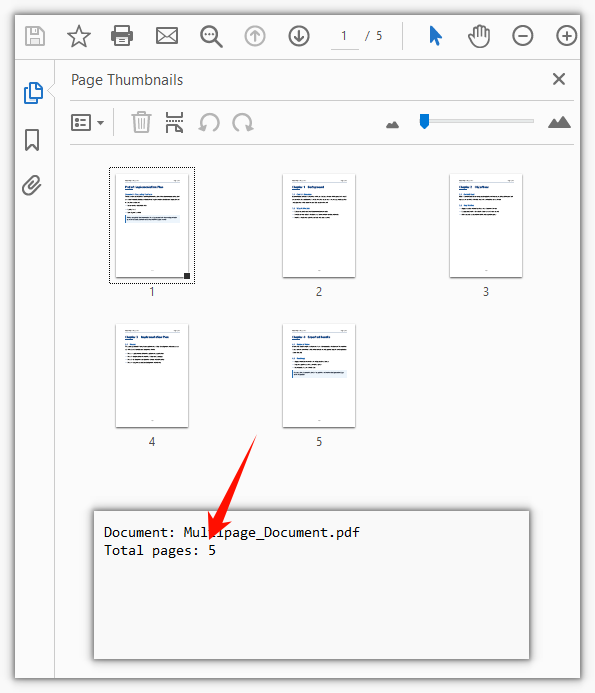
The result is written to a text file that records the document's total page count:
In a production application, you would typically use the pageCount value directly rather than writing it to a file — for example, to validate an upload, set a loop bound, or display metadata in the UI. The file-output approach shown here is useful for testing and demonstration.
Physical Page Count vs Page Labels
Here is a situation that catches developers off guard: you read Pages.Count and get 12, but the PDF reader on the user's screen shows the last page as "page 8." Which number is correct?
Both are — they measure different things. Pages.Count returns the number of physical pages in the document, plain and simple. The number displayed by a reader, however, comes from page labels (the /PageLabels entry in the PDF specification). Page labels are a presentation layer that publishers use to control how page numbers appear to the reader. A book publisher might exclude the cover from numbering, use roman numerals (i, ii, iii) for the front matter, and restart the body at 1. After all that, the fifth physical page could display as iii or 1 depending on how the labels are configured.
This distinction matters when your application needs to show users a page number that matches what they see in their reader. If you display Pages.Count as the "current page," it will not line up with the reader's numbering whenever page labels are in play.
When you need the displayed label rather than the physical index, read the PageLabel property on the individual page object:
// What label the 5th physical page displays in a reader
const page = doc.Pages.get_Item(4);
console.log(page.PageLabel);
Note the zero-based index: get_Item(4) retrieves the fifth physical page. When the document has no page labels configured, PageLabel returns an empty string. In that common case, the displayed number matches the physical page order, so Count is the value you want.
A practical way to handle both scenarios is to check PageLabel first and fall back to the physical index when it is empty. This gives your application a page number that always matches what the user sees, regardless of whether the document uses custom labels.
Counting Pages in an Encrypted PDF
Many PDFs in business environments are protected by an open password — a security measure that prevents the document from being read without the correct credential. If you try to load such a file with a plain LoadFromFile call, the WASM runtime throws an error before Pages.Count is ever reached:
Can not open an encrypted document. The password is invalid.
This happens at load time, not at the point where you read the page count. The document's content — including its page structure — is encrypted, so the library cannot parse it without the password. There is no way to count pages without first unlocking the document.
The fix is straightforward: pass the open password as the second argument to LoadFromFile. Once the document is unlocked, the page count is available just as with an unencrypted file:
// The second argument is the open password
doc.LoadFromFile(inputFileName, 'spire123');
const pageCount = doc.Pages.Count;
In a real application, you would typically collect the password from the user through a form field and pass it in dynamically rather than hardcoding it. If the user enters the wrong password, the same error is thrown — so wrapping the LoadFromFile call in a try/catch block and showing a friendly "incorrect password" message is a good practice.
One more thing worth noting: this password is the open password (also called the user password), which controls who can view the document. A PDF can also have a permissions password (owner password) that restricts editing, printing, or copying without blocking viewing. For the purpose of counting pages, only the open password is relevant — once the document is open, Pages.Count works regardless of permissions restrictions.
Using Page Count as a Loop Boundary
Once you have the page count, a natural next step is to loop over every page — to extract text, render thumbnails, split the document, or apply some transformation. This is where a subtle but common bug appears: using Count as an inclusive upper bound.
The Pages collection is zero-indexed, which means valid indices run from 0 to Count - 1. If the loop condition is written with <= instead of <, the final iteration tries to access the page at index Count, which does not exist. The WASM runtime wraps the underlying .NET ArgumentOutOfRangeException as a JavaScript Error with a message like:
ArgumentOutOfRange_IndexMustBeLess Arg_ParamName_Name, index
Because the error's name property is just the generic Error, you cannot distinguish it by name alone — you have to match on the message string if you want to handle it specifically.
The correct loop uses < so the last accessed index is Count - 1:
// The upper bound is Count - 1, so use < rather than <=
for (let i = 0; i < doc.Pages.Count; i++) {
  const page = doc.Pages.get_Item(i);
}
This off-by-one pattern is one of the most frequent sources of runtime errors when working with page collections. It is easy to miss in testing if your sample documents happen to have only one or two pages — the error only surfaces on the final iteration, so a single-page document will not trigger it at all. Always test loop logic with a document that has at least three pages to make sure the boundary condition is correct.
See Also
- Integrate Spire.PDF for JavaScript in a React Project — Setup guide for installing Spire.PDF and initializing the WebAssembly module in a React app.
- Spire.PDF for JavaScript Product Page — Overview of features, supported operations, and browser-based PDF processing capabilities.
- spire.pdf on npm — Package page for installing the library via npm.