
You click a link to a large PDF and get a blank frame. The spinner turns, a few megabytes arrive, and only then does page one appear. The file was fine, the network was fine — the document was simply written in an order that forces the viewer to wait for the whole thing before it can draw anything. That is the problem linearization solves, and it is a structural fix, not a size fix: the same bytes, arranged so that the parts needed to render the first page sit at the front.
This article linearizes a PDF in the browser with Spire.PDF for JavaScript. The library runs on WebAssembly and works on the document through a virtual file system (VFS), so a file can be restructured on the user's machine without being pushed through a remote optimization service.
Setup instructions live in Integrating Spire.PDF for JavaScript in a React Project. The example below assumes the package is installed and the WebAssembly module has been initialized.
What fast web view actually means
A PDF is a container, and its objects are stored in the order they were written by whatever produced it. A viewer, on the other hand, needs a specific small set — the document catalog, the page tree and the objects backing page one — before it can paint anything at all. If those objects happen to sit near the end of the file, behind a large embedded image, the viewer has no choice but to keep downloading until it reaches them.
Fast web view is the consumer-facing name for a linearized PDF: one whose internal layout places the first page's objects near the front, so a client that supports HTTP byte-range requests can ask for just those bytes, render page one immediately, and fetch the rest in the background. The reader sees content while the download continues instead of staring at an empty frame.
The practical consequence is that two files of identical size can feel completely different to open. Same page count, same images, same text — different time to first paint.
How linearization rearranges a file
Linearization rewrites how the file is laid out without touching what it contains:
- The objects that page one depends on are moved to the beginning of the file.
- A linearization dictionary is written near the start so a client can discover the layout before it has read the whole document.
- A hint table records where each page's objects live, which is what lets a reader jump ahead to an arbitrary page with a byte-range request.
- The cross-reference information is placed so it can be read early rather than at the end of the file.
Everything a reader actually sees — text, images, fonts, vector art, links, annotations, bookmarks, metadata — is carried over unchanged. The words on the page are the same words in the same places. What moved is the byte ordering, not the content. That is why a linearized document is impossible to spot by looking at it: open the original and the output side by side and they are indistinguishable, because the difference only shows up in when the pieces can be read.
Linearizing a document in the browser
The usage mirrors the library's other converters: hand the input file to PdfToLinearizedPdfConverter, then call ToLinearizedPdf to write the restructured document.
function App() {
  const convertToLinearized = async () => {
    // Get the Spire.PDF WASM module
    const pdfModule = window.wasmModule?.spirepdf;

    // Check whether the module is ready
    if (!pdfModule) {
      alert('Spire.PDF is not ready yet');
      return;
    }

    // Load the PDF file to be converted into the VFS
    const inputFileName = 'Business_Data_Overview.pdf';
    await window.spire.FetchFileToVFS(inputFileName, "", `${process.env.PUBLIC_URL}/data/`);

    // Define the output file name
    const outputFileName = 'LinearizedDocument.pdf';

    // Construct the linearization converter from the input file and write out the linearized document
    const converter = new pdfModule.PdfToLinearizedPdfConverter({ filePath: inputFileName });
    converter.ToLinearizedPdf({ filePath: outputFileName });
    converter.Dispose();

    // Read the generated file from the VFS and trigger the download
    const fileArray = window.dotnetRuntime.Module.FS.readFile(outputFileName);
    const blob = new Blob([fileArray], { type: 'application/pdf' });
    const url = URL.createObjectURL(blob);
    const a = document.createElement('a');
    a.href = url;
    a.download = outputFileName;
    a.click();
    URL.revokeObjectURL(url);
  };

  return (
    <div style={{ textAlign: 'center', height: '300px' }}>
      <h1>Linearize a PDF</h1>
      <button onClick={convertToLinearized}>
        Start Converting
      </button>
    </div>
  );
}

export default App;
ToLinearizedPdf writes a new file, so the input stays in the VFS and the original is available for comparison. Nothing about the call depends on the document's content — a report, a manual and a scanned archive all go through the same two members.
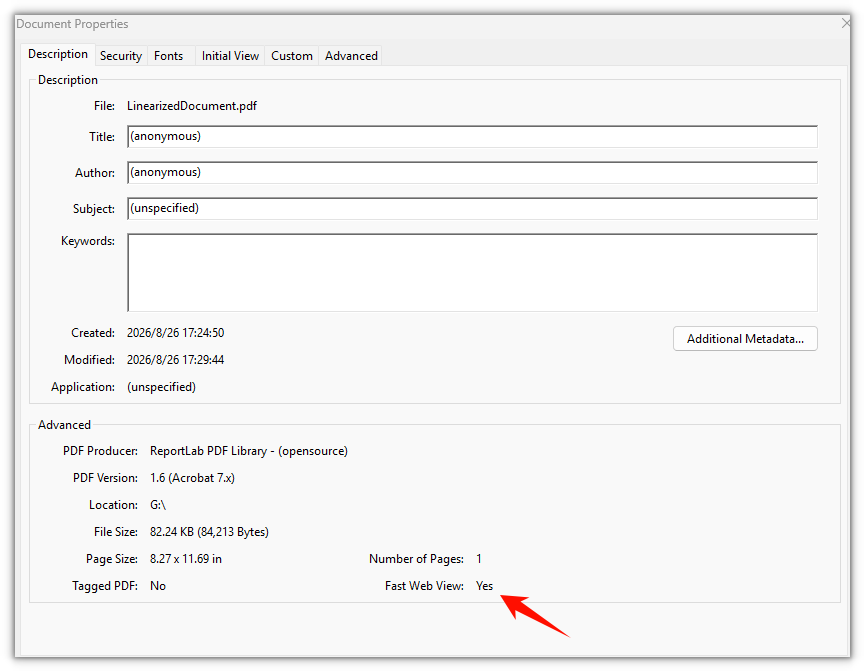
The linearized document looks no different on the page, the change is inside the file structure
Linearize or compress
These two passes are routinely confused because both are described as "optimizing a PDF", but they answer different questions.
| Compressing | Linearizing | |
|---|---|---|
| What it changes | Removes redundancy so the file holds fewer bytes | Reorders bytes so the useful ones arrive first |
| Goal | A smaller download | A faster first page |
| Effect on file size | The point of the exercise | Little to none; the bytes are the same bytes |
| Effect on appearance | Only if image quality is sacrificed | None at all |
| Typical trigger | An upload limit or an attachment cap | A long document published for browsing |
A file can need both, and the order matters. Compression rewrites the document, and any pass that rewrites a PDF discards the linearized layout — so if you want both, compress first and linearize last, so the linearized structure is the final state of the file.
When linearization is worth the pass
Linearization pays off in a specific setting: a document large enough that the download is noticeable, delivered over HTTP to a viewer that supports range requests.
- Manuals, catalogs and long reports served from a site. This is the classic case — tens of megabytes, opened from a link, with readers who want to jump straight to a chapter.
- Mobile readers on slow connections. The first page appears from the first bytes requested, so the perceived load time drops even when the total download does not.
- Documents readers usually enter in the middle. Byte-range requests let a client fetch a later page first, which is only possible with the hint table a linearized file carries.
It is not worth the pass in others. A file opened from local disk is not fetched over HTTP, so there is no range request to take advantage of. A short document already renders before the difference could be felt. And an internal print workflow neither streams nor jumps — it wants the whole document, in order, at once.
Confirming the output is linearized
Because the visible pages are identical, "it looks right" proves nothing. The change is in the file, so the check has to read the file.
A linearized PDF carries a linearization dictionary near the start of its bytes, and the marker is plain text, so the first few hundred bytes of the output are enough to confirm it. Both the input and the output are in the VFS, which makes the comparison a couple of file reads:
// Read the head of the file and look for the linearization marker
const bytes = window.dotnetRuntime.Module.FS.readFile(outputFileName);
const head = new TextDecoder('latin1').decode(bytes.slice(0, 1024));
const linearized = head.includes('/Linearized');
That is a useful guard for a pipeline: convert a document, then assert the marker is present before handing the file on. If it is missing, the file was rewritten by something downstream after linearization — remember that any re-save, including a compression pass, drops the linearized layout.
Common issues
The first page still takes time to appear. Check how the file is delivered. Linearization only helps when the client can request parts of the file — served over HTTP with range support. If the whole file is fetched at once, or the document is short, the pass cannot change what you are seeing.
The output has an extra line of text.
An unlicensed build appends Evaluation Warning : The document was created with Spire.PDF for JavaScript. to the document, once per conversion call. A temporary 30-day license removes it along with the functional limits — contact sales to get one.
The file size didn't drop. It usually won't. Linearization reorders the existing bytes; it does not remove any. If size is the problem, that is a compression job, not a linearization one.
Nothing happens on the first click.
The WebAssembly module loads asynchronously. if (!pdfModule) return; is the guard in the sample; in a real UI, disable the control until the module is ready instead of showing an alert.
FAQ
Does linearizing a PDF change its content or quality? No. Text, images, fonts, formatting, links and metadata all carry over exactly; only the internal byte ordering changes. The pages look and behave identically.
Is linearization the same as compressing a PDF? No. Compressing removes redundancy to produce fewer bytes; linearizing rearranges the bytes it already has so the first page can be read sooner. One targets download size, the other targets time to first render.
Does it help if the file is opened from the local disk? Rarely. The benefit comes from streaming over HTTP with byte-range requests, so a document opened from a local path has nothing to gain.
Will a linearized file stay linearized? Only until something rewrites it. Any tool that re-saves the document — a compression pass, an edit, a merge — drops the linearized layout, so linearization should be the last step in the pipeline.
Does it work on an encrypted or password-protected file? Encryption is a separate concern from layout. Decrypt the document first and let the converter work on an already-readable file.
Can I convert several files at once? Yes. The converter is a one-file operation, so a batch is a loop — the same two members, with a distinct output name for each input.