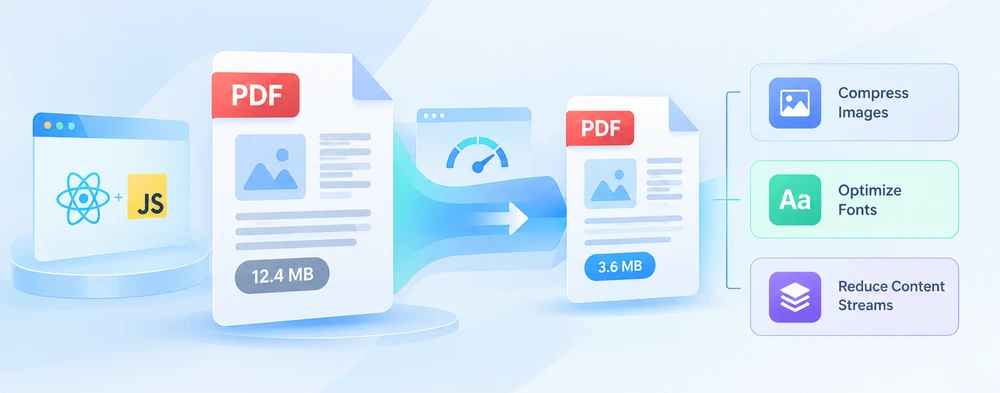
A PDF is rarely just "too big". It is too big for one specific door — a mail attachment cap, an upload form, a storage quota — and whatever pushed it past that limit is usually one of three things. Compressing without knowing which one means guessing, and guessing costs either quality or another failed upload.
Spire.PDF for JavaScript gives you a compressor with an option for each of those three places. They can be applied separately or together, and the trade-offs are different enough that it is worth understanding each before deciding. Everything runs in the browser on WebAssembly, with files moving through a virtual file system (VFS), so a document does not have to be uploaded to a third-party service to be made smaller.
For project setup, see Integrating Spire.PDF for JavaScript in a React Project. The examples below assume the package is installed and the WebAssembly module has been initialized.
What actually makes a PDF large
File size in a PDF comes from three different places, and they behave nothing alike:
| Where the weight sits | What it looks like | A hint that it is the cause |
|---|---|---|
| Images | Bitmaps embedded at their own resolution — scans, photos, exported screenshots | Few pages, tens of megabytes |
| Embedded fonts | Font programs stored inside the file so text renders identically anywhere | Mostly text, still several megabytes |
| Content streams | The drawing instructions behind the text and vector graphics | The file has been edited or re-saved by several different tools |
Two documents of the same length can differ by an order of magnitude because of this: a five-page scanned contract can weigh 20 MB while a fifty-page text report sits under 1 MB. That is why "how much can I compress this?" has no single answer — a scan-heavy file has a lot to give back, and a document that is already mostly text and vector art is close to its floor.
So the diagnosis comes first. Compressing a text-heavy document with image settings does almost nothing, and squashing images in a document whose weight is actually in its fonts wastes quality for no gain.
The three compression levers
PdfCompressor exposes its strategy through Options, and each group of settings maps to one of the three sources above:
| Option | What it targets | What you give up |
|---|---|---|
ImageCompressionOptions |
The bitmaps on the page | Image fidelity — this is the only lossy lever of the three |
TextCompressionOptions |
The embedded font data | Nothing, unless you unembed the fonts, in which case portability |
CompressContents |
The page content streams | Practically nothing — the content is re-encoded, not discarded |
The next three sections take them one at a time so the effect of each is visible on its own. The section after that combines them, which is what you will usually want in production.
Compressing the images
High-resolution bitmaps are the most common single cause of an oversized PDF, and they are also where the biggest gains are. Options.ImageCompressionOptions controls scaling and re-encoding through three properties:
| Property | What it does | When it is worth setting |
|---|---|---|
ResizeImages |
Scales images down proportionally, then re-encodes them | Photos or scans captured far above the resolution they are displayed at |
CompressImage |
Applies lossy re-encoding to the images | Whenever image quality has any room to give |
ImageQuality |
Selects the quality tier for that re-encoding | The final knob — High keeps more detail, Low produces a smaller file |
// Compress images in the document: resize, re-compress, and lower the quality
compressor.Options.ImageCompressionOptions.ResizeImages = true;
compressor.Options.ImageCompressionOptions.CompressImage = true;
compressor.Options.ImageCompressionOptions.ImageQuality = pdfModule.ImageQuality.Low;
ImageQuality does nothing on its own — it only describes how images passing through the first two properties are encoded, so setting it alone gives you the same file back. And since this is the one lossy lever, test at the High tier first if the PDF will be printed rather than read on screen.
Fonts: compress or unembed
To make text render identically on machines that do not have the original typefaces, a PDF carries the font programs used in its text inside the file. Subsetted they may be, absent they are not — and several families at several weights add up. Options.TextCompressionOptions offers two very different ways to deal with that:
| Property | What it does | The catch |
|---|---|---|
CompressFonts |
Compresses the embedded font data and leaves the fonts in place | None for rendering — the glyphs stay in the file |
UnembedFonts |
Removes the font programs and lets the reader substitute system fonts | Glyph substitution or spacing shifts wherever those fonts are missing |
// Compress font data; UnembedFonts goes further and removes the embedded fonts
compressor.Options.TextCompressionOptions.CompressFonts = true;
compressor.Options.TextCompressionOptions.UnembedFonts = true;
The combination above is the aggressive one, and it is safe on exactly one condition: that you know what will render the document. A download link or an email to an unknown recipient is not that condition — there, keep the fonts embedded and let CompressFonts do the work. Unembed only where the font set is fixed, such as an internal viewer with a known configuration.
Re-compressing the content streams
The text and the vector drawing commands on a page live in content streams. They are compressed when the PDF is written, but a document that has been edited repeatedly, or passed between different tools, can accumulate redundancy in them. Options.CompressContents re-encodes those streams:
// Re-compress the document content streams
compressor.Options.CompressContents = true;
On its own this is the least dramatic of the three — do not expect it to rescue a photo-heavy document. It earns its place in text-dense documents with complex layout, and it is the safest lever to leave on, since re-encoding a stream does not change what it draws.
All three in one pass
The three dimensions are not three separate runs. You point one PdfCompressor at a file, set as many options as you need, and write the result out once with CompressToFile.
The example below enables image resizing and re-compression at the High tier, font compression with unembedding, and content stream re-compression — on a document that contains both high-resolution images and body text:
function App() {
  const compressPdfDocument = async () => {
    // Get the Spire.PDF WASM module
    const pdfModule = window.wasmModule?.spirepdf;

    // Check that the module is ready
    if (!pdfModule) {
      alert('Spire.PDF is not ready yet');
      return;
    }

    // Load the PDF to be compressed into the VFS
    const inputFileName = 'ImageDocument.pdf';
    await window.spire.FetchFileToVFS(inputFileName, "", `${process.env.PUBLIC_URL}/data/`);

    // Create a PdfCompressor and point it at the PDF to compress
    let compressor = new pdfModule.PdfCompressor({ filePath: inputFileName });

    // 1. Image compression: resize and re-compress images, with a higher quality tier
    compressor.Options.ImageCompressionOptions.ResizeImages = true;
    compressor.Options.ImageCompressionOptions.CompressImage = true;
    compressor.Options.ImageCompressionOptions.ImageQuality = pdfModule.ImageQuality.High;

    // 2. Font compression: compress font data and remove embedded fonts
    compressor.Options.TextCompressionOptions.CompressFonts = true;
    compressor.Options.TextCompressionOptions.UnembedFonts = true;

    // 3. Content compression: re-compress the document content streams
    compressor.Options.CompressContents = true;

    // Define the output file name and compress to it
    const outputFileName = 'CompressedDocument.pdf';
    compressor.CompressToFile(outputFileName);

    // Read the generated file from the VFS and trigger the download
    const fileArray = window.dotnetRuntime.Module.FS.readFile(outputFileName);
    const blob = new Blob([fileArray], { type: 'application/pdf' });
    const url = URL.createObjectURL(blob);
    const a = document.createElement('a');
    a.href = url;
    a.download = outputFileName;
    a.click();
    URL.revokeObjectURL(url);
  };

  return (
    <div style={{ textAlign: 'center', height: '300px' }}>
      <h1>Compress PDF Document</h1>
      <button onClick={compressPdfDocument}>
        Generate
      </button>
    </div>
  );
}

export default App;
PDF document compressed by combining all three approaches
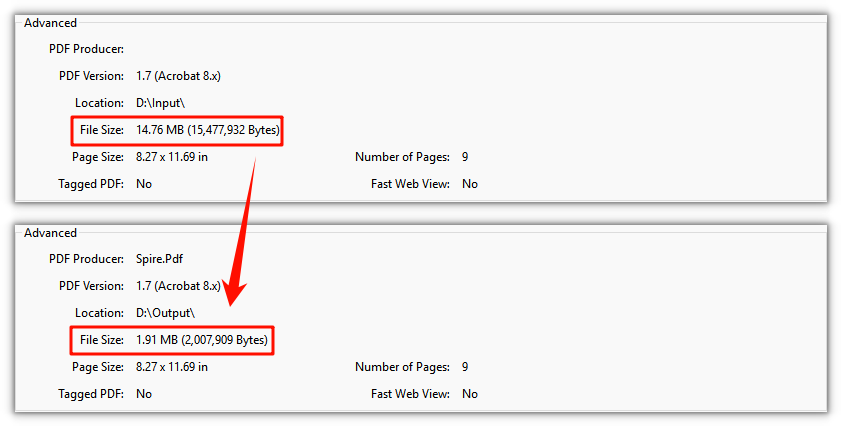
Two things about the shape of this code. The original stays in the VFS untouched — CompressToFile writes a new document, so a before-and-after choice is available. And because the compressor works on the document's resources rather than on rendered pages, the text stays real text: still selectable, still searchable. Only the images are re-encoded.
Checking what changed
Both files sit in the VFS, so you can compare them before handing the result to the user rather than guessing whether the settings did anything:
// Both the original and the compressed copy are in the VFS
const originalBytes = window.dotnetRuntime.Module.FS.readFile(inputFileName).length;
const compressedBytes = window.dotnetRuntime.Module.FS.readFile(outputFileName).length;
Report the difference as a percentage next to the download rather than offering a bare button — it tells the user immediately whether the file is now small enough for where it is going. If the two numbers are nearly identical, the weight was not where you were compressing.
Matching the settings to the document
| The document | Enable | Watch out for |
|---|---|---|
| Scanned pages, photos, screenshots |
ResizeImages, CompressImage, ImageQuality tuned to screen or print |
Fine detail inside a scan softens first — check it at High before shipping |
| Mostly text and vector art |
CompressFonts, CompressContents
|
Gains are modest by nature; do not chase them with image settings |
| Mixed content | All three, at ImageQuality.High
|
The safest general-purpose profile, and usually the best place to start |
| Already optimized for distribution |
CompressContents only |
Little to gain; aggressive image re-encoding can cost quality for almost nothing |
Common issues
The file barely shrank, and the PDF has almost no images.
The size is coming from the fonts or the content streams. Turn on TextCompressionOptions — with UnembedFonts only if the viewing environment is known — and add CompressContents. Text-dense documents respond to those two and to nothing else.
The text renders differently after compressing.
That is UnembedFonts doing exactly what it says. Set it back to false and keep CompressFonts = true; the font data is still compressed, but the glyphs stay in the file.
Images look soft or blocky in the output.
Either the ImageQuality tier is too low, or ResizeImages scaled down an image that needed its resolution for print. For anything that will be printed, start at High.
The compressed file is the same size as the original. Some documents are already optimized and have nothing meaningful left to give. Verify with the byte comparison above rather than assuming the settings failed.
Nothing happens on the first click.
The WebAssembly module loads asynchronously. That is what the if (!pdfModule) return; guard is for — in a real application, disable the button until the module reports ready instead of showing an alert.
FAQ
Which lever should I reach for first?
Images, assuming they are the culprit — but confirm it. If the document is text-heavy and out of proportion to its page count, start with fonts and content streams and leave the image settings alone.
Does compressing a PDF make its text unreadable or unselectable?
No, and this is where an API-based compressor differs from online tools that rasterize every page into a JPEG. The text stays text, the vector art stays vector, and only the bitmaps are touched — so the compressed copy is still selectable, searchable and printable.
Can I compress only part of a document?
The compressor works on the document as a whole. If you need part of a file shrunk and part of it untouched, split the document first, compress the piece that needs it, and merge again.
Can I keep the original and offer the compressed copy as a choice?
Yes. CompressToFile writes to a new file name and leaves the input in the VFS, so both versions are available in the same session — useful when the user decides how much quality to trade.
Does this need a server, or can it run entirely in the browser?
Entirely. The PDF engine is compiled to WebAssembly and files move through the VFS, so the document never leaves the device. That matters most for exactly the documents people usually want to shrink — contracts, statements, records.