Send a color-heavy report to an office mono laser and you pay for it twice: once in the toner the printer wastes trying to fake gray out of CMYK dots, and again in the quality of the result — screens and chart fills turn into muddy speckle instead of clean tone. Send the same file to a records archive and the color is worse than useless. Spot colors age, color management drifts between machines, and every re-print comes back slightly different from the last. Grayscale is the format both of those jobs actually want, and it is a single call away once the PDF is being handled in code.
This article turns a PDF into a grayscale document inside the browser with Spire.PDF for JavaScript. The library is compiled to WebAssembly and drives the document through a virtual file system (VFS), so the file is read and rewritten on the user's machine and nothing is handed to a conversion service.
For project setup, follow Integrating Spire.PDF for JavaScript in a React Project. The example below assumes the package is installed and the WebAssembly module has finished initializing.
Why grayscale a PDF (and when it is the wrong move)
Three situations come up again and again:
- Printing on monochrome hardware. A mono laser has one toner. When you hand it a color PDF it has to approximate every color with a halftone pattern, which is why colored text and thin chart lines come out fuzzy. A grayscale source removes the guesswork — the printer receives tone, not color to interpret.
- Records and archival. Long-term storage standards are written around a fixed, device-independent appearance. A grayscale document reproduces the same way on every printer and every scanner, so the archived copy cannot drift.
- Scan and index pipelines. Once a document has been scanned and OCR'd, the color carries no information the index can use — it is only weight.
There are cases to leave alone. If color is doing semantic work — a chart where each series is a different hue, a brand asset, a photograph portfolio — grayscaling destroys the very thing the reader needs. It is also the wrong tool when the actual problem is size: if the goal is a smaller file rather than cheaper printing, reaching for grayscale attacks only the images and ignores fonts and content streams, which is a job for a compressor instead.
What grayscale actually changes
It is easy to assume "grayscale" means the page is re-rendered as a picture. It is not. The conversion works at the object level:
| Part of the page | What happens |
|---|---|
| Color images | Re-encoded as single-channel grayscale, one luminance value per pixel instead of three color channels |
| Text | Untouched as text — still selectable, still searchable, still copyable |
| Layout and page count | Unchanged; nothing is cropped, moved or removed |
| Document metadata | Preserved |
Because the images are re-encoded rather than rasterized into a screenshot, the output is a normal PDF with a smaller color space — not a picture of a PDF. That distinction matters the moment anyone tries to search the result or select a line of text.
Converting a document to grayscale
Two members do the work: pass the input file to the PdfGrayConverter constructor, then call ToGrayPdf with the output file. The rest of the component is the usual VFS load and Blob download.
function App() {
  const convertToGrayscale = async () => {
    // Get the Spire.PDF WASM module
    const pdfModule = window.wasmModule?.spirepdf;

    // Check whether the module is ready
    if (!pdfModule) {
      alert('Spire.PDF is not ready yet');
      return;
    }

    // Load the PDF file to be converted into the VFS
    const inputFileName = 'Business_Data_Overview.pdf';
    await window.spire.FetchFileToVFS(inputFileName, "", `${process.env.PUBLIC_URL}/data/`);

    // Define the output file name
    const outputFileName = 'GrayscaleDocument.pdf';

    // Construct the grayscale converter from the input file and write out the grayscale document
    const converter = new pdfModule.PdfGrayConverter({ filePath: inputFileName });
    converter.ToGrayPdf({ filePath: outputFileName });
    converter.Dispose();

    // Read the generated file from the VFS and trigger the download
    const fileArray = window.dotnetRuntime.Module.FS.readFile(outputFileName);
    const blob = new Blob([fileArray], { type: 'application/pdf' });
    const url = URL.createObjectURL(blob);
    const a = document.createElement('a');
    a.href = url;
    a.download = outputFileName;
    a.click();
    URL.revokeObjectURL(url);
  };

  return (
    <div style={{ textAlign: 'center', height: '300px' }}>
      <h1>Convert PDF to Grayscale</h1>
      <button onClick={convertToGrayscale}>
        Start Converting
      </button>
    </div>
  );
}

export default App;
Three details are worth noticing. ToGrayPdf writes a new file — the input in the VFS is left as it was, so a "keep the color version" option costs nothing. Dispose releases the converter once the file is written. And the color images on the page are what the call actually rewrites; the text never becomes an image.
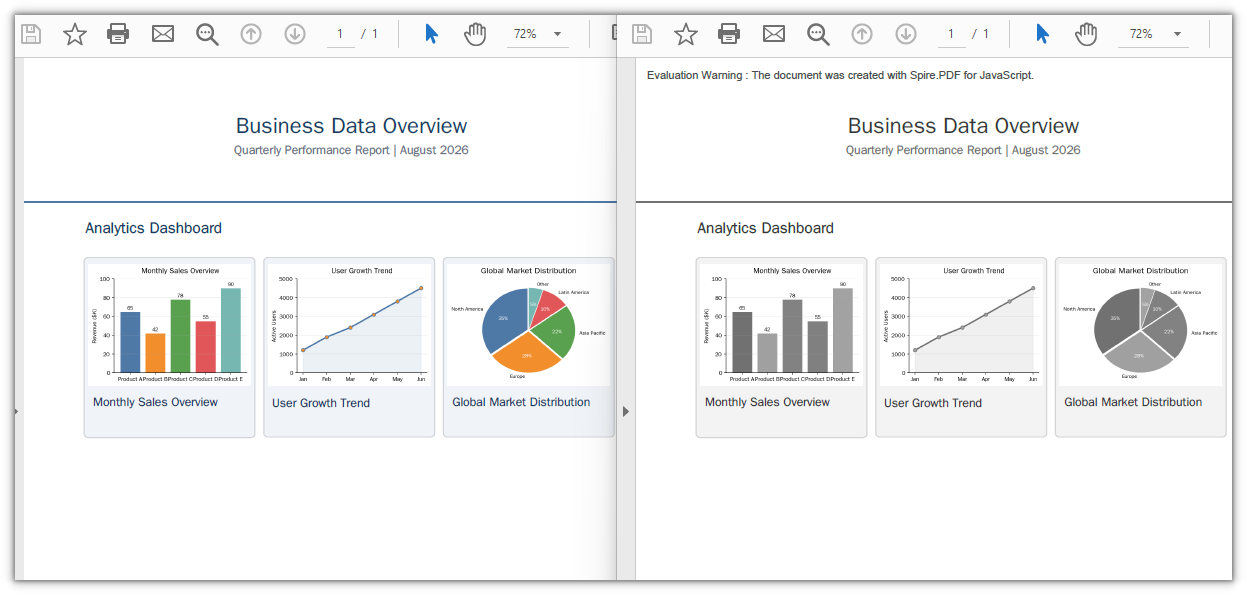
The sample document after grayscaling, with the color charts turned to grayscale
Grayscale vs desaturation vs black-and-white
Three different results all get called "grayscale" in casual use, and they are not the same file:
| Output | How it is stored | Size of the image data | Where it belongs |
|---|---|---|---|
| True grayscale | One channel, DeviceGray
|
Smallest — one value per pixel | Print, archive, general documents |
| Desaturated color | Three equal channels, DeviceRGB with R=G=B |
Roughly three times the grayscale data | A quick visual filter where the file already exists |
| Threshold black-and-white | One bit per pixel, no tones | Tiny | Scanned text pages where grain is noise, not detail |
On screen the first two are indistinguishable; the difference is entirely in how many bytes each pixel costs and in how a printer has to interpret it. A threshold conversion is a completely different operation — it drops the midtones, so photographs turn into blotches and only line art and clean text survive.
The converter writes the first kind: a single-channel grayscale image, which is why it is also the cheapest of the three to store.
The file-size side effect
Grayscale is not a compression feature, but it does shrink files, and it is worth knowing why. In the sample document the color images were three-channel PNGs totalling about 66 KB; after conversion the same images came out around 31 KB. The whole file went from 82 KB to 44 KB — roughly a 46% reduction, achieved purely by dropping the color channels. The page count and the text did not change at all.
That comes for free with the ink saving. But read the number correctly: the gain scales with how much of the file is bitmap. A document that is mostly text and vector art has almost no bitmap to re-encode, so grayscaling it barely moves the size — and if size is the actual target, images are only one of three places the weight hides. Reducing PDF file size in JavaScript (React) covers the other two.
Wiring it into a React UI
In a real component the pattern above needs two adjustments.
Do not leave the alert in. The WebAssembly module loads asynchronously, so the first click can arrive before the converter exists. Disable the button until the module reports ready rather than interrupting the user with a dialog:
// The module may not have finished loading on the first render
const [ready, setReady] = useState(false);
// ...
<button disabled={!ready} onClick={convertToGrayscale}>Convert to Grayscale</button>
Batch the same call. Because the converter takes one file at a time and writes one file at a time, a folder of documents is just a loop — same constructor, same method, a different output name per input:
// The converter is a one-file operation, so a batch is a loop
for (const name of inputNames) {
  await window.spire.FetchFileToVFS(name, "", `${process.env.PUBLIC_URL}/data/`);
  const out = name.replace(/\.pdf$/i, '-gray.pdf');
  const converter = new pdfModule.PdfGrayConverter({ filePath: name });
  converter.ToGrayPdf({ filePath: out });
  converter.Dispose();
  // read out from the VFS and download (or report per-file sizes)
}
Since both the original and the grayscale copy sit in the VFS, you can report a real before-and-after figure next to each row instead of a bare link:
// Both files are in the VFS, so the saving can be measured
const before = window.dotnetRuntime.Module.FS.readFile(name).length;
const after = window.dotnetRuntime.Module.FS.readFile(out).length;
Showing the percentage saved turns the button into a result. If the two numbers are nearly equal, the document had nothing in its images to give back — that is information, not a failure.
Common issues
The output carries an extra warning line.
An unlicensed build inserts Evaluation Warning : The document was created with Spire.PDF for JavaScript. into the document, and it is appended per call — convert the same file twice in a session and the line appears twice. A temporary license removes it; contact sales for a 30-day key, which also lifts the functional limits.
The converted document looks identical. Check what the document is made of. If it is text and vector art with no bitmaps, there is very little for a grayscale pass to change, and the difference will be invisible. That is expected, not a bug.
Nothing happens on the first click. The module was still loading. Guard the handler on the module reference, or keep the button disabled until it is ready, as shown above.
The file barely shrank. Grayscaling only touches the images. If the weight is in the fonts or the content streams, this conversion is not the lever — see the compression article linked above.
FAQ
Does converting to grayscale make the text unselectable? No. The text is not rasterized. Only the images are re-encoded, so the result is still searchable, selectable and copyable — it simply has no color.
Can I convert only some pages? The converter works on the document as a whole. If part of a file needs to stay in color, split the document first, convert the portion that should be gray, and merge the pieces back together.
Will grayscaling always reduce the file size? Not always, but usually a little — the saving comes from the images, so the more bitmap there is, the bigger the gain. Documents that are already text and vector may hardly move.
Do I have to upload the file anywhere? No. Everything happens in the browser. The PDF enters the virtual file system, is rewritten there, and is read back out for download, so a confidential document never leaves the device.
Can I offer both versions to the user?
Yes. ToGrayPdf writes to a new file name and leaves the input untouched, so the color original and the grayscale copy are both available in the same session.