
Blank cells can be easy to miss, especially in large worksheets. Highlighting them makes missing data easier to spot and helps you review a spreadsheet faster. In this guide, you'll see how to highlight blank cells in Excel with conditional formatting, use formulas to define blank cells, and automate the task with Python and Free Spire.XLS.
Highlight Blank Cells with Conditional Formatting
Conditional formatting works with rules. You create a rule that defines when formatting should be applied, and Excel automatically checks the cells and updates the formatting when the condition is met. Excel provides a built-in rule for blank cells, but you can also create a custom rule with a formula.
1. Use Excel's Built-in Blank Rule
If you simply want to highlight cells that are empty, Excel already provides a built-in rule. This is the quickest option when you don't need a custom condition.
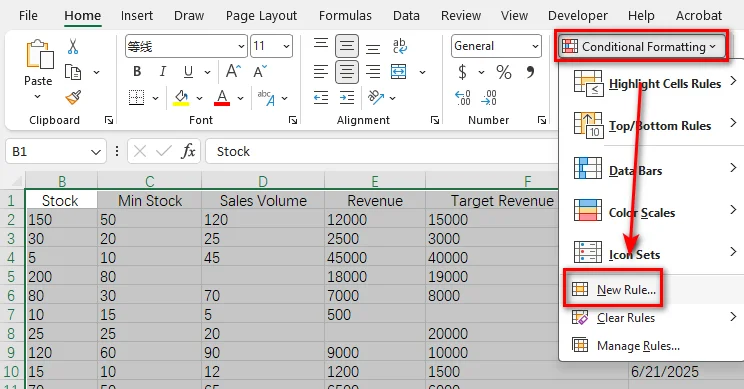
- Step 1: Select the range that you want to check.
- Step 2: Go to Home > Conditional Formatting > New Rule.
- Step 3: Select Format only cells that contain.
- Step 4: In the rule description, select Blanks.
- Step 5: Click Format, open the Fill tab, and choose a background color.
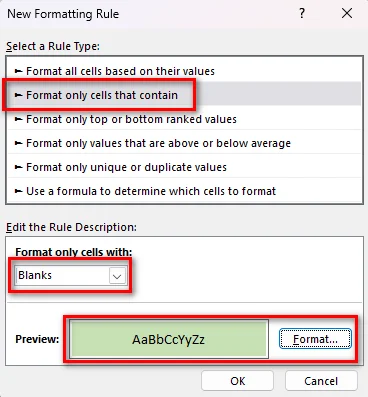
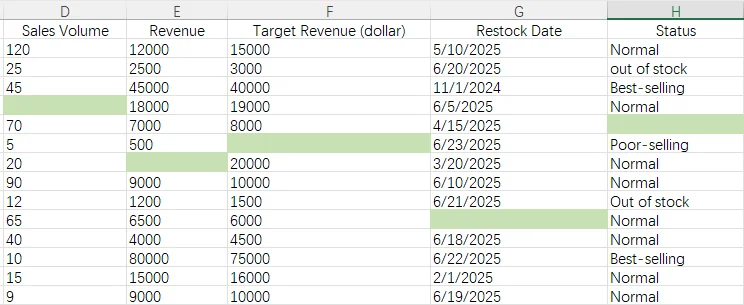
- Step 6: Click OK to apply the rule.
2. Use a Formula to Highlight Blank Cells
The built-in rule is enough for most cases. If you want to define your own condition for blank cells, you can create a formula-based conditional formatting rule.
For example, you can apply the ISBLANK function to check if a cell is empty:
=ISBLANK(A1)
It returns TRUE for an empty cell and FALSE if the cell contains any value or a formula.
- Step 1: Select the range you want to format.
- Step 2: Go to Home > Conditional Formatting > New Rule.
- Step 3: Select Use a formula to determine which cells to format.
- Step 4: Enter the formula =ISBLANK(A1)
- Step 5: Click Format, choose a fill color, and click OK.
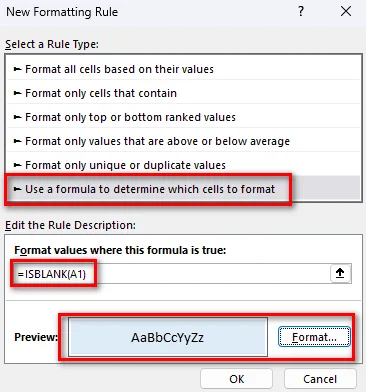
- Step 6: Click OK again to create the rule.
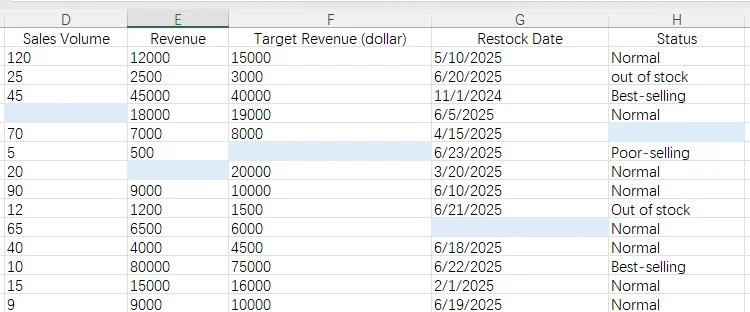
You can also use =A1="". This formula checks whether a cell returns an empty string (""). It is useful when a cell contains a formula that displays no value but is not actually empty.
For example:
| Cell content | ISBLANK(A1) | A1="" |
|---|---|---|
| Empty cell | TRUE | TRUE |
| Formula returning "" | FALSE | TRUE |
| Text value | FALSE | FALSE |
| Number value | FALSE | FALSE |
Choose the formula based on what you want Excel to treat as "blank."
You may like: How to Insert Formulas into Excel: Six Easy Methods
Highlight Blank Cells in Excel with Python
Conditional formatting is a convenient way to highlight blank cells when you are working directly in Excel. If you need to apply the same operation to multiple workbooks, Python can automate the process for you. Free Spire.XLS for Python provides APIs for loading workbooks, reading cell values, and applying cell formatting. Install it with the following pip command:
pip install Spire.Xls.Free
1. Load the Excel Workbook
Start by importing the library and loading the workbook you want to process.
from spire.xls import *
from spire.xls.common import *

# Create a Workbook object
workbook = Workbook()

# Load the Excel workbook
workbook.LoadFromFile("sales report.xlsx")

# Get the first worksheet
worksheet = workbook.Worksheets[0]
The LoadFromFile() method loads an existing Excel file, while Worksheets[0] gives you access to the first worksheet.
2. Find Blank Cells
Next, specify the range to check and examine each cell's value.
# Check cells in the cell range A1:H15
for row in range(1, 16):
    for column in range(1, 9):
        cell = worksheet.Range[row, column]
In this example, the loop checks cells from A1 to H15. The Value property is used to read the value of each cell.
3. Highlight the Blank Cells
Once a blank cell is found, set its background color through the cell's style.
For example:
if cell.Value is None or cell.Value == "":
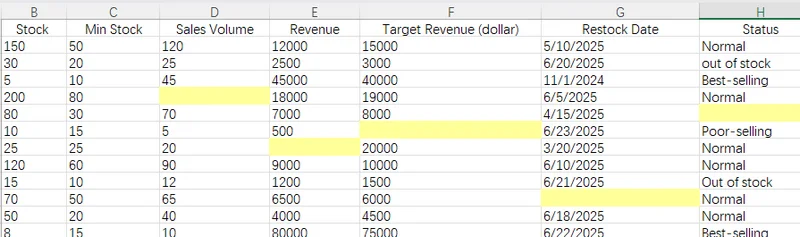
    cell.Style.Color = Color.FromRgb(255, 255, 153)
Free Spire.XLS uses the Style.Color property to set a cell range's background color, so you can apply a highlight directly to the matching cell.
4. The complete code example
Finally, save the modified workbook to a new file.
Here is the complete example:
from spire.xls import *
from spire.xls.common import *

# Create a Workbook object
workbook = Workbook()

# Load the Excel workbook
workbook.LoadFromFile("/input/sales report.xlsx")

# Get the first worksheet
worksheet = workbook.Worksheets[0]

# Check cells in the specified range A1:H15
for row in range(1, 16):
    for column in range(1, 9):
        cell = worksheet.Range[row, column]

        # Highlight blank cells with a light yellow background
        if cell.Value is None or cell.Value == "":
            cell.Style.Color = Color.FromRgb(255, 255, 153)

# Save the modified workbook
workbook.SaveToFile(
    "/highlighted_blank_cells.xlsx",
    FileFormat.Version2016
)

# Release resources
workbook.Dispose()
Here is a preview of the Excel file after running the code:
Common Questions About Highlighting Blank Cells in Excel
1. How Do I Highlight Blank Cells Without Using a Formula?
Excel's built-in Blanks condition can identify empty cells. Select the target range, create a new conditional formatting rule, choose Format only cells that contain, and select Blanks. Then choose the fill color you want.
2. Why Does Conditional Formatting Highlight the Wrong Cells?
Sometimes, conditional formatting may highlight unexpected cells even when the formula looks correct. This can happen when the worksheet already contains existing rules, formatting settings, or other elements that affect how Excel applies the rule.
First, check the Applies to range in Conditional Formatting > Manage Rules and make sure it covers the correct cells. The formula reference should match the first cell of the selected range. For example, if you apply the rule to A1:H15, the formula should be =ISBLANK(A1).
If the problem still exists, follow the steps to remove the existing conditional formatting rules: Home → Conditional Formatting → Clear Rules → Clear Rules from Selected Cells, and then create a new one.
If the result is still unexpected, try copying the data to a new worksheet using Paste Values Only. It will remove hidden formatting and other worksheet settings that may affect the result.
3. Why Doesn't ISBLANK Highlight Cells That Look Empty?
A cell may look empty while still containing a formula that displays nothing. For example, a cell with the formula ="" displays nothing, but it is not actually blank, so ISBLANK returns FALSE.
If you want to treat cells that return an empty string as blank, use =A1="" instead. This checks whether the cell evaluates to an empty string.
4. Can I Highlight Blank Cells Automatically When New Data Is Added?
Yes, as long as the new cells are included in the Conditional Formatting rule's Applies to range. If you expect the worksheet to grow, check the Applies to range and extend it when necessary.
Conclusion
Highlighting blank cells makes missing data easier to spot in Excel. For a quick solution, use the built-in Blanks rule in conditional formatting. If you need a custom condition, use a formula such as ISBLANK(A1) or A1="". For automated processing, Free Spire.XLS can check cell values and apply a background color programmatically. Try these methods on your own worksheet and see which one fits your workflow best.