Every month brings the same Excel work: download the regional sales files, paste them into a master workbook, refresh the totals, flag anything that looks wrong, email the PDF, and archive last month's copies. None of it is difficult, and that is exactly the problem — the work is repetitive, error-prone when done by hand, and quietly grows as the number of files grows. Python Excel automation replaces those recurring manual steps with scripts that read, update, merge, check, and deliver workbooks on a schedule.
This guide shows each of those jobs implemented with Spire.XLS for Python 16.8.2 (the independent Python package on PyPI), from a five-line cell edit to a scheduled pipeline that recalculates formulas and delivers PDFs. Every snippet below was executed, and its output files were opened and verified, before publishing. Along the way it also notes where the other common libraries fit, so you can see the trade-offs instead of a product brochure.
Choosing a Python Library for Excel Automation
Python Excel automation is a good fit when a task is repeated on a schedule, follows fixed rules, and involves files rather than judgment: monthly report assembly, weekly data checks, updating figures in a template, converting workbooks for downstream systems. If a task changes shape every time or needs a human decision in the middle, scripting it will cost more than it saves. One boundary note: this guide covers Excel file processing. Automating Excel-to-PowerPoint or Excel-to-Word document generation is a related but separate topic.
Library choice depends on the job. The table below summarizes the five libraries you are most likely to encounter; each has one line because each has a specialty.
| Library | Best for | Key consideration |
|---|---|---|
| pandas | Tabular data analysis and transformation | Does not preserve the full workbook object model |
| openpyxl | Editing existing XLSX/XLSM workbooks and cell-level formatting | No formula calculation engine; limited object support (some shapes are lost on re-save) |
| XlsxWriter | Creating new XLSX reports with formatting and charts | Cannot read or modify existing workbooks |
| xlwings | Automating a live Excel application and integrating Python with Excel | Classic edition requires desktop Excel (the PRO File Reader can run on Linux without it) |
| Spire.XLS | Cross-format workbook processing, formula calculation, and document conversion through a unified API | Commercial licensing; support and deployment terms vary by plan |
pandas is hard to beat for analysis that already fits a table, openpyxl for cell-level edits, XlsxWriter for writing new workbooks, xlwings for driving Excel itself. Each focuses on a different part of the workflow, and combining them means extra dependencies and integration work between different object models. Spire.XLS offers a single API covering reading, editing, calculating, converting, and protecting across supported formats — the examples below keep everything in one.
If you are comparing the libraries in depth rather than looking for implementation code, see our comparison in best Excel library for Python.
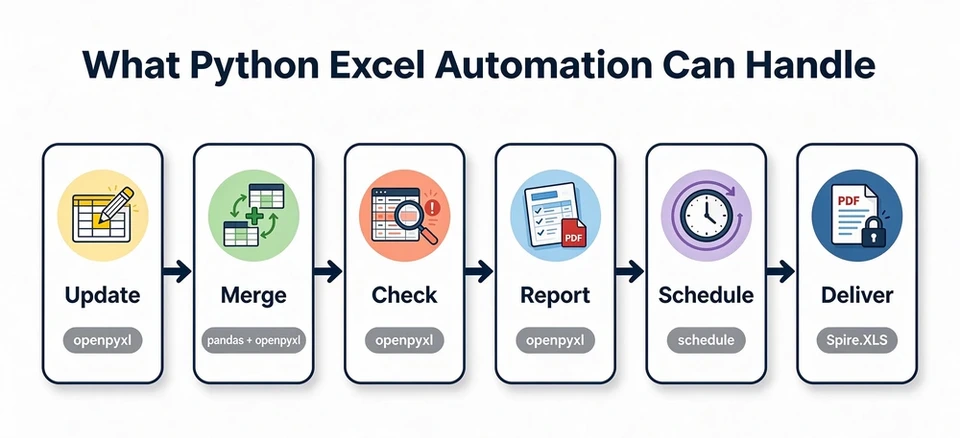
Reading and Updating Excel Workbooks with Python
The most common automation task is also the simplest: load a workbook, change some cells, save it. Install the package first with pip install Spire.XLS, then the whole job fits in a few lines:
from spire.xls import Workbook, FileFormat

wb = Workbook()
wb.LoadFromFile("sales.xlsx")          # load the template
ws = wb.Worksheets[0]

ws.Range["B2"].NumberValue = 150       # update an existing cell
ws.Range["A6"].Text = "Widget E"       # append a new row
ws.Range["B6"].NumberValue = 45
ws.Range["C6"].NumberValue = 11.75
ws.Range["D6"].Formula = "=B6*C6"      # formulas can be written
ws.Range["D6"].NumberFormat = "#,##0.00"

wb.SaveToFile("sales_updated.xlsx", FileFormat.Version2016)
wb.Dispose()                           # release the workbook
A few reading conventions are worth knowing before you build on this. In Spire.XLS's API, Range[addr].NumberValue returns the numeric value of a cell and NaN when the cell holds text or nothing; Range[addr].Text returns the displayed string; and for formula cells, Range[addr].Formula returns the formula string while FormulaNumberValue returns the calculated result. Writing a formula through .Formula stores the formula itself — to persist its computed result into the file, see the recalculation section later in this guide.
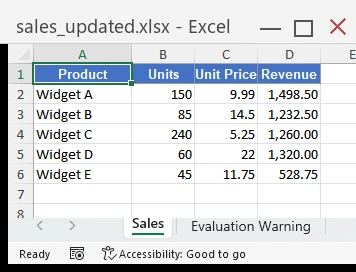
In our test of this snippet, the updated value, the appended row, its number format, and the existing header styling all survived the save, and the formula was preserved exactly as written. Reopening the saved file with Spire.XLS and calling CalculateAllValue() returned 528.75 for the appended =B6*C6 cell, and an independent read through openpyxl confirmed the same values in the saved file.
Automating Excel Reports and Batch Processing
Combining regional workbooks into one master report
Combining the regional files into one master workbook is where automation starts to pay for itself. With Spire.XLS, each source file is loaded in turn, its rows are read through the allocated range, and the data lands in a new workbook with a source column so every row stays traceable:
import glob, os
from spire.xls import Workbook, FileFormat

master = Workbook()
ms = master.Worksheets[0]
ms.Range["A1"].Text = "Month"
ms.Range["B1"].Text = "Store"
ms.Range["C1"].Text = "Revenue"
ms.Range["D1"].Text = "Source File"
out_row = 2

for path in glob.glob("region_*.xlsx"):
    wb = Workbook()
    wb.LoadFromFile(path)
    ws = wb.Worksheets[0]
    for r in range(2, ws.AllocatedRange.RowCount + 1):   # skip each file's header
        for c in range(1, 4):
            src = ws.Range[r, c]
            nv = src.NumberValue
            if not (isinstance(nv, float) and nv != nv):  # NaN means "not a number"
                ms.Range[out_row, c].NumberValue = nv
            else:
                ms.Range[out_row, c].Text = src.Value
        ms.Range[out_row, 4].Text = os.path.basename(path)
        out_row += 1
    wb.Dispose()

master.SaveToFile("master_report.xlsx", FileFormat.Version2016)
master.Dispose()
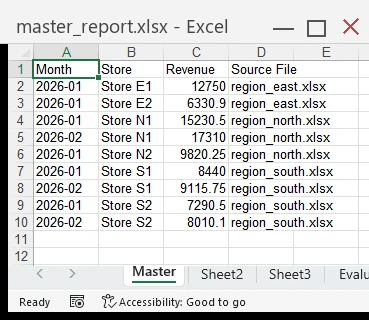
In our test with three input files, the merged output contained exactly the sum of the input rows — nine in total — the revenue column held real numbers (they summed to 94,298.00, matching the inputs to the cent), the source column resolved to exactly the three file names, and no header row leaked into the data. The result was re-readable by openpyxl as well, so it can feed the next step of a pipeline directly. One boundary to note: this loop copies cell values, not the source formatting. If your source columns hold real Excel dates, percentages or currency figures, apply the matching number formats to the destination columns — in our fixtures the Month column is text, so the copy is exact.
Generating formatted reports per client
The merge gives you one data set; report generation turns it into deliverables. Reading a master table and producing one formatted invoice workbook per client is a loop: group the rows, then build each invoice with a merged title, a styled header row, number-formatted amounts, and a SUM total:
from spire.xls import Workbook, FileFormat, Color

wb = Workbook()
wb.LoadFromFile("invoice_master.xlsx")
ws = wb.Worksheets[0]

clients = {}
for r in range(2, ws.AllocatedRange.RowCount + 1):
    client = ws.Range[r, 1].Value
    clients.setdefault(client, []).append(
        (ws.Range[r, 2].Value, ws.Range[r, 3].NumberValue))

for client, items in clients.items():
    inv = Workbook()
    sheet = inv.Worksheets[0]
    sheet.Range["A1"].Text = f"Invoice - {client}"
    sheet.Range["A1"].Style.Font.IsBold = True
    sheet.Range["A1"].Style.Font.Size = 13
    sheet.Range["A1:B1"].Merge()
    sheet.Range["A3"].Text = "Service"
    sheet.Range["B3"].Text = "Amount"
    header = sheet.Range["A3:B3"]
    header.Style.Color = Color.FromArgb(255, 68, 114, 196)
    header.Style.Font.Color = Color.FromArgb(255, 255, 255, 255)
    header.Style.Font.IsBold = True
    row = 4
    for service, amount in items:
        sheet.Range[row, 1].Text = service
        sheet.Range[row, 2].NumberValue = amount
        sheet.Range[row, 2].NumberFormat = "#,##0.00"
        row += 1
    sheet.Range[row, 1].Text = "Total"
    sheet.Range[row, 1].Style.Font.IsBold = True
    sheet.Range[row, 2].Formula = f"=SUM(B4:B{row - 1})"
    sheet.Range[row, 2].NumberFormat = "#,##0.00"
    sheet.SetColumnWidth(1, 22)
    sheet.SetColumnWidth(2, 14)
    inv.SaveToFile(f"{client.replace(' ', '_').lower()}_invoice.xlsx",
                   FileFormat.Version2016)
    inv.Dispose()
In our test, three clients produced three workbooks, the merged title and styled header carried over, and the =SUM formula survived the save. One practical note: the file name comes straight from the client name — if real names can contain characters such as / or :, sanitize them before building the file name. After CalculateAllValue(), the Acme invoice's total read 8,680.50 — matching the three line items exactly — and the formula string was still in the cell, so Excel keeps recalculating it on open. For complex templates with charts or pivot tables, the round trip is where object preservation gets tested; that is covered in the advanced section below.
Validating Excel Data and Highlighting Exceptions
Automation is not only about producing files; it is about checking them. A useful pattern is a scan step that walks a workbook, applies your data-quality rules, and marks the rows that fail them so a person reviews flagged rows instead of re-reading everything. This is data checking with visible markers — it does not replace Excel's Data Validation feature, which controls what a user can type into a cell. With Spire.XLS, the scan reads cells through NumberValue, which returns NaN for both text and empty cells — so the first rule below reports missing_or_non_numeric rather than claiming to tell the two cases apart — and marks failures through cell styles:
import math
from spire.xls import Workbook, FileFormat, Color

LIGHT_RED = Color.FromArgb(255, 254, 226, 226)
NOTE_RED = Color.FromArgb(255, 185, 28, 28)

wb = Workbook()
wb.LoadFromFile("payroll.xlsx")
ws = wb.Worksheets[0]

for row in range(2, ws.AllocatedRange.RowCount + 1):
    salary = ws.Range[row, 2].NumberValue
    bonus = ws.Range[row, 3].NumberValue
    reasons = []
    if math.isnan(salary) or math.isnan(bonus):
        reasons.append("missing_or_non_numeric")
    if not math.isnan(salary) and salary > 100000:
        reasons.append("outlier")
    if not math.isnan(bonus) and bonus < 0:
        reasons.append("invalid")
    if reasons:
        ws.Range[row, 1, row, 3].Style.Color = LIGHT_RED
        ws.Range[row, 4].Text = "; ".join(reasons)
        ws.Range[row, 4].Style.Font.Color = NOTE_RED

wb.SaveToFile("qa_flagged.xlsx", FileFormat.Version2016)
wb.Dispose()
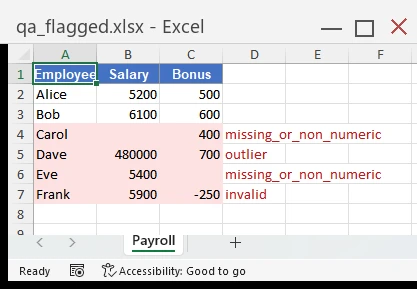
In our test data, this correctly flagged the four problem rows — two with missing or non-numeric values, one salary outlier above the threshold, one negative bonus — left the clean rows untouched, and wrote a per-row reason into column D, which we verified both by reopening the file and in the underlying XML. Re-running the scan on the unchanged test workbook produced the same four flagged rows. The rules here are deliberately simple: for real payroll data, the thresholds and rule set are the interesting part, and they live in your code where they can be versioned and reviewed.
This pattern composes well with the previous sections: merge the regional files, scan the combined data, and route the workbook to review or delivery depending on what the scan finds.
Scheduling Python Excel Automation
A script that has to be run by hand is only half an automation. The other half is making it run when it is supposed to. Because the steps above are plain Python, the finished workflow — load, merge, scan, generate, deliver — packs into one function that an operating system scheduler can run on its own:
| Method | How it runs | Best for |
|---|---|---|
| Windows Task Scheduler | The operating system launches the Python script | Recurring reports on Windows |
| cron | The operating system launches the script on Linux/macOS | Server-side scheduled jobs |
Both start your script, let it do its work, and exit — no long-running process to babysit. Their missed-run behavior differs, though: Windows Task Scheduler can be configured to run a task as soon as possible after its scheduled start was missed, while standard cron jobs generally do not catch up on executions missed while the system was offline. A deployment note that saves confusion later: Spire.XLS processes workbook files directly and does not need desktop Excel installed, so the scripts above run on a Linux server or in a container — replacing the older approach of scripting desktop Office through COM automation. Not needing Excel, though, is not the same as reproducing all of Excel's behavior; the next section is about the parts that are genuinely hard to reproduce.
Handling Advanced Excel Automation Tasks
For many pipelines, the sections above are the finished answer. Some workflows keep adding requirements — more input formats, formulas that must be recalculated, PDF delivery, protected archives. This section walks through those points with code tested against Spire.XLS for Python 16.8.2 (the independent Python package on PyPI). It is one implementation path for the harder requirements, not the default answer to every task on this page.
Working with multiple file formats
It is common for an upstream system to export .xls, .xlsb, or .ods while your pipeline expects .xlsx. Each format usually means a different Python package and engine. Spire.XLS handles them through the same workbook API — and in our tests with 16.8.2, the same workbook object loaded and saved .xls, .ods, .xlsx and .xlsb (FileFormat.Xlsb2007 / Xlsb2010), and round-tripped .xls, .ods and .xlsb to their own formats with values intact. The .xlsb files we wrote also reopened in Excel without issues, though the open-source pyxlsb parser could not read them — worth verifying against your own downstream readers before committing.
from spire.xls import Workbook, FileFormat

wb = Workbook()
wb.LoadFromFile("legacy_input.xls")           # also reads .xlsb and .ods
wb.SaveToFile("converted.xlsx", FileFormat.Version2016)
wb.Dispose()
One distinction worth keeping: "edit and save back in the original format" and "convert for delivery" are different goals. The former keeps a working file in place; the latter feeds a downstream consumer. Both appear in the end-to-end example below.
Recalculating formulas
Libraries that write formulas do not necessarily write results. openpyxl, for example, preserves a formula string but stores no calculated value, so a downstream reader that does not calculate sees nothing — a real problem when a scheduled pipeline delivers files to systems that read the file as-is.
A calculation engine closes that gap:
from spire.xls import Workbook, FileFormat

wb = Workbook()
wb.LoadFromFile("model.xlsx")     # formulas written by another tool, no cached values
wb.CalculateAllValue()            # compute every formula
wb.SaveToFile("model_calculated.xlsx", FileFormat.Version2016)
wb.Dispose()
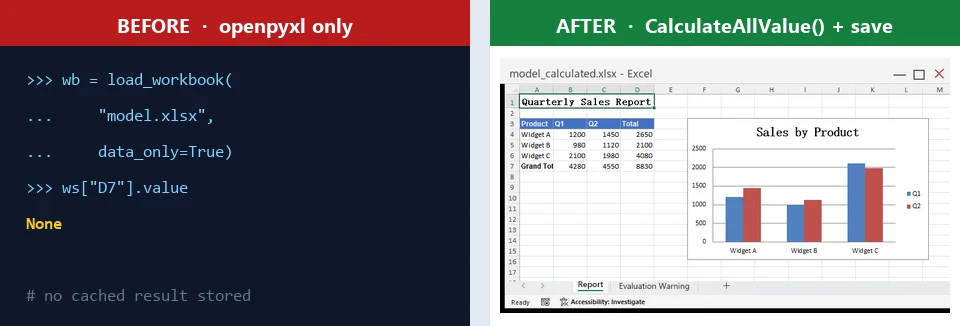
We verified both sides of this. On load, Spire.XLS already calculates in memory by default (RecalculateOnOpen is on), so FormulaNumberValue reads computed numbers right away — but persisting results into the file takes the explicit CalculateAllValue() call before saving. With the call, the saved file contained the computed values, which our openpyxl reader with data_only=True confirmed; without it, the same cells read None. After that save, any library can read the results. One boundary worth stating: calculation covers the functions and dependencies the engine supports — workbooks that rely on external links, add-in functions or functions outside the supported set should be tested against your own files before you depend on the computed output.
Exporting Excel reports to PDF
Scheduled reports usually end as a PDF for people who never open the workbook. Rendering a spreadsheet faithfully — column widths, fonts, charts — is exactly the part generic conversion tools get wrong. With Spire.XLS the worksheet renders itself, with page setup defined first:
from spire.xls import Workbook, PageOrientationType

wb = Workbook()
wb.LoadFromFile("model_calculated.xlsx")
sheet = wb.Worksheets[0]
sheet.PageSetup.Orientation = PageOrientationType.Portrait
sheet.PageSetup.FitToPagesWide = 1
sheet.PageSetup.FitToPagesTall = 1
sheet.SaveToPdf("report.pdf")       # worksheet-level export
wb.Dispose()
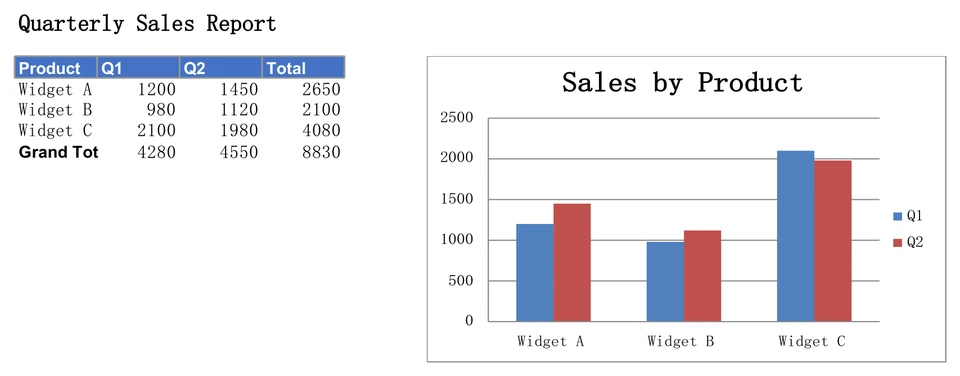
The FitToPagesWide and FitToPagesTall settings scale the worksheet to fit within one page wide and one page tall, which keeps columns from splitting across pages — on very wide sheets, though, the scaled-down text can become too small to read comfortably. The worksheet-level SaveToPdf delivers exactly the sheet you choose rather than every worksheet in the workbook. In our test, the exported PDF came out as a single page with the title, the full table including the recalculated totals, and the chart rendered. For layout details, see converting Excel to PDF in Python.
Working with charts and pivot tables
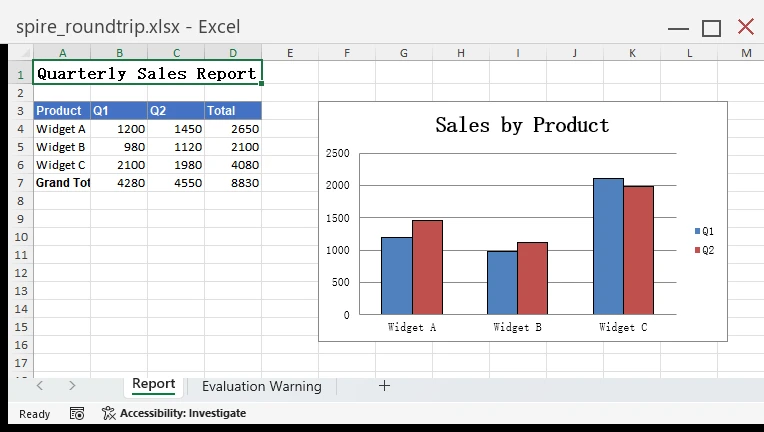
Report workbooks usually carry objects, not just cells. In our test workbook, a round trip through Spire.XLS 16.8.2 kept the chart parts intact at the XML level, and the chart rendered completely when the file reopened in Excel. We state that as a result for our fixtures, not as a guarantee for every DrawingML object — complex shapes should be verified against your own files, the same advice that applies to any library. Spire.XLS's workbook API also covers pivot tables and pivot charts — creation, refresh and field operations; for the pivot-table side, see create or operate pivot tables in Excel. Our fixture did not include a pivot table, so run your own workbooks through the round trip before committing.
Protecting Excel workbooks
Archived or emailed reports often need an open password. One call sets it:
wb.Protect("Report2026")
wb.SaveToFile("protected_report.xlsx", FileFormat.Version2016)
wb.Dispose()
In our test, the file would not open without the password — including in openpyxl, which raised an error on the encrypted container. Reading it back through the same library requires the OpenPassword property. So if a pipeline both protects and later reads protected files, the reader side of the toolchain needs to support that.
Choosing a library for production Excel automation
Beyond API coverage, a production dependency also needs a maintenance plan. Spire.XLS for Python keeps releasing — 16.8.2 (August 2026, the release tested throughout this guide) added TEXTSPLIT formula support, for example. Licensing is perpetual: the license covers continued use under its terms, while access to newer releases follows the update entitlement — one year of product updates and hotfixes is included with the license plans, and commercial support gives you a defined vendor channel for format, calculation or conversion issues instead of a community tracker. Response-time targets, support channels and per-plan extras vary by tier — see the Spire.XLS for Python license plans page, or the best Excel library for Python comparison for how developer counts and deployment scope fit the choice.
An end-to-end example
The pieces above combine into one conversion-delivery workflow: read a legacy .xlsb input, update a figure, recalculate, and deliver both a PDF and a password-protected .xlsx:
from spire.xls import Workbook, FileFormat, PageOrientationType

wb = Workbook()
wb.LoadFromFile("monthly_input.xlsb")        # read the binary format

sheet = wb.Worksheets[0]
sheet.Range["B2"].NumberValue = 125000       # update an input cell

wb.CalculateAllValue()                        # persist computed results

sheet.PageSetup.Orientation = PageOrientationType.Portrait
sheet.PageSetup.FitToPagesWide = 1
sheet.PageSetup.FitToPagesTall = 1
sheet.SaveToPdf("monthly_report.pdf")         # deliverable 1: PDF

wb.Protect("Report2026")                      # deliverable 2: protected xlsx
wb.SaveToFile("monthly_report.xlsx", FileFormat.Version2016)
wb.Dispose()                                  # release the workbook
Every step was verified in our test environment using Spire.XLS for Python 16.8.2 and Python 3.13. If this workflow matches your requirements, explore Spire.XLS for Python. The free edition is enough for basic evaluation; for commercial projects, request a one-month temporary license and test the full API against your own workbooks before choosing a production license (check the official page for current terms).
Frequently Asked Questions
Can Python automate Excel without Excel installed?
Yes, for file processing — Spire.XLS reads and writes workbook files directly, and none of the examples here needed desktop Excel. The exception is xlwings Classic, which drives the live Excel application. "No Excel needed" is about running the code, not reproducing every Excel behavior.
Which Python library is best for Excel automation?
Depends on the job: pandas for analysis, openpyxl for cell-level .xlsx edits, XlsxWriter for new formatted workbooks, xlwings for driving Excel itself. For a single API across reading, editing, calculating, converting and protecting, see our best Excel library for Python comparison.
Can openpyxl recalculate Excel formulas?
No — it preserves formula strings but has no calculation engine, and formulas written by openpyxl carry no cached results; data_only=True only reads caches stored in the file, so it reads None for those cells. For calculating and persisting results, see add or read formulas in Excel.
How do I schedule a Python Excel script?
Use Windows Task Scheduler or cron to let the operating system launch the script — note that Task Scheduler can be set to rerun missed tasks, while standard cron does not catch up on runs missed while the machine was offline. Because the script processes workbook files directly, no desktop Excel is needed on the machine that runs it.
How can I convert Excel to PDF with Python?
Set the page setup (orientation, fit-to-page) and export the worksheet directly with a library that renders PDFs itself. The open-source route needs a separate conversion library where you handle layout. Details in converting Excel to PDF in Python.
Conclusion
Python Excel automation spans everything from a five-line cell edit to a scheduled pipeline that merges files, flags bad data, recalculates formulas, and delivers PDFs and protected workbooks. pandas, openpyxl and their neighbors remain strong choices for analysis and single-task edits. When the job becomes a workflow — multiple formats in, calculated results out, PDFs and protected archives delivered on a schedule — a unified workbook API with a maintained release and support channel is what carries it in production, and that is what the Spire.XLS for Python examples in this guide demonstrated.