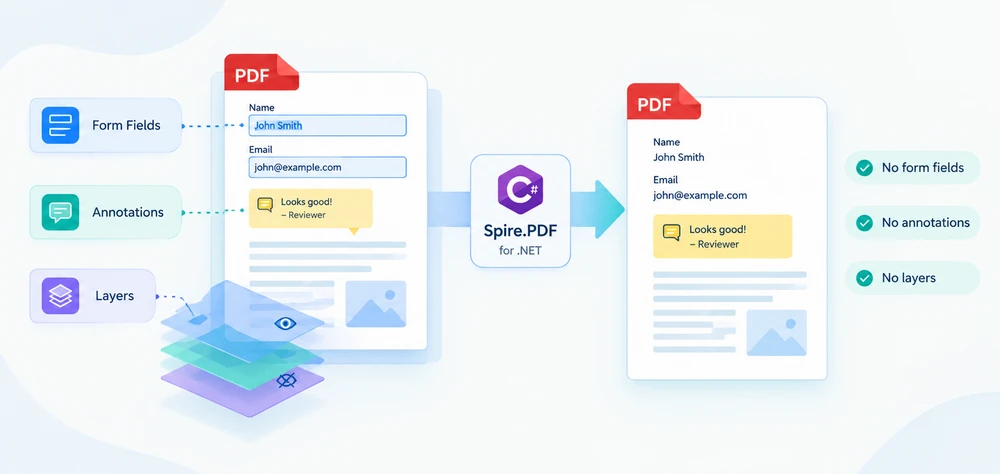
Flattening a PDF converts interactive objects into fixed page content. A filled-in form field loses its input control and keeps its value as text, a reviewer's comment becomes part of the page appearance, and optional-content layers are removed by rebuilding each page from its currently visible content. This makes the document less dependent on the interactive features of individual PDF viewers, although the page content itself can still be edited in a PDF editor.
This guide flattens a PDF in C# with Spire.PDF for .NET: the whole form at once, selected fields only, every annotation on every page, and layers by rebuilding each page through SVG. It closes with a verification step, because a flattened file looks very much like the original — the difference is structural, not visual.
Quick Navigation
- Install Spire.PDF for .NET
- What Flattening a PDF Does
- Flatten the Entire PDF Form
- Flatten Selected PDF Form Fields
- Flatten PDF Annotations and Comments
- Flatten PDF Layers Through SVG
- Flatten a PDF Before Printing
- Verify the Flattened PDF
- Putting It Together
- FAQ
- Conclusion
Install Spire.PDF for .NET
Spire.PDF for .NET is available as a NuGet package. Install it using the .NET CLI:
dotnet add package Spire.PDF
These examples were built with Spire.PDF for .NET 12.9.18.
You can also download Spire.PDF for .NET and add it to your project manually.
Three namespaces matter for flattening:
| Namespace | What lives there |
|---|---|
Spire.Pdf |
PdfDocument, PdfPageBase, FileFormat |
Spire.Pdf.Widget, Spire.Pdf.Fields |
PdfFormWidget and PdfField — the form side |
Spire.Pdf.Interactive.Annotations |
PdfAnnotation, PdfAnnotationCollection — the annotation side, including Flatten() |
What Flattening a PDF Does
Flattening presses the appearance of an interactive object into the page content and removes the object. The goal is to preserve the visible appearance while removing the interactivity — which is why this guide counts the objects left in the saved file instead of comparing screenshots.
Each object type needs its own call:
| Object | Flattened with |
|---|---|
| Form fields (text boxes, check boxes, list boxes, combo boxes) | PdfForm.IsFlatten for the whole form, PdfField.Flatten for one field |
| Annotations (comments, highlights, stamps, free text) | PdfAnnotation.Flatten() on each annotation |
| Layers (optional content groups) | PDF → SVG → PDF conversion, which rebuilds every page from what is visible |
Flatten the Entire PDF Form
Set Form.IsFlatten to true and every field in the document is converted in one pass:
using Spire.Pdf;

PdfDocument pdf = new PdfDocument();
pdf.LoadFromFile("FillableForm.pdf");

// Every field and its current value becomes page content.
pdf.Form.IsFlatten = true;

pdf.SaveToFile("FlattenedForm.pdf");
pdf.Close();
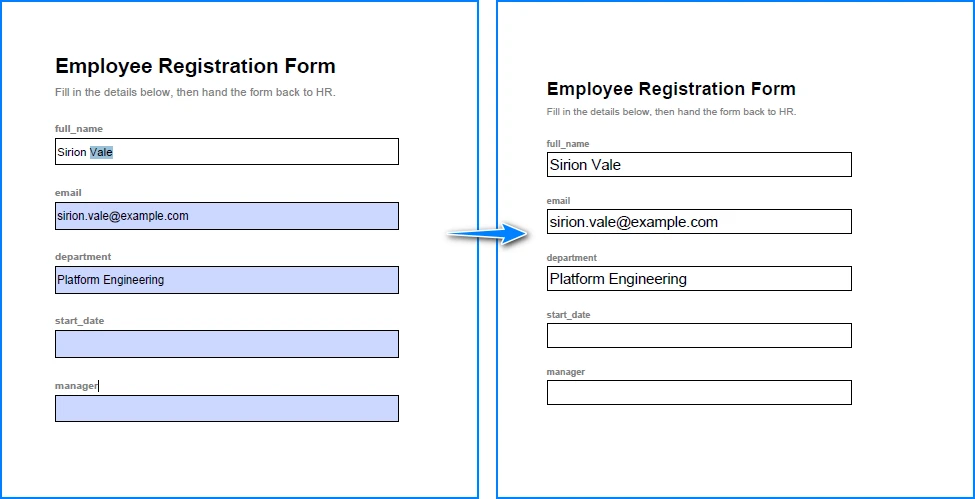
On the registration form used here — five fields, three of them filled — the field count drops from 5 to 0. The values stay on the page as selectable text.
Flatten Selected PDF Form Fields
Locking only the fields that are already final is the more common requirement: a completed section becomes read-only while the rest of the form stays fillable. Fields are reached through the FieldsWidget collection of a PdfFormWidget, and Flatten is a boolean property on each one:
using Spire.Pdf;
using Spire.Pdf.Fields;
using Spire.Pdf.Widget;

PdfDocument pdf = new PdfDocument();
pdf.LoadFromFile("FillableForm.pdf");

PdfFormWidget formWidget = pdf.Form as PdfFormWidget;

foreach (PdfField field in formWidget.FieldsWidget)
{
    // Flatten the fields that are final, leave the rest fillable.
    if (field.Name == "full_name" || field.Name == "email" || field.Name == "department")
    {
        field.Flatten = true;
    }
}

pdf.SaveToFile("PartiallyFlattenedForm.pdf");
pdf.Close();
On the sample form this flattens three fields and leaves start_date and manager editable — the count goes from 5 to 2. Filter on the field names your form defines — read them from FieldsWidget so the comparison matches exactly.
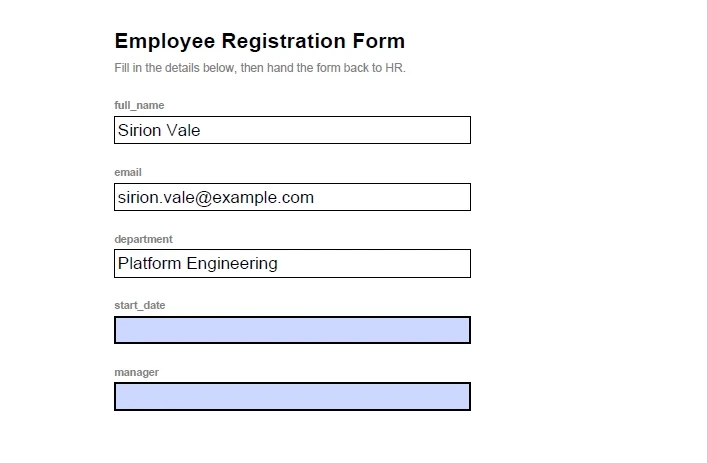
Flattening a field vs. removing a field. Flattening keeps a field's visible appearance — including the value typed into it — and removes only the interactivity. Deleting a form field removes the object and its appearance together. If deletion is the actual goal, see Remove/Delete Form Fields from PDF in C# instead.
Flatten PDF Annotations and Comments
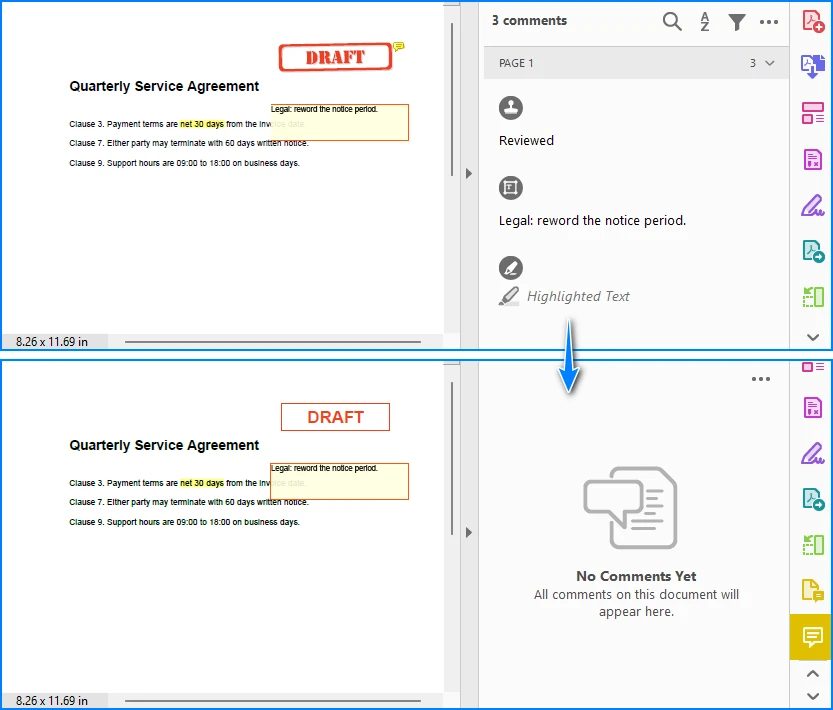
Annotations are the objects reviewers leave on top of a page: text comments, highlights, stamps and free text boxes. In Spire.PDF for .NET they are flattened through the interactive annotation model: create a PdfAnnotationCollection for each page and call Flatten() on each annotation.
using Spire.Pdf;
using Spire.Pdf.Interactive.Annotations;

PdfDocument pdf = new PdfDocument();
pdf.LoadFromFile("ReviewedDocument.pdf");

foreach (PdfPageBase page in pdf.Pages)
{
    if (page.Annotations.Count == 0) continue;

    PdfAnnotationCollection annotations = PdfAnnotationCollection.Create(page);

    // Flatten() removes the annotation from the collection, so walk it backwards.
    for (int i = annotations.Count - 1; i >= 0; i--)
    {
        annotations[i].Flatten();
    }
}

pdf.SaveToFile("FlattenedAnnotations.pdf");
pdf.Close();
The reviewed contract page in this guide carries three annotations — a free text note, a rubber stamp and a yellow highlight over a clause. After the loop the annotation count goes from 3 to 0, and all three marks are still drawn on the page: the note keeps its box and colour, the stamp keeps its border, the highlight stays behind the text. Only the interactive objects are gone. The highlight survives because its quad points are read from the saved page rather than from a page still in memory.
Two details in that loop are worth noting. Walk the collection backwards: Flatten() removes each annotation as it is flattened, so a back-to-front loop processes every item exactly once. Flatten() is declared on Spire.Pdf.Interactive.Annotations.PdfAnnotation, the model the annotation collection is created from.
Flatten PDF Layers Through SVG
Optional-content layers are removed by rebuilding each page from its currently visible content: convert each page to SVG and build the PDF back from it. The round trip redraws every page, which drops the layer structure while keeping text as text and graphics as vectors — so the result still selects, searches and scales, unlike a page rendered to an image.
A document with layers converts one page at a time:
using System;
using System.IO;
using System.Linq;
using System.Text.RegularExpressions;
using Spire.Pdf;

// Work in a fresh temp folder for each run.
string workDir = Path.Combine(Path.GetTempPath(),
    "flatten_svg_" + Guid.NewGuid().ToString("N").Substring(0, 8));
Directory.CreateDirectory(workDir);

try
{
    // Step 1 - save every page as its own SVG file. A multi-page document gives
    // page_1.svg, page_2.svg, ...; a single-page document gives page.svg.
    PdfDocument source = new PdfDocument();
    source.LoadFromFile("LayeredDocument.pdf");
    int pageCount = source.Pages.Count;
    source.SaveToFile(Path.Combine(workDir, "page.svg"), FileFormat.SVG);
    source.Close();

    // Sort the files by page number; a single-page document produces page.svg.
    string[] svgFiles = Directory.GetFiles(workDir, "*.svg")
        .OrderBy(f =>
        {
            Match m = Regex.Match(Path.GetFileNameWithoutExtension(f), @"\d+$");
            return m.Success ? int.Parse(m.Value) : 0;
        })
        .ToArray();

    // One SVG per page — the merge below uses that count.
    if (svgFiles.Length != pageCount)
    {
        throw new IOException(
            $"SVG conversion produced {svgFiles.Length} files for {pageCount} pages.");
    }

    // Step 2 - load each SVG back and save it as a one-page PDF.
    string[] pageFiles = new string[svgFiles.Length];
    for (int i = 0; i < svgFiles.Length; i++)
    {
        PdfDocument page = new PdfDocument();
        page.LoadFromSvg(svgFiles[i]);
        pageFiles[i] = Path.Combine(workDir, "page_" + (i + 1) + ".pdf");
        page.SaveToFile(pageFiles[i], FileFormat.PDF);
        page.Close();
    }

    // Step 3 - join the one-page PDFs into a single document, in page order.
    PdfDocument.MergeFiles(pageFiles, "FlattenedLayers.pdf");
}
finally
{
    Directory.Delete(workDir, true);
}
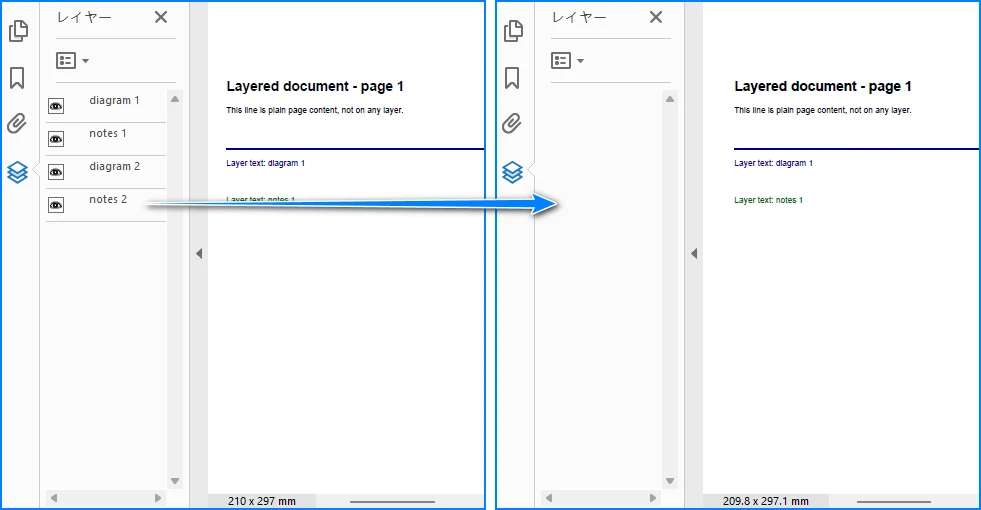
The file names depend on the page count. A two-page layered document saved to page.svg produces page_1.svg and page_2.svg, while a one-page document produces a single page.svg with no number. On the sample document the round trip keeps both pages in order at the original page size, keeps the text that was drawn on each layer, and the layer count goes from 4 to 0. The same workflow on a single-page document returns one page.
Text and vector graphics survive the round trip, so the rebuilt pages still select, search and scale like the original, and the content that was drawn on each layer stays on the page.
For the two conversion steps on their own, see Convert PDF to SVG in C#, VB.NET and Convert SVG to PDF in C#, VB.NET.
Flatten a PDF Before Printing
Flatten a PDF for printing when the file is going to a printer, a print shop or a viewer you do not control. Once the fields, annotations and layers are ordinary page content, what gets printed is decided by the file rather than by the reader's interactive features.
No separate code is needed. Use the form calls from the form sections when the document has fields, the annotation loop when it has comments, and the SVG workflow when layer visibility could change what lands on paper — then run the output through the checks below before you send it.
Verify the Flattened PDF
A flattened file looks like the original, so confirm the result by counting objects in the saved file rather than by looking at a render:
using Spire.Pdf;
using Spire.Pdf.Fields;
using Spire.Pdf.Widget;

PdfDocument result = new PdfDocument();
result.LoadFromFile("FlattenedForm.pdf");

int fields = 0;
PdfFormWidget form = result.Form as PdfFormWidget;
if (form != null)
{
    foreach (PdfField field in form.FieldsWidget) fields++;
}

int annotations = 0;
foreach (PdfPageBase page in result.Pages)
{
    annotations += page.Annotations.Count;
}

Console.WriteLine($"pages={result.Pages.Count} fields={fields} "
                + $"annotations={annotations} layers={result.Layers.Count}");
result.Close();
Count fields through PdfFormWidget.FieldsWidget. On the sample files this reports:
| File | Pages | Fields | Annotations | Layers |
|---|---|---|---|---|
FillableForm.pdf (input) |
1 | 5 | 0 | 0 |
FlattenedForm.pdf |
1 | 0 | 0 | 0 |
PartiallyFlattenedForm.pdf |
1 | 2 | 0 | 0 |
ReviewedDocument.pdf (input) |
1 | 0 | 3 | 0 |
FlattenedAnnotations.pdf |
1 | 0 | 0 | 0 |
LayeredDocument.pdf (input) |
2 | 0 | 0 | 4 |
FlattenedLayers.pdf |
2 | 0 | 0 | 0 |
Then check the visual result: open the file in a reader and confirm nothing can be clicked or toggled, compare page count and page size with the original, and select or extract text to confirm it is still real text.
Putting It Together
The snippets above solve one concern each. Here they are as a single method that flattens the form fields and the annotations of any document in one pass:
using Spire.Pdf;
using Spire.Pdf.Interactive.Annotations;

/// <summary>
/// Flatten the form fields and annotations of a PDF in one pass.
/// </summary>
public static void FlattenDocument(string inputFile, string outputFile)
{
    PdfDocument pdf = new PdfDocument();
    pdf.LoadFromFile(inputFile);

    // 1. Form fields: one flag covers every field in the document.
    if (pdf.Form != null)
    {
        pdf.Form.IsFlatten = true;
    }

    // 2. Annotations: Flatten() removes each one, so walk backwards. Skip pages
    //    that carry no annotations.
    foreach (PdfPageBase page in pdf.Pages)
    {
        if (page.Annotations.Count == 0) continue;

        PdfAnnotationCollection annotations = PdfAnnotationCollection.Create(page);
        for (int i = annotations.Count - 1; i >= 0; i--)
        {
            annotations[i].Flatten();
        }
    }

    pdf.SaveToFile(outputFile);
    pdf.Close();
}
The guard keeps the loop on pages that carry annotations, so the same method also works for documents that only have form fields. With it, the method takes the five-field form to 0 fields and the reviewed contract from 3 annotations to 0. Layered documents go through the SVG workflow from the previous section instead.
FAQ
What is the difference between flattening and removing form fields?
Flattening keeps the field's visible appearance, including any entered value, and removes only the interactivity. Removing a form field deletes the field object and its appearance together.
Can I flatten only some form fields?
Yes. Cast pdf.Form to PdfFormWidget, walk FieldsWidget, and set Flatten = true on the fields you name. The rest stay fillable.
Does flattening keep the text selectable and searchable?
Yes. A flattened text field keeps its value in the page's text layer, and the SVG round trip keeps the text it redraws, so the values stay selectable, copyable and searchable.
Is flattening reversible?
Flattening writes the fields and annotations into the page, so keep the source PDF if you may need to edit them later.
Do I need to flatten before printing?
Not always, but it removes the dependency on the reader. Flattening can make the output more consistent across PDF viewers, because the visible content no longer depends on interactive fields, annotations or layer visibility settings.
Conclusion
Flattening a PDF in C# is one call per object type:
pdf.Form.IsFlatten = trueflattens every field in the document;PdfField.Flattenflattens the ones you name.PdfAnnotationCollection.Create(page)plusFlatten()on each item, walked backwards, flattens every comment, highlight and stamp on the page.- Layers are flattened by saving each page as SVG, loading it back and merging the pages with
PdfDocument.MergeFiles.
The page keeps its appearance either way, so verify by counting the objects left in the saved file — not by comparing screenshots.
If you need to test Spire.PDF for .NET in a real business environment, you can apply for a temporary license.