
Knowledgebase (2370)
Children categories
While sharing your spreadsheets with others, you may do not want the receiver to alter the content or may want them to change only specific content and leave the rest unchanged. To protect your worksheet from being edited by other people, Excel offers a protection feature. In this article, you will learn how to programmatically protect and unprotect a workbook or a worksheet in Java by using Spire.XLS for Java.
- Password Protect an Entire Workbook
- Protect a Worksheet with a Specific Protection Type
- Allow Users to Edit Ranges in a Protected Worksheet
- Lock Specific Cells in a Worksheet
- Unprotect a Password Protected Worksheet
- Remove or Reset Password of an Encrypted Workbook
Install Spire.XLS for Java
First of all, you're required to add the Spire.Xls.jar file as a dependency in your Java program. The JAR file can be downloaded from this link. If you use Maven, you can easily import the JAR file in your application by adding the following code to your project's pom.xml file.
<repositories>
    <repository>
        <id>com.e-iceblue</id>
        <name>e-iceblue</name>
        <url>https://repo.e-iceblue.com/nexus/content/groups/public/</url>
    </repository>
</repositories>
<dependencies>
    <dependency>
        <groupId>e-iceblue</groupId>
        <artifactId>spire.xls</artifactId>
        <version>16.7.3</version>
    </dependency>
</dependencies>
Password Protect an Entire Workbook in Java
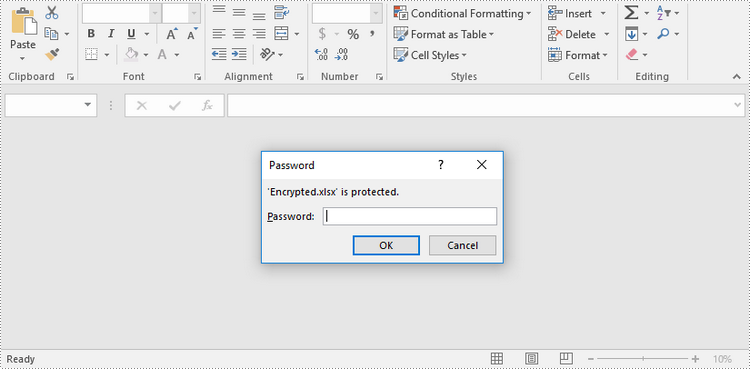
By encrypting an Excel document with a password, you ensure that only you and authorized individuals can read or edit it. The following are the steps to password protect a workbook using Spire.XLS for Java.
- Create a Workbook object.
- Load an Excel file using Workbook.loadFromFile() method.
- Protect the workbook using a password using Workbook.protect() method.
- Save the workbook to another Excel file using Workbook.saveToFile() method.
- Java
import com.spire.xls.ExcelVersion;
import com.spire.xls.Workbook;

public class PasswordProtectWorkbook {

    public static void main(String[] args) {

        //Create a Workbook object
        Workbook workbook = new Workbook();

        //Load an Excel file
        workbook.loadFromFile("C:\\Users\\Administrator\\Desktop\\sample.xlsx");

        //Protect workbook with a password
        workbook.protect("psd-123");

        //Save the workbook to another Excel file
        workbook.saveToFile("output/Encrypted.xlsx", ExcelVersion.Version2016);
    }
}
Protect a Worksheet with a Specific Protection Type in Java
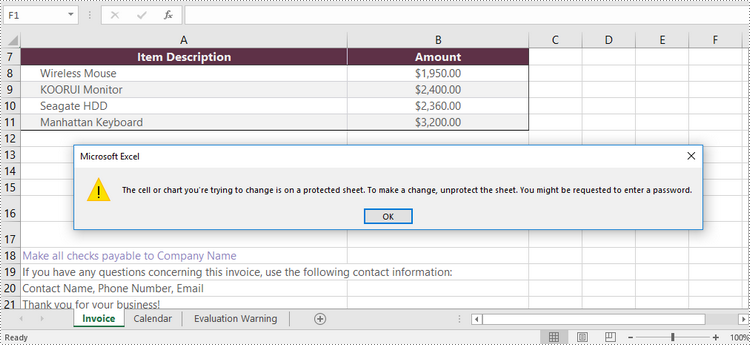
If you wish to grant people permission to read your Excel document but restrict the types of modifications they are allowed to make on a worksheet, you can protect the worksheet with a specific protection type. The table below lists a variety of pre-defined protection types under the SheetProtectionType enumeration.
| Protection Type | Allow users to |
| Content | Modify or insert content. |
| DeletingColumns | Delete columns. |
| DeletingRows | Delete rows. |
| Filtering | Set filters. |
| FormattingCells | Format cells. |
| FormattingColumns | Format columns. |
| FormattingRows | Format rows. |
| InsertingColumns | Insert columns. |
| InsertingRows | Insert rows. |
| InsertingHyperlinks | Insert hyperlinks . |
| LockedCells | Select locked cells. |
| UnlockedCells | Select unlocked cells. |
| Objects | Modify drawing objects. |
| Scenarios | Modify saved scenarios. |
| Sorting | Sort data. |
| UsingPivotTables | Use pivot table and pivot chart. |
| All | Do any operations listed above on the protected worksheet. |
| None | Do nothing on the protected worksheet. |
The following are the steps to protect a worksheet with a specific protection type using Spire.XLS for Java.
- Create a Workbook object.
- Load an Excel file using Workbook.loadFromFile() method.
- Get a specific worksheet using Workbook.getWorksheets().get(index) method.
- Protect the worksheet with a protection type using Worksheet.protect(String password, EnumSet.of <SheetProtectionType> options) method.
- Save the workbook to another Excel file using Workbook.saveToFile() method.
- Java
import com.spire.xls.ExcelVersion;
import com.spire.xls.SheetProtectionType;
import com.spire.xls.Workbook;
import com.spire.xls.Worksheet;

import java.util.EnumSet;

public class ProtectWorksheet {

    public static void main(String[] args) {

        //Create a Workbook object
        Workbook workbook = new Workbook();

        //Load an Excel file
        workbook.loadFromFile("C:\\Users\\Administrator\\Desktop\\sample.xlsx");

        //Get a specific worksheet
        Worksheet worksheet = workbook.getWorksheets().get(0);

        //Protect the worksheet with the permission password and the specific protect type
        worksheet.protect("psd-permission", EnumSet.of(SheetProtectionType.None));

        //Save the workbook to another Excel file
        workbook.saveToFile("output/ProtectWorksheet.xlsx", ExcelVersion.Version2016);
    }
}
Allow Users to Edit Ranges in a Protected Worksheet in Java
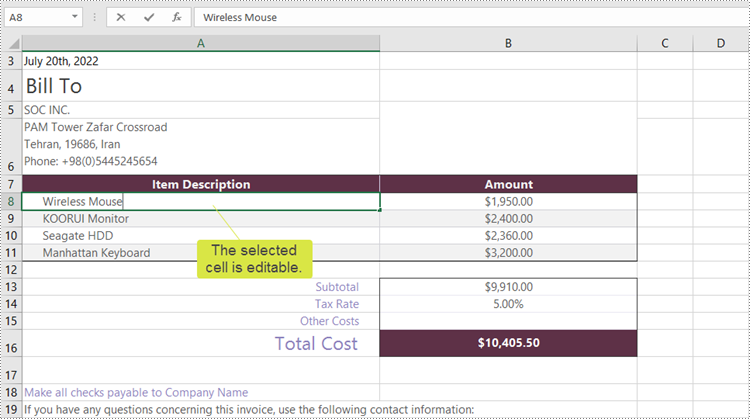
In certain cases, you may need to allow users to be able to edit selected ranges in a protected worksheet. The following steps demonstrate how to.
- Create a Workbook object.
- Load an Excel file using Workbook.loadFromFile() method.
- Get a specific worksheet using Workbook.getWorksheets().get(index) method.
- Specify editable cell ranges using Worksheet.addAllowEditRange() method.
- Protect the worksheet with a protection type using Worksheet.protect(String password, EnumSet.of <SheetProtectionType> options) method.
- Save the workbook to another Excel file using Workbook.saveToFile() method.
- Java
import com.spire.xls.ExcelVersion;
import com.spire.xls.SheetProtectionType;
import com.spire.xls.Workbook;
import com.spire.xls.Worksheet;

import java.util.EnumSet;

public class AllowEditRanges {

    public static void main(String[] args) {

        //Create a Workbook object
        Workbook workbook = new Workbook();

        //Load an Excel file
        workbook.loadFromFile("C:\\Users\\Administrator\\Desktop\\sample.xlsx");

        //Get the first worksheet
        Worksheet sheet = workbook.getWorksheets().get(0);

        //Add ranges that allow editing
        sheet.addAllowEditRange("Range One", sheet.getRange().get("A5:A6"));
        sheet.addAllowEditRange("Range Two", sheet.getRange().get("A8:B11"));

        //Protect the worksheet with a password and a protection type
        sheet.protect("psd-permission", EnumSet.of(SheetProtectionType.All));

        //Save the workbook to another Excel file
        workbook.saveToFile("output/AllowEditRange.xlsx", ExcelVersion.Version2016);
    }
}
Unprotect a Password Protected Worksheet in Java
To remove the protection of a password-protected worksheet, invoke the Worksheet.unprotect() method and pass in the original password as a parameter. The detailed steps are as follows.
- Create a Workbook object.
- Load an Excel file using Workbook.loadFromFile() method.
- Get a specific worksheet using Workbook.getWorksheets().get(index) method.
- Remove the protection using Worksheet.unprotect(String password) method.
- Save the workbook to another Excel file using Workbook.saveToFile() method.
- Java
import com.spire.xls.ExcelVersion;
import com.spire.xls.Workbook;
import com.spire.xls.Worksheet;

public class UnprotectWorksheet {

    public static void main(String[] args) {

        //Create a Workbook object
        Workbook workbook = new Workbook();

        //Load an Excel file containing protected worksheet
        workbook.loadFromFile("C:\\Users\\Administrator\\Desktop\\ProtectedWorksheet.xlsx");

        //Get the first worksheet
        Worksheet sheet = workbook.getWorksheets().get(0);

        //Unprotect the worksheet using the specified password
        sheet.unprotect("psd-permission");

        //Save the workbook to another Excel file
        workbook.saveToFile("output/UnprotectWorksheet.xlsx", ExcelVersion.Version2016);
    }
}
Remove or Reset Password of an Encrypted Workbook in Java
To remove or reset password of an encrypted workbook, you can use the Workbook.unprotect() method and the Workbook.protect() method, respectively. The following steps show you how to load an encrypted Excel document and delete or change the password of it.
- Create a Workbook object.
- Specify the open password using Workbook.setOpenPassword() method.
- Load the encrypted Excel file using Workbook.loadFromFile() method.
- Remove the encryption using Workbook.unprotect() method. Or change the password using Workbook.protect() method.
- Save the workbook to another Excel file using Workbook.saveToFile() method.
- Java
import com.spire.xls.ExcelVersion;
import com.spire.xls.Workbook;

public class RemoveOrResetPassword {

    public static void main(String[] args) {

        //Create a Workbook object
        Workbook workbook = new Workbook();

        //Specify the open password
        workbook.setOpenPassword("psd-123");

        //Load an encrypted Excel file
        workbook.loadFromFile("C:\\Users\\Administrator\\Desktop\\Encrypted.xlsx");

        //Unprotect workbook
        workbook.unProtect();

        //Reset password
        //workbook.protect("newpassword");

        //Save the workbook to another Excel file
        workbook.saveToFile("output/Unprotect.xlsx", ExcelVersion.Version2016);
    }
}
Apply for a Temporary License
If you'd like to remove the evaluation message from the generated documents, or to get rid of the function limitations, please request a 30-day trial license for yourself.
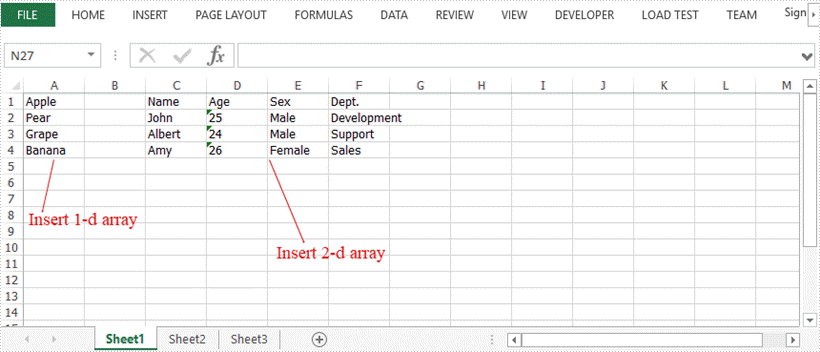
This article demonstrates how to insert arrays, including one-dimensional and two-dimensional arrays, into Excel cells using Spire.XLS for Java.
import com.spire.xls.ExcelVersion;
import com.spire.xls.Workbook;
import com.spire.xls.Worksheet;

public class InsertArray {

    public static void main(String[] args) {

        //Create a Workbook instance
        Workbook wb = new Workbook();

        //Get the first worksheet
        Worksheet sheet = wb.getWorksheets().get(0);

        //Define a one-dimensional array
        String[] oneDimensionalArray = new String[]{"Apple", "Pear", "Grape", "Banana"};

        // Write the array to the worksheet from the specified cell (true means vertically insert)
        sheet.insertArray(oneDimensionalArray, 1, 1, true);

        //Define a two-dimensional array
        String[][] twoDimensionalArray = new String[][]{
                {"Name", "Age", "Sex", "Dept."},
                {"John", "25", "Male", "Development"},
                {"Albert", "24", "Male", "Support"},
                {"Amy", "26", "Female", "Sales"}
        };

        //Write the array to the worksheet from the specified cell
        sheet.insertArray(twoDimensionalArray, 1, 3);

        //Save the file
        wb.saveToFile("InsertArrays.xlsx", ExcelVersion.Version2016);
    }
}
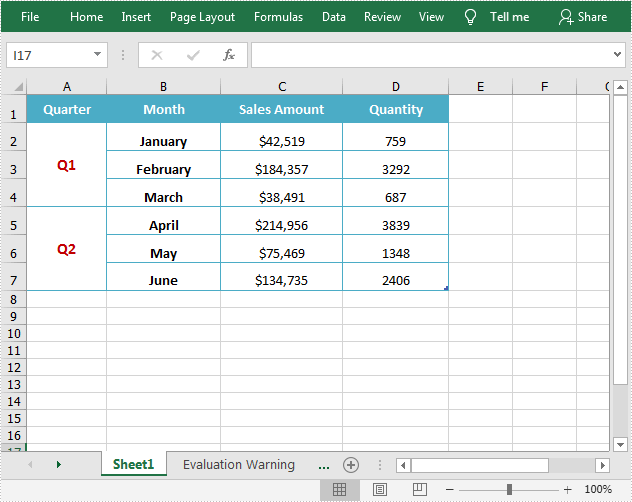
Merging cells in Excel refers to combining two or more adjacent cells into one large cell that spans multiple rows or columns. This is useful for creating titles or labels that need to be centered over a range of cell. In this article, you will learn how to programmatically merge or unmerge cells in an Excel document using Spire.XLS for Java.
Install Spire.XLS for Java
First, you're required to add the Spire.Xls.jar file as a dependency in your Java program. The JAR file can be downloaded from this link. If you use Maven, you can easily import the JAR file in your application by adding the following code to your project's pom.xml file.
<repositories>
    <repository>
        <id>com.e-iceblue</id>
        <name>e-iceblue</name>
        <url>https://repo.e-iceblue.com/nexus/content/groups/public/</url>
    </repository>
</repositories>
<dependencies>
    <dependency>
        <groupId>e-iceblue</groupId>
        <artifactId>spire.xls</artifactId>
        <version>16.7.3</version>
    </dependency>
</dependencies>
Merge Cells in Excel in Java
The detailed steps are as follows.
- Create a Workbook instance.
- Load a sample Excel document using Workbook.loadFromFile() method.
- Get a specified worksheet using Workbook.getWorksheets().get() method.
- Get a specified range using Worksheet.getRange().get() method.
- Merge cells in the specified range using XlsRange.merge() method.
- Set the horizontal alignment of merged cells to Center using XlsRange.getCellStyle().setHorizontalAlignment() method.
- Set the vertical alignment of merged cells to Center using XlsRange.getCellStyle().setVerticalAlignment() method.
- Save the result document using Workbook.saveToFile() method.
- Java
import com.spire.xls.*;

public class MergeCells {
    public static void main(String[] args){

        //Create a Workbook instance
        Workbook workbook = new Workbook();

        //Load a sample Excel document
        workbook.loadFromFile("input.xlsx");

        //Get the first worksheet
        Worksheet sheet = workbook.getWorksheets().get(0);

        //Merge cells by range
        sheet.getRange().get("A2:A4").merge();
        sheet.getRange().get("A5:A7").merge();

        //Set the horizontal alignment of merged cells to Center
        sheet.getRange().get("A2").getCellStyle().setHorizontalAlignment(HorizontalAlignType.Center);
        sheet.getRange().get("A5").getCellStyle().setHorizontalAlignment(HorizontalAlignType.Center);

        //Set the vertical alignment of merged cells to Center
        sheet.getRange().get("A2").getCellStyle().setVerticalAlignment(VerticalAlignType.Center);
        sheet.getRange().get("A5").getCellStyle().setVerticalAlignment(VerticalAlignType.Center);


        //Save the result document
        workbook.saveToFile("MergeCells.xlsx", FileFormat.Version2013);
    }
}
Unmerge Cells in Excel in Java
The detailed steps are as follows.
- Create a Workbook instance.
- Load a sample Excel document using Workbook.loadFromFile() method.
- Get a specified worksheet using Workbook.getWorksheets().get() method.
- Get a specified range using Worksheet.getRange().get() method.
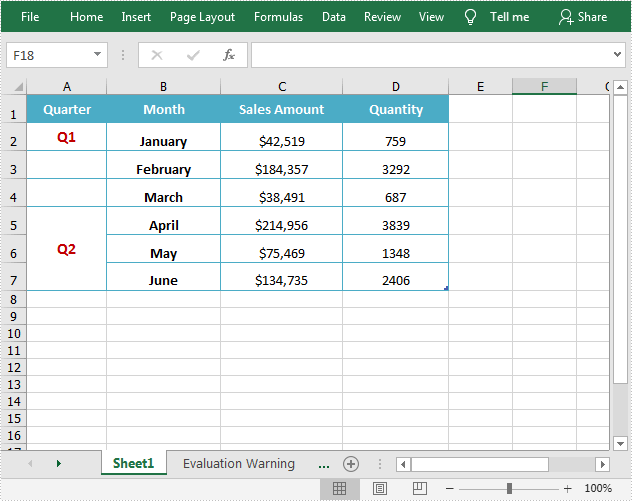
- Unmerge cells in the specified range using XlsRange.unMerge() method.
- Save the result document using Workbook.saveToFile() method.
- Java
import com.spire.xls.FileFormat;
import com.spire.xls.Workbook;
import com.spire.xls.Worksheet;

public class UnmergeCells {
    public static void main(String[] args){

        //Create a Workbook instance
        Workbook workbook = new Workbook();

        //Load a sample Excel document
        workbook.loadFromFile("MergeCells.xlsx");

        //Get the first worksheet
        Worksheet sheet = workbook.getWorksheets().get(0);

        //Unmerge cells by range
        sheet.getRange().get("A2:A4").unMerge();

        //Save the result document
        workbook.saveToFile("UnMergeCells.xlsx", FileFormat.Version2013);
    }
}
Apply for a Temporary License
If you'd like to remove the evaluation message from the generated documents, or to get rid of the function limitations, please request a 30-day trial license for yourself.
