
Knowledgebase (2370)
Children categories
Consistent text alignment and orientation throughout an Excel worksheet create a sense of order and professionalism. It makes the data presentation more organized and aesthetically pleasing, which is especially important when sharing a spreadsheet with others or presenting to clients. A well-designed worksheet with proper text formatting can leave a good impression and facilitate data reading and analyzing. In this article, you will learn how to set text alignment and orientation in Excel cells in Java using Spire.XLS for Java.
Install Spire.XLS for Java
First of all, you're required to add the Spire.Xls.jar file as a dependency in your Java program. The JAR file can be downloaded from this link. If you use Maven, you can easily import the JAR file in your application by adding the following code to your project's pom.xml file.
<repositories>
    <repository>
        <id>com.e-iceblue</id>
        <name>e-iceblue</name>
        <url>https://repo.e-iceblue.com/nexus/content/groups/public/</url>
    </repository>
</repositories>
<dependencies>
    <dependency>
        <groupId>e-iceblue</groupId>
        <artifactId>spire.xls</artifactId>
        <version>16.7.3</version>
    </dependency>
</dependencies>
Set Text Alignment and Orientation in Excel in Java
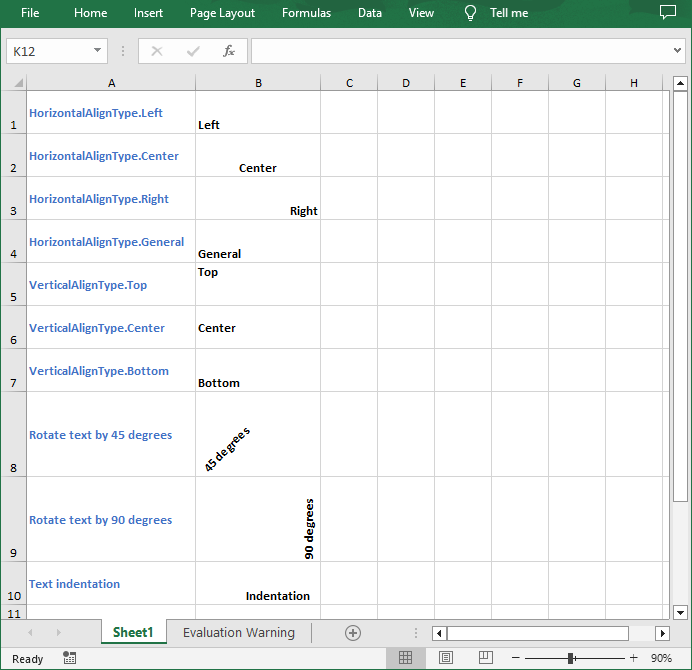
The CellRange.getCellStyle().setHorizontalAlignment() and CellRange.getCellStyle().setVerticalAlignment() methods allows you to set the horizontal and vertical alignment of text in an Excel cell or cell range. To change the orientation of text, you can use the CellRange.getCellStyle().setRotation(int rotation) method. The following are the detailed steps.
- Create a Workbook object.
- Load an Excel file using Workbook.loadFromFile() method.
- Get a specified worksheet using Workbook.getWorksheets().get() method.
- Get a specified cell using Worksheet.getCellRange() method.
- Set the horizontal alignment of text in specified cell using CellRange.getCellStyle().setHorizontalAlignment() method.
- Set the vertical alignment of text in specified cell using CellRange.getCellStyle().setVerticalAlignment() method.
- Rotate the text in specific cell to a desired degree using CellRange.getCellStyle().setRotation() method.
- Set the indentation of text in specific cell using CellRange.getCellStyle().setIndentLevel() method.
- Save the result document using Workbook.saveToFile() method.
- Java
import com.spire.xls.*;

public class AlignText {
    public static void main(String[] args){
        // Create a Workbook object
        Workbook workbook = new Workbook();

        // Load an Excel file
        workbook.loadFromFile("Text.xlsx");

        // Get the first worksheet
        Worksheet sheet = workbook.getWorksheets().get(0);

        // Set the horizontal alignment of text in a specified cell to Left
        sheet.getCellRange("B1").getCellStyle().setHorizontalAlignment(HorizontalAlignType.Left);

        // Set the horizontal alignment of text in a specified cell to Center
        sheet.getCellRange("B2").getCellStyle().setHorizontalAlignment(HorizontalAlignType.Center);

        // Set the horizontal alignment of text in a specified cell to Right
        sheet.getCellRange("B3").getCellStyle().setHorizontalAlignment(HorizontalAlignType.Right);

        // Set the horizontal alignment of text in a specified cell to General
        sheet.getCellRange("B4").getCellStyle().setHorizontalAlignment(HorizontalAlignType.General);

        // Set the vertical alignment of text in a specified cell to Top
        sheet.getCellRange("B5").getCellStyle().setVerticalAlignment(VerticalAlignType.Top);

        // Set the vertical alignment of text in a specified cell to Center
        sheet.getCellRange("B6").getCellStyle().setVerticalAlignment(VerticalAlignType.Center);

        // Set the vertical alignment of text in a specified cell to Bottom
        sheet.getCellRange("B7").getCellStyle().setVerticalAlignment(VerticalAlignType.Bottom);

        // Rotate the text to specified degrees
        sheet.getCellRange("B8").getCellStyle().setRotation(45);
        sheet.getCellRange("B9").getCellStyle().setRotation(90);

        // Set the text indentation
        sheet.getCellRange("B10").getCellStyle().setIndentLevel(6);

        // Save the result file
        workbook.saveToFile("TextAlignment.xlsx", ExcelVersion.Version2016);
    }
}
Get a Free License
To fully experience the capabilities of Spire.XLS for Java without any evaluation limitations, you can request a free 30-day trial license.
We have already demonstrated how to protect the Excel file in Java; this article will show you how to unprotect the Excel workbook or a single worksheet in Java applications.
Unprotect the Excel workbook:
import com.spire.xls.*;

public class UnprotectExcel {
    public static void main(String[] args) {

        //Create a workbook
        Workbook workbook = new Workbook();

        //Use the password to open the sample document
        workbook.setOpenPassword("E-iceblue");
        workbook.loadFromFile("ProtectWorkbook.xlsx");

        //Unprotect the whole workbook
        workbook.unProtect();

        //Save the document to file
        workbook.saveToFile("UnprotectWb.xlsx");
        workbook.dispose();
    }
}
Unprotect a single Excel worksheet:
import com.spire.xls.*;

public class UnprotectExcel {
    public static void main(String[] args) {

        //Create a workbook and load a sample file with protected worksheet
        Workbook workbook = new Workbook();
        workbook.loadFromFile("ProtectWS.xlsx");

        //Get the first worksheet
        Worksheet sheet = workbook.getWorksheets().get(0);

        //Unprotect the first worksheet
        sheet.unprotect("iceblue");

        //Save the document to file
        workbook.saveToFile("Unprotectworksheet.xlsx");
        workbook.dispose();
    }
}
As you create or review a worksheet, you may want to change the font style in some cells to make them stand out. For example, you can apply a different font type, font color, and font size to text, as well as make text bold. In this article, you will learn how to apply font styles to Excel cells using Spire.XLS for Java.
Install Spire.XLS for Java
First of all, you’re required to add the Spire.Xls.jar file as a dependency in your Java program. The JAR file can be downloaded from this link. If you use Maven, you can easily import the JAR file in your application by adding the following code to your project's pom.xml file.
<repositories>
    <repository>
        <id>com.e-iceblue</id>
        <name>e-iceblue</name>
        <url>https://repo.e-iceblue.com/nexus/content/groups/public/</url>
    </repository>
</repositories>
<dependencies>
    <dependency>
        <groupId>e-iceblue</groupId>
        <artifactId>spire.xls</artifactId>
        <version>16.7.3</version>
    </dependency>
</dependencies>
Apply Different Fonts to Different Cells
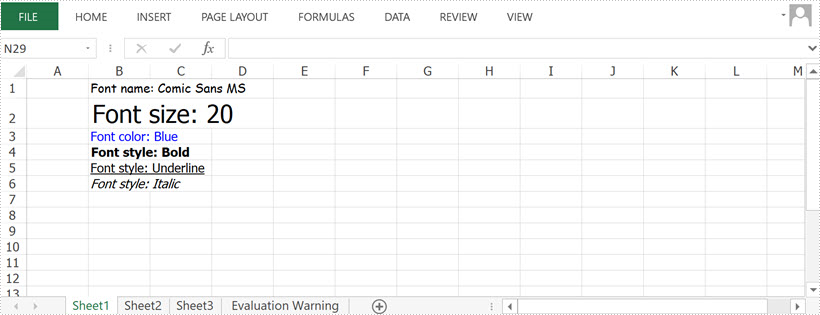
Spire.XLS provides the ExcelFont class which you can use to set or change the font name, color, size, and style in a cell easily. The following are the steps to apply a font style to a specific cell using Spire.XLS for Java.
- Create a Workbook object.
- Get a specific worksheet using Workbook.getWorksheets().get() method.
- Get a specific cell using Worksheet.getCellRange() method.
- Set the value of the cell using CellRange.setText() method.
- Set the font name, color, size and style of the cell value using setFontName(), setFontColor(), setFontSize(), isBlod() methods under the ExcelFont object.
- Save the workbook to an Excel file using Workbook.saveToFile() method.
- Java
import com.spire.xls.ExcelVersion;
import com.spire.xls.FontUnderlineType;
import com.spire.xls.Workbook;
import com.spire.xls.Worksheet;

import java.awt.*;

public class ApplyFontToCell {

    public static void main(String[] args) {

        //Create a workbook
        Workbook workbook = new Workbook();

        //Get the first sheet
        Worksheet sheet = workbook.getWorksheets().get(0);

        //Set font name
        sheet.getCellRange("B1").setText("Font name: Comic Sans MS");
        sheet.getCellRange("B1").getCellStyle().getExcelFont().setFontName("Comic Sans MS");

        //Set font size
        sheet.getCellRange("B2").setText("Font size: 20");
        sheet.getCellRange("B2").getCellStyle().getExcelFont().setSize(20);

        //Set font color
        sheet.getCellRange("B3").setText("Font color: Blue");
        sheet.getCellRange("B3").getCellStyle().getExcelFont().setColor(Color.blue);

        //Make text bold
        sheet.getCellRange("B4").setText("Font style: Bold");
        sheet.getCellRange("B4").getCellStyle().getExcelFont().isBold(true);

        //Make text italic
        sheet.getCellRange("B5").setText("Font style: Italic");
        sheet.getCellRange("B5").getCellStyle().getExcelFont().isItalic(true);

        //Underline text
        sheet.getCellRange("B6").setText("Font style: Underline");
        sheet.getCellRange("B6").getCellStyle().getExcelFont().setUnderline(FontUnderlineType.Single);

        //Strikethrough text
        sheet.getCellRange("B7").setText("Font style: Strikethrough");
        sheet.getCellRange("B7").getCellStyle().getExcelFont().isStrikethrough(true);

        //Save the result file
        workbook.saveToFile("output/ApplyFontToCell.xlsx", ExcelVersion.Version2016);
    }
}
Apply Multiple Fonts to a Single Cell
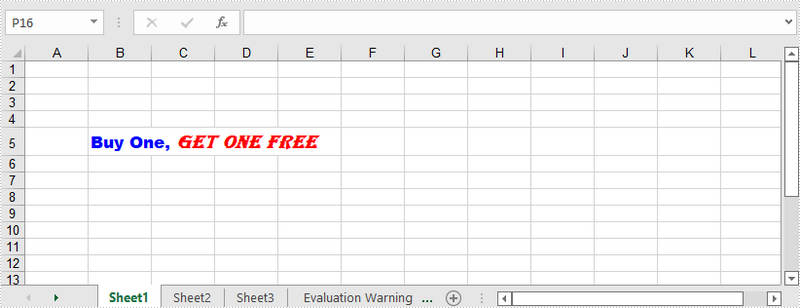
Mixing different font styles can help you emphasize some specific characters in a cell. The following are the steps to apply multiple fonts in a cell using Spire.XLS for Java.
- Create a Workbook object.
- Get a specific worksheet using Workbook.getWorksheets().get() method.
- Create two ExcelFont objects using Workbook.createFont() method.
- Get a specific cell using Worksheet.getCellRange() method, and set the rich text content of the cell using CellRange.getRichText().setText() method.
- Apply the two ExcelFont objects to the rich text using RichText.setFont() method.
- Save the workbook to an Excel file using Workbook.saveToFile() method.
- Java
import com.spire.xls.*;

import java.awt.*;

public class ApplyMultipleFontsToCell {

    public static void main(String[] args) {

        //Create a Workbook instance
        Workbook wb = new Workbook();

        //Get the first worksheet
        Worksheet sheet = wb.getWorksheets().get(0);

        //Create one Excel font
        ExcelFont font1 = wb.createFont();
        font1.setFontName("Arial Black");
        font1.setColor(Color.blue);
        font1.setSize(13f);
        font1.isBold(true);

        //Create another Excel font
        ExcelFont font2 = wb.createFont();
        font2.setFontName("Algerian");
        font2.setColor(Color.red);
        font2.setSize(15f);
        font2.isBold(true);
        font2.isItalic(true);

        //Insert text to cell B5
        RichText richText = sheet.getCellRange("B5").getRichText();
        richText.setText("Buy One, Get One Free");

        //Apply two fonts to the text in the cell B5
        richText.setFont(0, 8, font1);
        richText.setFont(9, 21, font2);

        //Save the document
        wb.saveToFile("output/ApplyMultipleFontsToCell.xlsx", ExcelVersion.Version2016);
    }
}
Apply for a Temporary License
If you'd like to remove the evaluation message from the generated documents, or to get rid of the function limitations, please request a 30-day trial license for yourself.
