
Knowledgebase (2370)
Children categories
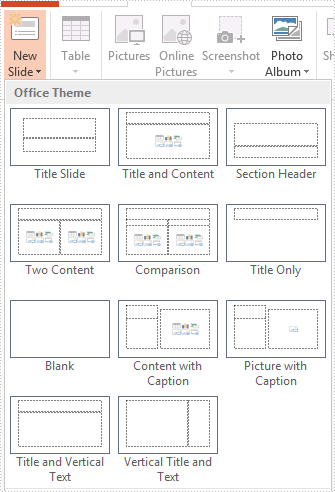
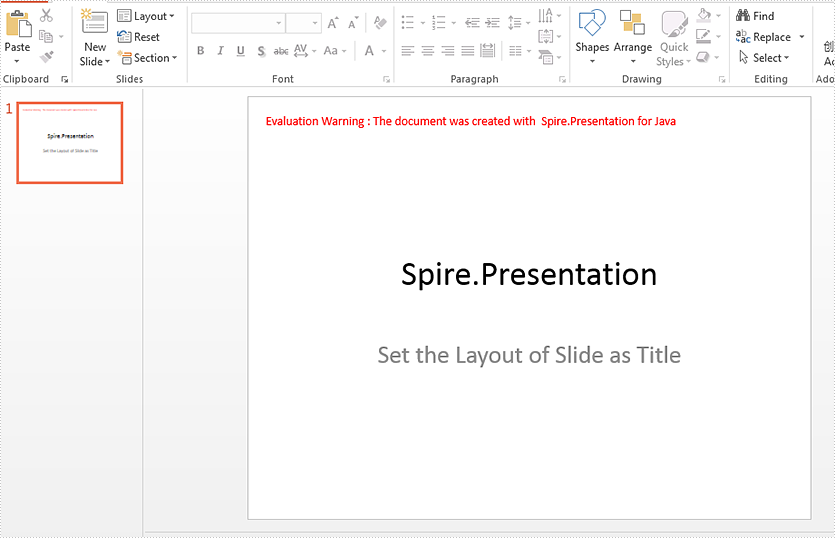
This article will demonstrate how to set the layout of the slide via Spire.Presentation in Java applications. There are 11 kinds of layout on Microsoft PowerPoint and Spire.Presentation supports all of them.
Set one layout of the slide
import com.spire.presentation.*;

public class setSlideLayout {
    public static void main(String[] args) throws Exception{

        //Create an instance of presentation document
        Presentation ppt = new Presentation();

        //Remove the default slide
        ppt.getSlides().removeAt(0);

        //Append a slide and set the layout for slide
        ISlide slide = ppt.getSlides().append(SlideLayoutType.TITLE);

        //Add content for Title and Text
        IAutoShape shape = (IAutoShape)slide.getShapes().get(0);
        shape.getTextFrame().setText("Spire.Presentation");

        shape = (IAutoShape)slide.getShapes().get(1);
        shape.getTextFrame().setText("Set the Layout of Slide as Title");

        //Save the document
         ppt.saveToFile("SlideLayout.pptx", FileFormat.PPTX_2013);
        ppt.dispose();
    }
}
Set the different layout of the slides
import com.spire.presentation.*;

public class setDifferentSlideLayout {
    public static void main(String[] args) throws Exception{

        //Create a PPT document
        Presentation presentation = new Presentation();

        //Remove the default slide
        presentation.getSlides().removeAt(0);

        //Loop through slide layouts
        for (SlideLayoutType type : SlideLayoutType.values())
        {
            //Append slide by specified slide layout
            presentation.getSlides().append(type);
        }

        //Save the document
        presentation.saveToFile("Result.pptx", FileFormat.PPTX_2013);
        presentation.dispose();
    }
}
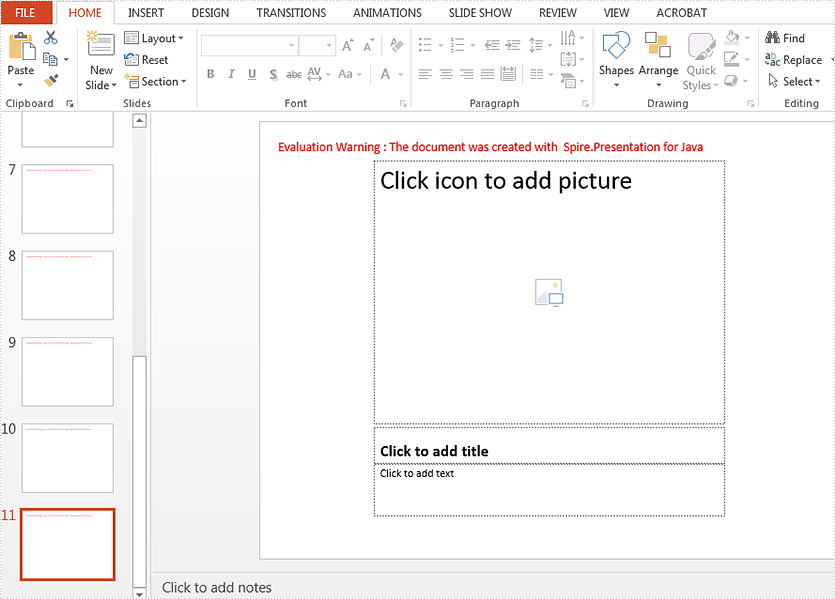
Effective screenshot:
Published in
Document Operation
Tagged under
The excel zoom factor could help us to display the data on Excel worksheet clearly or completely. This article will demonstrate how to set the zoom factor on Excel work sheet in Java application by Spire.XLS for Java.
import com.spire.xls.*;

public class ZoomFactor{
    public static void main(String[] args) {

        //Create a workbook and load a file
        Workbook workbook = new Workbook();
        workbook.loadFromFile("Sample.xlsx");

        //Get the first worksheet
        Worksheet sheet = workbook.getWorksheets().get(0);

        //Set the zoom factor of the sheet to 150
        sheet.setZoom(150);

        //Save the Excel file
        workbook.saveToFile("Zoomfactor.xlsx", ExcelVersion.Version2010);
    }
}
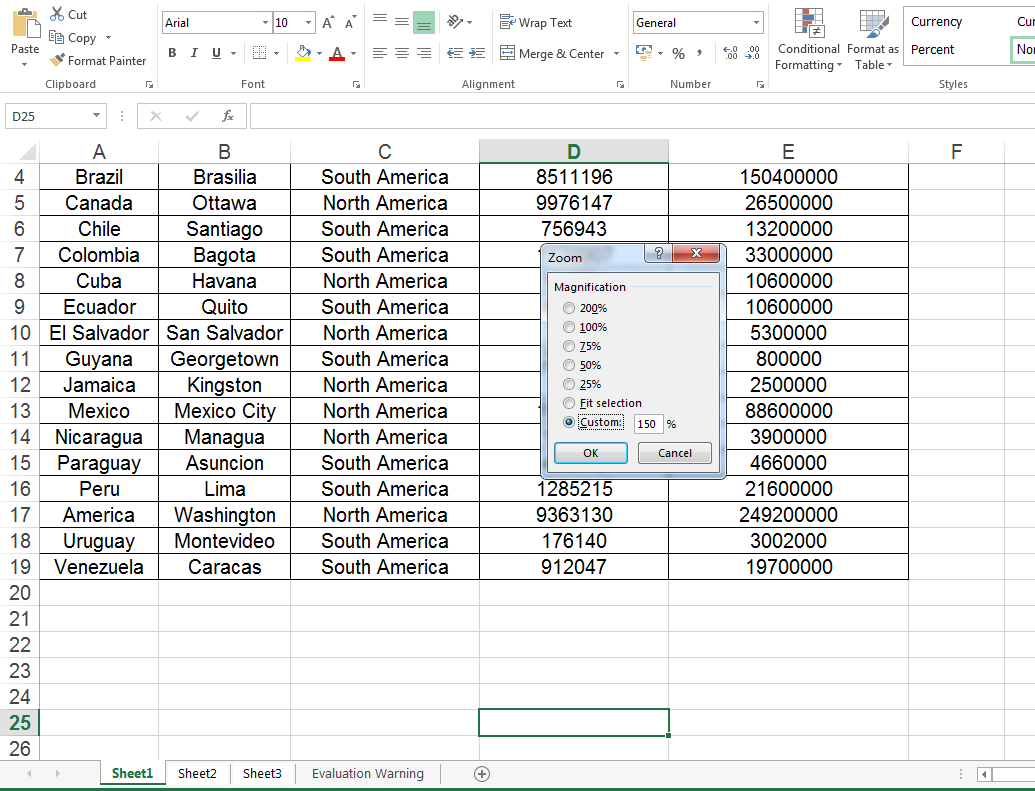
Effective screenshot after setting the zoom factor of the sheet to 150.
Published in
Worksheet
Tagged under
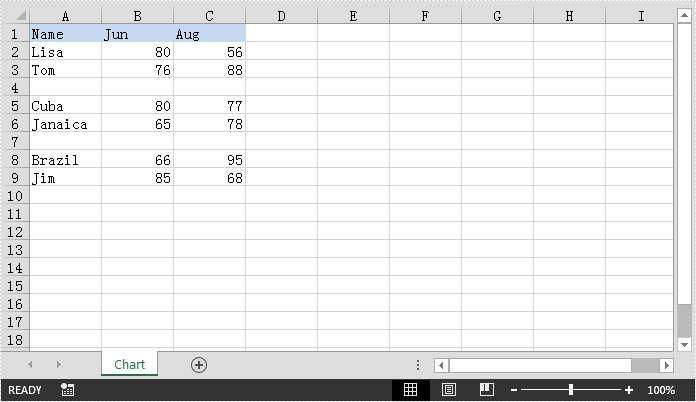
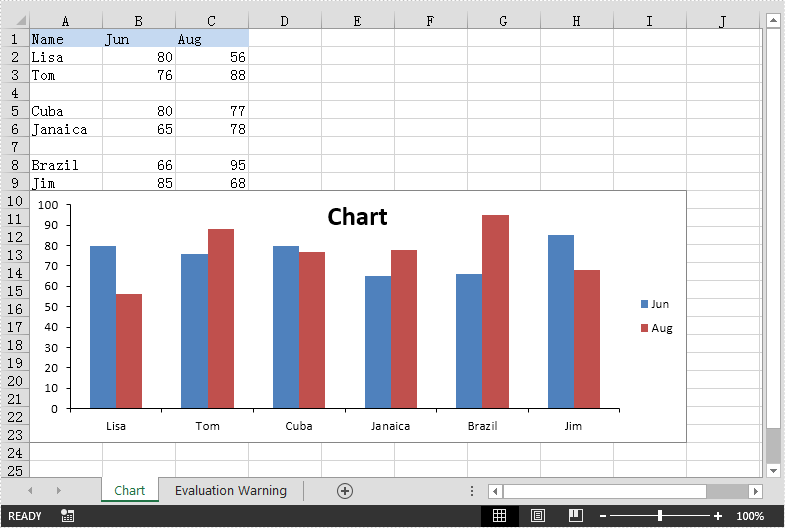
This article demonstrates how to create chart with non-contiguous data in Excel using Spire.XLS for Java.
The example Excel file:
import com.spire.xls.*;
import com.spire.xls.charts.ChartSerie;

import java.awt.*;

public class ChartWithNonContiguousData {
    public static void main(String[] args){
        //Create a Workbook instance
        Workbook workbook = new Workbook();
        //Load the Excel file
        workbook.loadFromFile("NonContiguousData.xlsx");

        //Get the first worksheet
        Worksheet sheet = workbook.getWorksheets().get(0);

        //Add a clustered column chart to the worksheet
        Chart chart = sheet.getCharts().add(ExcelChartType.ColumnClustered);
        chart.setSeriesDataFromRange(false);
        //Set chart position
        chart.setLeftColumn(1);
        chart.setTopRow(10);
        chart.setRightColumn(10);
        chart.setBottomRow(24);

        //Add a series to the chart
        ChartSerie cs1 = (ChartSerie)chart.getSeries().add();
        //Set series name
        cs1.setName(sheet.getCellRange("B1").getValue());
        //Set category labels for the series using non-contiguous data
        cs1.setCategoryLabels(sheet.getCellRange("A2:A3").addCombinedRange(sheet.getCellRange("A5:A6"))
.addCombinedRange(sheet.getCellRange("A8:A9")));
        //Set values for the series using non-contiguous data
        cs1.setValues(sheet.getCellRange("B2:B3").addCombinedRange(sheet.getCellRange("B5:B6"))
.addCombinedRange(sheet.getCellRange("B8:B9")));
        //Specify the series type
        cs1.setSerieType(ExcelChartType.ColumnClustered);

        //Add a series to the chart
        ChartSerie cs2 = (ChartSerie)chart.getSeries().add();
        //Set series name
        cs2.setName(sheet.getCellRange("C1").getValue());
        //Set category labels for the series using non-contiguous data
        cs2.setCategoryLabels(sheet.getCellRange("A2:A3").addCombinedRange(sheet.getCellRange("A5:A6"))
.addCombinedRange(sheet.getCellRange("A8:A9")));
        //Set values for the series using non-contiguous data
        cs2.setValues(sheet.getCellRange("C2:C3").addCombinedRange(sheet.getCellRange("C5:C6"))
.addCombinedRange(sheet.getCellRange("C8:C9")));
        //Specify the series type
        cs2.setSerieType(ExcelChartType.ColumnClustered);

        //Set chart title
        chart.setChartTitle("Chart");
        chart.getChartTitleArea().getFont().setSize(20);
        chart.getChartTitleArea().setColor(Color.black);

        chart.getPrimaryValueAxis().hasMajorGridLines(false);

        //Save the result file
        workbook.saveToFile("Chart.xlsx", ExcelVersion.Version2013);
    }
}
Output:
Published in
Chart
Tagged under
