
Knowledgebase (2370)
Children categories

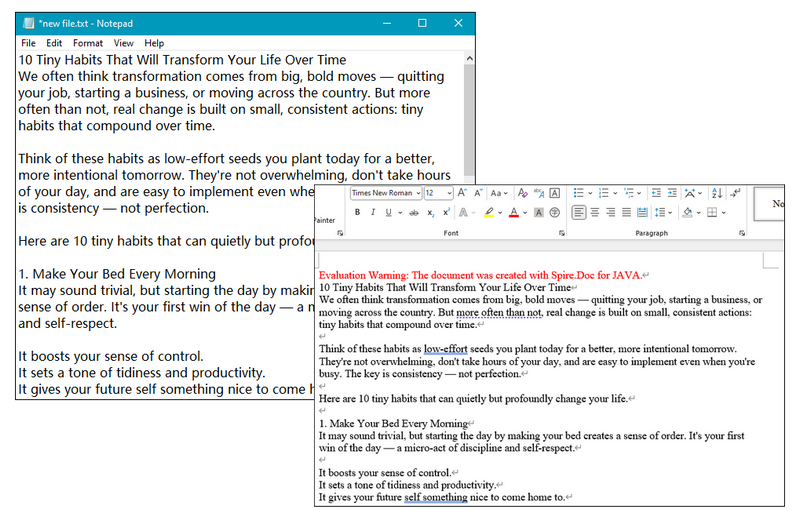
Plain text (.txt) files are simple and widely used, but they lack formatting and structure. If you need to enhance a TXT file with headings, fonts, tables, or images, converting it to a Word (.docx) file is a great solution.
In this tutorial, you'll learn how to convert a .txt file to a .docx Word document in Java using Spire.Doc for Java — a powerful library for Word document processing.
Why choose Spire.Doc for Java:
- The converted Word document preserves the line breaks and content from the TXT file.
- You can further modify fonts, add styles, or insert images using Spire.Doc's rich formatting APIs.
- Supported various output formats, including converting Word to PDF, Excel, TIFF, PostScript, etc.
Prerequisites
To convert TXT to Word with Spire.Doc for Java smoothly, you should download it from its official download page and add the Spire.Doc.jar file as a dependency in your Java program.
If you are using Maven, you can easily import the JAR file by adding the following code to your project's pom.xml file:
<repositories>
    <repository>
        <id>com.e-iceblue</id>
        <name>e-iceblue</name>
        <url>https://repo.e-iceblue.com/nexus/content/groups/public/</url>
    </repository>
</repositories>
<dependencies>
    <dependency>
        <groupId>e-iceblue</groupId>
        <artifactId>spire.doc</artifactId>
        <version>13.6.2</version>
    </dependency>
</dependencies>
Steps to Convert TXT to Word in Java
Now let's take a look at how to implement it in code. With Spire.Doc for Java, the process is straightforward. You can complete the conversion with just a few lines — no need for manual formatting or additional dependencies.
To help you better understand the code:
- Document is the core class that acts as an in-memory representation of a Word document.
- loadFromFile() uses internal parsers to read .txt content and wrap it into a single Word section with default font and margins.
- When saveToFile() is called, Spire.Doc automatically converts the plain text into a .docx file by generating a structured Word document in the OpenXML format.
Below is a step-by-step code example to help you get started quickly:
import com.spire.doc.Document;
import com.spire.doc.FileFormat;

public class ConvertTextToWord {

    public static void main(String[] args) {

        // Create a Text object
        Document txt = new Document();

        // Load a Word document
        txt.loadFromFile("C:\\Users\\Administrator\\Desktop\\Input.txt");

        // Save the document to Word
        txt.saveToFile("ToWord.docx", FileFormat.Docx);

        // Dispose resources
        doc.dispose();
    }
}
RESULT:
Tip:
After converting TXT files to DOC/DOCX, you can further customize the document's formatting as needed. To simplify this process, Spire.Doc for Java provides built-in support for editing text properties such as changing font color, inserting footnote, adding text and image watermark, etc.
How to Convert Word to TXT with Java
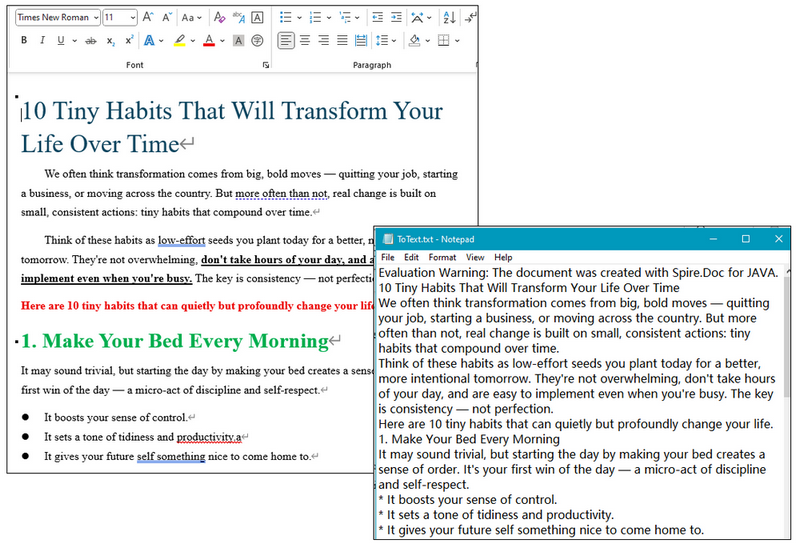
Except for TXT to Word conversion, Spire.Doc for Java also supports converting DOC/DOCX files to TXT format, making it easy to extract plain text from richly formatted Word documents. This functionality is especially useful when you need to strip out styling and layout to work with clean, raw content — such as for text analysis, search indexing, archiving, or importing into other systems that only support plain text.
Simply copy the code below and run the code to manage conversion:
import com.spire.doc.Document;
import com.spire.doc.FileFormat;

public class ConvertWordtoText {

    public static void main(String[] args) {

        // Create a Doc object
        Document doc = new Document();

        // Load a Word document
        doc.loadFromFile("C:\\Users\\Administrator\\Desktop\\Input.doc");

        // Save the document to Word
        doc.saveToFile("ToText.txt", FileFormat.Txt);

        // Dispose resources
        doc.dispose();
    }
}
RESULT:
Get a Free License
To remove evaluation watermarks and unlock full features, you can request a free 30-day license.
Conclusion
With Spire.Doc for Java, converting TXT to Word is fast, accurate, and doesn't require Microsoft Word to be installed. This is especially useful for Java developers working on reporting, document generation, or file conversion tools. Don't hesitate and give it a try now.

Sending emails from a C# application is a common task in business and enterprise development. Whether you're delivering a project update, sending alerts, or automating reporting workflows, reliable email functionality is essential.
In this article, we’ll walk through how to send emails in C# using Spire.Email for .NET, a powerful component that simplifies SMTP communication and email formatting. We'll explore SMTP configuration, Gmail integration, HTML and plain-text content, file attachments, and multiple recipients.
Table of Contents
- 1. Project Setup
- 2. Send a Plain-Text Email via SMTP
- 3. Send HTML Email with Attachments via Gmail SMTP
- 4. Advanced Email Features with Spire.Email
- 5. Common Errors and Troubleshooting
- 6. Use Cases for Spire.Email
- 7. Free License
- 8. FAQ
1. Project Setup
To begin, create a .NET project (Console App or ASP.NET) and add the Spire.Email for .NET package.
Install via NuGet:
Install-Package Spire.Email
Or manually download the Spire.Email package and reference the Spire.Email.dll from your local installation package.
2. Send a Basic Email via SMTP in C#
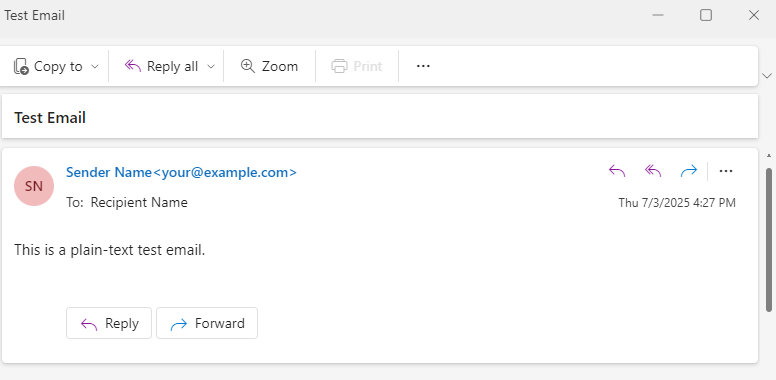
The example below shows how to use Spire.Email to send a plain-text email through an SMTP server.
using Spire.Email;
using Spire.Email.Smtp;

// Configure the SMTP client
SmtpClient smtp = new SmtpClient();
smtp.Host = "smtp.example.com";
smtp.Port = 587;
smtp.Username = "your@example.com";
smtp.Password = "your_password";
smtp.ConnectionProtocols = ConnectionProtocols.StartTls;

// Create maill addresses
MailAddress sender = new MailAddress("your@example.com", "Sender Name");
MailAddress recipient = new MailAddress("recipient@example.com", "Recipient Name");
MailMessage message = new MailMessage(sender, recipient);

// Set the email content
message.Subject = "Test Email";
message.BodyText = "This is a plain-text test email.";

// Send the email
smtp.SendOne(message);
Explanation:
- Uses MailAddress and MailMessage from Spire.Email
- Establishes a secure SMTP connection using ConnectionProtocols.StartTls
The screenshot below shows the actual email received using the above SMTP code.
3. Send HTML Email with Attachments via Gmail SMTP in C#
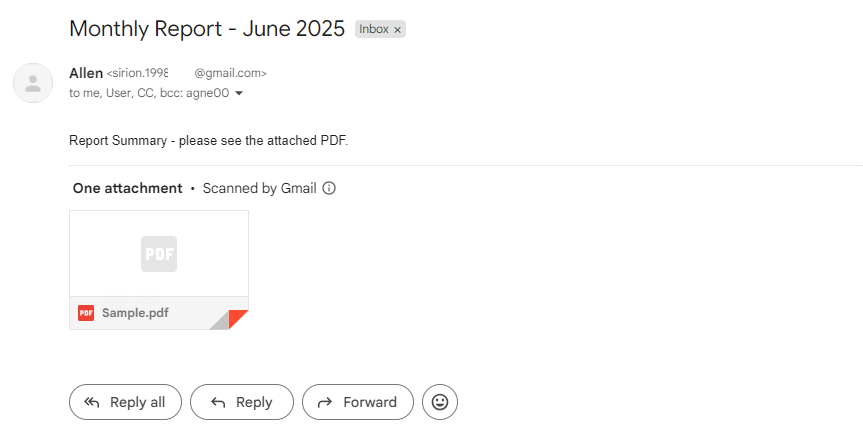
The following C# code example demonstrates how to send an HTML-formatted email using Gmail SMTP, including multiple recipients, a file attachment, and plain-text fallback for clients that do not support HTML.
using Spire.Email;
using Spire.Email.Smtp;

// Create MailAddress objects
MailAddress from = new MailAddress("your@gmail.com", "Your Name");
MailAddress to1 = new MailAddress("user1@example.com", "User One");
MailAddress to2 = new MailAddress("user2@example.com", "User Two");

// Create a mail message
MailMessage message = new MailMessage(from, to1);
message.To.Add(to2);
message.Cc.Add(new MailAddress("cc@example.com", "CC Person"));
message.Bcc.Add(new MailAddress("bcc@example.com"));

// Set the body HTML and text for the message
message.Subject = "Monthly Report - June 2025";
message.BodyHtml = "<h2 style='color:#2E86C1;'>Report Summary</h2><p>Please see the attached PDF report.</p>";
message.BodyText = "Report Summary - please see the attached PDF.";

// Add an attachment to the email
Attachment attachment = new Attachment(@"Sample.pdf");
message.Attachments.Add(attachment);

// Configure the SMTP client
SmtpClient smtp = new SmtpClient();
smtp.Host = "smtp.gmail.com";
smtp.Port = 587;
smtp.Username = "your@gmail.com";
smtp.Password = "your_app_password";
smtp.ConnectionProtocols = ConnectionProtocols.StartTls;

// Sen the email
smtp.SendOne(message);
Explanation:
- Uses MailAddress, MailMessage, Attachment, and SmtpClient from Spire.Email
- Combines BodyHtml and BodyText to support HTML and plain-text email clients
- Adds multiple recipients via To.Add(), Cc.Add(), and Bcc.Add()
- Sends email securely through Gmail using ConnectionProtocols.StartTls
Gmail requires App Passwords if 2FA is enabled.
The following screenshot shows the HTML-formatted email with rich text, CC and BCC recipients, and a PDF attachment, as received from Gmail SMTP.
Related article: How to Send an Email with Attachments in C#
4. Advanced Email Features with Spire.Email
This section demonstrates advanced C# email-sending capabilities using Spire.Email, including embedded images and batch dispatch.
// Prepare an email with embedded image
MailMessage message = new MailMessage(
    new MailAddress("your@domain.com", "Sender"),
    new MailAddress("client@domain.com", "Client"));

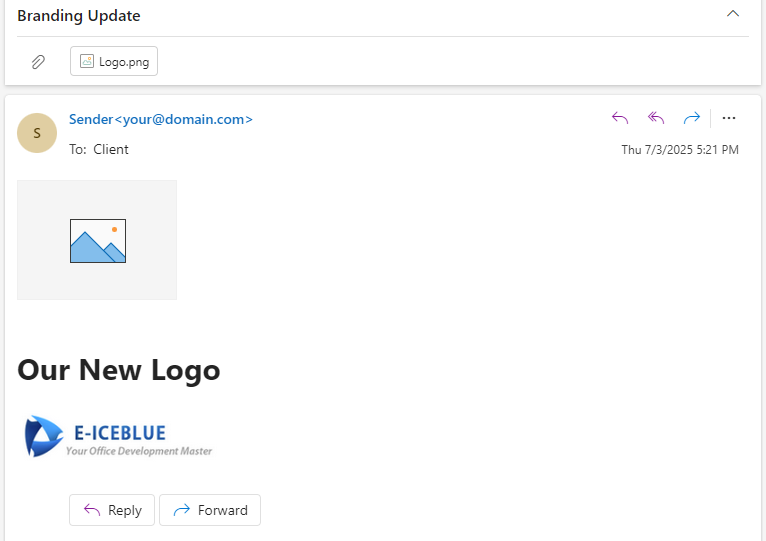
message.Subject = "Branding Update";
message.BodyHtml = "<h1>Our New Logo</h1><img src=\"cid:logo\">";
message.BodyText = "Please view this message in HTML to see the image.";

Attachment logo = new Attachment(@"C:\Images\logo.png");
logo.ContentId = "logo";
logo.DispositionType = "Inline";
message.Attachments.Add(logo);

// Prepare a second email
MailMessage message2 = new MailMessage(
    new MailAddress("your@domain.com"),
    new MailAddress("sales@domain.com"));
message2.Subject = "Weekly Summary";
message2.BodyText = "This is an automated weekly update.";

// Create SMTP client
SmtpClient smtp = new SmtpClient();
smtp.Host = "smtp.domain.com";
smtp.Port = 587;
smtp.Username = "your@domain.com";
smtp.Password = "your_password";
smtp.ConnectionProtocols = ConnectionProtocols.StartTls;

// Send one email
smtp.SendOne(message);

// Send emails in batch
smtp.SendSome(new List<MailMessage> { message, message2 });
Explanation:
Attachment.ContentIdandDispositionType = "Inline"allow inline images using CID references in HTML.SendOne()sends a single message.SendSome()sends multiple messages as a batch. Ideal for scheduled reports or group notifications.
The following screenshot shows an email with an embedded company logo and a plain-text fallback, demonstrating how Spire.Email renders HTML content with inline images.
You may also like: Creating MSG Files with RTF Body and Attachments Using C#
5. Common Errors and Troubleshooting
| Error | Likely Cause |
|---|---|
| Authentication failed | Incorrect credentials or missing app password |
| Secure connection required | Use StartTLS or SSL in ConnectionProtocols |
| HTML content not displaying | Ensure BodyHtml and fallback BodyText are set |
| File not found | Incorrect file path for attachment |
6. Use Cases for Spire.Email
Spire.Email for .NET is suitable for:
- Daily/weekly automated reporting
- User signup and notification emails
- Order confirmations with attachments
- Form submission alerts
- Embedded-image newsletters
Its clean API removes the need to manually handle SMTP headers, MIME formatting, and encoding issues.
Conclusion
With Spire.Email for .NET, developers can quickly build robust and flexible email-sending features directly into C# applications. Whether the goal is to deliver transactional messages, generate styled reports, or dispatch scheduled newsletters, this component provides a clean, reliable API that simplifies every step of the process.
By supporting plain-text and HTML formats, attachments, Gmail SMTP, embedded images, and batch sending, Spire.Email helps streamline email integration without the overhead of external dependencies.
7. Apply for a Free Temporary License
To remove the evaluation warning in the email body or attachment footer, you can apply for a free temporary license:
Request a Free 1-Month License
Simply fill out the form and follow the instructions to apply the license in your project. This enables full feature access during evaluation.
8. FAQ
How to send HTML email in C#?
You can set the BodyHtml property of the MailMessage object to send an HTML email using Spire.Email. You can also include BodyText as a fallback for clients that don't support HTML.
How to send email to multiple recipients in C#?
Add multiple recipients using message.To.Add(), message.Cc.Add(), and message.Bcc.Add() methods. Spire.Email supports To, Cc, and Bcc fields.
How to use SMTP to send email in ASP.NET or MVC projects?
The SMTP usage in ASP.NET or MVC is the same as in Console applications. Simply configure the SmtpClient with host, port, credentials, and use the same SendOne() or SendSome() methods to dispatch your message.

Modern business systems, from retail checkout lanes to warehouse inventory tracking, rely heavily on barcode scanning, and Python-based solutions have become a popular choice due to their versatility and ease of use. In this article, we’ll explore how to read barcodes in Python using the Spire.Barcode for Python library, covering setup, scanning from image files or bytes, and customization options for improved accuracy.
Table of Contents:
- Python Library for Reading Barcodes
- Integrate Spire.Barcode into Your Python Application
- Read a Barcode from an Image File
- Read Multiple Barcodes from an Image File
- Read Barcodes from Image Bytes
- Adjust Barcode Recognition Settings
- Conclusion
- FAQs
Python Library for Reading Barcodes
Spire.Barcode for Python is a powerful library specifically crafted for creating and reading barcodes in Python applications. The library supports a variety of barcode formats, including:
- 1D Barcodes : Such as Code 128, Code 39, EAN-13, and UPC-A.
- 2D Barcodes : Including QR Code, DataMatrix, and PDF417.
Notable Features of Spire.Barcode
- Format Support : Capable of reading barcodes from various image formats, including PNG, JPG, BMP, GIF, and TIFF.
- Batch Scanning : Enables the detection of multiple barcodes within a single image file.
- Recognition Accuracy : Utilizes advanced algorithms to deliver reliable barcode detection.
- Customization : Allows users to specify barcode types and enable checksum verification for enhanced recognition efficiency.
This library provides the capability to read barcodes from both image files and bytes, along with extensive customization options to meet diverse requirements.
Integrate Spire.Barcode into Your Python Application
To get started with Spire.Barcode, you first need to install the library. You can do this via pip. Open your terminal and run:
pip install spire.barcode
Once you have installed the library, you will need a license key to unlock its full capabilities. You can obtain a trial license from our website. and set up the library in your Python script:
from spire.barcode import *

License.SetLicenseKey("your license key")
Now that you have the library in place, you can begin reading barcodes using Python.
Read a Barcode from an Image File in Python
Reading a single barcode from an image file is straightforward with Spire.Barcode. Here's how you can do it:
from spire.barcode import *

# Apply license key to unlock full capabilities
License.SetLicenseKey("your license key")

# Read barcode from an image file
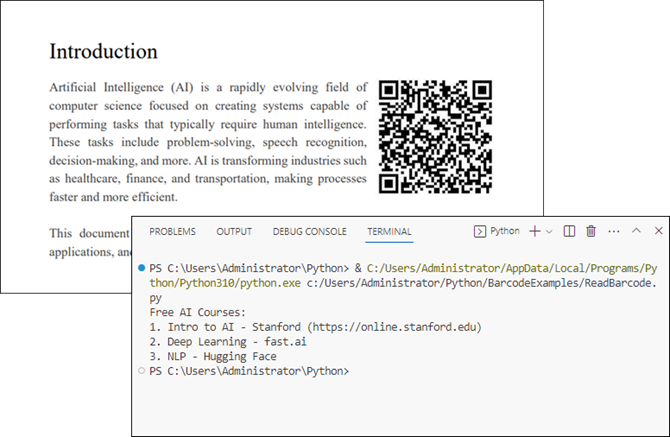
result = BarcodeScanner.ScanOneFile("C:/Users/Administrator/Desktop/qr_code.png")

# Print the result
print(result)
Explanation
- License.SetLicenseKey() : Initializes the library with your license key.
- BarcodeScanner.ScanOneFile() : Reads a single barcode from the specified image file.
- The result is printed to the console, displaying the barcode's data.
Output:
Read Multiple Barcodes from an Image File in Python
If you need to read multiple barcodes from a single image file, Spire.Barcode makes this easy as well. Here’s an example:
from spire.barcode import *

# Apply license key to unlock full capabilities
License.SetLicenseKey("your license key")

# Read multiple barcodes from stream
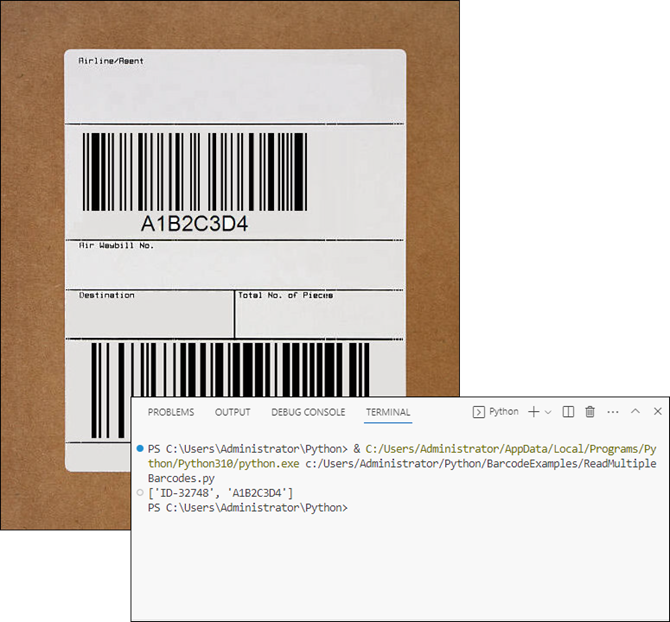
results = BarcodeScanner.ScanFile("C:/Users/Administrator/Desktop/barcodes.jpg")

# Print results
print(results)
Explanation
- BarcodeScanner.ScanFile() : Scans the entire image for multiple barcodes.
- The results are stored as a list. Each element in the list contains the data from a detected barcode.
Output:
Read Barcodes from Image Bytes in Python
In addition to reading barcodes directly from files, Spire.Barcode for Python supports decoding barcodes from in-memory image bytes . This approach is useful when working with dynamically loaded images (e.g., from APIs, databases, or user uploads).
Here’s how to do it:
from spire.barcode import *

# Apply license key to unlock full capabilities
License.SetLicenseKey("your license key")

# Read an image file into bytes
image_path = "C:/Users/Administrator/Desktop/barcodes.jpg"
with open(image_path, "rb") as file:
    image_bytes = file.read()

# Wrap bytes in Spire.Barcode's Stream object
stream = Stream(image_bytes)

# Read one barcode from stream
# result = BarcodeScanner.ScanOneStream(stream)

# Read multiple barcodes from stream
results = BarcodeScanner.ScanStream(stream)

# Print results
print(results)
Explanation
- image_bytes: Raw binary data read from an image file (e.g., PNG, JPG) or other sources like APIs or databases.
- Stream (Spire.Barcode class): Converts image_bytes into an in-memory stream compatible with Spire.Barcode’s scanner.
- BarcodeScanner.ScanStream() : Scans the stream for barcodes and returns a list of detected barcodes.
Adjust Barcode Recognition Settings
The BarcodeScanner class provides various methods to customize barcode recognition settings. This can help improve detection accuracy and efficiency. Some of the key methods include:
- ScanOneFileBarCodeTypeIncludeCheckSum(fileName: str, barcodeType: BarCodeType, IncludeCheckSum: bool)
- ScanFileBarCodeTypeIncludeCheckSum(fileName: str, barcodeType: BarCodeType, IncludeCheckSum: bool)
- ScanOneStreamBarCodeTypeIncludeCheckSum(stream: Stream, barcodeType: BarCodeType, IncludeCheckSum: bool)
- ScanStreamBarCodeTypeIncludeCheckSum(stream: Stream, barcodeType: BarCodeType, IncludeCheckSum: bool)
Here’s an example of how to specify a barcode type and include checksum verification:
from spire.barcode import *

# Apply license key to unlock full capabilities
License.SetLicenseKey("your license key")

# Specify the barcode type (e.g., EAN13)
barcode_type = BarCodeType.EAN13

# Read a barcode from an image file with checksum included
result = BarcodeScanner.ScanOneFileBarCodeTypeIncludeCheckSum("C:/Users/Administrator/Desktop/EAN_13.png", barcode_type, True)

# Print the result
print(result)
Explanation
- BarcodeType : Specifies the type of barcode you want to scan.
- IncludeCheckSum (bool): Determines whether to verify the checksum during scanning. Setting it to True can help catch errors in data.
Conclusion
In this article, we explored how to read barcodes in Python using the Spire.Barcode library. We covered the setup process, reading single and multiple barcodes from image files, and reading from image bytes. Additionally, we discussed how to customize barcode detection settings for improved accuracy. With these tools at your disposal, you can easily integrate barcode scanning capabilities into your Python applications.
FAQs
Q1: What types of barcodes can I read with Spire.Barcode?
Spire.Barcode supports a wide range of barcode formats, including QR codes, UPC, EAN, Code 128, Code 39, and many others.
Q2: Do I need a license to use Spire.Barcode?
Yes, a license key is required to unlock the full functionality of the library. You can obtain a free 30-day trial license from our website.
Q3: Can I read barcodes from a webcam using Spire.Barcode?
While Spire.Barcode does not directly support webcam input, you can capture images from a webcam and then read barcodes from those images using the library.
Q4: How can I improve barcode scanning accuracy?
You can improve accuracy by specifying the barcode type and enabling checksum verification during scanning. Additionally, ensure that the images are clear and well-lit.
Q5. Can I generate barcodes using Spire.Barcode for Python?
Yes, Spire.Barcode supports both barcode recognition and generation. For detailed instructions, check out this tutorial: How to Generate Barcodes in Python: A Step-by-Step Guide.
