
Knowledgebase (2370)
Children categories
Read Email in C# via IMAP and POP3 (Outlook Example Included)
2025-07-30 08:56:03 Written by jie zou
Reading emails using C# is a common task in enterprise applications where automatic email processing is needed. For example, customer support systems retrieve tickets from email inboxes, financial platforms extract PDF invoices from attachments, and workflow tools react to notification emails. These applications require access to message content, metadata (sender, subject, timestamp), and attachments.
In this article, we’ll walk through how to read emails in C# using IMAP and POP3, and access Gmail or Outlook mailboxes securely with OAuth 2.0. We'll use Spire.Email for .NET, a library that simplifies email client implementation by providing a unified API for IMAP, POP3, and SMTP. It supports both OAuth and password-based authentication, and allows parsing full MIME messages including headers, bodies, and attachments.
This article covers:
- Environment Setup
- Authenticate Email Access via OAuth
- Read Emails Using IMAP in C#
- Read Emails via POP3 in C#
- Extract Attachments and Plain Text
- Summary
- Frequently Asked Questions
Environment Setup
To follow this tutorial, you’ll need the following:
- A .NET development environment (e.g., Visual Studio)
- Spire.Email for .NET (Install via NuGet: Install-Package Spire.Email)
- Access to a Gmail or Outlook account with OAuth 2.0 enabled
Spire.Email for .NET supports standard email protocols—IMAP, POP3, and SMTP—and provides built-in functionality for MIME parsing, attachments, HTML rendering, and encoding handling.
You can also try Free Spire.Email for .NET if your project is small or for evaluation.
Authenticate Email Access via OAuth
Modern email providers such as Gmail and Outlook require OAuth 2.0 for secure and token-based access to IMAP and POP3 services. Gmail still supports app passwords for POP3 in some cases, but OAuth is the preferred and more secure method.
Here’s how to use MSAL.NET to acquire an access token for Outlook:
var app = PublicClientApplicationBuilder
    .Create("your-client-id")
    .WithDefaultRedirectUri()
    .Build();

string[] scopes = new[] { "https://outlook.office365.com/IMAP.AccessAsUser.All" };

AuthenticationResult result = await app
    .AcquireTokenInteractive(scopes)
    .ExecuteAsync();

string accessToken = result.AccessToken;
For Gmail, you can use Google.Apis.Auth or any OAuth 2.0 compliant method to retrieve a token with the https://mail.google.com/ scope. This token can then be passed to Spire.Email for authentication.
Read Emails Using IMAP in C# from Outlook and Gmail
To read emails from Outlook or Gmail in C#, IMAP is a widely used protocol that allows access to mailbox folders, message flags, and full message content. With Spire.Email for .NET, you can use the ImapClient class to connect securely to IMAP servers using OAuth tokens.
The following C# example demonstrates how to read emails from Outlook's IMAP server:
using Spire.Email;
using Spire.Email.IMap;
using System.Text;

class Program
{
    static void Main()
    {
        ImapClient client = new ImapClient();

        // Connect to IMAP server (Outlook)
        client.Host = "outlook.office365.com";
        client.Port = 993;
        client.ConnectionProtocols = ConnectionProtocols.Ssl;

        // Use OAuth 2.0
        client.UseOAuth = true;
        client.Username = "your-email@outlook.com";
        client.AccessToken = "your-access-token";

        client.Connect();
        client.Login();

        // Retrieve message count in the Inbox
        int messageCount = client.GetMessageCount("Inbox");
        StringBuilder messageDetails = new StringBuilder();

        for (int i = 0; i <= messageCount; i++)
        {
            MailMessage message = client.GetFullMessage(i);
            messageDetails.AppendLine("Message: " + i);
            messageDetails.AppendLine("Subject: " + message.Subject);
            messageDetails.AppendLine("From: " + message.From.Address);
            messageDetails.AppendLine("Date: " + message.Date);
            messageDetails.AppendLine("Body (HTML): " + message.BodyHtml);
        }

        File.WriteAllText("MessageInfo.txt", messageDetails.ToString());
        client.Disconnect();
    }
}
Technical Details
- ImapClient: Represents an IMAP client connection. It handles server communication and supports OAuth-based authentication via the UseOAuth property.
- Host and Port: Set the server address and port number. For Outlook, you can use "outlook.office365.com" and port 993 with SSL.
- AccessToken: Replace "your-access-token" with a valid token obtained via Microsoft or Google OAuth 2.0 flow.
- GetMessageCount("Inbox"): Retrieves the number of emails in the specified folder.
- GetFullMessage(i): Retrieves the full content of the message at the specified index as a MailMessage object.
- MailMessage: Represents an email message. Properties like Subject, From, Date, and BodyHtml allow structured access to message details.
The following screenshot shows the extracted email subject, sender, and HTML body saved from Outlook using IMAP:
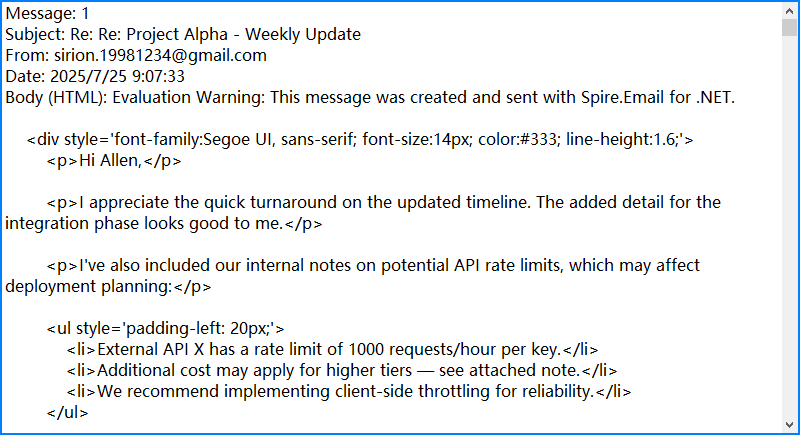
By combining Spire.Email’s IMAP interface with OAuth security and flexible MIME parsing, you can reliably automate email reading in C# with full access to both content and context.
If you need examples of how to send emails, please refer to How to Send Emails Using C#.
Read Emails via POP3 in C#
If folder management and server-side search are not required, POP3 offers a simpler alternative to IMAP. The following example demonstrates how to read emails using POP3 with Spire.Email.
using Spire.Email;
using Spire.Email.Pop3;

Pop3Client popClient = new Pop3Client();
popClient.Host = "pop.gmail.com";
popClient.Port = 995;
popClient.EnableSsl = true;
popClient.Username = "your-address@gmail.com";
popClient.Password = "your-password";

// Or use OAuth
// popClient.UseOAuth = true;
// popClient.AccessToken = "your-access-token";

popClient.Connect();
popClient.Login();

for (int i = 1; i < popClient.GetMessageCount(); i++)
{
    MailMessage msg = popClient.GetMessage(i);
    Console.WriteLine("Message - " + i);
    Console.WriteLine("Subject: " + msg.Subject);
    Console.WriteLine("From: " + msg.From.Address);
}

popClient.Disconnect();
This screenshot displays the console output after fetching messages via POP3 from Gmail:
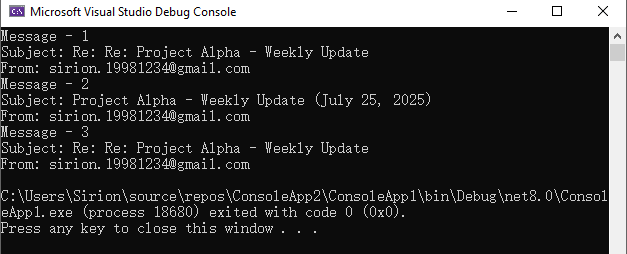
Unlike IMAP, POP3 downloads messages but does not maintain folder structure or message states on the server. Choose POP3 for simple retrieval scenarios.
Advanced Email Parsing in C#: Extract Attachments and Plain Text
In many cases, it's necessary to extract the plain-text content of an email for further processing, or to retrieve attachments for downstream use such as storage, analysis, or forwarding. The following C# example demonstrates how to access and save both the plain-text body and attachments using the MailMessage object.
MailMessage message = client.GetFullMessage(index);

// Retrieve plain text content
string plainText = message.BodyText;

// Extract attachments
foreach (Attachment attachment in message.Attachments)
{
    string path = Path.Combine("Attachments", attachment.ContentType.Name);
    Directory.CreateDirectory("Attachments");
    using (var fileStream = new FileStream(path, FileMode.Create, FileAccess.Write))
    {
        attachment.Data.Position = 0;
        attachment.Data.CopyTo(fileStream);
    }
}
Notes:
- Most emails contain both HTML and plain text bodies; use the format appropriate for your application.
- To skip embedded images (like inline logos), check that attachment.ContentDisposition.DispositionType != "Inline".
Below is a sample output showing saved attachments and extracted plain text from the retrieved email:
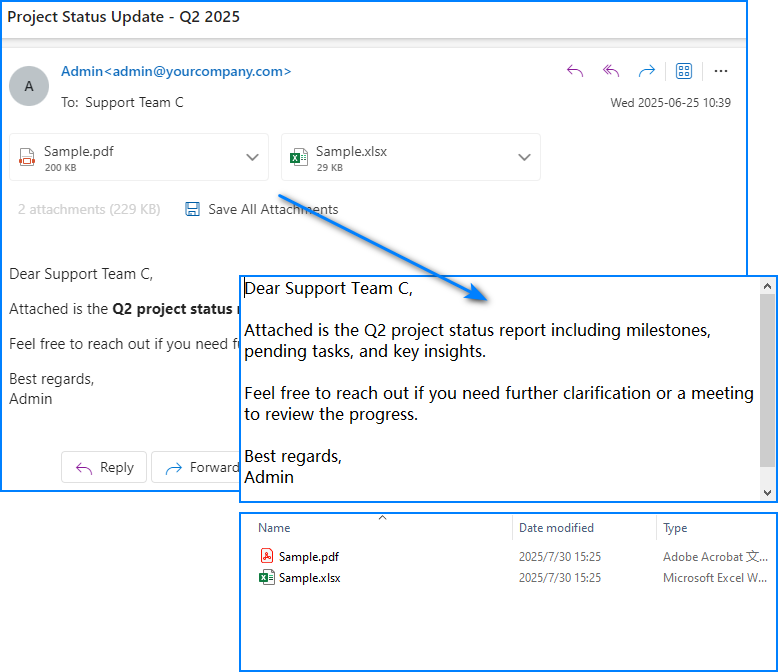
For more detailed operations such as managing email folders—creating, deleting, or moving messages—please refer to our guide on Email Folder Management in C#.
Summary
With Spire.Email for .NET, you can programmatically access Gmail or Outlook inboxes in C# using either IMAP or POP3. The library supports OAuth 2.0 authentication, parses both HTML and plain-text email bodies, and enables attachment extraction for downstream processing. Whether you're building an internal automation tool, an alerting system, or an email parser, Spire.Email provides the essential components for email integration in .NET applications.
If you'd like to explore all features without limitations, you can apply for a free temporary license.
Frequently Asked Questions
Can I use Spire.Email for sending emails too?
Yes. Spire.Email for .NET includes support for SMTP as well, allowing you to send HTML-formatted emails, add attachments, and configure encoding and headers.
Does Spire.Email work with other email providers?
Yes. As long as the provider supports standard IMAP, POP3, or SMTP protocols, and offers compatible authentication (OAuth or basic), it will work with Spire.Email.
How do I get the access token programmatically?
For Outlook, you can use Microsoft’s MSAL.NET; for Gmail, use Google.Apis.Auth or any other OAuth library that retrieves a valid token with mail access scopes. These tokens can then be passed to the email client for secure login.
Reading PowerPoint Files in Python: Extract Text, Images & More
2025-07-24 03:50:38 Written by jie zou
PowerPoint (PPT & PPTX) files are rich with diverse content, including text, images, tables, charts, shapes, and metadata. Extracting these elements programmatically can unlock a wide range of use cases, from automating repetitive tasks to performing in-depth data analysis or migrating content across platforms.
In this tutorial, we'll explore how to read PowerPoint documents in Python using Spire.Presentation for Python, a powerful library for processing PowerPoint files.
Table of Contents:
- Python Library to Read PowerPoint Files
- Extracting Text from Slides
- Saving Images from Slides
- Accessing Metadata (Document Properties)
- Conclusion
- FAQs
1. Python Library to Read PowerPoint Files
To work with PowerPoint files in Python, we'll use Spire.Presentation for Python. This feature-rich library enables developers to create, edit, and read content from PowerPoint presentations efficiently. It allows for the extraction of text, images, tables, SmartArt, and metadata with minimal coding effort.
Before we begin, install the library using pip:
pip install spire.presentation
Now, let's dive into different ways to extract content from PowerPoint files.
2. Extracting Text from Slides in Python
PowerPoint slides contain text in various forms—shapes, tables, SmartArt, and more. We'll explore how to extract text from each of these elements.
2.1 Extract Text from Shapes
Most text in PowerPoint slides resides within shapes (text boxes, labels, etc.). Here’s how to extract text from shapes:
Steps-by-Step Guide
- Initialize the Presentation object and load your PowerPoint file.
- Iterate through each slide and its shapes.
- Check if a shape is an IAutoShape (a standard text container).
- Extract text from each paragraph in the shape.
Code Example
from spire.presentation import *
from spire.presentation.common import *

# Create an object of Presentation class
presentation = Presentation()

# Load a PowerPoint presentation
presentation.LoadFromFile("C:\\Users\\Administrator\\Desktop\\Input.pptx")

# Create a list
text = []

# Loop through the slides in the document
for slide_index, slide in enumerate(presentation.Slides):
    # Add slide marker
    text.append(f"====slide {slide_index + 1}====")

    # Loop through the shapes in the slide
    for shape in slide.Shapes:
        # Check if the shape is an IAutoShape object
        if isinstance(shape, IAutoShape):
            # Loop through the paragraphs in the shape
            for paragraph in shape.TextFrame.Paragraphs:
                # Get the paragraph text and append it to the list
                text.append(paragraph.Text)

# Write the text to a txt file
with open("output/ExtractAllText.txt", "w", encoding='utf-8') as f:
    for s in text:
        f.write(s + "\n")

# Dispose resources
presentation.Dispose()
Output:
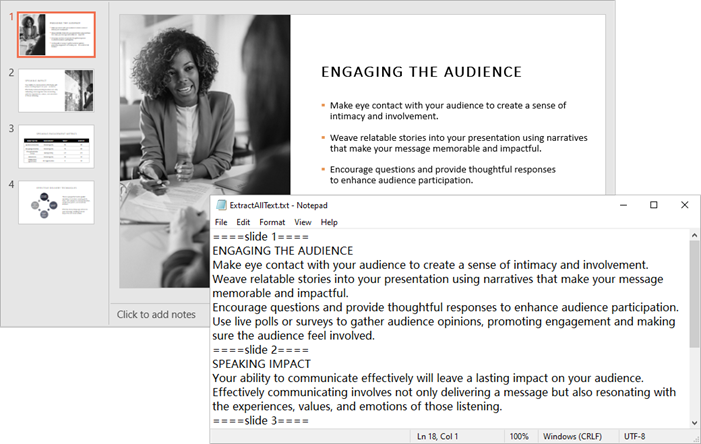
2.2 Extract Text from Tables
Tables in PowerPoint store structured data. Extracting this data requires iterating through each cell to maintain the table’s structure.
Step-by-Step Guide
- Initialize the Presentation object and load your PowerPoint file.
- Iterate through each slide to access its shapes.
- Identify table shapes (ITable objects).
- Loop through rows and cells to extract text.
Code Example
from spire.presentation import *
from spire.presentation.common import *

# Create a Presentation object
presentation = Presentation()

# Load a PowerPoint file
presentation.LoadFromFile("C:\\Users\\Administrator\\Desktop\\Input.pptx")

# Create a list for tables
tables = []

# Loop through the slides
for slide in presentation.Slides:
    # Loop through the shapes in the slide
    for shape in slide.Shapes:
        # Check whether the shape is a table
        if isinstance(shape, ITable):
            tableData = "

            # Loop through the rows in the table
            for row in shape.TableRows:
                rowData = "

                # Loop through the cells in the row
                for i in range(row.Count):
                    # Get the cell value
                    cellValue = row[i].TextFrame.Text
                    # Add cell value with spaces for better readability
                    rowData += (cellValue + "  |  " if i < row.Count - 1 else cellValue)
                tableData += (rowData + "\n")
            tables.append(tableData)

# Write the tables to text files
for idx, table in enumerate(tables, start=1):
    fileName = f"output/Table-{idx}.txt"
    with open(fileName, "w", encoding='utf-8') as f:
        f.write(table)

# Dispose resources
presentation.Dispose()
Output:

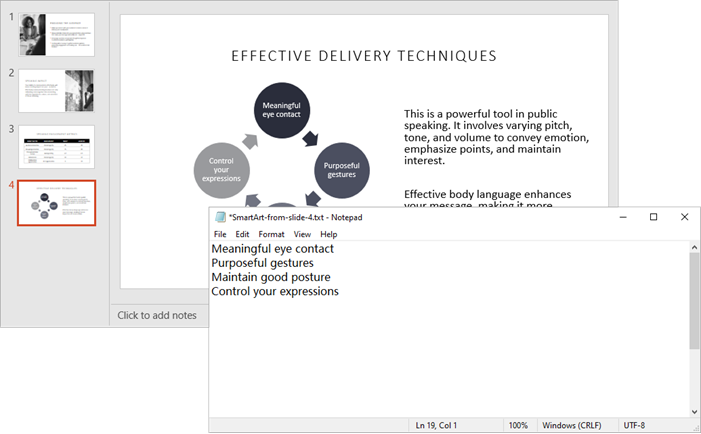
2.3 Extract Text from SmartArt
SmartArt is a unique feature in PowerPoint used for creating diagrams. Extracting text from SmartArt involves accessing its nodes and retrieving the text from each node.
Step-by-Step Guide
- Load the PowerPoint file into a Presentation object.
- Iterate through each slide and its shapes.
- Identify ISmartArt shapes in slides.
- Loop through each node in the SmartArt.
- Extract and save the text from each node.
Code Example
from spire.presentation.common import *
from spire.presentation import *

# Create a Presentation object
presentation = Presentation()

# Load a PowerPoint file
presentation.LoadFromFile("C:\\Users\\Administrator\\Desktop\\Input.pptx")

# Iterate through each slide in the presentation
for slide_index, slide in enumerate(presentation.Slides):

    # Create a list to store the extracted text for the current slide
    extracted_text = []

    # Loop through the shapes on the slide and find the SmartArt shapes
    for shape in slide.Shapes:
        if isinstance(shape, ISmartArt):
            smartArt = shape

            # Extract text from the SmartArt nodes and append to the list
            for node in smartArt.Nodes:
                extracted_text.append(node.TextFrame.Text)

    # Write the extracted text to a separate text file for each slide
    if extracted_text:  # Only create a file if there's text extracted
        file_name = f"output/SmartArt-from-slide-{slide_index + 1}.txt"
        with open(file_name, "w", encoding="utf-8") as text_file:
            for text in extracted_text:
                text_file.write(text + "\n")

# Dispose resources
presentation.Dispose()
Output:
You might also be interested in: Read Speaker Notes in PowerPoint in Python
3. Saving Images from Slides in Python
In addition to text, slides often contain images that may be important for your analysis. This section will show you how to save images from the slides.
Step-by-Step Guide
- Initialize the Presentation object and load your PowerPoint file.
- Access the Images collection in the presentation.
- Iterate through each image and save it in a desired format (e.g., PNG).
Code Example
from spire.presentation.common import *
from spire.presentation import *

# Create a Presentation object
presentation = Presentation()

# Load a PowerPoint document
presentation.LoadFromFile("C:\\Users\\Administrator\\Desktop\\Input.pptx")

# Get the images in the document
images = presentation.Images

# Iterate through the images in the document
for i, image in enumerate(images):

    # Save a certain image in the specified path
    ImageName = "Output/Images_"+str(i)+".png"
    image_data = (IImageData)(image)
    image_data.Image.Save(ImageName)

# Dispose resources
presentation.Dispose()
Output:

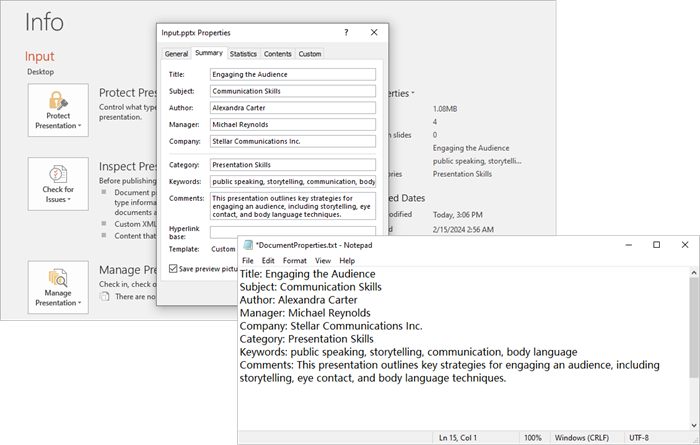
4. Accessing Metadata (Document Properties) in Python
Extracting metadata provides insights into the presentation, such as its title, author, and keywords. This section will guide you on how to access and save this metadata.
Step-by-Step Guide
- Create and load your PowerPoint file into a Presentation object.
- Access the DocumentProperty object.
- Extract properties like Title , Author , and Keywords .
Code Example
from spire.presentation.common import *
from spire.presentation import *

# Create a Presentation object
presentation = Presentation()

# Load a PowerPoint document
presentation.LoadFromFile("C:\\Users\\Administrator\\Desktop\\Input.pptx")

# Get the DocumentProperty object
documentProperty = presentation.DocumentProperty

# Prepare the content for the text file
properties = [
    f"Title: {documentProperty.Title}",
    f"Subject: {documentProperty.Subject}",
    f"Author: {documentProperty.Author}",
    f"Manager: {documentProperty.Manager}",
    f"Company: {documentProperty.Company}",
    f"Category: {documentProperty.Category}",
    f"Keywords: {documentProperty.Keywords}",
    f"Comments: {documentProperty.Comments}",
]

# Write the properties to a text file
with open("output/DocumentProperties.txt", "w", encoding="utf-8") as text_file:
    for line in properties:
        text_file.write(line + "\n")

# Dispose resources
presentation.Dispose()
Output:
You might also be interested in: Add Document Properties to a PowerPoint File in Python
5. Conclusion
With Spire.Presentation for Python, you can effortlessly read and extract various elements from PowerPoint files—such as text, images, tables, and metadata. This powerful library streamlines automation tasks, content analysis, and data migration, allowing for efficient management of PowerPoint files. Whether you're developing an analytics tool, automating document processing, or managing presentation content, Spire.Presentation offers a robust and seamless solution for programmatically handling PowerPoint files.
6. FAQs
Q1. Can Spire.Presentation handle password-protected PowerPoint files?
Yes, Spire.Presentation can open and process password-protected PowerPoint files. To access an encrypted file, use the LoadFromFile() method with the password parameter:
presentation.LoadFromFile("encrypted.pptx", "yourpassword")
Q2. How can I read comments from PowerPoint slides?
You can read comments from PowerPoint slides using the Spire.Presentation library. Here’s how:
from spire.presentation import *

presentation = Presentation()
presentation.LoadFromFile("Input.pptx")

with open("PowerPoint_Comments.txt", "w", encoding="utf-8") as file:
    for slide_idx, slide in enumerate(presentation.Slides):
        slide = (ISlide)(slide)
        if len(slide.Comments) > 0:
            for comment_idx, comment in enumerate(slide.Comments):
                file.write(f"Comment {comment_idx + 1} from Slide {slide_idx + 1}: {comment.Text}\n")
Q3. Does Spire.Presentation preserve formatting when extracting text?
Basic text extraction retrieves raw text content. For formatted text (fonts, colors), you would need to access additional properties like TextRange.LatinFont and TextRange.Fill .
Q4. Are there any limitations on file size when reading PowerPoint files in Python?
While Spire.Presentation can handle most standard presentations, extremely large files (hundreds of MB) may require optimization for better performance.
Q5. Can I create or modify PowerPoint documents using Spire.Presentation?
Yes, you can create PowerPoint documents and modify existing ones using Spire.Presentation. The library provides a range of features that allow you to add new slides, insert text, images, tables, and shapes, as well as edit existing content.
Get a Free License
To fully experience the capabilities of Spire.Presentation for Python without any evaluation limitations, you can request a free 30-day trial license.

Creating PowerPoint presentations programmatically can save time and enhance efficiency in generating reports, slideshows, and other visual presentations. By automating the process, you can focus on content and design rather than manual formatting.
In this tutorial, we will explore how to create PowerPoint documents in Python using Spire.Presentation for Python. This powerful tool allows developers to manipulate and generate PPT and PPTX files seamlessly.
Table of Contents:
- Python Library to Work with PowerPoint Files
- Installing Spire.Presentation for Python
- Creating a PowerPoint Document from Scratch
- Creating PowerPoint Documents Based on a Template
- Best Practices for Python PowerPoint Generation
- Wrap Up
- FAQs
1. Python Library to Work with PowerPoint Files
Spire.Presentation is a robust library for creating, reading, and modifying PowerPoint files in Python , without requiring Microsoft Office. This library supports a wide range of features, including:
- Create PowerPoint documents from scratch or templates.
- Add text, images, lists, tables, charts, and shapes.
- Customize fonts, colors, backgrounds, and layouts.
- Save as or export to PPT, PPTX, PDF, or images.
In the following sections, we will walk through the steps to install the library, create presentations, and add various elements to your slides.
2. Installing Spire.Presentation for Python
To get started, you need to install the Spire.Presentation library. You can install it using pip:
pip install spire.presentation
Once installed, you can begin utilizing its features in your Python scripts to create PowerPoint documents.
3. Creating a PowerPoint Document from Scratch
3.1 Generate and Save a Blank Presentation
Let's start by creating a basic PowerPoint presentation from scratch. The following code snippet demonstrates how to generate and save a blank presentation:
from spire.presentation.common import *
from spire.presentation import *

# Create a Presentation object
presentation = Presentation()

# Set the slide size type
presentation.SlideSize.Type = SlideSizeType.Screen16x9

# Add a slide (there is one slide in the document by default)
presentation.Slides.Append()

# Save the document as a PPT or PPTX file
presentation.SaveToFile("BlankPowerPoint.pptx", FileFormat.Pptx2019)
presentation.Dispose()
In this code:
- Presentation : Root class representing the PowerPoint file.
- SlideSize.Type : Sets the slide dimensions (e.g., SlideSizeType.Screen16x9 for widescreen).
- Slides.Append() : Adds a new slide to the presentation. By default, a presentation starts with one slide.
- SaveToFile() : Saves the presentation to the specified file format (PPTX in this case).
3.2 Add Basic Elements to Your Slides
Now that we have a blank presentation, let's add some basic elements like text, images, lists, and tables.
Add Formatted Text
To add formatted text, we can use the following code:
# Get the first slide
first_slide = presentation.Slides[0]

# Add a shape to the slide
rect = RectangleF.FromLTRB (30, 60, 900, 150)
shape = first_slide.Shapes.AppendShape(ShapeType.Rectangle, rect)
shape.ShapeStyle.LineColor.Color = Color.get_Transparent()
shape.Fill.FillType = FillFormatType.none

# Add text to the shape
shape.AppendTextFrame("This guide demonstrates how to create a PowerPoint document using Python.")

# Get text of the shape as a text range
textRange = shape.TextFrame.TextRange

# Set font name, style (bold & italic), size and color
textRange.LatinFont = TextFont("Times New Roman")
textRange.IsBold = TriState.TTrue
textRange.FontHeight = 32
textRange.Fill.FillType = FillFormatType.Solid
textRange.Fill.SolidColor.Color = Color.get_Black()

# Set alignment
textRange.Paragraph.Alignment = TextAlignmentType.Left
In this code:
- AppendShape() : Adds a shape to the slide. We create a rectangle shape that will house our text.
- AppendTextFrame() : Adds a text frame to the shape, allowing us to insert text into it.
- TextFrame.TextRange : Accesses the text range of the shape, enabling further customization such as font style, size, and color.
- Paragraph.Alignment : Sets the alignment of the text within the shape.
Add an Image
To include an image in your presentation, use the following code snippet:
# Get the first slide
first_slide = presentation.Slides[0]

# Load an image file
imageFile = "C:\\Users\\Administrator\\Desktop\\logo.png"
stream = Stream(imageFile)
imageData = presentation.Images.AppendStream(stream)

# Reset size
width = imageData.Width * 0.6
height = imageData.Height * 0.6

# Append it to the slide
rect = RectangleF.FromLTRB (750, 50, 750 + width, 50 + height)
image = first_slide.Shapes.AppendEmbedImageByImageData(ShapeType.Rectangle, imageData, rect)
image.Line.FillType = FillFormatType.none
In this code:
- Stream() : Creates a stream from the specified image file path.
- AppendStream() : Appends the image data to the presentation's image collection.
- AppendEmbedImageByImageData() : Adds the image to the slide at the specified rectangle coordinates.
You may also like: Insert Shapes in PowerPoint in Python
Add a List
To add a bulleted list to your slide, we can use:
# Get the first slide
first_slide = presentation.Slides[0]

# Specify list bounds and content
listBounds = RectangleF.FromLTRB(30, 150, 500, 350)
listContent = [
    " Step 1. Install Spire.Presentation for Python.",
    " Step 2. Create a Presentation object.",
    " Step 3. Add text, images, etc. to slides.",
    " Step 5. Set a background image or color.",
    " Step 6. Save the presentation to a PPT(X) file."
]

# Add a shape
autoShape = first_slide.Shapes.AppendShape(ShapeType.Rectangle, listBounds)
autoShape.TextFrame.Paragraphs.Clear()
autoShape.Fill.FillType = FillFormatType.none
autoShape.Line.FillType = FillFormatType.none

for content in listContent:
    # Create paragraphs based on the list content and add them to the shape
    paragraph = TextParagraph()
    autoShape.TextFrame.Paragraphs.Append(paragraph)
    paragraph.Text = content
    paragraph.TextRanges[0].Fill.FillType = FillFormatType.Solid
    paragraph.TextRanges[0].Fill.SolidColor.Color = Color.get_Black()
    paragraph.TextRanges[0].FontHeight = 20
    paragraph.TextRanges[0].LatinFont = TextFont("Arial")

    # Set the bullet type for these paragraphs
    paragraph.BulletType = TextBulletType.Symbol

    # Set line spacing
    paragraph.LineSpacing = 150
In this code:
- AppendShape() : Creates a rectangle shape for the list.
- TextFrame.Paragraphs.Append() : Adds paragraphs for each list item.
- BulletType : Sets the bullet style for the list items.
Add a Table
To include a table, you can use the following:
# Get the first slide
first_slide = presentation.Slides[0]

# Define table dimensions and data
widths = [200, 200, 200]
heights = [18, 18, 18, 18]
dataStr = [
    ["Slide Number", "Title", "Content Type"],
    ["1", "Introduction", "Text/Image"],
    ["2", "Project Overview", "Chart/Graph"],
    ["3", "Key Findings", "Text/List"]
]

# Add table to the slide
table = first_slide.Shapes.AppendTable(30, 360, widths, heights)

# Fill table with data and apply formatting
for rowNum, rowData in enumerate(dataStr):
    for colNum, cellData in enumerate(rowData):
        cell = table[colNum, rowNum]
        cell.TextFrame.Text = cellData

        textRange = cell.TextFrame.Paragraphs[0].TextRanges[0]
        textRange.LatinFont = TextFont("Times New Roman")
        textRange.FontHeight = 20

        cell.TextFrame.Paragraphs[0].Alignment = TextAlignmentType.Center

# Apply a built-in table style
table.StylePreset = TableStylePreset.MediumStyle2Accent1
In this code:
- AppendTable() : Adds a table to the slide at specified coordinates with defined widths and heights for columns and rows.
- Cell.TextFrame.Text : Sets the text for each cell in the table.
- StylePreset : Applies a predefined style to the table for enhanced aesthetics.
3.3 Apply a Background Image or Color
To set a custom background for your slide, use the following code:
# Get the first slide
first_slide = presentation.Slides[0]

# Get the background of the first slide
background = first_slide.SlideBackground

# Create a stream from the specified image file
stream = Stream("C:\\Users\\Administrator\\Desktop\\background.jpg")
imageData = presentation.Images.AppendStream(stream)

# Set the image as the background
background.Type = BackgroundType.Custom
background.Fill.FillType = FillFormatType.Picture
background.Fill.PictureFill.FillType = PictureFillType.Stretch
background.Fill.PictureFill.Picture.EmbedImage = imageData
In this code:
- SlideBackground : Accesses the background properties of the slide.
- Fill.FillType : Specifies the type of fill (in this case, an image).
- PictureFill.FillType : Sets how the background image is displayed (stretched, in this case).
- Picture.EmbedImage : Sets image data for the background.
For additional background options, refer to this tutorial: Set Background Color or Picture for PowerPoint Slides in Python
Output:
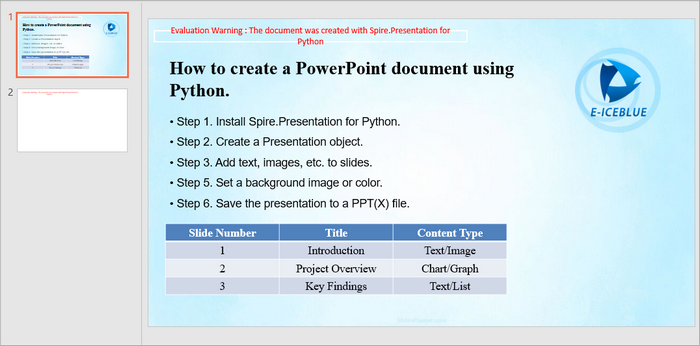
Below is a screenshot of the PowerPoint document generated by the code snippets provided above.
4. Creating PowerPoint Documents Based on a Template
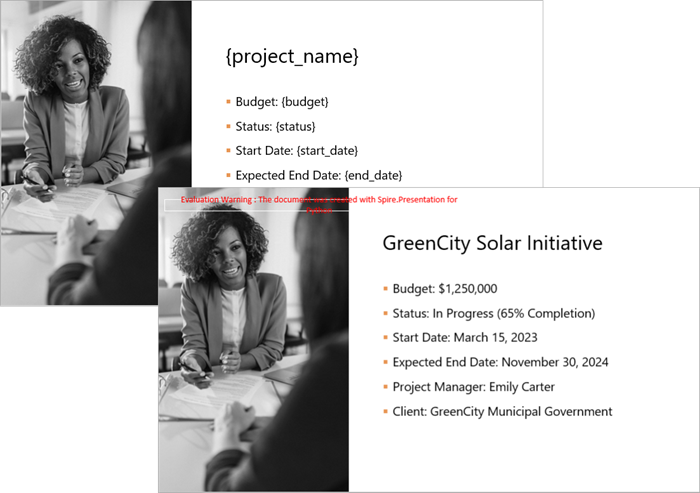
Using templates can simplify the process of creating presentations by allowing you to replace placeholders with actual data. Below is an example of how to create a PowerPoint document based on a template:
from spire.presentation.common import *
from spire.presentation import *

# Create a Presentation object
presentation = Presentation()

# Load a PowerPoint document from a specified file path
presentation.LoadFromFile("C:\\Users\\Administrator\\Desktop\\template.pptx")

# Get a specific slide from the presentation
slide = presentation.Slides[0]

# Define a list of replacements where each tuple consists of the placeholder and its corresponding replacement text
replacements = [
    ("{project_name}", "GreenCity Solar Initiative"),
    ("{budget}", "$1,250,000"),
    ("{status}", "In Progress (65% Completion)"),
    ("{start_date}", "March 15, 2023"),
    ("{end_date}", "November 30, 2024"),
    ("{manager}", "Emily Carter"),
    ("{client}", "GreenCity Municipal Government")
]

# Iterate through each replacement pair
for old_string, new_string in replacements:

    # Replace the first occurrence of the old string in the slide with the new string
    slide.ReplaceFirstText(old_string, new_string, False)

# Save the modified presentation to a new file
presentation.SaveToFile("Template-Based.pptx", FileFormat.Pptx2019)
presentation.Dispose()
In this code:
- LoadFromFile() : Loads an existing PowerPoint file that serves as the template.
- ReplaceFirstText() : Replaces placeholders within the slide with actual values. This is useful for dynamic content generation.
- SaveToFile() : Saves the modified presentation as a new file.
Output:
5. Best Practices for Python PowerPoint Generation
When creating PowerPoint presentations using Python, consider the following best practices:
- Maintain Consistency : Ensure that the formatting (fonts, colors, styles) is consistent across slides for a professional appearance.
- Modular Code: Break document generation into functions (e.g., add_list(), insert_image()) for reusability.
- Optimize Images : Resize and compress images before adding them to presentations to reduce file size and improve loading times.
- Use Templates : Whenever possible, use templates to save time and maintain a cohesive design.
- Test Your Code : Always test your presentation generation code to ensure that all elements are added correctly and appear as expected.
6. Wrap Up
In this tutorial, we explored how to create PowerPoint documents in Python using the Spire.Presentation library. We covered the installation, creation of presentations from scratch, adding various elements, and using templates for dynamic content generation. With these skills, you can automate the creation of presentations, making your workflow more efficient and effective.
7. FAQs
Q1. What is Spire.Presentation?
Spire.Presentation is a powerful library used for creating, reading, and modifying PowerPoint files in various programming languages, including Python.
Q2. Does this library require Microsoft Office to be installed?
No, Spire.Presentation operates independently and does not require Microsoft Office.
Q3. Can I customize the layout of slides in my presentation?
Yes, you can customize the layout of each slide by adjusting properties such as size, background, and the placement of shapes, text, and images.
Q4. Does Spire.Presentation support both PPT and PPTX format?
Yes, Spire.Presentation supports both PPT and PPTX formats, allowing you to create and manipulate presentations in either format.
Q5. Can I add charts to my presentations?
Yes, Spire.Presentation supports the addition of charts to your slides, allowing you to visualize data effectively. For detailed instruction, refer to: How to Create Column Charts in PowerPoint Using Python
Get a Free License
To fully experience the capabilities of Spire.Presentation for Python without any evaluation limitations, you can request a free 30-day trial license.
