
Knowledgebase (2370)
Children categories
Spire.Doc has a powerful function of processing word table such as create and remove word table, set the table column width, style and so on. Spire.Doc also supports to add the table in the middle of the word document. This article will show you how to replace text with table by finding the key text in the word document.
Download and install Spire.Doc for .NET and then add Spire.Doc.dll as reference in the downloaded Bin folder though the below path: "..\Spire.Doc\Bin\NET4.0\ Spire.Doc.dll". Here comes to the details of how to finding the text and then replace it with table in C#.
Check the original word document at first:

Step 1: Create a new document and load from file.
Document doc = new Document();
doc.LoadFromFile("sample.docx");
Step 2: Find the place where you want to replace with table.
Section section = doc.Sections[0];
//"Fortune" as a "key text"
TextSelection selection = doc.FindString("Fortune", true, true);
TextRange range = selection.GetAsOneRange();
Paragraph paragraph = range.OwnerParagraph;
Body body = paragraph.OwnerTextBody;
int index = body.ChildObjects.IndexOf(paragraph);
Step 3: Add a table and set its style.
Table table = section.AddTable(true);
table.ResetCells(3,3);
Step 4: Remove the paragraph and insert the table.
body.ChildObjects.Remove(paragraph);
body.ChildObjects.Insert(index, table);
Step 5: Save the document to file.
doc.SaveToFile("Result.docx", FileFormat.Docx);
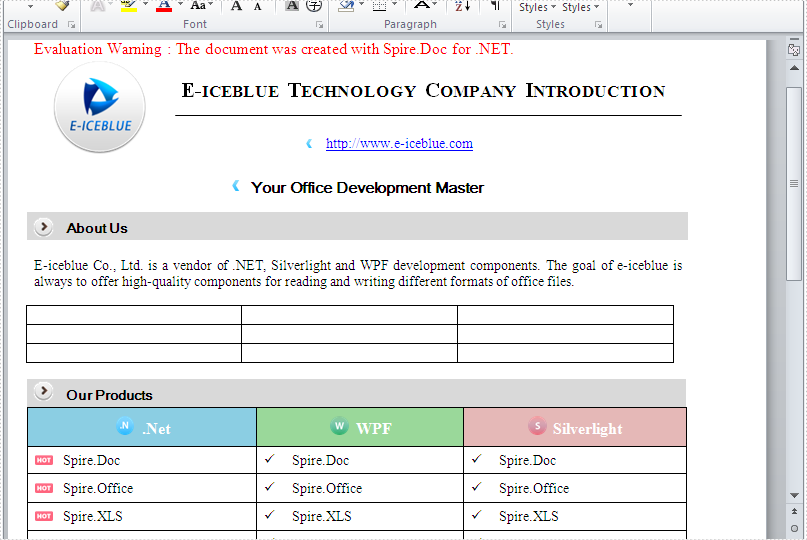
Effective screenshot of add a table in the middle of the word document by replacing the text.
Full codes:
namespace replaceTextwithTable
{
    class Program
    {
        static void Main(string[] args)
        {

            Document doc = new Document();
            doc.LoadFromFile("sample.docx");
            Section section = doc.Sections[0];
            TextSelection selection = doc.FindString("Fortune", true, true);
            TextRange range = selection.GetAsOneRange();
            Paragraph paragraph = range.OwnerParagraph;
            Body body = paragraph.OwnerTextBody;
            int index = body.ChildObjects.IndexOf(paragraph);
            Table table = section.AddTable(true);
            table.ResetCells(3,3);
            body.ChildObjects.Remove(paragraph);
             body.ChildObjects.Insert(index, table);
            doc.SaveToFile("Result.docx", FileFormat.Docx);
        }
    }
}
Usually we need to display different text and message to our readers based on the different conditions. In such situation, we need to create if field to decide which result to be displayed to readers. This article focuses on show you how to create an IF Field in C# with the help of Spire.Doc for .NET. We use the IF field and MERGEFIELD field together.
{IF { MERGEFIELD Count } > "100" "Thanks" "The minimum order is 100 units"}
Step 1: Create a new word document.
Document document = new Document();
Step 2: Add a new section for the document.
Section section = document.AddSection();
Step 3: Add a new paragraph for the section.
Paragraph paragraph = section.AddParagraph();
Step 4: Define a method of creating an IF Field.
CreateIfField(document, paragraph);
Step 5: Define merged data.
string[] fieldName = {"Count"};
string[] fieldValue = { "2" };
Step 6: Merge data into the IF Field.
document.MailMerge.Execute(fieldName, fieldValue);
Step 7: Update all fields in the document.
document.IsUpdateFields = true;
Step 8: Save the document to file.
document.SaveToFile("sample.docx", FileFormat.Docx);
The following CreateIfField() method shows how to create the IF Field like:
{IF { MERGEFIELD Count } > "100" "Thanks" " The minimum order is 100 units "}
static void CreateIfField(Document document, Paragraph paragraph)
{
IfField ifField = new IfField(document);
ifField.Type = FieldType.FieldIf;
ifField.Code = "IF ";
paragraph.Items.Add(ifField);

paragraph.AppendField("Count",FieldType.FieldMergeField);
paragraph.AppendText(" > ");
paragraph.AppendText("\"100\" ");
paragraph.AppendText("\"Thanks\" ");
paragraph.AppendText("\"The minimum order is 100 units\"");

IParagraphBase end = document.CreateParagraphItem(ParagraphItemType.FieldMark);
(end as FieldMark).Type = FieldMarkType.FieldEnd;
paragraph.Items.Add(end);
ifField.End = end as FieldMark;
}
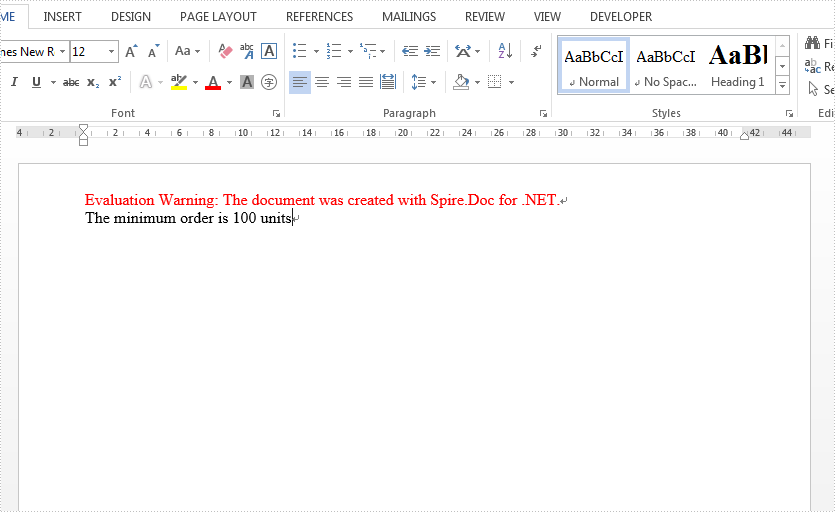
Check the effective screenshot as below:
Full Code:
using Spire.Doc;
using Spire.Doc.Documents;
using Spire.Doc.Fields;
using Spire.Doc.Interface;
namespace CreatIF
{
    class Program
    {
        static void Main(string[] args)
        {
            Document document = new Document();
            Section section = document.AddSection();
            Paragraph paragraph = section.AddParagraph();
            CreateIfField(document, paragraph);
            string[] fieldName = { "Count" };
            string[] fieldValue = { "2" };

            document.MailMerge.Execute(fieldName, fieldValue);
            document.IsUpdateFields = true;
            document.SaveToFile("sample.docx", FileFormat.Docx);
        }

        static void CreateIfField(Document document, Paragraph paragraph)
        {
            IfField ifField = new IfField(document);
            ifField.Type = FieldType.FieldIf;
            ifField.Code = "IF ";
            paragraph.Items.Add(ifField);
            paragraph.AppendField("Count", FieldType.FieldMergeField);
            paragraph.AppendText(" > ");
            paragraph.AppendText("\"100\" ");
            paragraph.AppendText("\"Thanks\" ");
            paragraph.AppendText("\"The minimum order is 100 units\"");
            IParagraphBase end = document.CreateParagraphItem(ParagraphItemType.FieldMark);
            (end as FieldMark).Type = FieldMarkType.FieldEnd;
            paragraph.Items.Add(end);
            ifField.End = end as FieldMark;
        }

    }
}
The task of searching for specific text within a PDF document and highlighting it serves as a valuable function across various situations. Whether you aim to find critical information, make annotations on significant details, or extract specific content, the capability to locate and highlight text within a PDF significantly enhances productivity and understanding.
This article provides guidance on how to effectively find and highlight text in a PDF document in C# using Spire.PDF for .NET.
- Find and Highlight Text in a Specific PDF Page in C#
- Find and Highlight Text in a Rectangular Area in C#
- Find and Highlight Text in an Entire PDF Document in C#
- Find and Highlight Text in PDF Using a Regular Expression in C#
Install Spire.PDF for .NET
To begin with, you need to add the DLL files included in the Spire.PDF for.NET package as references in your .NET project. The DLL files can be either downloaded from this link or installed via NuGet.
PM> Install-Package Spire.PDF
Find and Highlight Text in a Specific PDF Page in C#
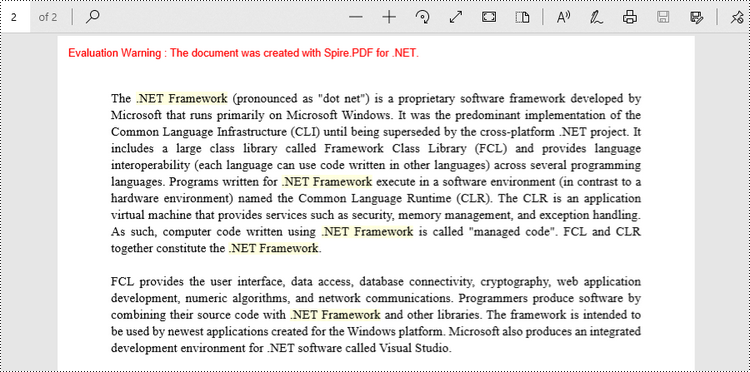
Spire.PDF provides the PdfTextFinder class, which allows users to search for specific text within a page. By utilizing the Options property of this class, users have the ability to define search options such as WholeWord, IgnoreCase, and Regex. When utilizing the Find method of the class, users can locate all occurrences of the searched text within a page.
The following are the steps to find and highlight text in a specific PDF page in C#.
- Create a PdfDocument object.
- Load a PDF file from a given path.
- Get a specific page from the document.
- Create a PdfTextFinder object based on the page.
- Specify search options using PdfTextFinder.Options property.
- Find all instance of searched text using PdfTextFinder.Find() method.
- Iterate through the find results, and highlight each instance using PdfTextFragment.Highlight() method.
- Save the document to a different PDF file.
- C#
using Spire.Pdf;
using Spire.Pdf.Texts;
using System.Drawing;

namespace FindAndHighlightTextInPage
{
    class Program
    {
        static void Main(string[] args)
        {
            // Create a PdfDocument object
            PdfDocument doc = new PdfDocument();

            // Load a PDF file
            doc.LoadFromFile("C:\\Users\\Administrator\\Desktop\\Input.pdf");

            // Get a specific page
            PdfPageBase page = doc.Pages[1];

            // Create a PdfTextFinder object based on the page
            PdfTextFinder finder = new PdfTextFinder(page);

            // Specify the find options
            finder.Options.Parameter = TextFindParameter.WholeWord;
            finder.Options.Parameter = TextFindParameter.IgnoreCase;

            // Find the instances of the specified text
            List<PdfTextFragment> finds = finder.Find(".NET Framework");

            // Iterate through the find results
            foreach (PdfTextFragment fragment in finds)
            {
                // Highlight text
                fragment.HighLight(Color.LightYellow);
            }

            // Save to a different PDF file
            doc.SaveToFile("HighlightTextInPage.pdf", FileFormat.PDF);

            // Dispose resources
            doc.Dispose();
        }
    }
}
Find and Highlight Text in a Rectangular Area in C#
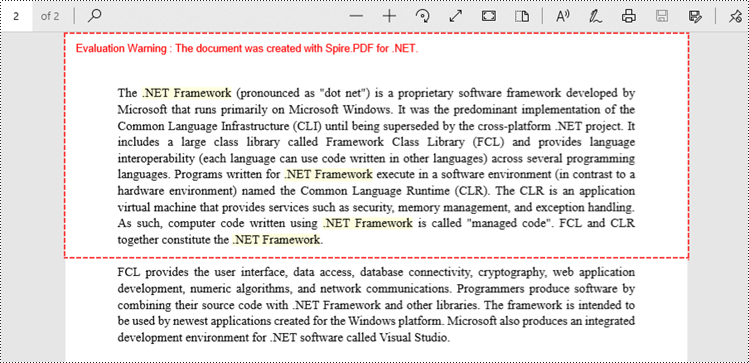
By highlighting text within a rectangular area of a page, users can draw attention to a specific section or piece of information within the document. To specify a rectangular area, you can use the Options.Area property.
The following are the steps to find and highlight text in a rectangular area in C#.
- Create a PdfDocument object.
- Load a PDF file from a given path.
- Get a specific page from the document.
- Create a PdfTextFinder object based on the page.
- Specify a rectangular area to search text using PdfTextFinder.Options.Area property.
- Find all instance of searched text within the rectangular area using PdfTextFinder.Find() method.
- Iterate through the find results, and highlight each instance using PdfTextFragment.Highlight() method.
- Save the document to a different PDF file.
- C#
using Spire.Pdf;
using Spire.Pdf.Texts;
using System.Drawing;

namespace FindAndHighlightTextInRectangularArea
{
    class Program
    {
        static void Main(string[] args)
        {
            // Create a PdfDocument object
            PdfDocument doc = new PdfDocument();

            // Load a PDF file
            doc.LoadFromFile("C:\\Users\\Administrator\\Desktop\\Input.pdf");

            // Get a specific page
            PdfPageBase page = doc.Pages[1];

            // Create a PdfTextFinder object based on the page
            PdfTextFinder finder = new PdfTextFinder(page);

            // Specify a rectangular area for searching text
            finder.Options.Area = new RectangleF(0, 0, 841, 200);

            // Specify other options
            finder.Options.Parameter = TextFindParameter.WholeWord;
            finder.Options.Parameter = TextFindParameter.IgnoreCase;

            // Find the instances of the specified text
            List<PdfTextFragment> finds = finder.Find(".NET Framework");

            // Iterate through the find results
            foreach (PdfTextFragment fragment in finds)
            {
                // Highlight text
                fragment.HighLight(Color.LightYellow);
            }

            // Save to a different PDF file
            doc.SaveToFile("HighlightTextInRectangularArea.pdf", FileFormat.PDF);

            // Dispose resources
            doc.Dispose();
        }
    }
}
Find and Highlight Text in an Entire PDF Document in C#
The initial code example illustrates how to highlight text in a specific page. To extend this functionality and find and highlight text throughout the entire document, you can iterate through each page of the document and sequentially apply the highlighting to the searched text.
The steps to find and highlight text in an entire PDF document using C# are as follows.
- Create a PdfDocument object.
- Load a PDF file from a given path.
- Iterate through each page in the document.
- Create a PdfTextFinder object based on a certain page.
- Specify search options using PdfTextFinder.Options property.
- Find all instance of searched text using PdfTextFinder.Find() method.
- Iterate through the find results, and highlight each instance using PdfTextFragment.Highlight() method.
- Save the document to a different PDF file.
- C#
using Spire.Pdf;
using Spire.Pdf.Texts;
using System.Drawing;

namespace FindAndHighlightTextInDocument
{
    class Program
    {
        static void Main(string[] args)
        {
            // Create a PdfDocument object
            PdfDocument doc = new PdfDocument();

            // Load a PDF file
            doc.LoadFromFile("C:\\Users\\Administrator\\Desktop\\Input.pdf");

            // Iterate through each page of the document
            foreach(PdfPageBase page in doc.Pages){

                // Create a PdfTextFinder object for the current page
                PdfTextFinder finder = new PdfTextFinder(page);

                // Specify the find options
                finder.Options.Parameter = TextFindParameter.WholeWord;
                finder.Options.Parameter = TextFindParameter.IgnoreCase;

                // Find the instances of the specified text
                List<PdfTextFragment> finds = finder.Find(".NET Framework");

                // Iterate through the find results
                foreach (PdfTextFragment fragment in finds)
                {
                    // Highlight text
                    fragment.HighLight(Color.LightYellow);
                }
            }

            // Save to a different PDF file
            doc.SaveToFile("HighlightAll.pdf", FileFormat.PDF);

            // Dispose resources
            doc.Dispose();
        }
    }
}
Find and Highlight Text in PDF Using a Regular Expression in C#
When searching for text in a document, using regular expressions can provide more flexibility and control over the search criteria. To utilize a regular expression, you need to configure the PdfTextFinder.Options.Parameter property to TextFindParameter.Regex, and provide the regular expression pattern as an input to the Find() method.
Here are the steps to find and highlight text in PDF using a regular expression in C#.
- Create a PdfDocument object.
- Load a PDF file from a given path.
- Iterate through each page in the document.
- Create a PdfTextFinder object based on a certain page.
- Set the PdfTextFinder.Options.Parameter property to TextFindParameter.Regex.
- Create a regular expression pattern that matches the specific text patterns you are seeking.
- Find all instance of the searched text using PdfTextFinder.Find() method.
- Iterate through the find results, and highlight each instance using PdfTextFragment.Highlight() method.
- Save the document to a different PDF file.
- C#
using Spire.Pdf;
using Spire.Pdf.Texts;
using System.Drawing;

namespace FindAndHighlightUsingRegularExpression
{
    class Program
    {
        static void Main(string[] args)
        {
            // Create a PdfDocument object
            PdfDocument doc = new PdfDocument();

            // Load a PDF file
            doc.LoadFromFile("C:\\Users\\Administrator\\Desktop\\Input.pdf");

            // Iterate through each page of the document
            foreach (PdfPageBase page in doc.Pages)
            {
                // Create a PdfTextFinder object based on the page
                PdfTextFinder finder = new PdfTextFinder(page);

                // Specify the search model as Regex
                finder.Options.Parameter = TextFindParameter.Regex;

                // Find the text that conforms to a regular expression
                string pattern = @"\bM\w*t\b";
                List<PdfTextFragment> finds = finder.Find(pattern);

                // Iterate through the find results
                foreach (PdfTextFragment fragment in finds)
                {
                    // Highlight text
                    fragment.HighLight(Color.LightYellow);
                }
            }

            // Save to a different PDF file
            doc.SaveToFile("HighlightTextUsingRegex.pdf", FileFormat.PDF);

            // Dispose resources
            doc.Dispose();
        }
    }
}
Apply for a Temporary License
If you'd like to remove the evaluation message from the generated documents, or to get rid of the function limitations, please request a 30-day trial license for yourself.
