
Knowledgebase (2370)
Children categories
Get alias, tag and id of content controls in a Word document in C#
2014-10-11 06:28:55 Written by AdministratorContent controls provide a way for you to design documents. When you add a content control to a document, the control is identified by a border, a title, and temporary text that can provide instructions to the user. According to Microsoft, content controls mainly benefit from two features:
- Prevent users from editing or deleting protected sections of a document.
- Bind parts of a document or template to data. You can bind content controls to database fields, managed objects in the .NET Framework, XML elements that are stored in the document, and other data sources.
Therefore, it is necessary for developers to get the properties of content controls when dealing content controls at run time. This article illustrates how to get all controls and their properties including alias, id and tag via Spire.Doc.
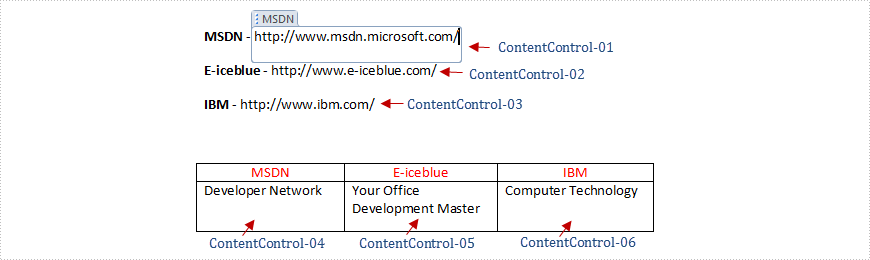
Firstly, check the test file that contains six content controls distributed in lines and a table. By default, the border and the title of the control do not appear if we don't click the protected section.
Test File:
Main Steps:
Step 1: Create a new Word document and load the test file.
Step 2: Create two lists to store tags which are distributed in lines and a table separately. Here, each content control will be identified by tag.
Step 3: Use foreach sentence to get all tags in the Word document.
Full Code:
static void Main(string[] args)
        {
            using (Document document = new Document(@"..\..\TestData\test.docx"))
            {
                StructureTags structureTags = GetAllTags(document);
                List<StructureDocumentTagInline> tagInlines = structureTags.tagInlines;

                string alias = tagInlines[0].SDTProperties.Alias;
                decimal id = tagInlines[0].SDTProperties.Id;
                string tag = tagInlines[0].SDTProperties.Tag;

                List<StructureDocumentTag> tags = structureTags.tags;
                alias = tags[0].SDTProperties.Alias;
                id = tags[0].SDTProperties.Id;
                tag = tags[0].SDTProperties.Tag;

            }
        }
       static StructureTags GetAllTags(Document document)
        {
            StructureTags structureTags = new StructureTags();
            foreach (Section section in document.Sections)
            {
                foreach (DocumentObject obj in section.Body.ChildObjects)
                {
                    if (obj.DocumentObjectType == DocumentObjectType.Paragraph)
                    {
                        foreach (DocumentObject pobj in (obj as Paragraph).ChildObjects)
                        {
                            if (pobj.DocumentObjectType == DocumentObjectType.StructureDocumentTagInline)
                            {
                                structureTags.tagInlines.Add(pobj as StructureDocumentTagInline);
                            }
                        }
                    }
                    else if (obj.DocumentObjectType == DocumentObjectType.Table)
                    {
                        foreach (TableRow row in (obj as Table).Rows)
                        {
                            foreach (TableCell cell in row.Cells)
                            {
                                foreach (DocumentObject cellChild in cell.ChildObjects)
                                {
                                    if (cellChild.DocumentObjectType == DocumentObjectType.StructureDocumentTag)
                                    {
                                        structureTags.tags.Add(cellChild as StructureDocumentTag);
                                    }
                                    else if (cellChild.DocumentObjectType == DocumentObjectType.Paragraph)
                                    {
                                        foreach (DocumentObject pobj in (cellChild as Paragraph).ChildObjects)
                                        {
                                            if (pobj.DocumentObjectType == DocumentObjectType.StructureDocumentTagInline)
                                            {
                                                structureTags.tagInlines.Add(pobj as StructureDocumentTagInline);
                                            }
                                        }
                                    }
                                }
                            }
                        }
                    }
                }
            }
            return structureTags;
        }
        public class StructureTags
           {
               List<StructureDocumentTagInline> m_tagInlines;
               public List<StructureDocumentTagInline> tagInlines
               {
                   get
                   {
                       if (m_tagInlines == null)
                           m_tagInlines = new List<StructureDocumentTagInline>();
                       return m_tagInlines;
                   }
                   set
                   {
                       m_tagInlines = value;
                   }
               }
               List<StructureDocumentTag> m_tags;
               public List<StructureDocumentTag> tags
               {
                   get
                   {
                       if (m_tags == null)
                           m_tags = new List<StructureDocumentTag>();
                       return m_tags;
                   }
                   set
                   {
                       m_tags = value;
                   }
               }
           }
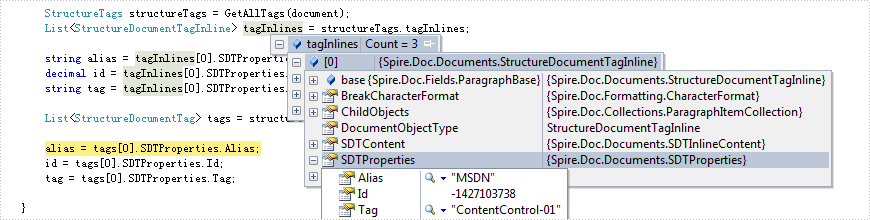
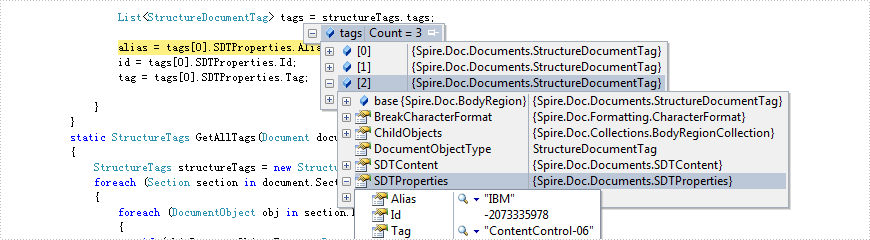
Effect Screenshot:
Content controls in lines
Content controls in table
As a powerful PDF component, Spire.PDF supports to work with page setting for PDF well, such as set PDF properties, view preference, and set background color etc. This article will focus on show you how to add image as page background to an existing PDF file in C#.
Make sure Spire.PDF for .NET has been installed correctly and then add Spire.Pdf.dll as reference in the downloaded Bin folder though the below path: "..\Spire.Pdf\Bin\NET4.0\ Spire.Pdf.dll".
Firstly, check the original PDF file without background image.

The following code snippet shows you how to add image as background for PDF in C#.
Step 1: Create a PDF document and load from file.
PdfDocument doc = new PdfDocument();
doc.LoadFromFile("sample.pdf");
Step 2: Get the first page in PDF file
PdfPageBase page = doc.Pages[0];
Step 3: Load the image from file and set it as background image.
Image backgroundImage = Image.FromFile("background.png");
page.BackgroundImage = backgroundImage;
Step 4: Save the document to file and launch it.
doc.SaveToFile("result.pdf");
System.Diagnostics.Process.Start("result.pdf");
Effective Screenshot:

Full Codes:
using Spire.Pdf;
using System.Drawing;

namespace Addimagebackground
{
    class Program
    {
        static void Main(string[] args)
        {
            PdfDocument doc = new PdfDocument();
            doc.LoadFromFile("sample.pdf");
            PdfPageBase page = doc.Pages[0];
            Image backgroundImage = Image.FromFile("background.png");
            page.BackgroundImage = backgroundImage;
            doc.SaveToFile("result.pdf");
            System.Diagnostics.Process.Start("result.pdf");
        }
    }
}
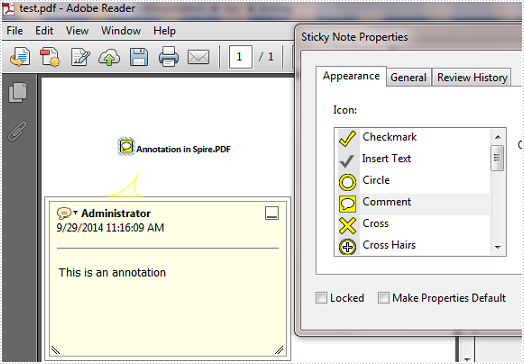
Text annotation is frequently used in PDF for creating a comment or explaining more about an item. Using Spire.PDF you can create a text mark-up annotation, edit an existing annotation and delete specified or all annotations. This article is aimed to demonstrate how to modify and format an existing text annotation in a PDF document.
Test File:
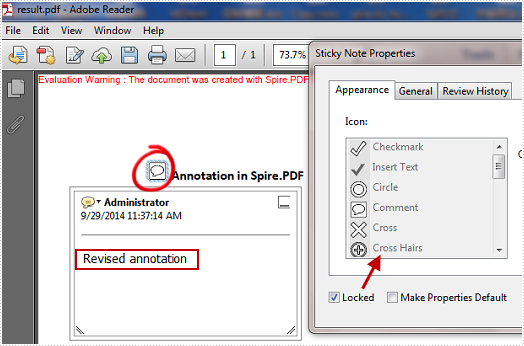
Changes we want to make:
- Modify the annotation text.
- Change the color of the annotation icon.
- Fix the annotation flag including its position, color, and type.
Code Snippet
Step 1: Create a new PDF document and load the test file.
PdfDocument pdf = new PdfDocument("test.pdf");
Step 2: Get the annotation from the document.
PdfAnnotation annotation = pdf.Pages[0].Annotations[0];
Step 3: Set the text, border, color of the annotation and lock the annotation flag.
annotation.Text = "Revised annotation";
annotation.Border = new PdfAnnotationBorder(0.75f);
annotation.Color = new PdfRGBColor(Color.White);
annotation.Flags = PdfAnnotationFlags.Locked;
Step 4: Save and launch the file.
pdf.SaveToFile("result.pdf");
Process.Start("result.pdf");
Target Effect:
Full Code:
using Spire.Pdf;
using Spire.Pdf.Annotations;
using Spire.Pdf.Graphics;
using System.Diagnostics;
using System.Drawing;

namespace ModifyAndFormatAnnotation
{
    class Program
    {
        static void Main(string[] args)
        {
            PdfDocument pdf = new PdfDocument("test.pdf");
            PdfAnnotation annotation = pdf.Pages[0].Annotations[0];

            annotation.Text = "Revised annotation";
            annotation.Border = new PdfAnnotationBorder(0.75f);
            annotation.Color = new PdfRGBColor(Color.White);
            annotation.Flags = PdfAnnotationFlags.Locked;

            pdf.SaveToFile("result.pdf");
            Process.Start("result.pdf");
        }

    }
}
Imports Spire.Pdf
Imports Spire.Pdf.Annotations
Imports Spire.Pdf.Graphics
Imports System.Diagnostics
Imports System.Drawing

Namespace ModifyAndFormatAnnotation
	Class Program
		Private Shared Sub Main(args As String())
			Dim pdf As New PdfDocument("test.pdf")
			Dim annotation As PdfAnnotation = pdf.Pages(0).Annotations(0)

			annotation.Text = "Revised annotation"
			annotation.Border = New PdfAnnotationBorder(0.75F)
			annotation.Color = New PdfRGBColor(Color.White)
			annotation.Flags = PdfAnnotationFlags.Locked

			pdf.SaveToFile("result.pdf")
			Process.Start("result.pdf")
		End Sub

	End Class
End Namespace
