
Knowledgebase (2370)
Children categories
Spire.XLS for .NET is a professional Excel component which enables developers/programmers to fast generate, read, write and modify Excel document for .NET. Spire.XLS for .NET doesn't need Microsoft Office Excel Automation. It allows user to operate Excel document directly such as save to stream, save as web response, copy, lock/unlock worksheet, set up workbook properties, etc. As a professional .NET Excel component, it also includes many useful features, for example, functionalities of importing data from Excel to dataTable and exporting dataTable to Excel from Database.
In this article introduces a method of updating excel data by dataTable via using sheet.ExportDataTable() method and sheet.InsertDataTable() method to import data from excel to dataTable and export dataTable to excel from Database.
The main steps of method are:
Step 1: Load the excel document and use sheet.ExportDataTable() method extract data to dataTable and show by dataGridView control.
private void Form1_Load(object sender, EventArgs e)
        {
            //load excel document to workbook
            workbook.LoadFromFile(@"DatatableSample.xls");
            Worksheet sheet = workbook.Worksheets[0];
            sheet.Name = "Original table";
            //extract data to dataTable from sheet
            DataTable dataTable = sheet.ExportDataTable();
            //show the data to dataGridView
            this.dataGridView.DataSource = dataTable;
        }
The effect screenshot:

Step 2: Create a new sheet to save the updata data and use sheet.InsertDataTable() method to insert dataTable to the sheet.
            //create a new sheet to save Updata data.
            Worksheet sheet = workbook.CreateEmptySheet("Updata Table");
            //extract data from dataGridView
            DataTable dataTable = this.dataGridView.DataSource as DataTable;
            // insert dataTable to sheet
            sheet.InsertDataTable(dataTable, true, 1, 1);
Step 3: Save the result excel document.
workbook.SaveToFile("result.xlsx", ExcelVersion.Version2007);
The effect screenshot:

Download and install Spire.XLS for .NET and use below code to experience this method to update excel data by dataTable.
The full code:
using System;
using System.Data;
using System.Windows.Forms;
using Spire.Xls;
namespace UpdataExcelDataByDataTable
{

    public partial class UpdataExcelData : Form
    {
        private Workbook workbook = new Workbook();
        private void Form1_Load(object sender, EventArgs e)
        {
            workbook.LoadFromFile(@"DatatableSample.xls");
            Worksheet sheet = workbook.Worksheets[0];
            sheet.Name = "Original table";
            DataTable dataTable = sheet.ExportDataTable();
            this.dataGridView.DataSource = dataTable;
        }
        private void Updata_Click(object sender, EventArgs e)
        {
            Worksheet sheet = workbook.CreateEmptySheet("Updata Table");
            DataTable dataTable = this.dataGridView.DataSource as DataTable;
            sheet.InsertDataTable(dataTable, true, 1, 1);
            workbook.SaveToFile("result.xlsx", ExcelVersion.Version2007);
            System.Diagnostics.Process.Start("result.xlsx");
        }
    }
}
Imports System.Data
Imports System.Windows.Forms
Imports Spire.Xls
Public Class Form1
    Private workbook As New Workbook()
    Private Sub Form1_Load(sender As System.Object, e As System.EventArgs) Handles MyBase.Load
        'load excel document to workbook
        workbook.LoadFromFile("DatatableSample.xls")
        Dim sheet As Worksheet = workbook.Worksheets(0)
        sheet.Name = "Original table"
        'extract data to dataTable from sheet
        Dim dataTable As DataTable = sheet.ExportDataTable()
        'show the data to dataGridView
        Me.DataGridView.DataSource = dataTable
    End Sub
If you couldn't successfully use the Spire.Xls, please refer Spire.XLS Quick Start which can guide you quickly use the Spire.Xls.
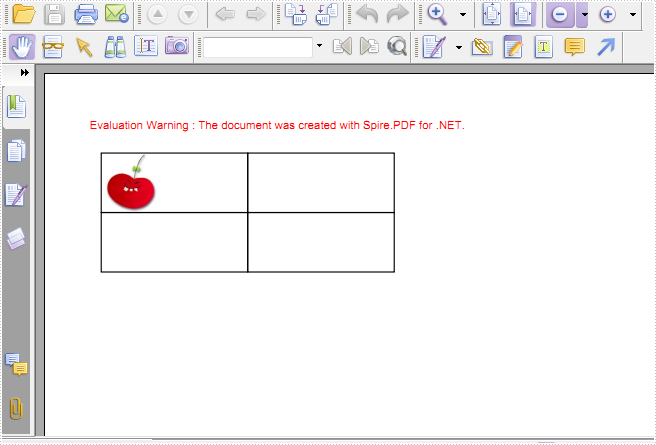
This sample demo has demonstrated how to draw nested grid in PDF document and set grid row&cell format. In the following section, we are going to create a simple PDF grid and show you how to insert an image to a specific PDF grid cell in C#. Before we can follow the code snippet below to accomplish the task, we have to prepare the environment first.
Download Spire.PDF and install it on system, create or open a .NET class application in Visual Studio 2005 or above versions, add Spire.PDF.dll to your .NET project assemblies.Then let's code step by step to make a better understanding about the whole procedure.
Step 1: Create a PDF document and add a new page.
PdfDocument doc = new PdfDocument();
PdfPageBase page = doc.Pages.Add();
Step 2: Create a 2×2 grid to PDF.
PdfGrid grid = new PdfGrid();
PdfGridRow row = grid.Rows.Add();
           row = grid.Rows.Add();
                 grid.Columns.Add(2);
Step 3: Set the cell padding of the PDF grid.
grid.Style.CellPadding = new PdfPaddings(1, 1, 1, 1);
Step 4: Set the width of the columns.
float width = page.Canvas.ClientSize.Width - (grid.Columns.Count + 1);
      grid.Columns[0].Width = width * 0.25f;
      grid.Columns[1].Width = width * 0.25f;
Step 5: Load an image from disk.
PdfGridCellContentList lst = new PdfGridCellContentList();
PdfGridCellContent textAndStyle = new PdfGridCellContent();
textAndStyle.Image = PdfImage.FromFile("..\\..\\image1.jpg");
Step 6: Set the size of image and insert it to the first cell.
textAndStyle.ImageSize = new SizeF(50, 50);
lst.List.Add(textAndStyle);

grid.Rows[0].Cells[0].Value = lst;
grid.Rows[1].Height = grid.Rows[0].Height;
Step 7: Draw PDF grid into page at the specific location.
PdfLayoutResult result = grid.Draw(page, new PointF(10, 30));
Step 8: Save to a PDF file and launch the file.
doc.SaveToFile(outputFile, FileFormat.PDF);
System.Diagnostics.Process.Start(outputFile);
Result:
Full C# Code:
using Spire.Pdf;
using Spire.Pdf.Graphics;
using Spire.Pdf.Grid;
using System.Drawing;

namespace InsertImage
{
    class Program
    {
        static void Main(string[] args)
        {
            string outputFile = @"..\..\output.pdf";
            //Create a pdf document
            PdfDocument doc = new PdfDocument();
            //Add a page for the pdf document
            PdfPageBase page = doc.Pages.Add();
            //Create a pdf grid
            PdfGrid grid = new PdfGrid();
            //Set the cell padding of pdf grid
            grid.Style.CellPadding = new PdfPaddings(1, 1, 1, 1);
            //Add a row for pdf grid
            PdfGridRow row = grid.Rows.Add();
            //Add two columns for pdf grid
            grid.Columns.Add(2);
            float width = page.Canvas.ClientSize.Width - (grid.Columns.Count + 1);
            //Set the width of the first column
            grid.Columns[0].Width = width * 0.25f;
            grid.Columns[1].Width = width * 0.25f;
            //Add a image
            PdfGridCellContentList lst = new PdfGridCellContentList();
            PdfGridCellContent textAndStyle = new PdfGridCellContent();
            textAndStyle.Image = PdfImage.FromFile("..\\..\\image1.jpg");
            //Set the size of image
            textAndStyle.ImageSize = new SizeF(50, 50);
            lst.List.Add(textAndStyle);
            //Add a image into the first cell.
            row.Cells[0].Value = lst;
            //Draw pdf grid into page at the specific location
            PdfLayoutResult result = grid.Draw(page, new PointF(10, 30));
            //Save to a pdf file
            doc.SaveToFile(outputFile, FileFormat.PDF);
            System.Diagnostics.Process.Start(outputFile);
        }
    }
}
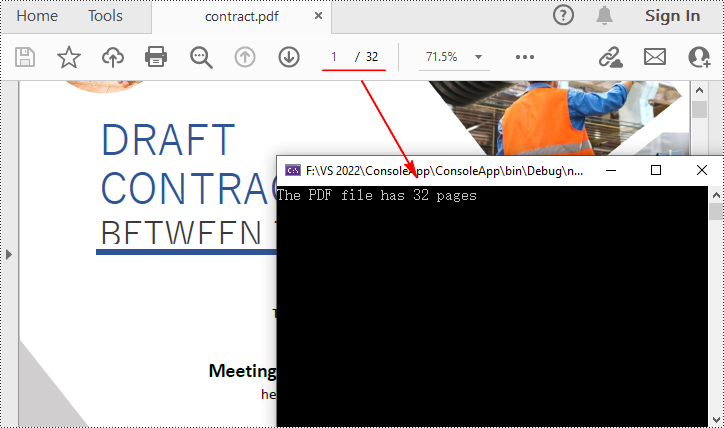
Counting the number of pages in a PDF file is essential for various purposes, such as determining document length, organizing content, and evaluating printing requirements. Apart from knowing page count information using PDF viewers, you can also automate the task through programming. In this article, you will learn how to use C# to get the number of pages in a PDF file using Spire.PDF for .NET.
Install Spire.PDF for .NET
To begin with, you need to add the DLL files included in the Spire.PDF for .NET package as references in your .NET project. The DLL files can be either downloaded from this link or installed via NuGet.
PM> Install-Package Spire.PDF
Get the Number of Pages in a PDF File in C#
Spire.PDF for .NET offers the PdfDocument.Pages.Count property to quickly count the number of pages in a PDF file without opening it. The following are the detailed steps.
- Create a PdfDocument object.
- Load a sample PDF file using PdfDocument.LoadFromFile() method.
- Count the number of pages in the PDF file using PdfDocument.Pages.Count property.
- Output the result and close the PDF.
- C#
using Spire.Pdf;

namespace GetNumberOfPages
{
    class Program
    {
        static void Main(string[] args)
        {
            //Create a PdfDocument object
            PdfDocument pdf = new PdfDocument();

            //Load a sample PDF file
            pdf.LoadFromFile("Contract.pdf");

            //Count the number of pages in the PDF
            int PageNumber = pdf.Pages.Count;
            Console.WriteLine("The PDF file has {0} pages", PageNumber);

            //Close the PDF
            pdf.Close();
        }
    }
}
Apply for a Temporary License
If you'd like to remove the evaluation message from the generated documents, or to get rid of the function limitations, please request a 30-day trial license for yourself.
