
Knowledgebase (2370)
Children categories
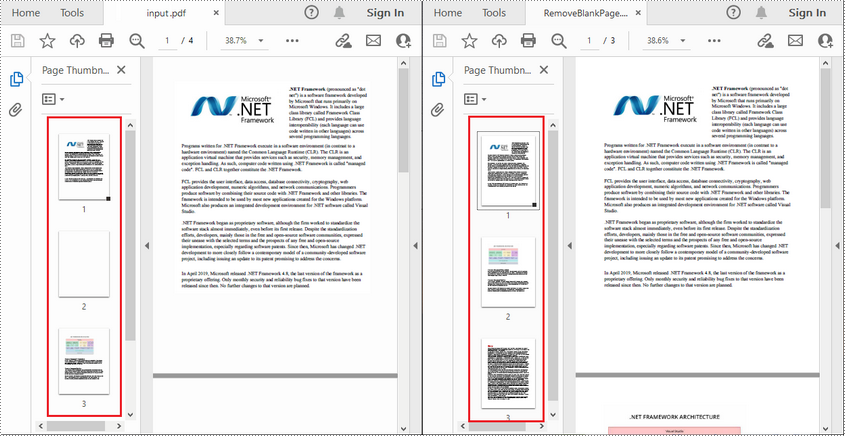
Blank pages in PDFs are not uncommon to find because they may have been left intentionally by the author or added accidentally when manipulating documents. These blank pages can be annoying when you are reading or printing the document, so it may be quite necessary to remove them. In this article you will learn how to programmatically find and remove blank pages from PDF documents using Spire.PDF for .NET.
Install Spire.PDF for .NET
To begin with, you need to add the DLL files included in the Spire.PDF for.NET package as references in your .NET project. The DLLs files can be either downloaded from this link or installed via NuGet.
PM> Install-Package Spire.PDF
Find and Delete Blank Pages from a PDF Document
Spire.PDF for .NET provides a method PdfPageBase.IsBlank() to detect if a PDF page is absolutely blank. But some pages that look blank actually contain white images, these pages won't be deemed as blank using the PdfPageBase.IsBlank() method. Therefore, it is necessary to create a custom method IsImageBlank() to be used in conjunction with PdfPageBase.IsBlank() method to detect these white but non-blank pages.
Note: This solution will convert PDF pages into images and detect if an image is blank. It is necessary to apply a license to remove the evaluation message in the converted images. Otherwise, this method won't work properly. If you do not have a license, contact sales@e-iceblue.com for a temporary one for evaluation purpose.
The detailed steps are as follows:
- Create a PdfDocument instance.
- Load a PDF document using PdfDocument.LoadFromFile() method.
- Loop through the pages in the PDF document to detect if the pages are blank using PdfPageBase.IsBlank() method.
- For absolutely blank pages, delete them using PdfDocument.Pages.RemoveAt() method.
- For pages that are not absolutely blank, save them as images using PdfDocument.SaveAsImage() method. Then detect if the converted images are blank using custom method IsImageBlank() and remove the pages that are "blank" using PdfDocument.Pages.RemoveAt() method.
- Save the result document using PdfDocument.SaveToFile() method.
- C#
- VB.NET
using Spire.Pdf;
using Spire.Pdf.Graphics;
using System.Drawing;

namespace DeleteBlankPage
{
    class Program
    {
        static void Main(string[] args)
        {
            //Apply license by license key
            Spire.Pdf.License.LicenseProvider.SetLicenseKey("your license key");

            //Create a PdfDocument instance
            PdfDocument document = new PdfDocument();

            //Load a sample PDF document
            document.LoadFromFile("input.pdf");

            //Loop through all pages in the PDF
            for (int i = document.Pages.Count - 1; i >= 0; i--)
            {
                //Detect if a page is blank
                if (document.Pages[i].IsBlank())
                {
                    //Remove the absolutely blank page
                    document.Pages.RemoveAt(i);
                }
                else
                {
                    //Save PDF page as image
                    Image image = document.SaveAsImage(i, PdfImageType.Bitmap);

                    //Detect if the converted image is blank
                    if (IsImageBlank(image))
                    {
                        //Remove the page
                        document.Pages.RemoveAt(i);
                    }
                }
            }

            //Save the result document
            document.SaveToFile("RemoveBlankPage.pdf", FileFormat.PDF);
        }

        //Detect if an image is blank
        public static bool IsImageBlank(Image image)
        {
            Bitmap bitmap = new Bitmap(image);
            for (int i = 0; i < bitmap.Width; i++)
            {
                for (int j = 0; j < bitmap.Height; j++)
                {
                    Color pixel = bitmap.GetPixel(i, j);
                    if (pixel.R < 240 || pixel.G < 240 || pixel.B < 240)
                    {
                        return false;
                    }
                }
            }
            return true;
        }
    }
}
Apply for a Temporary License
If you'd like to remove the evaluation message from the generated documents, or to get rid of the function limitations, please request a 30-day trial license for yourself.
Images are one of the most common elements in PowerPoint presentations. There may be times when you need to extract images from specific presentation slides or from an entire presentation, for example, when you want to reuse those images in another presentation. In this article, you will learn how to extract images from PowerPoint presentations in C# and VB.NET using Spire.Presentation for .NET library.
- Extract Images from an Entire Presentation in C# and VB.NET
- Extract Images from a Specific Presentation Slide in C# and VB.NET
Install Spire.Presentation for .NET
To begin with, you need to add the DLL files included in the Spire.Presentation for.NET package as references in your .NET project. The DLL files can be either downloaded from this link or installed via NuGet.
PM> Install-Package Spire.Presentation
Extract Images from an Entire Presentation in C# and VB.NET
To extract images from an entire PowerPoint presentation, you need to use the Presentation.Images property to get the collection of all the images in the presentation, then iterate through the collection and call ImageCollection[int].Image.Save() method to save each image to an image file. The following are the detailed steps:
- Initialize an instance of the Presentation class.
- Load a PowerPoint presentation using Presentation.LoadFromFile() method.
- Get the collection of all the images in the presentation through Presentation.Images property.
- Iterate through the collection, and call ImageCollection[int].Image.Save() method to save the images in the collection to image files.
- C#
- VB.NET
using Spire.Presentation;
using Spire.Presentation.Collections;
using System.Drawing;

namespace ExtractImagesFromPresentation
{
    internal class Program
    {
        static void Main(string[] args)
        {
            //Initialize an instance of the Presentation class
            Presentation ppt = new Presentation();
            //Load a PowerPoint presentation
            ppt.LoadFromFile(@"Template.pptx");

            //Get the image collection of the presentation
            ImageCollection imageCollection = ppt.Images;

            //Iterate through the images in the collection
            for (int i = 0; i < imageCollection.Count; i++)
            {
                //Extract the images
                imageCollection[i].Image.Save(string.Format(@"Presentation\Images{0}.png", i));
            }

            ppt.Dispose();
        }
    }
}

Extract Images from a Specific Presentation Slide in C# and VB.NET
To extract images from a specific slide, you need to iterate through all shapes on the slide, find the shapes that are of SlidePicture or PictureShape type, then use the SlidePicture.PictureFill.Picture.EmbedImage.Image.Save() or PictureShape.EmbedImage.Image.Save() method to save the images to image files. The following are the detailed steps:
- Initialize an instance of the Presentation class.
- Load a PowerPoint presentation using Presentation.LoadFromFile() method.
- Get a specific slide by its index through Presentation.Slides[int] property.
- Iterate through all shapes on the slide.
- Check if the shapes are of SlidePicture or PictureShape type. If the result is true, save the images to image files using SlidePicture.PictureFill.Picture.EmbedImage.Image.Save() or PictureShape.EmbedImage.Image.Save() method.
- C#
- VB.NET
using Spire.Presentation;

namespace ExtractImagesFromSlide
{
    internal class Program
    {
        static void Main(string[] args)
        {
            //Initialize an instance of the Presentation class
            Presentation ppt = new Presentation();
            //Load a PowerPoint presentation
            ppt.LoadFromFile(@"Template4.pptx");

            //Get the first slide
            ISlide slide = ppt.Slides[0];

            int i = 0;
            //Iterate through all shapes on the first slide
            foreach (IShape s in slide.Shapes)
            {
                //Check if the shape is of SlidePicture type
                if (s is SlidePicture)
                {
                    //Extract the image
                    SlidePicture ps = s as SlidePicture;
                    ps.PictureFill.Picture.EmbedImage.Image.Save(string.Format(@"Slide\Images{0}.png", i));
                    i++;
                }
                //Check if the shape is of PictureShape type
                if (s is PictureShape)
                {
                    //Extract the image
                    PictureShape ps = s as PictureShape;
                    ps.EmbedImage.Image.Save(string.Format(@"Slide\Images{0}.png", i));
                    i++;
                }
            }
        }
    }
}

Apply for a Temporary License
If you'd like to remove the evaluation message from the generated documents, or to get rid of the function limitations, please request a 30-day trial license for yourself.
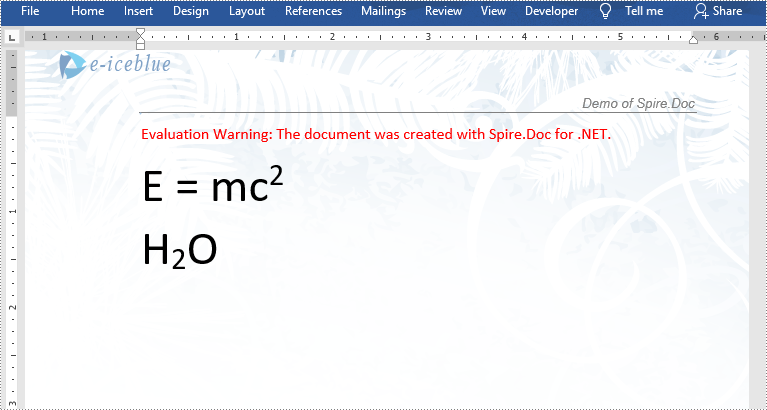
Superscripts or subscripts are characters positioned slightly above or below the normal line of text. They are commonly used in scientific formulas such as mathematical equations or chemical expressions. If you are creating a document containing scientific formulas, you most likely need to insert superscripts or subscripts. In this article, we will demonstrate how to insert superscripts and subscripts into Word in C# and VB.NET using Spire.Doc for .NET library.
Install Spire.Doc for .NET
To begin with, you need to add the DLL files included in the Spire.Doc for.NET package as references in your .NET project. The DLL files can be either downloaded from this link or installed via NuGet.
PM> Install-Package Spire.Doc
Insert Superscripts and Subscripts into Word using C# and VB.NET
The following are the main steps to insert a superscript or subscript into a Word document using Spire.Doc for .NET:
- Create a Document instance.
- Load a Word document using Document.LoadFromFile() method.
- Get the specific section through Document.Sections[sectionIndex] property.
- Add a paragraph to the section using Section.AddParagraph() method.
- Add normal text to the paragraph using Paragraph.AppendText() method.
- Add superscript or subscript text to the paragraph using Paragraph.AppendText() method.
- Apply superscript or subscript formatting to the superscript or subscript text through TextRange.CharacterFormat.SubSuperScript property.
- Save the result document using Document.SaveToFile() method.
- C#
- VB.NET
using Spire.Doc;
using Spire.Doc.Documents;
using Spire.Doc.Fields;

namespace InsertSuperscriptAndSubscript
{
    class Program
    {
        static void Main(string[] args)
        {
            //Create a Document instance
            Document document = new Document();
            //Load a Word document
            document.LoadFromFile("Sample.docx");

            //Get the first section
            Section section = document.Sections[0];

            //Add a paragraph to the section
            Paragraph paragraph = section.AddParagraph();

            //Add normal text to the paragraph
            paragraph.AppendText("E = mc");
            //Add superscript text to the paragraph
            TextRange superscriptText = paragraph.AppendText("2");
            //Apply superscript formatting to the superscript text
            superscriptText.CharacterFormat.SubSuperScript = SubSuperScript.SuperScript;

            //Start a new line
            paragraph.AppendBreak(BreakType.LineBreak);

            //Add normal text to the paragraph
            paragraph.AppendText("H");
            //Add subscript text to the paragraph
            TextRange subscriptText = paragraph.AppendText("2");
            //Apply subscript formatting to the subscript text
            subscriptText.CharacterFormat.SubSuperScript = SubSuperScript.SubScript;
            //Add normal text to the paragraph
            paragraph.AppendText("O");

            //Set font size for the text in the paragraph
            foreach (var item in paragraph.Items)
            {
                if (item is TextRange)
                {
                    TextRange textRange = item as TextRange;
                    textRange.CharacterFormat.FontSize = 36f;
                }
            }

            //Save the result document
            document.SaveToFile("InsertSuperscriptAndSubscript.docx", FileFormat.Docx2013);
        }
    }
}
Apply for a Temporary License
If you'd like to remove the evaluation message from the generated documents, or to get rid of the function limitations, please request a 30-day trial license for yourself.
